28 October 2019

The 6 Best Laptop Power Banks to Recharge Your Computer Anywhere


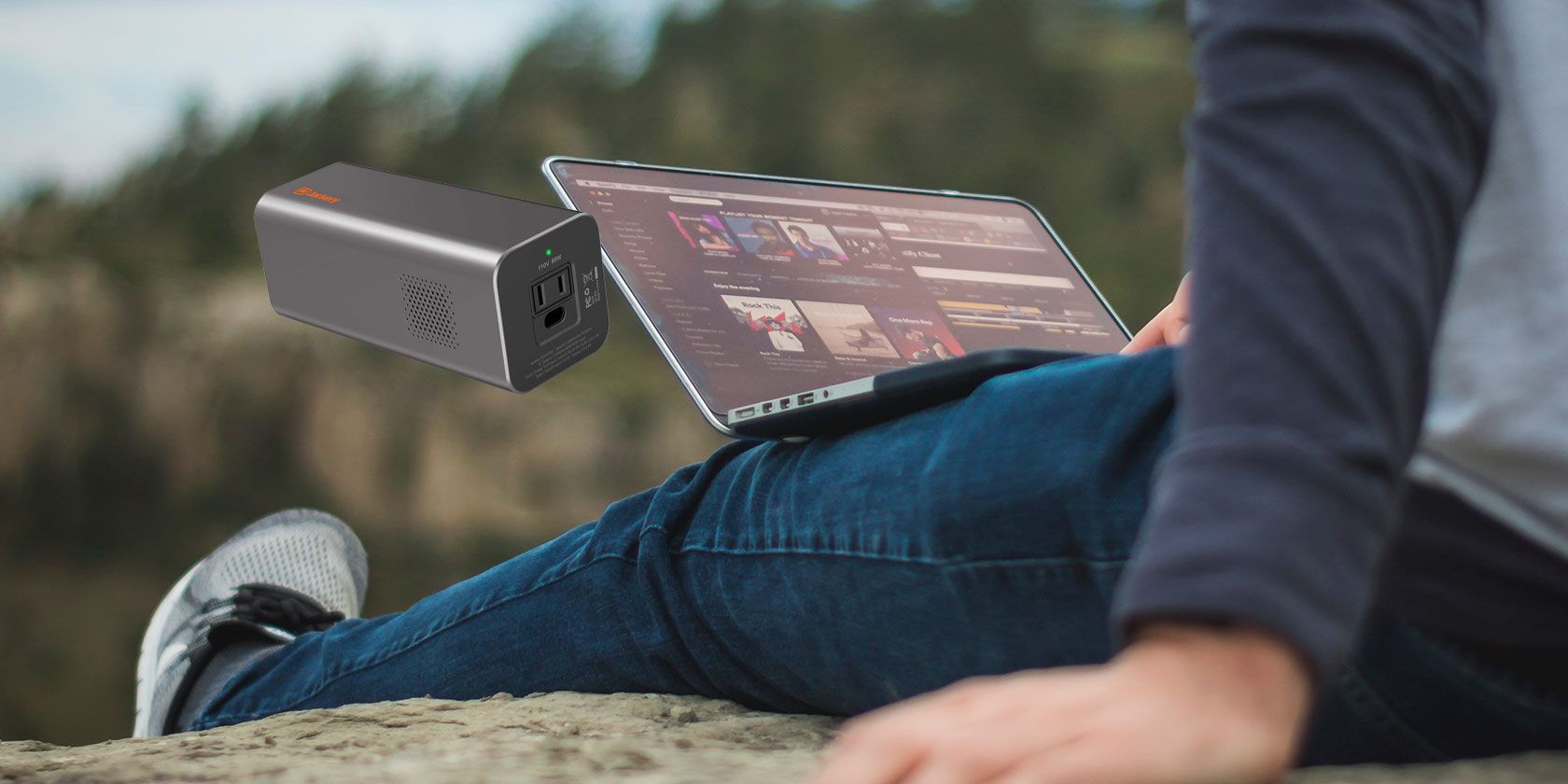
powerbank-laptop

Laptop batteries have a habit of dying at the most inopportune moments. And as everyone knows, a battery with no juice is a sure-fire way to halt your productivity dead in its tracks.

If you’re the type of person who spends a lot of time on the road, it makes sense to keep a portable battery pack handy. They help to ensure that you’re never caught short when you’re away from a socket.

Here are six laptop power banks that can recharge your laptop anywhere.

1. The Best Overall Laptop Power Bank:
Mophie Powerstation AC

Mophie Powerstation AC Mophie Powerstation AC Buy Now On Amazon $199.93

If you want a laptop power bank that can also comfortably charge your other equipment when you’re on-the-go, you should check out the Mophie Powerstation AC. It has an AC socket, a USB-A port, and a USB-C port. It’s arguably the best overall portable laptop charger available today.

It provides 100W of power through a GFCI-protected outlet and offers a three amp current to each connected device. The power bank even supports USB-C PD fast charging. You can connect up to three devices at once.

The Mophie Powerstation AC’s battery size is 22,000mAh. For a typical laptop, it will provide 15 hours of extra battery life. For smartphones, that figure jumps to 100 hours. A DSLR camera will enjoy approximately eight extra hours.

2. The Best Mid-Range Laptop Charger:
RAVPower 27000

RAVPower 27000 RAVPower 27000 Buy Now On Amazon $129.99

Although the Mophie Powerstation AC is the best overall portable laptop charger, it is also one of the most expensive. For a cheaper option, you might consider the RAVPower 27000 instead. It’s not as sleek or refined as the Mophie model, but it will get the job done.

The power pack offers 70W of power and can charge up to three devices simultaneously. You can connect your devices to a standard AC plug, a USB-C connection, or two regular USB connections. At 27,000mAh, the RAVPower’s battery is larger than the Mophie model; it has enough juice to recharge a 12-inch MacBook 1.4 times. A typical smartphone can be recharged roughly eight times.

It takes about five hours to recharge the RAVPower 27000’s battery when it’s completely empty. There are easy-to-see LED indicators so you can see exactly how much power is remaining.

3. Most Stylish Portable Laptop Charger:
NOVOO AC Power Bank

NOVOO AC Power Bank NOVOO AC Power Bank Buy Now On Amazon $76.99

The NOVOO AC Power Bank is a well-designed laptop power bank. It’s ideal for anyone that values stylish tech. The cylindrical design and grey and black color scheme mean it won’t look out of place on your desk, in the office, or when you’re traveling. The device is also small—it’s just 5.8 inches tall and doesn’t have a bulky profile.

The NOVOO model boasts a 22,500mAh battery with 85W of power and 3A current. It has a maximum AC output of 110V-120V and 60Hz. Away from the AC socket, the power bank also has both a USB-C and a USB-A port, so you can use it to charge phones, tablets, and other portables. The unit takes 5.5 hours to charge fully before it is ready to use.

4. Best Laptop Power Bank for Camping:
Jackery Portable Power Station Explorer 500

Jackery Portable Power Station Explorer 500 Jackery Portable Power Station Explorer 500 Buy Now On Amazon $499.00

If you want a power bank that’s considerably beefier than the options we’ve discussed so far, you should consider the Jackery Portable Power Station Explorer 500. It’s ideal for camping trips, long road trips, and other excursions where you know you won’t have access to mains electric.

The unit can supply a mammoth 500W of power and has a 518Wh lithium battery. The 518Wh battery equates to roughly 144,000mAh. It has an AC socket, three USB ports, and a DC carport.

Where the Jackery Portable Power Station Explorer 500 really shines, however, is the recharging options. It will recharge in eight hours when connected to the mains, but you can also recharge it in 16 hours from your car and in 14 hours using the Jackery SolarSaga 100W Solar panel. The solar panel is sold separately and costs around $350.

5. Best Budget Laptop Power Bank:
SinKeu Portable Laptop Charger

SinKeu Portable Laptop Charger SinKeu Portable Laptop Charger Buy Now On Amazon $99.99

If you want value for money, the SinKeu Portable Laptop Charger is a power bank worth considering. It has a 24,000mAh battery and can supply 88.8W of power. There are two USB ports, an AC socket, and a 12V DC connection with a 10A current. The unit takes four hours to recharge when connected to a wall socket. You can also repower the device via a car charger.

Although it’s one of the best budget power banks for laptops, it is also one of the best options for long-distance travel. The device only weighs 1.1 pounds, so it’s easy to throw in your hand luggage and forget that it’s there. Like most of the devices on our list, you can use the SinKeu Portable Laptop Charger to charge up to three devices at once.

6. Best Power Bank for Battery Life:
MAXOAK Laptop Power Bank

MAXOAK Laptop Power Bank MAXOAK Laptop Power Bank Buy Now On Amazon $129.99

Our final pick is the MAXOAK Laptop Power Bank. If having a massive amount of backup battery power is more important to you than the power bank’s weight, this is the device for you.

The 50,000mAh battery can charge a laptop almost three times before it runs out of juice. It also provides 185W of power. The huge battery means it’s an ideal unit for anyone who wants to use their laptop while charging it. Doing so with most power banks would cut their recharging potential in half.

The trade-off is the weight of the unit. At 2.77 pounds, it’s not something you’re going to want to lug around in your bag when you’re on-the-go. 50,000mAh is also well above the safety limit set by most airlines. Other features include six power outputs (one 20V/5A, one 12V/2.5A, and four USB ports) and 14 different laptop power connectors. The power bank will recharge in eight hours.

The Best Laptop Power Banks for You

Portable laptop power banks aren’t the only way to recharge your devices when you’re away from a regular power source.

If you’d like to learn more about Uninterruptable Power Supply (UPS) units, make sure you read our article on the best UPS units you can buy right now.

Read the full article: The 6 Best Laptop Power Banks to Recharge Your Computer Anywhere


Read Full Article

The 7 Best Rugged Chromebook Cases


rugged-cases-chromebook

If you have a Chromebook and travel around a lot, consider protecting it with a rugged case. A rugged Chromebook case will protect it from drops, falls, trips, and shocks. In many cases, a rugged Chromebook case will protect against accidental water exposure, too. What’s not to like?

Here are seven of the best rugged Chromebook cases.

1. Nacuwa Hardshell Protective Case

Nacuwa Hardshell Protective Case Nacuwa Hardshell Protective Case Buy Now On Amazon $28.99

Nacuwa’s Hardshell Protective Case is one of the top-selling rugged Chromebook cases on Amazon. Designed for compatibility with 11 to 11.6-inch Chromebooks, the Nacuwa Hardshell fits an extensive range of hardware, including a 12-inch MacBook.

The Nacuwa Hardshell is made from a toughened EVA material. The case offers strong protection against drop damage, coming with a padded internal lining to cushion any falls. The external shell is also waterproof, protecting it from the elements or an errant cup of coffee. The Nacuwa Hardshell Protective Case also features four internal storage pockets.

Better still, it comes in several sizes. If you have a larger Chromebook, check out the Nacuwa Hardshell 15-inch option instead.

2. UZBL Always-On

UZBL Always On Chromebook Case UZBL Always On Chromebook Case Buy Now On Amazon $28.95

The UZBL Always On rugged Chromebook case will fit a wide range of hardware, covering devices from 11 to 11.6-inches. The case is made of toughened EVA, helping protect your hardware against all types of bumps and knocks. Fortunately, it is waterproof, too.

Setting it apart from other rugged Chromebook cases is the internal mechanism that secures your device. The Always On case features locking corner grips (which give the case its “Always On” name) that keep your Chromebook in place at all times. Locking the laptop in place adds another level of protection against any drops or falls.

Another nice feature of the UZBL Always On is the carry strap and handle. Finally, the case comes with a one-year manufacturer warranty against any manufacturing defects.

3. Cyber Acoustics Work-In Chromebook Case

Cyber Acoustics Work-In Chromebook Case Cyber Acoustics Work-In Chromebook Case Buy Now On Amazon $59.95

The Cyber Acoustics Work-In Chromebook Case is of a similar design to the UZBL Always On. It fits most 11 to 11.6 inch Chromebooks, giving your hardware some welcome external ruggedization. The case is designed with K-12 students in mind.

It has a handy carry strap and handles, while the shell is a rigid armor covered in a rubber-based nylon skin, for extra grip. Handily for parents and educators, each Cyber Acoustics Work-In case features a customizable identity window. It’ll help your kids (and you!) keep track of each Chromebook.

4. CASEMATIX 15.6-Inch

CASEMATIX 15.6-Inch Chromebook Case CASEMATIX 15.6-Inch Chromebook Case Buy Now On Amazon $69.99

The CASEMATIX 15.6-inch solid Chromebook case is a step up in terms of rugged protection. The major differences between this and the other options here come in size, protection, material, and manufacturing. Almost everything, then.

CASEMATIX’s 15.6-inch case is waterproof (not water-resistant, like the other options), airtight via its rubber seal, and can handle a serious drop. Inside the case, your Chromebook has the protection of additional foam to cushion any falls, with extra foam available to secure hardware of different sizes (within reason).

The case uses a briefcase-style design to secure your Chromebook. It also makes it a handy option for passing through airport security or otherwise. Given its size, the CASEMATIX 15.6-inch case suits larger hardware, such as the Chromebook 14 or Chromebook 15.

5. Gumdrop DropTech Case for Dell 3100 Clamshell Chromebook

Gumdrop Droptech Dell 3100 Clamshell Chromebook Case Gumdrop Droptech Dell 3100 Clamshell Chromebook Case Buy Now On Amazon $34.95

This Gumdrop DropTech Case is for the Dell 3100 Clamshell Chromebook. Gumdrop do manufacture an extensive range of rugged Chromebook cases though, primarily for educational instituations and devices. The DropTech Case is made using shock-resistant materials and has a durable silicone bumper to protect edges from jarring drops or bumps.

It is also very lightweight to boot. The DropTech Case for the Dell 3100 Chromebook is designed for specifically for that hardware. All of the charging and USB ports are in the correct location, keeping the device secure and allowing easy and familiar access.

6. IBENZER Bumptect Stay In

IBENZER Bumptect Stay In IBENZER Bumptect Stay In Buy Now On Amazon $24.99

The IBENZER Bumptect Stay In case caters for 13-inch Chromebooks (and 13 to 14-inch MacBooks), providing a lightweight-yet-protective case. The outer shell of the Bumptect case features shockproof materials to protect against unexpected knocks. It also has strengthened corners for additional protection.

Your Chromebook will remain snug in the Bumptect Stay In case using the securable micro clips. Plus, the case exterior is easy to grip, helping to protect against unexpected slippage.

Handily, the case has additional external storage pockets. Used in combination with the shoulder strap or carry handle, the Bumptect Stay In is like a rugged laptop case rather than a simple rugged Chromebook case. But because the case is lightweight, you won’t notice the difference.

7. MAXCases HP G4-Education Edition

MAXCases HP G4-Education Edition MAXCases HP G4-Education Edition Buy Now On Amazon $37.99

Like Gumdrop, MAXCases produce an extensive range of rugged Chromebook cases. This particular model is for the HP G4-Education Edition. It is a custom-molded, lightweight Chromebook case. Even though the case is lightweight, it exceeds military standard drop testing specifications (MIL-STD-810).

With this case, your Chromebook should survive a drop from around half a meter, with extra cushioning coming from the shock-absorbing TPU bumpers. The underside of the case has rubber feet to stop unexpected slipping.

It also has pop-out feet that allow you to raise the case, giving you a better viewing and typing angle. Propping the case up also increases ventilation under your Chromebook, another handy feature. Also, because the MAXCases products are designed for specific Chromebook models, the USB and charging port slots are all in the correct place.

What Is the Best Rugged Chromebook Case?

The specifications for rugged Chromebook cases vary. A rugged Chromebook case should protect your hardware from a fall. It should also offer some water and dust resistance. Keeping the case lightweight is important, too, given most Chromebook models are lightweight to begin with.

To figure out which rugged Chromebook case suits you, think about how you use your Chromebook. Do you carry it freely? A rugged always-in case might best suit you. Does your Chromebook live in your hand, always ready to go? A hard-shell case might be the ideal option for you instead.

Are you just making the switch to a Chromebook? Check out the Chromebook apps you need to replace your desktop favorites to make that switch seamless.

Read the full article: The 7 Best Rugged Chromebook Cases


Read Full Article

How to Return an Item on Amazon and Get Your Money Back


amazon-return-refund

Sometimes it can be tricky to return items that you bought online. Unlike physical shops, there are lots of extra things you need to contend with—shipping costs, packaging, different addresses, even customs checks.

If you want to return an item on Amazon, there are several different things you need to be aware of. Furthermore, the rules change, depending on the type of item you are sending back.

Let’s take a closer look at how to return unwanted purchases on Amazon.

Will Amazon Accept Any Returns?

Although there some exceptions, Amazon lets you return most items within 30 days of the date you received the delivery.

Some of the most notable exceptions include:

  • ebooks (seven days)
  • Baby items (90 days)
  • Gift cards (non-returnable)
  • Grocery items (non-returnable, but refundable/replaceable)
  • Amazon Renewed items (if bought from Amazon you get 90 days rather than 30 days)
  • Handmade items (third-party sellers are not required to accept returns)
  • Collectibles (items above $500 must be insured)
  • Appstore purchases (non-refundable)

Can You Get a Refund From a Third-Party Amazon Seller?

Most third-party sellers on Amazon adhere to the same returns policy like Amazon. Technically, however, they are free to set their own policies. You should always check before completing your purchase.

Regardless of the individual policies, all third-party sellers need to meet two requirements:

  • They must supply a returns address within the United States (for Amazon.com purchases).
  • They must provide a pre-paid returns label or a full refund without requiring you to return the item.

If the two conditions are not met, you can file a dispute through Amazon’s A-to-Z Guarantee process.

How to Request a Refund on Amazon

amazon returns center homepage

Amazon has a dedicated Returns Center that you can use to request refunds on your purchases.

When you fire up the page, you can either choose to return an item you bought or return a gift. If you want to return an item you bought, the site will take you to a list of your purchases from which you can select the merchandise you want to send back. If you want to return a gift, you need to know the order number.

To return one of your purchases, click on Return on replace items alongside the order. If you don’t see the link, it means the return period has expired.

On the next page, you will need to select the reason for your return. Because Amazon has a generous returns policy, there is no right or wrong answer. Be honest about why you are sending the item back; it will not affect your eligibility.

The next window will prompt you to choose whether you want a refund or a replacement. Select your preference as needed.

Lastly, you need to choose how you plan to return the item. The most common method is to ship the item back. However, most people don’t realize that you can also use one of Amazon’s drop-off services or an Amazon Locker facility. In some cases, Amazon will even offer to collect the item from your home.

If you choose the shipping method, you’ll need to print the label and authorization letter, then pack the item in a suitable box. Make sure you take good care with the packing process; if an item is damaged in transit, Amazon will hold you responsible and it may impact your ability to get your money back.

Do You Have to Pay Shipping on Amazon Returns?

amazon returns options list

Amazon’s terms state that you are liable for paying the upfront cost of the return shipment. After Amazon receives the item back at its center, it will refund you up to $20 for the cost of shipping.

If the shipping cost is more than $20, you need to contact Amazon directly to request a refund on the remaining balance. In this regard, Amazon is a bit vague. The company does not confirm that you are guaranteed to receive a refund on the excess shipping. A cursory Google search, however, reveals that almost everyone does receive the extra amount.

The $20 limit does not apply if you are returning defective, damaged, or incorrect items.

Of course, if you’re planning to return lots of items, you could ensure that you get a complete refund for shipping by processing each return individually, rather than doing a bulk return of multiple purchases. It’s a hidden trick that many people overlook.

How to Check the Status of Your Refund on Amazon

It’s easy to monitor the progress of your refund on Amazon. There are two methods you can use:

  • Go to Your Order > Order Details > Order Summary.
  • Head to the Returns Center and click on Manage Returns.

You will be able to see if Amazon has received your return, whether it has been processed, and whether the rebate has been sent to your bank account.

Does Amazon Respect Manufacturer Warranties?

Yes! If you bought an item directly from Amazon (rather than via a third-party seller), and it stops working during the warranty period, Amazon lets you send the product to one of its repair centers.

It is free to ship an item to a repair center. And if the item is still under warranty, the cost of shipping of the fixed item back to you is also free.

Repairs typically take 14 working days to complete.

How Quickly Will You Receive a Refund From Amazon?

amazon returns time payment options

It can take more than a month from the date you ship the returned item back to Amazon until you see the money back in your bank account.

According to Amazon, shipments can take up to 25 days to arrive back at its warehouses. After receiving the return, it takes two business days for Amazon to process the return in its own systems. It then takes a further three to five business days for your bank to process the refund and for it to show up on your statement.

Learn More About Returning Items to Stores

The Amazon returns process is straightforward. As long as you’re not trying to “pull a fast one,” you should be able to get a full refund on almost any item you bought.

If you’d like to learn more about returning unwanted items, make sure you check out our other articles on how to return an item on eBay and how to return an item to a store without a receipt.

Read the full article: How to Return an Item on Amazon and Get Your Money Back


Read Full Article

10 Educational Mobile Games Kids Will Enjoy Playing


educational-games-kids

Most kids would rather have fun than learn anything. However, these educational mobile games educate and entertain at the same time.

For parents who want their children’s smartphone time to be more productive, here are the best educational mobile games kids will enjoy playing.

1. Khan Academy Kids

Khan Academy Kids is one of the best educational mobile games available. Led by a cast of colorful animal characters, children can learn skills like reading, writing, and problem solving by partaking in drawing, storytelling, and lots of other fun activities.

It’s suitable for children aged six and under. Each child has their own profile and learning path. They can also bring up a collection of books and videos to enjoy at any time, at their own pace. As they learn, kids are rewarded with fun things like hats for the animals or bugs for their collection.

And best of all? It’s entirely free, with no ads or in-app purchases.

Download: Khan Academy Kids for Android | iOS (Free)

2. ABC Kids – Tracing and Phonics

ABC Kids is a game entirely focused on helping children recognize and draw letters. Hosted by an upbeat lion, alongside other animal companions who dance and cheer in encouragement, kids can switch between a variety of games in order to have fun while learning the alphabet.

Whether it’s tracing letters, matching lowercase to uppercase, or pairing through phonics, this is perfectly designed for children in the early stages of education. There’s also a handy parent’s mode, where you can track progress and enable specific parts of the app if there’s something you want your child to focus on.

Download: ABC Kids – Tracing and Phonics for Android | iOS (Free)

3. Algorithm City

Aimed at older children, Algorithm City is a fun game that teaches the basics of programming across more than 50 levels. The aim is to guide a little blocky penguin along stages, collecting all of the coins possible. This is done by selecting actions through a simple graphical interface and then watching how it plays out.

There’s a smooth learning curve, with difficulty increasing with every level. Although there’s only ever a limited set of functions at the child’s disposal, they must learn how to create efficient code in order to get the highest score. Algorithm City is a great, subtle introduction to programming.

If your kids enjoy Algorithm City, we also recommend these other coding games for kids to learn programming.

Download: Algorithm City for Android (Free)

4. Astronomy for Kids

Space, the final frontier. There’s nothing quite like the excitement of space and this app lets children explore the solar system and wider universe with high quality animations and audio. They will learn about planets, constellations, comets, and more.

Information can be gathered by visiting places like the observatory and cinema, before eventually blasting their friendly cow companion into space. Occasional quizzes also pop up to test knowledge, blending the fun and learning together perfectly.

Download: Astronomy for Kids for Android | iOS (Free)

5. Math Land

In Math Land, kids take control of a pirate called Ray. He’s out to find the gems that have been stolen by the evil Max. With the gems scattered around various islands, children must solve math problems in order to unlock spy glasses and sail the sea.

The game covers all sorts of math problems—addition, subtraction, multiplication, division, and more—and adjusts the complexity depending on the child’s age. There is a one-time fee to unlock the later islands, but it’s worth it thanks to the quality puzzles and bright, charming experience.

Do you want even more math fun? Then check out our suggestions for free math games your kids will love.

Download: Math Land for Android | iOS (Free, premium version available)

6. Logic Land

Logic Land Android screenshot

Logic is just as important as more traditional subjects like math and science. This is where Logic Land can help. All the games within are designed to improve development of logical reasoning, spatial intelligence, and memory.

These games include identifying the odd one out, completing a sequence, calculating how many blocks are in a shape, and more. As children solve them, they earn treasure and allow the characters Jack and Alice to progress to other islands.

Download: Logic Land for Android (Free)

7. Sesame Street Alphabet Kitchen

You can’t go wrong with Cookie Monster and Elmo. Children can join both of them in the kitchen to help bake three and four letter words. They can adorn their cookies with colorful, tasty-looking decorations and then share them with Cookie Monster and Elmo.

Along the way, children will be practicing their literacy skills. While baking, the Sesame Street characters will be teaching children how to speak the words, what they mean, and how vowels are used to make different words. If you want to unlock all words, you’ll need to pay a one-off fee.

Download: Sesame Street Alphabet Kitchen for Android (Free, premium version available) | iOS ($2.99)

8. Play and Learn Science

Play and Learn Science is all about exploring how science surrounds us in everyday life. Kids can test experiments, engineer solutions, and learn about things like temperature and shadows. There are loads of games and activities to keep them busy for a while.

It’s best to use this app as a co-learning solution. Each game has parent notes that prompt you with questions to ask your children to get them thinking and taking the lessons beyond the app. There’s even a Spanish mode, should you want to encourage your youngster to be bilingual.

Download: Play and Learn Science for Android | iOS (Free)

9. Shaun Learning Games for Kids

Shaun the Sheep and his friends are on hand to make learning an incredibly fun experience for kids in this app. Primarily targeted at children aged three to eight, the difficulty can be adjusted depending on the child’s needs.

There’s a huge amount of games to enjoy here, covering topics like math, direction, memory, and creation. Kids can also take a break from it all and let their creativity flow as they draw, paint, and sticker various scenes. Around a third of the games are free, with the rest unlocked through a single purchase.

Download: Shaun Learning Games for Kids for Android | iOS (Free, premium version available)

10. Chess for Kids

Playing chess will help improve your child’s problem-solving skills, pattern recognition, concentration, and more. There’s a reason that the game is so popular with all ages.

This app is designed specifically for children, which means it’s colorful, easy to use, and kids are protected from chatting or adding friends without parental permission. It lets kids play chess with others around the world or tackle the bot at different skill levels. A single payment will unlock puzzles and videos, but the app is perfectly good without them.

Download: Chess for Kids for Android | iOS (Free, premium version available)

More Educational Apps for Kids

Hopefully, your kids will enjoy playing these games, but also learn a thing or two along the way. After all, that’s what these educational mobile games are striving to achieve.

And once your children get bored of these games, they can move onto the best educational apps for children.

Read the full article: 10 Educational Mobile Games Kids Will Enjoy Playing


Read Full Article

Sleep Better With These 4 iPhone Settings and Tweaks


sleep-better-iphone

We’ve all struggled to get out of bed in the morning after a terrible night’s sleep. You wake up feeling drowsy, demotivated, and downright miserable. If this sounds familiar, you’re not the only one. It turns out there’s a sleep loss epidemic sweeping industrialized nations, and your iPhone might be the cause.

Blue light from the screen makes you feel less sleepy. Distracting apps stimulate you when you ought to be winding down. And random notifications disrupt what would otherwise be a peaceful night.

But it’s possible to change all that. Tweak these four settings on your iPhone to improve your sleep. Your body will thank you for it.

1. Set a Regular Bedtime in the Clock App

We need between seven and nine hours of sleep every night. Ideally, that means going to bed and waking up at the same time every day, including the weekends. This trains your body to fall asleep faster and wake up feeling more refreshed

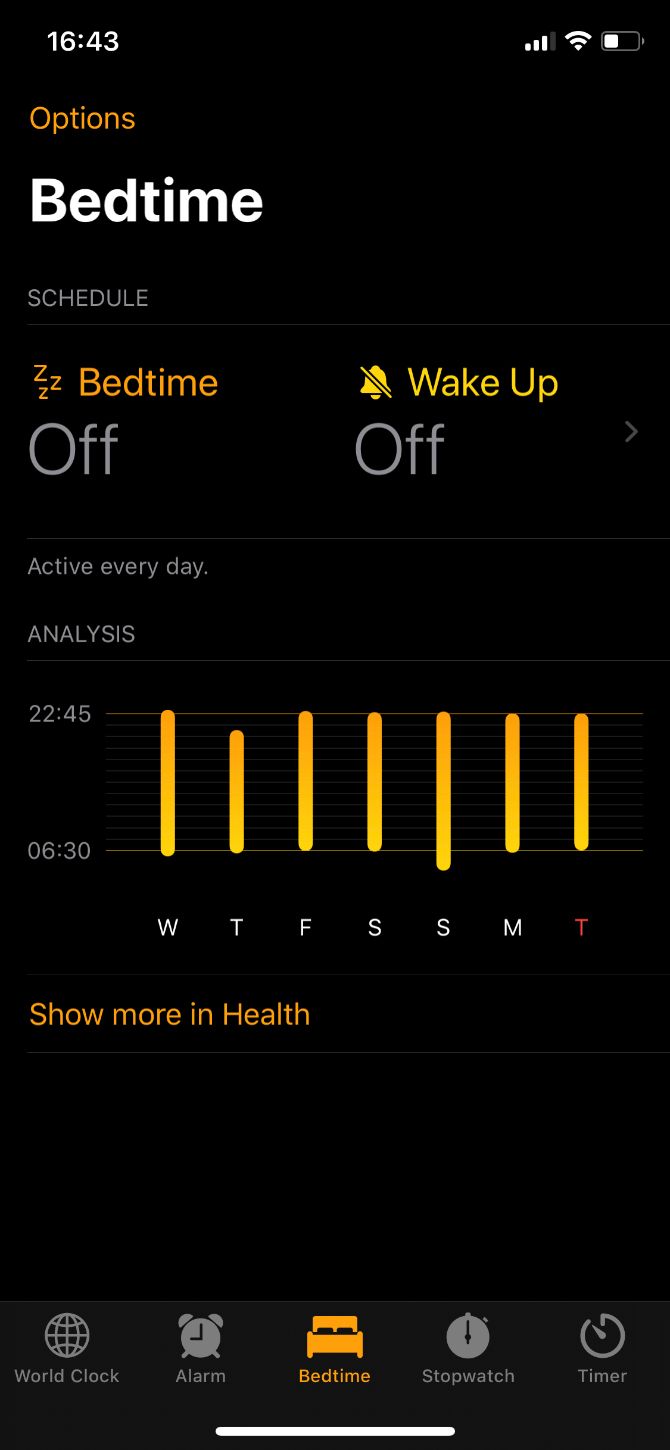
The two biggest mistakes most of us make when it comes to healthy sleep habits are not getting enough of it and not sticking to regular times. You can address both of these issues with the Bedtime feature.

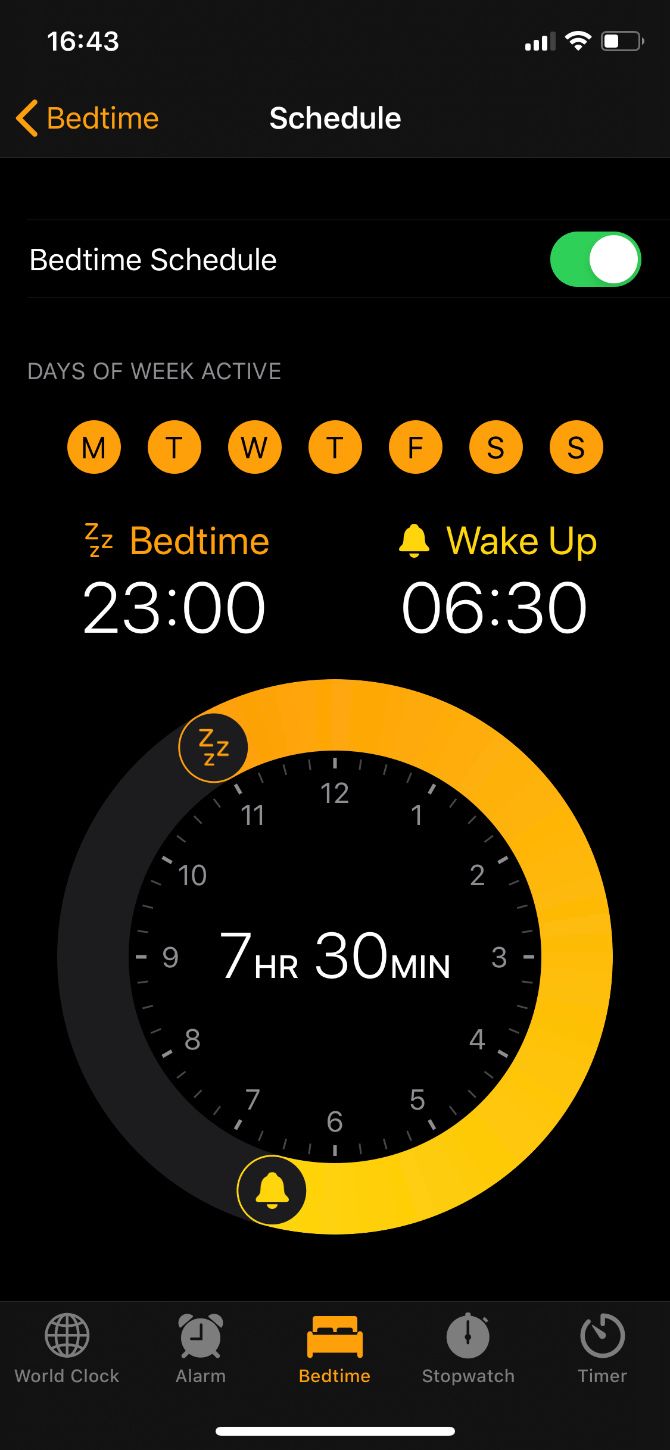
  1. Open the Clock app, select Bedtime, then tap the Schedule button.
  2. Turn on Bedtime Schedule and make sure it’s active for every day of the week.
  3. Adjust the times to give yourself plenty of sleep. Since we sleep in 90-minute cycles, I’d aim for either 7.5 hours or 9 hours.
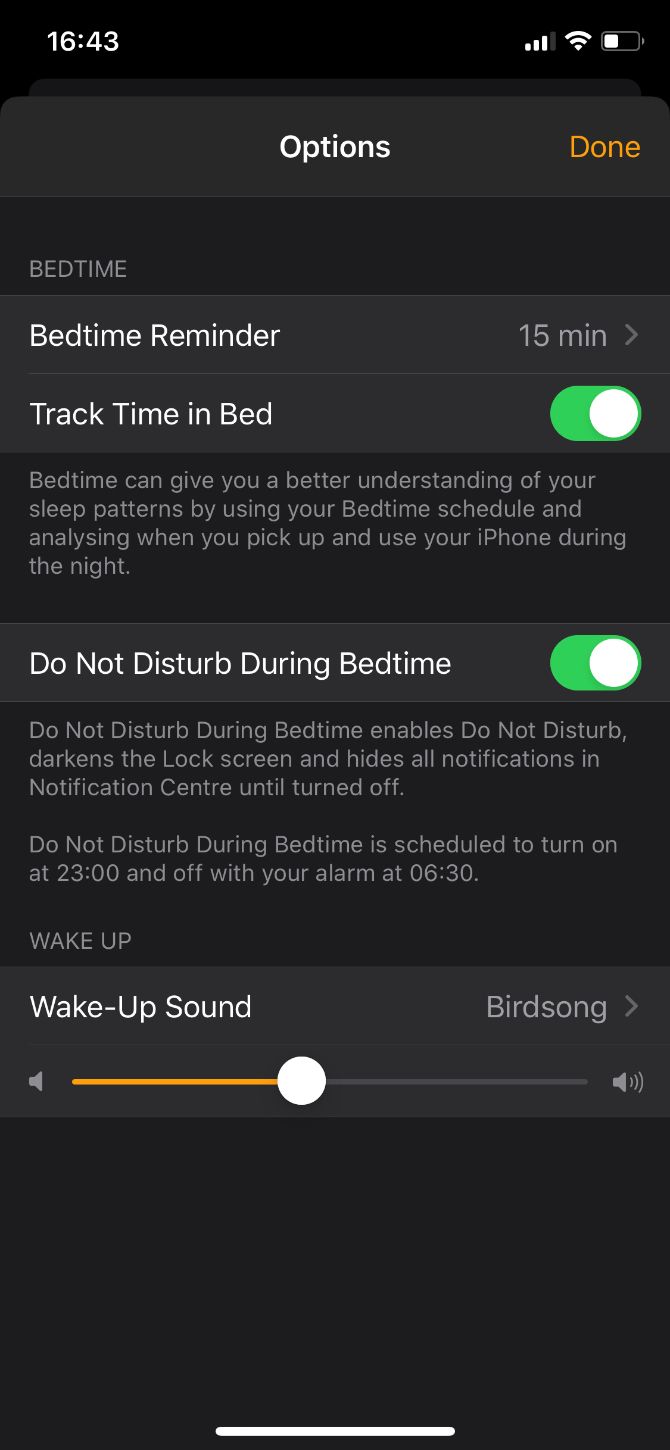
  4. Now return to the Bedtime tab and tap Options in the top-left corner.
  5. Turn on the Bedtime Reminder so you don’t forget to go to bed on time. Remember to allow yourself at least 15 minutes in bed to fall asleep.

2. Turn On Dark Mode and Night Shift

One of the reasons many of us don’t sleep enough is because we don’t feel tired when it’s time to go to bed. This is partly because the bright light from our iPhone screen tricks our brains into thinking it’s still daytime.

When you look at a bright screen in the night—particularly if it’s shining blue or white light—your brain thinks the sun is still up. This stops it from releasing melatonin, which is the chemical that makes you feel tired. Even if you don’t feel sleepy anymore, you still suffer the negative consequences of sleep loss.

Set a schedule to turn on Dark Mode and Night Shift at least an hour before you go to bed. Dark Mode eliminates bright white screens while Night Shift reduces the blue light from all your apps.

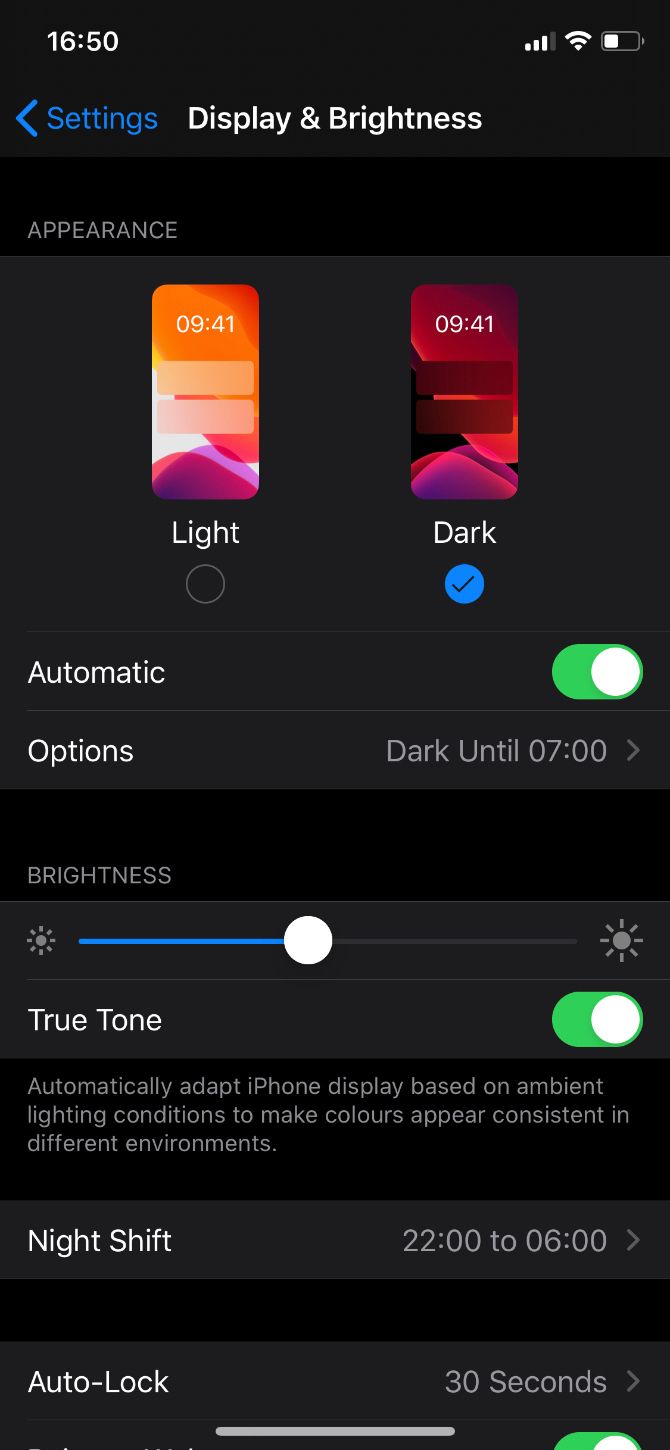
  1. Go to Settings > Display & Brightness.
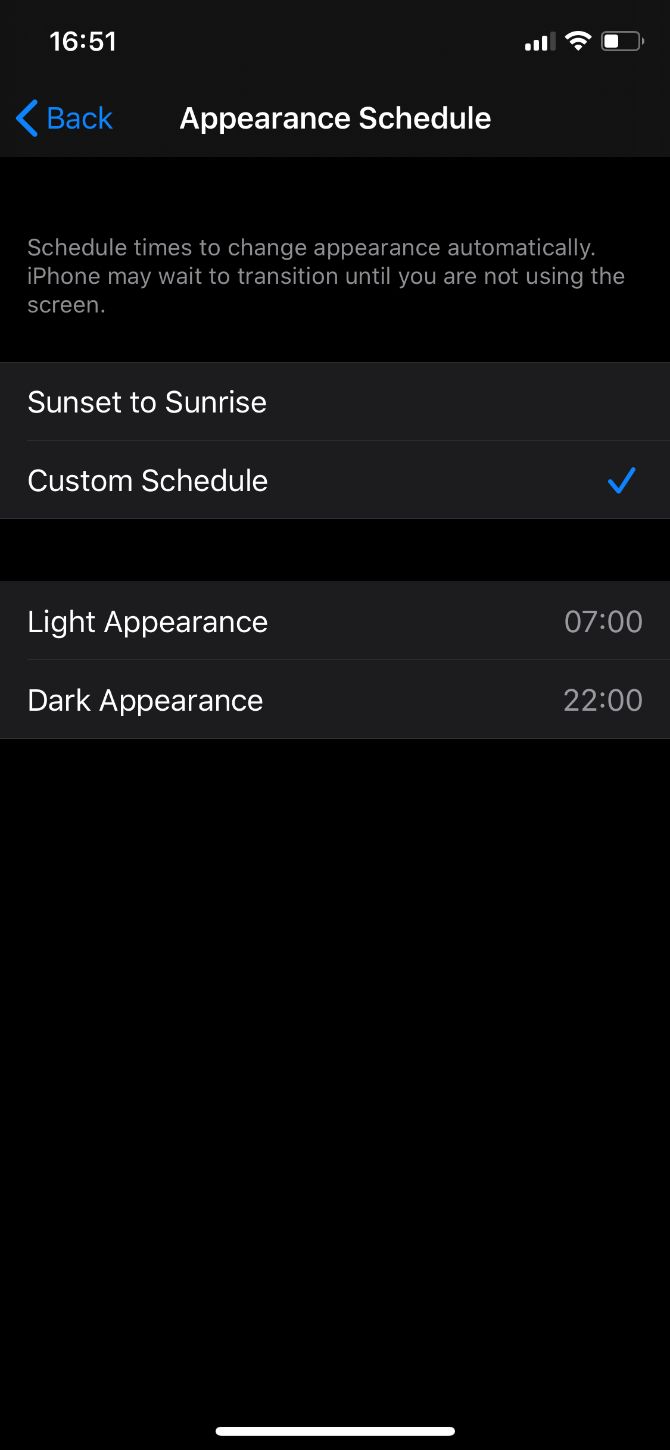
  2. Beneath the Light and Dark Mode options, turn on Automatic and tap Options to set a schedule. Use Light Mode in the mornings to help you wake up.
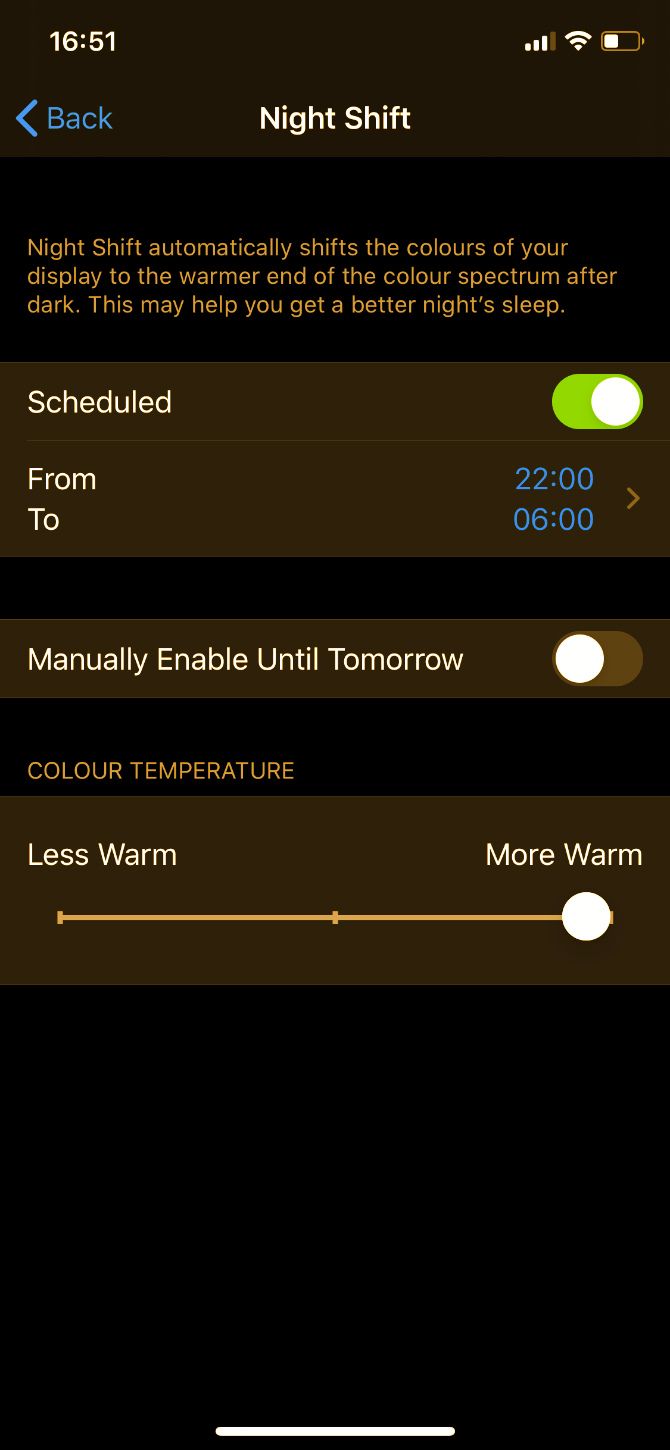
  3. Return to the Display & Brightness settings, tap Night Shift, then turn on Scheduled and set it to come on at least an hour before bed.
  4. Use the slider to make the color temperature More Warm, further reducing the blue light.

3. Use Downtime to Get Away From Your iPhone

Blue light isn’t the only problem with using your iPhone at night. Most apps are designed to stimulate and engage us. This keeps us hooked to our iPhones when we ought to be winding down for bed.

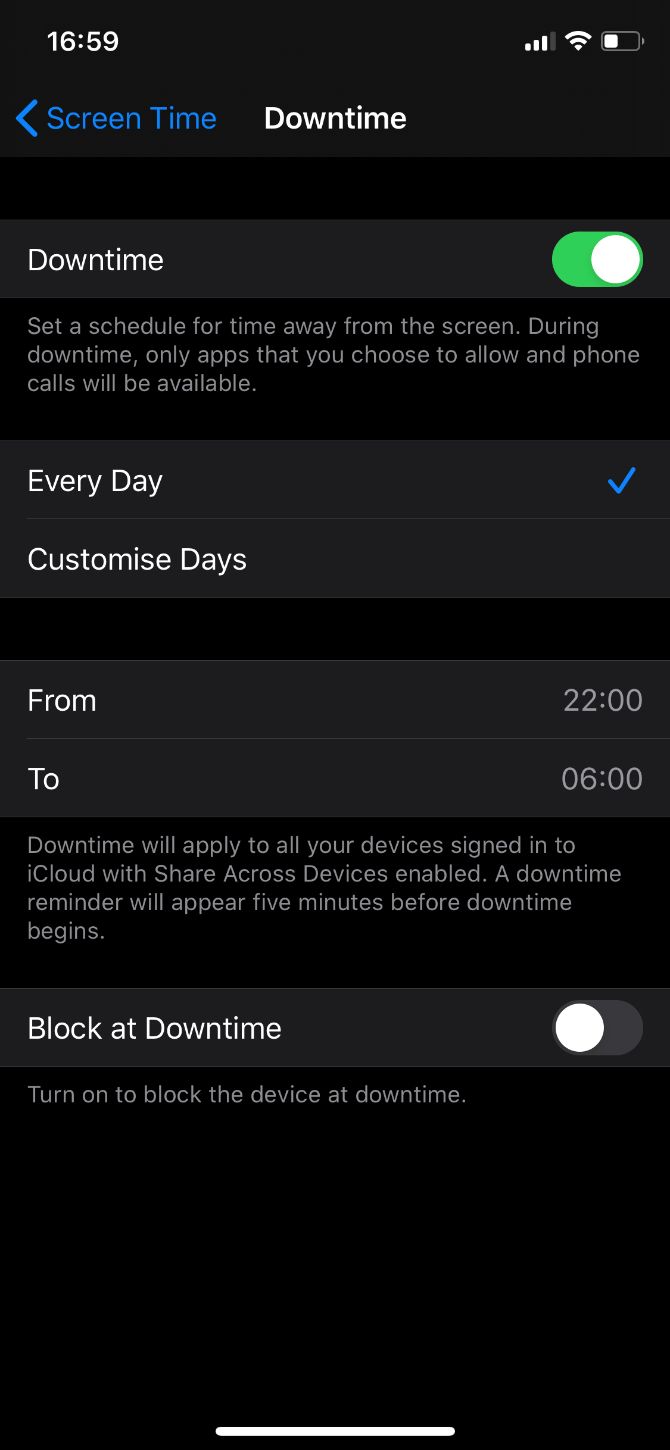
Of course, it’s difficult to break an iPhone addiction with willpower alone. Instead, use Downtime to block apps you don’t want to use at night, which should be most of them. You can always ignore the Downtime limits to keep using apps in an emergency.

The best advice for healthy sleep is to spend 30 minutes to one hour relaxing before you even try to fall asleep. Use this time to read, bathe, listen to gentle music, or reflect on your day. Don’t use it to scroll through news feeds or get to the next level in a mobile game.

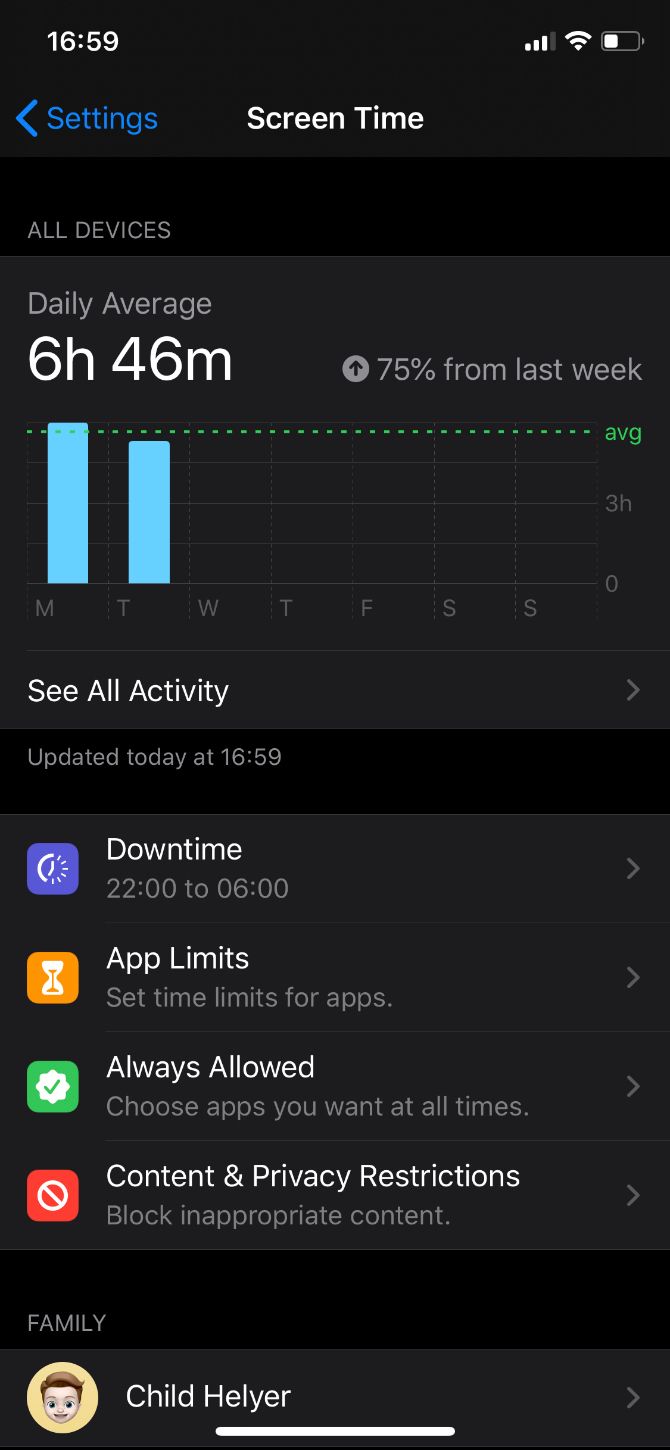
  1. Go to Settings > Screen Time > Downtime.
  2. If prompted, enter your Screen Time passcode.
  3. Turn on Downtime and set it for Every Day, then set a schedule for it to come on at least 30 minutes before bed.
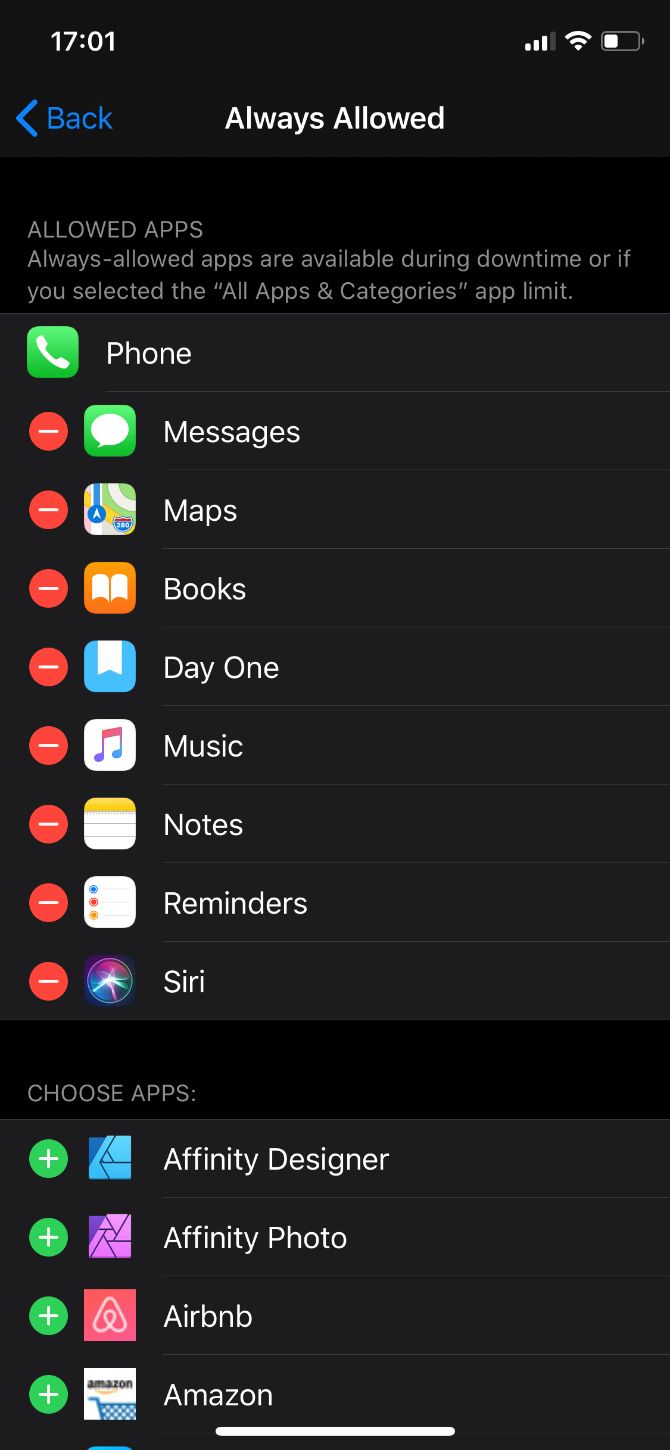
  4. Return to the Screen Time settings and tap Always Allowed. Add your critical apps to the list so they don’t get blocked.

4. Schedule Do Not Disturb While You’re Asleep

The last thing you want is for peaceful sleep to be interrupted by unimportant notifications. Even if your iPhone is on silent, the bright light from your screen turning on can be enough to wake you up.

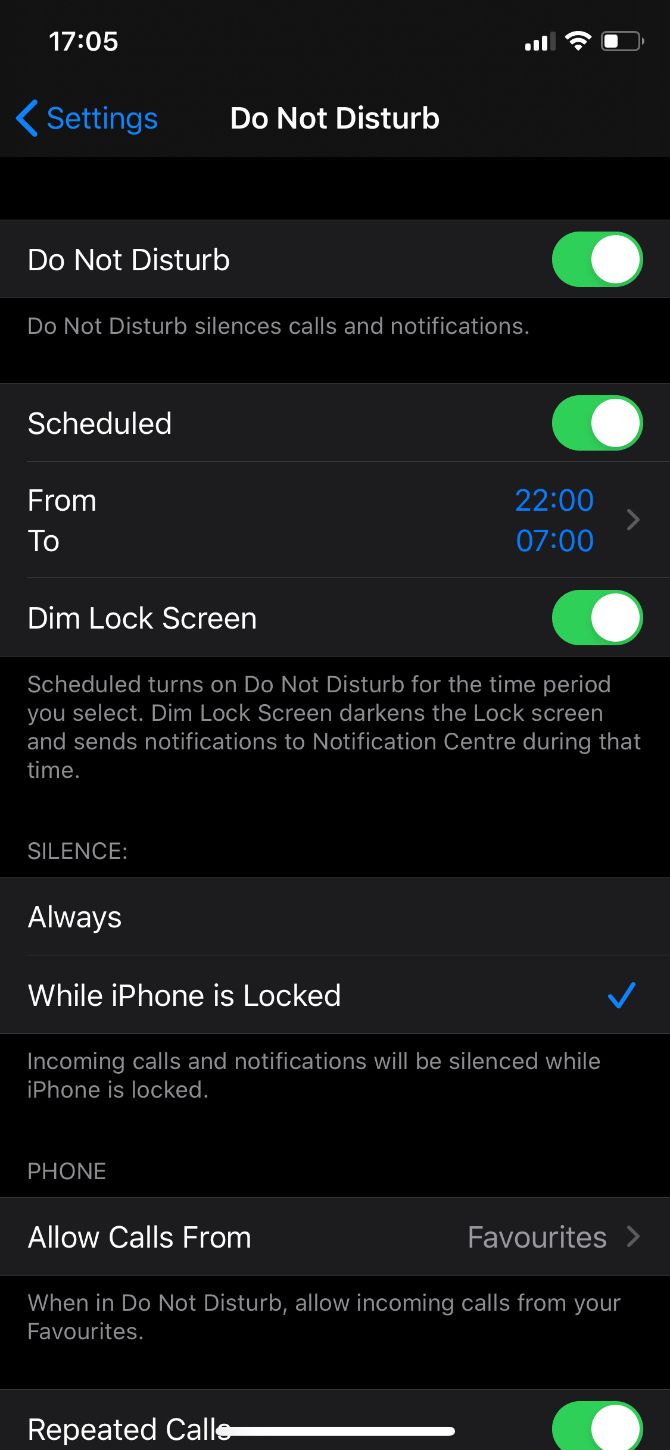
It’s easy to combat this using Do Not Disturb. If you’re worried about missing emergency calls, add contacts to your Favorites list or turn on repeated calls so people can still reach you if they need to.

It’s possible to turn on Do Not Disturb During Bedtime from the Bedtime options, but I suggest you do it from the Settings app instead. This way, you can prepare for emergency calls and schedule Do Not Disturb to start before your bedtime if you want it to help you wind down.

  1. Go to Settings > Do Not Disturb.
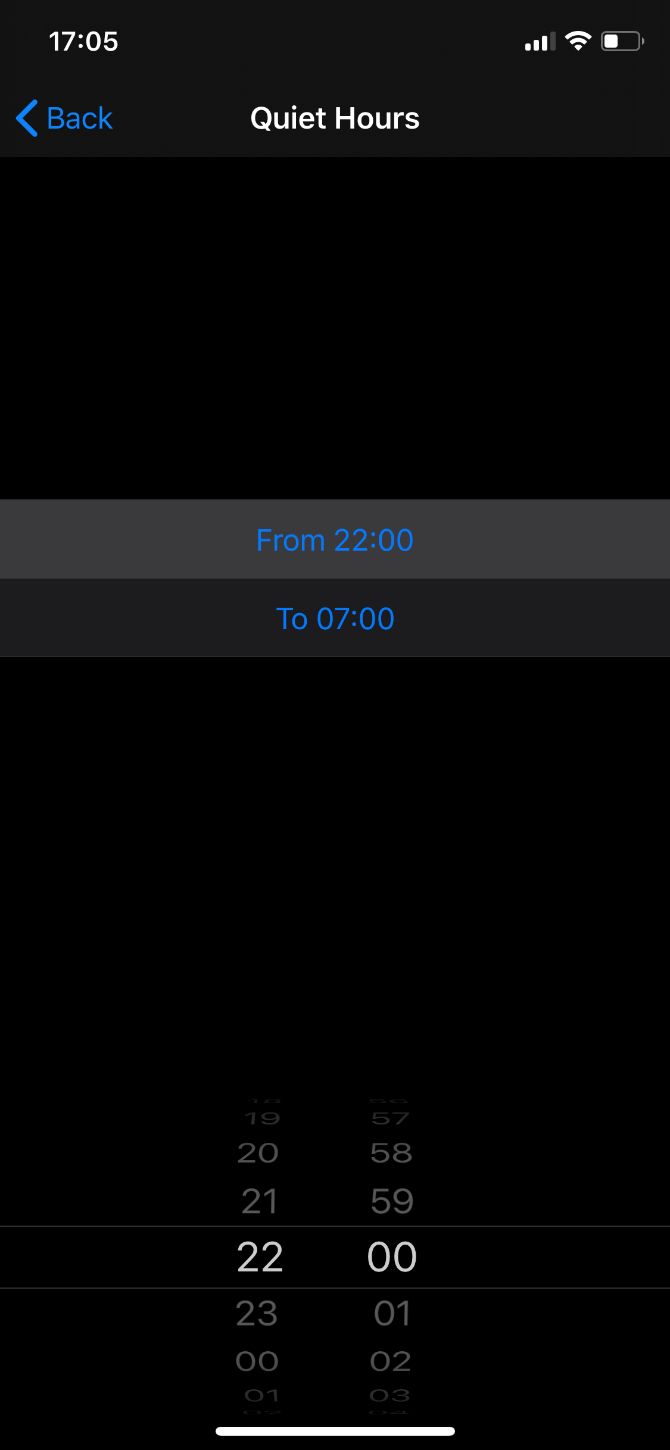
  2. Turn on Scheduled and set your Quiet Hours. Be sure to turn on the option to Dim Lock Screen as well.
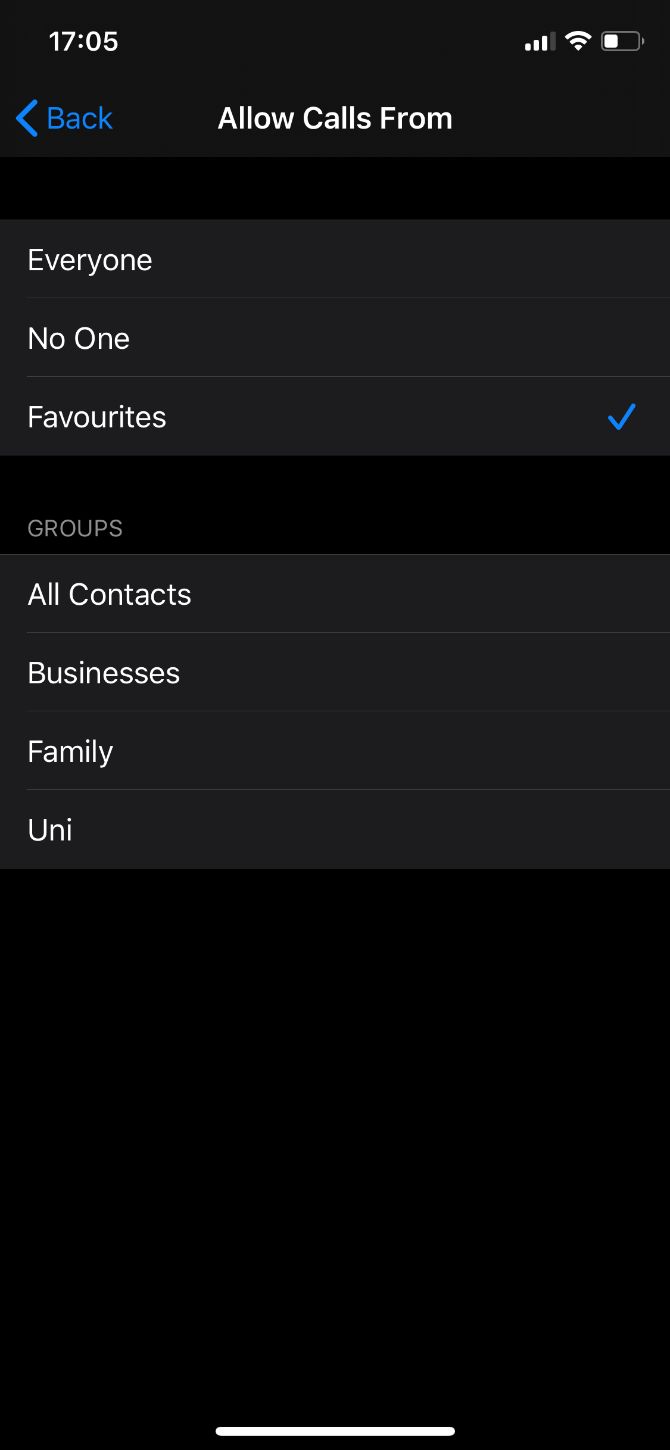
  3. If you’re worried about missing emergency calls, scroll down and tap Allow Calls From, then choose to allow calls from Everyone or only your Favorites.
  4. Alternatively, scroll down further and turn on the option for Repeated Calls.

Bonus Tips for Smart Home Owners

You can do even more to improve the quality of your sleep if you’ve set up a smart home by automating the temperature and lighting in the bedroom. We fall asleep faster in cooler environments and wake up easier when a bright light is shining.

Use the Home app on your iPhone to reduce the temperature in your bedroom before you go to bed. You’ll be warm enough when you get under the covers and you might find you fall asleep faster.

In the mornings, use bright white lights to simulate the sun and make it easier to wake up. If you increase the brightness gradually, you can wake up to the light instead of a shrill alarm. Although you might want to set an alarm as a backup just in case.

Track Your Sleep to See It Improve

One of the best incentives for sticking to a healthy sleep schedule is seeing the effect it has on your life. When you use these iPhone settings to improve sleep, you might not feel an instant change in your wellbeing, but it’s sure to make a big difference over time.

Use one of the many sleep tracking iPhone apps to watch your sleep quality improve. You’ll surely notice positive trends in other areas of your life as well.

Read the full article: Sleep Better With These 4 iPhone Settings and Tweaks


Read Full Article

Apple releases iOS 13.2 with Deep Fusion


Apple has released iOS 13.2 and iPadOS 13.2 for the iPhone and iPad. This update features the usual bug fixes and security improvements. But Apple is also adding a handful of new features to its operating system.

First, iOS 13.2 brings a ton of new emojis. The company now officially supports Unicode 12.0. You can now create all possible combinations of handholding couple emojis regardless of gender or skin tone. There are new accessibility-focused emojis, such as a service dog, people using wheelchairs, prosthetic arms and legs, a person with a white cane and more. There are also new animals, a yawning face and new food options.

If you have an iPhone 11 or iPhone 11 Pro, iOS 13.2 enables Deep Fusion, an image processing feature that should make your photos look better thanks to machine learning-enabled processing.

It’s also worth mentioning that you can now change the resolution and framerate of your videos in the Camera app directly.

With iOS 13.2, you can opt out of sharing Siri recordings with Apple employees and delete your Siri and dictation history. Go to Settings > Privacy > Analytics and Improvements to opt out at any time.

Finally, iOS 13.2 enables HomeKit‌ Secure Video for HomeKit-enabled camera and adds support for the newly announced AirPods Pro.

Before updating to iOS 13.2, back up your device. Make sure your iCloud backup is up to date by opening the Settings app on your iPhone or iPad and tapping on your account information at the top and then on your device name. Additionally, you can also plug your iOS device into your computer to do a manual backup in iTunes.

Don’t forget to encrypt your backup in iTunes. It is much safer if somebody hacks your computer. And encrypted backups include saved passwords and health data. This way, you don’t have to reconnect to all your online accounts.

Once this is done, you should go to the Settings app as soon as possible to get in the queue. Navigate to ‘Settings,’ then ‘General’ and then ‘Software Update.’ Then you should see ‘Update Requested…’ It will then automatically start downloading once the download is available.


Read Full Article

Apple releases iOS 13.2 with Deep Fusion


Apple has released iOS 13.2 and iPadOS 13.2 for the iPhone and iPad. This update features the usual bug fixes and security improvements. But Apple is also adding a handful of new features to its operating system.

First, iOS 13.2 brings a ton of new emojis. The company now officially supports Unicode 12.0. You can now create all possible combinations of handholding couple emojis regardless of gender or skin tone. There are new accessibility-focused emojis, such as a service dog, people using wheelchairs, prosthetic arms and legs, a person with a white cane and more. There are also new animals, a yawning face and new food options.

If you have an iPhone 11 or iPhone 11 Pro, iOS 13.2 enables Deep Fusion, an image processing feature that should make your photos look better thanks to machine learning-enabled processing.

It’s also worth mentioning that you can now change the resolution and framerate of your videos in the Camera app directly.

With iOS 13.2, you can opt out of sharing Siri recordings with Apple employees and delete your Siri and dictation history. Go to Settings > Privacy > Analytics and Improvements to opt out at any time.

Finally, iOS 13.2 enables HomeKit‌ Secure Video for HomeKit-enabled camera and adds support for the newly announced AirPods Pro.

Before updating to iOS 13.2, back up your device. Make sure your iCloud backup is up to date by opening the Settings app on your iPhone or iPad and tapping on your account information at the top and then on your device name. Additionally, you can also plug your iOS device into your computer to do a manual backup in iTunes.

Don’t forget to encrypt your backup in iTunes. It is much safer if somebody hacks your computer. And encrypted backups include saved passwords and health data. This way, you don’t have to reconnect to all your online accounts.

Once this is done, you should go to the Settings app as soon as possible to get in the queue. Navigate to ‘Settings,’ then ‘General’ and then ‘Software Update.’ Then you should see ‘Update Requested…’ It will then automatically start downloading once the download is available.


Read Full Article

Apple announces AirPods Pro with noise cancellation


Apple just announced a new device today, the AirPods Pro. The company issued a press release to announce the new device. As the name suggests, the AirPods Pro are wireless earbuds with additional features compared to the AirPods.

In particular, the AirPods Pro features active noise cancellation — this feature is particularly popular in headphones designed for airplanes, such as the Bose 700 and Sony WH-1000XM3.

Apple has integrated two microphones in each earbud to listen to background noise and actively cancel sound around you. One of the microphones is inward-facing and listens to the sound inside your ears. The company has also integrated adaptive EQ to tune the low- and mid-fequencies in real time depending on the shape of your ears.

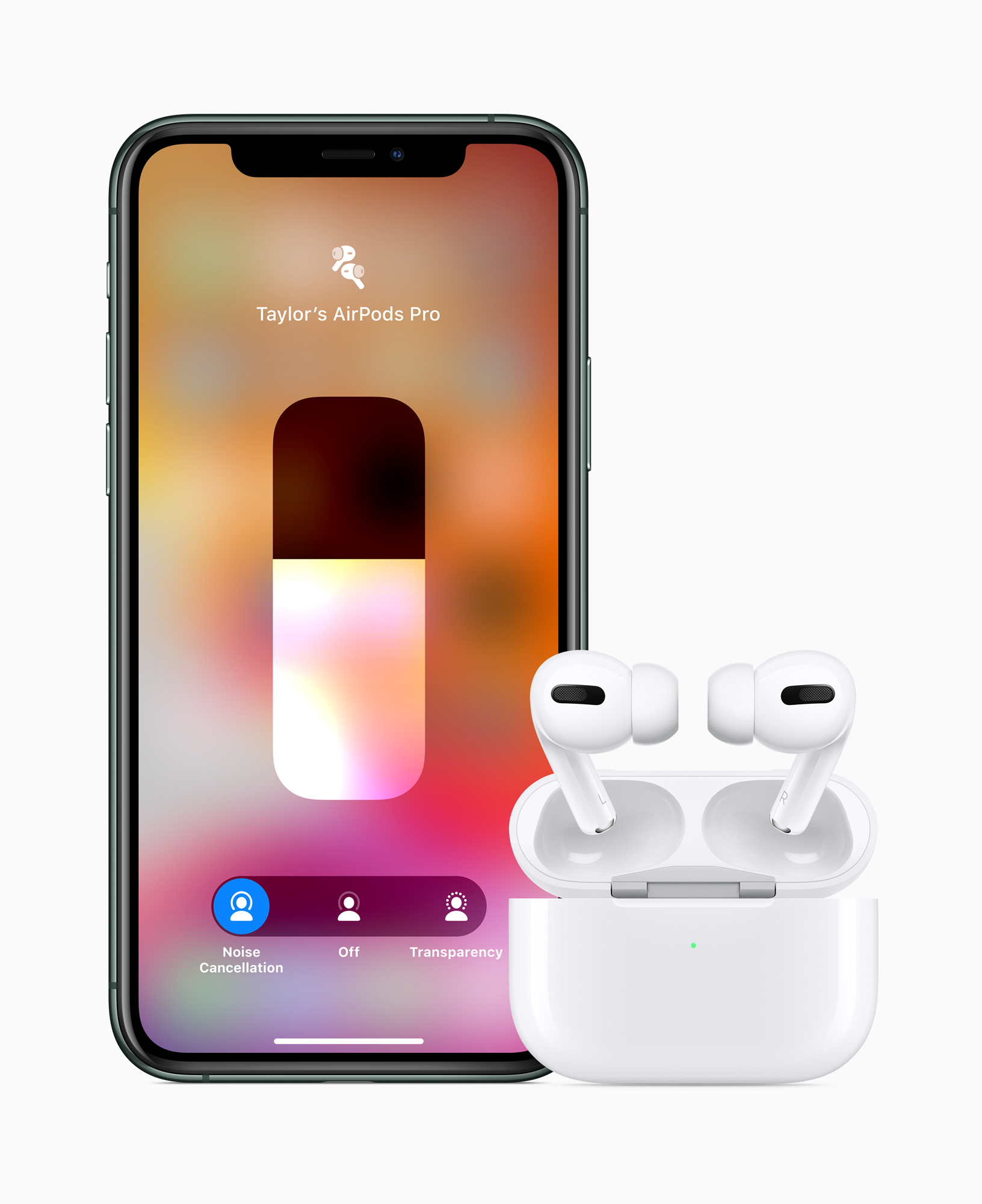
You can switch between active noice cancellation and something called Transparency mode in order to block background noise or let background noise go through your earbuds. You can control that from your device or squeeze the bottom of the earbuds between your fingertips.

Apple AirPods Pro Expanded 102819

The design of the AirPods Pro is slightly different from the AirPods. They look like in-ear earbuds with flexible silicone ear tips. You’ll be able to swap those ear tips as there are three different sizes in the box. The AirPods Pro are also sweat and water resistant.

Behind the scene, the AirPods Pro work with an Apple-designed chip called the H1. This chip handles everything from real-time noise cancelation, audio processing, and the ability to respond to “Hey Siri” requests.

Apple says that you can expect the same battery life that you’d get with regular AirPods — four and half hours of listening time with active noise cancellation and up to 24 hours of listening time with the charging case.

The charging case also looks slightly different — it is now rectangular-shaped. It features a Lightning port and wireless charging.

The AirPods Pro will be available for $249 starting on October 30. You can order them on Apple’s website starting today. Regular AirPods remain available for the same price of $159 to $199, depending on whether you get the wireless charging case.

Apple AirPods Pro iPhone11 Pro 102819


Read Full Article

Google reportedly in talks to acquire Fitbit


According to Reuters, Google parent Alphabet is looking to acquire publicly traded wearables company Fitbit.

Reuters says the deal is still being negotiated and could still fall apart, but if it came together, it would surely strengthen Google’s position in the wearables space, an area where it has struggled despite its efforts around smartwatches and Wear OS.

With Wear OS, Google only focused on the smartwatch market, though, and while many of these devices have fitness tracking built-in, either through third-party apps or Google’s own Fit app, there’s still a large market for dedicated (and cheaper) fitness trackers. Fitbit, meanwhile, has been stepping up its smartwatch features with its Versa line, which does not use Wear OS.

Acquiring Fitbit would also fit into Google’s overall hardware strategy, now that it is building its own phones and other devices. In early 2018, it also closed its acquisition of large parts of HTC’s design division. We’ve also seen numerous rumors about Google building a Pixel smartwatch over the years. So far, it has not released its own first-party watch, though.

Fitbits’ stock shot up almost 30 percent after the first rumors surfaced. In recent months, the company’s stock often traded below $3, down from close to $48 shortly after its IPO in 2015. Today, after the announcement, it went up to around $5.20.


Read Full Article
Google reportedly in talks to acquire Fitbit


According to Reuters, Google parent Alphabet is looking to acquire publicly traded wearables company Fitbit.

Reuters says the deal is still being negotiated and could still fall apart, but if it came together, it would surely strengthen Google’s position in the wearables space, an area where it has struggled despite its efforts around smartwatches and Wear OS.

With Wear OS, Google only focused on the smartwatch market, though, and while many of these devices have fitness tracking built-in, either through third-party apps or Google’s own Fit app, there’s still a large market for dedicated (and cheaper) fitness trackers. Fitbit, meanwhile, has been stepping up its smartwatch features with its Versa line, which does not use Wear OS.

Acquiring Fitbit would also fit into Google’s overall hardware strategy, now that it is building its own phones and other devices. In early 2018, it also closed its acquisition of large parts of HTC’s design division. We’ve also seen numerous rumors about Google building a Pixel smartwatch over the years. So far, it has not released its own first-party watch, though.

Fitbits’ stock shot up almost 30 percent after the first rumors surfaced.


Read Full Article

How to bring affordable, sustainable electricity to Africa | Rose M. Mutiso

How to bring affordable, sustainable electricity to Africa | Rose M. Mutiso

Energy poverty, or the lack of access to electricity and other basic energy services, affects nearly two-thirds of Sub-Saharan Africa. As the region's population continues to increase, so will the need to build a new energy system to grow with it, says Rose M. Mutiso. In a bold talk, she discusses how solutions like off-grid solar, wind farms and hydroelectric and geothermal power could create a high-energy future for Africa -- providing reliable electricity, creating jobs and raising incomes.

Click the above link to download the TED talk.

NVIDIA’s new Shield TV wins the Android TV market with amazing 4K upscaling


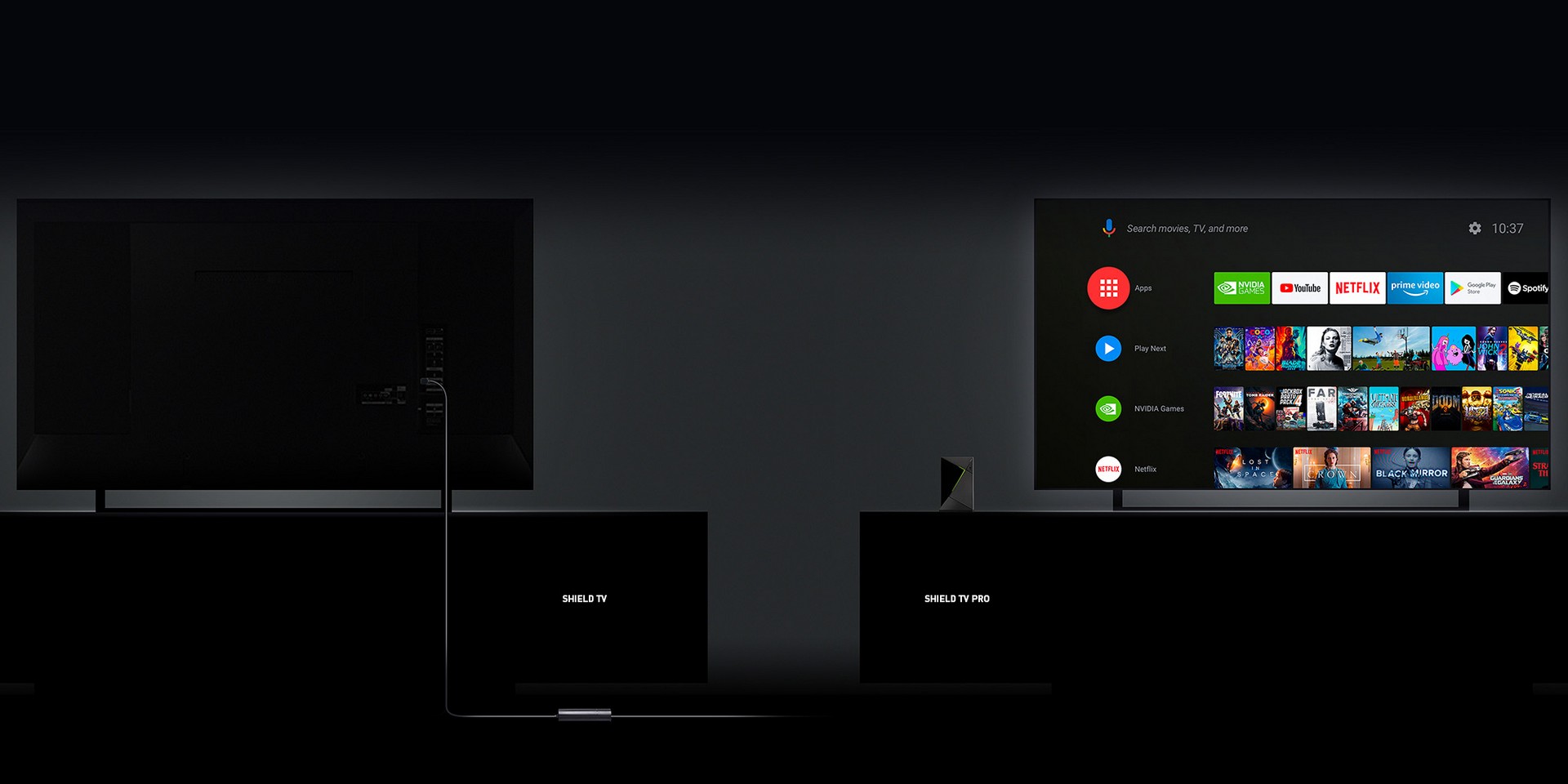
NVIDIA has a new family of Android TV-based streaming devices, as tipped early via a couple of leaks from online stores. The new NVIDIA Shield TV ($149) and Shield TV Pro ($199) replace the existing Shield TV generation of hardware, which debuted in 2017. Both new Shields offer new Tegra X1+ processors, which outperform the predecessor chip by about 25 percent, and make possible one of this Shield’s new highlight features: AI-powered 3K up-conversion for HD content.

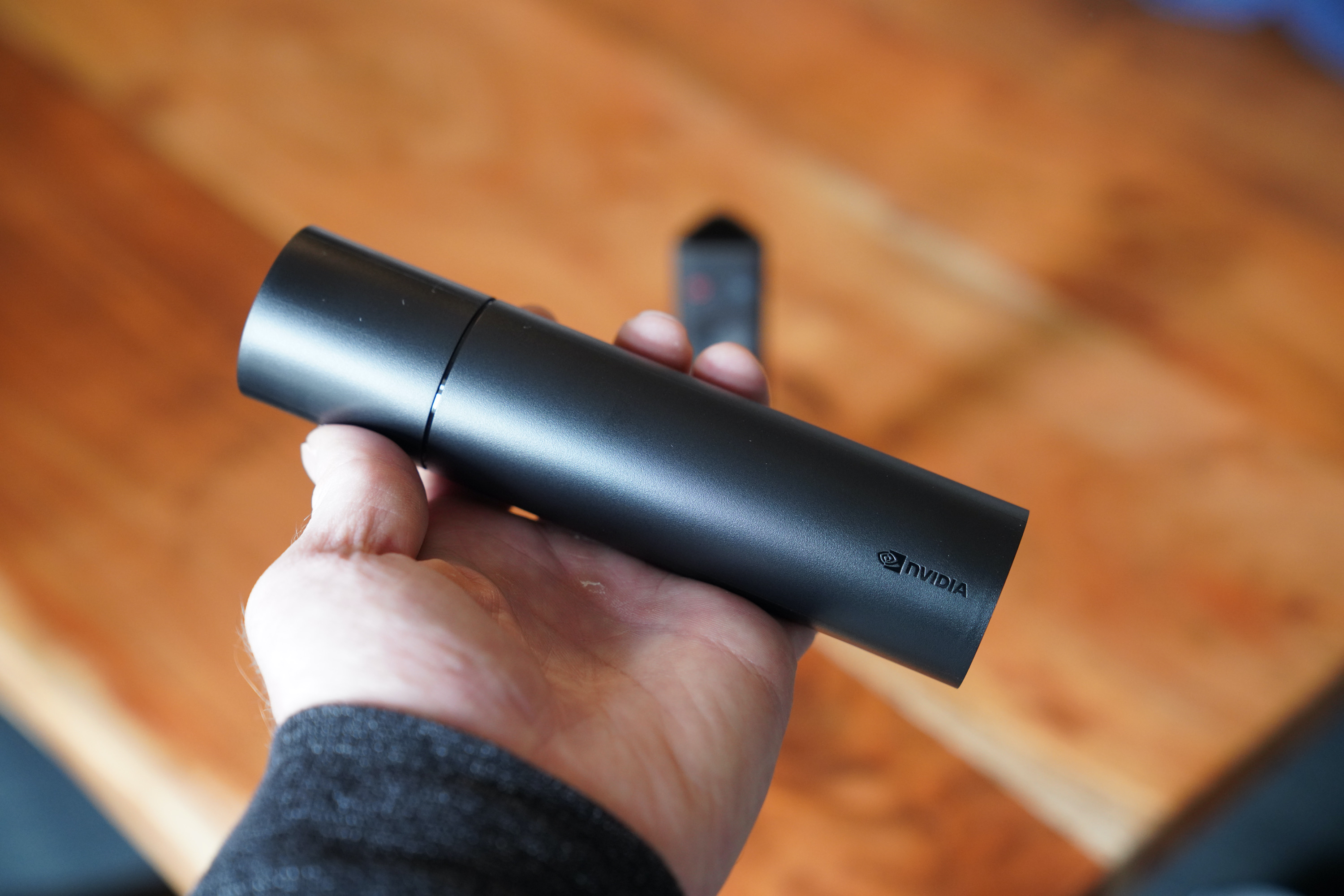
Both Shield TV and Shield TV Pro also support Dolby Vision HDR content, as well as Dolby Atmos surround sound. The differences between the two devices center mainly around physical design, with the Shield TV adopting a cylindrical tube design, and the Shield TV Pro looking more like its predecessor (basically a small set-top box form factor). The Shield TV Pro also gets more RAM (3GB vs. 2GB), more storage (16GB vs 8GB) the ability to transcode 1080p streams when acting as a Plex Media Server, support for the SmartThings Link to turn it into a SmartThings smart home hub and advanced Android gaming support, along with two USB 3.0 ports.

Shield TV Review

Nvidia Shield TV 4I’ve been using the Shield TV for around a week now, and this is definitely a worthwhile upgrade for anyone looking to get the best possible experience available in an Android TV home theater device. NVIDIA has clearly done a lot to survey the market, look at everything that’s come out in the two years since it last updated this hardware, and delivery generational improvements that help it stand out from the crowd in meaningful ways.

Android TV now ships on a lot of smart TVs, and there have been many generations of Roku and Amazon Fire TV devices introduced since we last saw a new Shield from NVIDIA – all of which adds up to needing to really do something special to ask for $149.99 from consumers to invest in a new dedicated streaming media box. NVIDIA has always delivered a lot of value for the upfront cost of their streaming hardware, with consistent updates over the life of the devices that add plenty of new features and improvements. But this new hardware packs in some excellent features not possible with software alone, and that are also unique when you look across the options available in this category.

AI Upscaling

Chief among the additions NVIDIA has made here is the AI upscaling made possible with the new Tegra X1+ chip. You might have heard of ‘upscaling’ before, and you might even think that your TV already handles that well. But what you probably don’t know is that often content from streaming media sources doesn’t actually get upscaled by your TV, which means if you have a 4K display but are often watching YouTube or other services with large quantities of non-4K content, you might not be getting the most out of your hardware.

NVIDIA has addressed this with on-device 4K upscaling, which is powered by on-device machine intelligence that has been trained on a deep neural network to turn both 720p and 1080p signals into much sharper, 4K-equivalent images. Having used this on a variety of content, including media streamed from YouTube, non-4K Netflix content and stuff from Plex, I can attest to its ability to produce visibly sharper images that look great, especially on my LG C8-series OLED 4K TV.

The Shield TV’s tech is trained on popular movies and TV shows, and so does a remarkably good job of guessing what the 4K version of the HD image it’s looking at should properly look like. Considering that there’s a ton of content out there that hasn’t been made available in 4K, despite now a lot of TVs supporting that resolution, this is a big advantage for NVIDIA, and again one that they uniquely offer among their peers.

Dolby Everything

These new Shields also support Dolby Vision and Dolby Atmos, across more services than anything else out there on the market right now. These HDR and surround sound modes really do offer the best audio-visual experience you can get, provided you have TVs and audio output equipment that supports them, but what you might not know is that even on other streaming hardware that technically support these standards, they might not be supported across all services.

Shield TV supports Dolby Vision and Dolby Atmos across Netflix, Amazon Prime Video, Disney+, Vudu and Movies Anywhere, so you should be getting the most out of these technologies, too. I asked about the forthcoming Apple TV+ service, which is rolling out to Roku devices, for instance, but NVIDIA didn’t have any news to share just yet – it does seem like it’s a good idea to stay tuned on that front, however.

Like AI Upscaling, Dolby support across everything might not seem like a big competitive advantage, but it’s absolutely a decision tipping factor for people who are looking for the best possible A/V experience in a home streaming device.

New and Improved Remote

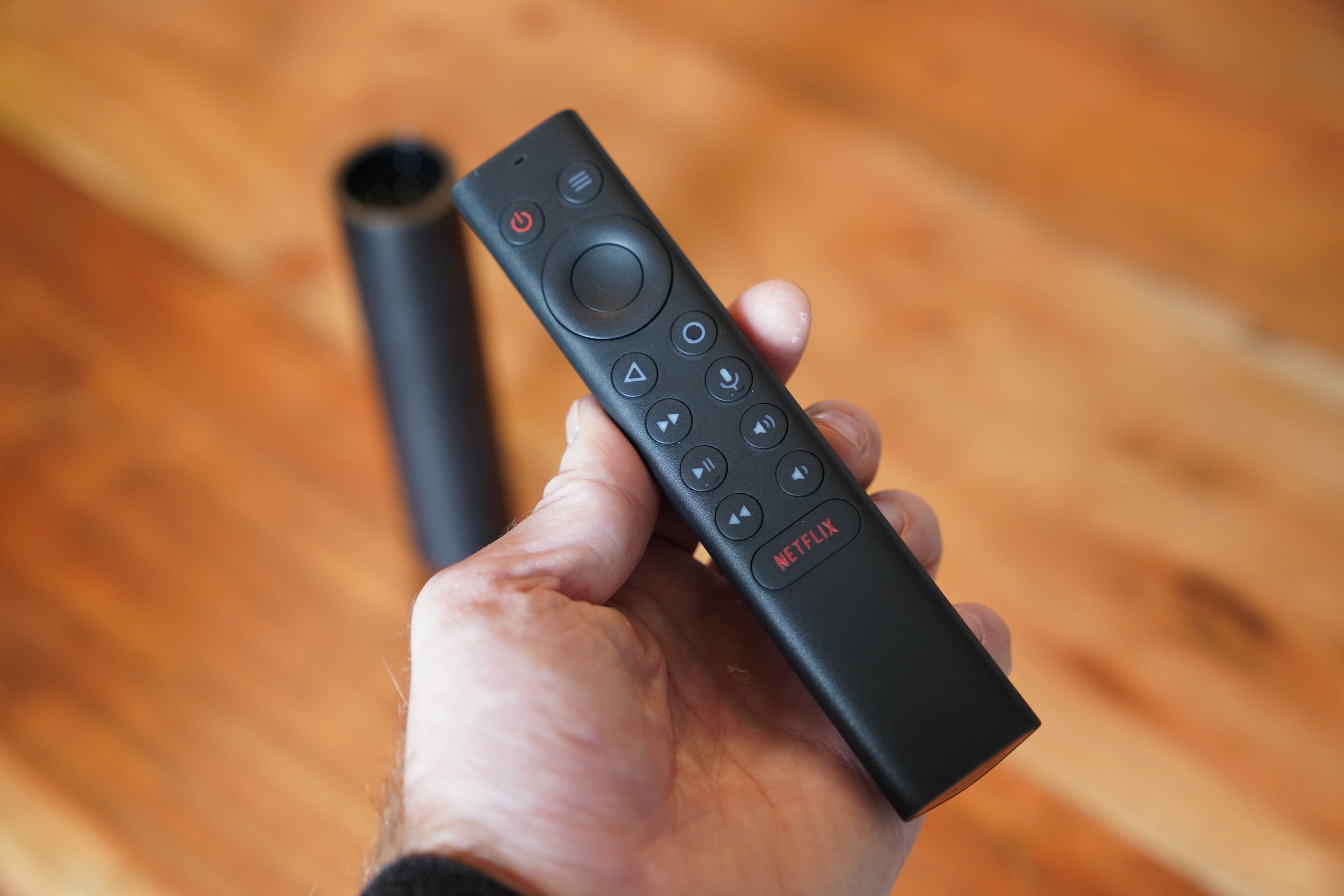
Nvidia Shield TV 5NVIDIA is shipping the new Shield TVs with a brand new redesigned remote in the box. There’s a dedicated ‘Netflix’ button, which is a nice touch, but the remote overall is just an improvement over both Shield remotes past, and other competing remotes, in every way. It’s powered by AAA batteries (included) and it has a new pyramid-shaped body design that makes it easier and more pleasant to hold.

There are also lots of new buttons! Yes, NVIDIA actually put buttons on their remote control – what a novel concept! Whereas the remote from the last generation seemed to be adopting a lot of the questionable choices Apple has long been making on their remotes, this one feels like it’s made with humans in mind, with dedicated play/pause, back, forward, volume and other buttons. A wealth of buttons.

This remote also has automatic backlighting, which will serve you well when using it in a darkened room. Because of the bulkier body design, it also stands on its end, and there’s a lost remote finding function, too. Chalk up a win for human-centric design with this remote, it’s a joy to use.

Simple physical design

The design of the device is not flashy, but it is smart. There’s an Ethernet port, a power connector, an HDMI port and a micro SD card slot, dividing across both ends of the tube. This makes it perfect for placing behind a console or media bench, on the ground or next to your other power cables.

[gallery ids="1904249,1904250,1904246"]

It still provides hardwired connectivity options in case you do things like in-home game streaming or GeForce NOW cloud gaming, and it offers expandable storage via the microSD slot.

Bottom Line

NVIDIA’s new Shield is a great option for anyone looking for a versatile streaming device, with access to all of Google’s Play Store apps for Android TV, and support for the latest AV standards. It’s real bonus advantage is that AI upscaling, however, which is something that NVIDIA is uniquely poised to do well, and which goes a long way in making that $149.99 price point seem like a tremendous value.

SHIELD TV Family


Read Full Article

27 October 2019

The Apple TV App Is Now Available on Fire TV Sticks

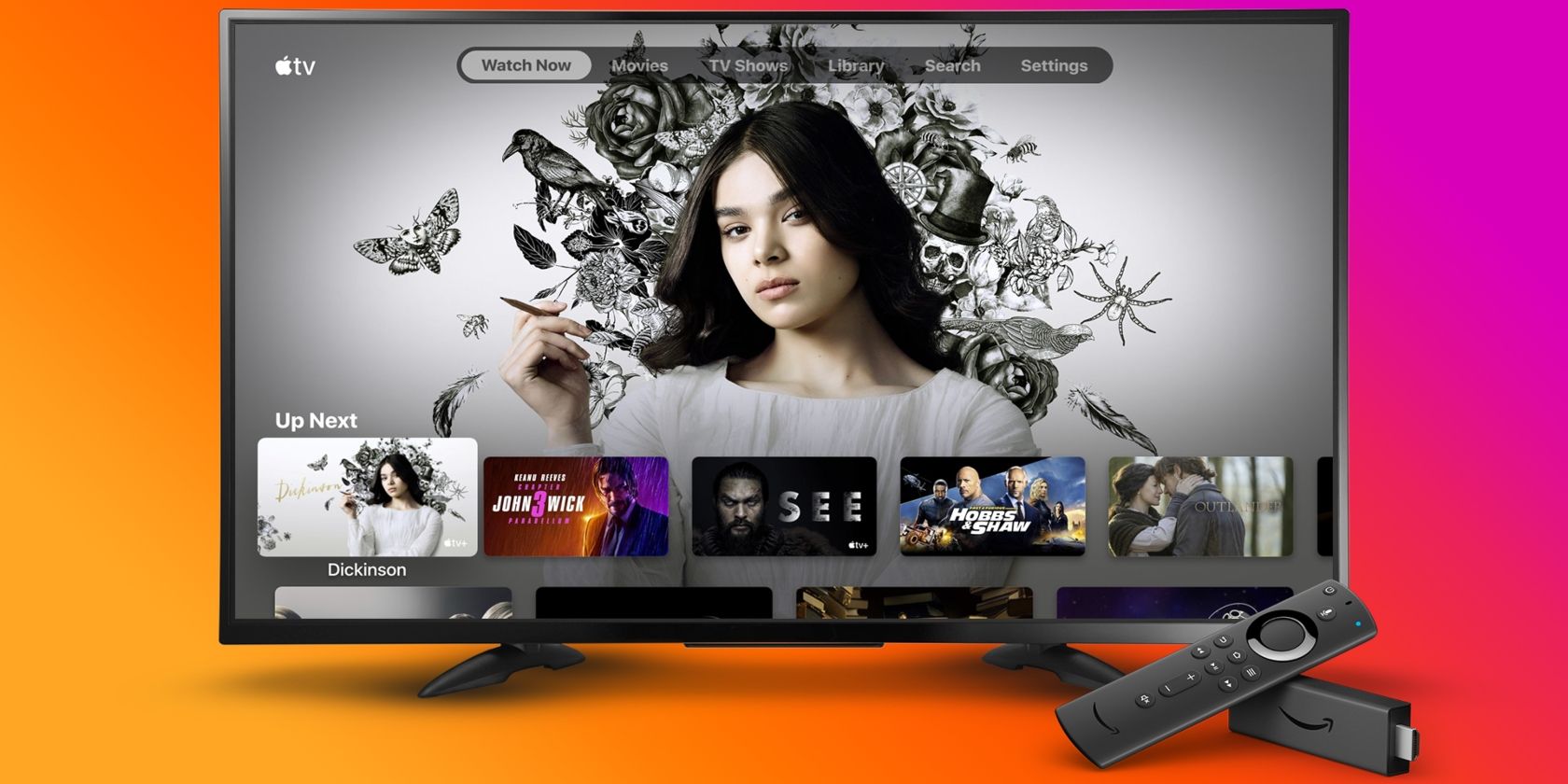
If you own an Amazon Fire TV Stick, you can now install the Apple TV app on it. Doing so will allow you to access your iTunes video library, and buy or rent new movies and TV shows. It will also enable you to use the new Apple TV+ streaming service.

Apple TV+ Is Going to Be Available Everywhere

In March 2019, Apple unveiled Apple TV+. This is Apple’s foray into the burgeoning world of streaming TV. Apple TV+ features “exclusive original shows, movies and documentaries,” made by and starring some of the world’s finest actors and directors.

However, Apple still needs to get people to subscribe to Apple TV+. To help bolster its chances, Apple is making Apple TV+ available on as many platforms as possible. First, the Apple TV app launched on Roku, and now it’s launching on Fire TV Sticks.

How to Install the Apple TV App on a Fire TV Stick

Amazon revealed the news on the Fire TV Blog, informing (some) Fire TV Stick owners that they can “download and begin using the all-new Apple TV app.” You’ll immediately gain access to your entire iTunes library, which you can now watch on your Fire TV Stick.

To download and install the Apple TV app on your Fire TV device, either: Click the Search icon in the top navbar of your Fire TV device and search for “Apple TV” or visit the Apple TV page on Amazon and send the app across to your Fire TV device.

If you want to buy or rent more movies or TV shows, you’ll have to do so on your iPhone, iPad, iPod Touch, Mac, or PC. It will then appear within the Apple TV app on your Fire TV device. This is a little annoying, but surely a price worth paying.

The main reason Apple has agreed to launch the Apple TV app on Fire TV devices is the aforementioned Apple TV+. Apple TV+ is launching on November 1, 2019, at which point Fire TV users will be able to sign up at tv.apple.com.

The Best Apps to Install on a New Fire TV Device

At the time of writing, the Apple TV app is only available on the Fire TV Stick (2nd Gen) and Fire TV Stick 4K in the US, Canada, the UK, Germany, France, Italy, Spain, and India. However, the app will be released for more Fire TV devices in the coming months.

It’s clear that Apple is going to be heavily promoting Apple TV+. Which is why the Apple TV app is being released on so many more devices. And we may have to add Apple TV to our list of the best apps to install on a new Amazon Fire TV or Fire TV Stick.

Read the full article: The Apple TV App Is Now Available on Fire TV Sticks


Read Full Article