22 October 2019

6 Digital Journal Apps to Boost Mental Health With a Daily Diary 


digital-journal-apps

Experts recommend maintaining a daily journal to anyone seeking to boost their productivity or even manage their mental health. These free apps will help you write a daily journal on your phone or computer.

Each app takes a different approach to digital journaling, so pick the one that suits your style. Some focus on privacy, others target beginners and time-constrained users. And there’s even an app that turns the concept of a diary on its head by making your journal entries public.

1. Cactus (Web): Guided Journaling for Beginners

Cactus is a mood tracker and journaling app that guides beginners

If you’re new to journaling, Cactus is a good app to start with. It will guide you through the basics of digital journaling while helping you strengthen and improve the core experiences of your daily life.

Once you register for an account, Cactus asks you to check in once a day. There, it will ask you a question based on one of four essential elements: meaning, experience, energy, emotions, relationships. You won’t know the element till you answer the question, in the form of a journal entry.

Questions vary like “who is a person who makes you smile” or “what experiences are you looking forward to this week?” After answering, you’ll get an idea of why the question matters for your mental health. Each entry is a private note to check back later.

At times, Cactus also encourages you to share your notes with people. It’s a nice exercise for gratitude journaling, and it’s easy to share a single note without unloading all your thoughts on that person.

Psst, sign up now and you’ll also get some cool free phone wallpapers.

2. JournalBook (Web): Create Your Own Q&A Journal

Journal Book lets you create your own Q&A journal

Productivity gurus and mental health experts have several thoughts on what you should record in your journal. Each approach has different apps guiding you with questions that you can answer daily. With JournalBook, you can create a custom digital journal with your own questions.

You don’t need to register or sign up to use the app. Fire it up in your browser and you can start writing. It suggests four popular daily questions to get you started and has extra fields to add your own. Every day, it will prompt you to answer those questions. When you have a particularly big day, you can highlight it, and reflect upon those highlighted days later.

This is a progressive web app that works on any browser. All data is stored on your device, not on a cloud, so you’ll need to use it on the same gadget every day. It works offline and is mobile-friendly to use on a phone. You could even turn the site into an Android app.

3. Sol Journal (Web): Self-Hosted, Privacy-Focused Journal

Sol Journal is a self-hosted journal to protect your privacy

Sol Journal is another progressive web app journal that works offline in your browser. In fact, the developer says JournalBook was an inspiration for it. But the difference here is that you can host it yourself, thus giving you full control over privacy.

Privacy is a key factor in digital journaling. You didn’t let anyone see your diary as a kid, why should you trust that your deepest thoughts would be safe on a web server that someone can hack? Sol Journal lets you deploy a journal to your own server, so the data is protected. The GitHub instructions are simple.

You can try out Sol Journal before installing it. You’ll find a minimalistic interface for a journal, with day and night modes. There’s a handy “Quick Add Time” button to put the current timestamp into an entry. And you can export it all to a JSON file. You’ll need to register to use Sol Journal, but that only means you can use it on multiple devices instead of just one.

4. The Open Diaries (Web, Android, iOS): Read Others’ Journals and Share Your Own

A diary should be kept secret, or so we have been conditioned to believe. The Open Diaries questions that notion and urges you to be more open about the digital journaling experience. What would happen if you could read other people’s diaries, and they could read yours?

Don’t worry, it’s not like your entire journal is open for anyone. You get to choose which entries to make public and which ones to keep private for your eyes only. The interface is a bit kiddish, using a handwritten script-like font that you’ll have to live with. There’s also a decent text editor for formatting, and you can add images too.

On The Open Diaries public feed, you can browse and read entries from anyone. In our cursory browsing, it seemed like an active social network with people from different parts of the world.

Openly writing a diary might not be everyone’s cup of tea, and we’d advise not sharing personal details with which someone can identify you in real life. As long as you’re careful, it can be therapeutic in a whole new way.

Download: The Open Diaries for Android | iOS (Free)

5. Reflectly (Android, iOS): Simple Daily Journal With AI

You can’t escape artificial intelligence, even in digital journaling apps. On a serious note, Reflectly does a good job of using AI in a journal app, especially for those who don’t want to do long diary entries daily.

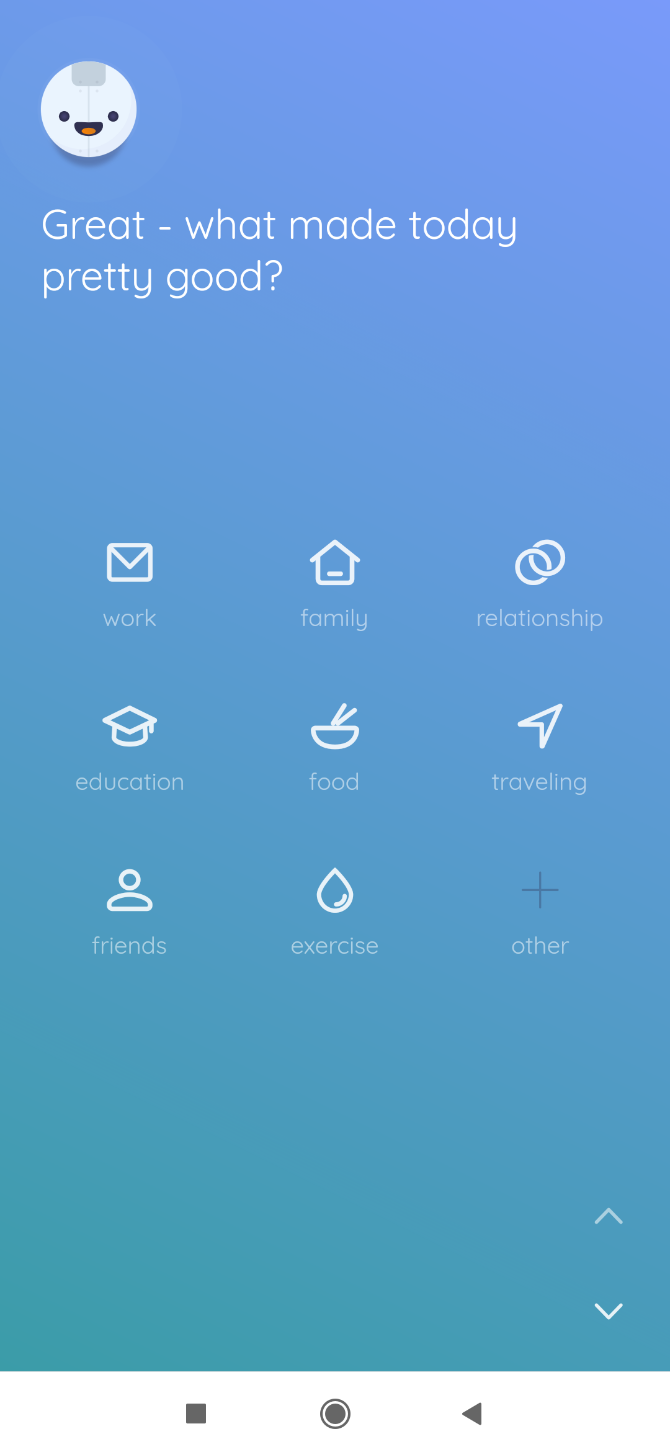
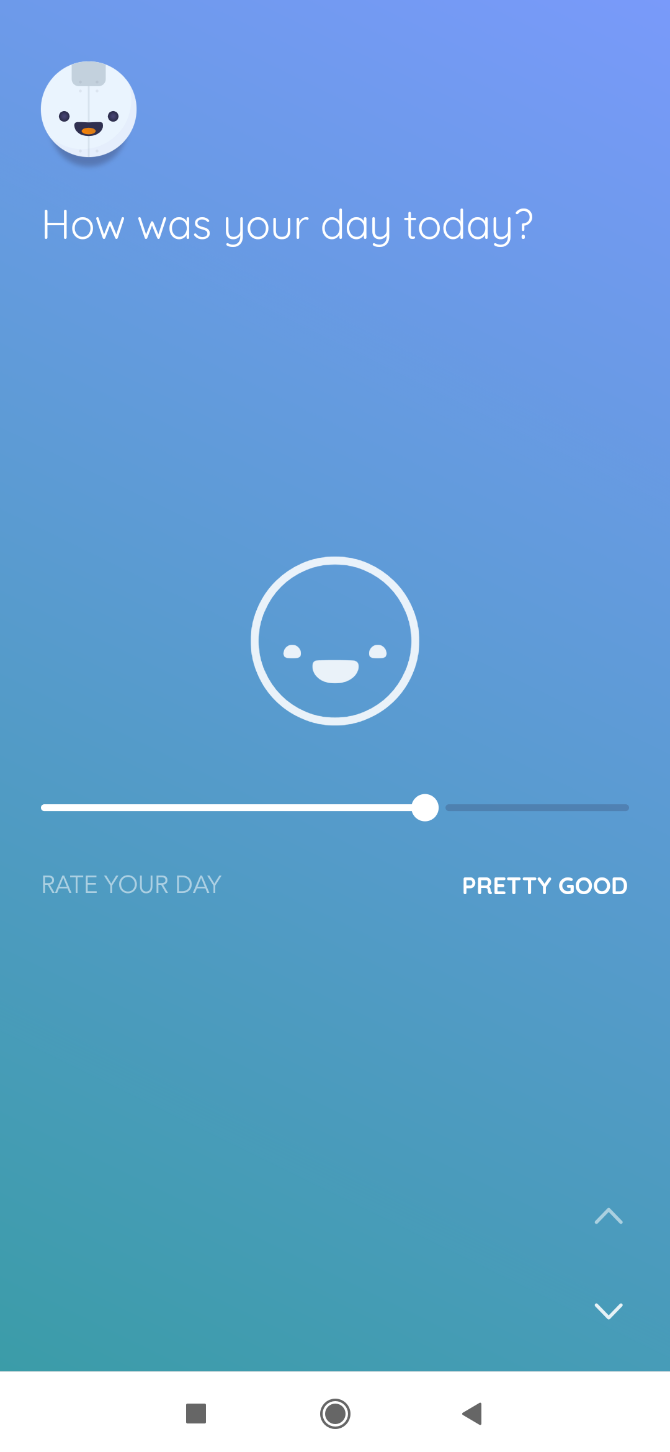
The app divides journaling into tracking your moods and noting major highlights. Every day, it prompts you to note how the day went, what type of activity made it feel that way and note any thoughts about it.

Along with these three, you get a new daily question. The type of question varies but it’s usually a good self-assessment or a place to vent. This is where the AI comes in, as it uses your mood and other data to come up with the questions.

You can also view statistics on Reflectly after you unlock stars by using it regularly. The app aggressively pushes its Premium version, but keep tapping “No Thanks” every time it pops up and you can still use the free version without a hitch.

Download: Reflectly for Android | iOS (Free)

6. JournalFlow (Web): Journal Through Email or Messengers
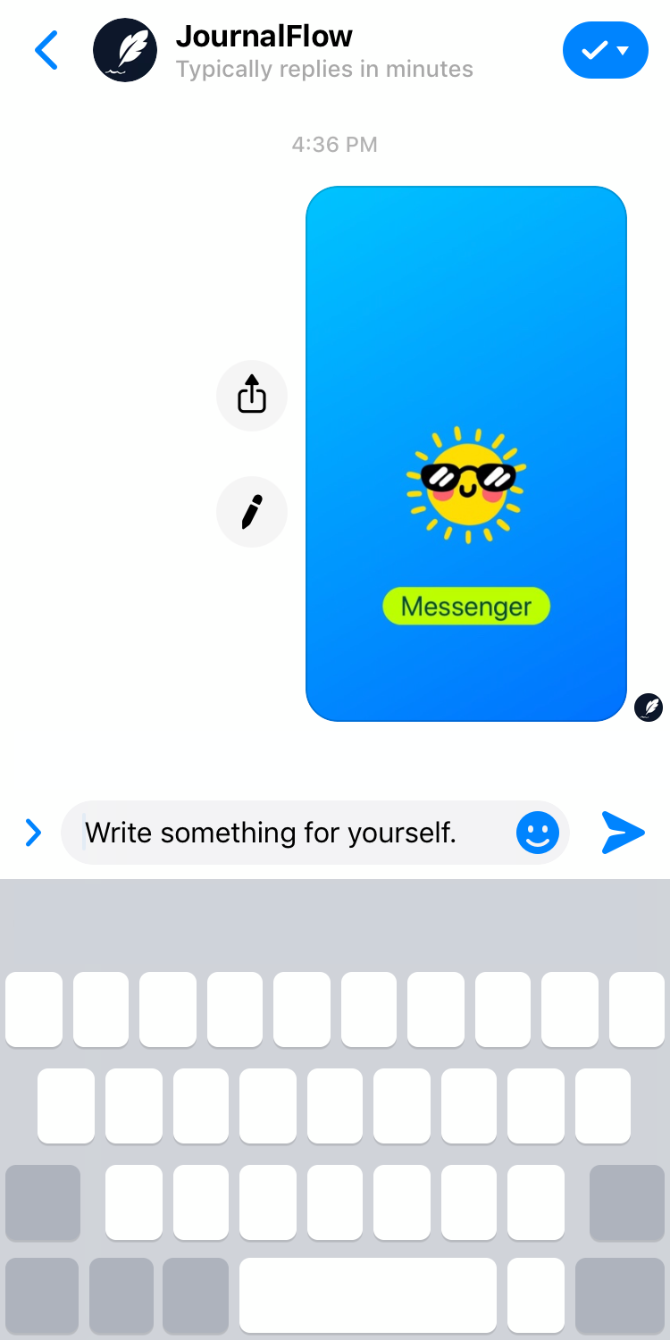
The term “Dear Diary” was meant to suggest that you’re talking to a friend. What if you could keep a journal by the modern mechanism of talking to friends? JournalFlow is a neat app that hooks into Telegram and Facebook Messenger, so you can chat to add to your journal.

Sign up and add JournalFlow to the messenger of your choice. From then on, it’s like any other chat with a friend. Type into the chat window and it’ll get automatically added to your journal. You can also post photos.

Periodically, JournalFlow will ask you questions pertaining to your day or mood, like any of the other guided journaling apps. You can also use JournalFlow through email, replying to one message a day with those questions.

The downside is that JournalFlow is free only for 30 days, after which you’ll have to pay $2.49 per month to use it. Try it out and see if it’s worth it for you.

Note: At the time of testing, the Telegram feature wasn’t working.

More Diary Apps

The benefits of digital journaling cannot be ignored. There are multiple studies that conclude this daily practice can help in mental clarity and emotional well-being. But different apps work for different people. So if the above tools aren’t your speed, try these other diary apps to start a journaling habit.

Read the full article: 6 Digital Journal Apps to Boost Mental Health With a Daily Diary 


Read Full Article

How to Use Google Sheets as an Amazon Price Tracker


The prices of products listed on various Amazon shopping websites may vary every day and a simple Google Spreadsheet can help you monitor these price fluctuations via email. Just add the Amazon items in a spreadsheet and you’ll automatically get email alerts when their prices change on Amazon. You’ll thus never miss the deal again.

amazon price tracker

Track Amazon Prices with Google Sheets

The Amazon Price Tracker is easy to configure. All you have to do is add the links (URLs) of Amazon product pages inside a Google Spreadsheet. You can add monitor products across all Amazon.* websites. Here are the steps involved:

Step 1: Generate Amazon Access Keys

Open the Amazon Associates website and sign-in with your Amazon account. Next, click the Tools menu, choose Product Advertising API from the dropdown (link) and choose Manage Your Credentials under the Add Credentials section. Amazon will create an Access Key ID and a Secret Key that you’ll need in the next step.

Step 2: Copy the Google Spreadsheet

Click here to copy the Price Tracker Google Sheet in your Google Account. DO NOT change the layout of the Google Sheet as it may break the tracker.

amazon-product-links.png

Now all you have to do is enter Amazon product URLs in column A of the Google Sheet, one per line. For instance, here’s the Amazon URL for iPad

https://www.amazon.com/exec/obidos/ASIN/B07K344J3N/tajmahal020-20/

The URL contains the 10 digit ASIN code which is used by the Google Sheet to identify the specific Amazon product you are looking to monitor for price fluctuations.

In addition to prices, the Google Sheet lists several other useful attributes of Amazon Products including merchant’s name, sales rank, overall savings, Prime eligibility and whether the product qualifies for free shipping.

Step 3: Set Price Thresholds (optional)

With the Price Tracker, you can also set price thresholds for specific products and get automatic email alerts when the target price is reached. For instance, you can choose to receive alerts when the iPad price drops by 20% of the initial value. Or you can set a target price (alert when iPad drops to $399) and get automatic alerts when the price drops on Amazon.

To specify a threshold for any product, go to column B of the product row and enter the amount or percentage values as shown in the screenshot above.

Step 4: Configure Price Tracker inside Google Sheet

Inside the Google Sheets, go to the Amazon Price Tracker menu (near the Help menu) and choose Configure. You may have to authorize the Pricer Tracker script once to connect to Amazon API and send email alerts.

configure-price-tracker.png

Next enter your access keys, your email address and the time when you wish to receive the email alerts. Click Save to initialize the Amazon Price Tracker.

That’s it. You’ll receive a daily email digest with the price fluctuations as shown below.

amazon-email.png

Monitor Amazon Products for Price Drops

Amazon Price Tracker can monitor prices of all products (including Kindle ebooks) listed on Amazon.com and the country-specific websites including amazon.fr, amazon.de, amazon.es, amazon.ca, amazon.it, amazon.in, amazon.co.jp and amazon.co.uk.

Also, you can add more Amazon URLs, or delete existing products, from the Google sheet and the script will automatically pick the changes in the next run. And if you ever wish to stop receiving those email alerts, just choose the Stop Tracking option from the Price Tracker menu in the same Google sheet.

The tracker is written in Google Scripts and uses Amazon’s Product Advertising API to fetch the latest prices at fixed intervals. The Price Tracker is completely free but if you chose to upgrade to premium, you get technical support and get to use your own Amazon Associate tags.

The post How to Use Google Sheets as an Amazon Price Tracker appeared first on Digital Inspiration.


Google picks up Microsoft veteran, Javier Soltero, to head G Suite


Google has hired Microsoft’s former Cortana and Outlook VP, Javier Soltero, to head up its productivity and collaboration bundle, G Suite — which includes consumer and business tools such as Gmail, Hangouts, Drive, Google Docs and Sheets.

He tweeted the news yesterday, writing: “The opportunity to work with this team on products that have such a profound impact on the lives of people around the world is a real and rare privilege.”


Soltero joined Microsoft five years ago, after the company shelling out $200M to acquire his mobile email application, Acompli — staying until late last year.

His LinkedIn profile now lists him as vice president of G Suite, starting October 2019.

Soltero will report to Google Cloud CEO Thomas Kurian — who replaced Dianne Green when she stepped down from the role last year — per a company email reported by CNBC.

Previously, Google’s Prabhakar Raghavan — now SVP for its Advertising and Commerce products — was in charge of the productivity bundle, as VP of Google Apps and Google Cloud. But Mountain View has created a dedicated VP role for G Suite. Presumably to woo Soltero into his next major industry move — and into competing directly with his former employer.

The move looks intended to dial up focus on the Office giant, in response to Microsoft’s ongoing push to shift users from single purchase versions of flagship productivity products to subscription-based cloud versions, like Office 365.

This summer Google CEO, Sundar Pichai, announced that its cloud business unit had an $8 billion annual revenue run rate, up from $4BN reported in early 2018, though still lagging Microsoft’s Azure cloud.

He added that Google planned to triple the size of its cloud sales force over the next few years.


Read Full Article

Former Stitch Fix COO Julie Bornstein is rewriting the e-commerce playbook


More than two years after Julie Bornstein–Stitch Fix’s former chief operating officer–mysteriously left the subscription-based personal styling service only months before its initial public offering, she’s taking the wraps off her first independent venture.

Shortly after departing Stitch Fix, Bornstein began building The Yes, an AI-powered shopping platform expected to launch in the first half of 2020. She’s teamed up with The Yes co-founder and chief technology officer Amit Aggarwal, who’s held high-level engineering roles at BloomReach and Groupon, and most recently, served as an entrepreneur-in-residence at Bain Capital Ventures, to “rewrite the architecture of e-commerce.”

“This is an idea I’ve been thinking about since I was 10 and spending my weekends at the mall,” Bornstein, whose resume includes chief marketing officer & chief digital officer at Sephora, vice president of e-commerce at Urban Outfitters, VP of e-commerce at Nordstrom and director of business development at Starbucks, tells TechCrunch. “All the companies I have worked at were very much leading in this direction.”

Coming out of stealth today, the team at The Yes is readying a beta mode to better understand and refine their product. Bornstein and Aggarwal have raised $30 million in venture capital funding to date across two financings. The first, a seed round, was co-led by Forerunner Ventures’ Kirsten Green and NEA’s Tony Florence. The Series A was led by True Ventures’ Jon Callaghan with participation from existing investors. Bornstein declined to disclose the company’s valuation.

“AI and machine learning already dominate in many verticals, but e-commerce is still open for a player to have a meaningful impact,” Callaghan said in a statement. “Amit is leading a team to build deep neural networks that legacy systems cannot achieve.”

Bornstein and Aggarwal withheld many details about the business during our conversation. Rather, the pair said the product will speak for itself when it launches next year. In addition to being an AI-powered shopping platform, Bornstein did say The Yes is working directly with brands and “creating a new consumer shopping experience that helps address the issue of overwhelm in shopping today.”

As for why she decided to leave Stitch Fix just ahead of its $120 million IPO, Bornstein said she had an epiphany.

“I realized that technology had changed so much, meanwhile … the whole framework underlying e-commerce had remained the same since the late 90s’ when I helped build Nordstrom.com,” she said. “If you could rebuild the underlying architecture and use today’s technology, you could actually bring to life an entirely new consumer experience for shopping.”

The Yes, headquartered in Silicon Valley and New York City, has also brought on Lisa Green, the former head of industry, fashion and luxury at Google, as its senior vice president of partnerships, and Taylor Tomasi Hill, whose had stints at Moda Operandi and FortyFiveTen, as its creative director. Other investors in the business include Comcast Ventures and Bain Capital Ventures
Read Full Article

Adobe’s Inspiration Engine Could Boost Your Creativity


Adobe has launched a new Alexa Skill it hopes will help boost your creativity. It’s called the Adobe Inspiration Engine, and it delivers inspirational quotes and creative exercises designed to get your creative juices flowing when the tap seems to be stuck.

When Your Creative Juices Stop Flowing…

Creative block can hit the best of us. Whether you’re a writer, an artist, a photographer, or a designer, there are times when your creative juices stop flowing. This can be upsetting, especially if you have no idea when they’ll start flowing again.

There are various techniques to boost your creativity. Whether it’s taking a break, drinking some coffee, or using these creative block-breaking apps. But now you have another option thanks to Adobe’s new Alexa Skill called the Adobe Inspiration Engine.

How to Use the Adobe Inspiration Engine

Adobe unveiled the Adobe Inspiration Engine on The Adobe Blog. The Adobe Inspiration Engine sprang from the company’s desire to “empower people to realize their creative potential”. Its products offer practical solutions, but this could play a supporting role.

The Adobe Inspiration Engine comprises three components: Insightful quotes from creatives such as Jessica Walsh and Pascal Campion, creative exercises voiced by Calob Castellon and Elise Swopes, and a creative quiz to help you understand your own mind.

how to enable and use Adobe Inspiration Engine

To enable the Adobe Inspiration Engine from the Amazon Alexa Skill store, just say, “Alexa, enable the Adobe Inspiration Engine.” Then, when you need to get a hit of inspiration to boost your creativity, say, “Alexa, open the Adobe Inspiration Engine”.

The Adobe Inspiration Engine is available right now for free in the US, the UK, Canada, Australia, and New Zealand. You can use it with any Alexa-enabled device, including the Echo Show, or the Alexa app on your smartphone or tablet.

The Best Amazon Alexa Skills Worth Using

There are thousands of Alexa Skills available to download beyond the Adobe Inspiration Engine. Some free, some paid, some good, some bad. To help you sort the wheat from the chaff, we’ve compiled a list of the best free Alexa Skills for Amazon Echo owners.

Read the full article: Adobe’s Inspiration Engine Could Boost Your Creativity


Read Full Article

The Best Plex Clients for Streaming Media


plex-clients-streaming

Plex has cemented itself as the best software for managing your media library, streaming content to the various screens in your home, and watching your videos remotely when you’re on-the-go.

To run Plex, you need two things—a server and a client. The server is responsible for hosting your content and sending it to other screens; the client is the app that allows you to access and watch your media on those screens.

So, which devices are the best Plex clients for streaming media? Let’s take a closer look.

1. Nvidia Shield

Nvidia Shield Nvidia Shield Buy Now On Amazon $188.99

The Nvidia Shield is the best Plex client that money can buy. It’s blazingly fast, packed with best-in-class hardware, and can handle any task you throw at it.

The device is a set-top box. You need to connect it to your TV using an HDMI cable. The box runs Android TV, supports 4K video at 60 frames per second (FPS), and offers Dolby Atmos audio. Under the hood, the Nvidia Shield has an Nvidia Tegra X1 processor, 16GB of storage, 3GB of RAM, and a 256-core GPU.

It also comes with Google Assistant and Alexa compatibility. And if the 16GB isn’t enough for your needs, you can use USB storage or an external hard drive by connecting the extra memory to one of the two USB ports.

2. Apple TV 4K

The other premium device you can use as a Plex client is the Apple TV 4K box. Even though it’s more expensive, we recommend the newer 4K version to make sure that you future proof your purchase.

The Apple TV 4K supports Dolby Vision and HDR10 video, and has Dolby Digital surround sound. Inside the device, there’s an A10X Fusion chip with 64-bit architecture. The box is available in 32GB and 64GB versions.

However, an Apple TV box has a few drawbacks compared to Nvidia’s product. Firstly, because it’s made by Apple, it is far less customizable. Secondly, there are no USB ports; you cannot expand the memory with external devices. Finally, it only offers Siri—there’s no Google Assistant or Alexa.

3. Amazon Fire TV Stick 4K

Amazon Fire TV Stick 4K Amazon Fire TV Stick 4K Buy Now On Amazon $49.99

If the Nvidia Shield and Apple TV 4K are out of your price range, you should consider the Amazon Fire TV Stick 4K. It’s the best Plex client for people who are on a budget. Despite the lower price point, however, the Fire TV Stick 4K is still a highly capable streaming device. It supports Dolby Vision and HDR10 video, along with Dolby Atmos audio. The stick comes with 8GB of storage and a quad-core processor.

When setting up a Plex client, it is always preferable to connect your set-top box or streaming stick directly to your modem; you’ll enjoy a faster and more reliable experience. Sadly, unlike the Nvidia and Apple devices, the Amazon Fire TV Stick 4K does not have a built-in ethernet port. You will need to purchase the official Amazon Ethernet Adapter separately. This will add around 30 percent to the overall cost.

4. Raspberry Pi 4

Raspberry Pi 4 Raspberry Pi 4 Buy Now On Amazon $45.46

Another cheap device that can be deployed as a Plex client is the Raspberry Pi 4. Unlike the other three Plex clients we’ve looked at, however, it does not work straight out of the box. It’s a DIY solution that you’ll need to program yourself. If that’s not your cup of tea, you should give it a wide berth.

Although the Raspberry Pi 4 is the latest model, a Raspberry Pi 2 or Raspberry Pi 3 will work just as well. The Pi 4 comes with 1GB, 2GB, or 4GB of RAM, two micro HDMI ports that support 4K, four USB ports, and an ethernet port. It has a 1.5GHz quad-core 64-bit ARM Cortex-A72 CPU.

Keep in mind that the price you see above only covers the cost of the board. You’ll also need to buy a case and a power cable.

5. Roku Ultra

Roku Ultra Roku Ultra Buy Now On Amazon $91.99

The Roku Ultra is a solid mid-range Plex streaming client. It’s more expensive than a Fire TV Stick or Raspberry Pi, but considerably cheaper than the Nvidia Shield and Apple TV.

Roku manufacturers several different set-top boxes. In truth, they are all capable Plex clients. But the Ultra is the company’s best device. It has a quad-core processor and includes both USB and microSD ports for expanded memory. There’s also a voice-controlled remote control (with support for Google Assistant and Alexa) and an ethernet port for faster connections. The Ultra offers 4K playback at 60FPS and supports HDR10 video.

Importantly, Roku has also developed a reputation as being one of the agnostic streaming devices on the market. If you plan to use your device for more than watching Plex, it is a great choice.

6. Xbox One X

Xbox One X Xbox One X Buy Now On Amazon

If you own an Xbox One X, you don’t really need to buy any of the other devices on our list—you already have one of the best Plex clients.

Unlike the basic Xbox One, it supports native 4K video (rather than using upscaling). There’s also voice support and an ethernet connection. Inside the console, you’ll find a 2.3GHz x86 AMD Jaguar eight-core CPU, 12GB of RAM, 1TB of storage, and three USB ports.

7. PlayStation 4

PlayStation 4 PlayStation 4 Buy Now On Amazon $279.95

Similarly, the PlayStation 4 also doubles as a solid Plex client. Remember, though; only the PS4 Pro supports 4K video. If you have an extensive collection of 4K content and only own a regular PS4, you might still want to buy one of the other devices we’ve recommended.

The PS4 has a 1.6GHz 8-core AMD Jaguar CPU, a 1.84 TFLOP AMD Radeon GPU, 8GB of RAM, 500GB or 1TB of storage, and two USB ports. The console is also Bluetooth-compatible. If you go for the Pro instead, you’ll get a 2.1GHz 8-core AMD Jaguar CPU, three USB ports, and 1TB of storage.

8. Your Smart TV

Finally, keep in mind that your smart TV might be able to run Plex. If it has an Android TV or Roku OS, it definitely will. But Plex is also available on some proprietary smart TV operating systems. Check with your manufacturer or in the appropriate app store before you hit the shops and buy one of the other devices with have discussed.

The Best Plex Clients for Your Home

Once you’ve made your decision and bought the best Plex client to suit your needs, there’s still lots more to consider before you’re ready to start streaming.

For example, make sure you’ve also bought one of the best devices to use as a Plex server. It will help you maximize your Plex experience.

Read the full article: The Best Plex Clients for Streaming Media


Read Full Article

Hard Drive Size Explained: Why 1TB Is Only 931GB of Actual Space


real-hdd-size

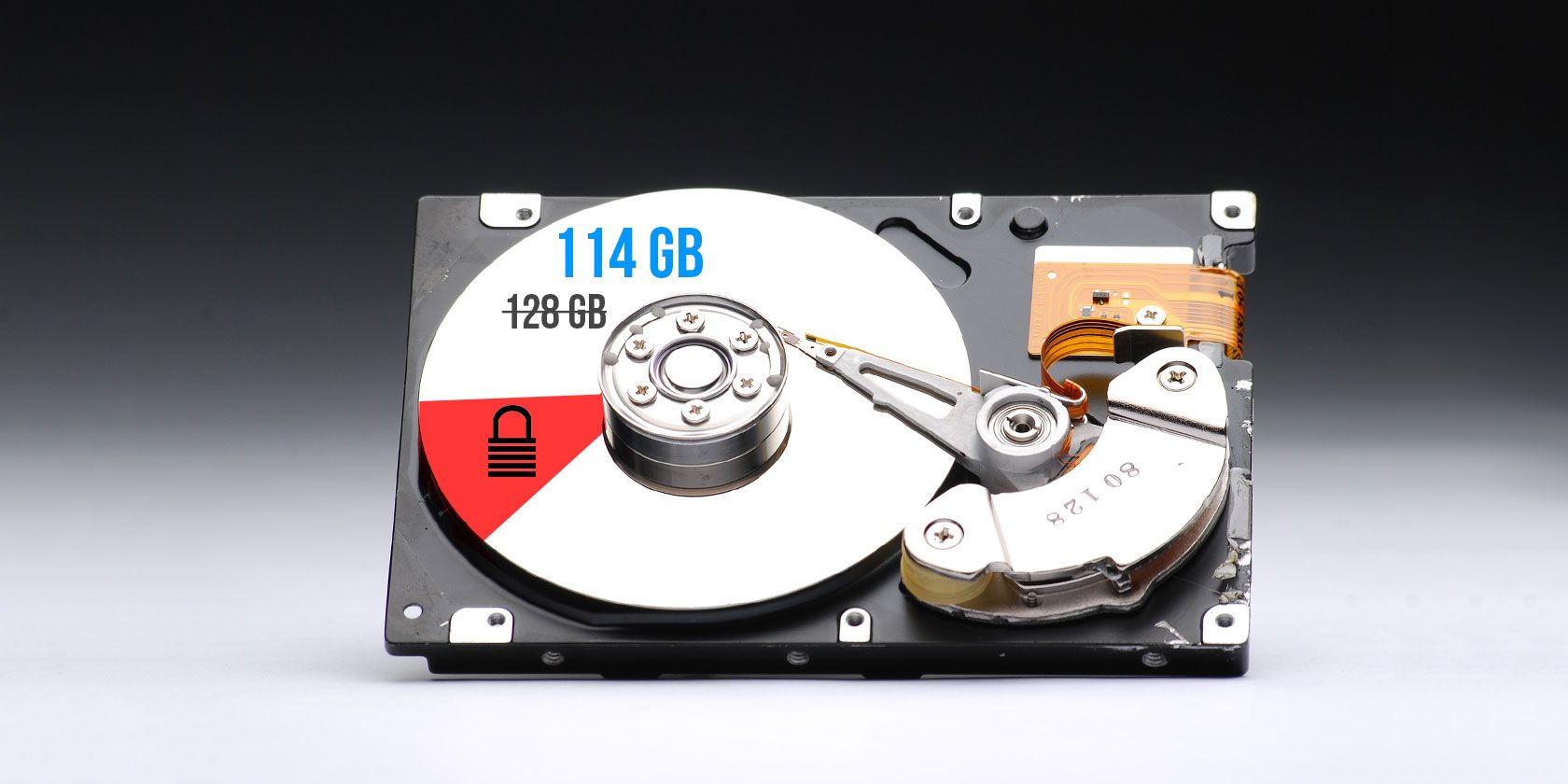
How many times have you opened up a new computer, phone, or external drive, only to be shocked when you realize it doesn’t have as much storage space as it said on the box? That 512GB SSD might actually only hold 477GB, or your 64GB iPhone might only have room for 56GB of files.

There are a few good reasons why this happens. Let’s take a look at why advertised space isn’t usually the same as actual space.

The Operating System and Pre-Installed Apps

The most basic reason that you don’t have all the disk space usable is that there’s already some data present when you buy it. This isn’t the case for removable disks like flash drives or SD cards, but is a major factor with phones and pre-built computers.

When you buy a computer, the operating system (such as Windows or macOS) takes up a large chunk of space. These protected OS files are necessary for the system to run as intended, so there’s no getting around them.

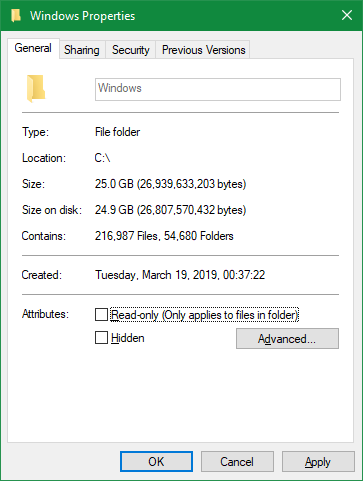
As an example, on my system, the C:\Windows folder takes up 25GB. That’s roughly one tenth of the entire disk space.

Windows Folder Size

However, it’s not just the OS files that take up space out of the box. Most operating systems include extra apps that you may or may not want. This includes everything from Windows 10 bloatware to useful built-in macOS apps like GarageBand.

While they’re not technically part of the OS, they come bundled with it and thus take up room right away. You can usually remove these to regain space; check out our guide to freeing up storage space on Windows 10 for some tips.

How Computers Measure Space

While preinstalled apps are definitely a factor, the biggest reason that you don’t get the full amount of advertised space is because computers measure numbers differently than humans do.

Binary Numbers Explained

Computing uses standard value prefixes, including “kilo” for thousand, “mega” for million, “giga” for billion, “tera” for trillion, and so on. For a primer on these, we’ve looked at how many gigabytes are in a terabyte and more.

People, including hard disk manufacturers, use the decimal system, which measures numbers with a base of 10. Thus, when we say “500 gigabytes,” we mean 500 trillion bytes.

However, computers use the base 2 binary system, where all numbers are either 1 or 0. If you’re not familiar, below is a list of the numbers 1-10 written out in binary:

1
10
11
100
101
110
111
1000
1001
1010

As you can see, in binary, 21 represents the decimal value 1, 22 is equal to 2, 23 equals 4, 24 is the same as 8, and so on. Each new digit’s place in binary increase the number’s value by one power of two. 210, then, equals 1,024.

Binary and Decimal Measuring

Now we know why computers use 1,024 instead of 1,000 to define these common prefixes. To a computer, one kilobyte is 1,024 bytes, not 1,000 bytes as it is to people. This compounds as you move up the scale, so one megabyte is 1,024 kilobytes, and one gigabyte is 1,024 megabytes.

To see how this affects you, say you buy a 250GB external SSD. That disk contains 250,000,000,000 bytes, but the computer doesn’t display it that way.

Working backwards, we can divide by 1,024 three times (once to convert bytes to kilobytes, again to convert kilobytes to megabytes, and a final time to convert megabytes to gigabytes) to see how much space this actually is:

250,000,000,000 / (1,024 * 1,024 * 1,024) = 232,830,643,653 bytes, or 232.83GB

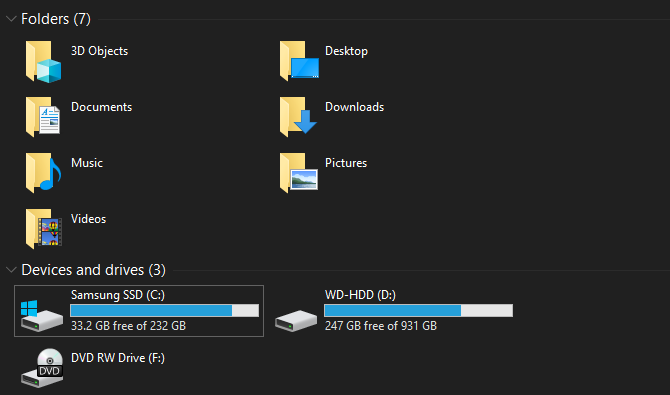
Examining a 250GB drive in Windows shows its maximum space as 232GB, which is exactly what our above calculation found. That’s a difference of about 18GB.

Windows Disk Storage Space

And the larger the disk is, the bigger the difference between measured space and actual space. For example, a 1TB (1,000GB) disk has 931GB of space according to a computer.

Gigabyte vs. Gibibyte

After walking through this, you might wonder why this disparity exists. Why don’t hard drive manufacturers provide an accurate amount of space on their devices? Well, they technically do.

The correct definition of “giga” is a power of 1,000. There’s another name for a power of 1,024: “gibi.” The International Electrotechnical Commission has published standards for measuring data in binary in order to resolve this confusion.

While a kilobyte (KB) represents 1,000 bytes, a kibibyte (KiB) represents 1,024 bytes. It’s the same for mebibytes (MiB), gibibytes (GiB), tebibytes (TiB), and so on.

For some reason, Windows inaccurately uses the “GB” prefix when it’s really measuring in gibibytes. Other operating systems, like macOS, correctly measure 1GB as one billion bytes. Thus, the same 250GB drive connected to a Mac would show it having 250GB of total space.

Note that this is different than the difference between megabytes and megabits, which we’ve also explained.

Additional Disk Partitions

Aside from the above, another potential cause for a reduction in the total amount of space a drive has is additional partitions.

In case you weren’t aware, you can separate physical hard disks into different logical sections, which is known as partitioning. Partitioning a hard drive allows you to install two different operating systems on one disk, among other uses.

When you buy a computer off the shelf, the manufacturer often includes a recovery partition on the disk. This contains data that allows you to reset your system in case of a serious problem. Like any other files, they take up space on the drive. But because recovery partitions are often hidden from standard view, you might know not they’re around.

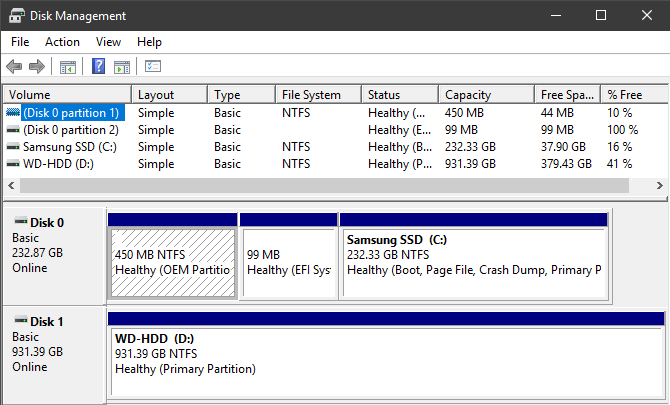
To view the partitions on your drive in Windows, type disk management into the Start menu and click Create and format hard disk partitions. Here you can see each disk on your system and the partitions that make it up. If you see a label of Restore, Recovery, or similar, that’s your recovery partition.

Windows 10 Disk Management

In most cases, it’s possible to erase these partitions and regain that space. However, it’s usually best to leave them alone. Having them makes recovering your system a lot easier, and the small space gain isn’t worth the hassle of recovering your system manually.

Hidden Features That Also Use Space

Finally, most operating systems contain features that take up space but don’t exist as actual files. For example, Windows’s Shadow Copy service is used to power both the Previous Versions and System Restore functions.

System Restore lets you return to an earlier point in time if your system isn’t working properly, while Previous Versions keeps copies of your personal files so you can undo changes. Both of these need space to work, of course.

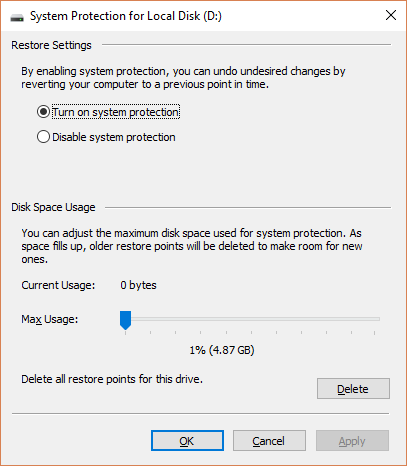
To see and change how much space features that rely on Shadow Copy services use, press Win + Pause to quickly open the System Control Panel entry. From here, click System protection on the left side. In the resulting window, select your drive from the list and choose Configure.

You’ll see a new dialog box that allows you to disable system protection entirely (though we don’t recommend this). Below, you’ll see the Current Usage and can adjust the maximum amount that Windows uses. Somewhere around 10 percent is a good amount.

Windows 10 System Protection

Now You Know How Computers Calculate Space

The elements discussed account for the noticeable difference in advertised and actual storage space. While there are some other minor factors, such as special blocks in SSDs, these are the major reasons. Knowing them, it’s wise to plan ahead and make sure you always get the amount of storage you need with new devices.

If you’re low on space, have a look at how to add more storage to your Mac. Most of the advice applies to other platforms, too.

Read the full article: Hard Drive Size Explained: Why 1TB Is Only 931GB of Actual Space


Read Full Article

Ubuntu 18.04 LTS: Should You Upgrade? 8 Reasons


reason-upgrade-1804-ubuntu

Ubuntu 18.04 LTS “Bionic Beaver” is the current Long Term Support release of Ubuntu. This makes it the number one choice for anyone considering Ubuntu. Still need convincing? Here’s why you should upgrade to or install Ubuntu 18.04 LTS on your Linux PC or laptop.

Ubuntu 19.10 vs 18.04: What You Need to Know

Ubuntu 18.04 LTS (codenamed “Bionic Beaver”) was released in April 2018. As with all Ubuntu releases, the date of release (year and month) is related in the version number.

This is an important version of Linux OS. Every two years a Long Term Support (LTS) release is issued, with five years of support from Canonical. This means you can use Ubuntu 18.04 LTS with support until 2023.

At the time of writing, Ubuntu 19.10 is set for release. However, like other non-LTS releases, Ubuntu 19.10 does not have the same level of support as Ubuntu 18.04. Updates will stop after two years, rather than the five on offer from an LTS.

Keeping this in mind, if you’re wondering if you should upgrade from Ubuntu 16.04 LTS, the answer is “soon”. Support for that LTS release will end in 2021.

In many ways, Ubuntu 18.04 is the core version of the operating system, while Ubuntu 18.10, 19.04, 19.10, and other non-LTS releases can be treated as a mix of interim update and advanced beta.

Want to know more? Here are eight reasons why you should be using Ubuntu 18.04 LTS.

1. Security Enhancements

Primarily, you should upgrade your current Ubuntu version regularly in order to benefit from the latest security patches. These might be for the operating system, drivers, or even (in the case of the Meltdown and Spectre bugs) the underlying hardware.

It’s worth pointing out here that this is true of all operating systems, whether Linux-based, Windows, or macOS. Regular updates will improve your computer’s security. This is why Windows XP users are regularly encouraged to upgrade or switch to Linux.

However, there is a potential security concern that you should be aware of. With Ubuntu 18.04 LTS, Canonical intends to collect data from your computer. But there is nothing personally identifiable in this data.

Instead, it is to establish your computer’s hardware components, what version of Ubuntu you’re running, your location (based on your choice when setting up Ubuntu) and a few other things.

This marks a change from Canonical’s previous attitude to this sort of data collection but is understandable given how flakey figures are for Linux usage around the world. Crucially, this data collection can be opted out of; if you’re upgrading from a previous version of Ubuntu, meanwhile, you can also opt in.

2. GNOME Arrives on the LTS Release

Ubuntu GNOME LTS desktop
Perhaps the biggest news of the LTS release is GNOME 3.28. Since GNOME replaced Unity in Ubuntu 17.10 (although Unity isn’t quite dead) GNOME has been the default desktop environment (pictured above on Artful Aardvark).

Of course, you don’t have to go with GNOME. Other Ubuntu desktop environments are available, such as MATE.

GNOME on Ubuntu 18.04 LTS marks the first appearance of the new Unity-esque customized GNOME 3.0 desktop on a long-term support release. And it’s a great reason to upgrade Ubuntu to version 18.04.

3. Ubuntu 18.04’s Brand New Icon Set

Ubuntu GNOME icon set

Despite hopes to the contrary (and a dedicated community project), Ubuntu 18.04 does not boast a fresh new look. However, while the Ambiance theme is hanging around (despite looking a bit tired), some new icons are included in Ubuntu.

Open source icon project Suru has been incorporated into Ubuntu 18.04. These icons were originally seen in the abandoned Ubuntu Touch mobile operating system (now under the control of UBPorts.com).

As noted on the Suru web page (where you can take a look at what’s to come), “Original mobile application icons have been repurposed to theme their GNOME counterparts. Folder and file type icons have been added, based on an unreleased Suru concept. Plus a complete symbolic icon set has been created, with many icons based on the original Suru system icons.”

4. Color Emojis

Ubuntu GNOME smileys and emojis
Sick of Ubuntu leaving you with embarrassing black and white emojis? Upgrading to Ubuntu 18.04 LTS delivers full color emojis to your Ubuntu desktop by default.

You’re stoked, right? I can tell.

The emojis you’ll find in Ubuntu 18.04 LTS are the same open source emojis as found on Android.

5. Ubuntu 18.04 Uses the 4.15 Linux Kernel

Sitting at the heart of every Linux-based operating system is the kernel. This is basically the component of the operating system that talks to the hardware.

As we move away from the release date of Ubuntu 18.04, the v4.15 kernel becomes outdated. To keep things up to date, you might consider updating the Ubuntu Linux kernel.

6. Community-Sourced Default Features and Apps

Take the time on Ubuntu 18.04 LTS to review the collection of community sourced features and apps. Announced in April 2017, the call for suggestions has had tremendous results. Look out for improved NVIDIA GPU and touchpad gesture support, as well as BlueZ implementation for improved Bluetooth functionality.

But it doesn’t end there. The Ubuntu community also suggested new apps to be bundled with the operating system. Consequently, Ubuntu 18.04 LTS includes choices such as Mozilla Firefox, LibreOffice, Kdenlive, and GNOME Calendar.

These tools will not be available in the operating system by default, however. Rather, you’ll have the option to install them as you install Ubuntu.

7. Xorg Display Server Returns to Ubuntu 18.04

Ubuntu GNOME login
Prior to 18.04 LTS, Ubuntu had a tough time, losing both Unity and the mobile variant, Ubuntu Touch. One of the biggest sticking points was the switch to the Wayland display server in Ubuntu 17.10.

While it continues to be earmarked as the display server of the future, the lack of app support for Wayland resulted in users switching back to Xorg.

As a result, Ubuntu 18.04 LTS comes with Xorg restored as the default display server. However, it’s simple enough to switch back to Wayland, via a cog icon on the login screen.

8. Long Term Support Means Ubuntu 18.04 Is Reliable

With new versions of Ubuntu released every six months, it’s important to have a stable option. Long Term Support releases only come around every two years, but they’re vital for many.

Whether you’re a student, business, or gamer, an LTS release of Ubuntu brings with it a degree of stability. You can count on this version of Ubuntu in a way that isn’t possible with interim releases. As a result, LTS versions are more popular, and you’ll find plenty of support for the OS online.

Ubuntu 18.04 LTS offers the reliability you’re looking for in an operating system. That’s worth a lot—yet this operating system is completely free.

Great Reasons to Upgrade Ubuntu Today

So, Ubuntu 18.04 LTS is coming, and you have plenty of reasons to upgrade. To recap:

  1. Security enhancements
  2. GNOME on LTS
  3. Brand new icons
  4. Color emojis
  5. New Linux kernel
  6. Community-sourced features
  7. Xorg display server
  8. Ubuntu 18.04 LTS is reliable

Want a better understanding of how this all fits in with Ubuntu? Check our Ubuntu startup guide. And if you’re ready, it may be now time to upgrade to Ubuntu 19.04.

Read the full article: Ubuntu 18.04 LTS: Should You Upgrade? 8 Reasons


Read Full Article

10 Nightmarish Netflix Movies Full of Jump Scares


nightmarish-netflix

Jump scares are those moments in films where everything has gone quiet and dark, and a sudden sound or movement jolts you out of your seat. This Halloween, entertain yourself (and your friends) with the best horror movies on Netflix full of jump scares.

Jump scares can provide cheap thrills or genuine frights, but no matter how they’re used, they’re always entertaining. And the following films make use of the technique so well they’re guaranteed to have you leaping out of your seat (and possibly your skin).

1. The Conjuring

  • Released in: 2013
  • IMDb Rating: 6.6/10
  • Rotten Tomatoes Rating: 86%

The Conjuring has already been touted as one of the classic horror movies of all time. Director James Wan delivers the perfect treatment on one of the oldest storylines in horror movies: a family movies into a new farmhouse in the middle of nowhere, and creepy things start to happen. As usual, people who know about the supernatural (paranormal investigators, in this case) come to their rescue.

While it’s not a typical “jump scare” movie, Wan uses the classic trick to good effect throughout the film. There are a dozen such moments, according to Where’s The Jump, but I’m pretty sure you’ll be frightened more often than that. It’s what makes The Conjuring one of the best horror movies to watch on Netflix.

2. Insidious

  • Released in: 2011
  • IMDb Rating: 6.8/10
  • Rotten Tomatoes Rating: 66%

James Wan’s Insidious is a favorite among horror buffs for restarting the “family moves into a new house and discovers an evil spirit” trend of movies. Fans of The Conjuring will also get to see early glimpses into how Wan developed his creepy style.

The film is packed with jump scares, whether it’s how someone retells a dream about the devil or a paranormal investigator using a modified ViewMaster to look into realms invisible to the naked eye. Where’s The Jump counted a total of 24 jump scares in the film and rates it 5/5, so this is a guaranteed hit.

3. Candyman

  • Released in: 1992
  • IMDb Rating: 6.6/10
  • Rotten Tomatoes Rating: 74%

The original Candyman is a delight for those who love jump scares and cheap thrills. It’s not mindless violence either, as the film also offers some insightful commentary on race in America.

Based on a Clive Barker short story, “The Candyman” is a local legend of a bogeyman with a hook for a hand. When a researcher (Virginia Madsen) invokes his spirit by saying his name five times in front of a mirror, a series of killings starts in the small town. Wait for the medicine cabinet scene…

4. The Lazarus Effect

  • Released in: 2015
  • IMDb Rating: 5.2/10
  • Rotten Tomatoes Rating: 14%

After making a documentary like Jiro Dreams of Sushi, you wouldn’t expect director David Gelb to dive into horror. But he is full of surprises in The Lazarus Effect, which is as creepy as they come.

Olivia Wilde and Mark Duplass star as medical researchers who have figured out how to resurrect dead animals. But a terrible accident claims Wilde’s life, and in his grief, Duplass decides to bring her back to life. It’s a success. Only the being that has come back to life seems to be losing Wilde’s soul and possessed by something much, much darker.

5. Creep and Creep 2

  • Released in: 2014 and 2017
  • IMDb Ratings: 6.3/10 and 6.4/10
  • Rotten Tomatoes Ratings: 89% and 100%

Looking for a double feature? “Found footage” horror films, like The Blair Witch Project, have its own set of fans. And it gets even more eerie when there isn’t a supernatural element involved. Creep and its sequel are must-watch movies in this genre.

The movies follow the premise of a young videographer finding a Craigslist ad from a man making a bizarre claim, and looking for someone to record it. In the first, the man supposedly wants to record a dying message. The sequel has him claiming to be a serial killer. The truth is stranger than either.

Mark Duplass and Patrick Brice write, direct, and star in both films. Duplass is frighteningly creepy, and Brice’s ability to mix jump scares with slowly-built tension is masterful.

6. Friend Request

  • Released in: 2016
  • IMDb Rating: 5.3/10
  • Rotten Tomatoes Rating: 17%

Laura is a typical popular college student. She gets tons of friend requests on Facebook, and she’s happy to add everyone. But she accepts one too many, and unfriends Marina for being creepy. Laura didn’t expect how creepy things would get, as Marina commits suicide, and mysterious videos start appearing on Laura’s profile. Things get worse when Laura’s friends start dying.

The plot of Friend Request is quite silly, but it’s the perfect sort of movie to watch with your friends for a jump-scare delight. It was never going to win any Oscars, but if you can’t have fun with something like this, you might want to go for one of the best horror films for geeks where technology takes center-stage.

7. Scream

  • Released in: 1996
  • IMDb Rating: 7.2/10
  • Rotten Tomatoes Rating: 79%

In the first film in the Scream series, director Wes Craven reinvents the slasher-horror genre by adding 19 jump scares in the 111 minutes. This means you’ll be spilling the popcorn once every seven minutes, as you watch the adventures of Neve Campbell, Courtney Cox, and David Arquette.

After her mother’s murder, a college student and her friends start getting scary phone calls from a serial killer in a strange white mask and a long black robe. The killer seems to be a fan of horror films, through which Craven pays homage to many classics. As new murders begin to hit the town, can the student and her friends survive?

Once you’re done with Scream, Netflix also has the two sequels, Scream 2 and Scream 3, available to watch. Craven has only increased the jump scares in those, so if you like the first film you’ll have a blast.

8. Shutter

  • Released in: 2004
  • IMDb Rating: 7.1/10
  • Rotten Tomatoes Rating: 58%

Thai film Shutter has a cult following among horror film fans for its mixture of jump scares and unfolding mystery. It’s a seemingly simple story, but the screenplay unravels in layers to keep you entertained throughout. Where’s The Jump awards it a four-star rating.

The film begins with a car accident, and the young couple inside drives away. The girl, who was driving, is guilt-ridden. Her boyfriend, the passenger, is a photographer who starts seeing faces and ghosts in his photographs. It seems that the girl they ran over is haunting the boyfriend. But when they discover the girl was part of their college, the movie starts taking strange twists and turns.

9. Sinister 2

  • Released in: 2015
  • IMDb Rating: 5.3/10
  • Rotten Tomatoes Rating: 15%

The original Sinister is a stronger movie, but Sinister 2 has so many startling moments that you are guaranteed to enjoy it. Where’s The Jump counted five major and 14 minor jump scares in this movie. It’s a must-watch combination of creepy kids and a ghost with a scythe.

In Sinister 2, a mother and her twin sons movie into a remote house. Of course, the house holds many secrets and is the site of past murders. One of the twin boys is sought by the spirits of past children. And a paranormal investigator visits the family to uncover what the house is hiding. Watch the trailer, as it should be enough to make you watch the movie.

10. Demonic

  • Released in: 2015
  • IMDb Rating: 5.3/10
  • Rotten Tomatoes Rating: 33%

It’s well known that you shouldn’t go to the Livingston House. Evil resides there. But that doesn’t stop six idiots from performing a seance in the place. In the course of events that followed, three died, one survived, and two went missing. It’s now to up Detective Mark Lewis and psychologist Dr. Elizabeth Klein to figure out what happened, rescue the missing people, and ensure that the house does not claim any more lives.

Demonic tries to go beyond the usual plotline by including a few twists and turns, including a surprise ending. It won’t work for everyone, but you get plenty of jump scares along the way to keep you entertained.

Scare Yourself Silly This Halloween

Jump scare movies are made for Halloween. So, if you want to enjoy a spooky All Hallow’s Eve, grab a tub of popcorn, switch off the lights, and start streaming one of these films on Netflix. however, you might want to lock the doors and windows before hitting Play.

However, a movie only gives you an hour or two of frights. Those who are ready to stay up all night need more than that, which is where our list of scary TV shows to binge-watch over Halloween comes in.

Read the full article: 10 Nightmarish Netflix Movies Full of Jump Scares


Read Full Article

India moves closer to regulating internet services as it fears ‘unimaginable disruption to democracy’


India said on Monday that it is moving ahead with its plan to revise existing rules to regulate intermediaries — social media apps and others that rely on users to create their content — as they are causing “unimaginable disruption” to democracy.

In a legal document filed with the country’s apex Supreme Court, the Ministry of Electronics and Information Technology said it would formulate the rules to regulate intermediaries by January 15, 2020.

In the legal filing, the government department said the internet had “emerged as a potent tool to cause unimaginable disruption to the democratic polity.” Oversight of intermediaries, the ministry said, would help in addressing the “ever growing threats to individual rights and nation’s integrity, sovereignty and security.”

The Indian government published a draft of guidelines for consultation late last year. The proposed rules, which revise the 2011 laws, identified any service — social media or otherwise — that have more than 5 million users as intermediaries.

Government officials said at the time that modern rules were needed, otherwise circulation of false information and other misuse of internet platforms would continue to flourish.

The Monday filing comes as a response to an ongoing case in India filed by Facebook to prevent the government from forcing WhatsApp to introduce a system that would enable revealing the source of messages exchanged on the popular instant messaging platform, which counts India as its biggest market with more than 400 million users.

Some have suggested that social media platforms should require their users in India to link their accounts with Aadhaar — a government-issued, 12-digit biometric ID. More than 1.2 billion people in India have been enrolled in the system.

Facebook executives have argued that meeting such demands would require breaking the end-to-end encryption that WhatsApp users enjoy globally. The company executives have said that taking away the encryption would compromise the safety and privacy of its users. The Supreme Court will hear Facebook’s case on Tuesday.

India’s online population has ballooned in recent years. More than 600 million users in India are online today, according to industry estimates. The proliferation of low-cost Android handsets and access to low-cost mobile data in the nation have seen “more and more people in India become part of the internet and social media platforms.”

“On the one hand, technology has led to economic growth and societal development, on the other hand there has been an exponential rise in hate speech, fake news, public order, anti-national activities, defamatory postings, and other unlawful activities using Internet/social media platforms,” a lower court told the apex court earlier.


Read Full Article

New Facebook features fight election lies everywhere but ads


Heaven forbid a political candidate’s Facebook account gets hacked. They might spread disinformation…like they’re already allowed to do in Facebook ads…

Today Facebook made a slew of announcements designed to stop 2020 election interference. “The bottom line here is that elections have changed significantly since 2016,” and so has Facebook in response, CEO Mark Zuckerberg said on a call with reporters. “We’ve gone from being on our back foot to proactively going after some of the biggest threats out there.”

Facebook Protect

One new feature is called Facebook Protect. By hijacking accounts of political candidates or their campaign staff, bad actors can steal sensitive information, expose secrets and spread disinformation. So to safeguard these vulnerable users, Facebook is launching a new program with extra security they can opt into.

Facebook Protect entails requiring two-factor authentication, and having Facebook monitor for hacking attempts like suspicious logins. Facebook can then inform the rest of an organization and investigate if it sees one member under attack.

Today’s other announcements include:

  • The takedown of foreign influence campaigns, three from Iran and one from Russia in order to protect users from deception.
  • Labeling state-owned or controlled media organizations like Russia Today on their Facebook Pages and the Ad Library to help users identify potential propaganda.
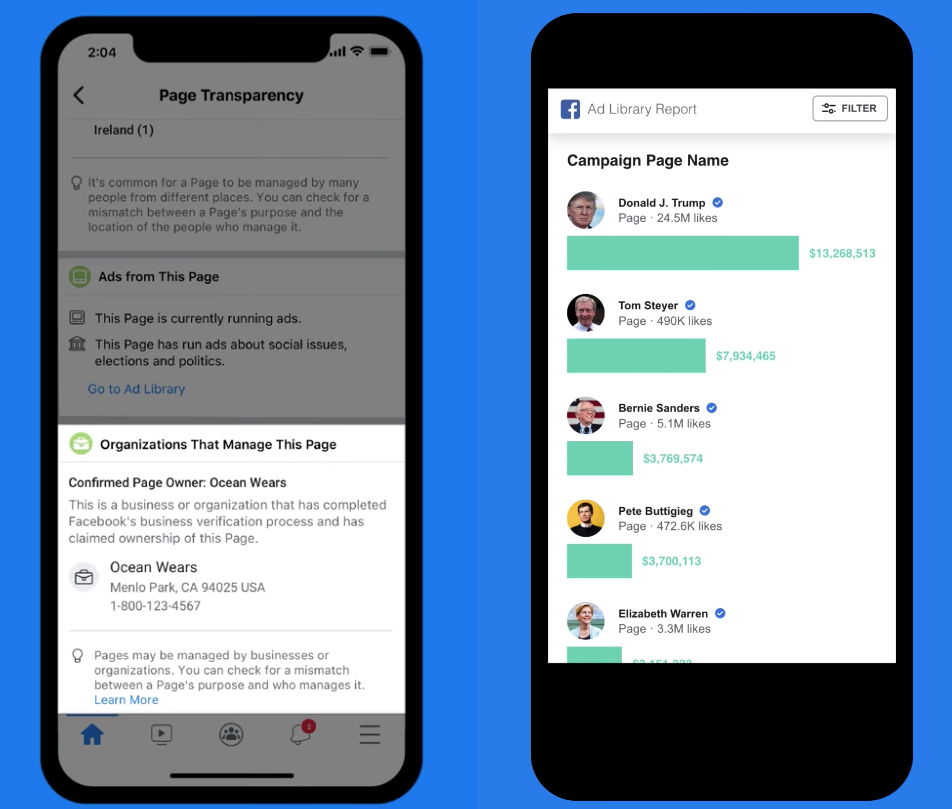
  • Added Page ownership transparency for ePages with large U.S. audiences and those verified to run political ads, which will have to display their owner’s organization’s legal name, city and phone number or website so it’s clear where information comes from.
  • New transparency features around political ad spend, including a U.S. presidential candidate spend tracker, more geographic spending details, info on which apps an ad appears on and programmatic access to downloads of political ad creative.
  • Much more prominent fact-checking labels will now run as interstitials warnings atop photos and videos on Facebook and Instagram that were fact-checked as false, rather than smaller labels attached below the post to make sure users know information is false before consuming it. Users will also be warned before they share posts fact-checked as false to keep them from going viral.

04 misinfo 02

  • A wider ban on voter suppression ads that suggest it’s useless to vote, provide inaccurate polling or voter eligibility information or threaten people if they vote or based on the outcome of an election to prevent intimidation and confusion.
  • A $2 million investment from Facebook into media literacy projects to develop new methods of educating people to understand political social media and ads.
  • Facebook Protect offering hack monitoring services to elected officials, candidates’ political party committees, government agencies and departments surrounding elections and verified users involved in elections.

Facebook Page Transparency Spend Tracker

Combined, the efforts could protect both campaigns and constituents from misinformation while giving everyone more clarity about where content originates. Yet the approach highlights Facebook’s tightrope walk between policing its networks and overstepping into censorship.

In a speech last week, Zuckerberg tried to firmly plant Facebook as erring on the side of giving people a voice rather than stifling speech. He raised the threat of China’s influence over foreign businesses by dangling its giant market in exchange for adherence to its political values. And he tried to defend allowing lies in political ads, arguing that banning political ads on Facebook as I’ve recommended the company do would benefit incumbents and silence challengers who don’t have media attention.

Trump Ad 1

A Trump ad spreads misinformation claiming Democrats want to repeal the second amendment

Yet throughout the call, Zuckerberg was hammered with questions about Facebook’s willingness to fact check what users share with friends, but not what politicians pay to show to millions of voters.

People should make up their own minds about what candidates are credible. I don’t think those determinations should come from tech companies . . . People need to be able to see this content for themselves,” Zuckerberg insisted. Yet if Facebook is willing to cover photos containing misinformation with a warning label you have to click to see past, it’s strange that it’s unwilling to do the same for political ads.

Like farming out fact-checking to third-party news outlets as Facebook already does, banning political ads wouldn’t force Facebook to judge the truth of individual statements, and they’d still have the right to share what they want to their own followers.

When I asked why he believes banning political ads would favor incumbents, Zuckerberg admitted, “You’re right that incumbents can raise more money,” and he wasn’t sure there’d been a comprehensive study on the matter. His defense relied on anecdotal beliefs of unnamed sources:

I’ve talked to a lot of people. The general belief that they have, when they’re a challenger, is that they rely on different mechanisms like ads in order to get their voices into a debate more than incumbents do . . .

From all of the conversations that I’ve had, the general overwhelming consensus from people who are participating in these things and who work on them has been that removing political ads would favor incumbents.

While the rest of Facebook’s announcements today felt like sensible steps in the right direction, the company will need stronger arguments for why it polices misinformation shared by users but not political ad campaigns.

Zuckerberg Elections

If it wants to find a better middle-ground, it could offer standardized ad units for political campaigns that endorse the candidate and ask for donations, but can’t make potentially untruthful assertions about them or their competitors. Alternatively it could apply fact-check labels to political ads without making calls of veracity itself. Facebook could also build other ways for challengers to grow their voice outside of ads so it could ban them without supposedly empowering incumbents.

Otherwise, it faces a political ad misinformation arms race in stern contrast to its other pro-truth efforts announced today. What will Facebook do if campaigns make increasingly malicious and inaccurate statements about their rivals via ads, claiming only donations to their candidate can save society? And what if they keep pouring all the money they unscrupulously raise into more ads? “My opponent eats babies. Donate to me by midnight. Only I can stop them from becoming America’s dictator.”

At least most of the time, users can try to avoid politics by ignoring campaign pages and unfollowing their crazy uncles. But untrue ads inject polarization and discord into people’s feeds. Facebook’s policies give the richest, most craven candidates the loudest voices. Can the social network and the democratic process survive a whole year of top spenders shouting lies?


Read Full Article

Wardrobe


Wardrobe

Daily Crunch: We review the Pixel 4


The Daily Crunch is TechCrunch’s roundup of our biggest and most important stories. If you’d like to get this delivered to your inbox every day at around 9am Pacific, you can subscribe here.

1. Pixel 4 review: Google ups its camera game

Brian Heater was impressed by the improvements in Google’s latest smartphone, including camera upgrades and the Recorder app.

However, he also argued that the Pixel 4 doesn’t exactly address what Google wants the Pixel to be, moving forward, especially after the Pixel 3a it was confirmed that consumers were looking for something cheaper.

2. NordVPN confirms it was hacked

The admission comes after rumors that the company had been breached, and what first emerged was that NordVPN had left an expired internal private key exposed, potentially allowing anyone to spin out their own servers imitating NordVPN.

3. Netflix to raise $2 billion in debt to fund more content spending

Despite a relatively strong earnings report last week, Netflix isn’t out of the woods just yet. Disney+ and Apple+ launch next month, and there’s more competition on the way.

4. Commercetools raises $145M from Insight for Shopify-style e-commerce APIs for large enterprises

The funding comes at the same time as commercetools is getting spun out by REWE, a German retail and tourist services giant that acquired the startup in 2015.

5. The Surface Pro 7 is a competent upgrade with USB-C, refreshed processors, but little else that’s new

The Pro 7, which is going on sale today, is a competent upgrade that gives Surface Pro users exactly what they want — even if it sticks to a tried and tested formula.

6. IPOs are the beginning, not the end

At Disrupt SF, PagerDuty’s Jennifer Tejada argued that an IPO “is part of the beginning of a long journey for a durable company that you want to build a legacy around.” (Extra Crunch membership required.)

7. This week’s TechCrunch podcasts

The Equity team talks to Greylock’s Sarah Guo about the future of software-as-a-service products, while Original Content has a review of “El Camino,” the new “Breaking Bad” movie on Netflix.


Read Full Article

Daily Crunch: We review the Pixel 4


The Daily Crunch is TechCrunch’s roundup of our biggest and most important stories. If you’d like to get this delivered to your inbox every day at around 9am Pacific, you can subscribe here.

1. Pixel 4 review: Google ups its camera game

Brian Heater was impressed by the improvements in Google’s latest smartphone, including camera upgrades and the Recorder app.

However, he also argued that the Pixel 4 doesn’t exactly address what Google wants the Pixel to be, moving forward, especially after the Pixel 3a it was confirmed that consumers were looking for something cheaper.

2. NordVPN confirms it was hacked

The admission comes after rumors that the company had been breached, and what first emerged was that NordVPN had left an expired internal private key exposed, potentially allowing anyone to spin out their own servers imitating NordVPN.

3. Netflix to raise $2 billion in debt to fund more content spending

Despite a relatively strong earnings report last week, Netflix isn’t out of the woods just yet. Disney+ and Apple+ launch next month, and there’s more competition on the way.

4. Commercetools raises $145M from Insight for Shopify-style e-commerce APIs for large enterprises

The funding comes at the same time as commercetools is getting spun out by REWE, a German retail and tourist services giant that acquired the startup in 2015.

5. The Surface Pro 7 is a competent upgrade with USB-C, refreshed processors, but little else that’s new

The Pro 7, which is going on sale today, is a competent upgrade that gives Surface Pro users exactly what they want — even if it sticks to a tried and tested formula.

6. IPOs are the beginning, not the end

At Disrupt SF, PagerDuty’s Jennifer Tejada argued that an IPO “is part of the beginning of a long journey for a durable company that you want to build a legacy around.” (Extra Crunch membership required.)

7. This week’s TechCrunch podcasts

The Equity team talks to Greylock’s Sarah Guo about the future of software-as-a-service products, while Original Content has a review of “El Camino,” the new “Breaking Bad” movie on Netflix.


Read Full Article