08 October 2019

5 Free Stock Illustration Sites to Download Copyright-Free Designs and Vectors


stock-illustration-sites

Whether you’re designing a landing page or a PowerPoint presentation, a few illustrations can go a long way in making it eye-catching. Here’s a collection of websites with stocks of free and royalty-free illustrations and vectors to download.

You can always grab real stock photographs, but plain stock images seem a bit stuffy and old-school now, don’t they? Illustrations add that extra zing to seem modern and trendy. These portals will give you customizable style-packs as well as images that concentrate on diversity and inclusiveness.

Important: Whichever royalty-free image you use, you need to read the fine print. Most of them require you to link back or attribute the source. It’s best to understand copyrights to legally use images on the web. If you don’t do it the right way, you might get sued or penalized for huge amounts.

1. Glaze (Web): Large Library of Free Low-Res Images

Glaze offers a large library of free, low-resolution illustrations

Glaze is a stock image library of illustrations from different designers. It has a much larger collection than most libraries. But there’s a catch: you can only download a low-resolution version for free.

That said, for a web publisher, you can get the job done with these low-resolution versions. They are typically larger than 400 square pixels, available as lossless PNG files. And all images require attribution. For $20, you can download the full-size PNG and AI files, and skip attribution.

Glaze has an excellent collection spread across genres like people, backgrounds, business and commerce, teamwork, empty state, places, technology, travel, health and sciences, mindfulness, around the house, working, and animals. It also identifies the artist, so you can get multiple illustrations from the same style set.

2. Ouch.pics (Web): Free Vectors Grouped by Style

Icon8's Ouch.for free illustrations and vectors by style

Free illustrations and vectors let you easily mix and match two different images. But if you try to combine any two, you’ll end up with something that is jarring or clashing. To avoid that, combine only images from the same style set.

Even using the same artist doesn’t mean you’ll get the same style set. Ouch.pics by Icons8 makes your job easier by grouping these style sets. Scroll to Free Vector Styles to find readymade packs, each describing what you’re likely to find inside.

You don’t need to download the whole pack either. Ouch.pics lets you browse all the illustrations online, and download select pieces. You can use the PNG files with a linkback, or subscribe to Icons8 to use it attribution-free.

3. IconScout’s Free Illustrations (Web): 170 Free High-Resolution Illustrations

Iconscout offers free and copyright-free high-resolution illustrations to download

IconScout gives you a combination of the best features of both Glaze and Ouch.pics. It hosts a large collection of free high-resolution illustrations and segregates them into style packs in case you want to customize them.

This is one of the few websites that gives you extremely high-resolution illustrations for free. All images are available in 4K resolution, and you can resize them before you download them. You will get them in PNG and EPS formats.

Unregistered accounts can only download five images, so it’s best to sign up. Plus, if you sign up, you can select multiple images while browsing, and then download them all together. It’s a much more user-friendly way to grab what you need.

Most illustrations on IconScout use the CC 4.0 license, which states you can freely use the images for personal or commercial purposes if you attribute the source and indicate the changes.

4. Fresh Folk (Web): Inclusive and Diverse Human Illustrations

Fresh Folk offers a large set of Inclusive and Diverse Illustrations of humans

Representation matters, and diversity is a key element of how you use images. Fresh Folk is a fantastic set of illustrated humans and other elements. You can mix and match them to create custom images that show inclusiveness.

You’ll need to download the illustration pack to use it offline. It’s a large zip file of over 100 MB. You can then tweak the human models with different skin tones, hair types, clothes, and poses. There are 43 objects that you can use. In the end, you can create any situation or scene that you want, thus representing diversity.

Diversity is one of those things you can forget about in your projects. But when you have the models available, the ability to create any image you want, you can make the final images more inclusive.

Fresh Folk uses the CC 4.0 license, which means you can use them anywhere if you attribute the source.

5. Drawkit (Web): Attribution-Free Illustrations in Two Styles

Drawkit has 54 free and royalty-free illustrations in two styles

Even with copyright-free illustrations, you must attribute or linkback to the source. That gets difficult sometimes when you’re using it in commercial spaces. Drawkit removes that problem with free and attribution-free illustrations.

The pack features a total of 54 SVG illustrations, available in two styles: Colored, and Black-and-white. With a good image editor, you can easily change the colored pictures to a palette of your choice.

Designer James Daly updates the set regularly too. Sign up to stay informed of new additions. It’s a cool and diverse range of images, from product shots to people using common objects or and doing common tasks.

If you like the list, check out Daly’s other illustration packs. There are paid packs with more images, usually set around a theme.

How to Stand Out When Using Stock Photos

Like you, there are other designers who are reading this article or discovering the same stock illustrations through various sources. If everyone uses the same files, your images will look alike. How can you avoid this?

The trick is to check out all the above illustration packs, not just the one that seems to fit your needs. With vectors, customization is key. Get the right set together and then make it your own. If you want to stand out from the pack, you need to be creative in how you get the images too, like visiting these lesser-known stock image sites.

Read the full article: 5 Free Stock Illustration Sites to Download Copyright-Free Designs and Vectors


Read Full Article

Red Dead Redemption 2 Is Coming to PC


Rockstar Games has announced that Red Dead Redemption 2 will be available on PC on November 5th, 2019. You can pre-purchase the game using the Rockstar Games Launcher. And for a limited time only you’ll get two free Rockstar games for doing so.

In October 2018, Rockstar released Red Dead Redemption 2, a direct prequel to the first game, on PS4 and Xbox One. Red Dead Redemption 2 has been a commercial and critical success, breaking various sales records and winning numerous awards.

And now Red Dead Redemption 2 is coming to PC.

How to Pre-Order Red Dead Redemption 2 on PC

Rockstar announced Red Dead Redemption 2 on PC on the Rockstar Newswire. This, the first Red Dead game released on PC, comes with “a range of graphical and technical enhancements” plus “new Bounty Hunting Missions, Gang Hideouts, Weapons and more.”

The PC version will also come with free access to Red Dead Online, including “all previously released improvements and the latest content updates”. Red Dead Online is a living world which you share with other players as you travel around the Wild West.

You can pre-purchase Red Dead Redemption 2 for PC from October 9th. Pre-purchases will be exclusive to the Rockstar Games Launcher until October 23rd, when the game will be available to pre-order from other digital retailers.

As an enticement/reward for pre-purchasing, Rockstar is offering two free games. So anyone pre-purchasing the game through the Rockstar Games Launcher will be able to choose two PC games from Rockstar’s back catalog, which includes older GTA titles.

Read Dead Redemption 2 Is Coming to Google Stadia

As well as being released on PC, Red Dead Redemption 2 is a launch title for Google Stadia. For the uninitiated, Google Stadia is a cloud gaming platform which lets you stream games on multiple devices. And Google Stadia is launching in November 2019.

Read the full article: Red Dead Redemption 2 Is Coming to PC


Read Full Article

The 5 Best Affordable Noise-Cancelling Headphones for Students


Are you looking for cheap noise-cancelling headphones? You don’t have to spend too much these days to get a good set of noise-cancelling earphones or headphones.

The best budget noise-cancelling headphones come in two types: passive and active. Passive noise-cancelling headphones create a physical seal around your ears to block out the noise. If it’s passive affordable noise-cancelling headphones you’re after, you can buy some great ones for relatively little money.

For most people, Active Noise Cancellation (ANC) will be the way to go. Headphones with ANC use microphones to pick up the sound and broadcast their own sound waves to cancel out the noise.

Here are the best noise-cancelling headphones available on a student-friendly budget.

1. Best Budget Noise-Cancelling Headphones:
Audio Technica ATH-ANC7B

Audio Technica ATH-ANC7B Audio Technica ATH-ANC7B Buy Now On Amazon $99.00

The Audio Technica ATH-ANC7B are among the best-reviewed, most-recommended noise-cancelling headphones out there. This model was first released in 2009, and has been regularly refreshed since. They got the formula right, and after successive price drops, it’s the best value-for-money option today.

The ATH-ANC7B headphones are well-reviewed, and many sound experts recommend them too. They can handle high volumes without distortion, deliver deep bass, and excel with mid-range audio. The ear padding has memory foam coated with leather, which holds its closed-back 40mm drivers.

The headphones come with a removable 3.5 mm cord, which is excellent since that’s what breaks headphones. If your wire breaks, you can buy a new one. A single AAA battery powers the noise cancellation unit, which lasts for about 40 hours. The ANC7B continues playing with passive noise-cancellation even when the battery dies, which is a significant bonus.

2. Cheap Noise-Cancelling Headphones:
Anker Soundcore Life Q20

Anker Soundcore Life Q20 Anker Soundcore Life Q20 Buy Now On Amazon $48.99

Anker’s Soundcore audio equipment impresses time and again with the value it offers. The Anker Soundcore Life Q20 are among the cheapest noise-cancelling headphones worth buying. There’s even a Bluetooth connection for wireless playback.

Most reviewers agree that that the Soundcore Life Q20 aren’t the best-sounding set of headphones you can get. However, the sound profile is balanced and pleasing. This pair can also get quite loud if needed. The BassUp feature gives an artificial bass boost. It is nice at times, but it feels unnatural.

The Life Q20 come with ANC, but there’s no ability to adjust the level of noise-cancellation. You also have to switch it on and off manually. But such misses are to be expected with inexpensive noise-cancelling headphones. Overall, it does a good job of filtering out background noise, even if it’s not as good as the Audio Technica set, for example.

The Soundcore Life Q20 has particularly impressive battery life, clocking in 30 hours of music playback on a single charge. That’s incredibly long for cheap noise-cancelling headphones. The memory foam cups on the over-the-ear design ensure you won’t feel uncomfortable during long listening sessions. And, if you run out of battery, you can use the headphones in wired mode instead.

3. Best Budget Noise-Cancelling Earphones:
Phiaton BT 120 NC

Phiaton BT 120 NC Phiaton BT 120 NC Buy Now On Amazon $69.99

Not everyone wants a set of over-ear headphones, but you may still want ANC. The Phiaton BT 120 NC are the best cheap noise-cancelling earbuds set today. As it would be impractical to include the ANC module on the earbuds themselves, it is integrated into the neckband instead. This makes the weight of the earphones more balanced.

Unlike their over-ear counterparts, earphones and earbuds don’t offer the highest-quality ANC. So, you’ll need to be ready for that compromise. Nonetheless, you’ll get decent noise cancellation for continuous sounds like the hum of an airplane. The Phiaton BT 120 NC makes up for the noise-cancelling shortcomings of earphones by offering extra convenience. These cheap wireless earbuds have a battery life of over eight hours with ANC, and double that without ANC.

Reviewers also agree that the sound quality is good, rather than great, and, overall, you won’t have any major complaints. All in all, this is one of those purchases where you get what you’re paying for. If you want better sound quality or stronger noise cancellation, you need to spend more money. But if you are restricted by price, then these are the best budget noise-cancelling earbuds.

4. Best Value Noise-Cancelling Earphones:
TaoTronics TT-BH042

TaoTronics TT-BH042 TaoTronics TT-BH042 Buy Now On Amazon $38.99

The best value products aren’t always the best. Most of the time, we really mean they are the best for that price. That’s what you’d need to say for the TaoTronics TT-BH042. But since we are talking about affordable noise-cancelling headphones, it definitely deserves to be mentioned.

Again, this is a neckband-style pair of cheap noise-cancelling headphones. Honestly, this style is best if ANC is important to you because otherwise, the bulk of the adapter is a turn-off. The noise cancellation is surprisingly good for the price, but only at the lower frequencies.

The sound is probably best described as mediocre. Sure, they aren’t bad, but they don’t stand out either. The bass is often overwhelming, and the higher frequencies come out a little tinny. To include ANC at this price, TaoTronics have compromised, to a degree, on sound quality. But, hey, you also get eight hours of battery life with ANC and a comfortable fit. Overall, it’s a great package… for the price.

5. Cheapest Noise-Cancelling Headphones:
Sony MDR-ZX110NC

Sony MDR-ZX110NC Sony MDR-ZX110NC Buy Now On Amazon

The Sony brand is well-respected in the headphone space, and the Sony MDR-ZX110NC come in at an affordable price too. They are popular enough for the company to upgrade them each year since 2014, too. They are the cheapest noise-cancelling headphones worth buying today, but that doesn’t necessarily mean they are right for you.

The problem is that the MDR-ZX110 only make sense if you absolutely, desperately want noise cancellation but are on a tight budget. That’s a common enough situation as a student. You want to drown out the noise in the dorms, but you also want to eat something other than ramen again, so budgeting for headphones takes a backseat.

So, how does the ANC actually perform on these? A lot of the customer reviews on Amazon and Newegg are from students who say this set of cans did exactly what they wanted it to. Yes, the sound quality isn’t great, and yes, some noises still bleed in. But hey, when it comes to affordable noise-cancelling headphones, they get the job done.

The Best Noise-Cancelling Headphones for You

Even in the quite-recent past, noise-cancelling headphones would have set you back financially. The sets we included above show, though, show that it is possible to get some of the best noise-cancelling headphones without breaking the bank. For those on tight budgets, you can now get affordable, comfortable, and high-quality headphones.

However, the same can’t be said of cheap noise-cancelling true wireless earbuds. There are plenty on the market sub-$100, but you should avoid these. Unless you are willing to spend significant sums, you won’t get high-quality ANC. If it’s true wireless earbuds you are after, you should consider the best true wireless earbuds for going cord-free.

Read the full article: The 5 Best Affordable Noise-Cancelling Headphones for Students


Read Full Article

The 7 Best Sites to Sell Unwanted Gift Cards


We’ve all received unwanted gift cards at some point in our lives. Whether they are for shops you don’t like, services you don’t use, or business that don’t operate in your local area, you’re lumbered with a present that you don’t want.

Unfortunately, unlike regular gifts, most businesses won’t allow you to return a gift card and convert it back into cash. So, what to do? Well, sell them, of course!

Here are the best sites where you can sell unwanted gift cards to other people.

1. Raise

raise unwanted gift cards

Raise is an online marketplace for buying and selling unused gift cards.

As a seller, it is free to list your cards, and you can receive payment via direct deposit, PayPal, or even check. You can set your own price and can adjust it at any time before a sale.

The site offers gift cards from thousands of brands across categories as diverse as travel, clothing, DIY, and beauty. Everything from Home Depot to Southwest Airlines is available. And yes, you can use Raise to sell Amazon gift cards for cash.

Raise also offers plenty of buyer protections. All orders are protected with a one-year guarantee. If you try to use the gift card within the period and it doesn’t work, you are entitled to a full refund.

You can only use the Raise website to sell gift cards if you live in the US.

2. Cardpool

cardpool unused gift cards

Cardpool is an online gift card reseller that will buy your unwanted gift cards in both the physical and electronic form.

If you sell a card to Cardpool, you could receive up to 92 percent of its face value in cash. Payments are made via check and will be dispatched to your address within 24 hours of making the sale.

You can easily see how much money your unwanted gift card is worth with no obligation. Just head to the Cardpool site and enter the merchant’s name along with the dollar value of the card. Completing a transaction is a simple process that you can complete in a couple of minutes.

Some of the brands on Cardpool include iTunes, Airbnb, Lowe’s, Starbucks, and Pottery Barn.

Cardpool is available in 17 countries around the world, including the US, UK, and Canada.

3. Gift Card Granny

gift card granny unused gift cards site

Another of the best sites to sell gift cards is Gift Card Granny. It’s a well-established name in the sector; the site first went live back in 2009.

From a seller’s standpoint, Gift Card Granny offers two options for offloading your unwanted gift cards:

  • Sell it Now: You’ll receive an instant offer, and the money will show up in your account within a couple of days.
  • Name Your Price: You can set the price for your card but will have to wait for someone to make an offer. You will not receive any cash until delivery is complete.

The site also offers a bulk selling feature, but you need to go through an application process to get verified.

According to Gift Card Granny’s own literature, the most in-demand gift cards on the site are iTunes, Amazon, Best Buy, Walmart, and Target. If you want to sell an Amazon gift card for cash, this site should be one of your first ports of call.

4. Gameflip

gameflip gift cards

As the name suggests, Gameflip specializes in dealing with gift cards from gaming businesses. If you want to sell an unwanted gift card from Steam, PlayStation Network, Xbox Live, Amazon, iTunes, or Google Play, you should check it out.

Gameflip does impose a few restrictions on the types of gift cards you can sell. It will not accept partially used cards, reloadable gift cards, cards with an expiration date, or cards which are not pre-paid.

Furthermore, the site does not offer an instant buy option. That means you need to set a competitive price for your listing. Gameflip recommends offering a discount of between two and 15 percent. Obviously, the greater the discount, the faster you can expect to have the cash in your hand.

When you sell a card, the money is deposited into your Gameflip wallet. From there, you can choose to withdraw it via PayPal, direct transfer, or in Bitcoin.

5. Card Kangaroo

card kangaroo gift cards

Card Kangaroo is one of the few sites that let you trade unwanted gift cards with other users (though you can still sell the cards for cash if you prefer).

If you decide to trade, you’ll need to mail your unwanted card directly to Card Kangaroo using the free shipping label. The company will dispatch your new card within 48 hours of receiving your shipment. This means you can have a high level of confidence in the process; at no point are you dealing directly with other users.

If you sell your gift card, you’ll still need to mail it to the company, but it will send either a check or PayPal payment with 48 hours of receipt.

6. Reddit

reddit gift cards

You can also use a few non-specialist sites to sell unused gift cards. Reddit, for example, has r/redditbay and r/giftcardexchange, both of which let you cut out the middleman and sell your cards directly to other users.

Obviously, Reddit does not have the same buyer protection as dedicated gift card websites, so make sure you trust the buyer before you put anything in the post.

7. eBay

selling gift cards on ebay

Lots of people recommend selling gift cards on eBay. The size of eBay’s userbase means you’re almost certain to find a buyer, no matter how obscure the merchant is.

However, selling gift cards on eBay also comes with a couple of notable drawbacks. Firstly, the process is not instantaneous; you’ll have to wait for a buyer to come along. That could take days or even weeks.

Secondly, people sell gift cards on eBay for huge discounts (often because they have commandeered them in suspicious ways). You need to be ready to take a hit of between 10 and 20 percent on the face value.

Sell Your Unwanted Gift Cards Today!

If you try the seven sites we’ve discussed, you will be sure to have either cash or a replacement gift card in your hands within a few days.

And remember, you could always consider donating your gift card to a charity; they might be able to use it to buy items that their patrons require.

To learn more about using gift cards on the web, check out our articles on how to recognize gift card scams and how to use your Apple and iTunes gift cards.

Read the full article: The 7 Best Sites to Sell Unwanted Gift Cards


Read Full Article
What’s the Difference Between DDR2, DDR3, and DDR4 RAM?


RAM, which stands for Random Access Memory, is a short-term storage location your computer uses for running processes. You might not think much about RAM besides the amount of it when buying a new computer.

But not all RAM is created equal. Different generations of RAM provide different speeds and are only compatible with certain systems. Here are the differences between DDR2 and DDR3 RAM, compared to the newer DDR4 RAM.

What Is DDR RAM?

If you’re new to RAM, you might not know what “DDR” means. This abbreviation stands for double data rate.

In simple terms, operating at a double data rate means the RAM can transfer data two times per clock cycle. As you probably know, all data on a computer is digital, meaning it’s represented by a 1 (on) or a 0 (off).

One clock cycle is represented by the CPU signal going from off to on and back again. This is usually measured from the halfway point, as you can see in the chart below.

DDR Clock Cycle
Image credit: MisterSanderson/Wikimedia Commons

This double data rate is a major upgrade from old SDR (single data rate) RAM, which only operated once per clock cycle. Original DDR RAM first became generally available in 2000, and like SDR RAM, is now obsolete. Virtually all RAM you’ll find available now is some generation of DDR.

But why do these generations of RAM change?

DDR Generations Explained

Original DDR RAM was superseded by DDR2, DDR3, and now DDR4. These are all future generations of the same technology with faster speed and other improvements, and are all the same physical size.

This isn’t out of the ordinary, since many computing standards evolve over time. But you might wonder where DDR2 and DDR3 came from, and why they emerged.

The generation of RAM used with a computer is closely tied to the development of processors and motherboards. As companies like Intel come out with new CPU technology, they require new motherboard chipsets. This is a set of electronic components that let all the parts of a computer communicate properly.

New generations of RAM are necessary to work with the latest chipsets. This is why we’ve seen DDR2, DDR3, and DDR4 RAM after the original generation. Without these advancements, we wouldn’t be able to put RAM into newer systems.

Importantly, RAM is not backwards or forwards-compatible. If your motherboard is designed for DDR4 RAM, DDR3 RAM simply won’t work in it. It’s thus vital when building or upgrading a PC that you buy the right generation of RAM for compatibility.

Each generation of RAM has its notch in a slightly different position, so it’s impossible to put the wrong type in your computer.

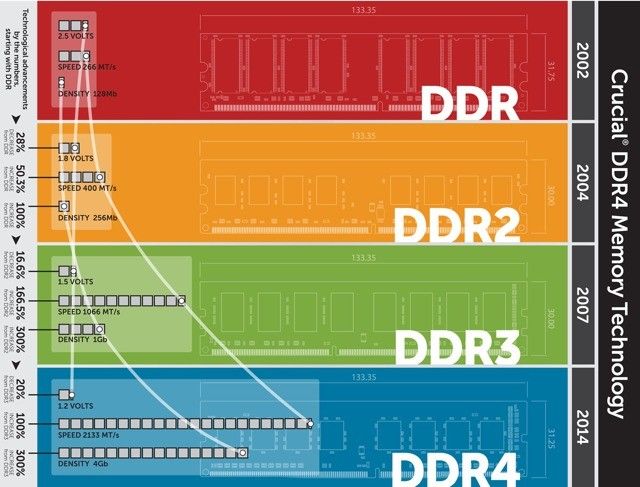
RAM Generations Chart

DDR2 vs. DDR3 RAM

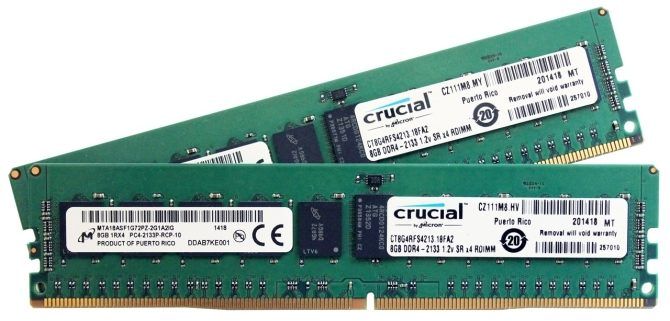
8gb ddr4 2133 ram crucial

You might wonder how the newer generations of DDR RAM stack up. Let’s look at DDR2 and DDR3 RAM differences first. While you’re unlikely to find DDR2 RAM in many places today (it did become available back in 2004) it’s still useful for comparison.

While original-generation DDR RAM ran two data transfers per clock cycle, DDR2 RAM can produce four transfers per cycle instead. DDR3 takes this even further, as it can produce eight transfers for every clock cycle.

When it comes to speed, DDR3 is unsurprisingly faster. One way to measure RAM speed is megatransfers per second, or MT/s. This refers to the number of operations the RAM can complete every second; 1MT/s is one million transfers per second.

While DDR2 RAM has data transfer rates ranging from 400 to 1,066MT/s, DDR3 smashes this at 800-2,133MT/s.

Voltage is another important aspect of RAM generations. DDR2 RAM uses 1.8V, while DDR3 is lower at 1.5V. Lower voltage means the RAM uses less power, thus putting less strain on the CPU.

You can find sticks of DDR2 RAM that are 4GB, but the most common maximum is 2GB. Practically, DDR3 RAM caps out at 8GB per stick, though some 16GB sticks are available.

DDR3 vs. DDR4 RAM

Continuing with our discussion of RAM differences, how does DDR4 RAM stack up? DDR3 was introduced in 2007 and while it’s still used with some older systems today, DDR4 has become the standard.

DDR4 runs at an even lower voltage than DDR3, at just 1.2V. It’s also capable of more operations per second, ranging from 1,600MT/s to 3,200MT/s.

Samsung sells a single 32GB stick of DDR4 RAM, but it’s quite expensive. The maximum you’ll see in the wild is usually 16GB.

If you’re in the market, we have a buying guide covering the best DDR4 RAM.

Coming Soon: DDR5 RAM

At the time of writing, DDR4 RAM is the standard. But DDR5 is on the horizon, expected to launch sometime in 2020.

It will probably be a few years before DDR5 becomes standard, so you’re fine to build a computer with DDR4 RAM now.

How RAM Differences Affect You

We’ve thrown around a lot of values above, but don’t feel overwhelmed. The average user shouldn’t ever have to worry about which generation of RAM to buy. You can simply let the motherboard/processor you want to purchase dictate what RAM to get. When building a computer today, you’ll almost certainly have a setup that uses DDR4 RAM.

You might wonder how the different RAM generations affect performance. For the average user, it really won’t make much of a difference. DDR4 is theoretically faster than DDR3, but it’s not often that RAM speed is the bottleneck on your system.

In most cases, other upgrades will improve your computer’s performance more. Swapping an old HDD for an SSD, adding more overall RAM, or upgrading your processor will have a much greater effect than slightly faster RAM.

The main scenario where the intricacies of RAM really matter is in heavy use, such as in servers. These machines run heavy loads constantly, meaning that every bit of performance is vital. In normal use, you’d be hard-pressed to feel a difference between two systems with identical stats except for the generation of RAM.

Other Important Aspects of RAM

If you buy a prebuilt computer off the shelf, everything is already assembled, so there’s no worry. But if you’re building your own PC, you should be aware of other RAM values aside from the generation that we’ve focused on here.

Have a look at our general guide to RAM, which goes into more detail on other specifications.

DDR vs. DDR2 vs. DDR3 vs. DDR4: Cleared Up

Now you know the basic differences between DDR2 and DDR3, plus what DDR4 brings to the table.

In essence, DDR2, DDR3, and the rest are incremental improvements on the same technology. Aside from making sure you purchase RAM that’s compatible with your system (ideally the newest generation), you don’t need to worry much about it. But it’s useful to know what all those numbers and letters mean for RAM.

If you’re a PC gamer, dive deeper into this topic with our guide to RAM for gaming.

Read the full article: What’s the Difference Between DDR2, DDR3, and DDR4 RAM?


Read Full Article
ProtonMail: The Email Security You Need With the Features You Want


proton-mail

Nowadays, security is more important than ever when it comes to our digital lives. With hackers, spammers, and security breaches galore, you can never be too safe. So when it comes to your email communications, you don’t want to take unnecessary risks.

ProtonMail gives you the security you need by providing you with an encrypted email account and other security settings to keep your messages safe. You’ll also get the features you look for in an email service at the same time.

On both the web and mobile devices, here’s what ProtonMail has to offer.

ProtonMail’s Security Features

When talking about security features in an email service, it’s important to know up-front what exactly those features are, what they do, and how they can help you.

Here’s a summary of what ProtonMail offers for its secure email accounts:

  • End-to-end encryption: All messages are encrypted at all times and during all steps of the sending and receiving process. ProtonMail stores emails in an encrypted format and also sends them in an encrypted format between its network and your devices.
  • No access to user data: Your data is safe when you use ProtonMail because it stays with you. Because it uses client-side encryption with a key that ProtonMail does not have access to, the company cannot decrypt your data.
  • Open source code: ProtonMail uses AES, RSA, and OpenPGP secure implementations with open source libraries. Their code has been fully examined by experts in the security field worldwide.

It doesn’t stop there. The company also uses:

  • Hardware-level security with disk encryption and secured data centers.
  • Anonymity so your personally identifiable information is not logged or tracked.
  • SSL secured connections between its network and your devices using a Swiss SSL certificate issuer.

For a more detailed look at the company’s security features, you can visit the Security section of the ProtonMail website and review the ProtonMail privacy policy.

ProtonMail Email Features

Now that we’ve covered the ways ProtonMail keeps your emails and account safe, it’s time to look at the email service offerings. From the appearance to email actions to inbox organization, you’ll appreciate what you can do with ProtonMail.

Intuitive interface: Whether you use ProtonMail on the web or your mobile device, the user interface is both intuitive and attractive. You have simple navigation for your folders, quick action buttons for messages, and a fast way to change the layout.

ProtonMail web interface

Folders: You can organize your inbox with color-coded folders for both business and personal use. This lets you move those emails you want to keep exactly where you want to store them.

Tags: You can create tags with names and colors to quickly distinguish certain messages. What’s more, you can easily see both the color and the tag name in your message list.

Email signatures: Especially useful for business, but convenient for all email types, you can set up an email signature. And with a paid account, you can create a signature specifically for the mobile app.

Quick actions: With the click of a button, you can also mark or move emails, report phishing, mark as spam, view the source code or email headers, export, or print a message.

ProtonMail quick email actions

Standout Email Features

The above list of features gives you exactly what you need in an email service. But ProtonMail has a few additional features that make it stand out from the rest.

Create Custom Filters

If you’re worried about losing email filters by switching from Gmail to ProtonMail, then you’ll be glad to know ProtonMail supports filters too. Create custom filters to organize emails as they arrive by setting up conditions and actions.

ProtonMail create custom filter

You can pick from conditions like sender, subject, recipient, or attachments. Plus, you can add more than one condition if you like. The actions let you apply labels, move to a folder, archive or spam, and mark messages as read or starred.

Encrypt Emails

You can encrypt an email sent to a non-ProtonMail user with a password and hint. When your recipient receives the email, they just click the link and enter the password to view the message in their browser. The hint you set up with the password will be included in your recipient’s email.

ProtonMail encrypt email

Even though ProtonMail is already secure, this adds another layer of safety to messages you send to people who haven’t made the switch to ProtonMail yet.

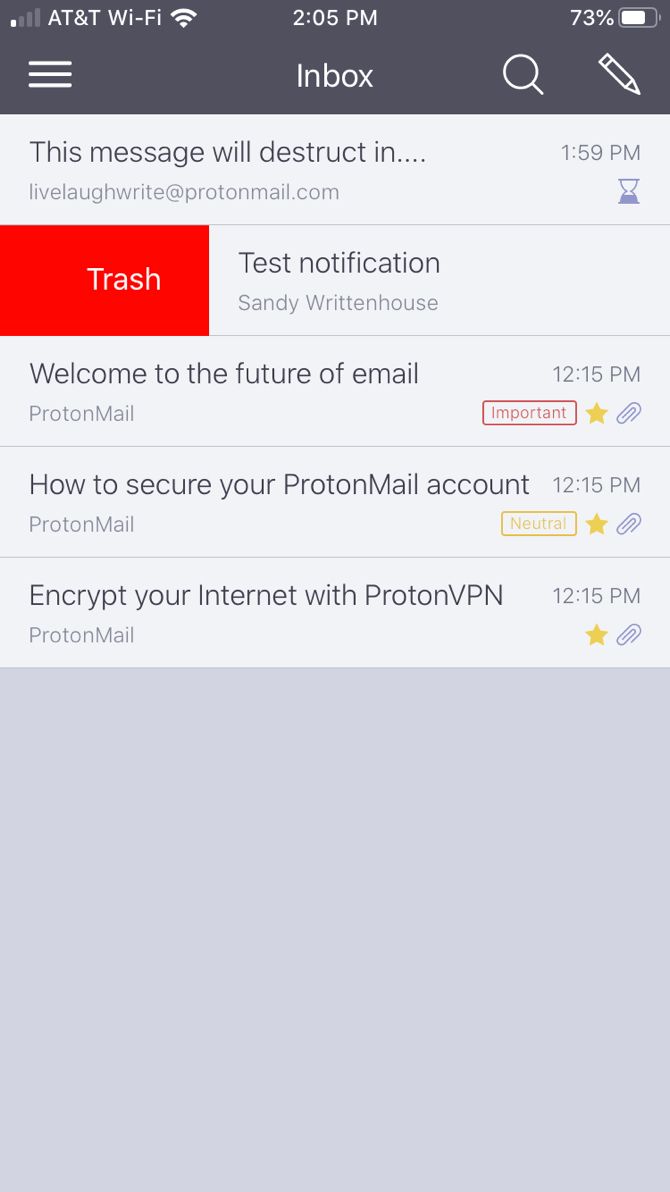
Send Self-Destructing Messages

When you compose an encrypted email as described above, you can also set an expiration for it in weeks, days, and/or hours. The timer starts when you hit the Send button.

ProtonMail expiring email

When time’s up, the email is removed from your Sent folder. ProtonMail users will have the message deleted from their inbox. For non-ProtonMail users, the content in the link they receive for the encrypted email will vanish.

Mobile-Specific Email Features

ProtonMail is available on both Android and iOS for free and paid accounts. Along with the mobile app, you get additional features you’ll find handy:

  • App protection: Adjust settings to enable Touch ID or a PIN. You can also turn on an auto-lock timer for every time you enter the app, or set it from one minute to one hour.
  • Push notifications: Receive notifications on your device and even your Apple Watch when a new email arrives.
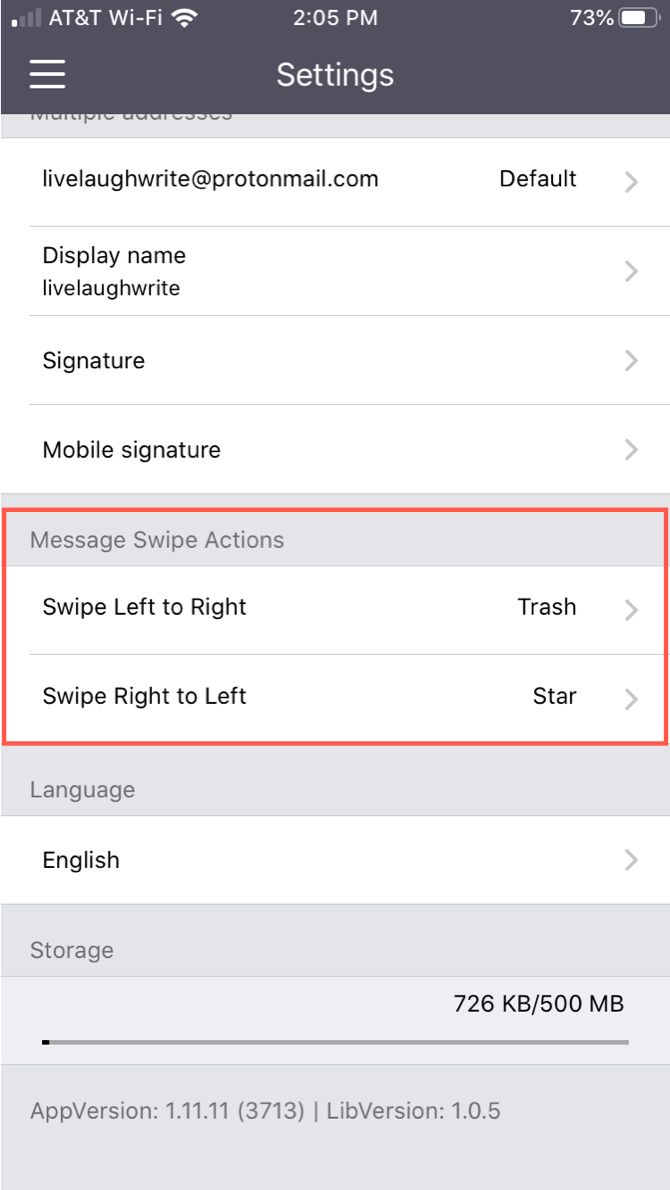
  • Swipe actions: By swiping left or right, you can choose to send emails to the trash, mark them as spam, archive them, or mark them as unread.

ProtonMail Pricing and Availability

ProtonMail is available on the web and syncs with apps for Android and iOS. And best of all, it’s free with all the features you see here.

If you are interested in a business account or one of the ProtonMail paid plans, you can receive additional features like unlimited folders and labels, auto-responders, multi-user support, and more.

Download: ProtonMail for Android | iOS | Web (Free, subscription available)

Keep Your Emails Safe With ProtonMail

As you can see, ProtonMail not only offers terrific security features, but great email features as well. And since you can create an account and use the service for free, it’s definitely worth your time to give it a try.

For more, check out how to send anonymous emails online.

Read the full article: ProtonMail: The Email Security You Need With the Features You Want


Read Full Article
How to Boot in Safe Mode on Windows 10


windows-10-safe-mode

Ever attempted to troubleshoot your own computer? Then you’ve encountered Safe Mode. Safe Mode is an inbuilt troubleshooting feature which disables unnecessary drivers and programs during the startup process. It allows us to isolate any setting or system errors and fix them at the root, without non-essential applications interfering.

For example, you can use Safe Mode to run System Restore when troubleshooting your computer or to delete a file in use by another program. Here we’ll take a quick look at booting into Safe Mode with Windows 10, and what to do if you cannot boot into Safe Mode.

Method 1: System Configuration

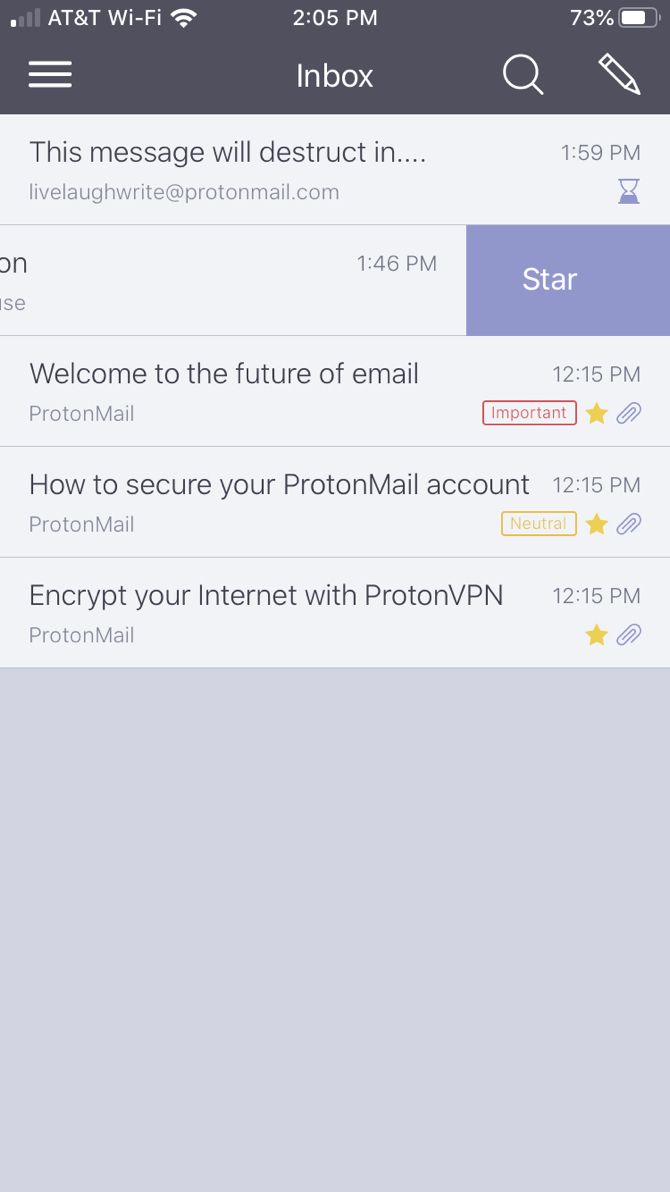
To open the System Configuration screen, type msconfig in your Start Menu search bar and select the Best Match. Open the Boot tab and note the Boot Options. Selecting the Safe Boot option will force your system to boot into Safe Mode following its next restart.

windows 10 system config

You can choose from additional options. Here’s what they do:

  • Minimal: Starts Safe Mode with the absolute minimal amount of drivers and services, but with the standard Windows GUI (Graphical User Interface).
  • Alternate Shell: Starts Safe Mode with a Command Prompt, without the Windows GUI. Requires knowledge of advanced text commands, as well as navigating the operating system without a mouse.
  • Active Directory Repair: Starts Safe Mode with access to machine-specific information, such as hardware models. If we unsuccessfully install new hardware, corrupting the Active Directory, Safe Mode can be used to restore system stability by repairing corrupted data or adding new data to the directory.
  • Network: Starts Safe Mode with the necessary services and drivers for networking, with the standard Windows GUI.

Select Minimal > Apply > OK. System Configuration will now ask if you want to restart your system. Selecting Restart will immediately initiate the restart process, so be sure to save any active documents or projects.

Method 2: Advanced Startup

Your next option is Windows 10 Advanced Startup. It isn’t that advanced, but it is really useful to know.

Windows 10 Advanced Startup

Type advanced start up in your Start Menu search bar and select the Best Match. Now, under Advanced start-up, select Restart Now.

Clicking Restart Now will restart your system in recovery mode where you will encounter three options: Continue, Troubleshoot, or Turn Off Your PC.

Select Troubleshoot > Advanced Options. You now have a new range of options to choose from.

Select Start-up Settings > Restart. Your system will restart. The Startup Settings screen will load after you reboot. From here, choose the requisite option for Safe Mode.

windows 10 advanced startup settings

Advanced Startup Shortcut

You can skip the somewhat lengthy clicking process by holding down Shift and clicking Restart under Power, found in the Windows 10 Start Menu. This reboot takes you straight to the Recovery options, where you can select Troubleshoot > Advanced Options > Startup Settings.

Windows 10 Restart

Method 3: Tapping

Until the introduction of Windows 8, the most common method for entering Safe Mode was tapping F8 on your keyboard during startup. Tapping F8 brings up the Safe Mode options screen, listing the options found under Method One (above) and several alternatives.

Windows 10 (and Windows 8/8.1) has F8 Safe Mode disabled by default. However, you can sacrifice a couple of seconds during startup by enabling the F8 menu using the Command Prompt.

Begin by opening an elevated Command Prompt. Right-click the Start menu and select Command Prompt (Admin). Select Yes in the User Account Control dialogue, if it appears. Command Prompt should now be open.

Windows 10 Start Option

Input (or copy/paste) the following command:

bcdedit /set {default} bootmenupolicy legacy

Job done!

Windows 10 Command Prompt BCDEdit

To undo this legacy command at any time, reopen the elevated Command Prompt as per the above instructions and type:

bcdedit /set {default} bootmenupolicy standard

This returns startup to its original state, so to reach Safe Mode you’ll have to use one of the alternate options in this article.

What If Nothing Works?

Even if none of the above works, you still have two aces up your sleeve.

If you installed Windows 10 via a disc or USB flash drive, you can boot straight into recovery mode by inserting the said installation media before turning your system on.

Choose your keyboard layout, followed by Repair Your Computer, in the bottom-left of the screen. From here you can head to Troubleshoot > Advanced Options where you’ll find System Restore, System Image Recovery, Startup Repair, Command Prompt, and Go Back to the Previous Build.

windows 10 repair your computer

For System Image Recovery to work, you’ll have to have made a backup image before your system error, something we would absolutely advise you to do. You can create a System Image by typing recovery into the Start Menu search bar and selecting the Best Match. The Advanced Recovery Tools will open. Select Create a Recovery Drive and follow the steps.

System Repair Disc

Another helpful tool at your disposal is the System Repair Disc. Unlike the System Image, these aren’t machine-specific, so you can acquire one via a friend if all goes completely pear-shaped.

Windows 10 System Repair

Head to Control Panel > System and Security > Back-up and Restore (Windows 7).

Don’t let the Windows 7 tag put you off: you’re in the right place. Select Create a System Repair Disc from the left-hand column, and follow the instructions.

How Do I Get Out of Safe Mode?

Once you fix your Windows 10 issue, you can leave Safe Mode. But how do you get out of Safe Mode once you’re in there?

There are two options, depending on how you booted into Safe Mode.

If you entered Safe Mode using Method 1 (via System Configuration), you must turn the Safe Mode option off in the configuration window. Otherwise, Windows 10 will boot back into Safe Mode after each restart.

If you entered Safe Mode using Method 2 (via Advanced Startup) or Method 3 (via Tapping Your Keyboard), shut down or restart your system to leave Safe Mode.

Accessing Safe Mode on Windows 10 Is Simple

You now know the three easiest methods to access Windows 10 Safe Mode. Make sure to take note of the final section on System Image Recovery and System Repair Discs. Do always remember the former only works if you’ve set the recovery location before your world began collapsing in a BSOD-induced nightmare.

If you’re truly in a terrible state of affairs, with no Image Recovery and no repair disc, you could always try tech-support savior Hirens BootCD. It has saved many people, many times, and it’ll save you too!

Read the full article: How to Boot in Safe Mode on Windows 10


Read Full Article

8 Ways Ubuntu Has Changed and Improved Linux


ubuntu-improved-linux

Ubuntu is the world’s most prominent Linux distribution. Ubuntu and its developer, Canonical, has caught a lot of flack over the years, but the Linux world is much better off thanks to both.

So let’s stop and take a moment to appreciate some of what Canonical and Ubuntu have given the Linux community.

1. Ubuntu Placed a Focus on the Desktop

Ubuntu version 9.10 Karmic Koala
Image Credit: Wikipedia

At the time Ubuntu launched in 2004, Linux was usable on desktop computers and laptops, but it wasn’t exactly a great experience. Canonical pushed Ubuntu as “Linux for human beings” and added features that made Linux easier use as a primary operating system. Such features included easily installed hardware drivers and multimedia codecs.

You could also ask to have an Ubuntu CD shipped to your door.

Canonical went on to create many desktop-oriented initiatives. It tried integrating messaging directly into the desktop, created the Ubuntu One file syncing service and music store, and eventually designed its own Unity interface. Canonical has since pulled the plug on all of these projects, but that willingness to experiment pumped excitement into the Linux desktop.

Linux remains more prevalent on servers than laptops, and Ubuntu arguably isn’t even the easiest or most intuitive option anymore. Plus many developers outside of the Ubuntu community deserve much of the credit for making desktop Linux more stable and pleasant.

Yet the Linux desktop is in a much better place today than a decade and a half ago, and Canonical played a major role in making that happen.

2. Linux Is Now Available on More Hardware

Part of Canonical’s vision to provide a consumer-ready Linux desktop meant offering Ubuntu as an alternative option in stores. The company reached out to hardware manufacturers to make this happen. Over time options grew, both from small businesses such as System76 and multinationals like Dell.

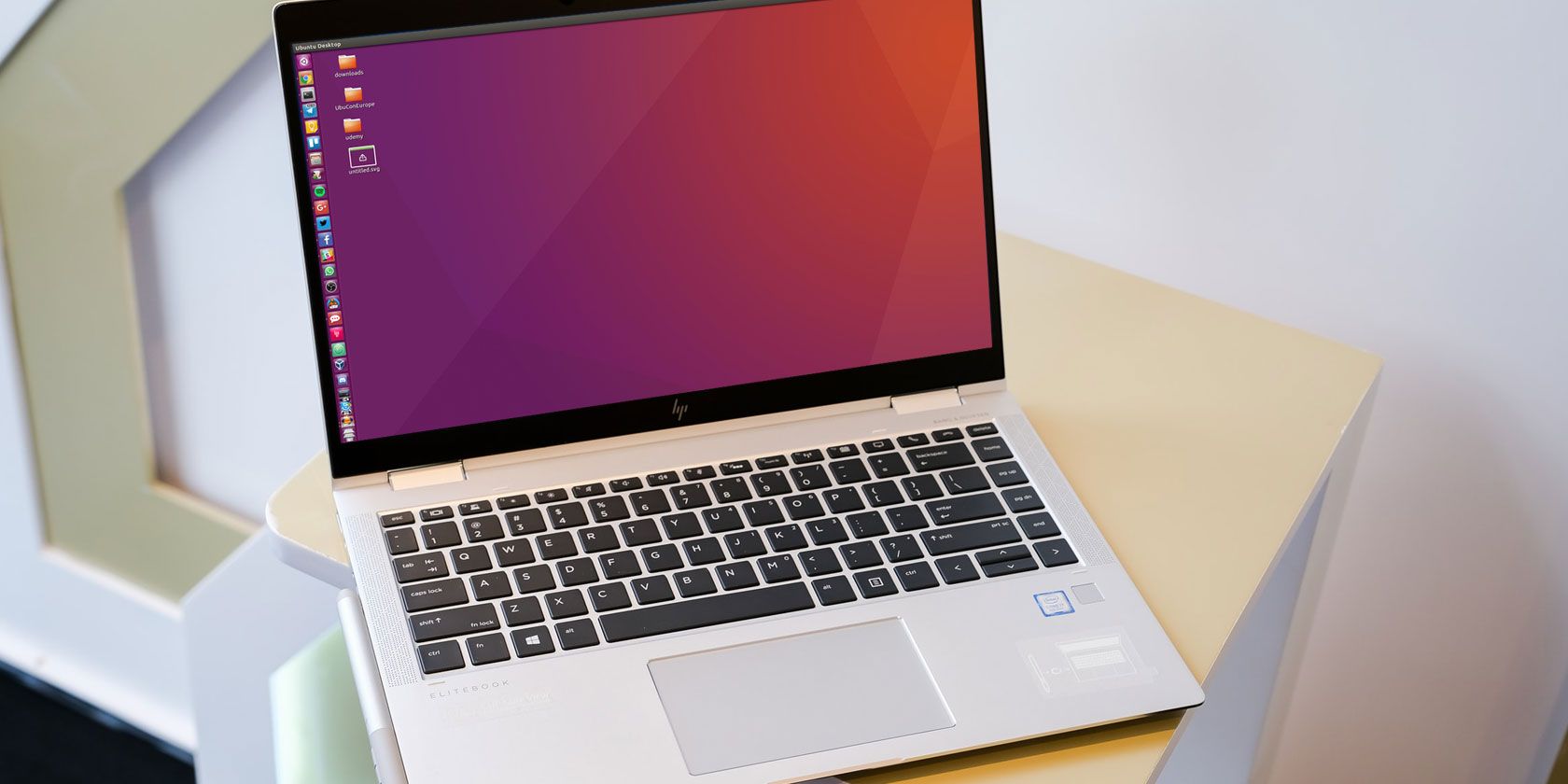
Are you likely to find Ubuntu in a big box store today? No. But Dell isn’t alone among the big corporate supporters. HP also sells Ubuntu machines. There are now many Linux PCs you can buy from various companies.

Canonical has long flown the flag of consumer desktop Linux, even if the time has come for younger players, such as System76 with Pop!_OS and Purism with PureOS, to carry the torch.

3. Ubuntu Brought in Millions of Users

Person using a laptop
Image Credit: Christian Hume/Unsplash

Canonical’s focus on the desktop and consumer hardware has paid off. People flocked to Ubuntu, and it now has millions more users than other versions of Linux.

Ubuntu’s name recognition has gotten large enough that you can mention the distro to general computer enthusiasts and expect them to know what you’re talking about.

Many of us began as Ubuntu users but have moved on to other options. This is true for me. I may not use Ubuntu anymore, but I’m grateful Ubuntu gave me an easy place to learn Linux when I first made the switch. Many projects now have developers and contributors who probably wouldn’t be part of the community without Ubuntu.

4. Ubuntu Powers Many of the Most Popular Distros

Ubuntu is not only one of the most popular Linux-based desktops, it’s a critical cog in the infrastructure that powers many of the alternatives.

When you run Ubuntu, you download apps from a software repository, a server storing all the programs and components that power your on-screen experience. Developers create and maintain this code, which organizations or companies such as Canonical distribute via repositories.

Canonical doesn’t create most of the code in its repositories, but some components, such as the Linux kernel, undergo additional testing and receive added security patches.

Linux Mint, elementaryOS, and Pop!_OS are three prominent Ubuntu alternatives that all rely on Ubuntu’s repositories. Canonical doesn’t charge them or anyone else money for the service. Is the company alone or unique in this regard?

No. But that doesn’t diminish the time and money Canonical employees and the Ubuntu community contribute to the broader Linux ecosystem in this way.

5. Canonical Created a New Universal Package Format

The way developers distribute software on Linux is changing right this moment. Instead of turning to the software repository model, many new apps are coming to our desktops via universal package formats. One of them, the snap package format, comes from Canonical.

Before now, many developers created software for Ubuntu and didn’t go through the hassle of creating versions that also ran on other versions of Linux. If you used an RPM-based distro, rather than a DEB-based one like Ubuntu, then you couldn’t install a program unless you went through the effort of building the app using source files.

Snaps are distro agnostic. After you’ve followed the straightforward instructions to enable snap support, you can install the snap version of an app regardless of if you run Ubuntu.

Again, snaps are not the only universal package format for Linux. But Canonical has gone out of its way to attract developer interest and hold their hands through the process of bundling software. This outreach has increased snap adoption among people or companies who might not have bothered figuring out one of the alternatives on their own.

Speaking of which…

6. Ubuntu Attracts Third-Party Commercial Software

One of Ubuntu’s strengths, relative to other distros, is attracting third-party development. Specifically, Ubuntu brings in more cross-platform, commercial, proprietary software that already exists on Windows or macOS.

As I’ve mentioned, this hasn’t always benefited the broader Linux ecosystem. But in some cases, such as with Steam, programs that come to Ubuntu quickly spread to other distros. This changes the landscape for gamers or professionals who are tied into using particular apps. Now Linux is much more viable.

With the snap format, a program now rarely comes out just for Ubuntu. Apps available in the snap store are now more accessible to us all.

7. Canonical Adapted GNU/Linux to Phones

Android phones use the Linux kernel, but that’s about all that they have in common with the version of Linux that you can install on your computer. That’s because most of the components aside from the kernel are not the same.

With Ubuntu Touch, Canonical sought to bring a version of Linux comparable to the Ubuntu desktop to mobile devices. And the company succeeded! Sure, these devices had limitations. Updates were hard to distribute, and the handsets were only available in a few markets.

Ultimately, Canonical did not see enough success to continue investing in the project.

Nonetheless, the Ubuntu Touch interface continues to live on via the UBports project. Thanks to the open source nature of Ubuntu Touch, community members have been able to continue where Canonical left off. Ubuntu Touch is one of the options available for the PinePhone, and it may be possible to get it up and running on the Librem 5 as well.

It’s also an aftermarket option on a number of Android phones.

8. Launchpad Has Been Home to Many Projects

Canonical's Launchpad service for open source software

Launchpad is a software collaboration hub for thousands of free and open source apps. It’s like Github, without the ties to Microsoft.

Launchpad began as a proprietary project to make revenue for Canonical, which the company could then use to support further Ubuntu development. Following criticism, Canonical gradually released variants parts of the site under open source licenses until all of Launchpad became open source in 2009.

For the past decade, Launchpad has served as open source infrastructure projects can use to share source code, track bugs, engage in discussion, and send out communications related to their apps or other creations.

Linux Mint, elementaryOS, Inkscape, and Exaile have all found a home in Launchpad at some point over their lives.

How Has Ubuntu Put a Smile on Your Face?

Ubuntu is a great Linux-based operating system. Absent other options, I’d gladly use it over Windows and macOS. Canonical and the broader community have done such great work over the years. What are some contributions you love that I haven’t mentioned above?

As for why Canonical catches a lot of flack, well, if you’re new to the Linux landscape, here are some of the more common Ubuntu criticisms.

Read the full article: 8 Ways Ubuntu Has Changed and Improved Linux


Read Full Article

Carbon Offsetting Flights: How You Can Help Save the World


carbon-offsetting-flights

We fly more than ever. International holidays, business, sporting events, and family visits require us to jump on a flight. Scheduled airline passenger numbers increased from 1.9 billion in 2004 to 4.3 billion in 2018. This figure is expected to rise in coming years.

At the same time, many global travelers are taking an interest in their carbon footprint. One easy way of reducing your carbon footprint is through carbon offsetting schemes.

Sounds interesting? Here are three sites to help you offset your international flights.

What Is Carbon Offsetting?

Carbon offsetting is the process of compensating for carbon dioxide emissions arising from human activity. In this case, it is about how you can offset your carbon footprint when you take a flight.

The idea is that you pay a small amount extra to contribute to schemes that encourage or deliver emissions savings around the globe.

The premise of offsetting international flight emissions isn’t new. In 2009, travelers at San Francisco International Airport had the chance to visit a climate kiosk. The climate kiosk would inform travelers about the footprint of their flight and advise on projects that would offset the carbon emissions.

Unfortunately, it didn’t take off. The lack of clarity regarding the working of offsetting and difficulty figuring out which projects were “good” turned travelers away.

Carbon offsetting is now a lot easier. There are numerous websites advising travelers on offsetting schemes and projects. Carbon offsetting standards also help travelers understand if an offset project is worthwhile.

Here are five other projects you can use to fight climate change.

What Are Carbon Offsetting Standards?

There are different carbon offsetting standards and a lot of offsetting alphabet soup to go along with it. However, the key carbon offsetting standards to consider are the Gold Standard (GS, or GS VERs) and Plan Vivo.

The Gold Standard protects against the most common issues found with carbon offsetting, such as project verification, impermanence, and leakage (just shifting the emissions to another location). The Gold Standard certifies over 1,700 projects across 80 countries. It also requires projects to help the local population as well as reduce carbon. Gold Standard projects consistently help create value, too.

The Plan Vivo Standard is the official certification of the Plan Vivo Foundation. The certification confirms that the carbon offsetting project ensures mutual benefit for the ecosystem, biodiversity, and the local population. This framework allows each aspect to achieve growth. The Plan Vivo Standard covers a spectrum of land management and development projects and like the Gold Standard, helps create value for smaller communities.

1. C-Level Flight Carbon Calculator

c-level carbon calculator offset flight

The C-Level Flight Carbon Calculator is a very popular carbon offsite calculator. C-Level works closely with the Plan Vivo Foundation to give you a wide range of choice on the offset projects you fund.

Each project is chosen specifically for its benefits to both biodiversity and the local population, and you can track your carbon offset project using the IHS Markit.

Enter your flight details, number of passengers, and payment option, then select Offset Your CO2. You can then choose the project you want to offset your carbon with and complete the payment process.

2. MyClimatemyclimate carbon calculator offset flight

The MyClimate carbon offset calculator uses the highest independent quality standards for its carbon offset projects, including the Gold Standard and Plan Vivo. Using these two standards ensures that the carbon offset funds head to the best projects making the most impact, in locations where the difference will truly help.

One handy MyClimate feature is that you can offset carbon for alternative transport methods, and even events, your business, personal projects, cruises, and more.

Head to MyClimate, choose your transportation type or event and enter the requisite details. You can then select from a range of carbon offsetting projects or let MyClimate assign the funds on your behalf.

3. Atmosfair

atmosfair carbon calculator offset flight

All Atmosfair carbon offset projects must meet the Gold Standard. Furthermore, the Atmosfair carbon calculator is considered one of the best available, giving a detailed breakdown of your emissions.

Head to the site and select Offset Now. Choose between a flight, a fixed offset (for instance, offsetting your electricity bill), or an event. Enter the relevant information regarding your selection, confirm the payment amount, and continue.

You can select the carbon offsetting projects you want to contribute to on the final page.

Is Carbon Offsetting Flights Effective?

I’m not going to say that carbon offsetting is a magic cure-all. It isn’t. Carbon offsetting is, however, a useful tool to help balance your lifestyle. Offsetting your international flight carbon emissions helps to balance the CO2 books, but other lifestyle changes are important, too.

The important thing to remember is that carbon offsetting isn’t expensive. Offsetting a flight from London to Nairobi only costs an extra $20. In the grand scheme of things, that’s a drop in the ocean; 8 take-away coffees.

Positively, international airlines will begin offsetting carbon emissions automatically in the near future. By 2021, a UN agreement called the Carbon Offsetting and Reduction Scheme for International Aviation (CORSICA), will see airlines account for the carbon offsetting of their passengers. It switches the emphasis back to the airlines to take care of the carbon offsetting, making the entire process easier to manage and vastly more effective.

It isn’t just airlines and international passengers considering their impact on the globe.

In September 2018, Lyft announced it would become one of the largest voluntary carbon offset purchasers. It aims to make all rides using its cars carbon neutral.

Global shipping behemoth, Maersk, is introducing carbon-neutral biofuel, while the rest of the global shipping industry finally begins to catch up with the progress made in aviation.

Want to shift to a more ethical and eco-friendly way of using technology? Take a look at several ways you can recycle electronics and avoid e-waste.

Read the full article: Carbon Offsetting Flights: How You Can Help Save the World


Read Full Article

The NBA should learn from Google China


By now, you’ve probably heard about the tweet heard ‘round the world, or at least, the part of the world where Mandarin is spoken. The GM of the Houston Rockets basketball franchise wrote a tweet — since deleted — supporting the democracy protesters that have lit up Hong Kong these past few weeks.

As Eben Novy-Williams of Bloomberg wrote, “Through decades of painstaking deal-making, the NBA created a multibillion-dollar opportunity in China, the world’s second-largest economy. Now a single swiftly deleted tweet has put all that time and money in jeopardy.”

It’s a situation that’s becoming increasingly typical for American companies, technology or not. Apple pulled the Taiwanese flag emoji from keyboards in Hong Kong and Macau this weekend, lest it lose its lucrative, mostly-iPhone market that accounted for $10 billion in revenues in its last quarter. US-headquartered airliners had to change the pulldown options in their checkout flows to avoid mentioning Taiwan last year, lest they lose access to Chinese airspace.

One wonders what kind of a business empire can collapse with a single dropdown menu item?

Or a single emoji?

Or a single tweet?

Businesses are not supposed to be this brittle, but American companies continue to approach the mirage of the Chinese economy as if it is open for the taking, and that the American consumer (and their representatives in Washington) are going to continue to ignore the “authoritarian straddle” these companies have to undertake to appease Beijing while trying to not displease Washington.

Despite all evidence to the contrary that such a straddle is impossible though, they keep on coming.

Just this past week, PayPal announced that it was entering mainland China through its acquisition of GoPay, becoming the first foreign payments provider in the highly-digitalized economy. Over the past year, MSCI, the creator of some of the most important stock indices in the world, has increasingly shifted weight to Chinese stocks, sending billions of dollars to mainland companies.

What is surprising is that this whole rise-and-fall, can-we-get-in-and-stay-in story was already written by Google almost exactly a decade ago. Google worked hard for years to cement itself on the mainland, but following a series of hacks that targeted political dissidents using its Gmail service, Google announced that it was leaving the country in 2010, redirecting users to its Hong Kong search engine.

Since that decision, Google has had very little access to mainland China, nor have any other prominent American tech companies. The one notable exception has been LinkedIn, which has engaged in aggressive censoring of speech in China in order to keep the lights on (although, given the speech I read on LinkedIn, one wonders whether a complete blackout in America wouldn’t do us all a favor).

As much as Google’s executives (and its shareholders) may have wanted to re-enter China though, it seems obvious that the enforced lack of access has ultimately been a godsend for the company’s policy decisions. For a decade, it barely had to handle the authoritarian straddle, and could center itself on individual choice, open access to the internet, and freedom of speech with minor reservations.

Sure, the economic mirage of China continued, and even Google couldn’t maintain its patience, attempting to launch its Project Dragonfly censored Chinese search engine to much outcry, ultimately to shelve it, giving its leadership a bit of a black eye. But Google is now out of the authoritarian straddle once again — and out of harms way. That ultimately is the solution that the NBA needs.

Beijing has its rules. Google, United Airlines, the NBA, and even Apple has no sway over them. Not even tens of billions of dollars of threatened tariffs from the Trump administration have made a dent in any of the CCP’s policies.

Maybe it’s time to take the hint, pack the balls up, and walk home.


Read Full Article

Instagram is killing its creepy stalking feature, the Following tab


Instagram is removing its Following tab, a feature that became better known as a stalking tool than one to aid with new account discovery, as the company had intended. Today, Instagram says that its Explore tab is the go-to place to find new people, places and hashtags to follow. Meanwhile, the Following tab is now only used by a small number of people on a regular basis.

Combined, those factors were the key reasons behind its shutdown, we understand.

But the Following tab wasn’t just unhelpful and therefore ignored by Instagram users — a number of people forgot, or never even knew, it existed in the first place. There are numerous stories of people’s illicit or private activities being outed because of what they were liking and following on Instagram.

The tab was fairly notorious for the transparency it brought to our online lives. It was often a place where “micro-cheating” activity was caught, for example. That is, it could reveal when a person in a committed relationship was spending just a little too much time liking someone else’s posts, engaging with an ex’s content, or networking with series of potential “backup partners” on a regular basis.

iOS Before Following


It could also easily reveal when someone’s main use case for Instagram was to like and follow IG “models” — something that didn’t seem like the kind of activity most would want to be offered in a trackable format. (And information that was particularly awkward to see when the person in question was not a close friend, but rather a work colleague of some sort.)

The tab was known to have impacted or even ended friendships, too — like in the case where someone wouldn’t respond to their friend’s texts, or claim they were “busy.” Meanwhile, they were consistently active on Instagram, and very obviously lying.

Gossip followers also liked the tab, as it would reveal who celebs were following — sometimes an indication of a new relationship, either personal or professional in nature.

Overall, the tab generally became known as a creepy tool, and not one that offered any significant benefit to users in terms of being a legitimate discovery mechanism.

Android After Activity


Though Instagram is only announcing this change today, many users had already lost access to the tab. Back in August, for example, a big thread on Reddit saw users complaining their Following tab had disappeared. They assumed it was a bug, however.

After the tab’s removal, you’ll only see your own activity, as before, when you click the Heart button.

The company says the Following tab is being removed starting today, but it will take the rest of the week for the rollout to complete.


Read Full Article