26 September 2019

Everything Amazon announced at its Alexa event today


As is now typical just ahead of the holidays, Amazon just inundated us with a whole new lineup of hardware devices, including new Echo smart speakers and screens, at its Alexa event today, plus other smart home and connected devices from its brands Ring and eero. There were also a slew of surprises, like Alexa earbuds, glasses, and a smart ring. And oh yeah, a new Alexa-powered oven, too.

New Echos

Headlining the event are Amazon’s latest updates to its Echo line of devices.
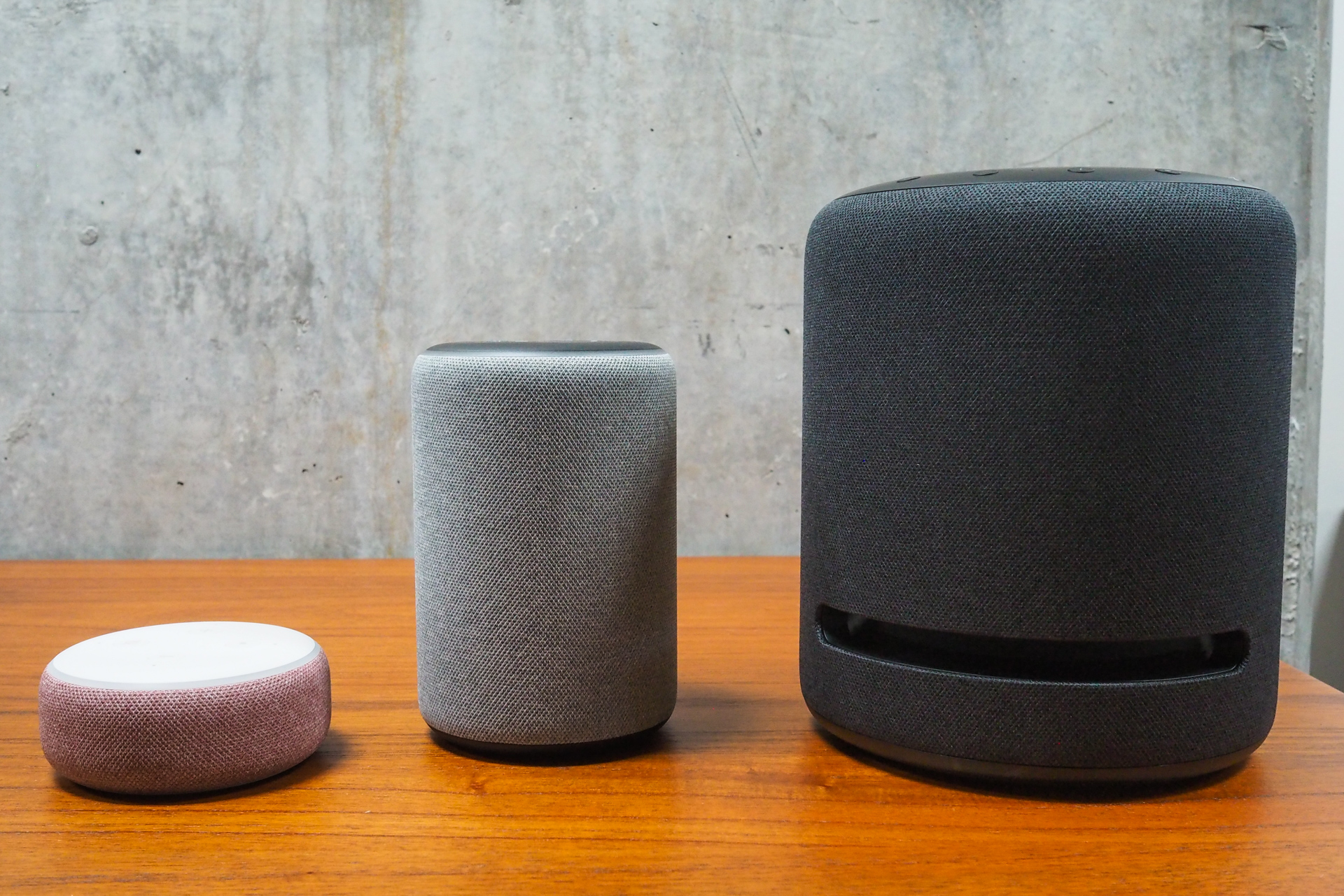
alexa echo amazon 9250065

Echo Dot with Clock

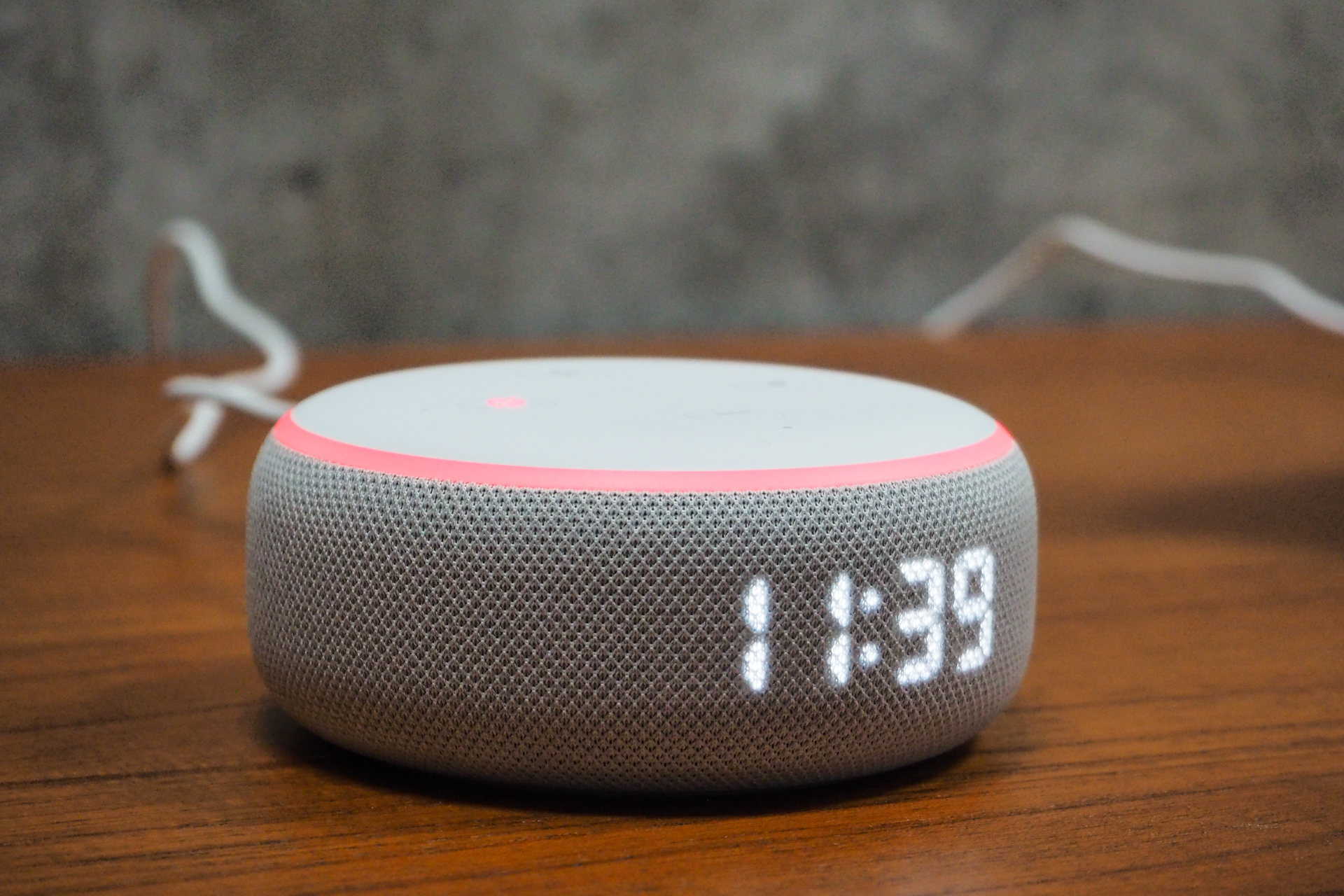
Not one for overly creative names, Amazon has given its entry-level Echo, the Echo Dot, a nifty upgrade. The new Echo Dot with a Clock now features a digital alarm clock on the front, which can be dimmed if you prefer, at times. This LED display also allows the Dot to show the weather, when asked, or a countdown timer.
alexa echo amazon 9250030

The new Dot doesn’t replace the original, however. It’s just a $10 upgrade to $59 if you want the extra feature.

Echo Studio

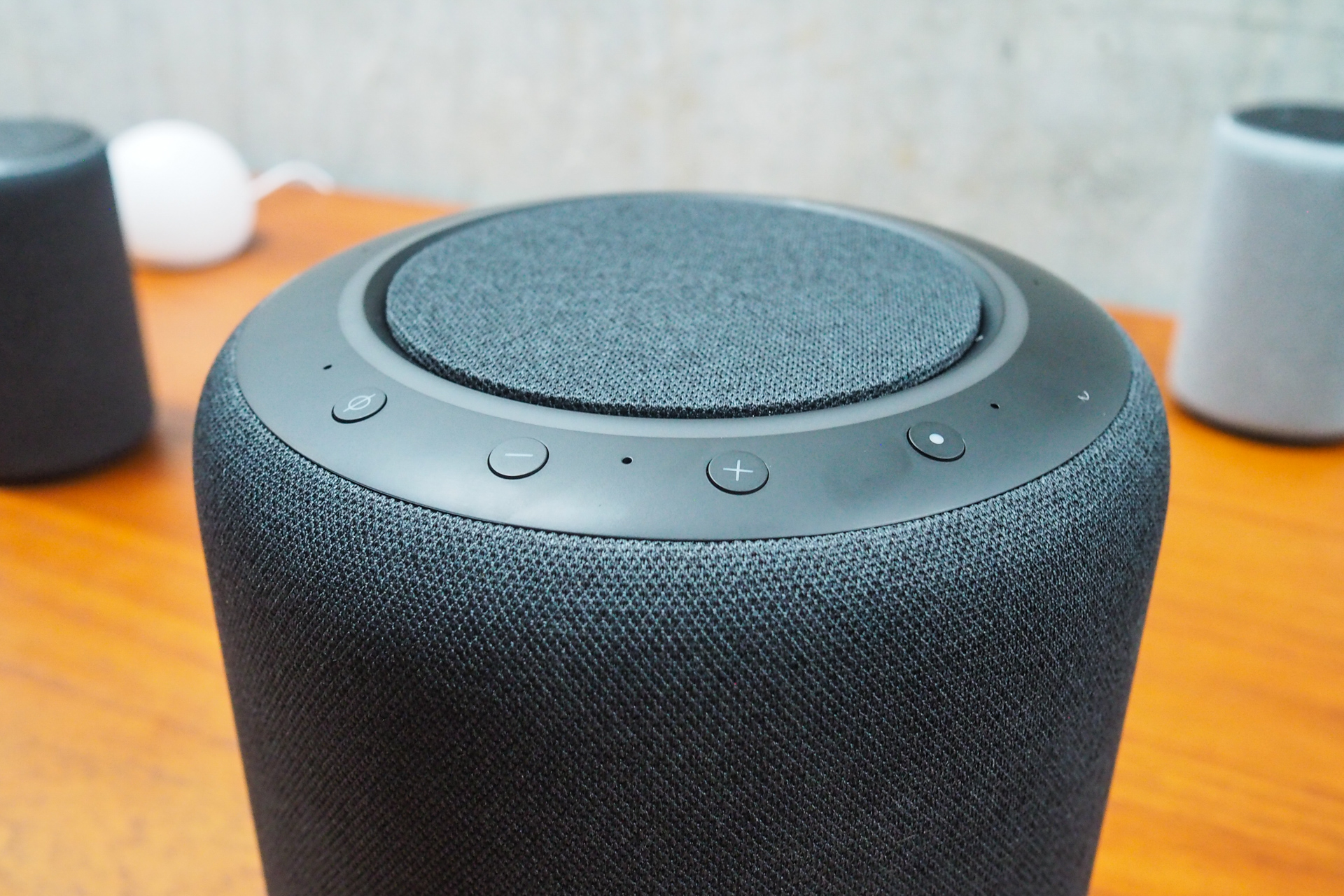
The Echo the audiophiles have been waiting for. The new Echo Studio is Amazon’s response to Google’s Nest Max and Apple’s HomePod. The $199.99 device supports 3D audio and Dolby Atmos. It has five drivers, including one downward-facing 5.25-inch woofer, a 1-inch, front-firing tweeter and three, 2-inch, mid-range speakers aimed at different directions.
alexa echo amazon 9250061

And it has a 24-bit DAC and a power amplifier with 100 kHz of bandwidth for high-res, lossless music playback — you know, like what’s available through the Amazon Music HD service.

Echo Buds

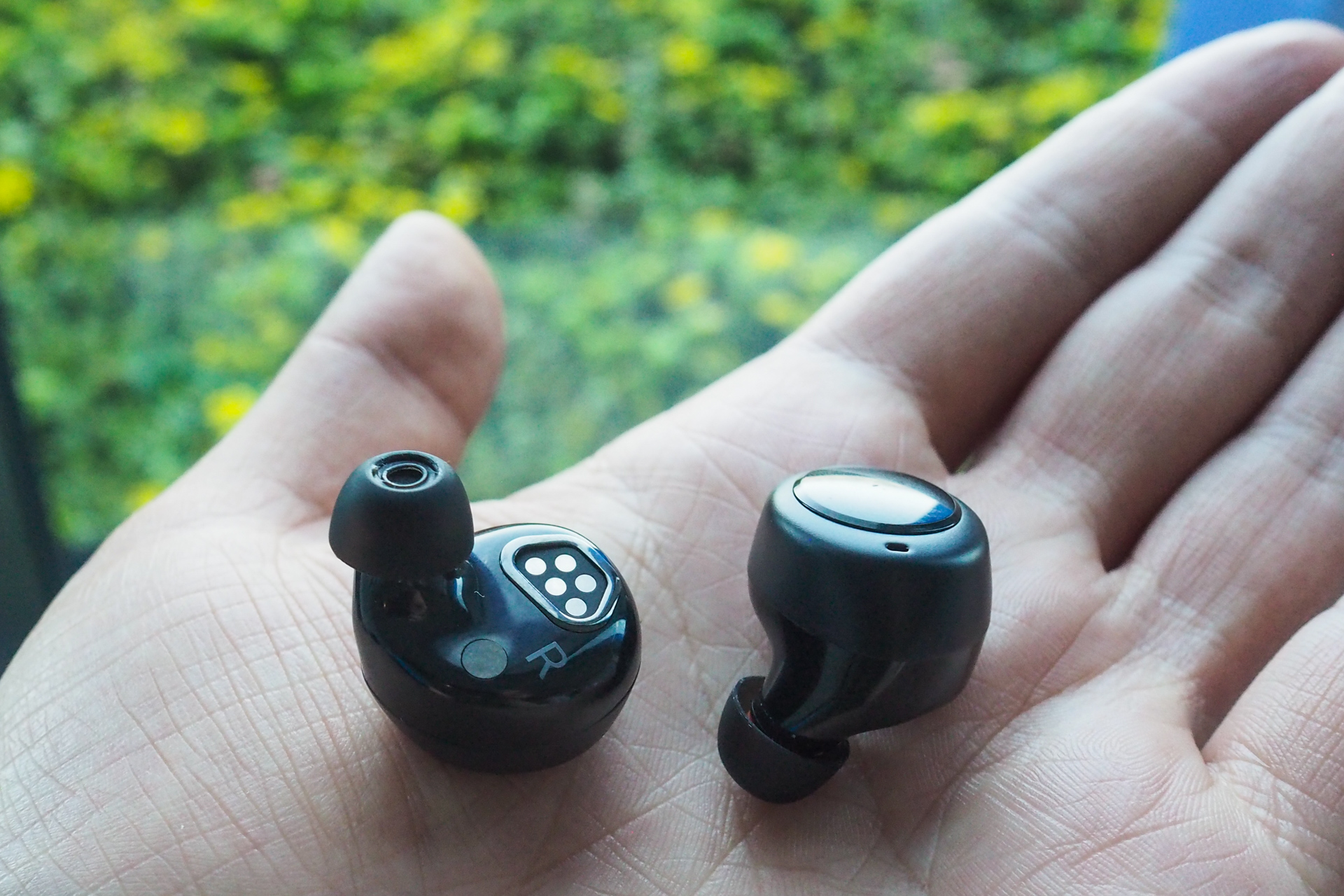
Surprise, Alexa comes to your ear through Amazon’s own $129 wireless earbuds. The Echo Buds include Bose’s Active Noise Reduction Technology and provide hands-free access to Alexa, so you can do things like play music, get directions, order an Uber and more. Later, you’ll also be able to check Whole Foods inventory as you shop, too. (For those who still shop…in an actual store).
alexa echo amazon 9250103

The Echo Buds offers 5 hours of music or 4 hours of call time and come with a case that holds up to 3 charges. And with a tap, the Echo Buds can access your phone’s other assistant, like Siri or Google Assistant.

Echo Show 8

The $129 Echo Show 8 is a smaller, 8-inch version of the 10-inch flagship model of the Echo device with a screen. It’s a little bigger than the Echo 5, which is more of an alarm clock alternative, so makes sense for watching videos and placing voice calls…or dropping in on the kids. The device features an HD display and built-in camera shutter.
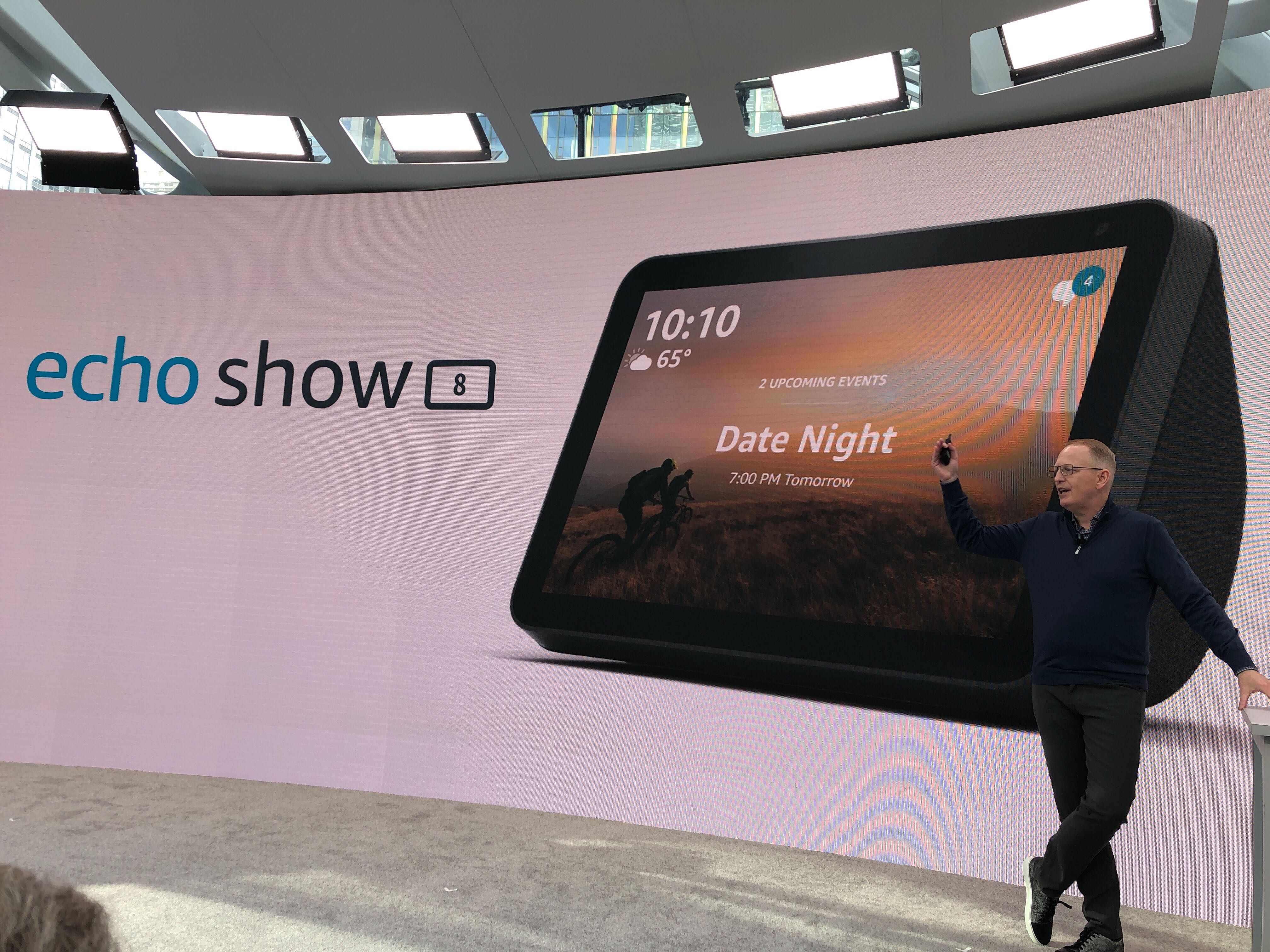
Image from iOS 9

Echo

The company refreshed its existing Echo speaker with better sound and new colorful fabric covers (Twilight Blue, Charcoal, Heather Grey, and Sandstone), but remains at the same price as before $99. In other words, there’s no need to run out and buy this Echo to replace your old one, but if you were in the market already, the Echo you’ll get is slightly better.

Echo Glow

This fun Alexa accessory is basically a nightlight for the kids that can change color and flash to the music. But at $30, it’s a lot of cash for a little bit of fun. Let’s wait for the inevitable Kids Edition Dot + Glow bundle, shall we?
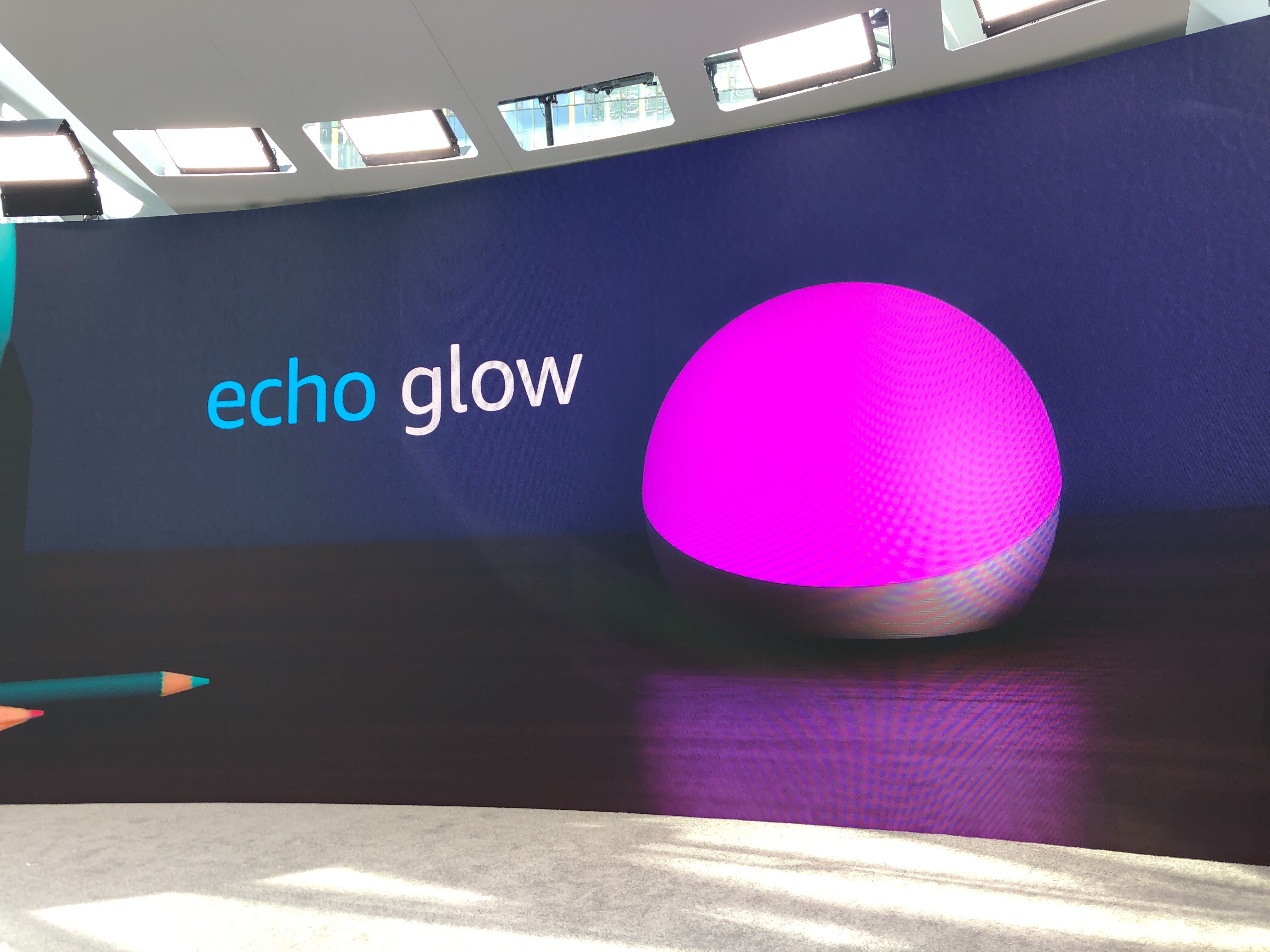
Image from iOS 12

Echo Flex

You can now bring Echo to the bathroom with the new $25 Echo Flex device. (No really, this is how Amazon had it set up in its demo area.) The Flex plugs into any available outlet and functions as a small smart speaker. There’s no camera (whew) but it can respond to voice commands, like to give you the news and weather while you get ready for work, for example. It can also be upgraded with $14 accessories, including a Smart Night Light or Motion Sensor. The Flex is $25.
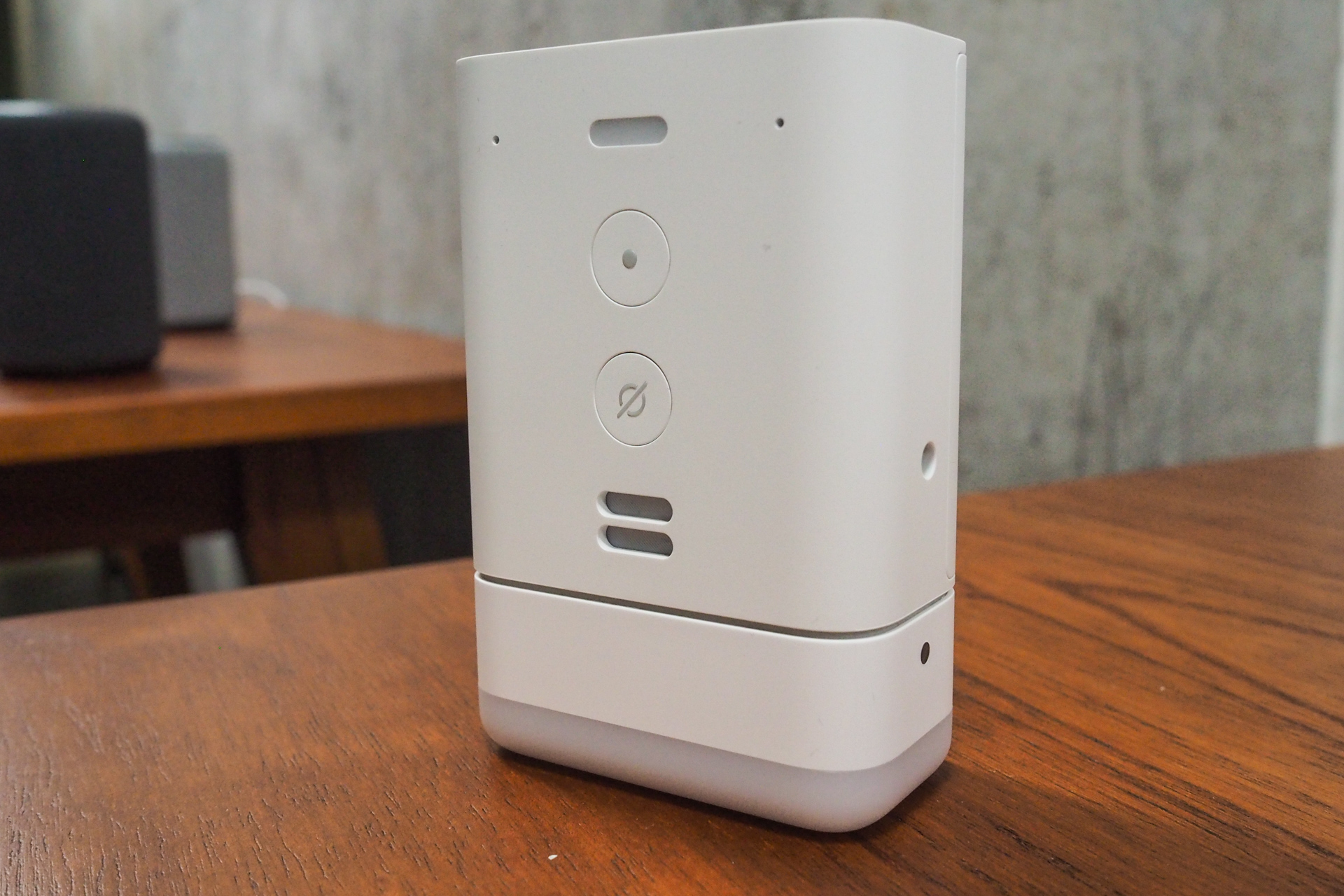
alexa echo amazon 9250048
Echo Frames & Loop

Amazon introduced its beta, invite-only hardware devices. One is a pair of $179.99 Alexa-enabled glasses that stick 4 micro speakers in the frame for hands-free Alexa.
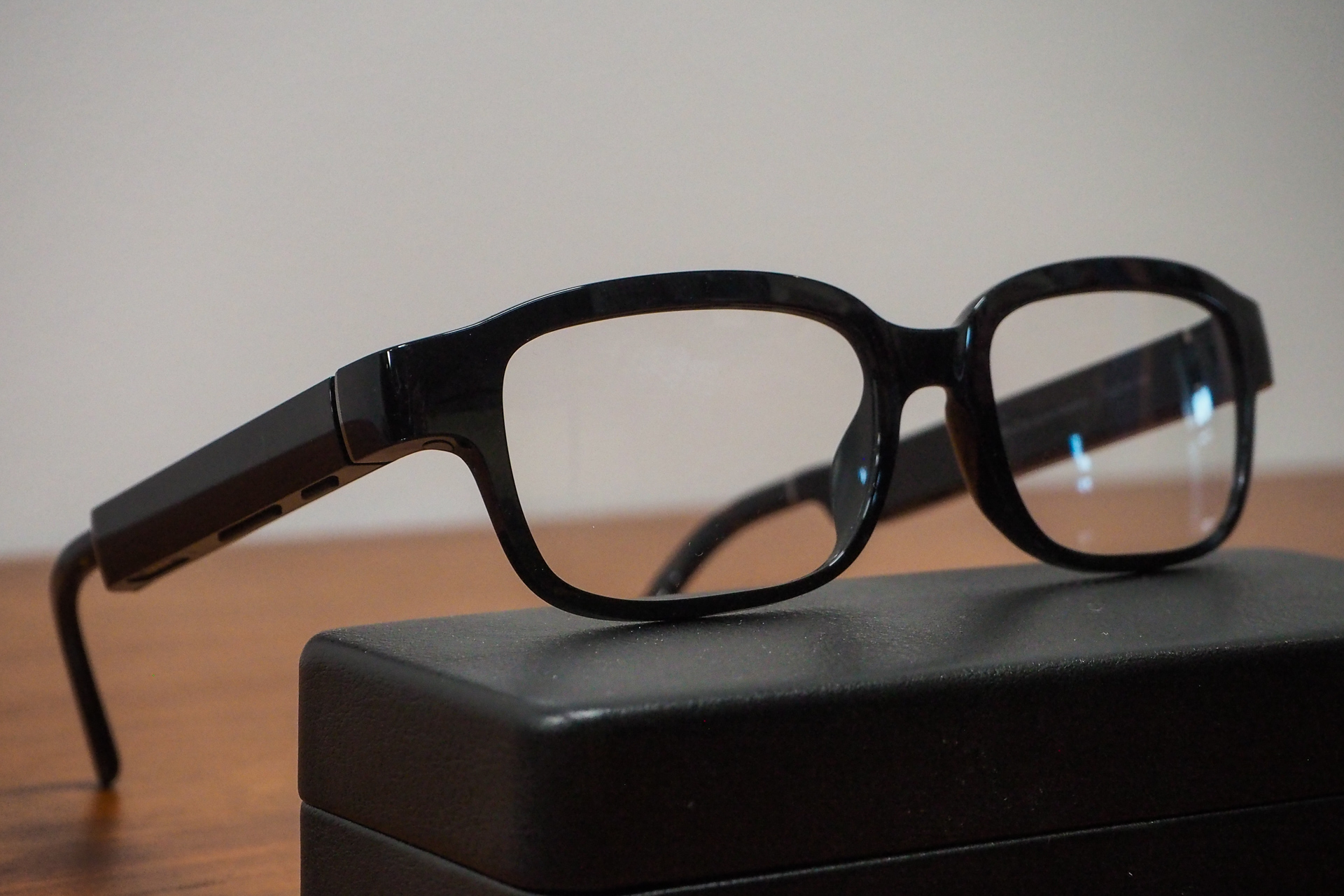
alexa echo amazon 9250033

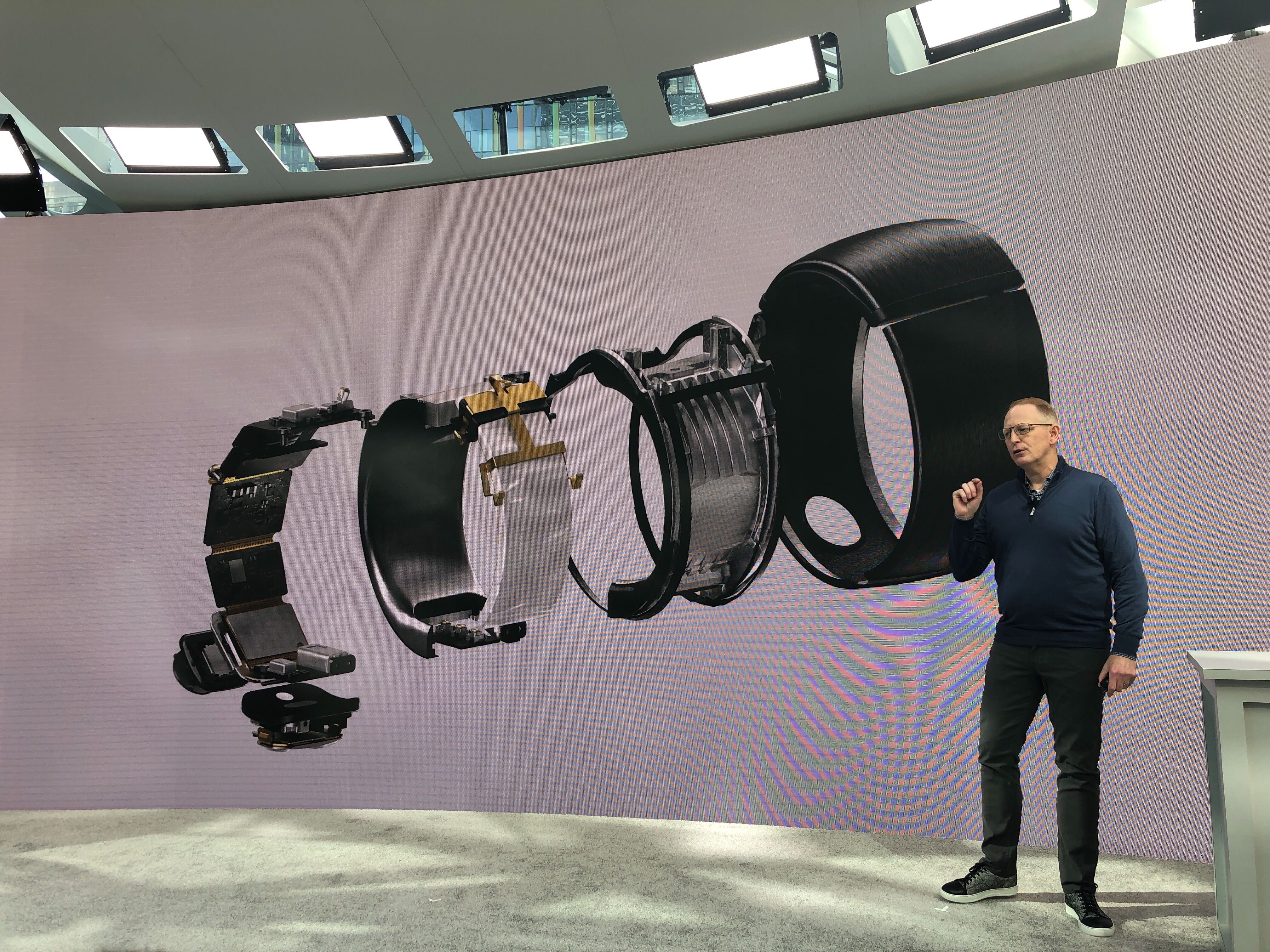
The other is a $129.99 Alexa-enabled smart ring with 2 microphones that puts Alexa on your finger for quick questions or brief calls.
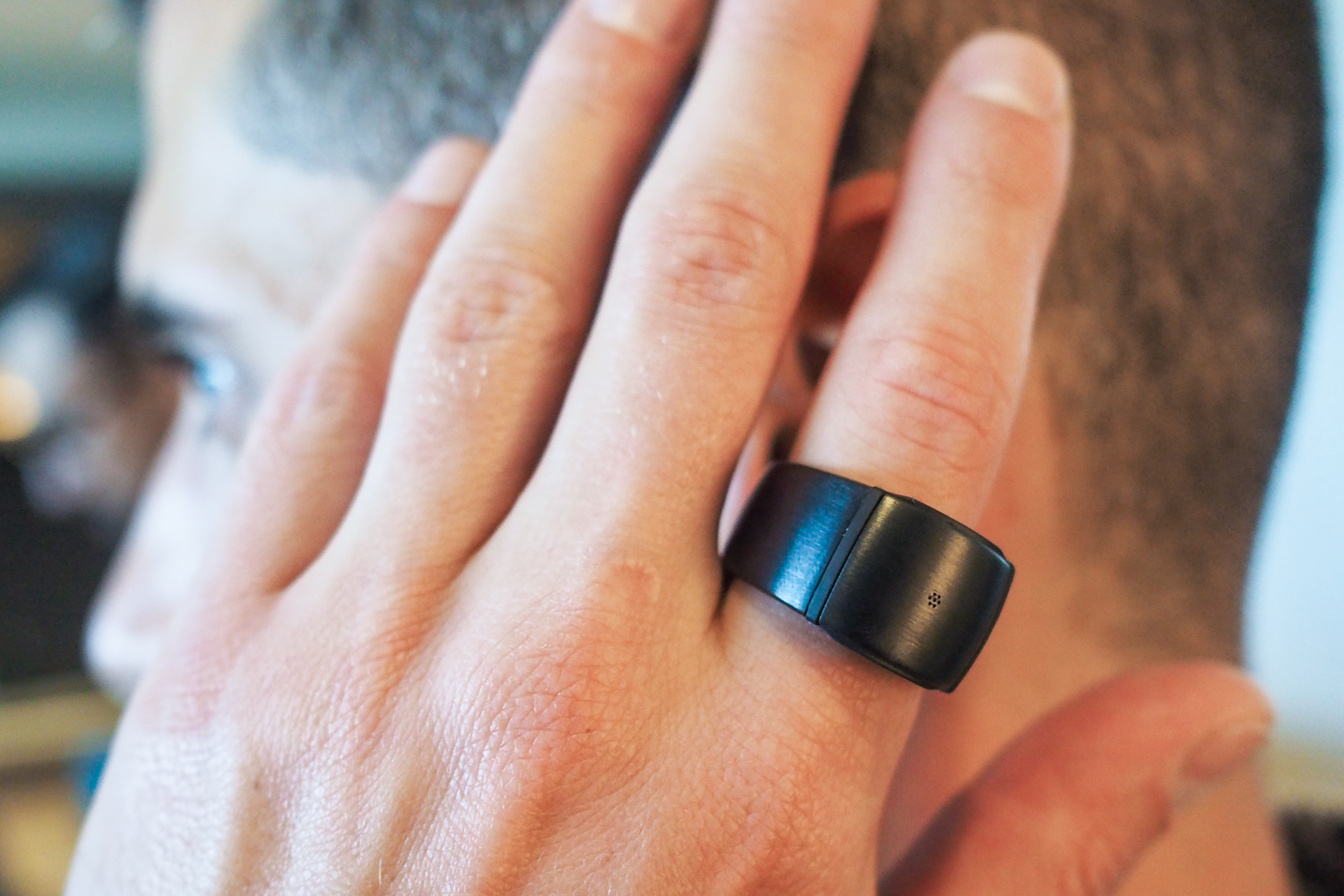
alexa echo amazon 9250076 2

Other Hardware

New Eero mesh Wi-Fi router

Amazon launched the next generation of its Eero router, which now works better with Alexa. The router lets you do things like shut off or pause the Wi-Fi with voice commands — features that will later come to other routers from TP-Link, Asus, Linsky, and Arris by way of an API.  The router is $99, or available in a three-pack for $249, and is available in the U.S. today and in Europe later this year.
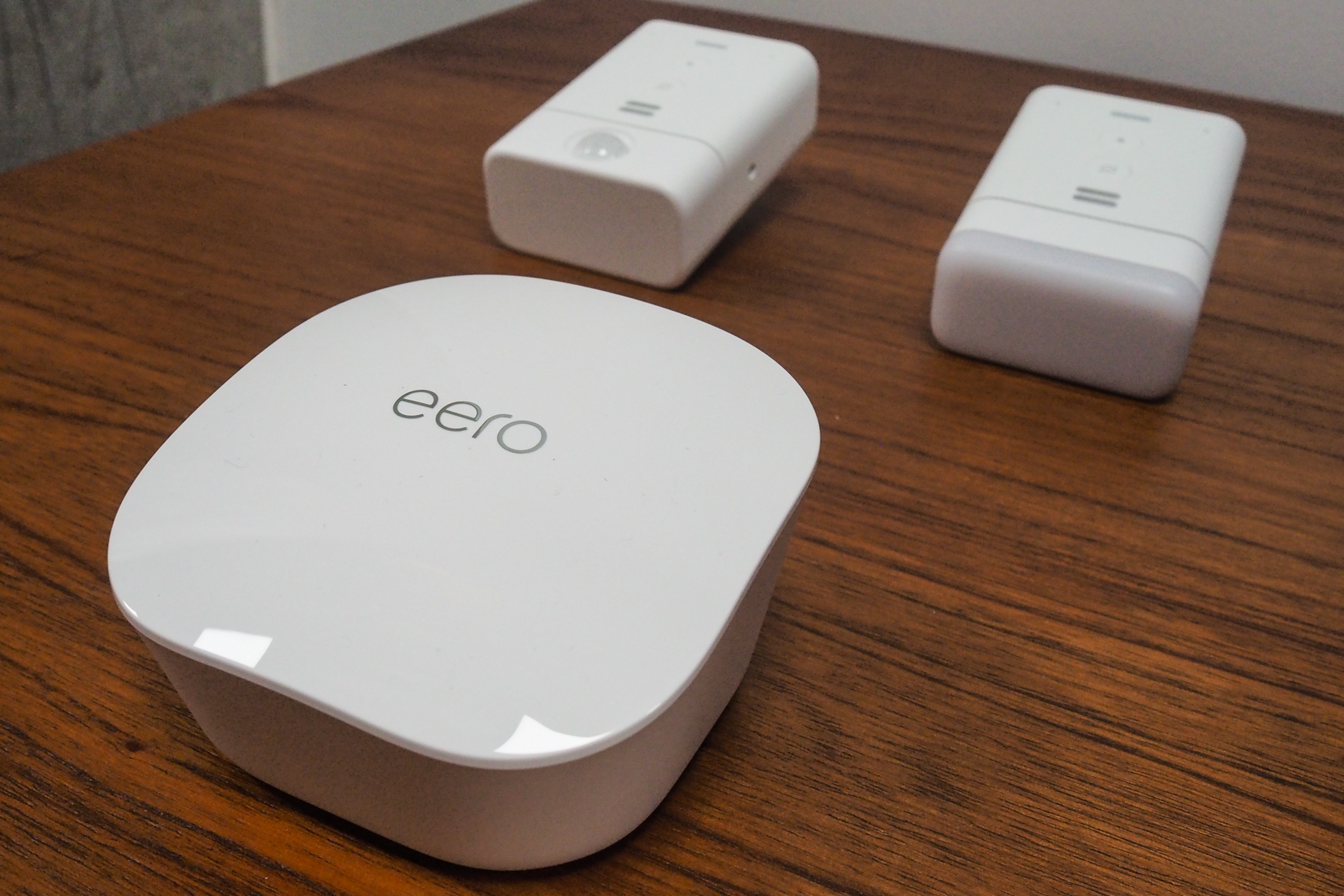
alexa echo amazon 9250045

Amazon Smart Oven

What’s an Amazon event without a new Alexa-powered oven, right? This time around, Amazon takes on the June Oven with a $250 combination convection oven, microwave, air fryer, and food warmer. Once paired with Echo, you can ask Alexa to do things like preheat the oven, start or stop the cooking, and more.


New Ring Cams

The Ring Stick Up Cam got a price drop to $99 as the Ring Stick Up Cam Elite, $199, launches. Unlike the Stick Up Cam, the new camera will be powered over Ethernet. The Ring Indoor Cam is a wired-only cheaper version of the camera at $60.
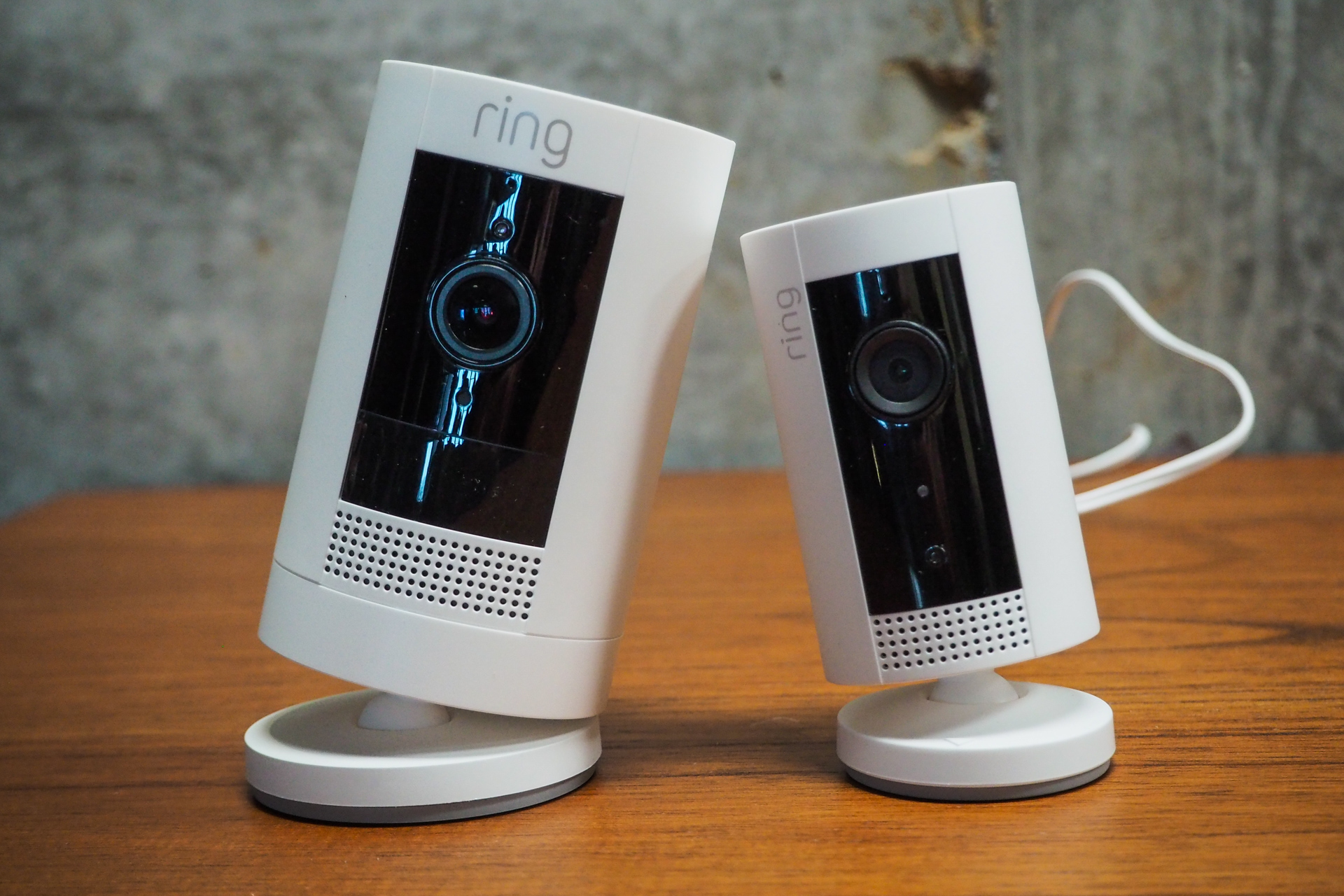
alexa echo amazon 9250032

More Stuff

Alexa gets Smarter and Weirder

Amazon also took the time to mention a few upgrades to Alexa’s capabilities today.
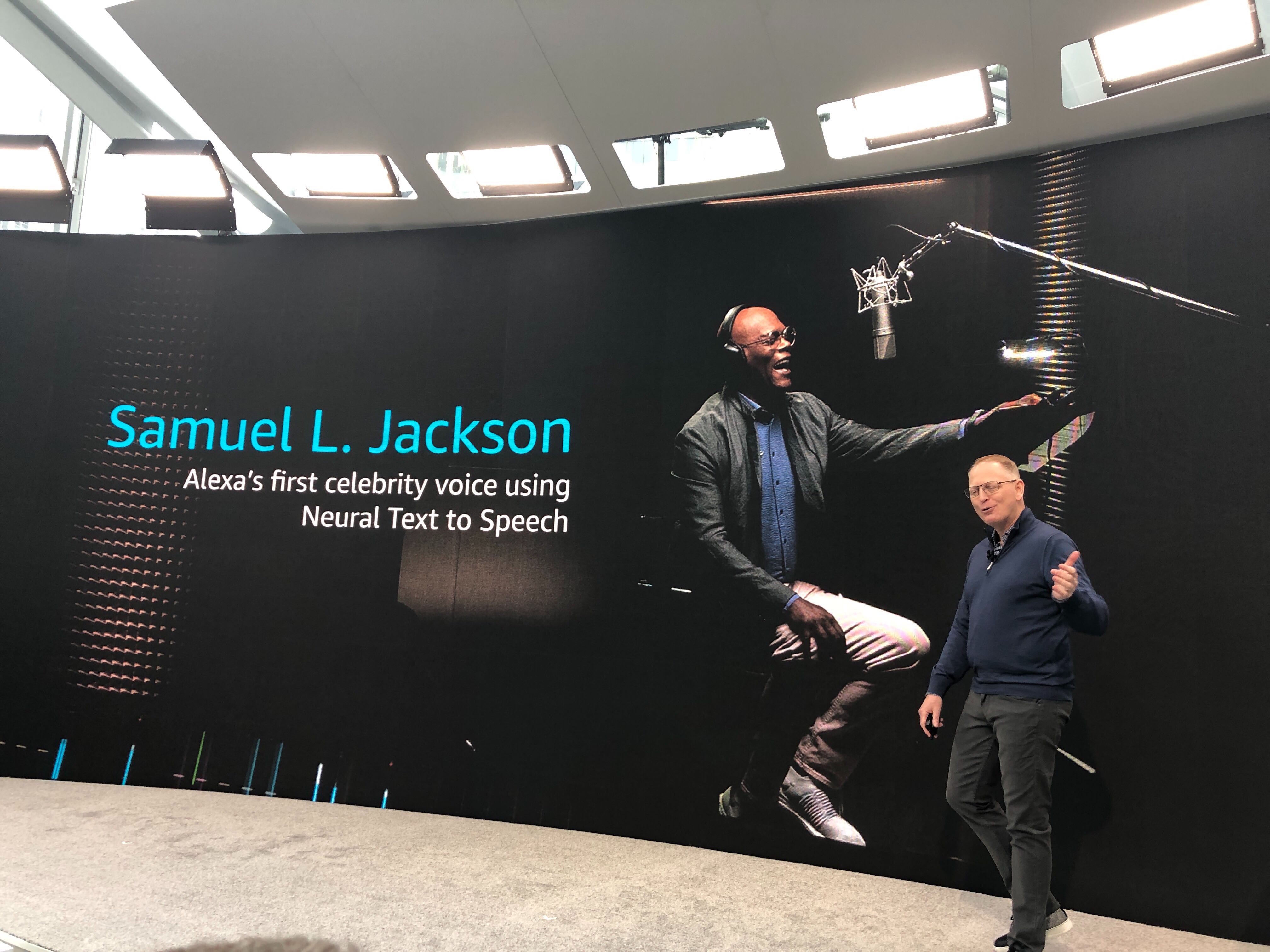
Image from iOS 1 1

  • This includes a multilingual mode where Alexa will be able to now speak both English and Spanish in the U.S.; French and English in Canada; and Hindi and English in India.
  • A new Neural Text to Speech model which will use machine learning to help Alexa be more “expressive.”
  • Celebrity voices! Because who doesn’t want Alexa to sound like Samuel L. Jackson? No really. The Jackson voice will be a 99-cent add-on to Echo devices and more celeb additions are in the works.
  • Alexa is coming to GM, including 2018 and newer Cadillac, Chevy, Buic and GMC vehicles
  • Scan-to-Cook is an upgrade for Echo Show which lets you scan a barcode to have the new Amazon Smart Oven prepare the item correct. The feature works with hundreds of Whole Foods brands, like 365 Everyday Value, plus Gardein, Marie Callender’s and more.
  • Certified for Humans is a new program that will highlight easy-to-use smart home products to consumers searching Amazon. Easy is just one requirement, though. The other is “works with Alexa.”
  • Alexa Guard gets updated to listen for more than just breaking glass, smoke or carbon monoxide alarms. Now it will listen for human activity too — like if footsteps, talking, coughing, or a door closing, is detected while Guard is in Away mode.
  • Alexa replenishment service, launching later this year, will alert you when supplies from smart home devices are low — like batteries that need changing in a smart lock, or an air filter that’s ready for a swap.
  • New utterances: You’ll be able to ask Alexa, “tell me what you heard” and “why did you do that?”

Alexa-powered Food Network Kitchen Service

Customers love Alexa in the kitchen for watching recipe videos. So Amazon doubled down on this with its partner, Food Network, to offer both live and on-demand cooking classes for Echo Show users. The service launches in October, and while Alexa is the exclusive voice partner, it will also be offered on phones and tablets. Oh, and Bobby Flay is involved.


Amazon Sidewalk

One of the more interesting introductions today was Amazon Sidewalk, Amazon’s low-bandwidth, long-distance wireless protocol designed to connect all of the IoT devices around your home and beyond — including places where Bluetooth or Wi-Fi can’t reach. The network uses the free, over-the-air 900 megahertz spectrum, and could allow for things like an Alexa-connected mailbox or lights for the yard, for example.
download

Ring Fetch

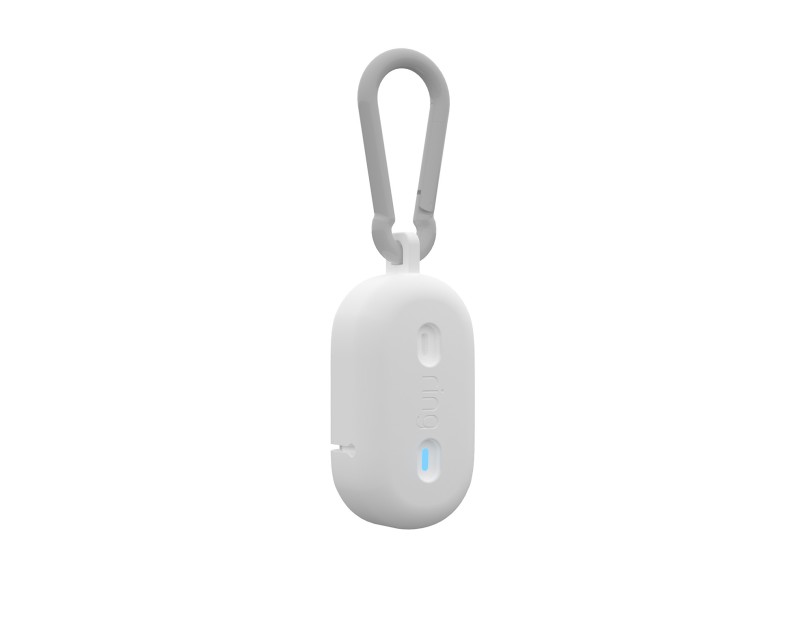
The first product to take advantage of Amazon Sidewalk was a connected dog tag that will alert you when your pooch exits a geofence you’ve established — like the yard. The Ring Fetch launches next year.


Read Full Article

5 Data Handling Tips to Avoid Security Breaches at Work


data-handling-tips

Whenever there’s news of a data breach, you might imagine sophisticated hacking attacks or illicit data theft by malicious employees. What you might not realize is how often data breaches happen because of accidents.

A 2019 report shows how often employees can inadvertently cause data breaches. In up to 60 percent of data breach cases, a person from the affected company was at fault. So we’ve got advice on how you can avoid becoming a similar statistic when using a work device.

1. Double Check Recipients When Sending Sensitive Data

ways-write-email

A recent report by security company Egress shows how often employees can inadvertently cause data breaches. But often, these are down to simple mistakes, rather than malice of profit. For example, when writing an urgent email or sending a document for a deadline, it’s easy to accidentally send it to the wrong destination.

The Egress report states that 43 percent of data leaks were due to what is called “incorrect disclosure”. That just means sending a file to the wrong person. This included putting the wrong email address in the recipient field or faxing information to the wrong number. Another common error was accidentally using CC instead of BCC, which exposes the address of all recipients.

The lesson here is to double check the recipients of sensitive data. Whether you’re emailing, faxing, or sending by post, take a minute to ensure you’re only sending the information to people who should have it. For the best security, get a colleague to double check for you.

2. Never Share Your Passwords With Colleagues

Everyone’s heard that you shouldn’t share your passwords. But it’s easy to see why it still happens. Maybe you’re home sick and a colleague needs information from your computer. Or maybe your boss wants to access your email while you’re away on vacation. Not to mention how common it is to write passwords down on Post-it notes and stick them to a screen.

The problem is, when you share a password you make it less secure. If you email your password to your boss and their email gets hacked, now the hackers have access to your machine as well. If a colleague logs in using your password and sees data they shouldn’t, the responsibility will fall on you because it’s your account.

There are way to solve this though. If you have trouble remembering your passwords, then the best way to address this is to use a password manager. That way, you only have one password to remember. With that one password you can access all of your accounts from anywhere.

Don’t use obvious passwords like “12345” or the dreaded “password” because these are extremely easy for hackers to guess.

If you need to share access to information with colleagues, consider setting up a group email or a sharing files using a service like Dropbox.

3. Learn About Data Ethics

Something many employees don’t realize is the data they handle as part of their jobs belongs exclusively to the company they work for. It doesn’t belong to them or to their department. Whether it’s a list of clients you’ve put together or data on customer preferences you’ve collected, this information is wholly owned by the company.

This is important when you look at the reason employees give for sharing data intentionally. One in five people who intentionally shared data said they did so because they thought it was theirs to share. A further 55 percent said they shared data insecurely because they didn’t know how to share it securely.

Unfortunately you can’t necessarily count on your boss or your department to teach you everything you need to know about data security. If you handle secure data as part of your work, you should take it upon yourself to learn about legal requirements and best practices for data handling.

It may also be worth consulting with your company’s IT department or data protection officer to learn more about what tools are available to you for handling data.

4. Be Vigilant About Phishing and Other Attacks

protect-data-breach

You likely know about the threat of phishing. When you see an email claiming to be from your bank and asking you to send your password, you know that’s suspicious. But phishing is getting a lot more sophisticated and you should be prepared for that.

The survey showed that only 5 percent of data leaks were due to phishing. However, these leaks tended to be among the most serious. New techniques like spear phishing target a particular individual with highly specific information. Especially if you work in IT or if you are a high level executive, you should be on the lookout for these attacks.

Another advanced cyberattack is whaling. This is where hackers compromise the account of a senior manager and use that to scam the employees who work beneath them.

If you ever see an emailed request that strikes you as odd, pick up the phone. Giving the apparent sender a call is the best way to quickly determine if a request is genuine.

5. Install Remote Wiping Software Onto Your Work Devices

Accidents do happen, and it’s easy to leave your work laptop or phone on the train at the end of a long day. Obviously you’ll try not to lose your work devices. But still, you should prepare for the possibility that you might.

As well as having a password on all your work devices, you should install remote wiping software. This could be using a tool like Find My iPhone for iOS or by allowing remote location and wipe in the settings of your Android device. When you have enabled these features, you can manage your device remotely from another computer.

You can log into your account and then either use the GPS on your lost device to find it, or delete the contents of the hard drive remotely.

Sure, it’s annoying to have to delete all your data and explain to your IT department that you lost a device. But it’s much better than being responsible for hackers stealing valuable or private information from your company.

Learn More About Security to Keep Data Safe at Work

These particular security practices will help you keep the data that you work with safe. However, there are many other security issues to consider when it comes to your personal computer use as well. To learn more about using a computer safely for both work and home, see our article on important habits for staying safe and secure online.

Read the full article: 5 Data Handling Tips to Avoid Security Breaches at Work


Read Full Article

How to Make a YouTube Playlist for Your Favorite Videos


youtube-create-playlists

YouTube is one of the most successful and longest-running social media sites still in operation. Over a decade after launch, it remains one of the “titans” of social media.

Even if you’re not a YouTuber, you can still curate content on the platform. And in this article we show you how to make a YouTube playlist full of your favorite videos.

Step 1: How to Find Content for Your Playlist

Find Videos on YouTube

YouTube playlists are all about content curation: about grouping together similar objects so it’s easier for people to watch videos about a specific subject.

If you upload your own videos, finding this content can be pretty easy. However, let’s say you want to create a YouTube playlist from content that other people have posted. Let’s also say that you want to consolidate your favorite videos on a certain topic in one place, and share this list with other people.

Well, then you have to search for this content.

For this tutorial, I decided that I wanted to put together a short YouTube playlist on my favorite psychology videos. To search for videos on this subject, make sure you’re logged into YouTube, then go to the search bar and begin typing:

Use YouTube Search Bar to Find Videos

Step 2: How to Add Content to Your Playlist

After some searching, you’ll start to find videos that fit the subject matter of your playlist.

To add a video to your own YouTube playlist, click the SAVE button beneath the video that you’re playing. This is a button a lot of you will be familiar with, because it’s the first step in adding third-party content to a YouTube playlist that you’re creating.

Save Video to YouTube Playlist

When you click SAVE, a new popup menu will emerge. In this popup menu, you can save this video to a previously created YouTube playlist, or you can create a brand new one.

For this tutorial, let’s create a new list. Click on + Create a new playlist.

Create a New Playlist on YouTube

After you click + Create a new playlist, this popup menu will expand further. You’ll have the chance to rename the playlist, along with managing its privacy settings.

  • Private means that the YouTube playlist can only be viewed by you.
  • Unlisted means that the playlist can only be viewed by others if they have the direct link.
  • Public means that your playlist is visible to anyone searching YouTube.

Normally this is where people stop creating a YouTube playlist, because by following these simple steps you can design a basic one. However, you can definitely push YouTube’s customization further, so let’s do that now.

While we’re still working on those customization settings, we’ll leave the playlist’s privacy settings to Private.

Once you name your video and adjust its privacy settings, click CREATE.

Name Your YouTube Playlist

After you click CREATE, YouTube will create your playlist.

You can continue adding videos to it by pressing the SAVE button beneath each new video you watch. Check off the box next to the playlist that you want to add the video to.

If you don’t want to spend a lot of time finding content, here’s how to automatically add videos to YouTube playlists.

Step 3: How to Find the Playlist in Your Channel

Find a Playlist in Your YouTube Channel

After you have all the videos that you need for your playlist, you’ll want to go back into the list itself and fiddle with the settings. But how do you find your YouTube playlist on your channel, especially if you set your YouTube video playlist to private?

If you go to the top right-hand corner of your screen and click on your profile icon, then click Your channel, you’ll be taken to your channel screen:

Go to Your YouTube Channel to Find Your Playlist

If you have no publicly available playlists, YouTube will not show your playlists in the “public” view of your channel.

To find your full list of YouTube playlists—public or private—you need to look to your left (if you’re on a desktop or laptop). On the left side of your screen, you’ll see a list under the Watch later button, including the playlist you just created.

Click on your private YouTube playlist’s name—in our case, “My Favorite Psychology Videos”—to be taken to that playlist’s screen.

Find Your Private Playlist on Your YouTube Channel

Step 4: How to Edit Your YouTube Playlist

Once you click on that link, you’ll be taken to a page similar to the screenshot that we posted below. On this page, you’ll see basic information that you need to know about your YouTube playlist, including:

  • The playlist’s thumbnail image.
  • Its privacy status.
  • How many videos are in the playlist.
  • When the playlist was updated.
  • Who created the playlist.

To the right of that, you’ll see a series of thumbnail images and the titles of the videos that you have added. To finesse this YouTube playlist further, click on the EDIT button, seen here in red.

Edit Your YouTube Playlist

Step 5: Tricks to Editing Your Playlist

Let’s say you add videos to your YouTube playlist in the order that you found them, but you don’t like them listed in that order, and you don’t want YouTube to sort these videos by another automatic order, either. You want to adjust the video order manually.

To manually move around your videos, click and drag on the long, narrow bar on the left-hand side of your video thumbnail, seen here in red:

Manually Move Around the Videos on Your YouTube Playlist

Move that video to the appropriate section on your playlist. When you have it in the right spot, release your mouse.

If you click the More option on the right-hand side of each of these videos, you will see several “quick” filtering options that you can apply to each YouTube video. You can:

  • Move your video to the top of the YouTube playlist.
  • Move your video to the bottom of the YouTube playlist.
  • Add/edit notes to each video on your playlist.
  • Set as playlist thumbnail, which sets that individual video’s “image” as the overall cover art for your YouTube playlist.

Explore the "More" Option on Your YouTube Video Playlist

Play around with these options as you see fit.

Finally, you can also add more videos directly from this edit screen. To do this, click on the Add videos button in the top right-hand corner of the list. When you do, a screen will pop up that says Add video to playlist.

Add Videos to Your YouTube Video Playlist

From here, you can search for more videos to add to your YouTube playlist: either through a YouTube search, a direct URL, or your own videos.

Step 6: Tweak Your Playlist Privacy Settings

Now that you have your YouTube Playlist in working order, you’ll want to publish it. Unfortunately it’s still private, so we have to switch a few settings around.

To adjust your playlist’s privacy settings, click on Playlist settings, at the top of your edit screen. Make sure you’re on the tab that says Basic.

YouTube Video Playlist Privacy Settings

Under PLAYLIST PRIVACY, you’ll see three options for playlist privacy: private, unlisted, and public. Make sure it’s set to Public.

Under ORDERING, you’ll see top-level controls for the order in which the videos on your YouTube playlist are organized. Right now ours is set to Manual, but if you aren’t happy with that setting, you can order it by date added, most popular, or date published.

Two more things to note:

  • Under the Auto add section, you can set up new rules for automatically adding videos to your playlist. We talked about this in this article, under “Section 2.”
  • You can also allow other people to add videos to your playlist, under the Collaborate tab.

To learn more about collaboration, here’s how to make a collaborative playlist on YouTube.

Once these settings are adjusted, click Save. The newly created, highly curated YouTube playlist is now available for public viewing.

A Beginner’s Guide to YouTube Playlists

YouTube has a lot of useful tools that help you curate and share your favorite videos. So for more help making and managing YouTube playlists, we recommend you read our beginner’s guide to YouTube playlists.

Read the full article: How to Make a YouTube Playlist for Your Favorite Videos


Read Full Article

Amazon wants to put microphones into your rings and glasses


At the end of its hardware event today, Amazon announced a new program for testing and selling its own experimental, limited-volume hardware: Day 1 Editions.

The first of these new products is Echo Frames. These are Alexa-enabled glasses, though unlike Google Glass, there’s no camera and no display, just microphones and a speaker.

The second is the Echo Loop, a rather large Alexa-enabled ring with two built-in microphones and, of course, a tiny speaker. Both of these will be available on an invite-only basis and in limited volumes later this year.

The frames will retail for $179.99 and the Loop will be $99.99.

download 2

The glasses, which will sell without any prescription lenses (though you can add those if you want), weigh in at 31 grams. They aren’t especially stylish, though they look pretty acceptable.

The ring is maybe the oddest product Amazon demoed at its event today. It’s pretty large and I can’t quite see people talking into their rings and then listening to what Alexa has to say in response, but I could be wrong. Maybe it’s the next big thing.

“Paired with your phone, this ring lets you access information throughout the day,” Amazon writes. “It’s super easy to connect with Alexa without breaking stride or digging out your phone, for those simple things like turning on the lights or calculating the tip on your lunch bill. Simply press a button, talk softly to Alexa, and then the answer comes discretely through a small speaker built into the ring.”

To be fair, though, these are very much experimental products that are meant to allow Amazon to get feedback from real customers. But that’s what Amazon said about its Alexa-enabled microwave, too, and now it’s the best-selling fridge on the site.

Image from iOS 5 1


Read Full Article

Amazon wants to put microphones into your rings and glasses


At the end of its hardware event today, Amazon announced a new program for testing and selling its own experimental, limited-volume hardware: Day 1 Editions.

The first of these new products is Echo Frames. These are Alexa-enabled glasses, though unlike Google Glass, there’s no camera and no display, just microphones and a speaker.

The second is the Echo Loop, a rather large Alexa-enabled ring with two built-in microphones and, of course, a tiny speaker. Both of these will be available on an invite-only basis and in limited volumes later this year.

The frames will retail for $179.99 and the Loop will be $99.99.

download 2

The glasses, which will sell without any prescription lenses (though you can add those if you want), weigh in at 31 grams. They aren’t especially stylish, though they look pretty acceptable.

The ring is maybe the oddest product Amazon demoed at its event today. It’s pretty large and I can’t quite see people talking into their rings and then listening to what Alexa has to say in response, but I could be wrong. Maybe it’s the next big thing.

“Paired with your phone, this ring lets you access information throughout the day,” Amazon writes. “It’s super easy to connect with Alexa without breaking stride or digging out your phone, for those simple things like turning on the lights or calculating the tip on your lunch bill. Simply press a button, talk softly to Alexa, and then the answer comes discretely through a small speaker built into the ring.”

To be fair, though, these are very much experimental products that are meant to allow Amazon to get feedback from real customers. But that’s what Amazon said about its Alexa-enabled microwave, too, and now it’s the best-selling fridge on the site.

Image from iOS 5 1


Read Full Article

Book tour wrap-up


Book tour wrap-up

Math Work


Math Work

Facebook announces Horizon, a VR massive-multiplayer world


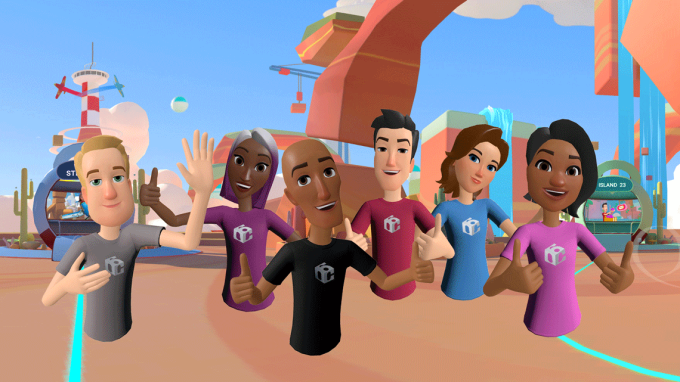
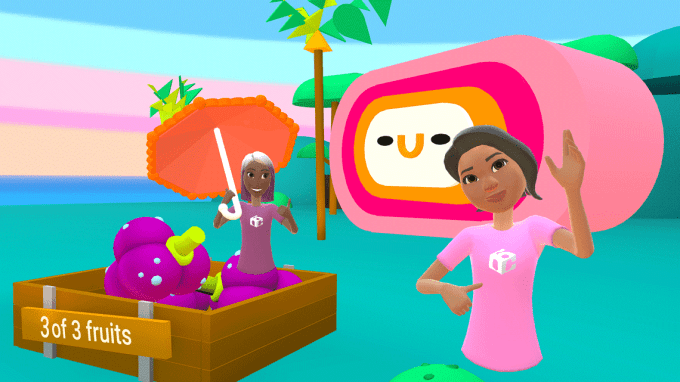
Facebook today announced it’s building its own Ready Player One Oasis. Facebook Horizon is a virtual reality sandbox universe where you can build your own environments and games, play and socialize with friends, or just explore the user generated landscapes. This is Facebook’s take on Second Life.

Launching in early 2020 in closed beta, Facebook Horizon will allow users to design their own diverse avatars and hop between virtual locales through portals called Telepods, watch movies and consume other media with friends, and play multiplayer games together like Wing Strikers. It will also include human guides, known as Horizon Locals, who can give users assistance and protect their safety in the VR world so trolls can’t run rampant.

Users interested in early access can apply for the beta here.

Facebook Wing Strikers

As part of the launch, Facebook will shut down its existing social VR experiences Facebook Spaces and Oculus Rooms on October 25th, leaving a bit of a gap until Horizon launches. Oculus Rooms debuted in 2016 as your decoratable private VR apartment, while Spaces first launched in 2017 to let users chat, watch movies, and take VR selfies with friends. But both felt more like lobby waiting rooms with a few social features that were merely meant as a preamble to full-fledged VR games. In contrast, Horizon is designed to be a destination not a novelty, where users could spend tons of time.

How Facebook Horizon Works

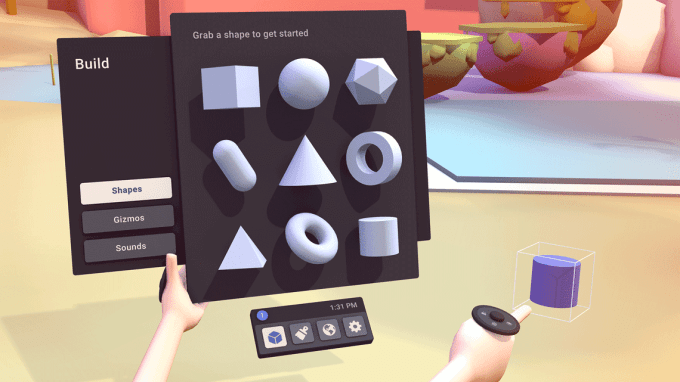
Facebook Horizon will start centralized around a town square. Before people step in, they can choose how they look and what they wear from an expansive and inclusive set of avatar tools. From inside VR, users will be able to use the Horizon World Builder to create gaming arenas, vacation chillspots, and activities to fill them without the need to know how to code.

71704442 498340457616226 7020019007591809024 n

Facebook Horizon lets you build objects from scratch

You could design a tropical island, then invite friends to hang out with you on your virtual private beach. A object creator akin to the Oculus Medium sculpting feature lets you make anything, even a custom t-shirt your avatar could wear. Visual scripting tools let more serious developers create interactive and reactive experiences.

Facebook details is Horizon safety features on its “Citizenship” page that explains that “As citizens of Facebook Horizon, it is all of our responsibility to create a culture that’s respectful and comfortable . . . A Horizon citizen is friendly, inclusive, and curious.” Horizon Locals will wander the VR landscapes to answer questions or aid users if they’re having technical or safety issues. They seem poised to be part customer support, part in-world police.

Facebook Horizon Locals

Facebook Horizon will include human Locals who provide safety and technical support

If things get overwhelming, you can tap a shield button to pause and dip into a private space parallel to Horizon. Users can define their personal space boundaries so no one can get in their face or appear to touch them. And traditional tools like muting, blocking, and reporting will all be available. It’s smart that Facebook outlined the community tone and defined these protections.

Facebook CEO Mark Zuckerberg announced Horizon today at the Oculus Connect 6 conference in San Jose. He discussed how “Horizon is going to have this property where it just expands and gets better” as Facebook and the community build more experiences for the VR sandbox.

Facebook Horizon World Builder

Facebook lets you build your own islands and other locales in Horizon

Horizon makes perfect sense for a business obsessed with facilitating social interaction while monetized through ad views based on time-spent. It’s easy to imagine Horizon including virtual billboards for brands, Facebook-run shops for buying toys or home furnishings, third-party malls full of branded Nikes or Supreme shirts that score Zuckerberg a revenue cut, or subscriptions to access certain gaming worlds or premium planets to explore.

As Facebook starts to grow stale after 15 years on the market, users are looking for new ways to socialize. Many have already ditched the status updates and smarmy Life Events of Facebook for the pretty pictures of Instagram and silliness of Snapchat. Facebook risked being cast aside if it didn’t build its own VR successor. And by offering a world where users can escape their real lives instead of having to enviously compare them to their friends, Horizon could appeal to those bored or claustrophobic on Facebook.


Read Full Article

25 September 2019

GM is bringing Amazon Alexa to 2018 and newer Cadillac, Chevy, Buick and GMC vehicles


General Motors is adding Amazon Alexa to the infotainment systems of its Chevrolet, Buick, GMC and Cadillac vehicles in the first half of next year — one of the broadest rollouts of an embedded Alexa Auto experience, the automaker said Wednesday.

The new in-vehicle Amazon Alexa experience will be added through a software update to model 2018 and newer cars, trucks and crossovers with compatible infotainment systems. In other words, customers don’t have to buy a new 2020 Chevy to get the Amazon Alexa feature.

The company made the announcement Wednesday in conjunction with Amazon’s Devices event.

The addition of Amazon’s Alexa follows GM’s announcement in early September that Google will provide in-vehicle voice, navigation and other apps in its Buick, Cadillac, Chevrolet  and GMC vehicles starting in 2021.

GM used the Amazon announcement to highlight its ability to use vehicle connectivity and its “updateable” app framework to bring new features in its vehicles. These over-the-air software updates, first popularized by Tesla, have become increasingly important for automakers hoping to retain tech savvy customers who have become used to their constantly improving smartphones.

“GM’s updateable app framework and vehicle connectivity lets us provide customers with new technologies that enhance the ownership experience, even to customers with vehicles that are already on the road,” said Santiago Chamorro, vice president for Global Connected Services, GM. “Bringing the Alexa experience to our vehicles is an example of how we are listening to our customers’ feedback, and offering them the voice technology of their choice.”

The news also shows Amazon’s continued push into the automotive world. Amazon has been moving into the car for a few years now through the integration of Alexa and car-focused delivery services as well as direct investments in startups like Rivian. The ecommerce company launched its Amazon Key service to let customers  give delivery drivers access to their house with the help of a compatible keypad on their door and a smart security camera. But in 2018, that service expanded to the car with its Key by Amazon In-Car delivery service. 

GM and Volvo were the first participants in the Key by Amazon In-Car delivery service. Ford joined the in-car delivery service in April 2019.

The addition of Amazon Alexa into GM vehicles will let owners use voice commands to check the news, control smart home devices like lights or thermostats, and ask directions to points of interest or nearby restaurants. The Alexa directions feature is integrated with GM’s embedded navigation systems in the vehicle and OnStar Turn-by-Turn navigation using natural language.

GM owners will also be able to ask Alexa to play a specific song, artist, genre, or station, as well as audiobooks or podcasts. Alexa can fulfill the request by bringing up available streaming services.


Read Full Article