17 August 2019

6 Most Popular Email Providers Better Than Gmail and Yahoo Mail


In 2012, Gmail overtook Hotmail to become the most popular email provider in the world. Since claiming the crown, it’s showing no signs of slowing down. Today, the service boasts more than one billion users.

The other go-to free email provider is Yahoo Mail. Sure, its user numbers pale into insignificance compared with Gmail (it had around 255 million at the start of 2018), but it’s still one of the most recognizable global email brands.

But what other free email providers are out there? If you don’t want a Gmail or Yahoo account, here is a list of the best email services you can choose from.

1. Microsoft Outlook
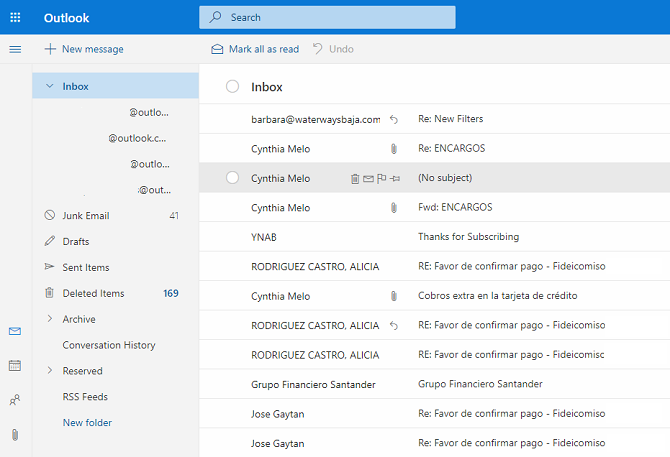
Outlook web app homepage

Outlook terminology is confusing. Microsoft has done a poor job of differentiating between its free email accounts, its free modern Windows app, and its Office 365 app. Luckily, if you just want a free email account, you don’t need to get bogged down in the details; just head to outlook.com and sign up for an @outlook.com email address.

The service has surpassed Yahoo to become the second most popular free email provider in the world. In mid-2016, Microsoft reported it had more than 450 million active users.

Using an Outlook account comes with significant benefits. Because it’s operated by Microsoft, it’s heavily integrated into the Windows 10 operating system. It also works seamlessly with the Outlook Office 365 app.

If you decide to use either the web client or the desktop client, you’re in good company. 16 percent of all email sent is opened on one of the two apps.

2. GMX Mail
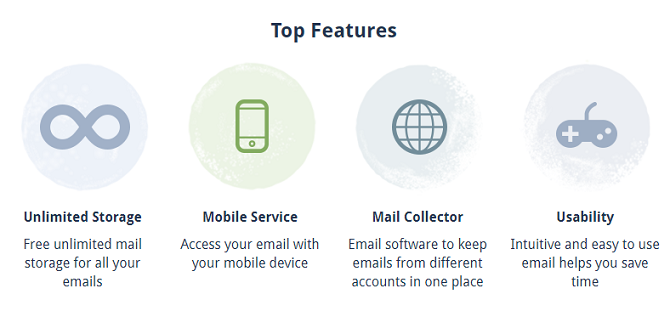
GMX mail features

GMX Mail is a subsidiary of United Internet, one of Germany’s largest internet service providers. The free mail service has been gaining in popularity over the last few years, but it’s been around since 1997.

Despite only having 11 million active monthly users, it still comfortably makes the top ten of free email providers in terms of user numbers. It’s a surprising statistic and one which reveals the almost unassailable popularity of services like Gmail, Yahoo, and Outlook.

Feature-wise, you can expect 1 GB of file storage, a 50 MB attachment limit, and support for both IMAP and POP. Most interestingly, it offers 65 GB of email storage which is enough to never run out of space again. Unfortunately, it lacks an RSS reader and a conversation view.

3. Zoho Mail

Zoho Mail is one of the newest providers on the list. It’s only been in existence since October 2008.

In its short life, the service has quickly developed into one of the best free email providers outside the Gmail, Yahoo, and Outlook troika. Driven by an ad-free web client (even for free users), it’s grown to more than 10 million active users in just nine years.

The app offers everything you’d expect from a free email provider, including multi-level folders, conversation views, drag-and-drop inbox organizing, and filters. Zoho Mail also lets you set up email at your domain for free! One omission is an integrated video chat tool.

Zoho Mail is part of a larger office productivity suite. The service is tightly integrated with Zoho Docs—a Microsoft Office alternative that lets you create, edit, and collaborate on text, presentation, and spreadsheet documents.

4. iCloud
icloud login

iCloud represents Apple’s venture into free email. Most Mac, iPad, and iPhone users have an account. iCloud itself is a holistic cloud service. It underpins other Apple services such as Find My iPhone, Photo Stream, Keychain, and iCloud Drive. Mail is just one facet of the app.

The app boasts 720 million users, but it’s not clear how many of them are using an @iCloud.com email address.

Like Outlook.com and Microsoft, iCloud integrates seamlessly with the default Apple mail client on both Mac and iOS. On mobile, you can add any number of email providers to the app. On the web client, you can only access your @icloud.com address.

All iCloud users get 5 GB of storage for free. In addition to documents, photos, and other data, any emails you receive count against the limit. As such, you might need to pay for more storage if iCloud is your provider of choice.

Note: There are plenty of other great cloud services for Apple users.

5. AOL Mail

AOL Email

AOL Mail is the granddad of free email services. It went live in March 1993, making it three years older than Hotmail, four years older than Yahoo Mail, and almost ten years older than Gmail.

Because of its age, it has a huge user base. Nevertheless, the numbers have been decreasing in recent years. In 2006, it had 50 million active monthly users, and as recently as 2010 it was the third-largest email provider in the world. Today, the number of active users is down to 25 million.

Just because AOL Mail is a recognizable brand name with millions of users, you shouldn’t necessarily rush to sign up. In recent years, several pieces of research have hinted at “email bias”. Potential employers are less likely to hire you if you have an AOL or Hotmail address; it suggests you’re stuck in 1996.

6. ProtonMail

Although ProtonMail is still a relative newcomer to the world of email, it has quickly grown to become a popular provider thanks to its strong focus on confidentiality. The company was founded at CERN in Switzerland in 2014 and is still incorporated in the country. As such, it benefits from Switerzland’s Federal Data Protection Act and Federal Data Protection Ordinance—both of which provide some of the strongest privacy protections in the world.

More importantly, however, ProtonMail uses client-side encryption to protect the contents of a message before it hits the company’s own servers. Indeed, the way ProtonMail has designed its systems means the company does not have the technical capability to access your messages. That removes the risk that it’ll be forced to hand over the contents of an email to a third-party. It’s a very different approach to the one taken by more mainstream providers like Gmail and Outlook.

Other features include minimal information required at sign-up, no tracking or logging of your sessions, and self-destructing messages.

Which Email Provider Do You Prefer?

We’ve introduced you to six of the most popular email providers other than Gmail and Yahoo. Each has different benefits, but they all have the common theme of being highly popular among certain subsets of users.

If you’d like to learn more about different email providers, check out the best email services for a clutter-free inbox.

Read the full article: 6 Most Popular Email Providers Better Than Gmail and Yahoo Mail


Read Full Article

The Best Apple Watch Fitness and Workout Apps to Get You Healthy


apple-watch-fitness

Thanks to continual improvements to both hardware and software, the Apple Watch has become one of the best tools for anyone looking to get more healthy and fit. Due to the built-in GPS, heart rate tracker, and other technology, you’ll have a personal fitness trainer right on your wrist.

Each day, you can see how many calories you’ve burned and the amount of exercise you recorded. And the more data the wearable device collects, the more insight it provides.

Here are some great apps for any Apple Watch owner looking to start on the path to a healthier lifestyle.

1. Activity

Apple Watch Fitness Apps Activity App

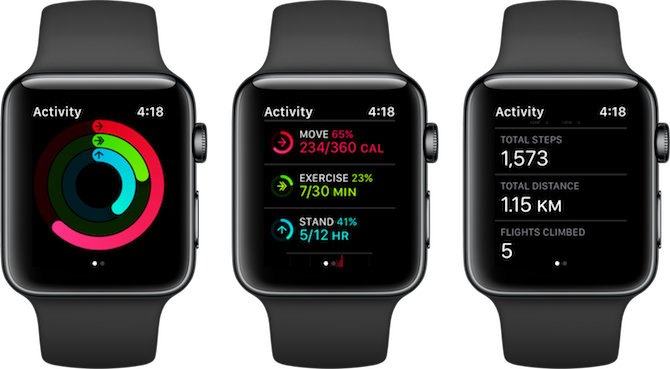
The Activity app on Apple Watch is the central part of your fitness journey. It’s responsible for your three activity rings which help you reach Move, Exercise, and Stand goals. And those rings from Activity will show up everywhere, from helpful notifications during the day to your favorite Apple Watch face.

When you open the Activity app, you’ll first see the three rings. Scroll down and you’ll find stats like how many steps you have walked, time spent in workouts, and calories burned.

The Activity app on the watch is limited to the day’s activity. Open the Activity app on your iPhone to view more detailed stats. Plus, you’ll also get a detailed breakdown of every workout that you’ve done so far.

2. Workouts

Apple Watch Fitness Apps Workouts

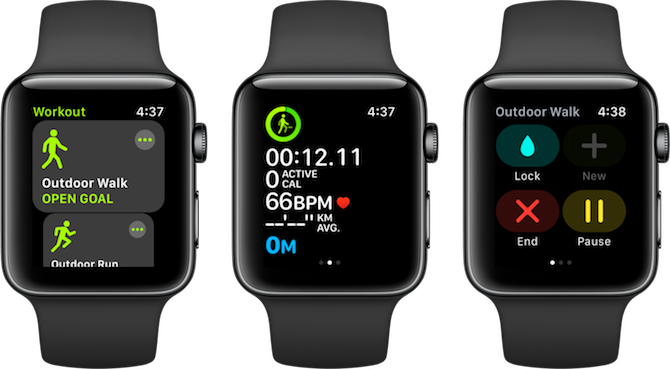
Apple’s built-in Workouts app is well designed and easy to use. Launch the Workouts app and swipe through to see the types of workouts supported.

Depending on your Apple Watch and watchOS version, you’ll see activities like walking, running, swimming, high-intensity workouts, cycling, and a lot more.

The Workouts app supports indoor activities too, which makes the Apple Watch the perfect gym companion. If you’re sweating it out doing a lot of different activities, just select the Other workout type. Your Apple Watch will then track the calories burned based on your movement and heart rate.

3. Nike+ Run Club

Apple Watch Fitness Apps Nike+ Run Club

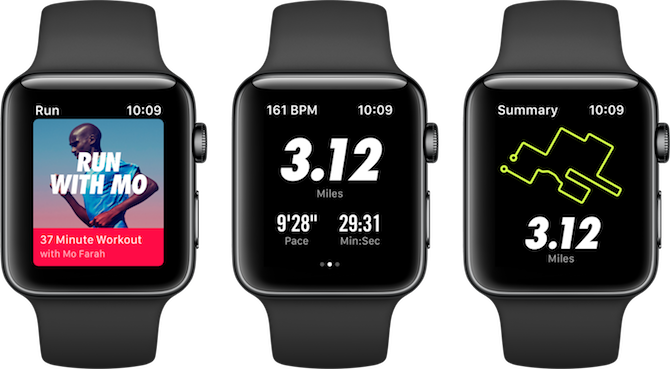
Nike+ Run Club calls itself the perfect running partner; this is one of the few times where a tagline is actually true. The Nike+ Run Club app has everything you need when you’re out on your run. You can start by setting a goal or try a guided audio workout. The app will track your pace, distance, time, and heart rate in real-time.

The best aspect of the app is a helpful community. You can take part in weekly and monthly challenges, unlock achievements, compete with leaderboards, and cheer your friends as they’re on the run.

Download: Nike+ Run Club (Free)

4. SmartGym

SmartGym Apple Watch Workouts App

Heading to the gym is a great way to burn off calories and get fit. But it’s often hard to know where to start, especially for newcomers. SmartGym comes to the rescue—it’s a great way to help make the most of your workout.

The app features more than 250 exercises with images and animations. There are also a number of premade workouts created by professionals to select from, including some HIIT options.

Download: SmartGym (Free, in-app purchases available)

5. Workouts++

Apple Watch Fitness Apps Workouts++

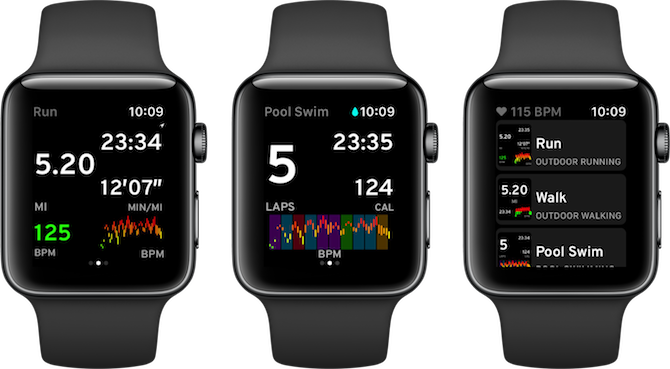
After you’ve used the Workouts app a few times, you’ll start seeing its limitations. There’s no way to customize the stats screen and you can’t view any performance graphs. Workouts++ is your answer.

The app has an efficiently designed workouts screen, which provides six stats. You can choose to add the metrics that you care about and leave out the rest.

Download: Workouts++ ($0.99)

6. Pocket Yoga

Pocket Yoga Apple Watch

Roll out your mat anywhere with Pocket Yoga. The app features 27 different yoga sessions of varying duration and difficulty to select from. Altogether, there are more than 200 different poses available to try. Plus, the iPhone app features a dictionary of each pose with a description and the benefits of each.

But instead of trying to fiddle with your phone during a session, the Apple Watch app is a great way to keep track of your workout. On the watch screen, you’ll see the current pose and time remaining. It will also show your heart rate, calories burned, and more.

Download: Pocket Yoga ($2.99)

7. MySwimPro: Swim Workouts

MySwimPro Apple Watch

As long as you have an Apple Watch Series 2 or later, you’re ready to hit the pool with the wearable device. MySwimPro: Swim Workouts is a full-featured app focusing on helping you get fit in the water no matter your experience level in the pool. You can load a custom workout or pick from a number of preset options on the Apple Watch.

When in the water, you can see important information like the current workout, what’s coming up next, time in the water, distance swam, heart rate, and more.

Download: MySwimPro: Swim Workouts (Free, subscription available)

8. Pedometer++

Apple Watch Fitness Apps Pedometer++

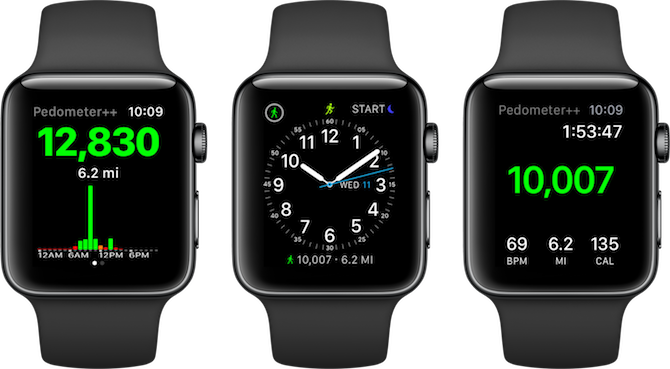
If you want a simple way to keep track of steps taken per day, Pedometer++ is the way to go.

It’s a simple utility that records your steps and presents the data as a watch face complication. Add it to your favorite Apple Watch face, then along with your Activity progress, you’ll also be able to see your steps.

Download: Pedometer++ (Free)

9. Strava

Apple Watch Fitness Apps Strava

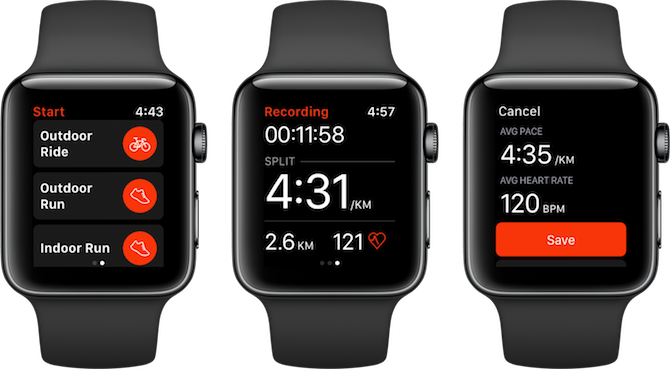
Strava is the best app for runners and cyclists. The app’s interface is minimal and to the point, while the community helps you achieve your goals and keeps you motivated. Strava has brought the same design philosophy to its Apple Watch app.

The Apple Watch app has GPS support. Its real-time display shows you the important stats: split, time, distance, and heart rate. If you’re using the Apple Watch Series 2 and above, you can record workouts even without your iPhone. Once you’re back in range, the information will automatically sync with your Strava profile.

Download: Strava (Free, subscription available)

10. MyFitnessPal

Apple Watch Fitness Apps MyFitnessPal

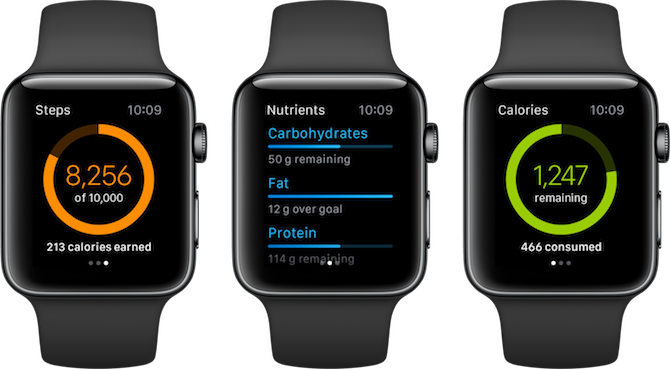
MyFitnessPal is the best food tracking app for iPhone. If you’re trying to lose weight by calorie counting or just want to know how much nutrition you’re getting in a day, MyFitnessPal’s Apple Watch companion app will make it easier for you.

The app quickly shows your nutrition facts for the day. This includes how many calories you’ve consumed, your carbohydrate and protein intake, and similar info.

Download: MyFitnessPal (Free, subscription available)

11. Streaks Workout

Apple Watch Fitness Apps Streaks Workouts
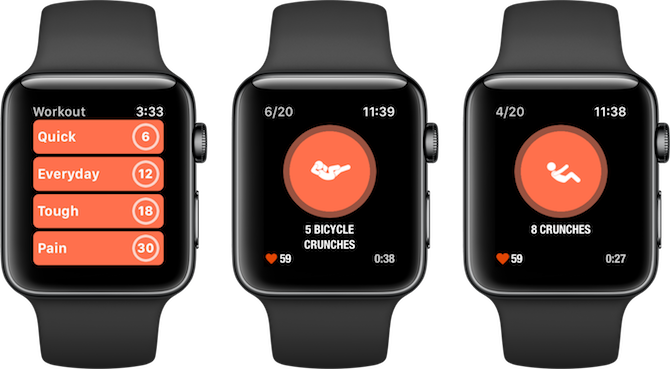
Streaks Workout provides a quick and easy way to start a workout anywhere.
You can choose from 30 equipment-free workouts. Start with Quick, graduate to the Everyday workout, and hopefully make your way towards the Pain workout.

The app will show animations of the exercises, along with a countdown and your heart rate. You’ll also get tips on how to improve your technique and posture.

Download: Streaks Workout ($3.99)

Getting Fit With an Apple Watch

As you can see, no matter what your road to a healthier lifestyle looks like, there’s an Apple Watch app that should help the journey.

And the wearable device can do so much more. Make sure to check out some fun Apple Watch games and some great Apple Watch apps to make your device even better.

Read the full article: The Best Apple Watch Fitness and Workout Apps to Get You Healthy


Read Full Article

Find the Fastest DNS to Optimize Your Internet Speed


change-dns-internet-speed

Google’s Public DNS is a free Domain Name System (DNS). It is an alternative to your ISP’s default DNS settings which aren’t always the fastest option, and other public DNS services such as OpenDNS or the privacy focused 1.1.1.1 DNS.

Which of these options best optimize your internet speed? Is one DNS better than its competitors? And how can you tell if it is? Read on to find out how you find the fastest DNS and optimize your internet speed in the process.

What Is DNS?

The Domain Name System translates a human-readable website name to an IP address. When you enter the name of a website in your browser address bar, your browser sends that name to a DNS server. The DNS server helps route the request to the appropriate IP address of that website.

Each website has an IP address. But the IP address for each site is a long string of numbers and unless you are a mnemonist, you cannot remember the IP address for every site you want to and need to visit.

When your ISP configures your internet connection, it is set to use the ISP’s default DNS. The default ISP DNS settings aren’t automatically bad, but some are known to have connection and frequent name address resolution issues. Furthermore, you are free to use one of the free DNS alternatives.

You want a fast and stable DNS. For some, their DNS should provide extra security and privacy features, too. To find your fastest DNS option, try one of the following free DNS speed tests. Here’s how you change your DNS settings in Windows and how to change your DNS settings on Mac.

1. NameBench

namebench dns test tool

NameBench is an open-source portable application (no installation, you can run it from a USB flash drive) that works on Windows, macOS, and Linux distributions. It runs a DNS benchmark test on your computer using your internet browser history or a standardized test data set. The NameBench DNS test then returns the fastest DNS settings for your location and current connection.

Head to the NameBench code repository and download the latest version of the tool for your operating system. Please note that NameBench ceased development in 2010, so the release dates are correct. Alternatively, use one of the following links.

Download: NameBench for Windows | macOS | Linux (All Free)

How to Use NameBench DNS Test

namebench results chart

Before you run NameBench, close any applications using your internet connection. Closing programs using an active connection can distort your NameBench DNS test results.

Open and extract NameBench. The Nameservers you see are the DNS servers you use currently. Keep the default NameBench settings, then hit Start Benchmark. The NameBench DNS test takes 10-20 minutes, so grab a cup of tea and wait for the results.

After the NameBench DNS speed test completes, your browser launches to show your results. The box in the top left shows the fastest DNS server for your current connection. For example, I should switch my primary DNS server to the privacy-focused 1.1.1.1. You can also scroll down your results page to see DNS speed test comparison charts.

2. GRC Domain Name Speed Benchmark

dns bench dns test tool

The Gibson Research Corporation Domain Name Speed Benchmark tool provides a detailed analysis of the optimum DNS settings for your connection. Like NameBench, you can run DNS Benchmark from a USB flash drive, requiring no installation. There is a Windows application, but no support for macOS or Linux.

Download: DNS Benchmark for Windows (Free)

How to Use DNS Benchmark

dns bench fastest dns list

One thing I like about DNS Benchmark is the constantly updating DNS list. As the DNS speed test progresses, the servers with the fastest response move to the top of the list.

Download and open DNS Benchmark, then select the Nameservers tab. Let DNS Benchmark update the list, then select Run Benchmark. The first run through only takes a few minutes. At the end of the first DNS speed test run, however, DNS Benchmark announces that you should create a custom DNS benchmarking list for DNS testing results that accurately reflect your system, connection, and locale. That’s because the default DNS server list heavily favors US-based users.

Building the custom list takes “around 37 minutes.” But the result does provide a much clearer picture of the fastest DNS for your system.

3. DNS Jumper

DNS Jumper dns test tool

On first impressions, DNS Jumper appears to be a more basic DNS speed test tool. However, once you start using the DNS Jumper, you’ll notice that it has many similar features to NameBench and DNS Benchmark. For instance, DNS Jumper completes a fastest DNS test, and is portable application, too.

Regarding DNS speed, DNS Jumper has the option to scan for and select the “Fastest DNS.” Once the DNS speed test finishes you can select an option, then use the integrated “Apply DNS” button to use those settings. The DNS Jumper test list has some limitations and does favor US-based DNS providers.

Download: DNS Jumper for Windows (Free)

How to Use DNS Jumper

DNS Jumper fastest dns test list

Download and open DNS Jumper.

First, select your network adapter from the dropdown list. Unsure which network adapter to select? In your Start Menu search bar, input view network status and select the Best Match. Select Change adapter settings from the left column. One of the network adapters will have the name of your current connection underneath the adapter type. Wi-Fi connections will also display a reception bar. Note the name and select the corresponding hardware on the DNS Jumper dropdown list.

Once you have the correct hardware configuration, select Fastest DNS. A new window opens, listing the available DNS speed tests. Keep each selection checked, then hit Start DNS Test. The DNS Jumper test does not take long. When it completes, you can use DNS Jumper to update the DNS settings for your connection automatically.

How Do You Find the Fastest DNS?

Using one of the above DNS speed test tools will help you figure out the best DNS settings for your connection. NameBench and the GRC DNS Benchmark offer the most thorough tests and will give you the most accurate answer regarding DNS speed.

Want to switch between several DNS servers? Check out our guide on how to easily switch between multiple DNS servers.

Read the full article: Find the Fastest DNS to Optimize Your Internet Speed


Read Full Article

Amazon Will Now Donate Unwanted Items to Charity


Amazon is launching an initiative called Fulfillment by Amazon (FBA) Donations. This initiative should help support charities while also reducing the amount of waste Amazon sends to landfill. Which is, by all accounts, a rather shocking amount.

Amazon Sends Unwanted Items to Garbage Dumps

According to multiple reports, Amazon is guilty of generating a lot of waste. In May 2019, CBS News reported that one facility sent 293,000 unsold or unwanted products to a garbage dump over the course of nine months.

Part of the problem appears to be that Amazon charges more to send returned or unsold products back to sellers than it does to trash them. With CNBC claiming it costs sellers 50 cents to have a product returned but 15 cents to have a product trashed.

How Fulfillment by Amazon Donations Works

Amazon’s answer to this problem is Fulfillment by Amazon Donations. Which, in a post on The Day One Blog, Amazon describes as a program “where eligible excess and returned products from sellers using FBA will be made available to charitable organizations”.

Starting in September 2019, Amazon will start donating products from sellers using FBA. These products, whether returned items or unwanted stock, will be donated to charitable organizations located in the US and the UK.

These charities include Good360, “a global leader in product philanthropy and purposeful giving,” plus Newlife, the Salvation Army, and Barnardo’s. Fulfillment by Amazon Donations will be the default option for FBA sellers, though they can opt out if they want.

Alice Shobe, Director of Amazon in the Community, said, “We know getting products into the hands of those who need them transforms lives and strengthens local communities. We are delighted to extend this program to sellers who use our fulfillment services.”

We Need to Cut Down on Electronic Waste

This is a good effort by Amazon which should have a positive effect. Charities will get to make use of perfectly good products which would have otherwise ended up in landfill. Which is an even better outcome than recycling electronic waste.

Image Credit: Kurt Bauschardt/Flickr

Read the full article: Amazon Will Now Donate Unwanted Items to Charity


Read Full Article

6 Ways Your Email Address Can Be Exploited by Scammers

How to Watch English Premier League Games Online


watch-english-premiere-league

The English Premier League is the most-watched sports league in the world. Games are shown live in 212 territories, and billions of people watch at least one game.

Different networks and streaming apps hold the rights to broadcast the games live across the world. So in this article we tell you how to watch English Premier League games online.

We’ll help you watch English Premier League games in the UK, US, Canada, Australia, Germany, and India. All legally, but not for free. Because free streams are generally illegal.

How to Watch the English Premier League in the UK

now tv epl

In the UK, three providers share the TV rights: Sky, BT, and Amazon.

Sky will broadcast the majority of the games, showing 128 live matches over the course of the season. BT has the rights to 42 games, while Amazon has the entire round of Boxing Day fixtures along with the mid-week round of matches on 3rd/4th/5th December.

If you subscribe to Sky’s satellite service, you’ll have access to the Sky Go app. It is available to all users for no extra cost and includes the 11 Sky Sports channels.

Non-Sky subscribers can sign up for NOW TV. The online streaming service is a subsidiary of Sky. It offers access to all 11 Sky Sports channels for £33.99/month via its Sky Sports Month Pass. There is no contract, and you can cancel any time. You can also buy a day pass (£9) and a week pass (£15) if there are only a couple of games you want to watch.

To watch the games on Amazon, it is simple as signing up for Amazon Prime. It costs £7.99/month.

The situation with BT is more complicated. You can only watch the games via the BT app if you’re a BT Mobile user or if you receive your broadband from BT. If you don’t meet the prerequisites, you’ll need to sign up via Sky or BT TV and will only be able to watch on your television.

How to Watch the English Premier League in the US

nbc premier league pass

Premier League TV rights in the US have bounced around a few different networks in recent years. NBC has the exclusive rights to all 380 games, with a deal that runs until the end of the 2022 season.

Approximately 65 percent of the games are available on NBC’s suite of channels (typically, NBCSN, CNBC, and USA). The remaining 35 percent are on a paid service called Premier League Pass; it costs $39.99/month. There are also one or two games per weekend on NBC’s Spanish-language channels, Telemundo and Universo.

If you’re a cord cutter who wants to watch Premier League online, you can subscribe to any of the streaming services that carry NBC. It is available on most premium platforms, including Sling Blue ($25/month), FuboTV ($55/month), DirecTV ($50/month), Hulu ($45/month), and YouTube TV ($50/month). A subscription with any of the services also lets you log into NBC’s standalone sports streaming app.

Sadly, the games on Premier League Pass are not available on any streaming app; you will have to pay separately.

Note: See our detailed comparison of the best live TV streaming services in the US.

How to Watch the English Premier League in Canada

dazn canada sports

In Canada, DAZN holds the exclusive rights to all 380 games in the 2019/20 Premier League season.

Although the DAZN sports package is available through various cable providers, you can also subscribe on a standalone basis, thus making the service extremely cord cutter friendly. A subscription costs $20/month, and you can cancel any time. A discounted price of $150/year is available if you sign up for 12 months.

In addition to the English Premier League, DAZN also carries the Champions League, Europa League, English Championship, and many more global soccer tournaments. You even get the NFL, Six Nations rugby, boxing, MLB, tennis, cycling, and darts. If your sports interests extend beyond soccer, $20/month is a steal.

How to Watch the English Premier League in Australia

optus epl

In Australia, Optus sports has held the English Premier League broadcast rights since 2016. The current deal runs until 2022. All 380 games are screened.

Like DAZN, Optus is available through local cable providers and can also be subscribed to individually.

If you’re an existing Optus users (either through mobile, TV, or broadband) you can add Optus sports to your package for between $0 and $10/month, depending on your current plan. If you are not an existing Optus customer, you can pay $14.99/month and watch the games via the company’s Android and iOS mobile apps.

In addition to the live games, you’ll also get a mountain of highlights shows, analysis, and other sports content for you to dig into.

How to Watch the English Premier League in Germany

Sky Deutschland is the new Premier League rights holder in Germany. It beat the previous holder, DAZN, in the last round of bidding.

Unfortunately, that means there is no easy way to stream the English Premier League games if you’re a cord cutter. There is no equivalent of the NOW TV service that’s available in the UK.

If you’re a Sky Deutschland subscriber, you can watch all the games via the Sky Go app. It is available free of charge to all of its customers.

How to Watch the English Premier League in India

hotsport epl

Star Sports is the exclusive holder of the rights to the English Premier League in India. The company will screen 250 matches on its TV channels. If you want access to all 380 games, you’ll need to sign up for its official streaming app, Hotstar.

You do not need to be an existing Star Sports subscriber to sign up for a Hotstar plan. You can pay INR299/month on a rolling monthly basis or grab a discounted plan for INR999/year if you sign up for 12 months. If you subscribe to the yearly plan, you will have to wait until the next billing cycle before you can cancel.

Like many other providers, Star Sports also has broadcast rights for dozens of other sports and tournaments, including the Indian Premier League, F1, athletics, golf, swimming, and boxing.

Use a VPN to Mask Your Location

If you live in a country in which the English Premier League games are not available on a streaming service, you could use a VPN to create an account and tune in. Just remember that you’ll be breaking the provider’s terms of service and thus risk having your account canceled without warning and without a refund.

If you’re looking for a quality VPN provider, we recommend ExpressVPN or CyberGhost.

Learn More About Streaming Live Sports Online

The nature of IPTV streaming services means sports events are becoming increasingly fragmented between various providers. So, be sure to read our article listing the best live sports streaming apps to help you narrow down the options.

Read the full article: How to Watch English Premier League Games Online


Read Full Article

The 7 Best Video Converter Apps for macOS


video-converters-mac

For a long time, video was something most people only watched on TV or a computer. You certainly didn’t have to move video files around from device to device, unless you were some sort of video professional.

But these days, we live in a more video-centric world. Because of this, you may occasionally or even frequently need to convert video from one format to another. Fortunately, if you use a Mac, there are plenty of video converters to choose from.

1. QuickTime

Exporting video from QuickTIme

You won’t find many people saying QuickTime is the most full-featured video converter available, because it isn’t. That said, the app earns a place on this list for two reasons. First, the app is already installed on your Mac. And second, despite its appearance as a mild-mannered video player, QuickTime is the video equivalent of a Swiss Army knife.

QuickTime can perform minor edits on videos (like trimming the length), as well as converting video between a few different formats. We’ve even shown how to use QuickTime to record your screen before. In short, it’s a powerful tool hidden behind an unassuming exterior.

However, it doesn’t support as many formats as other converters on this list. You can save in either MP4 or HEVC format; that’s it. If you aren’t sure where to start, you might try QuickTime before you install anything else.

Download: QuickTime (Free)

2. HandBrake

Converting 4K video with HandBrake

Perhaps the best-known app for the job, HandBrake has had some issues in the past. For a few years, the app’s development slowed to a crawl and the project seemed abandoned. In the early 2010s, development resumed in earnest; in 2017 the app finally hit version 1.0. That’s good news, as it’s one of the most powerful converters you’ll find.

HandBrake offers so much functionality that it may overwhelm you. Fortunately, it also offers plenty of presets so you may never need to dive that deep. Combine this with the ability to squeeze 4K video down to incredibly small file sizes without much or any apparent loss in quality, and it’s tough to beat. Did we mention that it’s free?

Download: HandBrake (Free)

3. Any Video Converter

Converting video for iPhone 5 with Any Video Converter

If HandBrake’s options interest you but you find its complexity daunting, Any Video Converter is worth a look. The app is easier to use upfront, yet still packed with features and functionality. Thus, if you’re a beginner to the world of video, Any Video Converter is one of the best places to start.

The app supports many different formats, letting you convert video for easy playback on your iPhone, iPad, PlayStation 4, Xbox One, or Android device.

Download: Any Video Converter (Free)

4. Permute

Permute simple interface video converter

If you’re willing to pay a little more for an app that’s even easier to use and feels like an app designed for macOS, Permute is a great option. Its interface is among the most streamlined and polished you’ll find in this category. Permute also features support for newer macOS feature additions, such as dark mode.

Permute makes good use of your Mac’s hardware to make conversion even faster for file formats like MP4 and HEVC. If you’re converting video you shot with your iPhone, this can be a major time-saver. Permute costs $15, but you can take the free trial for a spin to make sure you like the app enough first.

Download: Permute ($14.99, free trial available)

5. Compressor

Apple Compressor for Final Cut Pro

With so many other capable video converters available either for free or a low price, there aren’t many reasons to pay $50 for Apple’s Compressor app. That said, if you frequently edit video with Apple’s Final Cut Pro X or Apple Motion software, the price tag for Compressor may be worth it for the time it saves.

Final Cut Pro X has a few conversion options, and you can always use another converter like HandBrake. That said, since Compressor is an Apple product, you’re not going to find another piece of conversion software that integrates as well with Final Cut Pro.

If you do a lot of editing in that app, Compressor is worth it. For everyone else, consider another option from these choices.

Download: Compressor ($49.99)

6. ffmpegX

Start screen for ffmpegX

If you’ve looked into video conversion, you might have heard of the ffmpeg command line tools. They’re free and incredibly powerful, but they’re also far from user-friendly. To solve this, ffmpegX takes those command line tools combines their power with the relative ease of use of a graphical user interface.

Just because ffmpegX has a GUI, that doesn’t mean it’s too simple. There are plenty of different settings and configuration options, meaning this still isn’t a beginner-oriented tool.

If you’ve tried some of the other options and find they aren’t configurable enough, give ffmpegX a try. You might find it’s exactly what you’ve been looking for. It’s old and increasingly out of date, but it still works.

Download: ffmpegX (Free)

7. CloudConvert

Converting M4V to MP4 with CloudConvert

There are cases where you might need to convert a video file, but you can’t install any software on your computer. You might have a few different reasons for this. A strict IT department at your company is the most likely reason, but you also may be out of hard drive space or simply reluctant to install a converter when you only need to convert a single file. In that case, you might want to try CloudConvert.

As the name implies, CloudConvert doesn’t convert videos on your computer. Instead, you upload the file and the service converts it in the cloud. You can convert all sorts of files (not just video) but there are a few downsides. One is that you’ll need to upload files to convert, then download them, which wastes time and bandwidth. The other issue is that to convert files over 1GB in size, you’ll need to sign up for a subscription.

Still, in a pinch, this could help you out if you can’t access other apps for the job.

Visit: CloudConvert (Free, subscriptions available)

Do You Need to Go Beyond Converting?

Have you looked over these tools and concluded that none of them meet your needs? Depending on what you’re looking to do, you may be better off with a full-fledged video editor. Many, but not all, of these have at least basic conversion tools built in, while also allowing you to trim and split video.

Of course, video editors are also more expensive. Some have free trials available, but you should be careful not to spend hard-earned money on a tool that won’t do the job. If you’re not sure where to start, take a look at our list of the best free video editors for Mac.

Read the full article: The 7 Best Video Converter Apps for macOS


Read Full Article

The 5 Best Windows PC Laptops of 2019

The Best Streaming TV Services (Free and Paid)


best-streaming-tv

Streaming TV services can be broadly split into two categories: free and paid. Everyone likes free stuff, but paid options obviously offer more (and newer) content. In this article we list the best free streaming TV apps and the best paid streaming TV apps.

The Best Free Streaming TV Services

Let’s begin with the best free streaming TV services.

Crackle

crackle channels

Owned and operated by Sony, Crackle has been a staple app for cord-cutters since its launch back in 2007. The company has content partnerships with several leading film and TV studios, including 20th Century Fox, Universal Studios, Disney, MGM, and Warner Bros.

And because its owned by Sony, you’ll get free access to a massive back catalog of the company’s hit shows such as Seinfeld, The Shield, Damages, and Rescue Me. In more recent years, Crackle has also started to invest in original shows. Some of the most critically acclaimed are The Oath, Sports Jeopardy, and Start-Up.

Crackle is available in 21 countries, all of which are in America. It has not been available in the UK since 2014, though you can always use a VPN like ExpressVPN or CyberGhost to bypass the geo-blocking.

If you’d like to learn more, check out our article listing the best free TV shows to watch on Crackle.

Tubi TV

tubi series

Tubi TV is a free alternative to Netflix. It has a library of more than 12,000 TV shows and movies for you to dig into. The company has partnerships in place with Metro-Goldwyn-Mayer, Paramount Pictures, Lionsgate, Warner Bros., and, since late 2018, NBCUniversal.

Despite the partnerships, we don’t feel the quality of the content is as high as that found on Crackle. Yes, there are some gems, but there’s a fair number of sub-par shows that you’d never realistically want to watch.

Sadly, the app also has an even smaller list of supported countries than Crackle; it is only available in the US and Canada. Again, a good VPN will let you get around the geo-blocks.

The Tubi TV streaming service is ad-supported.

Pluto TV

Rather than offering on-demand video, Pluto TV is a live TV streaming service. Again, it’s free to use. Although the service has been around since 2013, it’s currently receiving considerable investment thanks to a January 2019 buyout by Viacom for $380 million.

Some of the channels you can expect to find include NBC News, CNN, Bloomberg, FOX Sports, Eleven Sports, and an adapted version of MTV.

There are also 24/7 channels devoted to series such as Doctor Who, Dog the Bounty Hunter, Ramsay’s Kitchen Nightmares, and many more. You’ll even find content from Paramount, Comedy Central, and Nickelodeon on Pluto’s own in-house streaming TV channels. For sports fans, there’s a dedicated MLS channel.

The Roku Channel

the roku channels shows

The Roku Channel is an on-demand TV streaming app. Since its launch in October 2017, it has rapidly risen to become one of the best free TV streaming services available.

It features TV series and movies from Lionsgate, MGM, Paramount, Sony Pictures Entertainment, and Warner Bros. There is also content from streaming TV providers who already have apps in the Roku Channel Store (such as American Classics, FilmRise, OVGuide, and Popcornflix).

Sadly, The Roku Channel is only available to people in the United States. The service is ad-supported.

The Best Paid Streaming TV Services

While those free options are good, there are also streaming TV services available to those willing to pay for a subscription.

Netflix

netflix price

Despite the increasing competition, Netflix remains the gold standard for paid streaming TV services. It invests billions of dollars in producing its own original content while also offering hundreds of your favorite TV shows and movies from other creators and studios.

Today, the company has expanded to be available in more than 190 different countries. The only major exception is China, though it’s also unavailable in locales where US businesses are banned from operating (such as Syria and North Korea).

The available content differs between locations, but Netflix’s original shows and movies are available everywhere.

In the US, a Basic plan (one screen and no HD) costs $8.99/month, a Standard plan (two screens) costs $12.99/month, and a Premium plan (four screens and 4K) costs $15.99/month.

Hulu

hulu content

Hulu offers two TV streaming packages—an on-demand video service for $5.99/month and a live TV service from $44.99/month.

Disney owns the company, so there are masses of Disney’s shows and films available in the on-demand catalog. However, you will also discover numerous Hulu originals and plenty of non-Disney content too.

Hulu + Live TV comes with more than 65 channels as standard. You’ll get access to major networks like NBC and CBS, sports content from ESPN and FOX, and other mainstream channels such as CNN, National Geographic, History Channel, and Cartoon Network. You can buy add-ons for more sports and foreign-language content.

Hulu is only available in the US.

Amazon Prime Video

amazon prime video signup

Amazon Prime Video is Netflix’s greatest rival. Like Netflix, Amazon invests heavily in its own original content while simultaneously providing a vast library of content from other networks and studios. Much of the streaming service’s original content has been met with critical acclaim.

The app has a similarly large worldwide reach as Netflix; the only countries where it is unavailable are the usual suspects such as Cuba, China, and Iran.

In order to use Amazon Prime Video, you have to be an Amazon Prime member; there is no way to open a standalone account. The benefits and the cost of Amazon Prime vary from country-to-country. In the US, a Prime subscription costs $12.99/month.

HBO Now

HBO Now is a US-based streaming tv service that’s only available within American borders. The service went live in 2015.

As the name suggests, the service is HBO-centric. Sure, you get access to much of the company’s huge catalog of content, but you won’t be able to watch any non-HBO TV shows or movies. There are also some notable shows missing from the library, even though HBO has the rights. These include Tenacious D, Da Ali G Show, and The Ricky Gervais Show.

Only one package is available. It costs $14.99/month. For that, up to three users can stream simultaneously.

Learn More About Watching TV Online

The apps we’ve discussed above are the best TV streaming services available today.

If you’re still not satisfied and would like to learn about even more options, make sure you also check out our articles listing the best live TV streaming services and the best sites to watch TV on your computer.

Read the full article: The Best Streaming TV Services (Free and Paid)


Read Full Article

Google discloses its acquisition of mobile learning app Socratic as it relaunches on iOS


Google publicly disclosed its acquisition of homework helper app Socratic in an announcement this week, detailing the added support for the company’s A.I. technology and its relaunch on iOS. The acquisition apparently flew under the radar — Google says it bought the app last year.

According to one founder’s LinkedIn update, that was in March 2018. Google hasn’t responded to requests for comment for more details about the deal, but we’ll update if that changes.

Socratic was founded in 2013 Chris Pedregal and Shreyans Bhansali with the goal of creating a community that made learning accessible to all students.

Initially, the app offered a Quora-like Q&A platform where students could ask questions which were answered by experts. By the time Socratic raised $6 million in Series A funding back in 2015, its community had grown to around 500,000 students. The company later evolved to focus less on connecting users and more on utility.

It included a feature to take a photo of a homework question in order to get instant explanations through the mobile app launched in 2015. This is similar to many other apps in the space, like Photomath, Mathway, DoYourMath, and others.

However, Socratic isn’t just a math helper — it can also tackle subjects like science, literature, social studies, and more.

In February 2018, Socratic announced it would remove the app’s social features. That June, the company said it was closing its Q&A website to user contributions. This decision was met with some backlash of disappointed users.

Socratic explained the app and website were different products, and it was strategically choosing to focus on the former.

“We, as anyone, are bound by the constraints of reality—you just can’t do everything—which means making decisions and tradeoffs where necessary. This one is particularly painful,” wrote Community Lead Becca McArthur at the time.

That strategy, apparently, was to make Socratic a Google A.I.-powered product. According to Google’s blog post penned by Bhansali — now the Engineering Manager at Socratic — the updated iOS app uses A.I. technology to help users.

askaquestion

The new version of the iOS app still allows you to snap a photo to get answers, or you can speak your question.

For example, if a student takes a photo from a classroom handout or asks a question like “what’s the difference between distance and displacement?,” Socratic will return a top match, followed by explainers, a Q&A section, and even related YouTube videos and web links. It’s almost like a custom search engine just for your homework questions.

Google also says it has built and trained algorithms that can analyze the student’s question then identify the underlying concepts in order to point users to these resources. For students who need even more help, the app can break down the concepts into smaller, easy-to-understand lessons.

googleai v2

In addition, the app includes subject guides on over 1,000 higher education and high school topics, developed with help from educators. The study guides can help students prepare for tests or just better learn a particular concept.

explorer 56kHA30

“In building educational resources for teachers and students, we’ve spent a lot of time talking to them about challenges they face and how we can help,” writes Bhansali. “We’ve heard that students often get ‘stuck’ while studying. When they have questions in the classroom, a teacher can quickly clarify—but it’s frustrating for students who spend hours trying to find answers while studying on their own,” he says.

This is where Socratic will help.

That said, the acquisition could help Google in other ways, too. In addition to its primary focus as a homework helper, the acquisition could aid Google Assistant technology across platforms, as the virtual assistant could learn to answer more complex questions that Google’s Knowledge Graph didn’t already include.

The relaunched, A.I.-powered version of Socratic by Google arrived on Thursday on iOS, where it also discloses through the app update text the app is now owned by Google.

The Android version of the app will launch this fall.


Read Full Article