18 June 2019

5+ No Nonsense Sites to Get Life Advice and Grow as a Person


life-advice-sites

Life isn’t easy. We can all use a little sagely advice once in a while. Whether it’s from elders who’ve been in our shoes before or helpful guides on how to be an adult, these sites will give you pearls of wisdom to tackle life.

Previously, we have featured a few sites that offer good free advice online, which includes old stalwarts like Elder Wisdom Circle. But the internet has grown since then and there are new resources worth checking out, as well as a few famous gems that we haven’t talked about before.

1. Hey From The Future (Web): Age-Specific Advice

Hey From The Future offers age specific advice for each year

One of the internet’s favorite questions is to ask, “What would you tell your younger self right now?” Hey From The Future took that and turned it into an app where you get life advice at any age from someone who has been there.

All you have to do is select your current age, from 13 years old and upwards. The next page will give you all the advice that people from different ages have left with regards to what they wish they knew at that age. It’s a mix of perspectives from someone who just passed that year to someone even twice in age. They’re ranked based on upvotes and downvotes.

These life tips come from people across the world. Obviously, you shouldn’t stick to your current age alone. Look at the advice available for a year or two either side because there’s a good chance it would be applicable to you as well.

And of course, contribute your own life learnings for those younger than you. After quickly registering, you can share some wisdom for your past self or to a younger friend.

2. How to Grow the F*** Up (Web): A Guide to Adulting

How to Grow the Fuck Up is a comprehensive guide for articles on being a better adult

Given the name of the site, don’t be surprised with the foul language on it. But if you can look past that, HTGTFU is a treasure-trove of life advice for anyone looking to grow up and behave like a functional member of society.

The articles offer strong and practical advice on several aspects of “adulting” such as moving out into your own apartment, educational loans and choices, job hunting and work life, how to handle your personal finances, health and life skills, relationship and fashion advice, and so on. There are articles on every subject you’ll come across if you’re getting your life in order.

So why the foul language? Well, the site started as a joke between the two founders who were frustrated with how their friends didn’t have basic life skills. The original guides were meant to be humorous and insulting because their friends could take it. But as the audience grew, the tone of later guides has changed and it’s not foul-mouthed any more. Several of the articles are nothing but helpful guides.

3. Zen Pencils (Web): Famous Advice as Comic Strips

Gavin Aung Than's Zen Pencils turns inspirational quotes from famous people into classy comic strips

Even after thousands of articles on Make Use Of, we have somehow never written about one of the internet’s darlings, Zen Pencils. While it’s no longer updated, cartoonist Gavin Aung Than’s comic strips of inspirational quotes is the kind of advice you never knew you needed.

Each Zen Pencil takes inspirational life advice from a famous person and turns it into a comic book page. The dialogue takes you through what the writer is saying, while the illustrations depict the intended meaning behind it. Each comic is a pleasant, inspiring, and easy read, and you’re guaranteed to fall in love with the works.

You can go through the 223 comics in order, click the Random button, or use the Jump To dropdown bar which shows the name of the famous person and their quote. The dropdown includes a search bar too.

Browse the site for free posters, coloring pages, and other odds and bits that you can download. Gavin also has a couple of books worth checking out.

4. Unmistakable Creative (Web, Podcast): Life Advice from 100 Interesting People

Unmistakable Creative podcast has life changing advice from 100 interesting people

In the Unmistakable Creative podcast, founder Srinivas Rao interviews interesting people with different successes for their two bits on how to live life and be creative. Over the course of his podcast, Rao has interviewed hundreds of such achievers and turned the best advice into a single list.

Available as a Medium post, this life-changing advice from 100 interesting people includes topics such as balancing your life, finding happiness in everyday moments, tackling self-doubts and imposter syndrome, handling relationships and intimacy, and more. This is advice that applies to all aspects of your life. Interviewees include famous names like Danielle LaPorte, Dani Shapiro, and James Clear.

The best part about the list is that you don’t have to go through each podcast to get to the advice. Rao has handpicked the relevant quote and its meaning for you in this handy list, so that you can read and move on without listening. Of course, if you like what you read, you’ll only benefit by listening to the whole episode.

5. r/Advice and Reddit’s Other Helpful Communities for Advice

Best reddit subreddits to ask for advice about any subject

If you want to ask questions and get answers, sign up for Reddit and use one of the many advice-oriented subreddits. From general advice to specific topics, you’ll find everything here.

The central advice hub is r/Advice where you can ask for any type of advice and are almost assured of getting good replies. As long as you are polite and helpful, you’ll be able to share and receive wisdom here. But it is bound to be more generic in nature, and if you have a specific issue, try these other subreddits:

  • r/DecidingToBeBetter: If self-improvement is your goal, this is the place to find wisdom from other seekers.
  • r/relationship_advice: Romance, family, friendships, or co-workers, you’ll find all advice for every type of relationship here.
  • r/AskWomenAdvice: For women-centric problems, answered by women.
  • r/internetParents: Ask the internet’s moms and dads about things that your parents never taught you.

Don’t Forget YouTube

Depending on the situation you find yourself in, there’s something for everyone in this list. Passive advice seekers can use the guides and podcasts, while active advice seekers can do questions and answers on the community-based sites.

You don’t need to rely on written advice alone. There are some excellent YouTube channels for self-improvement and motivation, which often double up as general life advisors.

Read the full article: 5+ No Nonsense Sites to Get Life Advice and Grow as a Person


Read Full Article

Here’s How to Add External Subtitles on Windows Media Player


windows-media-player-10

It is indeed possible to add external subtitles to a movie that you’re watching using Windows Media Player. If you have wrung your hair over it for a long time, here’s the solution that solves the problem.

The classic Windows Media Player 12 is Microsoft’s default audio and video player. But it hasn’t been updated since 2009. Maybe, you enjoy the simplicity of using the media player that came with your PC.

So far you are fine with it… except when it comes to subtitles. Here we’re going to go through the process of adding subtitles to WMP in two main steps.

  1. Download your movie and subtitle file.
  2. Install a third party codec called Advanced Codecs.

But first, let’s see if you have Windows Media Player installed in your Windows 10 PC.

Download and Install Windows Media Player

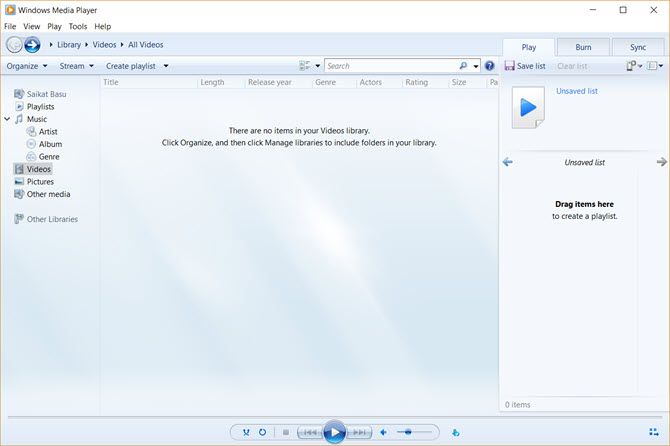
Windows Media Player 12 Interface

Don’t worry if you can’t see Windows Media Player 12 in your Programs list. Windows Player used to be the default media player on Windows 7, Windows 8, or Windows 8.1. Things changed with Windows 10 where it became an optional feature.

Now, you need to download and install Windows Media Player if it’s not there in your version of Windows 10. Microsoft Support has a list of the WMP versions which will help you find the right version of the Player for your system.

Prepare Your Movie File and Subtitle File

Many torrent downloads include subtitles. But let’s assume you have downloaded or ripped a video file that doesn’t have subtitles.

There are many websites that offer subtitles for download in multiple languages. Pick any from the three listed below. There are many more you can find with a Google Search.

I prefer Subscene.com because it lists all the popular subtitles in an uncluttered interface that makes search a breeze.

Find and download the exact matching subtitle file that has been synced with that particular video file. Choose a subtitle which has the same up-loader name as the movie file. Or match the name to the ripped type.

Download the files and extract them if they come in a ZIP format.

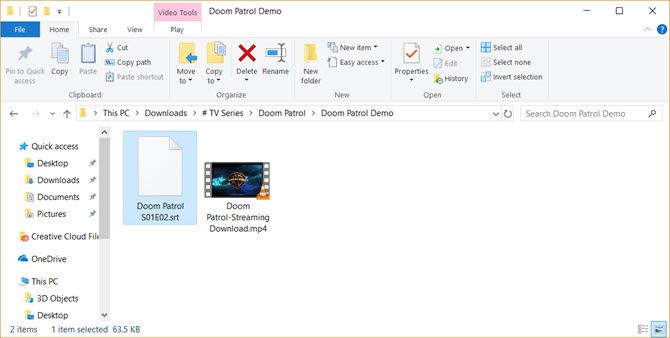
For a demo, I have an episode of Doom Patrol and some subtitles that I’ve put in one common folder called “Subtitled Doom Patrol TV Series”. Notice that both don’t have matching names yet.

Windows Media Player Subtitles

Rename Both Files to Match Each Other

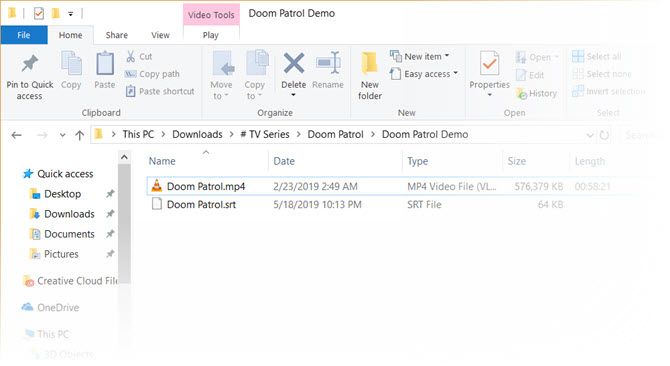
Now, just put both of the files in the same folder and make sure they have the same name (aside from the extension). In this case, the video is “Doom Patrol” and the subtitle file is “Doom Patrol.srt”.

Match name of video to subtitle file

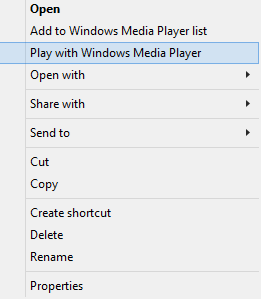
Right-click on the video and choose “Play with Windows Media Player”. Hopefully, your video now plays with subtitles. But if it still isn’t working, you have a few more options.

Play-With-Windows-Media-Play

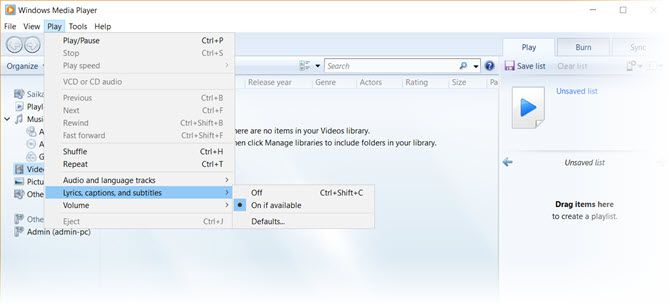
Set WMP to display captions. From the default home screen, you can right click on the bar near the top and select Play > Lyrics, captions, and subtitles > On if available.

Enable subtitles in WMP

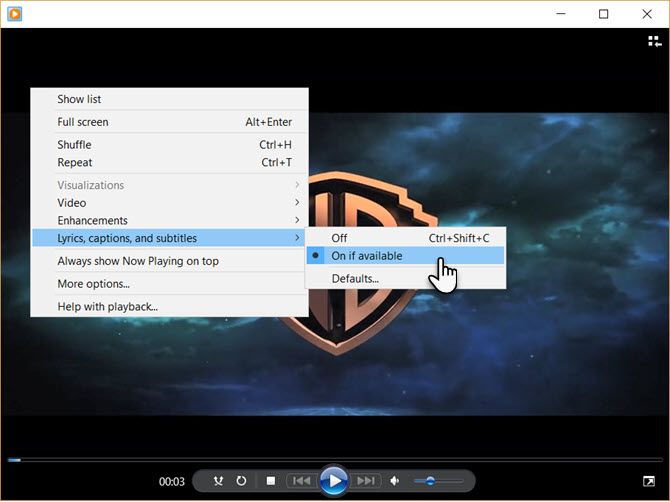
If the video is already playing, right click anywhere on the player and select Lyrics, captions, and subtitles > On if available.

Switch on subtitles in WMP when video is playing

Download a Third Party Codec

One of the big failings of WMP is that it doesn’t recognize downloaded subtitle files with extensions of .SRT and .SUB. In that case, you have to take the help of third party codecs.

The codec of choice used to be DirectVobSub. But in all my attempts, I couldn’t make it play the subtitles with the latest version.

The Solution:

An alternative codec for WMP 12 that worked for me is called ADVANCED Codec (version 11.5.1) by a developer named Shark007. It is an audio and video codec package for Windows 7, 8 and 10. The release contains a full suite of decoders for both 32bit and 64bit systems.

Also included in the package is the DirectVobSub/VSFilter (the add-on for Microsoft Windows that is able to read external subtitle files) with a GUI controller for the installed codecs.

The codec is available from MajorGeeks and a few alternative download mirrors. MajorGeeks is a trusted website and has been in the download business since 2002. Yes, the site’s design still harks back to the good old days!

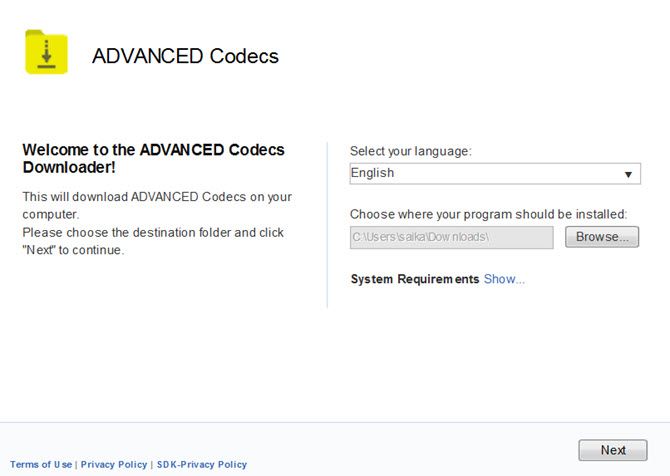
Run the ADVANCED Codec executable. The installer will download the codecs to your computer before finalizing the install.

Advanced Codec Installer

ADVANCED Codec also installs a Settings application in your Program menu or desktop. This gives you a GUI to tweak a few settings in case your subtitles are not displayed.

When Windows Media Player Does Not Display Subtitles

WMP 12 is moody with a few file types. I have run into problems with MP4 video formats.

You can try a few tweaks suggested by Shark007.

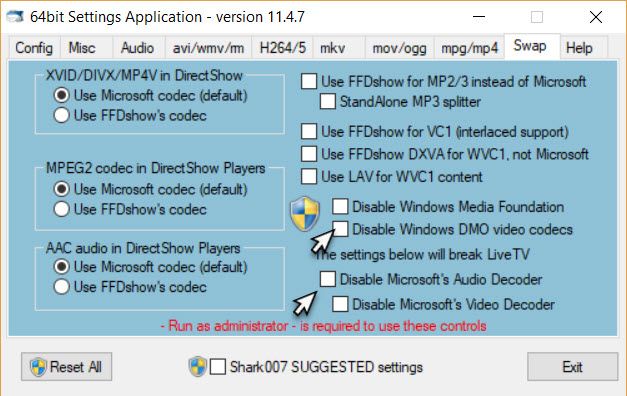
  • For an AVI file, choose to disable the DMO codecs on the Swap Tab of the ADVANCED Codec Settings application.
  • If it is an MP4 file, choose to disable the Microsoft Audio decoder on the Swap TAB. You may also need to disable the Microsoft Video decoder.

Advanced Codec Settings Application

If you still can’t see any subtitles, however, there is one last thing you can try. Rename the subtitle file and change the “.srt” to a “.sub”. For me, the subtitles played regardless of whether it was called .srt or .sub, but some users report one working more often than the other.

Try an Alternative to Windows Media Player

The classic Windows Media Player has seen better days. Today, there’s no need to go to such lengths to play your favorite subtitled videos as there are enough alternatives for the outmoded WMP. The popular VideoLAN (VLC) player is the most favored as it can play everything right out of the box. It is free, there’s an active open source community behind it, and it is cross-platform too.

Read the full article: Here’s How to Add External Subtitles on Windows Media Player


Read Full Article

13 Websites to Find People on the Internet


Find People

In an era of booming social networks, it’s easier to find lost friends and colleagues than it ever was before.

The private world of yesterday is now an online world. Everyone with a search engine has open access to social networks, government databases, and public records.

If you’re looking for a long-lost friend, or maybe want to do a background check on someone, consider the following free resources to find people on the internet.

How to Search People for Free on the Internet

The internet is essentially a giant database, overflowing with data points about individuals. Today, it’s hard to find anyone who hasn’t commented on a blog entry, made a post in an online forum, or registered at Facebook or Flickr.

Different sites use this information in different ways. While the following 13 sites can be used to find people online, they may draw the data from different sources. As a result, there may be some difference between the results.

Before starting, learn a few details about the person. Start with their birthday or the state they live in.  Once you have those details, the volume of information you can find online about a person is amazing. In fact, it can sometimes prove overwhelming.

When searching for people online, be sure to use multiple people search engines for the best results.

1. Pipl People Search

Pipl search

There are many websites that search standard social networks like Facebook or Twitter. But Pipl is one resource that conducts a deep web search for the name on “non-typical sites”. The search results from Pipl are impressive.

I used Pipl to perform a deep search on myself. The search pulled my own data from profiles at Soundcloud, Last.fm, and others like job search websites and Google.

I was impressed by Pipl’s efforts to uncover street addresses, phone numbers, and even family members, scraped from miscellaneous websites.

To use Pipl, however, you will have to sign up. This is a little frustrating, but worth it as the results are good. I even did a search for my wife, who works as a local government councilor, and Pipl revealed a document she was mentioned in. Impressive!

2. Google Groups

Find people online with Google Groups

Probably the most powerful tool to find someone who used the internet a long time ago is Google Groups. Google Groups has incorporated over 800 million Usenet messages into its database, an impressive archive of internet conversations dating back to 1981.

For example, if the person you’re looking for attended university during this time, you might find a trace of them. Usenet channels were a popular way for people to access the internet before its explosion in the late 1990s. Universities, research centers, tech businesses, and other bodies relied on Usenet for collaboration and more.

Not only you might find who you’re looking for, but you’ll also get an idea about their thoughts, ideas, and motivations of the time.

3. TruePeopleSearch

Find people online with True People Search

A “100% free people search” service, TruePeopleSearch.com delivers some good results.

But it depends on where you’re based.

For US readers, this is a great tool, and by simply searching for a name and state of residence, you’ll find surprisingly in-depth results.

You should also get some good results for Canadian residents, too. TruePeopleSearch will typically return a list of previous addresses, along with phone numbers.

Look out too for the “Possible Associates” section. Useful to law enforcement and private eyes, this displays names of past college roommates, colleagues, and more. No doubt scraped from public Facebook information, this is useful information.

4. FindPeopleSearch

Find People Search tool

Like TruePeopleSearch, FindPeopleSearch.com generates basic background check “teaser” information. Still, that information can be extremely helpful when you’re trying to learn more about someone. What this website brings to the game is that it offers more extensive information than others.

However, again like TruePeopleSearch, this site doesn’t offer results from outside of North America. What it does, though, it does well. For example, after selecting a likely candidate, FindPeopleSearch provides a map with the likely location of your quarry.

Family information might also be listed here, depending on what data has been collated for the individual. You could find an important familial link here, such as a brother, sister, or even an aunt, uncle, or cousin.

5. PeekYou

Find people with PeekYou

While most people search engines scour public information and not much else, PeekYou.com goes the extra mile to dig into popular social sites like Pinterest, LinkedIn, Instagram and more.

The results are always impressive, although they can be somewhat garbled. For example, a search for my own records mixed up details about me with those of others with similar names.

Also, PeekYou gave me a new middle initial, which was certainly surprising!

As with all these sites, keep in mind that the data collected might be inaccurate. This could be due to mistakes in the source data, or errors when names are matched.

6. Classmates

How to find people on Classmates

Sometimes tracking someone down requires a little bit more creativity than just typing a name into a search engine. Another approach is to rummage through popular high school reunion website Classmates.com.

Obviously, you will need to have some idea of the high school(s) the person attended. If successful, you’ll find a listing of people who’ve registered on the site with the same high school on record.

Start off by selecting a school by state and city, then enter the name of the student to search for. Many people are registered on the site, so you should stand a good chance of finding who you’re looking for.

Note that this is a US-only website.

7. FamilyTreeNow

Use FamilyTreeNow's free people search

Various genealogy sites can be used to trace individuals, although the process is a little different.

When it comes to genealogical records, information might be restricted for people who are still living. This will depend on data privacy laws and the policy of the genealogy site. As such, while it might be useful to establish familial links with whomever you’re searching, the information will be scant.

The results page will display address information and possible relatives, while paid background information can also be generated via PeopleFinders.

FamilyTreeNow is a good option for genealogy research. Interested in family history? Check our downloadable guide on how to research your family tree online.

8. TinEye

Want to track someone down and you only have a photo of them? Use a reverse image search tool like TinEye.com. This site will turn the entire internet inside out for that same picture, and it’ll show you if it was uploaded anywhere else.

The site uses an innovative image recognition technology that can match images based on the one you upload to the site. It’s an impressive technology and it worked the first time I tried it, immediately identifying that I had uploaded that same picture to MakeUseOf. And, it even recognized the picture when only part of the image matched the original. Very impressive stuff.

Another option for reverse image searching is Google Image Search.

9. Google

Google is also an effective tool to track someone down online. Before trying, keep the following tips in mind.

  • Enclose the person’s full name in quotes (like “David Lee Roth”). Google will return only search results with the person’s full name.
  • Include more information that you already know about the person (like “Sammy Hagar” ex-Van Halen singer). Your search results will be even more precise.
  • If the person is involved with a certain organization, try searching only that site (like “site: extreme-band.com “Gary Cherone”). If the person is listed as a staff or contact on the site, you’ll discover their details

These tips work well—give them a try!

In fact, searching for people with Google works so well that people search sites that existed years ago have closed. Who needs those when Google already does it best?

10. Find Public Records With Zaba Search

If you’re conducting a full background check on someone, then you’re probably interested in more than their online activities. You’re probably looking for any of the following information:

  • Residences over the last few years
  • Criminal record check
  • Driving record
  • Birthday and birth location (for citizenship verification)
  • Child predator check

A person with a criminal record or court ruling has a surprising amount of information about them online.  All you need is the name and DOB of the person you’re researching; the location will help narrow things down.

One of the best sites for conducting free public records queries. Using ZabaSearch, you can determine a person’s exact past and current addresses and phone numbers.

To view a full profile will require you to pay $50 through Intelius, however. This includes past addresses, relatives, criminal history, bankruptcies, and more.

11. USA.gov

This provides a huge database for all state and federal agencies. Most services where you need to pay for background details come from these free state and federal agency databases. You can find the data for free by searching this website to find those agencies and conduct the search yourself.

For example, digging through the state of Maine agencies reveals where you can search Maine criminal records.

12. Facebook

One of the simplest ways to find people is just to search on Facebook. It’s amazing who turns up when you search for a name in Facebook.

Other social networks can also prove useful in finding people. For example, many people avoid Facebook and are active on Twitter, or even Instagram.

13. LinkedIn

Find people online with LinkedIn

Meanwhile, LinkedIn is a superb resource for finding people. A career-centered alternative to Facebook, there’s a good chance you’ll find people that you can’t find anywhere else.

If you know where the person you’re searching for has worked or studied, LinkedIn is a great option. While you won’t find too many details without a LinkedIn subscription, there should be enough to go on.

You’ll be able to find out what they’ve recently been up to professionally, as well as who they’re associated with.

13 Great People Search Engines to Find People Online

By now you should have all the tools you need to find people online, dead or alive. We’ve shown you how to use the following people search sites for free public records:

  1. Pipl
  2. Google Groups
  3. TruePeopleSearch
  4. FindPeopleSearch
  5. PeekYou
  6. Classmates
  7. FamilyTreeNow
  8. TinEye
  9. Google
  10. Zaba
  11. USA.gov
  12. Facebook
  13. LinkedIn

Use these tools to track down the person or people you’re looking for and you should have success in no time. But what if someone is trying to track you down? Here’s how to check who is looking for you online.

Read the full article: 13 Websites to Find People on the Internet


Read Full Article

How to Test Your Wi-Fi Speed (And 7 Mistakes You Should Avoid)


check-wifi-speed

When your internet starts feeling slow for no obvious reason, the best way to see if you’ve got a problem is to test your Wi-Fi speed. It’s easy to do, and there are lots of Wi-Fi speed test services online that run in any web browser. They’ll show you how fast your internet connection really is.

Here’s how speed tests work, and how to make sure you have the best Wi-Fi speed.

How a Wi-Fi Speed Test Works

Doing a Wi-Fi speed test is simple. Pick a service (see #1, below, for our recommendations), hit the big Go or Run Test button, then wait for it to finish. You won’t be waiting long—the whole thing takes 10 to 20 seconds, tops.

what a wifi speed test measures

When you check your Wi-Fi speed, the test measures three elements:

  1. Ping rate or latency
  2. Download speed
  3. Upload speed

Here’s what they mean.

Ping Rate or Latency

The ping rate measures the latency on a network. But what is latency? It’s the time taken for a data packet to travel from the sender to the receiver, and back again.

High latency causes lag, which is something you definitely want to avoid in multiplayer gaming. A ping rate of more than 150 milliseconds could cause lag in gaming, while under 20ms is considered very low latency.

Download Speed

SpeedTest.net download speed - wifi speed test

Download speed is the most important figure. It signifies how fast data downloads to your computer, measured in megabits per second (Mbps).

The test works by downloading multiple chunks of data, adjusting their size and the number of connections as it goes. This maximizes the speed of your connection, ensuring it works at its fastest.

To judge the results, you need to know what speed of service you’re signed up for, then compare them. For reference, Netflix requires 25Mbps for 4K streaming or 5Mbps for 1080p HD.

Upload Speed

A Wi-Fi test also measures the upload speed. This shows how quickly you can upload data, such as when you’re backing up files to a cloud service. Compare your speed test result to your provider’s quoted speed to see how well you’re doing.

The upload test works the same as the download test, just in the other direction. Your browser uploads chunks of data, with adjustments made to ensure it uses the full extent of your connection.

Between them, the three tests will give a complete picture of how your wireless setup performs, and why your Wi-Fi speed drops.

You can use the results to find out if your internet speed is as fast as your provider promised, if it’s fast enough for how you want to use it, and if you’ve got your router set up properly. But when you run a Wi-Fi speed check, make sure to avoid these common mistakes.

1. Don’t Use the Wrong Speed Test Tool

xfinity speed test

When thinking about how to test your Wi-Fi speed, the first question to ask is which is the best speed test service to use? Some internet service providers, including Comcast, offer their own tool. If yours does, that’s a good place to start.

If you want to check that your Wi-Fi is fast enough for TV streaming, try Netflix’s Fast.com. It’s no-frills, but connects to the Netflix servers so is accurate.

For the other options, choose an HTML5 service over an older Flash one. While every modern web browser supports HTML5 natively, Flash represents another system overhead that could impact your speeds.

speedtest.net best speed test service

Alternatively, forego the online speed test and use a dedicated app instead. The desktop app from Speedtest.net is available for both Windows and Mac and makes the service a whole lot more accessible.

2. Don’t Test the Wi-Fi Speed Only Once

do a speed test more than once

To get an accurate picture of your Wi-Fi speed you need to perform the speed test more than once.

Speeds can be quite volatile. You could do the test twice in the same conditions and get different results. By doing it at least three times, perhaps over a series of days, you can create an average of the results. This gives you a more accurate reflection of your actual internet speed.

3. Don’t Test Wi-Fi at the Wrong Time of Day

One of the biggest factors affecting internet speeds is the number of your fellow users that are logged on at the same time. During “peak hours”, like a Sunday evening when everyone’s watching Netflix, you’ll probably experience slower speeds than other times. Your speed test results will reflect this.

If you’re trying to judge the performance drop-off during busy periods, then run the test at both peak and off-peak times and compare the results. If you just want to test your overall speed, stick to off-peak hours for testing.

4. Don’t Do the Test in the Wrong Place

Doing the test in the wrong place will affect your Wi-Fi speed test results. But how do you choose the right place? It depends what you’re hoping to find out.

  • When you just want to measure your Wi-Fi speed: Run the test with a close line of sight connection to your router. In other words, do it in the same room with no physical obstacles to block the signal.
  • If you’re trying to find the best position for a router in your home: Run a speed test in every room, then compare the results. That will reveal any rooms that the signal is struggling to reach.
  • If you’re trying to identify Wi-Fi dead spots or areas of weak coverage: Do the test in that spot and compare the result to one performed in perfect conditions. If this confirms a problem, you can then take steps to extend your Wi-Fi coverage.

5. Don’t Leave Other Devices Downloading

A Wi-Fi speed test can only measure the speed attained by the machine you’re testing on. For this reason, you should try to maximize the bandwidth available to that device.

Most of us have countless devices connected to our wireless networks, and the bandwidth from our internet connection is split between each of them. This causes the network to slow down, or at least appear slower on each device.

For best results, turn off or disconnect as many of your devices as you can, or make sure that none are downloading or uploading large files. You might want to learn how to pinpoint what’s using up the bandwidth on your home network.

6. Don’t Forget to Reboot Your Computer

Mac Activity Monitor - wifi speed test

You can test your Wi-Fi speed on pretty much any device with a browser—from your laptop to an Amazon Fire Stick—but whatever you choose, you should always reboot it first.

Devices that haven’t been restarted in a long time will have residual processes running in the background that can slow them down. This might affect your ping rate in particular.

Restart your machine and don’t launch any other apps before you do the test. Keep an eye on what apps you’ve got set to launch on startup (a cloud app, for example, will go online to sync its data). You could even temporarily disable your antivirus software until it’s done.

7. Don’t Test While Using a VPN

Finally, make sure you aren’t using a VPN, proxy, data-saving app, or anything else that sits between your computer and the internet. They can, and often will, slow down your connection, so using them while testing will not provide accurate results.

The exception is if you’re looking for the best VPN and are trialing a few to see how fast they are. In that case, go right ahead.

What to Do With the Wi-Fi Speed Test Results

A Wi-Fi speed test is useful for many reasons. The results will help in the following cases and more:

  • Making sure you’re getting the speed you’re paying for
  • Shopping around for a new provider
  • Setting up a new router and checking coverage throughout your home
  • Testing that your speeds are fast enough for your needs
  • Checking that your Apple TV, Fire Stick, or games console is getting good speeds
  • Finding peak and off-peak hours

When you’re done, you might find that your internet is not as fast as it should be. And if your results aren’t up to scratch, it’s time to find out what’s causing your slow Wi-Fi and how you can fix it.

Read the full article: How to Test Your Wi-Fi Speed (And 7 Mistakes You Should Avoid)


Read Full Article

The Best Antivirus Software for Windows 10


windows-10-security

Are you a Windows user who’s wondering what the best antivirus is for Windows 10? It can get confusing; there are many options out there. How can you decide which Windows antivirus to use?

We’re going to use data from AV-TEST to help you make your decision.

1. Windows Defender

windows defender app

Windows Defender isn’t the same proposition as it was a few years ago. The suite once had a reputation for hogging system resources and offering a low standard of protection, but that’s all changed.

Microsoft’s security program now offers some of the best protection in the industry. In the most recent tests available on AV-TEST (for March and April 2019) it scored a 100 percent detection rate against zero-day malware attacks and for “widespread and prevalent malware discovered in the last four weeks” in both months.

Of course, one of Windows Defender’s most significant selling points is its tight integration with the Windows operating system. It’s easy to manage the app’s virus protection, firewall protection, device security, and app security directly from the Windows Settings menu.

Overall, AV-TEST gave the app 6/6 for protection and usability, and 5.5/6 for performance, enough to earn it a “Top Product” designation. It’s quite a turnaround for an app that scored 0.5/6 as recently as 2015.

2. Kaspersky Internet Security

Kaspersky is a well-known name in the online security world. The company offers three antivirus suites—Antivirus, Kaspersky Internet Security, and Security Cloud. All three are among the best internet security apps for Windows 10.

In truth, Kaspersky is another app that’s struggled with performance issues in the past. But, like Windows Defender, those problems are firmly behind it. AV-TEST rated the app as 6/6 across all three of its testing categories.

Indeed, the suite only flagged three false positives in the April 2019 test, despite testing in excess of 1.6 million samples.

The entry-level Antivirus app ($75) only covers desktop PCs. For $20 more, the Internet Security ($79) suite adds mobile support for a minimal extra cost. It is the best option for most users.

3. Malwarebytes Premium

Malwarebytes is another of the best antivirus apps on Windows. The company’s free version program has been popular for years.

However, if you want to enjoy 24/7 real-time protection (rather than being restricted to intermittent manual scans), you need to pay for the premium version. The entry-level plans, which only protects one device, costs $39.99 per year. For the fee, you receive protection against identity theft, ransomware, fraudulent websites, malware, and more.

All the premium features are available for a 14-day trial period on the free version of the app.

4. Bitdefender Internet Security

With a perfect 6/6 for protection, performance, and usability on AV-TEST, Bitdefender Internet Security is unquestionably among the best antivirus apps for Windows.

Like Kaspersky Internet Security, only three false positives were found from a sample size of 1.6 million and had a 100 percent record against both zero-day attacks and existing malware.

There are three different versions of the app available to Windows users: Total Security for $40 (which covers mobile devices), Internet Security for $35 (includes firewall and webcam protection), and Antivirus Plus for $30 (the entry-level paid suite). If you wish, you can purchase the Android and iOS versions of Bitdefender separately.

Other noteworthy features in Bitdefender include multi-layer ransomware protection, network threat prevention, and parental controls.

5. F-Secure SAFE

Another app and another perfect 6/6 across all three categories on AV-TEST.

Interestingly, although F-Secure SAFE scored 6/6 for performance, it still performed better than both Bitdefender Internet Security and Kaspersky Internet Security—both of which also scored 6/6.

On a standard PC with an Intel i3-6100 processor, a 256GB hard drive, and 8GB RAM, it only saw a 10 percent drop-off in performance when launching popular websites. In comparison, Kaspersky scored 28 percent and Bitdefender scored 19 percent.

All this tells us that the app probably the best option for anyone who’s running an older, low-power machine.

There’s only one version of F-Secure SAFE available, though the price varies depending on the number of devices you want to protect. The entry-level plan (for three devices) is $69.99 per year. The most expensive package (seven devices) is $109.99.

6. McAfee Internet Security

If you want antivirus protection on Windows, you could also consider checking out McAfee Internet Security.

It scores highly (6/6) on all AV-TEST criteria, finds a low number of false positives, and is not a major resource hog.

Features-wise, McAfee Internet Security offers a full suite of real-time antimalware tools, URL blocking, phishing protection, and vulnerability scans. The latter of those—vulnerability scans—is not a common feature. If it’s important to you, McAfee is a good choice.

7. ESET NOD32

NOD32 has some of the lowest false positive rates, is lightweight, and is consistently near the top of performance charts.

Indeed, many power users used to swear by the holy-trinity of NOD32 (which focuses on system files), Malwarebytes (which focuses on web-based issues), and CCleaner (a PC optimization tool). Unfortunately, CCleaner is no longer a trustworthy app, but it’s still passable for one-off scans.

The three plans cost $40, $50, and $60. The entry-level plan does not include support for personal firewalls and spam filters.

8. Norton Security

No, that’s not a typo—we really are recommending Norton Security as our eighth and final pick.

The Norton suite has an erratic history. There was a time—around the turn of the millennium—when it had a vice-like stranglehold on the antivirus market. The growth of reliable free antimalware products, along with Norton’s ever-growing drain on system resources, saw its popularity decline rapidly over the next decade.

Fast-forward to today, and Norton Security is once again worth considering. AV-TEST gave it 6/6 across all three categories. Amazingly, it only saw an eight percent performance effect on a standard computer when loading popular sites (though its impact when installing frequently used applications was more noticeable at 28 percent).

Norton Security supports malware scans, real-time website ratings, malicious URL blocking, phishing protection, and behavior-based detection.

The four Norton Security plans cost between $40 and $100 per year, depending on the extra features you need.

What About Free Antivirus Software?

Some of the third-party free antivirus suites on the market are adequate, though their protections scores on AV-TEST are—on average—not as good as the paid options. Furthermore, the majority use considerably more resources than Windows Defender, not to mention the persistent and annoying nag screens.

If you can’t/won’t spend money on a paid antivirus solution, stick with the free Microsoft app.

To learn more about antivirus suites across all your devices, check out our articles on the best free antivirus software and the different types of antivirus scans.

Read the full article: The Best Antivirus Software for Windows 10


Read Full Article

Sprint is the latest telecom to offer a tracking device that uses LTE


Following in the footsteps of AT&T and Verizon*, Sprint is now offering an LTE tracker. The matchbook-sized device, simply called Tracker, provides real-time location tracking on Safe + Found app.

Sprint Tracker

Sprint’s new Tracker

The Tracker competes with Tile, but instead of Bluetooth, Sprint’s device uses 4G LTE, GPS and Wi-Fi location services, so it can be used to track things, people or pets that might travel a significant distance away, compared to a range of 100 ft to 300 ft for Tile (depending on the version). The Tracker is manufactured by Coolpad and users need to pay $2.50 per month for 24 months to cover the cost of the device, plus an additional $5 per month to connect it.

AT&T and Verizon both launched LTE trackers over the past year and Apple is also rumored to be working on a tracking device that connects to iPhones, based on an asset package for pairing devices by proximity spotted in the first beta of iOS 13 by 9to5Mac.

*Disclosure: TechCrunch is part of Verizon Media, a subsidiary of Verizon Communications.


Read Full Article

Sprint is the latest telecom to offer a tracking device that uses LTE


Following in the footsteps of AT&T and Verizon*, Sprint is now offering an LTE tracker. The matchbook-sized device, simply called Tracker, provides real-time location tracking on Safe + Found app.

Sprint Tracker

Sprint’s new Tracker

The Tracker competes with Tile, but instead of Bluetooth, Sprint’s device uses 4G LTE, GPS and Wi-Fi location services, so it can be used to track things, people or pets that might travel a significant distance away, compared to a range of 100 ft to 300 ft for Tile (depending on the version). The Tracker is manufactured by Coolpad and users need to pay $2.50 per month for 24 months to cover the cost of the device, plus an additional $5 per month to connect it.

AT&T and Verizon both launched LTE trackers over the past year and Apple is also rumored to be working on a tracking device that connects to iPhones, based on an asset package for pairing devices by proximity spotted in the first beta of iOS 13 by 9to5Mac.

*Disclosure: TechCrunch is part of Verizon Media, a subsidiary of Verizon Communications.


Read Full Article

CapitalG co-founder introduces $175M early-stage venture fund


Valo Ventures, a new firm focused on social, economic and environmental megatrends, has closed on $175 million for its debut venture capital fund.

The effort is led by Scott Tierney, a co-founder of Alphabet’s growth investing unit CapitalG, as well as Mona ElNaggar, a former managing director of TIFF Investment Management and Julia Brady, who previously worked as a director at The Via Agency, a communications workshop.

Google is like being a kid in a candy store,” Tierney tells TechCrunch. “It’s a great place to be. For me, I thought, ‘alright, I’ve been here for seven years, I have this opportunity to create my own fund and be more entrepreneurial and take all the learnings I was fortunate to have inside of Google and apply them.’ ”

Tierney joined Google in 2011 as a director of corporate development after five years as a managing director at Steelpoint Capital Partners. In 2013, he co-founded CapitalG, where he served as a partner for the next two years. He completed his Google stint as a director of corporate development and strategic partnerships at Nest Labs, a title he held until mid-2018.

The Valo Ventures partners plan to participate in Series A, B and C deals for startups located in North America and Europe. Specifically, Valo is looking for businesses solving problems within climate change, urbanization, autonomy and mobility. 

The goal is to bring an ESG (environmental, social and corporate governance) perspective to venture capital, where investors infrequently take a mission-driven approach to deal-making. To date, Valo Ventures has deployed capital to Landit, a career pathing platform for women, and a stealth startup developing an AI platform for electricity demand and supply forecasting.


Read Full Article

Adobe Reveals Fresco, Its New iPad Drawing App


Adobe has revealed more about Fresco, its new drawing and painting app for the iPad and other tablets. Fresco has been designed to appeal to novice and experienced artists. And all you’ll need is the right hardware to run the app.

Adobe announced Fresco in October 2018, giving everyone a sneak peek of the software at Adobe Max 2018. At the time it was called Project Gemini, but Adobe has since rebranded it as Fresco. It’s now developed it to the point that it’s ready to show it off.

What Is Adobe Fresco?

In a post on the Adobe Blog, Adobe explains that Fresco is named after the Italian technique of applying pigment and water to drying plaster. The idea being that with Fresco, “When inspiration strikes, you have to act before the plaster dries.”

Fresco has been “built for the Apple iPad” with “versions for other stylus- and touch-based devices to follow”. And to differentiate it from the competition, Fresco will replicate how “chalk, oils, and watercolors” interact with “paper, canvas, and plaster”.

Adobe Fresco does this using Live Brushes, which use AI to “recreate the behavior of oils and watercolors in an amazingly lifelike way”. For example, using a watercolor Live Brush will cause the color to “bloom into adjacent areas of the paper”.

You’ll also be able to use Photoshop brushes in Fresco, including those created by Kyle Webster. You’ll also have access to vector brushes which create clean and crisp lines and shapes. Fresco will also offer layers and masking, and work with other Adobe products.

How to Test Adobe Fresco

Adobe is set to release Fresco later this year, but the company is currently testing the app with real users. If you want to get in on Fresco early you can apply to be part of the pre-release testing by clicking here and submitting your contact information.

As excited as you may be to fire up your iPad Pro and giving Adobe Fresco a go, there are plenty of other options when it comes to both hardware and software. So, with that in mind, here are the best graphic tablets and graphics programs for digital design.

Read the full article: Adobe Reveals Fresco, Its New iPad Drawing App


Read Full Article

How to Use the Snapchat Map AKA Snap Map

23andMe vs. AncestryDNA: Which DNA Testing Service Is Best for You?


dna-testing

Researching your family tree is exhaustive. However, unless you can claim direct lineage to the aristocracy, you’re probably going to run into trouble around the 16th century. One way around this is becoming increasingly popular: DNA testing.

Put simply, it gives you a better idea of where your family line originated. DNA testing can also give you answers to questions you haven’t even asked yet.

If you’re looking for a DNA testing service to trace your ethnic origin, you’ve probably considered 23andMe and AncestryDNA. But which service is right for you?

Why Use 23andMe or AncestryDNA?

You want to know more about your heritage. Perhaps you’ve been looking into researching your family tree, or you simply want to know where a family trait originated.

Either way, a DNA testing service can help and 23andMe and AncestryDNA are the market-leading options.

The procedure is remarkably simple. You choose a service (hopefully based on the results of our comparison below) and pay for the testing pack. This is shipped out to you; all you need to do is sign the relevant documents and provide a sample.

Which DNA testing service should you use - ancestrydna or 23andme

DNA is sent to the testing service in a test tube. Your DNA is present in your saliva, so all you need to do is spit into the tube, place it in the envelope, and post it!

When the test is complete, you’ll be informed by mail, around two months later. 23andMe and AncestryDNA both compare results with a pool of existing DNA samples, enabling you to establish your ancestry.

For example, many white North Americans are likely to have Northern Europe as the bulk of their DNA. However, small portions of north African or Middle Eastern DNA may also be present. This represents thousands of years of human exploration and diaspora across the globe.

While standard family tree research typically only stretches back 500 years (records permitting), DNA testing can potentially take you back to the beginning.

How Many Tests Do 23andMe and AncestryDNA Offer?

Each of the services we’re looking at offer different DNA testing.

AncestryDNA will provide autosomal testing, specifically looking at the DNA sample’s ethnicity.

23andMe, meanwhile, will test your DNA for autosomal, broad Y-DNA (paternal DNA), and broad mtDNA (mitochondrial DNA from the mother). There is also an optional upgrade to health testing (see below).

Winner: 23andMe offers a greater range of DNA testing, although the results may not be what genealogy researchers are looking for.

23andMe vs. AncestryDNA: How Much Do They Cost?

Having your DNA sample tested isn’t cheap. But which of the two services we’re looking at offers the best value?

Well, what you get from your chosen DNA service it depends on what you’re hoping to find out. Fortunately, standard DNA testing from both 23andMe and AncestryDNA is just $99 per person.

23andme health DNA testing

However, as noted earlier, 23andMe also offers an optional Health + Ancestry testing service for $199.

Winner: It’s clearly a draw for basic ethnicity DNA tests.

23andMe vs. AncestryDNA: Which Is Most Accurate?

If you’re paying for DNA testing, you want it to be accurate. So, which of these two DNA testing services is going to help you uncover your hidden ethnic background?

AncestryDNA claims to be more comprehensive, using autosomal DNA testing that covers maternal and paternal branches. It also references the entire genome, rather than single tests, is gender neutral, and can fill in recent holes in your family tree. AncestryDNA also has a more diverse database.

23andMe, meanwhile, can monitor common US and Canadian migrant populations, as well as some Asian and Oceanic branches. It is less adept at African and Slavic testing. The Y-DNA and mtDNA testing has a wider focus than autosomal tests, giving you a picture of your ancestors 10,000-50,000 years ago.

Winner: AncestryDNA

23andMe vs. AncestryDNA: Security and Privacy

It’s vital that your chosen DNA testing service treats the results of your data with respect and privacy. We don’t want to live in a world where someone’s DNA is causing them to pay higher insurance premiums, or allowing hackers to blackmail them.

So, will AncestryDNA and 23andMe look after your DNA and personal data?

AncestryDNA provides a detailed privacy statement noting that it “use[s] industry standard security practices to store your DNA sample, your DNA test results, and other personal data.” Additionally, AncestryDNA “do not share with third parties your name or other common identifying information linked to your genetic data, except as legally required or with your explicit consent.”

However, your data will remain available to Ancestry to use for other purposes, including expanding its pool of DNA.

DNA testing reveals your ethnicity

23andMe’s privacy policy is far more detailed. It notes “Everyone deserves a secure, private place to explore and understand their genetics. At 23andMe, we put you in control of deciding what information you want to learn and what information you want to share.”

To this end, 23andMe provides a detailed five-step explanation of key ways it ensures your privacy. This covers giving you control over your data, explaining how data is stored, its policy on third party data, security measures in place to protect your data, and how the use of your data in research is purely voluntary.

Winner: 23andMe has a far more detailed policy than AncestryDNA, offering wider controls over your DNA data.

However, the future of commercial DNA testing may result in data being made more widely available. As such, it is worth keeping an eye on the service you use in order to opt-out of any future sharing of your DNA. For more on this, see our feature on the safety of online DNA testing services.

Family Matching With 23andMe and AncestryDNA

One of the benefits of commercial DNA testing is that not only do you find information about your heritage, you can find people who share it with you.

DNA testing services online

Both 23andMe and AncestryDNA offer a family matching service. This essentially matches your sample up with other customers with close matches, thereby highlighting potentially unknown relatives.

The results of this may be surprising, or it might unearth some long-forgotten family skeletons, so tread carefully! As noted, both sites offer family matching, although AncestryDNA does a far better job than 23andMe’s limited service.

Winner: AncestryDNA

Which DNA Testing Service Is Best?

We’ve seen how both services offer affordable, feature-packed DNA testing, although 23andMe can upgrade you to medical testing too. Meanwhile, a larger pool of samples means that AncestryDNA is more likely to deliver accurate results.

23andMe has superior privacy standards and controls in place, however. But in the end, there is little to choose between the two services.

Overall, we think that if you’re certain of your recent heritage, and you’re based in North America, 23andMe is more likely to deliver good results. Of course, you can also pay extra for some all-important health screening, too. For everyone else in the world, wherever your heritage may hail from, choose AncestryDNA.

Need more help tracing your family tree? Use these genealogy websites to trace your ancestors.

Read the full article: 23andMe vs. AncestryDNA: Which DNA Testing Service Is Best for You?


Read Full Article

Glacier


Glacier

Is your product’s AI annoying people?


Artificial intelligence (AI) is allowing us all to consider surprising new ways to simplify the lives of our customers. As a product developer, your central focus is always on the customer. But new problems can arise when the specific solution under development helps one customer while alienating others.

We tend to think of AI as an incredible dream assistant to our lives and business operations, when that’s not always the case. Designers of new AI services should consider in what ways and for whom might these services be annoying, burdensome or problematic, and whether it involves the direct customer or others who are intertwined with the customer. When we apply AI services to make tasks easier for our customers which end up making things more difficult for others, that outcome can ultimately cause real harm to our brand perception.

Let’s consider one personal example taken from my own use of Amy.ai, a service (from x.ai) that provides AI assistants named Amy and Andrew Ingram. Amy and Andrew are AI assistants that help schedule meetings for up to four people. This service solves the very relatable problem of scheduling meetings over email, at least for the person who is trying to do the scheduling.

After all, who doesn’t want a personal assistant to whom you can simply say, “Amy, please find the time next week to meet with Tom, Mary, Anushya and Shiveesh.” In this way, you don’t have to arrange a meeting room, send the email, and go back and forth managing everyone’s replies. My own experience showed that while it was easier for me to use Amy to find a good time to meet with my four colleagues, it soon became a headache for those other four people. They resented me for it after being bombarded by countless emails trying to find some mutually agreeable time and place for everyone involved.

Automotive designers are another group that’s incorporating all kinds of new AI systems to enhance the driving experience. For instance, Tesla recently updated its autopilot software to allow a car to change lanes automatically when it sees fit, presumably when the system interprets that the next lane’s traffic is going faster.

In concept, this idea seems advantageous to the driver who can make a safe entrance into faster traffic, while relieving any cognitive burden of having to change lanes manually. Furthermore, by allowing the Tesla system to change lanes, it takes away the desire to play Speed Racer or edge toward competitiveness that one may feel on the highway.

However, for the drivers in other lanes who are forced to react to the Tesla autopilot, they may be annoyed if the Tesla jerks, slows down, or behaves outside the normal realm of what people expect on the freeway. Moreover, if they are driving very fast and the autopilot did not recognize they were operating at a high rate of speed when the car decided to make the lane change, then that other driver can get annoyed. We can all relate to driving 75 mph in the fast lane, only to have someone suddenly pull in front of us at 70 as if they were clueless that the lane was moving at 75.

For two-lane traffic highways that are not busy, the Tesla software might work reasonably well.   However, in my experience of driving around the congested freeways of the Bay Area, the system performed horribly whenever I changed crowded lanes, and I knew that it was angering other drivers most of the time. Even without knowing those irate drivers personally, I care enough about driving etiquette to politely change lanes without getting the finger from them for doing so.

Post Intelligence robot

Another example from the Internet world involves Google Duplex, a clever feature for Android phone users that allows AI to make restaurant reservations. From the consumer point of view, having an automated system to make a dinner reservation on one’s behalf sounds excellent. It is advantageous to the person making the reservation because, theoretically, it will save the burden of calling when the restaurant is open and the hassle of dealing with busy signals and callbacks.

However, this tool is also potentially problematic for the restaurant worker who answers the phone. Even though the system may introduce itself as artificial, the burden shifts to the restaurant employee to adapt and master a new and more limited interaction to achieve the same goal – making a simple reservation.

On the one hand, Duplex is bringing customers to the restaurant, but on the other hand, the system is narrowing the scope of interaction between the restaurant and its customer. The restaurant may have other tables on different days, or it may be able to squeeze you in if you leave early, but the system might not handle exceptions like this. Even the idea of an AI bot bothering the host who answers the phone doesn’t seem quite right.

As you think about making the lives of your customers easier, consider how the assistance you are dreaming about might be more of a nightmare for everyone else associated with your primary customer. If there is a question regarding the negative experience of anyone related to your AI product, explore that experience further to determine if there is another better way to still delight them without angering their neighbors.

From a user experience perspective, developing a customer journey map can be a helpful way to explore the actions, thoughts, and emotional experiences of your primary customer or “buyer persona.” Identify the touchpoints in which your system interacts with innocent bystanders who are not your direct customers. For those people unaware of your product, explore their interaction with your buyer persona, specifically their emotional experience.

An aspirational goal should be to delight this adjacent group of people enough that they would move towards being prospects and, eventually, becoming your customers as well. Also, you can use participant ethnography to analyze the innocent bystander in relation to your product. This is a research method which combines the observations of people as they interact with processes and the product.

A guiding design inspiration for this research could be, “How can our AI system behave in such a way that everyone who might come into contact with our product is enchanted and wants to know more?”

That’s just human intelligence, and it’s not artificial.


Read Full Article

India’s payments firm MobiKwik kick-starts its international ambitions with cross-border mobile top-ups


MobiKwik, a mobile wallet app in India that has expanded to add several financial services in recent years, said today it plans to enter international markets as it approaches profitability with the local operation. The company is kick-starting its overseas ambitions with cross-border mobile top-ups support.

The 10-year-old firm said it has partnered with DT One, a Singapore-headquartered payments network, to enable international mobile recharge (topping up credit to a mobile account), rewards, and airtime credit services in over 150 nations across some 550 mobile operators. The feature is now live on the app.

The feature is aimed at Indians living overseas and immigrants in India, Upasana Taku, co-founder of MobiKwik told TechCrunch in an interview. Millions of Indians go overseas to pursue education or look for a job. Currently, there is no convenient way for them to either help — or receive help from — their families and friends in India when they need to top up their phones.

Similarly, millions of people come to India in search for a job. The new functionality from MobiKwik will allow their families and friends to top up their mobile credit as well. Taku said there is no processing fee for customers as MobiKwik is absorbing all the overhead expenses.

For MobiKwik, mobile recharge is just the entry point to assess interest from users, Taku added. “This is the first service we are launching. We will eventually add other essential services as well. Mobile recharge will offer us good data points and will help us understand different markets,” she added.

MobiKwik is also studying different regulatory frameworks in overseas markets and holding conversations with stakeholders, she added.

The announcement comes at a time when MobiKwik is inching closer to profitability, a feat unheard of for a mobile wallet app provider in India. The firm, which claims to have grown its revenue by 100% in the last two years, expects to be profitable by this year and go public by 2022. (Interestingly, MobiKwik was looking to raise a big round at $1 billion valuation two years ago — which never happened.)

In the last one year, the firm has expanded to offer financial services such as loans, insurances, and investment advice. MobiKwik competes with a handful of payment services in India including Paytm, PhonePe, and Google Pay that either support, or fully work on top of a government-backed payment infrastructure called UPI. In April, UPI apps were used to carry out 782 million transactions, according to official figures.

The big numbers have attracted major investors, too. With $285.6 million in funding, India emerged as Asia’s top fintech market in the quarter that ended in March this year.


Read Full Article