17 May 2019

16 Free Ways to Download Any Video Off the Internet


Do you want to download video from the internet? If you see a video you like on Facebook, YouTube, Vimeo, or any of the other leading video sites, you might want to create a copy so you can keep it forever.

Thankfully, downloading videos off the internet is surprisingly easy. And here are the free ways to download any video off the internet.

App-Specific Tools

Let’s begin with some service-specific web apps that specialize in a single website before moving onto generic video downloaders later in the article.

1. SaveFrom

savefrom home

SaveFrom is a YouTube downloader, but with a difference. If you are watching something online and you want to save it, just enter “ss” before “YouTube” in the URL. It’s a web trick to download video.

For example:

  • https://www.youtube.com/watch?v=aS01LwpC23g

Would become:

  • https://www.ssyoutube.com/watch?v=aS01LwpC23g

2. FastestTube

The other free YouTube downloader (and there are a number of free YouTube downloaders worth considering) on the list is arguably the simplest. FastestTube is a browser extension that add a physical download button to YouTube. You can find it in the bottom right-hand corner of a video.

It works on Chrome, Firefox, Safari, Opera, and Internet Explorer.

3. DownloadTwitterVideo

download twitter video

Sticking with the premise of site-specific tools, DownloadTwitterVideo lets you pull any video off the world’s favorite transient social network.

Paste in the URL of the tweet which contains the video you want, then select whether you want to save it as an MP3, MP4, or MP4 HD.

4. Instagram Downloader

Instagram forged its reputation as a photo-sharing service, but with the introduction of Instagram Stories, it has positioned itself as a Vine replacement. Instagram Downloader lets you download Instagram videos.

5. FB Down

download facebook video

FB Down is a tool for downloading video off Facebook. It also comes with a Chrome extension, meaning you don’t need to leave the social network’s homepage if you find something you want to save.

6. FB Down Private

FB Down Private is a subsection of FB Down, but we feel it deserves its own mention. The app lets you grab videos from accounts that users have set to private, even if you can’t see the video on Facebook natively.

To download a private video, go to the video’s page on Facebook, press CTRL + U to view the source code, then paste the code into the downloader.

Download Internet Videos Using Web Apps

As you progress through this portion of the list, you’ll notice a commonly recurring theme: most of the video downloaders work with the same set of sites.

7. KeepVid

KeepVid supports 28 sites. It covers educational resources like Lynda, news outlets like ABC and NBC, and popular amusement sites such as Ebaumsworld and Break. Unfortunately, KeepVid no longer lets you download YouTube videos.

Once you’ve copied and pasted your link into the site, you can choose to save your downloaded file in more than 150 different formats.

8. VideoGrabby

videograbby

VideoGrabby is a simple-to-use web app that lets you download videos from the internet. And it supports the majority of the most popular video sites. Simply type the link and hit Go.

9. YooDownload

YooDownload is another competitor to the likes of KeepVid and VideoGrabby. It works with YouTube, Vimeo, Facebook, Twitter, Instagram, Vid.me, and SoundCloud.

10. ClipConverter

clipconvertor

ClipConverter works with almost any website you can think of (subscription streaming services notably excluded). It can even grab videos off the world’s most thriving social network, MySpace!

The developers offer a browser add-on for Chrome, Firefox, and Safari.

11. OnlineVideoConverter

online video convertor

Because many of these web apps are so similar, I’m only going to introduce you to one more.

OnlineVideoConverter works with YouTube, LiveLeak, TeacherTube, VK, College Humor, and more.

Download Internet Videos Using Desktop Apps

Sometimes it’s better to use a desktop app than a web app. They can offer features which web apps cannot replicate. And here are the best desktop apps to download videos off the internet.

12. VLC Media Player

Clearly, VLC does a lot more than merely downloading videos. The beauty of using VLC is it’s a program a lot of users will already have installed on their machines, and it negates the need for third-party apps.

A step-by-step guide is beyond the scope of this article, but you can find more information in our piece revealing the VLC features you might not know about.

13. Video Grabber

Video Grabber has three key features; downloading video, converting video, and recording your screen. Even though it initially looks like a web app, it is actually a desktop program.

The screen recording feature can be really useful in certain situations. More on that shortly.

14. FLVTO

flvto

FLTVO has a web app and a desktop version. The desktop version lets you queue videos for download from multiple sources and automatically download new videos as they become available.

Screen Recorders

We’re closing out our list with a pair of screen recorders. These tools let you record whatever is playing on your computer, making them a good solution when you have exhausted all other possibilities.

15. Open Broadcaster Software

obs app

OBS studio is unquestionably the best free screen recorder app on the web. It’s available on Windows, Mac, and Linux, and includes a powerful editing tool.

16. CamStudio

CamStudio doesn’t look as slick as OBS and doesn’t boast as many features, but it’s simpler to use. Thus, it’s perfect for someone who just wants to click Record and forget about it.

We covered these two tools in much more detail when we discussed the best free screencasting tools for Windows.

Downloading Internet Videos? A Word of Warning…

Please remember that all of the tools listed in this article are for creating recordings of free online videos for personal use. They should not be used to save and distribute copyrighted material; doing so could get you in serious trouble with the law. You have been warned!

If you would like to learn about more places to download video from the internet, check out our articles detailing how to download video off Instagram and how to download videos from DailyMotion.

Read the full article: 16 Free Ways to Download Any Video Off the Internet


Read Full Article

How to Hide Your Wi-Fi Network and Prevent It From Being Seen


invisible-router

Wireless networks are less secure than wired networks. That’s simply the nature of a broadcast-based mode of communication: it’s much harder to hack into a router that requires you to physically plug in.

Which is why Wi-Fi security is so important. And one of the first things users typically want to do—for good reason—is hide their Wi-Fi networks and routers so that passersby won’t be able to connect to said networks.

Here’s what you need to know about hiding your Wi-Fi network, including reasons why this may not be the best thing to do if security is your main concern.

Why Hide Your Wi-Fi Network?

According to IEEE 802.11 standards, every wireless network must have an identifier that’s used by devices to connect to that network, and this is called the Service Set Identifier (SSID). That’s just a fancy way to say “network name.”

About once every 100 milliseconds, routers broadcast something called a beacon frame, which is a transmission that contains information about the network—including the SSID—and is meant to announce that this network exists.

Think of it as your router shouting out to the world, “Here I am! My name is Cisco04022! If you can hear me, you can use that name to initiate a connection with me!” This is how your phone, for example, knows about all of the Wi-Fi networks around you.

And if you were to stop your router from shouting all of that nonsense, you might think your router would effectively become invisible. If a network doesn’t broadcast its presence, then devices won’t know about it, and therefore won’t be able to connect. Right?

Not quite.

The Limitations of Hiding Your Network SSID

Wireless signals are all the same: they start at a source (your router) and travel out in all directions (like an ever-expanding sphere). There’s no way to “aim” a Wi-Fi transmission in a beam from your router to a specific device, and even if you could, you wouldn’t be able to stop the signal as soon as it reached the device—it’d keep going.

Let’s assume your wireless network is NOT broadcasting its SSID. Nobody knows it exists except you. You go ahead and establish a connection to it and start using Wi-Fi per normal. The moment you do anything, like visit a website, your router broadcasts a signal with that website’s data and your computer receives it as the signal passes by. Do you see the problem? This Wi-Fi signal has to travel through open air to reach your computer, which means anyone in its radius could intercept it.

In other words, even if your network stops broadcasting its SSID, hackers and malicious users can still detect it by intercepting 1) your device’s transmissions to the router and 2) your router’s transmissions to your device.

How to Hide Your Wi-Fi Network Anyway

You’ve gotten this far in the post and you still want to hide your SSID? That’s cool. We’ll show you how to do that, which is much easier than you’d expect.

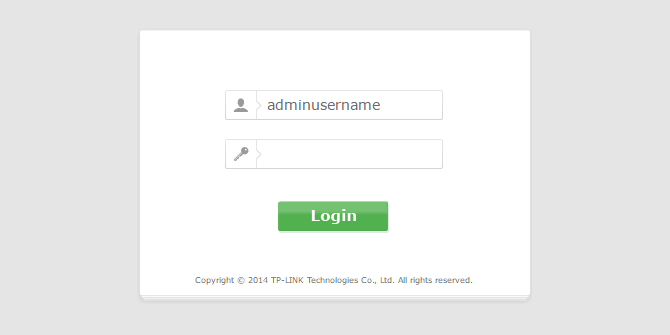
Start by logging into your router’s admin panel. For me, this means going to 192.168.0.1 in my browser, but it may or may not be the same for you. For example, most Netgear users can reach it by going to routerlogin.net. Note that you may need a wired LAN connection to your router for the browser login to work.

Consult your router’s manual if you aren’t sure how to reach the admin panel. It should look something like this though:

wireless-router-admin-login

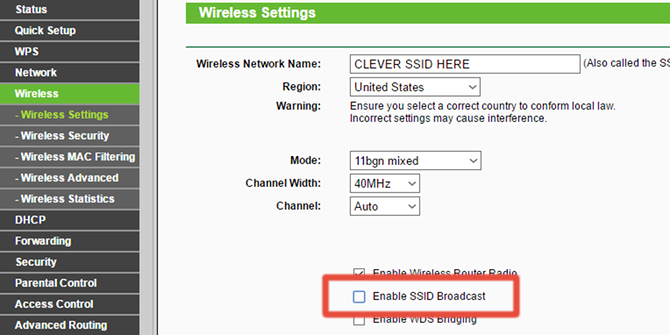
Next, look in the navigation bar for the Wireless section. If you have submenus, look around for something close to Wireless Settings, Wireless Options, Wireless > Basic Settings, etc.

You should be able to tweak the SSID, channel, channel mode, and channel width on the page, but the important thing is to find the option called Enable SSID Broadcast and uncheck it. Depending on your router model, it may also be called Visibility Status, Enable Hidden Wireless, or just SSID Broadcast:

wireless-router-disable-ssid-broadcast

That’s pretty much it. Save the settings, which may or may not require your router to restart, and your router will become “undetectable” to devices.

How to Actually Secure Your Wi-Fi Network

Long story short, hiding your Wi-Fi network is NOT an effective security measure. At best, it’s a deterrent that only prevents tech-unsavvy folks from seeing your network. Someone who wants to hack into your network will have have other ways to get in.

If you really want to secure your network, start with these quick router security tips. We recommend all of the tips therein, but if you’re pressed for time, here are the absolute essentials:

  1. Change the default admin credentials. A quick search on the internet can reveal the default admin usernames and passwords for nearly any router brand and model combination. If you don’t change this, all other security settings are for naught. This should be the first thing you do with any router!
  2. Encrypt using WPA2 and AES. Remember, your router is always broadcasting signals in all directions—but you can make these signals uninterceptable by encrypting them. This makes any signal meant for your computer only be readable by your computer. See our comparison of Wi-Fi security options for more info.
  3. Disable the WPS and UPnP features. These are convenience features that have lots of big security vulnerabilities, mainly the ability to circumvent other security features (like firewalls), so we recommend turning them off ASAP.

Other Tips for Your Home Wi-Fi Network

When you’re setting a password for your network, make sure you pick one that’s strong—and this applies to both the admin password and the Wi-Fi connection password.

If you have wireless dead zones or overall poor Wi-Fi signal in your house or apartment, you may be able to solve your woes by getting a Wi-Fi extender or powerline adapter.

Read the full article: How to Hide Your Wi-Fi Network and Prevent It From Being Seen


Read Full Article

How to Run Chrome OS From a USB Drive


You don’t need to buy a Chromebook to enjoy the features of Google’s desktop operating system (OS). In fact, all you need is a working computer and a USB Drive.

Unlock the "Chrome OS Keyboard Shortcuts" cheat sheet now!

This will sign you up to our newsletter

Enter your Email

Google doesn’t officially offer a way to try it out, but developers have figured out ways for you to experiment with the open-source OS. This method works whether you are running Windows, macOS, or Linux. And no, you won’t be overwriting your existing OS.

Here’s what you need to know.

Running Chrome OS From a USB Drive

We will create a bootable USB drive, loaded with the Chromium OS disk image. But you will need a few things before you start.

  • A working computer with a USB port
  • A USB drive with at least 4 GB capacity
  • Download: 7-Zip for Windows (Free) | Keka for macOS (Free) | p7zip for Linux (Free)
  • Download: Etcher for Windows | macOS | Linux (Free)

Note: The USB drive will be completely erased in the installation process. If you have any valuable data on the drive, please save it elsewhere.

1. Download the Latest Chromium OS image

Download the latest Chromium OS image from ArnoldTheBat

Google doesn’t have an official Chromium OS build that you can download. The best alternative source is Arnold The Bat.

Download: The latest Chromium OS daily build

2. Extract the Zipped Image

Extract Chrome OS 7zip file to a safe location on your hard drive

You will now have a 7-Zip file on your hard drive. Extract this file using one of the 7-Zip apps mentioned above.

3. Format the USB Drive

How to Format your USB drive to FAT32

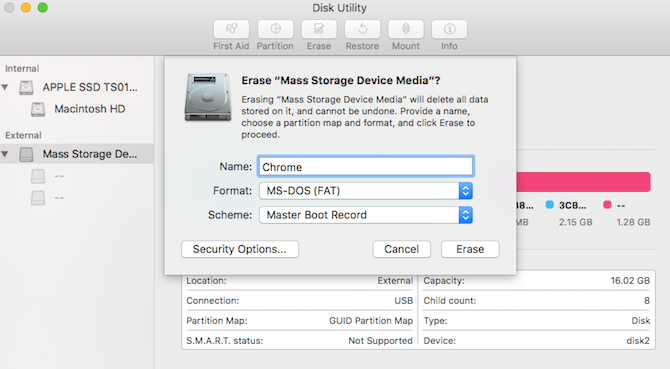
Plug the USB drive into a port and format it as FAT32. The process is simplest on Windows, but macOS and Linux aren’t difficult either.

For macOS users, the built-in Disk Utility can format it as FAT32. If you see it labeled as “MS-DOS FAT” instead, don’t worry, it’s the same thing.

Format a USB drive with Disk Utility on macOS

If the Windows or Mac methods are confusing or overwhelming for you, then you can also use the SD Association’s official card Formatter app.

Download: SD Card Formatter for Windows | macOS (Free)

For Linux users, we recommend using GParted for a quick format.

Download: GParted for Linux (Free)

For added comfort, when asked to name the new drive, give it the name “Chrome.”

4. Run Etcher and Install the Image

Etcher creates and validates a ISO or bootable USB drive

By now, you should have a fully formatted USB drive, named “Chrome”, plugged into one port of the computer (as shown in step three). You will also have an unzipped image file of the latest Chromium OS (as shown in steps one and two). And you have Etcher installed on your computer. Start Etcher.

  1. Click Select Image and browse to where the Chromium OS image file is. Add it in Etcher.
  2. Click Select Drive and choose the Chrome USB Drive you have created.
  3. Click Flash to begin the process of installing the image and validating the installation.

Etcher validates the burning process i.e. once it’s done creating the image on the USB drive, it will verify that everything is right. Make sure you wait till it says 100%. Once Etcher finishes, this will be a bootable USB drive with Chromium OS.

5. Reboot Your Computer and Enter Boot Options

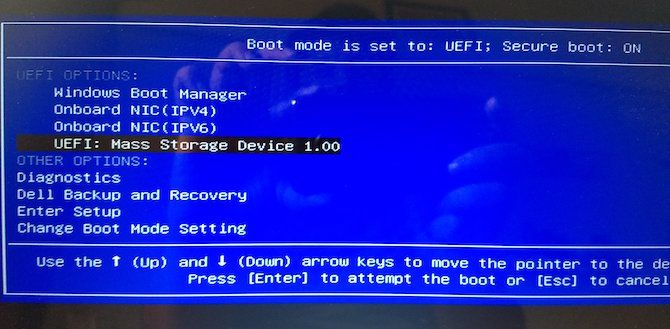
“Boot” is the process of choosing the OS. Every computer lets you select which drive it should boot the OS from, whether it’s a hard drive, a USB drive, or even a DVD drive. You need to enter Boot and choose the USB drive you just created.

How to Boot from USB on a PC with Windows or Linux

For a Windows or Linux PC: Different computers have different BIOS settings. Usually, the Boot Options menu has the keyboard shortcut F5, F8, or F12.

How to boot from USB on macOS

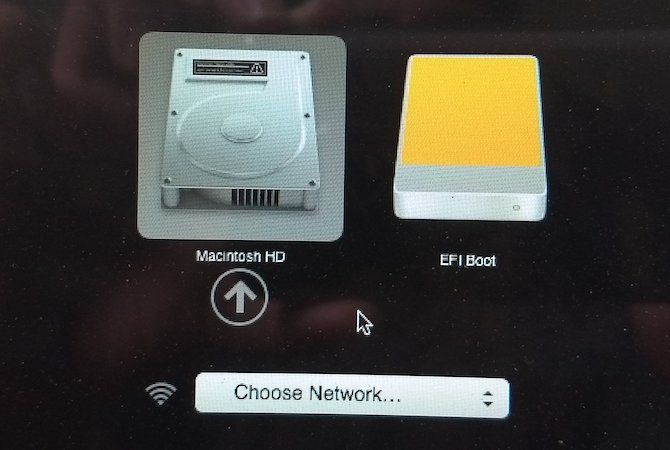
For a Mac: As soon the Mac shuts down and restarts, press and hold the Option key. You will be doing this while it’s a black screen, but that’s okay. Keep holding it till you see the boot menu, which lets you choose between a Macintosh hard drive or the USB drive you have plugged in (usually denoted as “EFI”).

6. Boot Into Chrome OS

Chrome OS running from USB

Choose the USB drive in the boot menu, hit enter, and the computer will boot from the drive. You are now experiencing all the glory of Chrome OS, without affecting your main hard drive and OS.

You will have to setup Chrome OS the first time you use it, ideally with your existing Google account. Don’t worry, this setup is only during the first time you boot up. Whenever you run it in the future, it will go directly to the login screen.

Turn a PC or Laptop Into Chrome OS

Now that you have Chrome OS running on a USB drive, take it for a spin. You’ll be surprised by how similar it is to full-fledged desktop operating systems like Windows, macOS, and Linux. You can even install several Linux programs and some Windows software too.

If you like what you see and are ready to switch to Chrome OS, you don’t need to buy new hardware. You can turn any PC or laptop into a Chromebox or Chromebook with an easy-to-use software called CloudReady. The installation procedure is actually simpler than the above method.

Read the full article: How to Run Chrome OS From a USB Drive


Read Full Article

12 Unnecessary Windows Programs and Apps You Should Uninstall


windows-programs-uninstall

Out of all the software on your computer, how many programs do you actually use regularly? Most people keep a fair amount of unnecessary software installed on their systems. While some of these apps are just outdated, others are downright malicious or dangerous.

Here are the unnecessary Windows 10 apps to uninstall.

How to Check Your Installed Programs

It’s easy to review the installed programs on your system. Windows 10 users should open Settings and head into the Apps > Apps & features section. Here, you’ll see a list of everything installed on your PC.

Those on Windows 8.1 or Windows 7 can click on the Start button and search for Programs and Features. This will open your a similar list where you can review everything currently installed on your system.

To remove a piece of software, just click to highlight it and choose Uninstall. Depending on the software, it might uninstall immediately or require you to advance through some dialog boxes. See our guide to uninstalling programs on Windows 10 for more info.

1. QuickTime

QuickTime is Apple’s video player. While it’s still a current program on macOS, the company hasn’t supported the Windows version since 2016.

Shortly after Apple announced the deprecation of QuickTime for Windows, Trend Micro announced that the software had a few critical vulnerabilities. Since Apple will never patch these, it’s not safe to have QuickTime installed anymore.

Removing QuickTime shouldn’t cause any disruptions, as iTunes doesn’t rely on it. If you need a replacement for QuickTime, use VLC, which will play pretty much anything.

2. CCleaner

Once a trusted Windows app for cleaning junk, CCleaner has fallen from grace. We’ve explained why you should get rid of CCleaner and documented its faults, including forced updates without permission, data collection that enabled itself after restarting, and the software itself distributing malware unknowingly.

Since 2017, Avast has owned Piriform, the makers of CCleaner. All these issues have happened in this time frame, including obnoxious behavior like CCleaner trying to install Avast antivirus by default. Follow our guide to cleaning your PC to clean your computer without this trash.

3. Crappy PC Cleaners

Many people have installed (or accidentally installed) a PC-cleaning app at some point. The majority of these products range from useless to harmful, as registry cleaners don’t improve Windows’ performance at all. If you find garbage like MyCleanPC or PC Optimizer Pro in your installed apps list, you should remove them.

Read our guide to cleaning mentioned above for a real cleanup method. We recommend using a combination of built-in Windows tools and trusted software to safely remove unneeded files.

4. uTorrent

uTorrent Download Garbage

Like CCleaner, uTorrent was once a beloved tool, considered the gold standard of torrenting software. However, it’s had a host of issues over the years that make it untrustworthy now.

Aside from having ads crammed into the interface, uTorrent also included offers for junk browser extensions like the Conduit Toolbar. But its worst offense came in 2015, when the app was found to bundle in cryptocurrency mining software without letting users know. This wasted your system resources in the background to make money for the company, which allegedly gave some to charity.

There’s no reason to bother with uTorrent now. We think qBittorrent is the best torrent client, and it’s free of all this nonsense.

5. Shockwave Player

Adobe Flash Player is dying a slow death, as Adobe plans to stop supporting it in 2020. A similar runtime plugin, Adobe Shockwave Player, was discontinued in April 2019. The company no longer offers it for download, and you’re extremely unlikely to find a website that needs it.

You can thus remove Shockwave Player without worry.

6. Java

Java is another media runtime that includes two components: Java on the desktop, and the Java plugin for browsers (which is notorious for having security problems). Though it was once fairly common, very few websites use it nowadays. It’s even less common than Silverlight; W3Techs lists that something like 0.02 percent of websites use Java.

Modern versions of Chrome and Firefox don’t support it, which means that Java is less of a security problem than it once was. Unless you’re an Android developer or use some specialized software that relies on Java, you should uninstall it. You’ll probably never notice a difference.

7. Microsoft Silverlight

Silverlight Deprecated

Silverlight is a web framework, similar to Adobe Flash, that enabled rich media content in your browser. Years ago, these plugins were necessary on a lot of websites. But now they’re deprecated and no longer useful. According to W3Techs, under 0.1 percent of websites use Silverlight as of mid-2019.

Modern browsers don’t even work with Silverlight; Chrome and Firefox haven’t supported it for years, and it was never compatible with Edge. Silverlight is only officially supported in Internet Explorer, which most people shouldn’t use anyway. You won’t lose anything by uninstalling Silverlight.

8. All Toolbars and Junk Browser Extensions

When you’re wondering what to uninstall from Windows 10, one of the obvious candidates is junk in your browser. Toolbars were once a far more prevalent problem, but modern versions of Chrome and other browsers have rendered them less common. However, spammy extensions are still in the wild.

Have a look in your programs list for toolbars like the Bing Bar, Google Toolbar, Ask Toolbar, Yahoo! Toolbar, or the Babylon Toolbar. If you find any of them, uninstall them. Next, review the installed add-ons or extensions in your browsers. Make sure you recognize everything there.

9. Coupon Printer for Windows

The purpose of Coupon Printer for Windows is to provide access to deals from Coupons.com. However, since this software is typically found bundled in with other programs, chances are you that you didn’t want to install it in the first place.

If you’re a diehard Coupons.com user, you can leave this one installed so you can access your discounts. Everyone else should uninstall this program and use another coupon site that doesn’t require installing anything.

10. Manufacturer Bloatware

Unless you’re running a premium device like the Surface Pro, or installed Windows from scratch on a new desktop, chances are your computer came with lots of junk from the manufacturer preinstalled. Laptops from HP, Dell, Toshiba, Lenovo, and more are prone to this issue.

These bloatware apps are another great candidate for Windows 10 apps to uninstall. None of it is required for Windows to function. Some of the pre-installed branded programs, like photo and gaming apps, or those that duplicate Windows tools, are completely unnecessary. Others, such as driver/BIOS update utilities (like Lenovo System Update), are worth keeping around.

Of course, we can’t comment on every piece of manufacturer software. To find out about yours, it’s a good idea to check out Should I Remove It?, which gives an overview on what each program does and how others have rated it. When in doubt, it’s probably not a necessary tool.

11. Windows 10 Bloatware

windows 10 bloatware removal

Fighting manufacturer bloatware is annoying enough, but Microsoft includes a fair bit of its own in Windows 10. It comes in the form of Store apps. Thankfully, you can uninstall most of it without much hassle.

Some of the default Modern apps, like Xbox and Weather, are useful to some people but not others. Others, like Candy Crush Saga, are junk you should remove. You can find a full Windows 10 bloatware list, and see how to uninstall these apps (one-by-one or all at once), in our Windows 10 bloatware removal guide.

12. WinRAR

While having a file extraction and compression tool around is certainly useful, WinRAR is not the best choice for the job. The app has become a bit of a punchline due to its old-school “shareware” license. While you can download a “trial” of WinRAR for free, it asks you to pay after using it for some time. However, the app never actually locks you out of using it, so you can use it indefinitely without paying.

There’s really no reason to use WinRAR anyway. 7-Zip is a free and simple tool that covers most people’s needs. If you find 7-Zip a bit too ugly, try PeaZip. But whatever you do, please don’t pay for WinRAR.

How About Windows 10 Files and Folders?

The above programs are unnecessary because they no longer serve any useful function. If you uninstall something and find that you need it again, you can always reinstall it. But it’s wise to do some cleaning on your system and remove old or junky Windows 10 programs.

Looking to strip out more clutter that you don’t need? We’ve shown Windows files and folders you can delete to save space.

Image Credits: rodimov/Shutterstock

Read the full article: 12 Unnecessary Windows Programs and Apps You Should Uninstall


Read Full Article

Is Kodi Exodus Legal?


kodi-exodus-legal

Kodi Exodus is one of the most popular Kodi add-ons around. It provides users with access to thousands of movies, TV series, kids’ shows, and documentaries, all of which can be watched at the push of a button.

But is Kodi Exodus legal? Does the legal status of Kodi Exodus change depending on which country you are in? And could you get in trouble for using Kodi Exodus? In this article we answer all of these questions and more.

What Is Kodi Exodus?

There are two main versions of the Kodi Exodus add-on. The fork occurred after the developers of the original Exodus add-on stopped developing the app in 2016 and released the source code to the community.

The two versions are called Exodus Redux and Exodus V8. Different teams maintain them and they have slightly different interfaces.

Of the two, Exodus Redux is more popular. However, for the purposes of this article, we’ll use the term “Exodus” to refer to both add-ons.

What Content Is on Exodus?

kodi exodus app

This is where the alarm bells should start ringing. Almost every television show, movie, documentary, cartoon, and kids show that you can think of is available on Exodus.

Videos include the latest episodes of series like Game of Thrones and The Big Bang Theory, as well as the newest Hollywood blockbusters. You’ll also find a slew of older series like Friends, How I Met Your Mother, Breaking Bad, and more.

Each video has a list of sources. If one stream isn’t working, you can keep trying until one fires up.

Sounds great, right? You’re probably wondering how much it costs for access to all this fresh new content. The answer? Nothing. Kodi Exodus is entirely free to download and use.

If you think this sounds too good to be true, you would be right.

Is Kodi Exodus Legal?

So, is Exodus legal in the US? As you might expect, the answer is not straightforward.

Is the Content on Kodi Exodus Legal?

kodi exodus films list

Firstly, let’s be very clear: Kodi Exodus does not host any of its own content; it merely provides links and sources for the various movies and TV shows.

The question, therefore, becomes, “Is the content that Exodus links to legal?”

Mostly, the answer is “No”. There is some legal content available. For example, you might come across some series and films that are legitimately part of the public domain. However, the vast majority of content available through Exodus has been uploaded illegally.

The people who do the uploading do not have the correct licensing and distribution rights. They are recording the shows, making copies of them, then adding them to various hosting sites. Almost every country in the world classifies this process as illegal. In the United States and Europe, it can lead to significant jail time.

Is the Exodus Add-On Legal?

The situation regarding the legality of the content on Kodi Exodus is fairly clear cut. But what about the add-on itself? What about the legality of the actual software?

The host vs. facilitator battle is not a new one. Napster, Limewire, The Pirate Bay, Project Free TV, and Megaupload are all prime examples of this issue. Is a company legally at fault if it merely provides a way for users to access illegal content, even if it does not host or distribute any of the material itself?

In the US, the answer is yes.

It all comes back to the court case of MGM Studios, Inc. vs. Grokster, Ltd in 2005. It was a Supreme Court case that revolved around copyright rules and peer-to-peer file-sharing.

During the landmark case, the court developed the “inducement rule“. Here’s how Justice Souter described the rule when giving his opinion to the court:

“We hold that one who distributes a device with the object of promoting its use to infringe copyright, as shown by clear expression or other affirmative steps taken to foster infringement, is liable for the resulting acts of infringement by third parties.”

“The inducement rule […] premises liability on purposeful, culpable expression and conduct, and thus does nothing to compromise legitimate commerce or discourage innovation having a lawful promise.”

If you analyze Kodi Exodus against these guidelines, it’s clear that it is in breach of the law:

  • Is the add-on promoting its ability infringe copyright? Yes.
  • Does it take affirmative steps to foster infringement? Yes.
  • Do third parties (i.e., users) commit infringement as a result? Yes.
  • Is Exodus’ conduct purposeful? Yes.

Could You Be Prosecuted for Using Kodi Exodus?

We’ve looked at this question in more detail is our discussions concerning the legality of Kodi and the legality of IPTV providers.

If you’re in Europe, the situation is clear. The police can prosecute you for streaming pirated content. In April 2017, The EU Court of Justice ruled that streaming copyrighted content without the correct permissions or subscriptions is breaking the law.

In the US, there is no such law. However, there are endless technicalities on which the authorities can “get” you:

  • By buffering a video, you are technically making a copy of pirated content. This is very much illegal.
  • Some Kodi add-ons are known to use P2P technology and simultaneously upload and download video files while you watch. The situation is clear—it’s unlawful.
  • Depending on your settings, part or all of the video might be stored in a temporary cache on your machine. Again, that qualifies as an illegal copy.

Is Kodi Exodus Legal in the US? Summing Up

Look, we’re not legal experts. If you have been caught up in legal proceedings around these issues, you need to seek professional help.

Nonetheless, let’s try and summarize what we’ve learned:

  • The content available on Exodus has been (almost exclusively) illegally uploaded.
  • As an app, Exodus is in breach of the 2005 inducement rule and is thus illegal.
  • In the EU, authorities can prosecute you for streaming content on add-ons like Exodus.
  • In the US, several technicalities exist which can act as grounds for a prosecution.

And finally, what about the likelihood of a prosecution? In truth, the chances are slim. But it’s one of those situations that nobody thinks will ever happen to them… until it does.

Is it worth risking your freedom in order to watch a movie without paying for it? We don’t think so.

To learn more about Kodi, check out our articles on the best legal Kodi add-ons for free movies and our analysis of the legality of Kodi boxes.

Read the full article: Is Kodi Exodus Legal?


Read Full Article

CentOS vs. Ubuntu: The Best Web Hosting Server OS


centos-vs-ubuntu

With so many Linux distributions available, choosing one for your home computer isn’t easy. Choosing a Linux distribution for a server is even tougher. A server runs 24 hours a day, often performing complex tasks, so picking a distribution you can trust is key.

Ubuntu is one of the more popular options due to its sheer ubiquity, but it’s far from the only option. CentOS is another great option thanks to its reputation for being solid and stable as can be.

Ubuntu is the best choice for most people, but there are some cases where you’ll want to consider CentOS.

What Is CentOS?

If you’ve ever even just read about Linux, you probably know a little about Ubuntu. It’s an easy to use distribution based on Debian and it’s one of the more widely used versions of Linux out there.

CentOS, on the other hand, may be more of a mystery. This distribution is based on Red Hat Enterprise Linux, which is a paid product. CentOS is freely available and open source but makes use of the work that goes into Red Hat Enterprise Linux.

CentOS website

You don’t get the same support you would get with Red Hat’s offering since you’re not paying for support. That said, CentOS is community supported, so you’re not alone if you run into an issue.

CentOS vs. Ubuntu Server

In addition to the widely-used desktop version of Ubuntu, there’s another version meant for use on a server. This distribution is aptly named Ubuntu Server. One of the key differences between the two versions is that Ubuntu Server has no graphical user interface by default. If you’re looking to know more, we have a rundown of the further differences between Ubuntu and Ubuntu Server.

Ubuntu Server download on the Ubuntu website

Due to the wide use of its upstream source, Red Hat Enterprise Linux, CentOS has developed a reputation for being secure and stable. Both of these are major factors when it comes to choosing a distribution for your server. CentOS is also highly customizable, which is handy for stripping out services you don’t need.

Ubuntu receives updates more frequently than CentOS and generally has newer packages available. This is both good and bad. It means Ubuntu will receive new features sooner, but may also see new bugs introduced. The slower update cycle used by CentOS helps maintain stability but can mean you won’t get critical security updates quite as fast.

Winner: CentOS wins over Ubuntu by just a hair thanks to its rock-solid stability.

CentOS vs. Ubuntu: Installation and Configuration

Both CentOS and Ubuntu offer streamlined installation processes, but each has different strengths. With Ubuntu Server, you don’t get the graphical interface, but it’s still easy for almost anyone. While Ubuntu’s installer aims to be easy for anyone, CentOS aims to make the process quick and easy for system administrators.

Installing the Server version of Ubuntu

If you’re using the desktop version of Ubuntu for your server, configuration is fairly easy. Installing software, tweaking settings, and enabling and disabling services is relatively easy. CentOS also provides a robust set of configuration options, though it is using some different applications on the back end.

Configuring CentOS or Ubuntu via the command line is different. You’ll find some configuration files in different places, the big difference is the package manager used by each distribution. Ubuntu uses Apt while CentOS uses Yum. Using each is fairly easy, but there are some major differences between the two.

For a brief look at the differences between Apt and Yum, see our overview of Linux package managers.

Winner: Ubuntu wins here thanks to its ease of use and the amount of documentation you’ll find for it online.

CentOS vs. Ubuntu: Performance

If you’re running resource-intensive apps or services on your server, operating system performance matters. While Linux distributions will be roughly similar in performance compared to other operating systems, some still have their advantages.

Ubuntu Server is more slimmed down by default, which gives it an advantage. That said, you can tweak CentOS to squeeze more performance out of it should you want or need to. Looking at a report from Phoronix, Ubuntu sometimes leads CentOS, while other times it’s the other way around.

Winner: This one is a Draw. This category is simply too close to call.

CentOS vs. Ubuntu: Laptop Use

While the main purpose of this article is examining CentOS vs. Ubuntu for server use, both are also desktop operating systems. If you’re frequently using one of these on a server or servers, you might be more comfortable running it on your laptop as well.

Here is where you’ll see some more dramatic differences between the two. CentOS 7 uses the Linux 3.10 kernel, while Ubuntu 18.04 uses the Linux 4.18 kernel. The newer kernel brings support for newer hardware.

CentOS configuration menu

If you’re using a relatively new laptop, you might find CentOS doesn’t recognize certain hardware. In some cases, you can find and install drivers for that hardware yourself, but this can be tricky. Ubuntu will have much better support for newer laptops in general.

On the other hand, if you’re installing it on a ThinkPad that is a few years old, CentOS might work perfectly. Chances are good that if it works well at first, it will continue to work well even after updates. This is one area where the stability of CentOS provides is especially useful.

Winner: Ubuntu wins this category thanks to the sheer amount of hardware it supports.

Other Aspects to Consider

If you’re using a Virtual Private Server from a company like Linode or DigitalOcean, installation is as easy as provisioning a new server. You don’t need to worry about the installation process at all, nor will you have to worry about whether certain hardware is supported.

The size of the community around each distribution is also something to keep in mind. Because of its popularity, Ubuntu has more community repositories available. It also has more users who may have run into the problems you’re having that can share how they overcame those problems.

CentOS has less market share than Ubuntu, but the documentation provided by Red Hat Enterprise Linux can help somewhat here.

Which Server Distribution Is Right for You?

If you’re still having trouble making a choice after reading the comparisons above, think about which distribution you’re more comfortable with. You’re going to be using this distribution a lot, so if it comes down to a coin toss, go with the one you’ve used more. That familiarity will make everyday maintenance tasks much easier.

What if you don’t have much experience with either CentOS or Ubuntu? Ubuntu is a great choice for less experienced or first-time Linux users. Even better, we’ve got a walkthrough that shows you how to try out Ubuntu on your Windows 10 computer.

Read the full article: CentOS vs. Ubuntu: The Best Web Hosting Server OS


Read Full Article

Darknet Market Takedowns Show Why Extra Tor Security Is Needed


extra-tor-security

The Tor network has a reputation for hosting some disturbing content. Then, there are the darknet marketplaces that deal in stolen credit cards, PayPal accounts, weapons, drugs, and in some dark corners, worse.

So, when the news hits that the authorities have outsmarted the shady criminals that run the darknet markets, you must wonder, what went wrong? Is there a security flaw in the Tor network? Or is it poor operational security that leads to the takedown of seemingly impenetrable Tor hidden services?

Here’s how they catch the owners of darknet markets and why you need extra security while using the Tor network.

What Is a Darknet Market?

A darknet market is an online marketplace hosted on the Tor network. The Tor network is at times referred to as the “darknet,” as the regular internet is known as the “clearnet.” At other times, the term is used interchangeably with “dark web.”

However, the term “deep web” refers to yet another part of the internet. Specifically, the deep web refers to the bits of the internet that you cannot reach using a search engine, but make up the majority of the internet as we know it. Databases, journals, webmail accounts, online banking portals, and unindexed paywalled services are prime examples of the deep web.

Back to the darknet markets.

Darknet markets are notorious for allowing users to buy and sell almost anything—and I mean, anything. Darknet market operators use the anonymity of the Tor network to run their services, while vendors and “shoppers” can rely on Tor to maintain their privacy.

Understandably, authorities around the world are less than enthused about anonymous online marketplaces selling all manner of nefarious goods. But if the Tor network protects the darknet market operators, vendors, and sellers, how do the authorities even begin to think about taking them down?

How Do Authorities Takedown a Darknet Market

In early May 2019, the German authorities succeeded in the takedown of one of the largest darknet markets on the Tor network. The Wall Street Market (WSM) had slowly moved up the rankings to become one of the most popular darknet markets. According to Europol, who led the takedown, Wall Street Market had more than 1.15 million users and over 5,400 vendors for drugs, malware, and other illegal paraphernalia.

The operators were making millions of dollars every year in both cryptocurrency and fiat, as well as making extravagant purchases such as a supercar, a villa, and so on.

So, how did Europol’s “Dark Web Team” and the German federal police (the Bundeskriminalamt, or BKA) combine to take down the Wall Street Market?

WSM Administrator #1: Unstable VPN

An unstable VPN connection.

At least, WSM administrator, Tibo Lousee. Lousee was accessing WSM “primarily through the use of two VPN service providers.” Lousee didn’t notice that one of his VPN connections ceased, continuing to use the WSM infrastructure and backend as usual.

As the administrator’s VPN was no longer securing the connection, the administrator’s continued access ultimately exposed their true IP address.

Now, the authorities couldn’t just go and knock on the door of the location linked to the IP address. That’s because the IP address was linked to a pre-paid USB internet dongle. The dongle was, understandably, registered to a fake name. The BKA used several surveillance techniques to track the specific USB dongle to a house in the North Rhine-Westphalia, not too far from the German border with the Netherlands.

WSM Administrator #2: VPN Metadata

The second WSM administrator arrested also had issues with his VPN. Jonathan Kalla’s VPN didn’t fail, but the metadata available to the German authorities allowed them to correlate an IP address assigned to his home to a VPN account registered using his mother’s name.

While a VPN does protect the data in transit, if an entity can see the entire network, they can attempt to correlate certain activity between connections.

WSM Administrator #3: Leaked Identity

The final WSM administrator, Klaus-Martin Frost, didn’t reveal his identity via a VPN issue. Rather, he cross-contaminated his cryptocurrency accounts with his cryptographic accounts.

The PGP public key for [WSM administrative account] ‘TheOne’ is the same as the PGP public key for another moniker on [another hidden service] Hansa Market, ‘dudebuy.’ As described below, a financial transaction connected to a virtual currency wallet used by FROST was linked to ‘dudebuy.’

[The BKA] located the PGP public key for ‘TheOne’ in the WSM database, referred to as ‘Public Key 1’.

Public Key 1 was the PGP public key for ‘dudebuy.’ The ‘refund wallet’ for ‘dudebuy’ was Wallet 2.

Wallet 2 was a source of funds for a Bitcoin transaction… Records obtained from the Bitcoin Payment Processing Company revealed buyer information for that Bitcoin transaction as ‘Martin Frost,’ using the email address klaus-martin.frost@…

The links between the cryptocurrency accounts, the cryptographic PGP keys used to sign and encrypt messages on multiple darknet markets, and the transaction history are damning. The US Postal Inspection Service which, by-the-by, has a highly trained cyber taskforce, had already begun linking Bitcoin accounts and cryptocurrency transactions to Frost, too.

Wall Street Market Exit Scam

Europol and the BKA were tracking the WSM administrators as early as 2017. However, in mid-April 2019, the admin team began moving huge quantities of cryptocurrency from the site in an attempted exit scam.

An exit scam is the process where a business or organization builds a reputation of trust to entice customers and vendors, only to pull the rug from under their feet when they are comfortable. The three WSM admins plan to steal all of the cryptocurrency stepped up the efforts to capture them, potentially leading to a quicker demise.

Unfortunately for those who already lost their cryptocurrency, it isn’t coming back; it is difficult to claim your cryptocurrency back from the authorities if it was seized in escrow on a darknet market.

Exit scams are just one of the reasons you should consider avoiding the dark web.

Staying Safe on the Dark Web

Privacy advocates sometimes suggest using Tor to protect your identity while online. In truth, Tor can only do so much for your privacy and security. If you are not correctly using Tor, you could end up exposing yourself and your online activity. The repercussions of a Tor data leak depend on what you are using Tor for.

Despite the issues presented above regarding the use of a VPN, I would still strongly advise using one. Not just any VPN, either. A paid-for VPN that does not take logs will protect your privacy significantly more than a free option. A free option must monetize somehow, and your data is often the source.

Two of our favorite VPN providers are ExpressVPN and CyberGhost. Both have long, respected histories of keeping your data private when it matters.

MakeUseOf readers can get three FREE months of ExpressVPN when you subscribe for a year, or get six FREE months on top of an annual CyberGhost subscription.

A VPN isn’t the only way you can increase your security and privacy while using the Tor network. Here are three more tips:

  1. Do not trust anything or anyone because you do not know the real purpose of a Tor hidden service, who owns it, why they are running the service, and so on. That mistrust extends to links, too.
  2. Remain private. Do not use or provide any personal information on the dark web. As the “underside” of the internet, you never know who is waiting to steal your data.
  3. Use antivirus and antimalware. An up to date antivirus suite is vital. I would strongly advise using an antimalware suite, too. Malwarebytes Premium has more features than the basic version, such as real-time protection, and is well worth the price of the upgrade.

Avoid the Bad Side of the Dark Web

It is no secret that the dark web has a sinister underside. In all honesty, you don’t have to go far before you find it. The easiest way to avoid encountering nefarious goods, dangerous materials, and the potential of a knock at the door from John Law is to steer clear of the darknet markets altogether.

Want to learn more about the dark web? Sign-up for the free MakeUseOf email course that will help you safely explore the hidden internet.

Read the full article: Darknet Market Takedowns Show Why Extra Tor Security Is Needed


Read Full Article

The 7 Best Gaming Keyboards of 2019

ObjectiveEd is building a better digital curriculum for vision-impaired kids


Children with vision impairments struggle to get a solid K-12 education for a lot of reasons — so the more tools their teachers have to impart basic skills and concepts, the better. ObjectiveEd is a startup that aims to empower teachers and kids with a suite of learning games accessible to all vision levels, along with tools to track and promote progress.

Some of the reasons why vision-impaired kids don’t get the education they deserve are obvious, for example that reading and writing are slower and more difficult for them than for sighted kids. But other reasons are less obvious, for example that teachers have limited time and resources to dedicate to these special needs students when their overcrowded classrooms are already demanding more than they can provide.

Technology isn’t the solution, but it has to be part of the solution, because technology is so empowering and kids take to it naturally. There’s no reason a blind 8-year-old can’t also be a digital native like her peers, and that presents an opportunity for teachers and parents both.

This opportunity is being pursued by Marty Schultz, who has spent the last few years as head of a company that makes games targeted at the visually-impaired audience, and in the process saw the potential for adapting that work for more directly educational purposes.

“Children don’t like studying and don’t like doing their homework,” he told me. “They just want to play video games.”

It’s hard to argue with that. True of many adults too for that matter. But as Schultz points out, this is something educators have realized in recent years and turned to everyone’s benefit.

“Almost all regular education teachers use educational digital games in their classrooms and about 20 percent use it every day,” he explained. “Most teachers report an increase in student engagement when using educational video games. Gamification works because students own their learning. They have the freedom to fail, and try again, until they succeed. By doing this, students discover intrinsic motivation and learn without realizing it.”

Having learned to type, point and click, do geometry and identify countries via games, I’m a product of this same process and many of you likely are as well. It’s a great way for kids to teach themselves. But how many of those games would be playable by a kid with vision impairment or blindness? Practically none.

Held back

It turns out that these kids, like others with disabilities, are frequently left behind as the rising technology tide lifts everyone else’s boats. The fact is it’s difficult and time consuming to create accessible games that target things like Braille literacy and blind navigation of rooms and streets, so developers haven’t been able to do so profitably and teachers are left to themselves to figure out how to jury-rig existing resources or, more likely, fall back on tried and true methods like printed worksheets, in-person instruction, and spoken testing.

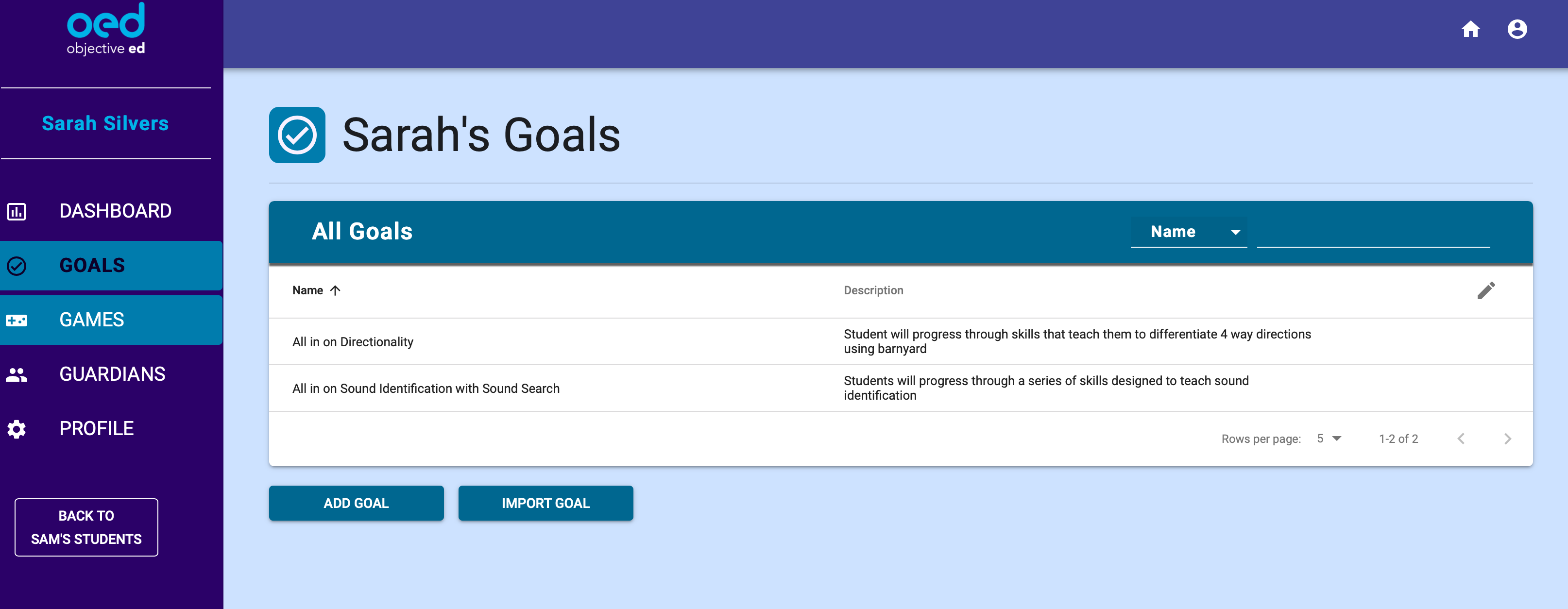
And since teacher time is limited and instructors trained in vision impaired learning are thin on the ground, these outdated methods are also difficult to cater to an individual student’s needs. For example a kid may be great at math but lack directionality skills. You need to draw up an “individual education plan” (IEP) explaining (among other things) this and what steps need to be taken to improve, then track those improvements. It’s time-consuming and hard! The idea behind ObjectiveEd is to create both games that teach these basic skills and a platform to track and document progress as well as adjust the lessons to the individual.

[gallery ids="1828695,1828696,1828698,1828697"]

How this might work can be seen in a game like Barnyard, which like all of ObjectiveEd’s games has been designed to be playable by blind, low vision, or fully sighted kids. The game has the student finding an animal in a big pen, then dragging it in a specified direction. The easiest levels might be left and right, then move on to cardinal directions, then up to clock directions or even degrees.

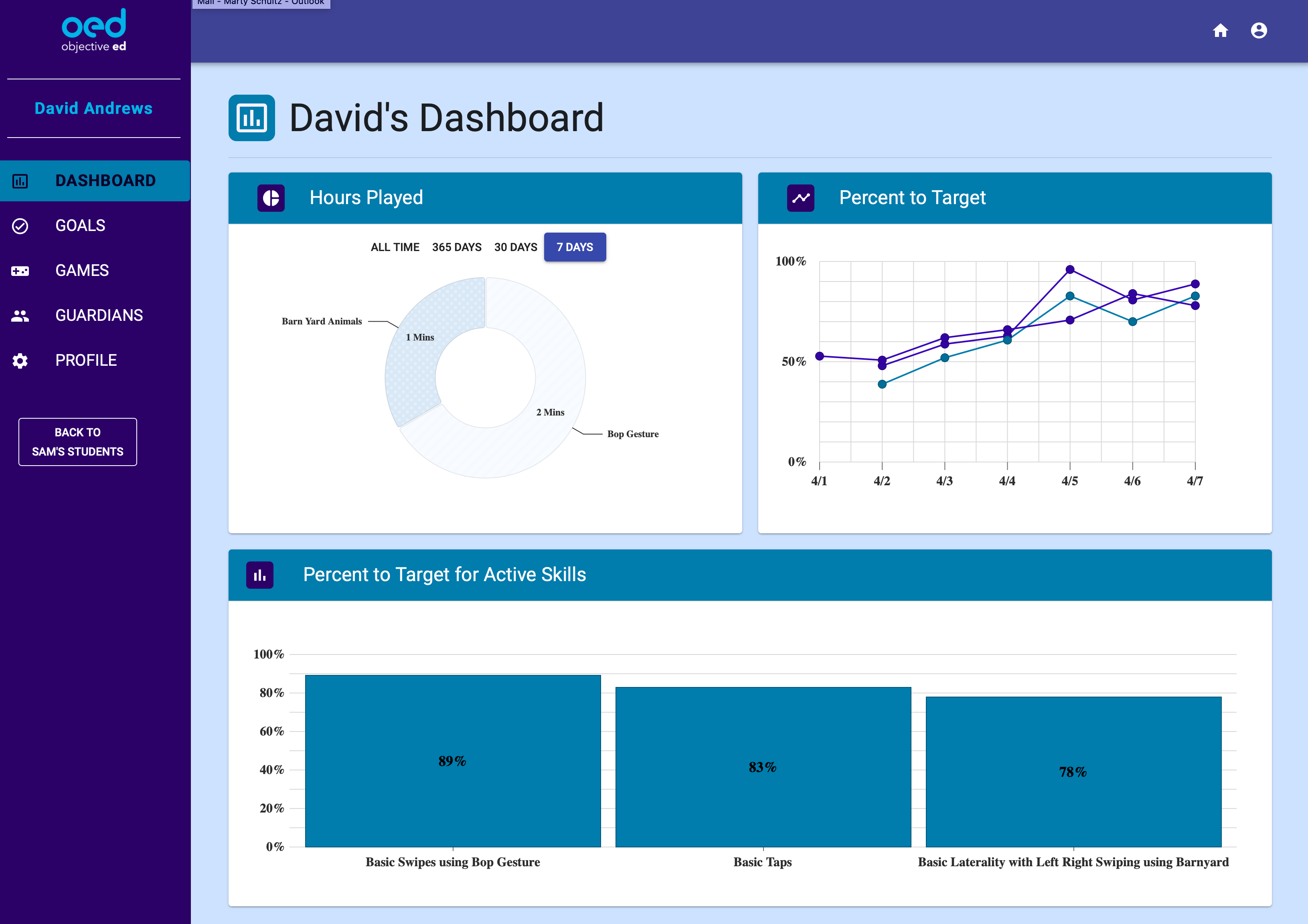
“If the IEP objective is ‘Child will understand left versus right and succeed at performing this task 90 percent of the time,’ the teacher will first introduce these concepts and work with the child during their weekly session,” Schultz said. That’s the kind of hands-on instruction they already get. “The child plays Barnyard in school and at home, swiping left and right, winning points and getting encouragement, all week long. The dashboard shows how much time each child is playing, how often, and their level of success.”

That’s great for documentation for the mandated IEP paperwork, and difficulty can be changed on the fly as well:

“The teacher can set the game to get harder or faster automatically, or move onto the next level of complexity automatically (such as never repeating the prompt when the child hesitates). Or the teacher can maintain the child at the current level and advance the child when she thinks it’s appropriate.”

This isn’t meant to be a full-on K-12 education in a tablet app. But it helps close the gap between kids who can play Mavis Beacon or whatever on school computers and vision-impaired kids who can’t.

Practical measures

Importantly, the platform is not being developed without expert help — or, as is actually very important, without a business plan.

“We’ve developed relationships with several schools for the blind as well as leaders in the community to build educational games that tackle important skills,” Schultz said. “We work with both university researchers and experienced Teachers of Visually Impaired students, and Certified Orientation and Mobility specialists. We were surprised at how many different skills and curriculum subjects that teachers really need.”

Based on their suggestions, for instance, the company has built two games to teach iPhone gestures and the accessibility VoiceOver rotor. This may be a proprietary technology from Apple but it’s something these kids need to know how to use, just like they need to know how to run a Google search, use a mouse without being able to see the screen, and other common computing tasks. Why not learn it in a game like the other stuff?

Making technological advances is all well and good, but doing so while building a sustainable business is another thing many education startups have failed to address. Fortunately, public school systems actually have significant money set aside specifically for students with special needs, and products that improve education outcomes are actively sought and paid for. These state and federal funds can’t be siphoned off to use on the rest of the class so if there’s nothing to spend them on, they go unused.

ObjectiveEd has the benefit of being easily deployed without much specialty hardware or software. It runs on iPads, which are fairly common in schools and homes, and the dashboard is a simple web one. Although it may eventually interface with specialty hardware like Braille readers, it’s not necessary for many of the games and lessons, so that lowers the deployment bar as well.

The plan for now is to finalize and test the interface and build out the games library — ObjectiveEd isn’t quite ready to launch, but it’s important to build it with constant feedback from students, teachers, and experts. With luck in a year or two the visually-impaired youngsters at a school near you might have a fun new platform to learn and play with.

“ObjectiveEd exists to help teachers, parents and schools adapt to this new era of gamified learning for students with disabilities, starting with blind and visually impaired students,” Schultz said. “We firmly believe that well-designed software combined with ‘off-the-shelf’ technology makes all this possible. The low cost of technology has truly revolutionized the possibilities for improving education.”


Read Full Article
Rivals in gaming, Microsoft and Sony team up on cloud services


For the last two decades, Sony and Microsoft’s gaming divisions have been locked in all-out war against one another: on price, on hardware, on franchises, on exclusives… you name it. But it seems they’ve set their enmity aside temporarily that they might better prevent that filthy casual, Google, from joining the fray.

The official team-up, documented in a memorandum of understanding, was announced today, though details are few. But this is clear enough:

The two companies will explore joint development of future cloud solutions in Microsoft Azure to support their respective game and content-streaming services. In addition, the two companies will explore the use of current Microsoft Azure datacenter-based solutions for Sony’s game and content-streaming services.

Of course there is no doubt that Sony could have gone with a number of other cloud services for its gaming on demand services. It already runs one, Playstation Now, but the market is expected to expand over the next few years much like cord cutters have driven traditional TV and movie watchers to Netflix and other streaming services. Expansion would surely prove expensive and complicated.

The most salient challenger is likely Google and its new Stadia game straming service, which of course has a huge advantage in its global presence, brand recognition, and unique entry points: search and YouTube. The possibility of searching for a game and being able to play it literally five seconds later is an amazing one, and really only something Google can pull off right now.

That makes Google a threat. And Microsoft and Sony have enough threats already, what with the two of them making every exclusive and chip partnership count, the resurgence of Nintendo with the immensely popular Switch, and the complex new PC-and-mobile-focused gaming market making consoles look outdated. Apple Arcade exists, too, but I don’t know that anyone is worried about it, exactly.

Perhaps there was a call made on the special direct line each has to the other, where they just said “truce… until we reduce Google Stadia to rubble and salt the earth. Also Nvidia maybe.”

We don’t actually have to imagine, though. As Sony President and CEO Kenichiro Yoshida noted in the announcement: “For many years, Microsoft has been a key business partner for us, though of course the two companies have also been competing in some areas. I believe that our joint development of future cloud solutions will contribute greatly to the advancement of interactive content.”

Sony doesn’t lack technical chops, or the software necessary to pull off a streaming service — but it may simply make more sense to deploy via Microsoft’s Azure than bring its own distribution systems up to par. No doubt Microsoft is happy to welcome a customer as large as Sony to its stable, and any awkwardness from the two competing elsewhere is secondary to that. Google is a more existential competitor in many ways, so it makes sense that Microsoft would favor partnering with a partial rival against it.

Sony has long been in this boat itself. Its image sensors and camera technology can be found in phones and DSLRs that compete with its own products — but the revenue and feedback it has built up as a result have let it maintain its dominance.

Speaking of which, the two companies also plan to collaborate on imaging, combining Sony’s sensor tech with Microsoft’s AI work. This is bound to find its way to applications in robotics and autonomous vehicles, though competition is fierce there and neither company has a real branded presence. Perhaps they aim to change that… together.


Read Full Article
Rivals in gaming, Microsoft and Sony team up on cloud services


For the last two decades, Sony and Microsoft’s gaming divisions have been locked in all-out war against one another: on price, on hardware, on franchises, on exclusives… you name it. But it seems they’ve set their enmity aside temporarily that they might better prevent that filthy casual, Google, from joining the fray.

The official team-up, documented in a memorandum of understanding, was announced today, though details are few. But this is clear enough:

The two companies will explore joint development of future cloud solutions in Microsoft Azure to support their respective game and content-streaming services. In addition, the two companies will explore the use of current Microsoft Azure datacenter-based solutions for Sony’s game and content-streaming services.

Of course there is no doubt that Sony could have gone with a number of other cloud services for its gaming on demand services. It already runs one, Playstation Now, but the market is expected to expand over the next few years much like cord cutters have driven traditional TV and movie watchers to Netflix and other streaming services. Expansion would surely prove expensive and complicated.

The most salient challenger is likely Google and its new Stadia game straming service, which of course has a huge advantage in its global presence, brand recognition, and unique entry points: search and YouTube. The possibility of searching for a game and being able to play it literally five seconds later is an amazing one, and really only something Google can pull off right now.

That makes Google a threat. And Microsoft and Sony have enough threats already, what with the two of them making every exclusive and chip partnership count, the resurgence of Nintendo with the immensely popular Switch, and the complex new PC-and-mobile-focused gaming market making consoles look outdated. Apple Arcade exists, too, but I don’t know that anyone is worried about it, exactly.

Perhaps there was a call made on the special direct line each has to the other, where they just said “truce… until we reduce Google Stadia to rubble and salt the earth. Also Nvidia maybe.”

We don’t actually have to imagine, though. As Sony President and CEO Kenichiro Yoshida noted in the announcement: “For many years, Microsoft has been a key business partner for us, though of course the two companies have also been competing in some areas. I believe that our joint development of future cloud solutions will contribute greatly to the advancement of interactive content.”

Sony doesn’t lack technical chops, or the software necessary to pull off a streaming service — but it may simply make more sense to deploy via Microsoft’s Azure than bring its own distribution systems up to par. No doubt Microsoft is happy to welcome a customer as large as Sony to its stable, and any awkwardness from the two competing elsewhere is secondary to that. Google is a more existential competitor in many ways, so it makes sense that Microsoft would favor partnering with a partial rival against it.

Sony has long been in this boat itself. Its image sensors and camera technology can be found in phones and DSLRs that compete with its own products — but the revenue and feedback it has built up as a result have let it maintain its dominance.

Speaking of which, the two companies also plan to collaborate on imaging, combining Sony’s sensor tech with Microsoft’s AI work. This is bound to find its way to applications in robotics and autonomous vehicles, though competition is fierce there and neither company has a real branded presence. Perhaps they aim to change that… together.


Read Full Article

The Meizu 16s offers flagship features at a mid-range price


Smartphones have gotten more expensive over the last few years even though there have only been a handful of recent innovations that really changed the way you interact with the phone. It’s maybe no surprise then that there is suddenly a lot more interest in mid-range, sub-$500 phones again. In the U.S., Google’s new Pixel 3a, with its superb camera, is bringing a lot of credibility to this segment. Outside the U.S., though, you can often get a flagship phone for less than $500 that makes none of the trade-offs typically associated with a mid-range phone. So when Meizu asked me to take a look at its new 16s flagship, which features (almost) everything you’d expect from a high-end Android phone, I couldn’t resist.

Meizu, of course, is essentially a total unknown in the U.S., even though it has a sizable global presence elsewhere. After a week with its latest flagship, which features Qualcomm’s latest Snapdragon 855 chip and under-screen fingerprint scanner, I’ve come away impressed by what the company delivers, especially given the price point. In the U.S. market, the $399 Pixel 3a may seem like a good deal, but that’s because a lot of brands like Meizu, Xiaomi, Huawei and others have been shut out.

It’s odd that this is now a differentiating feature, but the first thing you’ll notice when you get started is the notchless screen. The dual-sim 16s must have one of the smallest selfie cameras currently on the market, and the actual bezels, especially when compared to something like the Pixel 3a, are minimal. That trade-off works for me. I’ll take a tiny bezel over a notch any day. The 6.2-inch AMOLED screen, which is protected by Gorilla Glass, is crisp and bright, though maybe a bit more saturated than necessary.

The in-display fingerprint reader works just fine, though it’s a bit more finicky that the dedicated readers I’ve used in the past.

With its 855 chip and 6GB of RAM, it’s no surprise the phone feels snappy. To be honest, that’s true for every phone, though, even in the mid-range. Unless you are a gamer, it’s really hard to push any modern phone to its limits. The real test is how this speed holds up over time, and that’s not something we can judge right now.

The overall build quality is excellent, yet while the plastic back is very pretty, it’s also a) weird to see a plastic back to begin with and b) slippery enough to just glide over your desk and drop on the floor if it’s at even a slight angle.

Meizu’s Flyme skin does the job, and adds some useful features like a built-in screen recorder. I’m partial to Google’s Pixel launcher, and a Flyme feels a bit limited in comparison to that and other third-party launchers. There is no app drawer, for example, so all of your apps have to live on the home screen. Personally, I went to the Microsoft Launcher pretty quickly, since that’s closer to the ecosystem I live in anyway. Being able to do that is one of the advantages of Android, after all.

Meizu also offers a number of proprietary gesture controls that replace the standard Android buttons. These may or may not work for you, depending on how you feel about gesture-based interfaces.

I haven’t done any formal battery tests, but the battery easily lasted me through a day of regular usage.

These days, though, phones are really about the cameras. Meizu opted for Sony’s latest 48-megapixel sensor here for its main camera and a 20-megapixel sensor for its telephoto lens that provides up to 3x optical zoom. The camera features optical image stabilization, which, when combined with the software stabilization, makes it easier to take low-light pictures and record shake-free video (though 4K video does not feature Meizu’s anti-shake system).

[gallery ids="1828731,1828730"]

While you can set the camera to actually produce a 48-megapixel image, the standard setting combines four pixels’ worth of light into a single pixel. That makes for a better image, though you do have the option to go for the full 48 megapixels if you really want to. The camera’s daytime performance is very good, though maybe not quite up to par with some other flagship phones. It really shines when the light dims, though. At night, the camera is highly competitive and Meizu knows that, so the company even added two distinct night modes: one for handheld shooting and one for when you set the phone down or use a tripod. There is also a pro mode with manual controls.

Otherwise, the camera app provides all the usual portrait mode features you’d expect today. The 2x zoom works great, but at 3x, everything starts feeling a bit artificial and slightly washed out. It’ll do in a pinch, but you’re better off getting closer to your subject.

In looking at these features, it’s worth remembering the phone’s price. You’re not making a lot of trade-offs at less than $500, and it’d be nice to see more phones of this caliber on sale in the U.S. Right now, it looks like the OnePlus 7 Pro at $669 is your best bet if you are in the U.S. and looking for a flagship phone without the flagship price.


Read Full Article