30 April 2019

What Is Pinterest and How Do You Use It?


whats-pinterest

Pinterest has been around for a while, but not everyone has used it. When people think of Pinterest they might also think “aesthetic” or beautiful pictures.

But what is Pinterest? How does Pinterest work? And how do you use Pinterest? This article explains the basics for beginners looking to start using Pinterest.

What Is Pinterest?

What Is Pinterest Main Screen

Pinterest is an image-pinning website that has been around since 2009. Its picture-collecting capabilities are designed to curate and share visual ideas.

On InFront, writer Andy Meng describes Pinterest in the following terms:

…the social network is very much focused on the concept of a person’s lifestyle, allowing you to share your tastes and interests with others and discovering like minded people. The social network’s goal is to “connect everyone in the world through the ‘things’ they find interesting.”

Having used Pinterest myself, I can say there is a lot of truth in this assessment.

You can use Pinterest as a social networking tool, but not everyone does. In fact, it’s more common to use it as a source of inspiration to collect ideas on interior decorating, travel, and fashion.

Additionally, the Pinterest help pages describes Pinterest as a “visual discovery engine”. Again, this is totally correct.

Pinterest helps you quickly find the visual resources you need, whatever your project may be. The ease of it along with its user-friendly interface is why it remains popular. You can literally spend hours just scrolling.

How Does Pinterest Work?

What Is Pinterest How to Pin Search

Pinterest consists of several different elements.

1. Your Home Feed

When you first log in, either as a new or returning user, you’ll see an endless, scrolling wall of pictures related to your interests.

This endless wall of photos is called your Home Feed, and the Home Feed—much like other social networking sites—is where subjects and posts from people you follow are aggregated.

The big difference here is that it’s all visual. No words necessary.

It’s important to note that the subject matter on your Home Feed will change as the algorithm learns what kind of topic you’re currently interested in.

Let’s say I want to make a cake, so I type “chocolate cake” into the search bar to find pictures of them. Along with showing me a million different images of chocolate cake, Pinterest’s algorithm will decide, “Hey, this user likes cake! Maybe they’ll like cupcakes too.”

So the next time I visit my Home Feed, Pinterest will show me multiple images of cake and cupcakes as a result. This is designed to get me to explore further.

2. Your Search Bar

What Is Pinterest Search Bar

At the top of your screen in the left-hand corner, you’ll see the search bar. By typing a keyword into this bar, you can look up particular tags or topics that might not be showing up on your feed.

Once you type in a word, Pinterest will suggest other topics that may be related to it. These topics show up as colored “buttons” beneath it.

3. Your Pins

What Is Pinterest How to Pin

The next most important part of Pinterest is your ability to “pin” or save pinned items. Pinning basically means that you store a collection of images together to form some sort of organization.

That whole Home Feed? Each individual image is a “pin” that someone else has put up.

When you see a picture pop up, either in your Home Feed or on your search bar—and you want to save it to your own board—the way you do this is simple.

To save a pin, click on the image, then click on the button in the top-right hand corner of the image preview that says Save. It will prompt you to save that picture to one of your boards.

Looking for neat ideas on how you can use this pinning feature? Check out our article on creative ways to use Pinterest.

4. Boards

What is Pinterest Create a Board

The fourth most important aspect of Pinterest are your Boards. Boards are where you store individual pins, either for private use or for the public to show off to others.

To create a board, click on your user name in the top right-hand corner of your screen, next to Following.

When you get to your profile page, click on the + sign, seen here highlighted in Red. Click on Create Board.

You can create a board with a specific theme or purpose, and set it to private or public.

5. Your Profile

What Is Pinterest My Profile

The most important part of Pinterest is your profile itself. This is where anyone who clicks on your name can see your public boards, your avatar, and your links. They can also see your total follower count and the number of people you’re following.

It should be noted that the number of people that follow you versus how many people you’re following can vary drastically from user to user, as people either use Pinterest for personal interest or social networking.

For example: My own use of Pinterest is incredibly private, as I’m only there for mood boards and basic ideas.

However, you can find entire companies creating an ecosystem of curated boards on their profile pages. There’s also an option to upgrade to a professional business account, which gives you access to analytics tools and the ability to pitch ads through the network.

Beware Using Images From Pinterest

Pinterest is an incredibly fun, easy, and stress-free way of looking for inspiration on the internet. With a few simple clicks you can get signed up and started. And now that you know what Pinterest is and how Pinterest works, how to use Pinterest should be much clearer.

However, it should be noted that Pinterest is not a good way to find stock images to use on your blog or website, and we can’t emphasize this enough.

The images that users pin to Pinterest have sometimes been found on Google or another social networking site. A lot of them still have their copyrights attached. If you save these images to your computer and then re-upload them for your own use without seeking permission to do so, you could find yourself in a lot of trouble.

With that in mind, if you are looking for stock images, it’s best to use a stock photo site. Check out this list for the best places to find royalty-free photos.

Read the full article: What Is Pinterest and How Do You Use It?


Read Full Article

Get Three Top IT Certifications With This CompTIA Course Bundle, Now $59


All the best jobs in IT go to people with the right certifications. You don’t need to revisit college to pass these exams, but you do need the right training. If you want to start building a technical career, the CompTIA Certification Prep Bundle is a great place to start. This learning library includes five in-depth courses, helping you prepare for three universally-respected exams. You can get the bundle now for $59 at MakeUseOf Deals.

CompTIA Certification

While certificates are important at any stage of your IT career, they are particularly vital for newcomers. By passing the CompTIA exams, you can prove to recruiters that you know what you’re talking about.

This bundle helps you prepare for the three most important certification exams. You start with the A+ training, which covers all the basics of modern computing. The videos show you how to set up operating systems, update software, troubleshoot Windows computers, and maintain security.

The Security+ course adds to your knowledge, with a look at common threats, attacks and vulnerabilities. Meanwhile, the Network+ course focuses on connectivity — from simple Wi-Fi networks to virtual machines and cloud storage.

The training includes loads of exam prep, plus screencasts, whiteboard tutorials, and labs. Better still, get a $20 voucher towards your CompTIA A+ entry fee.

80 Hours of Training for $59

These courses are worth $1,359.95, but you can grab the bundle now for $59 to get lifetime access.

Read the full article: Get Three Top IT Certifications With This CompTIA Course Bundle, Now $59


Read Full Article

Jungle Ventures hits $175M first close on its third fund for Southeast Asia


Southeast Asia’s startup ecosystem is set to get a massive injection of funds after Jungle Ventures reached a first close of $175 million for its newest fund, TechCrunch has come to learn.

Executives at the Singapore-based firm anticipate that the new fund, which is Jungle’s third to date, will reach a final close of $220 million over the coming few months, a source with knowledge of the fund and its plans told TechCrunch. If it were to reach that figure, the fund would become the largest for startup investments in Southeast Asia.

Jungle Ventures declined to comment.

An SEC filing posted in December suggested the firm was aiming to raise up to $200 million with the fund. Its last fund was $100 million and it closed in November 2016. Founding partners Anurag Srivastava and Amit Anand started the fund way back in 2012 when it raised a (much smaller) $10 million debut fund.

Digging a little deeper, our source revealed that the new Jungle fund includes returning LPs World Bank affiliate IFC and Cisco Investments — both of which invested in Jungle’s $18 million early-stage ‘SeedPlus’ fund — and Singapore sovereign fund Temasek. One new backer that we are aware of is German financier DEG although we understand that Jungle has spent considerable time fundraising in the U.S. market, hence the SEC filing. Beyond Europe and the U.S, the firm is also said to have pitched LPs in Asia — as you’d expect — and the Middle East.

Jungle is focused on Series A and Series B deals in Southeast Asia with the occasional investment in India or the rest of the world where it sees global potential. One such example of that is Engineer.ai, which raised $29.5 million last November in a round led by Jungle and Lakestar with participation from SoftBank’s AI unit DeepCore.

Jungle Ventures founding partners (left to right): Anurag Srivastava and Amit Anand

The meat and drink of the fund is Southeast Asia, and past investments there include cloud platform Deskera (most recent round $60 million), budget hotel network Reddoorz (raised $11 million last year), fintech startup Kredivo (raised $30 million last year) and digital fashion brand Pomelo, which has raised over $30 million from investors that also include JD.com.

In India, it has backed b2b sales platform Moglix and interior design startup Livspace among others. Past exits include Travelmob to HomeAway, Zipdial to Twitter, eBus to IMD and Voyagin to Rakuten.

We understand that the new fund has already completed five deals. Jungle’s pace of dealmaking is typically half a dozen investments per month, and we understand that will continue with fund three.

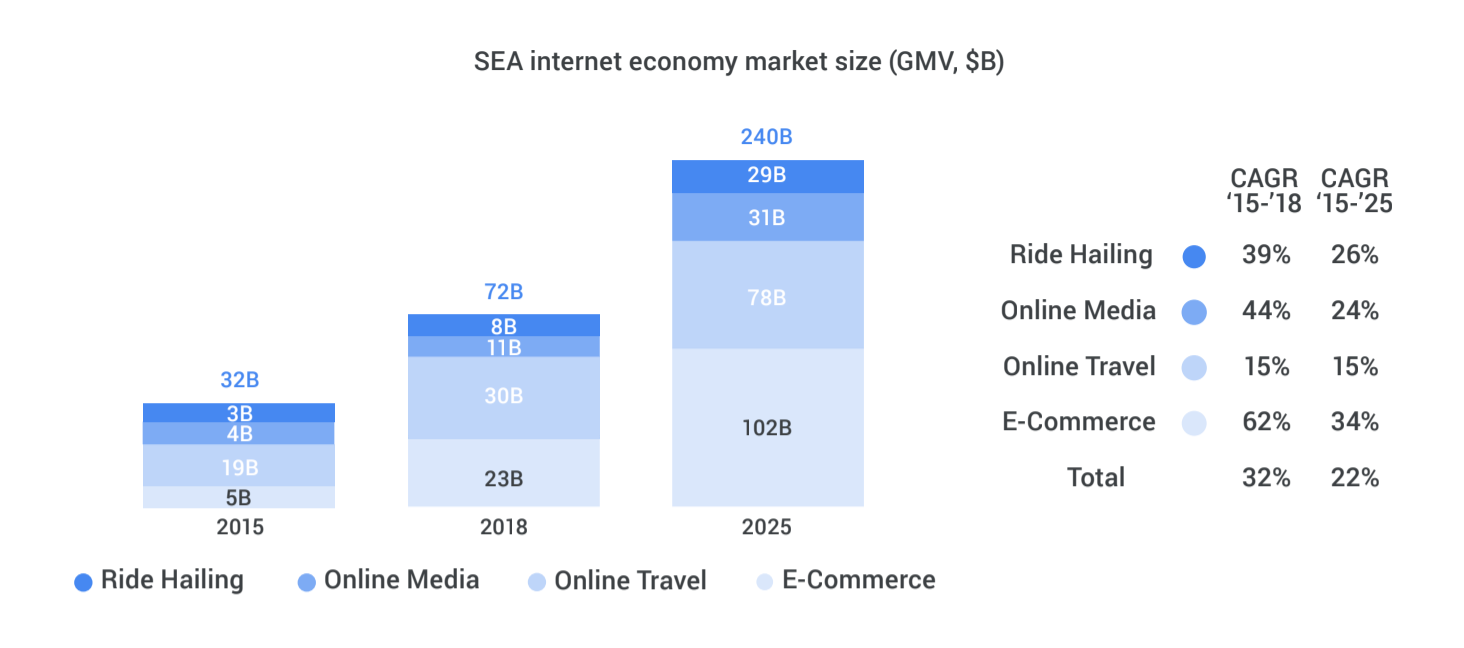
Executives at the fund are bullish on Southeast Asia, which is forecast to see strong growth economic growth thanks to increased internet access and digital spending. A much-cited report from Google and Temasek issued last year predicts that the region’s ‘digital economy’ will triple to reach $240 billion from 2025.

A 2018 report from Temasek and Google predicts significant growth in Southeast Asia’s digital economy

Other major VC funds in Southeast Asia include Vertex Ventures ($210 million fund), Golden Gate Ventures — $100 million and a $200 million growth fund — Openspace Ventures ($135 million), and EV’s $150 million growth fund.

There’s also B Capital from Facebook co-founder Eduardo Saverin which recently passed $400 million for the first close of its second fund, although that doesn’t invest exclusively in Southeast Asia, and Sequoia which has a $695 million fund for India and Southeast Asia. Other global names that you might see cutting deals in the region include Burda, which has a local presence and starts at Series B, TPG Global and KKR.


Read Full Article

Twitter announces new content deals with Univision, The Wall Street Journal and others


Twitter is unveiling a number of new content deals and renewals tonight at its NewFronts event for digital advertisers.

It’s only been two years since Twitter first joined the NewFronts. At the time, coverage suggested that executives saw the company’s video strategy as a crucial part of turning things around, but since then, the spotlight has moved on to other things (like rethinking the fundamental social dynamics of the service).

And yet the company is still making video deals, with 13 of them being unveiled tonight. That’s a lot of announcements, though considerably less than the 30 revealed at last year’s event. The company notes that it has already announced a number of partnerships this year, including one with the NBA.

“When you collaborate with the top publishers in the world, you can develop incredibly innovative ways to elevate premium content and bring new dimensions to the conversations that are already happening on Twitter,” said Twitter Global VP and Head of Content Partnerships Kay Madati in a statement. “Together with our partners, we developed this new slate of programming specifically for our audiences, and designed the content to fuel even more robust conversation on Twitter.”

Here’s a quick rundown of all the news:

  • A partnership with Univision covering Spanish-language sports, news and entertainment content, including 2020 election analysis and reporting.
  • A multi-year extension of Twitter’s deal with the NFL, which includes highlights and analysis.
  • The Players’ Tribune and Twitter are announcing a live talk show called “Don’t @ Me,” where two athletes with debate topics chosen in part by Twitter users.
  • A multi-year extension of Twitter’s deal with Major League Soccer.
  • Continued programming from ESPN, including new ESPN Onsite branding to highlight shows filmed on location at big events.
  • Bleacher Report is bringing “House of Highlights” back for a second season.
  • Blizzard Entertainment will be sharing content from BlizzCon in November, including the entire opening ceremony.
  • The Wall Street Journal is launching WSJ What’s Now, an original video show for Twitter. The deal will also include live-streamed content from Wall Street Journal events.
  • Bloomberg’s TicToc will expand its coverage to include events like the G20 Summit, United Nations General Assembly and World Economic Forum.
  • CNET is announcing a new partnership with Twitter, which will cover major tech industry events.
  • Time is developing new video content for Twitter around the Time Person of the Year and Time 100.
  • Live Nation is bringing a new concert series exclusively to Twitter this fall, with 10 concerts in 10 weeks.
  • At the Video Music Awards, Viacom-owned MTV will offer a Stan Cam where fans can share their own live-streamed reactions to the show. Viacom will also be live-streaming red carpet coverage from its other events.

Read Full Article

Amazon is testing a Spanish-language Alexa experience in the US ahead of a launch this year


Amazon announced today it has begun to ask customers to participate in a preview program that will help the company build a Spanish-language Alexa experience for U.S. users. The program, which is currently invite-only, will allow Amazon to incorporate into the U.S. Spanish-language experience a better understanding of things like word choice and local humor, as it has done with prior language launches in other regions. In addition, developers have been invited to begin building Spanish-language skills, also starting today, using the Alexa Skills Kit.

The latter was announced on the Alexa blog, noting that any skills created now will be made available to the customers in the preview program for the time being. They’ll then roll out to all customers when Alexa launches in the U.S. with Spanish-language support later this year.

Manufacturers who want to build “Alexa Built-in” products for Spanish-speaking customers can also now request early access to a related Alexa Voice Services (AVS) developer preview. Amazon says that Bose, Facebook and Sony are preparing to do so, while smart home device makers, including Philips, TP Link and Honeywell Home, will bring to U.S. users “Works with Alexa” devices that support Spanish.

Ahead of today, Alexa had supported Spanish language skills, but only in Spain and Mexico — not in the U.S. Those developers can opt to extend their existing skills to U.S. customers, Amazon says.

In addition to Spanish, developers have also been able to create skills in English in the U.S., U.K., Canada, Australia, and India; as well as in German, Japanese, French (in France and in Canada), and Portuguese (in Brazil). But on the language front, Google has had a decided advantage thanks to its work with Google Voice Search and Google Translate over the years.

Last summer, Google Home rolled out support for Spanish, in addition to launching the device in Spain and Mexico.

Amazon also trails Apple in terms of support for Spanish in the U.S., as Apple added support for Spanish to the HomePod in the U.S., Spain and Mexico in September 2018.

Spanish is a widely spoken language in the U.S. According to a 2015 report by Instituto Cervantes, the United States has the second highest concentration of Spanish speakers in the world, following Mexico. At the time of the report, there were 53 million people who spoke Spanish in the U.S. — a figure that included 41 million native Spanish speakers, and approximately 11.6 million bilingual Spanish speakers.


Read Full Article

Alphabet cites ‘headwinds’ in smartphone sales, teases I/O hardware announcement


Alphabet’s Q1 earnings were a disappointment for Wall Street, courtesy primarily of ad revenue shortcomings. The hardware team met with some difficulties, as well, owing in part to a stagnating global smartphone market that has impacted virtually all players.

CEO Sundar Pichai cited “year over year headwinds” when referring to the company’s smartphone line, following the release of the Pixel 3 and Pixel 3 XL last fall. The executive rightly referenced the company’s relatively recent entry as a standalone hardware developer and painted a hopeful picture of the industry’s innovations going forward.

“I do continue to be excited to see 5G coming and the early foldable phones, which Android plays a big part in driving,” Pichai said on the call. Google has notably taken an important role developing an Android UI designed for the foldable form factor, along with working closely beside Samsung on its recently delayed foldable.

CFO Ruth Porat echoed Pichai’s comments, while hinting at what’s to come from the company. “While the first quarter results reflect pressure in the premium smartphone industry,” the exec explained, “we are pleased with the ongoing momentum of Assistant-enabled Home devices, particularly the Home Hub and Mini devices and look forward to our May 7 announcement at I/O from our hardware team.”

The reference to “premium smartphone[s]” looks to be a roundabout confirmation of the rumored Pixel 3a. The mid-tier take on the Pixel line is rumored to be a rare I/O hardware debut, coming next month. The arrival of such a device could go a ways toward helping jumpstart slowing sales for the line.

Pichai referenced the company’s newly opened “campus and engineering hub.” A result of the company’s massive deal with struggling handset maker, HTC, the Taipei R&D center will be primarily focused on Google’s smartphone offerings. He also referenced the company’s Amazon-competing Home line as a bright spot for its hardware offerings, particularly the Mini and Hub.

“If you take products like Google Home and Assistant products, we’ve been doing really well,” said Pichai. “We see strong momentum. We’re market leaders in the category, especially when you look at it on a global basis.”


Read Full Article

Alphabet cites ‘headwinds’ in smartphone sales, teases I/O hardware announcement


Alphabet’s Q1 earnings were a disappointment for Wall Street, courtesy primarily of ad revenue shortcomings. The hardware team met with some difficulties, as well, owing in part to a stagnating global smartphone market that has impacted virtually all players.

CEO Sundar Pichai cited “year over year headwinds” when referring to the company’s smartphone line, following the release of the Pixel 3 and Pixel 3 XL last fall. The executive rightly referenced the company’s relatively recent entry as a standalone hardware developer and painted a hopeful picture of the industry’s innovations going forward.

“I do continue to be excited to see 5G coming and the early foldable phones, which Android plays a big part in driving,” Pichai said on the call. Google has notably taken an important role developing an Android UI designed for the foldable form factor, along with working closely beside Samsung on its recently delayed foldable.

CFO Ruth Porat echoed Pichai’s comments, while hinting at what’s to come from the company. “While the first quarter results reflect pressure in the premium smartphone industry,” the exec explained, “we are pleased with the ongoing momentum of Assistant-enabled Home devices, particularly the Home Hub and Mini devices and look forward to our May 7 announcement at I/O from our hardware team.”

The reference to “premium smartphone[s]” looks to be a roundabout confirmation of the rumored Pixel 3a. The mid-tier take on the Pixel line is rumored to be a rare I/O hardware debut, coming next month. The arrival of such a device could go a ways toward helping jumpstart slowing sales for the line.

Pichai referenced the company’s newly opened “campus and engineering hub.” A result of the company’s massive deal with struggling handset maker, HTC, the Taipei R&D center will be primarily focused on Google’s smartphone offerings. He also referenced the company’s Amazon-competing Home line as a bright spot for its hardware offerings, particularly the Mini and Hub.

“If you take products like Google Home and Assistant products, we’ve been doing really well,” said Pichai. “We see strong momentum. We’re market leaders in the category, especially when you look at it on a global basis.”


Read Full Article

Sinden is Bringing Light Gun Games Back to Modern TVs


Do you look back fondly at games like Duck Hunt, Lethal Enforcers, House of the Dead, Virtua Cop, and other light gun games for classic systems? Unfortunately, while there are plenty of ways to go back and play retro games on devices like a Raspberry Pi, there’s no way to go back and play light gun games on modern TVs, as they require tube TVs in order to function.

However, Sinden Technology is looking to bring light gun gaming to the 21st century with a new piece of technology that promises to make the games work on modern displays. Not only does it allow retro games to work, but it even promises to add some new technology that’ll make the experience even better than it was back in the day.

The Sinden Lightgun

Currently, the folks at Sinden have a working prototype for its light gun, which means backers of the Kickstarter will actually be able to get their hands on one fairly soon and start playing games.

However, according to the creator, the actual light gun is “the first part of a larger ambitious project which is to restore the Lightgun genre by removing the technological blockers.” Not only is it a new piece of hardware, but it’s also a completely new technology.

The gun promises to interact directly with the TV without any additional hardware (like the Wii, which requires a sensor bar). It promises to remain accurate even as you move around the room thanks to a new form of tracking.

The prototype is 3D printed and features a high-speed camera, a CPU, USB interface, a trigger, four assignable action buttons, and a pump action reload feature. The final design will have an additional four assignable buttons, bringing the total to eight.

At this time, there are drivers for Windows and Linux (which includes the Raspberry Pi for any Retro Pi users out there). The creator is working on other OSes, but time will tell whether those come to fruition.

For the time being, the device will be used to play retro light gun games, but the creator says his “long term goal is to bring back the Lightgun to the masses and get brand new Lightgun games made.”

Sinden Lightgun Price and Availability

Right now, backers of the project can get a light gun for about $103 (£80). If you want to get one with the additional recoil feature, the price is around $168 (£130). The creator plans to ship the light guns in October 2019.

If you love retro games, check out this list of crazy valuable games for the NES.

Read the full article: Sinden is Bringing Light Gun Games Back to Modern TVs


Read Full Article

Spotify Now Has 100 Million Paid Subscribers


Spotify now boasts 100 million paid subscribers. This makes Spotify the first music streaming service to hit the milestone. It also means Spotify retains its crown as the biggest streaming music service in the world, despite competition from Apple Music.

A Brief History of Spotify

Spotify first launched in 2008, making its debut in its native Sweden. It then launched in the UK and across Europe, before crossing the pond to the US in 2011. Spotify offers both free and paid tiers, with the free tier supported by advertising.

Artists have a love/hate relationship with Spotify. On the one hand, Spotify has helped stop people from pirating music. However, there have been complaints about the amount of money the company pays artists, leading to Taylor Swift publicly dissing Spotify.

None of which has prevented Spotify from growing year on year.

Spotify Boasts More Users Than Ever

Spotify recently reported its earnings for Q1 2019, and it’s a mixed bag of good, bad, and ugly results. However, the headline is that Spotify now boasts 100 million paid subscribers, which represents a year-on-year increase of 32 percent.

This number is dwarfed by the 217 monthly active users (MAUs) Spotify now boasts. Which means well over half of the people using Spotify are opting to make use of the free tier rather than pay up. The number of MAUs is up 26 percent on the same time last year.

Despite this positive growth in both the number of monthly active users and paid subscribers, Spotify is still losing money. For the quarter covering January to March 2019, Spotify posted a loss of $158.3 million, slightly down on last year.

As a comparison, Apple Music has around 50 million paid subscribers, and no free tier. However, Apple Music only arrived on the scene in 2015, so the company has gained ground on the market leader in an impressively short space of time.

Spotify Has Big Plans for the Future

Spotify has big plans for the future. For starters, it’s busy acquiring companies specializing in podcasts, including Gimlet, Anchor, and Parcast. Podcasting is really hitting its stride as a medium, and Spotify is right to be investing heavily.

The company is also continuing to push into new territories. In February 2019, Spotify launched in India with a ridiculously cheap plan. And the company is now boasting it has picked up more then 2 million users since launch. And that’s sure to increase.

Image Credit: Sunil Soundarapandian/Flickr

Read the full article: Spotify Now Has 100 Million Paid Subscribers


Read Full Article

What Is Static Electricity? And How to Get Rid of It

10 Awesome Cross-Platform Mobile Multiplayer Games to Play With Friends


cross-platform-games

If you and your friends can’t agree on whether Android or iOS is better for mobile gaming, don’t worry, as there’s no need to choose between them. That’s because these games can be played on both iOS and Android.

OK, so your one friend still using Windows Phone might feel left out, but these awesome cross-platform mobile multiplayer games deserve a place on your smartphone, no matter what operating system you use.

1. Spaceteam

Spaceteam is the one game on this list that requires all your friends to be in the same physical space.

In Spaceteam, you and your friends are the crew of a spaceship and everything’s going wrong. To stay on course, you’ll need to work together by shouting different made-up space commands to each other. The speed and the chaos ramp up and up, until you all inevitably crash and die, only to be awarded medals posthumously. But it was fun while it lasted.

Download: Spaceteam for iOS | Android (Free, in-app purchases available)

2. Words With Friends 2

The sequel to the acclaimed Words With Friends is more like an update.

Of course, there’s the regular Words With Friends experience that you’re used to, where you and a friend or online stranger take turns trying to rack up points on a board by spelling out words Scrabble-style.

However, while Words With Friends 2 keeps everything you loved about the first version, it adds a few new modes for a different sort of challenge.

Lightning Round pits two teams of five against each other to see who can come up with a certain score in the fastest amount of time. Solo Challenge lets you play against challenging bots to win a virtual prize. Finally, Words With Friends Live drops in with HQ Trivia-style questions during your game, every day at a certain time.

Download: Words With Friends 2 for iOS | Android (Free, in-app purchases available)

3. Vainglory

A MOBA (Multiplayer Online Battle Arena) similar to League of Legends, Vainglory lets you team up in 5v5 or 3v3 modes against other players or bots.

Choose from one of over 40 heroes and go head to head against another team to destroy their Vain crystal before they destroy yours. Travel through the jungle destroying enemy turrets and minions, using your special powers and working together as a team.

Download: Vainglory for iOS | Android (Free, in-app purchases available)

4. Ticket to Ride

The award-winning board game now fits in your pocket.

Ticket to Ride makes you and your friends railroad barons, competing to be the first ones to link up the country by train. The graphics stay true to the original board game, down to the virtual train cards you draw and put in your hand.

You can play in Pass-And-Play mode, which lets you take your turn and pass it to your friends in front of you. You can also play in local, online or solo modes. Each game takes 15-20 minutes to complete, making it perfect for passing the time on a real-life train trip.

Download: Ticket to Ride for iOS | Android ($4.99, in-app purchases available)

5. Minecraft

Originally referred to as the Pocket Edition, the mobile version of the best-selling game is almost identical to the PC version. The only major differences being that you can’t connect third-party mods or use third-party servers. Also, typically, any update that comes out for Minecraft won’t come out for the mobile versions until later date.

That being said, the mobile version is a wonderful way to experience Minecraft on the go.

Playing Minecraft alone, however, is no fun. No matter the platform, Minecraft was made for socializing, and its cross-compatibility lets you play with your friends.

Download: Minecraft for iOS | Android ($6.99, in-app purchases available)

6. Hearthstone

Real-life trading card games are fun, but online trading card games let you do things like summon demons and blow up your booster packs.

Hearthstone, developed by Blizzard and set in the world of Warcraft, is a strategy game that lets you collect cards, build decks, and duel your friends. It’s free to play, but you can always buy new card parks to give yourself that extra edge.

With periodic expansions, tournaments and challenges, there’s always a reason to get back into Hearthstone. Play your friends in the Arena or battle strangers to increase your Rank.

And if you’re struggling to win, check out our complete guide to Hearthstone.

Download: Hearthstone for iOS | Android (Free, in-app purchases available)

7. Pokémon Go

When it debuted, Pokémon Go smashed the glass ceiling for AR (Augmented Reality) gaming, bringing pocket monsters into the real world. You and your friends can take your phones, no matter the platform, and go out into the world and explore.

Download: Pokémon Go for iOS | Android (Free, in-app purchases available)

8. Fortnite

The world’s most popular battle royale game is available on pretty much any platform you can think of, including iOS and Android. While playing on your smartphone might not sound great, Fortnite on mobile is well worth playing.

First of all, unlike PlayStation 4, XBox One or Nintendo Switch, whose online platforms require a subscription, playing Fortnite on your phone is free.

Secondly, the mobile version has some features that make moving around a little easier. You can automatically pick up whatever you walk over and open doors that are in front of you.

And finally, now that you can play anywhere, you can dab on the bus.

Download: Fortnite for iOS | Android (Free, in-app purchases available)

9. Super Stickman Golf 3

Get in a quick nine holes before lunch with this simple-but-fun golfing game.

While Single Player mode is fun on its own, Stickman Golf offers two different multiplayer modes. You can either compete to see how fast you can play each hole in Race Mode, or take turns in the Turn Based mode. Also, you can play locally or online.

Download: Super Stickman Golf 3 for iOS | Android (Free, in-app purchases available)

10. Letterpress

Letterpress is similar to Words With Friends, but with a much simpler premise and a beautiful aesthetic. You play one opponent, and your goal is to cover the entire tile board in your color (which is always blue). On each turn you spell out a word, and every letter you take turns your color. Your opponent can do the same, and can even take tiles back.

You can “protect” tiles by surrounding them with tiles of your color, and you and your opponent go back and forth until one of you has conquered the entire board.

The premise is simple, but the strategy involved makes Letterpress a fun, challenging game that’s perfect for playing on mobile, whatever your platform.

Download: Letterpress for iOS | Android (Free, in-app purchases available)

Give Yourself the Best Chance of Beating Your Friends

So there we have it, a selection of the best cross-platform multiplayer games to play on your mobile devices. We can’t guarantee you’ll be any good at these games, but we can guarantee you’ll have fun playing them.

Is one of your friends always beating you? Maybe they’re playing on an iPad Pro while you’re stuck using an old Android phone. In which case you should read our guide to the best device for mobile gaming.

Read the full article: 10 Awesome Cross-Platform Mobile Multiplayer Games to Play With Friends


Read Full Article

8 Tips for Fixing Remote Desktop Connection and Screen Issues


remote-desktop-screen

The phone rings. You pick it up. It’s Aunty Ethel again. “Just nip around again, young Gavin, the computer is doing that Thing.” Cursing, you look to the sky, wondering if there is an easier way to help. Other than bumping your poor Aunt off. Eureka! You can use a remote desktop connection to fix the computer from the comfort of your own chair.

Remote desktop connections don’t always work how you want. Here are several tips on fixing remote desktop issues so you can continue your role as the family system admin, no matter where you are.

1. You Can’t Connect to the Remote Computer

The inability to connect to the remote computer is a common problem.

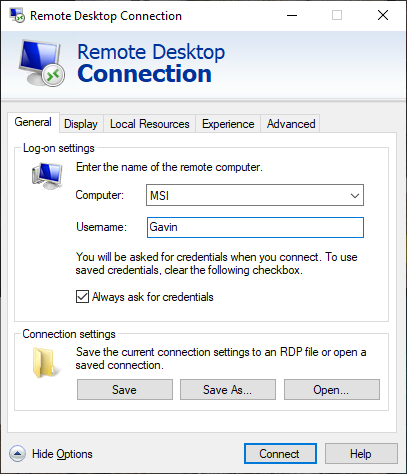
First, check your network settings. Do both computers have a network connection? It is always the easiest connection issues that sneak under the radar! If both computers have a network connection, you can move on. The Windows Remote Desktop Connection requires either an IP address or a name for the console you are attempting to view.

remote desktop connection user name

Make sure you have the correct IP address for the remote computer. On the remote computer, you can browse to whatismyip and copy down the address. If you are not with the remote computer, you must ask someone at the location to do this for you, then send you the IP address.

Similarly, to find out the computer name of the remote device, head to Start Menu > Control Panel > System, and view the computer name and workgroup.

2. Remote Connections Not Allowed

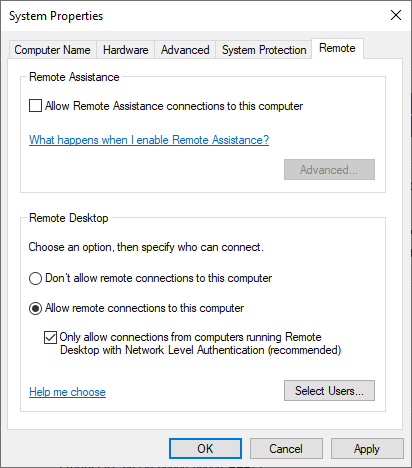
You might find that remote connections are disabled on the terminal you are trying to reach. You can alter this setting on the same System page as above. To the right of the computer name and workgroup, select Change Settings to open the System Properties menu. Select the Remote tab.

remote desktop connection properties allow connection

Windows 10 offers the same Remote Desktop Connection options as older Windows versions. Under Remote Desktop, there are two options:

  • Allow remote connections to this computer
  • Allow connections only from computers running Remote Desktop with Network Level Authentication (recommended)

Once you allow remote connections, you also have the option of only accepting remote connections using Network Level Authentication. Network Level Authentication is “an authentication method that completes user authentication before you establish a full Remote Desktop connection and the logon screen appears.”

It provides an additional layer of security from malicious software and users while using fewer resources in the process.

However, if you struggle to create a remote desktop connection after switching Network Level Authentication on, try turning it off.

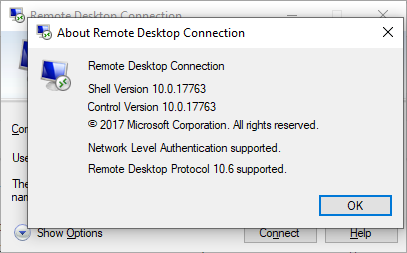
You can check if your version of Remote Desktop supports Network Level Authentication by clicking the top-left of the dialog box, as seen below, and select About.

remote desktop connection show version

3. Remote Desktop Connection for Windows 10 Home Using RDP Wrapper Library

Windows 10 Home users struggle with Remote Desktop. Why? Because Windows 10 Home doesn’t support incoming connections. At least, not natively. Windows 10 Home users can make an outgoing Remote Desktop connection to a different computer (not running Windows 10 Home!), but not vice versa. Thankfully, there’s a simple, software-based fix that works around the issue: the RDP Wrapper Library.

(Alternatively, check out the 7 best screen sharing and remote desktop tools!)

The RDP Wrapper Library uses the existing Windows Terminal Service and adds new Windows Firewall rules to allow a remote desktop connection. The RDP Wrapper Library also provides an interface to manage remote desktop connections through (as Windows 10 Home doesn’t have an integrated solution.

Here’s how you allow remote desktop connections on Windows 10 Home using RDP Wrapper Library:

  1. Head to the RDP Wrapper Library GitHub Releases page.
  2. Download the RDPWInst.zip file. After downloading, right-click the file and extract the archive to a new folder. For instance, using 7-Zip, I would select 7-Zip > Extract to RDPWrap-v1.6.2.
  3. Open the new folder, then run bat.
  4. After installation, run bat.
  5. Now, run exe to make sure the process is working.
  6. You can use exe to manage advanced configuration settings.

Confused? Check out the following video. It will guide you through the tricky bits of the installation, as well as how to set up your Windows 10 Home RDP Wrapper Library remote connection.

4. You Can’t Copy Text From the Remote Computer

You can use Remote Desktop Connection to copy text from one terminal to your own. If the copy text feature isn’t working, you need to enable the Clipboard redirect function so you can use it on the remote computer.

Open the Remote Desktop Connection dialog box by typing “remote” in your Start menu search bar, then selecting the best match. Select Show Options. Head to the Local Resources tab. Under Local devices and resources, put a check in the Clipboard box. The option should be turned on by default.

5. The Remote Window Isn’t the Correct Size

Incorrect window size is another common Remote Desktop Connection issue. When you create the remote desktop connection, the window is too large, too small, or doesn’t correlate to the settings you input.

You have two potential fixes here.

First, you can force the Remote Desktop connection to use a specific size via the Run function. Hit Windows key + R, then input:

mstsc.exe /h:X /w:X

Where “X” is the height and width of the Remote Desktop viewing window you desire. Remote Desktop will remember your settings for future remote viewing settings.

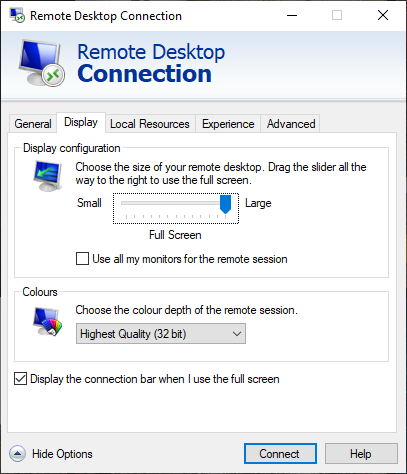
The Remote Desktop Connection client has a handy screen resolution slider that scrolls from 640×480 up to Full Screen for your screen. Make sure to set the slider to Full Screen if you want a full-screen remote connection for each connection.

remote desktop connection adjust screen size

6. Delete Your Credentials to Reset Remote Desktop Connection Login

At times, Windows Remote Desktop Connection finds your login details confusing. There is also the chance the login details for your system or the remote system are different from your last remote connection. You can remove and replace your existing credentials to try and fix the issue.

In the Remote Desktop Connection client, head to the Advanced tab. Select Settings, then make sure Automatically detect RD Gateway server settings is selected.

7. How to Save Your Remote Desktop Connection Custom Settings

If you regularly connect to several different servers or clients, saving a custom configuration for each Remote Desktop will save time in the future. You can set the optimum width, height, and color settings for each server or terminal.

Open the Remote Desktop Connection dialog, then select Show Options. You will now see the Connection settings options. Select Save As, specify your save location, then select Save to create a custom Remote Desktop Connection file (.RDP).

Now, browse to the Remote Desktop Connection configuration file. You can edit the configuration file using a text editor, such as Notepad or Notepad++. Right-click the configuration file and select Open with…, then select your text editor.

remote desktop connection custom configuration notepad++

The first four lines show your remote connection screen size options (plus whether multi-monitor mode is available). You can edit the screen mode to set whether the remote window session appears full screen. For instance, “id:i:2” sets full screen, whereas “id:i:1” sets the remote connection to appear in a window.

If you set the screen mode to “2” for full screen, the desktopwidth and desktopheight automatically match the screen size of the host client. However, if you are using screen mode “1,” you can use the desktopwidth and desktopheight settings to set a specific window size.

After you confirm your settings, add the following string to the end of the file:

smart sizing:i:1

Smart sizing allows you to dynamically alter your screen settings without messing around with configuration files while the Remote Desktop connection is active. However, you must add the string for each custom configuration you create.

If you want to customize your remote desktop configuration file further, check out Donkz Remote Desktop file setting overview.

8. Handy Remote Desktop Connection Shortcuts

You can boost your Remote Desktop Connection productivity using a handful of keyboard shortcuts. These shortcuts are designed to work when you access Remote Desktop using the Run dialog.

  • Start Remote Desktop in full-screen mode: mstsc /f
  • Start Remote Desktop in Admin Mode: mstsc /admin
  • Matches your Remote Desktop session with the local virtual desktop: mstsc /span
  • Matches your Remote Desktop session to the Client Layout: mstsc /multimon
  • Open the .RDP file for editing—change “connection file” to your file name before running the command: mstsc /edit “connection file”

You can use the following Remote Desktop shortcuts once your Remote Desktop connection is live:

  • Switches your Remote Desktop client between full-screen and windowed mode: Ctrl + Alt + Pause
  • Force the Remote Desktop into full-screen mode: Ctrl + Alt + Break
  • Takes a screenshot of the active Remote Desktop window: Ctrl + Alt + Minus
  • Takes a screenshot of the entire Remote Desktop: Ctrl + Alt + Plus
  • Reboots the remote computer: Ctrl + Alt + End

Resolving Remote Desktop Connection Issues for Windows 10

You can now connect to dear Aunty Ethel’s computer from the comfort of your own home. You are saving yourself time and effort, while hopefully lining you up for another sensational hand-knitted jumper.

Of course, remote connections are not always from a Windows computer to another Windows computer. Here is how you establish remote desktop access to Ubuntu from Windows, and here’s how to access Windows directly from your Mac.

Read the full article: 8 Tips for Fixing Remote Desktop Connection and Screen Issues


Read Full Article

Which Browser Is Most Secure on Your Old Windows XP System?


tweak-windows-xp

A small percentage of people still use Windows XP, even though support for it ended all the way back in 2014. While you should make every effort to jump from this ancient Windows version as soon as you can, you might wonder which web browsers for Windows XP still work.

Even when Microsoft stopped supporting Windows XP, most popular software continued to support it for some time. That’s no longer the case, as few modern browsers for Windows XP exist now. Let’s take a look at every major web browser to see what the best browser for Windows XP users is.

Stop Using Internet Explorer

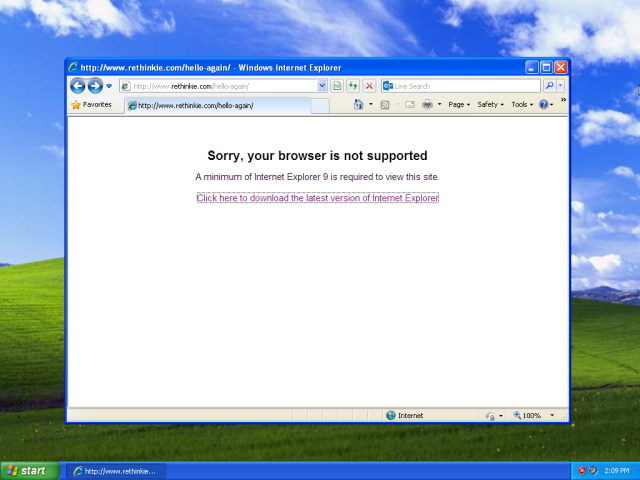
internet explorer 8 not supported on Windows XP

The most recent version of Internet Explorer available on Windows XP is Internet Explorer 8. IE 8 is wildly outdated, and Microsoft hasn’t supported it since the end of Windows XP’s life.

Not only is IE 8 already an outdated browser without modern features and performance, but it hasn’t received any security patches since April 2014 either. Even if you have to use Windows XP for some reason, you shouldn’t use Internet Explorer anymore.

All sorts of modern websites will let you know that they won’t work properly or at all with IE 8. And of course, Microsoft wants you to upgrade to Windows 10 and use Microsoft Edge.

You should also avoid browsers that use Internet Explorer’s rendering engine. For example, old versions of Maxthon and Avant Browser act as shells around Internet Explorer. They provide a different interface but are vulnerable to the same security bugs as Internet Explorer.

Don’t Use Google Chrome Either

Google Chrome on Windows XP Not Supported

While Chrome supported Windows XP past April 2014, its time has passed as well. In November 2015, Google announced that it would drop support for Windows XP in April 2016. The latest version of Google Chrome that runs on Windows XP is 49. For comparison, the current version for Windows 10 at the time of writing is 73.

Of course, this last version of Chrome will still continue to work. You can’t use any of the newest features of Chrome, however. More importantly, this outdated copy of Chrome won’t receive security updates.

Chrome 49 from April 2016 is better than IE 8 from 2014, but it’s still not safe to use. It’s only a matter of time before attackers blow a huge hole into this version, and Google won’t fix it.

Firefox Is Insecure as of June 2018

Firefox Windows XP Unsupported

The situation with Firefox is a bit better than Chrome’s, but Firefox’s time on Windows XP has reached its end too. In October 2017, Mozilla announced an end of life date for Firefox on Windows XP of June 2018.

Firefox users on Windows XP got automatically upgraded to the extended support release (ESR) version. This is a slower-moving branch of Firefox that waits longer to add new features than the normal branch.

Thus, Firefox 52.9.0esr is the final edition of Firefox to hit Windows XP. It won’t see any future updates, including security patches. Again, using an XP browser that was last updated in June 2018 is better than one last patched in April 2016, but both are insecure.

What About Opera?

While Opera doesn’t enjoy as big of a market share as Chrome or Firefox, it provides a great alternative to Chrome. It’s available on Windows XP, but is it still supported?

The latest update from the Opera team came in August 2016. This confirms that Opera 36 is the final version of the browser available for Windows XP (the current version is 58 as of this writing). Since Opera is now based on Chrome, Opera 36 conforms to Chrome 49.

A few years ago, Opera claimed that it would still update XP users with security patches. The announcement explained that the team added the security patches from Opera 37 back into Opera 36. However, years later, there’s no further information confirming that this is still the case.

Because of this, we recommend that you avoid Opera as well. Its latest version is years old and there’s no sign that it still gets security patches. It is the only major browser that doesn’t show an error message when you check for updates, though.

Either way, you won’t be able to enjoy the coolest Opera features on Windows XP.

Other Notable Windows XP Browsers

We’ve covered the major browsers, but what about lesser-known options that might support Windows XP?

Though it might seem obvious, for completion we should mention two silly-sounding choices. First, though Safari was once available for Windows, Apple discontinued it long ago. If you still somehow have Safari installed on Windows XP, you shouldn’t use it as it’s extremely outdated and insecure.

Second, Microsoft’s replacement for Internet Explorer, Microsoft Edge, is only available on Windows 10. There’s no way to try Edge on Windows XP.

Most alternative browsers have dropped support for Windows XP as well. Pale Moon, a Firefox fork, doesn’t support XP on its latest version. Slimjet, a lesser-known but speedy browser, currently offers version 22 for modern platforms but only supports version 10 for XP users. Vivaldi‘s latest version does not support Windows XP, either.

Maxthon is one other browser for Windows XP that enjoyed support for some time. However, it’s also left XP users behind. The last version of Maxthon to work on Windows XP is 5.1.2, released in September 2017. The current version is 5.2.7.

Maxthon Windows XP

While you might not be familiar with this Chinese browser, it packs a lot of handy features like a night mode, built-in screenshot tool, and a notebook. However, it’s still unsupported for Windows XP users.

You might find other fringe browsers that still support Windows XP. However, you should avoid them. Little-known browsers with small teams behind them offer less guarantee of security or quality, and it’s nearly impossible to call a browser on an ancient operating system truly secure anyway.

But I Need Internet Explorer!

Some people still need an old version of Internet Explorer to connect to certain websites. For example, you might use an internal business website that requires an outdated version of IE. If you must use Internet Explorer for some tasks, don’t use it for everything—open it only to use that specific website and use another browser most of the time.

You can also install the IE Tab Chrome extension, which lets you render pages using IE inside Chrome. Configure IE Tab to always load that old website in an Internet Explorer frame inside your browser and you won’t have to worry about opening and closing IE. However, this tool is not free and still requires using the outdated version of Chrome for Windows XP.

You could also try changing your user agent to trick a site into thinking that you’re using IE. However, this won’t work for sites that actually require you to use Internet Explorer.

What Is the Best Browser for Windows XP?

Unfortunately, the Windows XP browser scene is essentially dead. You have no real options:

  1. Internet Explorer is completely dead and you should avoid it at all costs.
  2. Chrome’s latest browser for Windows XP is from April 2016, so you shouldn’t use that either.
  3. Firefox dropped support for Windows XP in June 2018.
  4. Opera has been silent about supposed XP security patch support and hasn’t updated its browser for years.
  5. Maxthon hasn’t received an update for Windows XP since September 2017.

If you really have to use Windows XP, Firefox is the most secure XP browser since it was updated most recently. However, this doesn’t mean it’s a good option. You are not safe running Windows XP because the OS hasn’t received security patches for over five years. Make every effort to upgrade to a modern operating system as soon as you can.

Decided to finally upgrade from XP? Check out the best ways to use your old Windows XP computer and how to revive Windows XP on Windows 10.

Read the full article: Which Browser Is Most Secure on Your Old Windows XP System?


Read Full Article

What to Do When Your Instagram Account Has Been Hacked

Alphabet misses on Q1 revenues of $36.3B; EPS of $9.50 weighed down by the $1.7B European fine


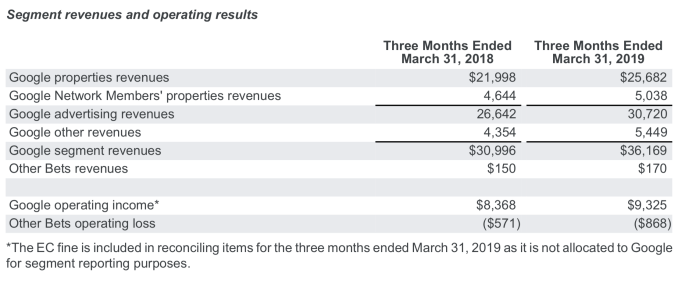
After warning investors that it would be taking a $1.7 billion (€1.5 billion) charge this quarter due to a fine from the European Commission over anticompetitive advertising practices, today Google parent Alphabet reported its quarterly earnings for Q1. Overall it’s a tough quarter for the company that speaks to struggles with its growth. Alphabet reported revenues of $36.3 billion, with diluted earnings per share of $9.50.

Analysts were expecting Alphabet to report GAAP earnings of $10.17 per share, with adjusted EPS expected to be $13.10, on overall revenues of $37.34, according to estimates from Yahoo Finance.

The company’s stock is down by some 4.5 percent in after-hours trading at the moment.

“We delivered robust growth led by mobile search, YouTube, and Cloud with Alphabet revenues of $36.3 billion, up 17% versus last year, or 19% on a constant currency basis,” said Ruth Porat, Chief Financial Officer of Alphabet and Google, in a statement. “We remain focused on, and excited by, the significant growth opportunities across our businesses.”

Google had said that the EU fine is not tax deductible and will result in a direct reduction of its GAAP operating income, GAAP net income and GAAP EPS, so the EPS weight was not a big surprise. But the sales revenue, based primarily on advertising, was also not great: the figure grew 17 percent, compared to a year ago, when it was growing at 26 percent. (Both figures are on straight numbers; on a constant currency basis they are only slightly better for this latest quarter, at 19 percent.)

For some context, in the previous quarter, Alphabet reported that revenues were up 22 percent at $39.3 billion, with an EPS of $12.77. Its stock still dropped after hours

Advertising represented the bulk of Google’s revenues at $30.7 billion, while its “other bets” — projects in newer technologies and moonshots like its Waymo self-driving unit and the Project Loon internet balloons — is still a massively loss-making effort, pulling in an operating loss of $868 million on revenues of only $170 million.

More to come.


Read Full Article

Why did last night’s ‘Game of Thrones’ look so bad? Here comes the science!


Last night’s episode of “Game of Thrones” was a wild ride and inarguably one of an epic show’s more epic moments — if you could see it through the dark and the blotchy video. It turns out even one of the most expensive and meticulously produced shows in history can fall prey to the scourge of low quality streaming and bad TV settings.

The good news is this episode is going to look amazing on Blu-ray or potentially in future, better streams and downloads. The bad news is that millions of people already had to see it in a way its creators surely lament. You deserve to know why this was the case. I’ll be simplifying a bit here because this topic is immensely complex, but here’s what you should know.

(By the way, I can’t entirely avoid spoilers, but I’ll try to stay away from anything significant in words or images.)

It was clear from the opening shots in last night’s episode, “The Longest Night,” that this was going to be a dark one. The army of the dead faces off against the allied living forces in the darkness, made darker by a bespoke storm brought in by, shall we say, a Mr. N.K., to further demoralize the good guys.

If you squint you can just make out the largest army ever assembled

Thematically and cinematographically, setting this chaotic, sprawling battle at night is a powerful creative choice and a valid one, and I don’t question the showrunners, director, and so on for it. But technically speaking, setting this battle at night, and in fog, is just about the absolute worst case scenario for the medium this show is native to: streaming home video. Here’s why.

Compression factor

Video has to be compressed in order to be sent efficiently over the internet, and although we’ve made enormous strides in video compression and the bandwidth available to most homes, there are still fundamental limits.

The master video that HBO put together from the actual footage, FX, and color work that goes into making a piece of modern media would be huge: hundreds of gigabytes if not terabytes. That’s because the master has to include all the information on every pixel in every frame, no exceptions.

Imagine if you tried to “stream” a terabyte-sized video file. You’d have to be able to download 200 megabytes per second for the full 80 minutes of this episode. Few people in the world have that kind of connection — it would basically never stop buffering. Even 20 megabytes per second is asking too much by a long shot. 2 is doable — slightly under the 25 megabit speed (that’s bits… divide by 8 to get bytes) we use to define broadband download speeds.

So how do you turn a large file into a small one? Compression — we’ve been doing it for a long time, and video, though different from other types of data in some ways, is still just a bunch of zeroes and ones. In fact it’s especially susceptible to strong compression because of how one video frame is usually very similar to the last and the next one. There are all kinds of shortcuts you can take that reduce the file size immensely without noticeably impacting the quality of the video. These compression and decompression techniques fit into a system called a “codec.”

But there are exceptions to that, and one of them has to do with how compression handles color and brightness. Basically, when the image is very dark, it can’t display color very well.

The color of winter

Think about it like this: There are only so many ways to describe colors in a few words. If you have one word you can say red, or maybe ochre or vermilion depending on your interlocutor’s vocabulary. But if you have two words you can say dark red, darker red, reddish black, and so on. The codec has a limited vocabulary as well, though its “words” are the numbers of bits it can use to describe a pixel.

This lets it succinctly describe a huge array of colors with very little data by saying, this pixel has this bit value of color, this much brightness, and so on. (I didn’t originally want to get into this, but this is what people are talking about when they say bit depth, or even “highest quality pixels.)

But this also means that there are only so many gradations of color and brightness it can show. Going from a very dark grey to a slightly lighter grey, it might be able to pick 5 intermediate shades. That’s perfectly fine if it’s just on the hem of a dress in the corner of the image. But what if the whole image is limited to that small selection of shades?

Then you get what we see last night. See how Jon (I think) is made up almost entirely of only a handful of different colors (brightnesses of a similar color, really) in with big obvious borders between them?

This issue is called “banding,” and it’s hard not to notice once you see how it works. Images on video can be incredibly detailed, but places where there are subtle changes in color — often a clear sky or some other large but mild gradient — will exhibit large stripes as the codec goes from “darkest dark blue” to “darker dark blue” to “dark blue,” with no “darker darker dark blue” in between.

Check out this image.

Above is a smooth gradient encoded with high color depth. Below that is the same gradient encoded with lossy JPEG encoding — different from what HBO used, obviously, but you get the idea.

Banding has plagued streaming video forever, and it’s hard to avoid even in major productions — it’s just a side effect of representing color digitally. It’s especially distracting because obviously our eyes don’t have that limitation. A high-definition screen may actually show more detail than your eyes can discern from couch distance, but color issues? Our visual systems flag them like crazy. You can minimize it, but it’s always going to be there, until the point when we have as many shades of grey as we have pixels on the screen.

So back to last night’s episode. Practically the entire show took place at night, which removes about 3/4 of the codec’s brightness-color combos right there. It also wasn’t a particularly colorful episode, a directorial or photographic choice that highlighted things like flames and blood, but further limited the ability to digitally represent what was on screen.

It wouldn’t be too bad if the background was black and people were lit well so they popped out, though. The last straw was the introduction of the cloud, fog, or blizzard, whatever you want to call it. This kept he brightness of the background just high enough that the codec had to represent it with one of its handful of dark greys, and the subtle movements of fog and smoke came out as blotchy messes (often called “compression artifacts” as well) as the compression desperately tried to pick what shade was best for a group of pixels.

Just brightening it doesn’t fix things, either — because the detail is already crushed into a narrow range of values, you just get a bandy image that never gets completely black, making it look washed out, as you see here:

(Anyway, the darkness is a stylistic choice. You may not agree with it, but that’s how it’s supposed to look and messing with it beyond making the darkest details visible could be counterproductive.)

Now, it should be said that compression doesn’t have to be this bad. For one thing, the more data it is allowed to use, the more gradations it can describe, and the less severe the banding. It’s also possible (though I’m not sure where it’s actually done) to repurpose the rest of the codec’s “vocabulary” to describe a scene where its other color options are limited. That way the full bandwidth can be used to describe a nearly monochromatic scene even though strictly speaking it should be only using a fraction of it.

But neither of these are likely an option for HBO: Increasing the bandwidth of the stream is costly, since this is being sent out to tens of millions of people — a bitrate increase big enough to change the quality would also massively swell their data costs. When you’re distributing to that many people, that also introduces the risk of hated buffering or errors in playback, which are obviously a big no-no. It’s even possible that HBO lowered the bitrate because of network limitations — “Game of Thrones” really is on the frontier of digital distribution.

And using an exotic codec might not be possible because only commonly used commercial ones are really capable of being applied at scale. Kind of like how we try to use standard parts for cars and computers.

This episode almost certainly looked fantastic in the mastering room and FX studios, where they not only had carefully calibrated monitors with which to view it but also were working with brighter footage (it would be darkened to taste by the colorist) and less or no compression. They might not even have seen the “final” version that fans “enjoyed.”

We’ll see the better copy eventually, but in the meantime the choice of darkness, fog, and furious action meant the episode was going to be a muddy, glitchy mess on home TVs.

And while we’re on the topic…

You mean it’s not my TV?

Couple watching TV on their couch.Well… to be honest, it might be that too. What I can tell you is that simply having a “better” TV by specs, such as 4K or a higher refresh rate or whatever, would make almost no difference in this case. Even built-in de-noising and de-banding algorithms would be hard pressed to make sense of “The Long Night.” And one of the best new display technologies, OLED, might even make it look worse! Its “true blacks” are much darker than an LCD’s backlit blacks, so the jump to the darkest grey could be way more jarring.

That said, it’s certainly possible that your TV is also set up poorly. Those of us sensitive to this kind of thing spend forever fiddling with settings and getting everything just right for exactly this kind of situation.

Usually “calibration” is actually a pretty simple process of making sure your TV isn’t on the absolute worst settings, which unfortunately many are out of the box. Here’s a very basic three-point guide to “calibrating” your TV:

  1. Go through the “picture” or “video” menu and turn off anything with a special name, like “TrueMotion,” “Dynamic motion,” “Cinema mode,” or anything like that. Most of these make things look worse, especially anything that “smooths” motion. Turn those off first and never ever turn them on again. Don’t mess with brightness, gamma, color space, anything you have to turn up or down from 50 or whatever.
  2. Figure out lighting by putting on a good, well-shot movie in the situation you usually watch stuff — at night maybe, with the hall light on or whatever. While the movie is playing, click through any color presets your TV has. These are often things like “natural,” “game,” “cinema,” “calibrated,” and so on and take effect right away. Some may make the image look too green, or too dark, or whatever. Play around with it and whichever makes it look best, use that one. You can always switch later – I myself switch between a lighter and darker scheme depending on time of day and content.
  3. Don’t worry about HDR, dynamic lighting, and all that stuff for now. There’s a lot of hype about these technologies and they are still in their infancy. Few will work out of the box and the gains may or may not be worth it. The truth is a well shot movie from the ’60s or ’70s can look just as good today as a “high dynamic range” show shot on the latest 8K digital cinema rig. Just focus on making sure the image isn’t being actively interfered with by your TV and you’ll be fine.

Unfortunately none of these things will make “The Long Night” look any better until HBO releases a new version of it. Those ugly bands and artifacts are baked right in. But if you have to blame anyone, blame the streaming infrastructure that wasn’t prepared for a show taking risks in its presentation, risks I would characterize as bold and well executed, unlike the writing in the show lately. Oops, sorry, couldn’t help myself.

If you really want to experience this show the way it was intended, the fanciest TV in the world wouldn’t have helped last night, though when the Blu-ray comes out you’ll be in for a treat. But here’s hoping the next big battle takes place in broad daylight.


Read Full Article