30 January 2019

The Best Windows Software


best-windows-soft

As a Windows user, you have access to countless free applications. Which ones can you trust and which ones are the best?

Consult this list for ideas and discover apps you didn’t know existed. We’re continuously seeking out the best Windows software, and places to download them, for all your needs. Most applications recommended here are free and you can quickly find what you need by browsing the listed programs by category.

Note that some installers pack bloatware, useless adware that’s pre-selected to install. It’s the bane of freeware. Thus, Unchecky should be the very first app from this list you should install because it can help you catch checkboxes that commit you to downloading and installing bundled apps you don’t need.

Jump Ahead: Antivirus | Audio Tools | Backup and Sync | Browsers | Communication Tools | Defragging | Download Tools | Email Clients | Files Management | File Recovery | File Storage | Image Editors | Image Viewers | Maintenance | Miscellaneous | Optical and Disc Image Tools | PDF Tools | Productivity | Reading | Text Editing | Uninstallers | Video Tools

Antivirus, Malware, and Firewalls

Antivirus software is a cornerstone in protecting your computer from external attacks. While it shouldn’t be your only protection, it’s important that you install a single antivirus application only! Installing several antivirus tools on the same computer can potentially cause issues, to the point where they lock your computer up.

Please see our dedicated guide to a full list of antivirus and security tools you should install to protect your Windows computer.

Audio Tools

foobar2000

foobar2000

Advanced cross-platform audio player with customizable user interface. Supports gapless playback, can rip audio CDs and transcode supported audio formats, and is best used with custom keyboard shortcuts.

Download: foobar2000 (Free)

MediaMonkey

If you have a large media collection, MediaMonkey can help you keep it organized. It manages video and audio files, playlists, and can fill in missing track information automatically.

The Gold version gets you bit-perfect rips, support for customized collections, on-the-fly audio/video conversions, advanced searches and auto-playlists, unlimited MP3 encoding, a sleep timer, and more.

Download: MediaMonkey (Free)
Download: MediaMonkey Gold (From $24.95)

MusicBee

MusicBee is the music manager that turns your computer into a music jukebox. It features auto-tagging, multiple features to optimize the sound quality, can sync your music collection across devices, and even comes in a portable version.

Download: MusicBee (Free)

Spotify

Spotify music player

Streaming music service complete with Facebook integration, iDevice management, and playing music to remote speakers.

Download: Spotify (Free)
Download: Spotify Premium (From 9.99 per month, free trial)

Other notable applications in this category:

  • AIMP3, a lightweight music library manager and audio player, which rivals foobar2000.
  • Audacity, an open source software for recording and editing audio tracks and sounds.
  • TagScanner is a multifunction program for organizing and managing your music collection.
  • Audacious, an open source audio player for Linux and Windows that conserves system resources. Supports playlists, online streaming, and Winamp classic skins.
  • Helium, one tool to manage all your audio needs. Supports cataloging, tagging, playing, and renaming your audio files.
  • Tomahawk, a cross-platform social music player that unites your downloads, cloud music storage, radio stations, and streams from various sources into one neat player interface where you can share it with friends. Unfortunately, Tomahawk has not switched to a secure connection, yet.

Backup and Sync

When your computer came with Windows 8 or 10, you don’t need a fleet of backup tools. The latest versions of Windows come with a built-in Time Machine backup called File History. And with OneDrive, you can sync files and folders across devices. It never hurts to have alternative backup solutions though.

Macrium Reflect Free

Free for non-commercial and home use, this backup tool lets you save your disk clone or image to local and network-based storage media. To speed up regular backups and reduce storage space, you can use differential images. Use backup templates to set up scheduled backups without missing key files.

The Home version also packs incremental backups to save storage space, rapid delta cloning and restore for fast disk recovery, file and folder backup, backup encryption, ransomware protection, and more.

Download: Macrium Reflect (Free)
Download: Macrium Reflect Home ($69.95 for one license; 30-day free trial)

FreeFileSync

FreeFileSync

Open source folder comparison and synchronization tool optimized for ease of use. Also available for Linux and Mac and as portable Windows app. We thought it was a better sync tool than Microsoft’s SyncToy, which has since been discontinued. Be sure to deselect bloatware during setup.

Download: FreeFileSync (Free)

If nags are a no-go, try the following alternatives:

  • FBackup instead comes with similar features as FreeFileSync and supports plugins for typical backups, such as Firefox profiles or IE favorites.
  • Cobian Backup comes with similar advanced backup features but hasn’t been updated for a few years.

EaseUS Todo Backup

This is a free backup solution that includes a disaster recovery option. The tool can back up files and folders, create an image of the entire operating system, or clone disks to migrate data. Supports comprehensive full backup, incremental backup, and differential backup.

Download: EaseUS Todo Backup (Free)

Alternatives:

  • Clonezilla Live, an open source and cross-platform alternative for cloning drives
  • DrimeImage XML, a tool to backup drives or partitions and browse and restore images.

More apps in this category:

  • SyncBack supports scheduled backups to an FTP server.
  • Box, online storage and cross-platform sync solution for business users that offers unlimited storage for three or more users, starting at $45 per month. File transfers are encrypted with high-grade SSL and stored with 256-bit AES encryption.

Browsers

Chrome

Google Chrome browser

Google’s minimal design browser that went from zero to hero in record time. Best browser if you’re already sold on Google products. Receives frequent automatic updates and supports extensions from the Google Play store. See our Guide to Google Chrome to find out about custom settings and hacks.

Download: Chrome (Free)

Firefox

With more than 6,000 add-ons, Firefox remains the most customizable browser on the market, offering its users more freedom than Chrome ever will. Should you switch from Chrome to Firefox too? The latest Firefox Quantum is faster, more lightweight, and more private than Chrome.

Download: Firefox (Free)

Opera

Opera has pioneered new features like tabs or the speed dial. It’s working hard to remain the fastest browser on the market. Its latest features are a built-in free VPN and battery saver. Moreover, it supports Chrome extensions. Is it finally time to drop Chrome for Opera?

Download: Opera (Free)

Other notable browsers:

Which browser is best for you?

Communication Tools

Skype

Skype

Microsoft’s aging cross-platform VoIP application remains a popular tool to stay in touch with friends and family. Skype offers reasonable rates for calling mobiles and landlines and attractive subscription packages. In an effort to compete with Google Hangouts, Skype now supports group video chats for non-premium accounts.

Note that Microsoft retired the classic (desktop) Skype in November 2018. When you download Skype now, it will be the Windows 10 app.

Download: Skype (Free)

If Skype doesn’t cut it anymore, have a look at these Skype alternatives.

Pidgin

Pidgin

Easy-to-use, open source, cross-platform, multi-protocol chat client. Supports all major chat programs, as well as third-party developed plugins.

Download: Pidgin (Free)

TeamSpeak

Built for gamers, TeamSpeak is a popular VoIP solution that works across a range of desktop and mobile devices.

Download: TeamSpeak (Free)

Discord

Discord

Tired of Skype, don’t want to pay for TeamSpeak, but need a tool to communicate with your buddies? Give Discord a try. This voice and text chat for gamers is free, secure, and works on your phone, browser, or desktop computer.

Download: Discord (Free)

Similar tools:

Defragging

Fragmented data can slow your computer down. Defragging restores order on your hard drive. Note that defragging a solid state drive (SSD) can reduce its lifespan.

Piriform Defraggler

Piriform Defraggler

From the makers of CCleaner comes Defraggler, a portable defragging tool, sporting solid features, paired with a pleasing and intuitive interface. You can benchmark your drive, view a file list and drive map, as well as examine drive health.

Download: Defraggler (Free)
Download: Defraggler Professional ($19.95)

An alternative to Defraggler is IObit Smart Defrag, which is easy to set up and runs in the background.

Download Tools

qBittorrent
qBittorrent

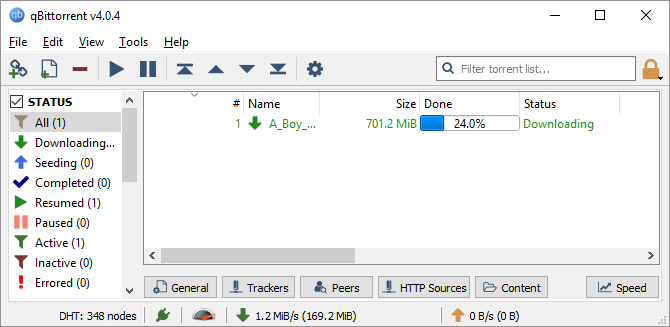
qBittorrent is a free and open source BitTorrent client. It’s generally considered the best uTorrent alternative. Unlike the client it was designed to replace, it’s free from bloatware and ads.

Download: qBittorrent (Free)

Transmission

Transmission

An open source and cross-platform BitTorrent client built by volunteers. It’s full-featured, doesn’t bundle adware, and won’t track its users. As a result, it’s lightweight and much more enjoyable to use.

Download: Transmission (Free)

JDownloader

JDownloader

Free and open source download manager. Allows you to start, stop, and pause your downloads, set bandwidth limitations, and auto-extract archives. Your antivirus may detect it as a threat, but rest assured it’s a false positive. Potentially comes packed with bloatware.

Download: JDownloader (Free)

Other alternatives:

  • FlashGet can download videos from various sources, collaborates with your antivirus, and optimizes system resources.
  • Free Download Manager supports HTTP, FTP, and BitTorrent. Can resume broken downloads and you can adjust traffic usage.

Email Clients

Thunderbird

Thunderbird email client

Mozilla’s trusty and easy to use email client. Supports tabs, add-ons, and is also available as a portable app. And in 2019, Mozilla announced that it will pick up developing Thunderbird again.

Download: Thunderbird (Free)

High on our list of free desktop email clients are also Mailspring and Mailbird. The best free alternative to Microsoft Outlook, however, is EssentialPIM.

File Management

TeraCopy

TeraCopy

Copy and move files at maximum speed and pause and resume file transfers. When an issue comes up, TeraCopy won’t terminate a transfer like Windows Explorer does. Instead, it will show you the failed files after the transfer was completed.

Download: TeraCopy (Free)

EaseUS Partition Master

EaseUS Partition Master

EaseUS Partition Master is an advanced alternative to the built-in Windows partition manager. It supports merging of adjacent partitions, copying partitions and disks, upgrading system disk to a bigger drive, and it can recover deleted or lost partitions from unallocated space.

The Pro version lets you manage dynamic volumes, migrate your operating system to SSD/HDD without reinstallation, supports Windows Storage Spaces, change between MBR and GPT without losing data, and more.

Download: EaseUS Partition Master (Free)
Download: EaseUS Partition Master Pro ($39.95, free trial)

FileZilla

FileZilla

A free, lightweight and robust FTP client for transferring files to and from the web.

Download: FileZilla (Free)

MultiCommander

MultiCommander

A feature-packed alternative file manager to Windows File Explorer that uses a dual-panel layout. If all you desire is a file explorer that supports tabs, we recommend Explorer++. For more options, see this article on alternative file explorers.

Download: MultiCommander (Free)

Additional tools in this section:

  • 7-Zip, a free archive manager that can extract or compress to ZIP, RAR, and many other archive files.
  • Universal Extractor, can decompress and extract files from any type of archive or installer, including ZIP, RAR and EXE files.
  • DropIt can automatically sort files based on file type.

File Recovery

Did you ever wish you could turn back time to recover your lost files? With the following tools, you need neither a DeLorean nor a flux capacitor, a little luck will do. Just remember not to write any data to the disk you wish to recover files from.

Recuva
Piriform Recuva

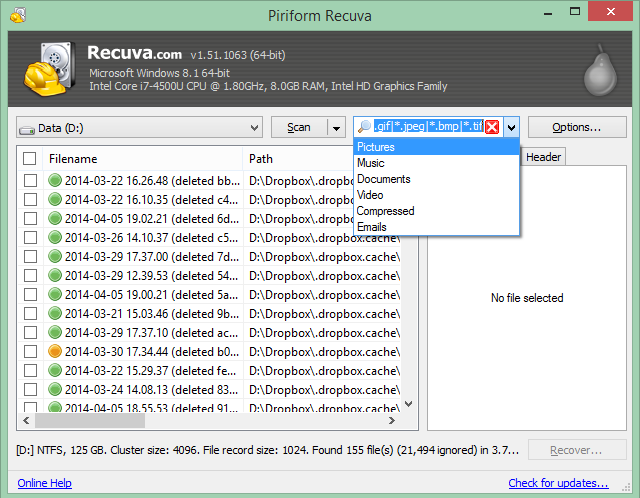
The Recuva wizard can take you through the process of recovering files or you can manually pick drives to be scanned. Designed for intuitive use by the makers of CCleaner. The professional version also includes virtual hard drive support, automatic updates, and premium customer support.

Download: Recuva (Free)
Download: Recuva Professional ($19.95)

TestDisk

TestDisk

This open source tool is considered one of the best applications for recovering lost partitions or making non-booting disks bootable again. It’s operated through a command prompt window but comes with thorough documentation, which will allow even novices to compile information for recovery by a professional.

Download: TestDisk (Free)

To recover photos from digital camera memory, try TestDisk’s open source companion PhotoRec, which can recover a wide range of accidentally deleted files, including photos.

More recommendable applications in this category:

  • Disk Drill (formerly Pandora Recovery), free file recovery software for any type of file, also available as a portable app.
  • FreeUndelete will recover files removed from the Recycle Bin.

File Storage

You can never have enough storage space. The advantage of cloud storage is that you can access it from anywhere and as long as the service and your internet are running, you have nothing to worry about. The following are the most popular and reliable options available.

Dropbox

Dropbox

Dropbox is available across platforms and allows you to sync folders and files to the web and other devices connected to your Dropbox account. Great tool to auto-upload photos from your mobile phone. It’s being challenged by Microsoft OneDrive, which offers more storage capacity and potentially better Windows integration.

Download: Dropbox (Free)

Google Drive

Google Drive

The evolution of Google Docs keeps your documents synced between the cloud and your PC.

Download: Google Drive (Free)

OneDrive

OneDrive

Microsoft’s cloud storage solution comes with (now only) 5 GB of space for storing documents and images.

Download: OneDrive (Free)

Other tools in this section:

  • Nextcloud, a free open source tool to build your own, self-hosted cloud storage solution; a community fork of ownCloud.
  • MEGA, formerly known as MegaUpload, is a cloud storage and file sharing solution that offers up to 50GB of free storage.

Image Editors

GIMP

GIMP

Advanced open-source and cross-platform image editor, often touted as free Photoshop alternative.

Download: GIMP (Free)

Paint.NET

Paint.NET

Free image editing tool with an intuitive interface for beginners and comprehensive features for intermediate users. Supports layers, unlimited undo, special effects, power tools, plugins, and when you’re stuck you can rely on a selection of tutorials and an active online community.

Download: Paint.NET (Free)

Potential alternatives to GIMP and Paint.NET, with a focus on photo editing:

We also recommend the following image editors:

  • Inkscape for professionally editing vector graphics.
  • XnConvert for batch processing images.
  • RIOT for quickly optimizing photos.

GifCam

GifCam

A simple tool to create animated GIFs. Use the app like a camera to record a series of image frames, which you can then edit, before turning them into a GIF.

Download: GifCam (Free)

Blender

The free open source 3D creation suite supports everything from modeling and animation to video editing and game creation. It has long been the gold standard of 3D imaging tools. Get over its steep learning curve with these Blender tutorials.

Download: Blender (Free)

Image Viewers

FastStone Image Viewer

FastStone Image Viewer

All in one image browser, converter, and editor that has never let us down. Supports all major graphics formats, including RAW and other digital camera formats. The makers of FastStone Image Viewer also offer a Capture tool and a Photo Resizer.

Download: FastStone Image Viewer (Free)

IrfanView

IrfanView Image Viewer

Simplistic on the surface, hides advanced features under the hub, yet intuitive and easy to use. Classic image viewer, which you can also use for simple edits or batch-processing files. Now available in 32-bit and 64-bit versions. An extensive plugins library is available separately.

Download: IrfanView (Free)

XnView

XnView Image Viewer

Cross-platform image viewer, organizer, and converter that comes with a huge selection of filters and supports 500 different formats.

Download: XnView (Free)

Maintenance

Third-party applications can impact your system’s performance. They can accumulate temporary files and huge caches, launch with Windows and consume resources in the background while getting outdated over time.

PC maintenance tools can help you keep your computer running smoothly on the software side or analyze issues with your hardware. In addition, they can maintain your privacy by removing traces of your online or offline activities from your PC.

CCleaner

CCleaner

CCleaner is the PC maintenance gold standard. The award-winning optimization tool scores high points all around. Clean junk files, make your browsing safer, or speed up your startup times. If you absolutely have to use its registry cleaner, be sure to back up the registry first.

The Pro version gets you real-time monitoring, scheduled cleaning, automatic updates, and premium support.

Download: CCleaner (Free)
Download: CCleaner Pro ($19.95, free trial)

BleachBit

BleachBit

BleachBit is a free and open source tool to clean unnecessary files from your system. And you’re in control! Scroll through the sidebar and check file types for individual browsers (e.g. cache or cookies), system files, and other software that clutters up your hard drive. When you’re ready, click Clean and free up disk space.

Download: BleachBit (Free)

Glary Utilities

Like CCleaner, Glary Utilities offers comprehensive PC cleaning utility. The free version includes over 20 tools that can fix PC issues and improve performance with one click.

Download: Glary Utilities (Free)
Download: Glary Utilities Pro ($19.97)

PrivaZer

PrivaZer can scan any drive connected to your computer for traces you left while using your computer, including internet cache or cookies, residual deleted files, or useless files. Essentially, it’s a cleanup utility with a focus on your privacy. Available as a desktop and portable application.

Download: PrivaZer (Free)

Similar application:

  • BleachBit cleans your PC from junk files and shreds them to prevent recovery. This open source tool is available for Windows and Linux.
  • Toolwiz Time Freeze can instantly put your Windows system into a sandbox and protect it from undesired changes.
  • Sandboxie, lets you isolate new applications and your browser from Windows, keeping your operating system safe from software-born attacks.

Speccy

Piriform Speccy

An advanced system information tool for your PC, made by the creators of CCleaner. The free version provides you with an overview of all your system internals, including your operating system, CPU, RAM, motherboard, graphics, storage, optical drives, audio, peripherals, and your network.

The Pro version adds automatic updates and premium support.

Download: Speccy (Free)
Download: Speccy Pro ($19.95)

Similar tools:

  • CPU-Z is the best app to gather basic CPU, mainboard, memory, and system data. Watch out for bloatware from CPUID when installing PC-Wizard or CPU-Z.
  • Complement with GPU-Z for information about your graphics card.
  • Use SpeedFan to monitor PC voltages, fan speeds, and temperatures.

SUMo

SUMo Software Update Monitor

Software Update Monitor, short SUMo, monitors your installed software for available updates and downloads them for you. Be sure to deselect the default homepage setting during installation and click Cancel when prompted for it again! You can also quit the survey.

Download: SUMo (Free)

In addition to the tools above, we also recommend the following:

  • WinDirStart visualizes your disk space usage.
  • TreeSize can scan your directories to find space hogs and recover hard drive space.
  • Process Explorer is an advanced Task Manager from Microsoft.
  • d7II is a multi-tool designed for IT professionals from Foolish IT. It automates diagnostics, comes with Windows repair features, and can help you remove malware from infected systems. The tool is available for evaluation before you must commit to a monthly subscription.

Miscellaneous

f.lux

f.lux

This utility helps you prevent eye strain and sleep better by adapting your screen brightness and color saturation to ambient lighting. It also supports scheduling, as shown above.

Download: f.lux (Free)

Classic Shell

Classic Shell

Classic Shell is more than a Start Menu replacement. Besides adding a customizable Start button and menu, it features tool- and status bars for Windows / File Explorer and Internet Explorer. A great productivity tool to make Windows better.

Download: Classic Shell (Free)

VirtualBox

VirtualBox Create Virtual Machine

VirtualBox is the easiest way to create a virtual machine within Windows. You can install any operating system on your virtual machine and run it like it was a regular program. We have used VirtualBox to run Windows 10 on Windows, Linux, and Mac. Refer to our VirtualBox guide for more information.

Download: VirtualBox (Free)

Alternatively, you can use VMWarePlayer to set up a virtual machine on your computer.

TeamViewer
TeamViewer

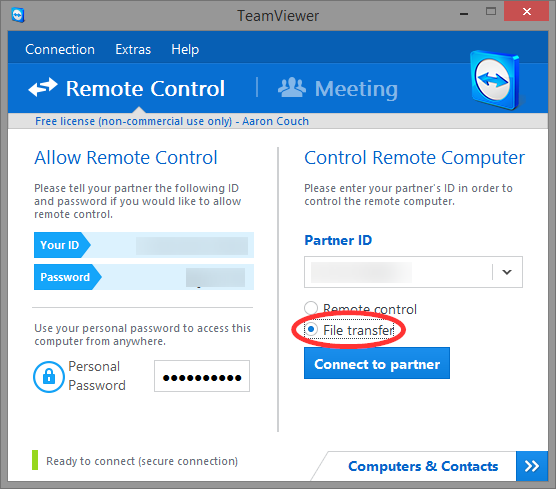
TeamViewer allows you to remote-connect to another computer over the internet, either to provide technical assistance or to access files and programs. By far the best free remote desktop connection manager you can get. It’s cross-platform and easy to set up, too.

Download: TeamViewer (Free)

Hiren’s BootCD

Hiren's BootCD

Hiren’s BootCD is one of those apps every techie should carry around. Burn the ISO to a CD or create a bootable USB with Rufus and you’ll always have a digital toolbox with you to fix some common computer issues. Comes with recovery tools, can reset your Windows password, test hardware, compile hardware information, and much more.

Download: Hiren’s BootCD (Free)

KeePass

KeePass

Portable and open source password manager with plugin support. Helps you protect your online accounts with strong passwords. The app stores passwords on your computer or USB drive. Cloud-based alternatives to KeePass include Dashlane and SafeInCloud Password Manager.

Download: KeePass (Free)

Eraser

Eraser overwrite files

You may know that deleting a file in Windows doesn’t actually remove it. That’s why it’s possible to recover deleted files. Eraser is an open source utility and portable app that permanently deletes files by overwriting them with random patterns. Best used with hard disk drives since erasing data from a solid state drive can cause damage and other issues.

Download: Eraser (Free)

Optical and Disc Image Tools

CDBurnerXP

CDBurnerXP

Feature rich, yet easy to use burning tool for CDs, DVDs, HD-DVDs, Blu-Rays, ISOs, and bootable discs.

Download: CDBurnerXP (Free)

Alternatives:

  • ImgBurn, a lightweight CD, DVD; HD-DVD, Blu-Ray burning application.
  • DVD Flick specializes in burning DVDs for your DVD player, media center, or home cinema set.
  • BurnAware, a free burning software for CDs, DVDs, and Blu-rays.

bitRipper

bitRipper

Simple tool to convert DVDs to AVI or MPEG for backing up your DVDs on your local drive. Includes its own codecs and can re-use codecs installed on your system. If your DVDs turn out too big to be stored locally, try DVDShrink to reduce their size.

Download: bitRipper (Free)

CDex

CDex

CDex rips audio CDs to MP3 and other formats. Supports a range of encoders and the source code is open.

Download: CDex (Free)

WinCDEmu

After the demise of Virtual CloneDrive, WinCDEmu has become your best solution to emulate CDs, DVDs, and Blu-ray discs. The open-source tool supports ISO, CUE, NRG, MDS/MDF, CCD, and IMG images and can create them via a context menu in Windows Explorer. You can create an unlimited number of virtual drives to mount image files and play them virtually.

By virtualizing your discs, you’ll never have to swap discs again. The tool is also ideal if you want to run optical discs on a Windows device that lacks the matching drive.

Download: WinCDEmu (Free)

PDF Tools

Sumatra PDF
Sumatra PDF

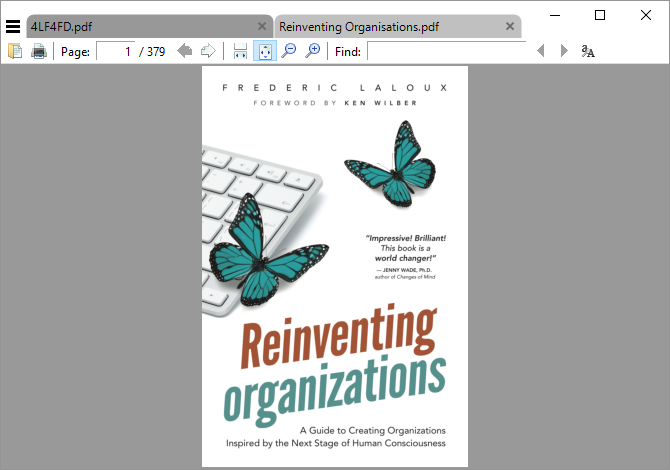
This is the most lightweight PDF reader. It supports tabs and is packed with keyboard shortcuts. It’s also open source and available as a portable app. Unlike other free PDF readers, it doesn’t feature any editing tools.

Download: Sumatra PDF (Free)

Read our article on the best PDF readers for Windows for more solutions.

PDFsam

PDFsam, aka PDF Split and Merge, is a small tool to split, merge, and rotate PDF files any way you like. You can drag-and-drop files onto the tool and mass-edit files. The interface is basic, but the features are advanced.

Download: PDFsam (Free)

Alternatives:

  • PDFTK Builder is a free graphical interface version of PDFTK to merge, split, decrypt, encrypt, watermark PDF files.
  • doPDF can convert over 400 file types to PDF.

Productivity

Dexpot

Powerful virtual desktop manager. Expand your screen with virtual desktops and use them to separate open windows based on tasks. A similar tool is VirtuaWin, a lean desktop manager with a minimalist set of features.

Download: Dexpot (Free)

Ditto

Ditto

Ditto is a clipboard manager that allows you to keep a record of your Windows clipboard backed up for later use or sync clipboards across multiple computers. Also available as a portable app. Similar to ClipX and many other clipboard managers.

Download: Ditto (Free)

Launchy

Launchy

A cross-platform utility that employs keyboard shortcuts to launch programs and files independently of Windows File Explorer or the Start Menu. If you’re looking for a Start Menu alternative, you might also appreciate SyMenu, a portable menu launcher that allows you to organize your applications quickly and easily.

Download: Launchy (Free)

Other notable applications in this section:

Reading

Kindle

Kindle

Amazon’s Kindle app lets you read and manage your ebook collection from your Windows PC.

Download: Kindle (Free)

Alternative:

  • Icecream Ebook Reader is an immersive ebook reader that supports EPUB, MOBI, FB2, PDF, and other ebook formats.

calibre

Calibre

Free and open-source ebook manager. Comes with a library to manage your ebooks, can convert ebooks from one format to another, syncs to your reader devices, downloads news from the web and converts it into ebook format, functions as an ebook viewer, and can edit ebooks.

Download: calibre (Free)

Text Editing

LibreOffice

LibreOffice

You don’t have to pay for Microsoft Office to get a professional productivity and office suite, one which is open source and community-supported on top of that.

Download: LibreOffice (Free)

WPS Office Free

WPS Office

Free cross-platform Microsoft Office alternative with a tabbed interface and more reliable support for collaborative features, such as tracking changes and comments. Self-absorbed ads can be a little annoying but are easily ignored.

The Premium version is ad-free and lets you split and merge PDF to Word. The Professional version is a lifetime license with three years of services included.

Download: WPS Office (Free)
Download: WPS Office Premium (From $44.99 per year)
Download: WPS Office Professional ($79.99 lifetime)

Notepad++

Notepad++

A Notepad alternative with tabs and advanced features, useful especially for coders.

Download: Notepad++ (Free)

Uninstallers

Revo Uninstaller

Revo Uninstaller

Probably the most popular tool in this category. Easy to use and thorough, even comes with a hunter mode that will track down and eliminate programs based on icons or shortcuts on your screen.

The pro version supports forced uninstall, bulk uninstall, extended scanning for leftover files, real-time change monitoring with log files, multi-level backup system, print and export a list of installed programs, and lots more.

Download: Revo Uninstaller (Free)
Download: Revo Uninstaller Pro ($24.95)
Download: Revo Uninstaller Pro Portable ($29.95)

IObit Uninstaller

IObit’s Uninstaller sorts all your programs into categories that make it easier to find applications you installed recently, software that takes up a lot of space, or tools you barely ever use. This utility also allows you to quickly get rid of browser toolbars and plugins, and Windows apps.

The Pro version can delete bundled programs and plug-ins, uninstall malicious browser extensions, it features adware removal, 1-click updates for installed programs, free technical support, and more.

Download: IObit Uninstaller (Free)
Download: IObit Uninstaller Pro ($19.99)

Other tools in this category:

Video Tools

VLC Media Player

VLC Media Player

Free and cross-platform video player that can play almost any video file. Supports DVDs, CDs, VCDs, and a selection of streaming protocols, including YouTube playlists. It can also rip and transcode videos or record video from your webcam.

Download: VLC Media Player (Free)

Alternatives:

  • Pot Player, the successor of KMPlayer with a rich set of advanced features.
  • Media Player Classic, a lightweight media player with built-in codecs.
  • K-Lite Codec Pack offers a selection of four codec packs, from basic to mega. They will outfit your favorite video player with all the codecs it needs to play any video you throw at it.

HandBrake

HandBrake

Open source, cross-platform, media converter that can convert video files between many different formats.

Download: HandBrake (Free)

Alternatives to HandBrake:

  • Freemake, a video converter and DVD burner that supports over 200 file types.

MakeMKV

MakeMKV

A cross-platform video transcoder that can read DVDs and Blu-Rays and convert them into free formats. The Blu-Ray feature is a free trial.

Download: MakeMKV (Free)

CamStudio

CamStudio

A high-quality and open-source freeware screen capture utility with support for lossless video output. Perfect for creating screencasts or video tutorials.

Download: CamStudio (Free)

KODI

Kodi

Formerly known as XBMC, KODI is a media center package for your Home Theater PC (HTPC). It can stream live TV, allowing you to cut the cord on pricey cable TV services.

Download: KODI (Free)

An alternative to KODI is Plex, a media center based on XBMC and originally designed for the Mac. It now also supports movie trailers.

Essential Apps and Software for All PCs

Have you tested any of the applications above or have we missed your favorite software? Let us know! We will improve the list based on our tests and your input. And if you appreciate this list, please share it with your friends and family!

Do you feel spoiled by choice? Start here with the essential applications you must install on your new Windows PC.

Read the full article: The Best Windows Software


Read Full Article

3 Types of Lists That Actually Help You Be More Productive


When it comes to organization and productivity, to-do lists are the ultimate tool. But at some point, they turn into yet another excuse for procrastination. Who needs so many to-do lists anyway? The three types we have listed below will do. They’ll give you all the list-making power you need without a complicated system that takes up too much time.

Why Make Lists at All?

Research into human psychology has given us a lot of interesting ideas about why we make lists and how we look at productivity in general. The Zeigarnik Effect is a case in point. It states that people remember uncompleted or interrupted tasks better than completed ones. It’s a useful mechanism, but some people think it can also sabotage our productivity.

An oft-quoted passage from the book Willpower: Rediscovering the Greatest Human Strength reads:

“It turns out that the Zeigarnik effect is not, as we assumed for decades, a reminder that continues unabated until the task gets done […] Instead, the unconscious is asking the conscious mind to make a plan […] Once the plan is formed, the unconscious can stop nagging the conscious mind with reminders.”

Having a clear mind goes a long way towards being able to concentrate on a single task. That’s the principle behind one of the most popular productivity systems around, Getting Things Done. But you don’t have to go quite all-out as that. You can stick with these three lists and be confident that your unconscious will shut up and let you get some work done.

1. The Weekly Priority List

weekly priorities list by cal newport

Every Sunday, take 10-15 minutes to map out your priorities for the upcoming week. These don’t have to be things that you can strike off your list. For example, you can have items like “catch up on academic things” and “recommit to training” on weekly priority lists. These items are often best split up into smaller tasks on your daily task list.

The purpose of the weekly list is to get those really big items out of your unconscious and onto paper.  Write them down at the beginning of the week. You can then stop worrying about them because your unconscious will know that you have a plan for getting them done. At least it can be sure that you won’t forget about them because they’re recorded in ink.

Keep the weekly priority list short and simple—three to five items should do. Remember to stick to over-arching goals and guidelines for the week, not tasks to complete. Scan this list every morning and use it to inform your daily to-do list.

2. The Segmented To-Do List

a list of tasks in Gmail's tasks panel

Making a single to-do list for the day will keep everything in order, and there are plenty of apps available to help you manage this list. Choose an evergreen favorite like Trello or Wunderlist or stick to a super simple to-do list tool.

How you segment your to-do list is up to you.  One option is to list three high-priority tasks, three mid-priority tasks, and some low-priority ones.

You could also segment them by context and keep a list of “Home” tasks, “Work” tasks, and “Fitness” tasks, for example. At work, you could use “Meetings,” “Calls,” and “Projects.”

A third option is to use your inbox as a to-do list.

No matter how you divide your list, make sure that you keep it manageable. There’s a limit to how much you can do in 24 hours. Besides, you can be certain that you’ll have to deal with unplanned interruptions of various sizes on any given day.

If you want to simplify productivity, here’s an idea that can help. It comes from the story of a woman who worked at the Pentagon. When asked what her strategy for getting things done was, she said that she wrote down her tasks in order of priority and then crossed off everything below the third item.

3. The Done List

an example of a done list

The “Done List” has been gathering momentum lately as a useful tool in productivity. If you’re not familiar with the done list, it’s exactly what it sounds like: a list of the things that you’ve accomplished during the day.

What’s the point of this, you ask? Stress management. Having too many things to do and not getting enough done are both stressors in their own way. That’s why it helps to know how much you have managed to do in a day and also, what needs to go on or stay off your to-do list in future.

For example, let’s say your high-priority items for the day are “plan a quarterly meeting,” “write weekly report,” and “clean garage.”

If you check those off, sure, you have a record of completing three things. But if you write down that you also answered two calls about the marketing budget, made a list of potential candidates for a hiring, sent six emails about project approval, and picked up a few groceries on the way home, you’ll see just how much you got done.

They may not all be high-priority tasks, but they’re still tasks that you needed to take care of. Knowing that you have done them can be a source of satisfaction. Tasks like these make up a big proportion of your productivity, and you shouldn’t neglect them. You actually do more in a day than you might think!

Get Everything Done With Minimal Stress

Of course, everyone has their own task management strategies. Figure out an effective one for yourself by using the three lists above as a springboard.

Are task lists turning out to be counterproductive for you? You can be productive even without a to-do list!

Read the full article: 3 Types of Lists That Actually Help You Be More Productive


Read Full Article

H&R Block’s Free Tax Filing Plan Provides the Most Value


free-tax-filing-plan

Tax season has arrived in the United States, and for many folks, this means using tax preparation products to file federal and state taxes. As usual, the two most significant tax preparation services, H&R Block and TurboTax, are offering free online services for qualified users. However, these free products aren’t all equal.

For the tax year 2018, H&R Block has pulled out the stops and is offering more credits and deductions than the free TurboTax product. In doing so, H&R Block’s free plan includes 45 forms required for filing, versus just 22 from TurboTax.

Let’s take a further look at what H&R Block’s free tool offers.

Who Should Use H&R Block’s Free Online Service?

The free online service from H&R Block is designed for those who receive a W-2, have kids, and pay rent. It’s also ideally suited for tax situations where one may qualify for the Earned Income Tax Credit, has childcare expenses, pays student loan interest, or had income from a retirement plan.

Those likely to receive a child tax credit or who rely on Social Security income also qualify. H&R Block’s basic plan offers simple W-2 importing through snapping a picture, self-help via an online help center, and technical support chat.

H&R Block Free Plan

What Forms Does H&R Block Offer?

H&R Block’s free offering lets you file your federal and state return for free. Keep in mind that this only covers basic returns, however. These include the traditional 1040, Schedule EIC, and Schedule 8812.

You can also use this package with other common tax forms such as Form 1099 (including B, DIV, INT, and R), 1098 (E and T) and 1095 (A and B). If you require other forms, you’ll need to upgrade to a paid plan.

How H&R Block’s Free Plan Differs From TurboTax’s

Using H&R Block’s free plan, you can submit student loan interest and tuition payment information. You can also file for the Child and Dependent Care Credit and Form 8880, the so-called “Saver’s Credit.” Social Security, unemployment income, and Form 8965 Health Coverage Exemptions are also covered under the basic plan, unlike the free TurboTax version.

Did you live in more than one state in 2018? H&R Block’s free plan allows you to submit multiple state filings for free, while TurboTax’s free plan only allows you one free state filing.

Here’s a breakdown of the differences between both plans:

Students

If you’re paying off student loans, you can qualify for credits and deductions, including:

  • Student Loan Interest Deduction
  • Tuition and Fees Statement (1098-T)
  • American Opportunity and Lifetime Learning Education Credit

Of these three, TurboTax’s free version does not include the first two.

Childcare Expenses

For parents, several credits are available to bring the tax bill down, including:

  • Child and Dependent Care Expenses Credit
  • Child Tax Credit
  • Additional Child Tax Credit
  • Earned Income Credit

These credits are all available in H&R Block’s free program. You’ll need to pay extra with TurboTax to see if you qualify for the first credit on this list.

Healthcare

Finally, Health Coverage Exemptions (form 8965) and part-year health care coverage can be calculated for free through H&R Block’s basic plan. Unfortunately, the same does not apply to Turbo’s free offering.

Don’t Forget H&R Block’s Other Plans

H&R Block Plans

For those who don’t qualify for H&R Block’s free tax preparation plan, there are others to choose from.

The H&R Block Deluxe plan is $29.99 for federal filing and $36.99 for each state. By comparison, the TurboTax Deluxe plan costs $39.99 for federal filing and $39.99 for each state. This program is ideally suited for homeowners who pay real estate taxes, make charitable contributions, and use a Health Savings Account (HSA).

The Deluxe plan also includes DeductionPro to help you optimize donations for the most deductions. Other benefits to using this plan include access to six years’ worth of tax returns and technical support, by both chat and phone.

Meanwhile, the H&R Block Premium plan is for freelancers, contractors, and investors. This is the one you should use if you have income with expenses of less than $5,000, or have stock sales or rental property income. The Premium Plan is $49.99 for federal filing and $36.99 per state. These prices compare favorably to TurboTax Premium, available for $59.99 and $39.99, respectively.

There is also an H&R Block Self-Employed plan which costs $79.99 for federal filing and $36.99 for each state. TurboTax’s similar plan is priced at $89.99 and $39.99, respectively. The Self-Employed plan is for those with small business expenses, including home office, depreciation, and vehicle expenses.

H&R Block also has brick-and-mortar stores where you can have agents assist you with your filing. These H&R Block in-person packages start at $49.

This Tax Season, the Choice Is Clear

Both H&R Block and Turbo offer free tax preparation plans. However, as we’ve seen, the free plan from H&R Block offers more credits and deductions. It’s the one you should use if you qualify. Doing your taxes has never been easier!

Read the full article: H&R Block’s Free Tax Filing Plan Provides the Most Value


Read Full Article

The 8 Best Podcast Apps for Android

7 Password Manager Features You Need to Know About


password-manager-tips

Password managers are an essential tool in your digital arsenal. One of the reasons they’ve become so common is because of how straightforward they are to understand and operate. They manage your long passwords so that you don’t have to remember them.

Simple.

But password managers can do a lot more than just store your credentials. Here are seven lesser-known features of password managers.

Note: These features are not available on every password manager, but most services like LastPass offer them.

1. Take Notes

Dashlane Notes

Password managers can be employed as secure, full-fledged note-taking apps.

Notes can be categorized, tagged, searched, and even shared with others, irrespective of whether they’re using the same password manager. If you select a specific category like a bank account, you will also get quick fields for them such as bank name, account number, account type, and more.

Also, most of them allow importing and exporting these files if you’re planning to switch password manager. You also have options for enabling passcode protection for individual notes.

2. Store Files

Attachments on Enpass

On some password managers, you can attach documents and images to notes as well. The data you upload is encrypted just like the notes themselves and can be accessed from the service’s mobile or desktop clients. Similarly, attachments can have descriptions too and you can file them under separate folders or categories like business cards.

However, cloud storage comes at a price. For instance, LastPass’ free plan has a limit of 50MB; its enterprise tiers store up to 1GB of media.

3. Automatically Fill Forms

Lastpass Form fill profiles

One of the most overlooked utilities most password managers offer is form-fill profiles.

These allow you to avoid filling every single online form that comes your way. Instead, you simply type in your details in a generic form in the password manager. This information is then used to automatically populate the forms you encounter online.

Form fill profiles are generally available on desktop and mobile, typically located in the navigation bar. If you’ve installed a password manager extension, it might also automatically ask you if you’d like to create a profile based on some form you’ve completed while browsing.

4. Browse the Web

Many password managers mobile apps ship with an inbuilt, secure browser for safer web browsing.

These browsers are typically integrated with the password manager’s autofill component. This means you also don’t need to worry about entering credentials or filling forms while using them. Plus, they have all the standard utilities you’d expect from a modern browser including multiple tabs, the ability to request a website’s desktop version, bookmarks, etc.

Switching to a more secure browser has numerous benefits. One of the most significant is the fact that they allow you to cover your tracks once you leave a website. The browser does so by obstructing trackers and cookies which would have otherwise monitored your browsing habits.

5. Generate Random Passwords

Lastpass random password generator

Constantly struggle to come up with tough passwords? It’s time to give your password manager’s random generator a shot.

These won’t be memorable passwords, of course, but since you’re already dependent on a password manager, that isn’t necessary. Some services such as LastPass even have an option to produce passwords that are pronounceable. What’s more, you can adjust their length, specify which type of characters are allowed, and set other filters.

Random password generators are normally available on desktop and mobile password manager apps. In addition, a few of them are even capable of suggesting random passwords while you’re signing up for a new account. This feature is most likely to be found on the service’s browser extension.

6. Diagnose Your Digital Security

LastPass Security Challenge

Password managers can also diagnose your digital security by checking how robust your passwords are. Several factors are checked, such as how often you use the same passcode, character length, when it was last updated, and more.

Once the scan is done, a security score lets you know which accounts need a refresh and how many of them are duplicate, old or simply not strong enough. A few of them also reveal your relative standing compared to other users.

After going through the results, you can change weak passwords and retake the test to ensure you didn’t miss anything. Some like LastPass even let you invite friends to take the security challenge so that you can compare scores.

7. Set Up Emergency Contacts

Emergency contacts on Dashlane

Emergency contacts can be configured on password managers too.

This enables you to offer access to a friend or family members in case of emergency. However, setting these won’t allow them to get into account anytime they want; password managers require you specify a buffer period.

Therefore, when an emergency contact requests access, you’ll be alerted. If you don’t reject the request, your credentials are shared and the contact will be able to view all your stored passwords.

Is Your Password Manager Secure?

While a password manager’s primary objective is to manage credentials for different accounts (here’s how password managers work), these features are certainly worth a look. Most don’t charge you extra for these features and once mastered they can improve your security online even further.

Not each one of these following features is enough to become full-fledged solutions but if you’re a light user, they can work and help you eliminate a dedicated service from your digital life.

  1. Notes
  2. Attachments
  3. Form Fill Profiles
  4. Browser
  5. Random password generator
  6. Digital security audit
  7. Emergency contacts

Are you using the most secure password manager? Check our comparison of the best password managers to find out.

Read the full article: 7 Password Manager Features You Need to Know About


Read Full Article

RØDECaster Pro: The Portable Studio Every Podcaster Needs!


Rodecaster Pro Featured
Our verdict of the RØDECaster Pro:
A great option for anyone who wants to make their podcast more professional or record on the go. A variety of inputs and simple setup makes this a winner.
910

As podcasting continues to grow in popularity, you have more options than ever for recording your show. If you’d like to grow your podcast beyond the basics, you really need a proper mixing board for that professional touch.

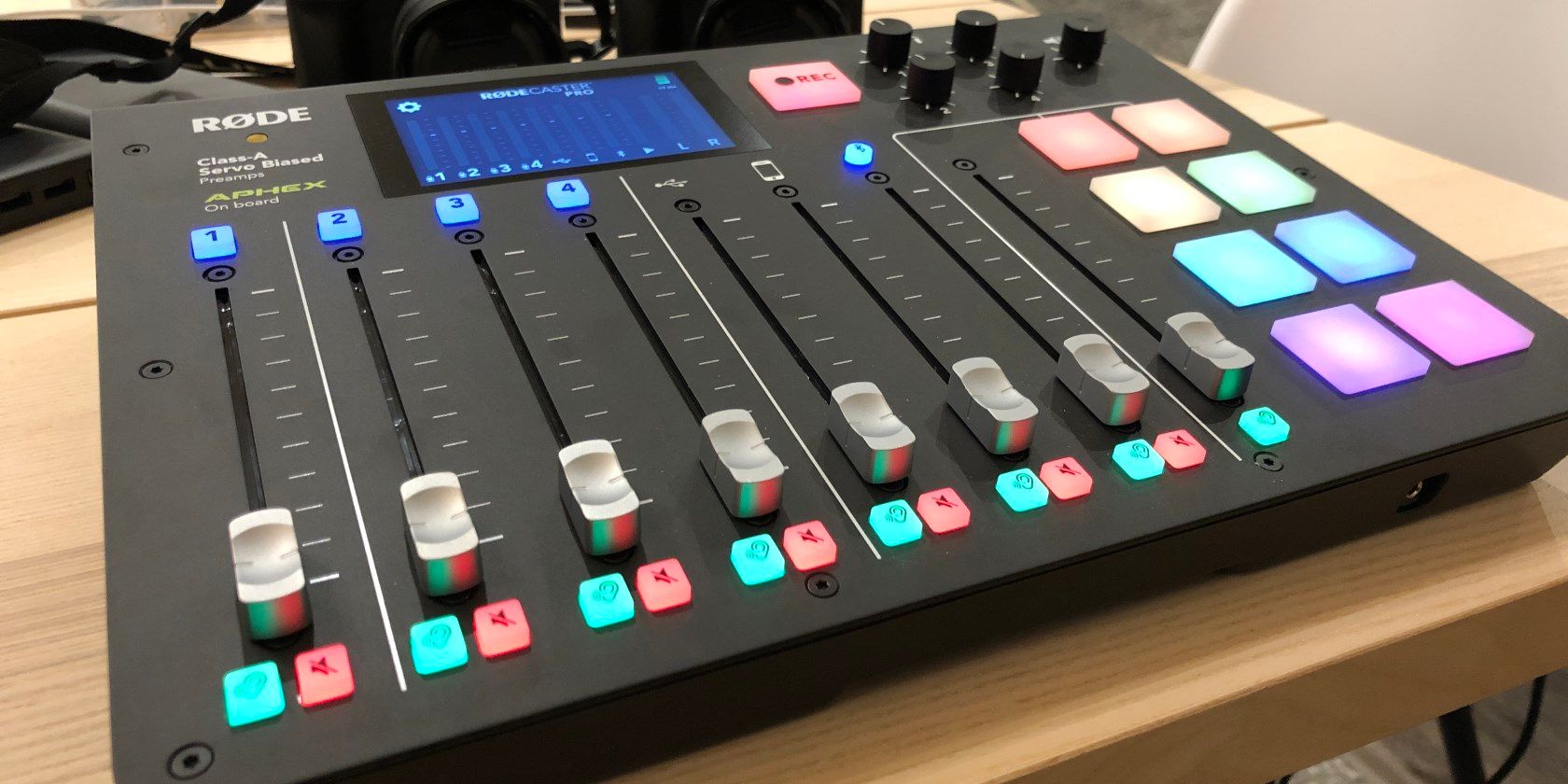
That’s why the RØDECaster Pro promises to be the world’s first podcast studio that’s all integrated into one board. Whether you’re recording while traveling or want to upgrade your home setup, this board is a solid choice for podcasters. Let’s take a closer look, and the end of this review we’re giving one away to one lucky reader!

What Connections Does the RØDECaster Pro Offer?

On the back of the RØDECaster Pro, you’ll find the following ports:

  • 4x three-pin XLR connectors for connecting standard microphones
  • 1x 3.5mm audio jack for connecting a phone or tablet
  • 4x 1/4-inch audio jack outputs for headphones
  • 2x 1/4-inch audio jack outputs for left and right speakers
  • 1x microSD port for recording audio
  • 1x USB-C port for file transfer to and from a computer
  • 1x 15V, 1A power socket

Rodecaster Pro Back Ports

In addition, the board features Bluetooth connectivity. This allows you to connect to your phone to feature a remote caller on your podcast.

This variety of ports allows you to connect all the devices you could possibly need for input and output. If you have four people on your show, each one can connect a mic as well as their own set of headphones to monitor the audio. But it works just as well with only your microphone, plus one remote caller via Bluetooth or the 3.5mm audio jack.

The RØDECaster Pro retails for $600.

Mixing Audio With the RØDECaster Pro

After you’ve connected your microphones and other devices using the ports, you’ll find an easy-to-use interface for monitoring and recording the audio.

Each of the four microphone ports has its own slider. The board also provides sliders for input from the USB port, 3.5mm jack, and Bluetooth. As with any mixing board, you can use the red Mute button to temporarily silence a channel and the green Solo button to hear just that channel.

Rodecaster Pro Mute Solo Buttons

At the top-right of the board, you’ll find four knobs to adjust the headphone audio for each of the outputs. There’s also a single knob to adjust the speaker audio output.

Rodecaster Pro Volume Knobs

In addition to all this, the RØDECaster Pro comes with eight buttons for music and sound effects. Out of the box, these include stock sounds like laughter, interlude music, applause, a rimshot, and more.

While these sounds are useful, you can replace them with anything you like. To do so, the board lets you record audio from any input, or just drop a file from your computer if you connect the board and use the included software. This makes it easy to play your intro music, use a standard sound effect for a certain segment, and more, right from your mixing board.

Rodecaster Pro Sound Buttons

Audio Settings and Recording

As the RØDECaster Pro wants to be your entire podcast studio in one place, it includes some audio options right on the board. Press the Settings gear icon on the touchscreen display and choose Audio to access some preferences for each channel. For convenience, you can also press the numbered button on the board to jump right to its options.

Rodecaster Pro Options Menu

For inputs like the USB port, you can choose between presets like Phone call and Music to get the best sound for each channel. When adjusting the microphones, you can adjust the input for the speaker’s voice, plus toggle advanced options like a high-pass filter, ducking, and more. This lets you set up as much audio control as possible before recording so you can save time in post-production.

Rodecaster Pro Advanced Options

Thanks to the Podcasts option in the settings menu, you can also review recorded shows to see how they sound.

Once you pop a microSD card in, you’re all set to start recording. You’ll see an icon on the display so you know you’ve inserted the card properly. As a nice touch, this also displays the remaining recording time for how much space you have left.

Press the big Record button, and you’re off. The display shows how long you’ve been recording, and lets you bookmark major moments in the audio. You just need to hit Record again to stop.

Rodecaster Pro Record Audio

Putting the Board to the Test

In Las Vegas after CES 2019, some of the MakeUseOf team stayed to record videos for our YouTube channel, Tech Geeks Try Stuff. We used the RØDECaster Pro to capture the audio, and overall were very pleased with the experience.

Connecting our RØDE lapel mic receivers was simple, and the board truly does work well out of the box. The only small issue we ran into was that the 3.5mm connector on our headphones didn’t fit the 1/4-inch jack on the board, so we had to buy a few adapters.

Rodecaster Pro Side View

As of this writing, the RØDECaster Pro outputs your entire recording as one file, ready to publish. This is great for convenience, but makes post-production difficult if you only need to adjust one channel. However, in February 2019, the company plans to publish an update that enables multi-track output. This will let advanced podcasters edit individual tracks for each recording source after the fact.

Should You Use the RØDECaster Pro?

We’re very impressed with the RØDECaster Pro. It performs its intended purpose admirably, allowing you to take its small form factor on the road and record podcasts anywhere. It also makes a great board for giving your home podcast a professional touch if you don’t plan on traveling.

Its ability to have eight personalized sounds at the touch of a button is great. Four microphone inputs should be enough for most podcasts. And the board does all the heavy audio work for you, so you shouldn’t need do much post-production while on the road.

The addition of multi-track output will fix one of the biggest potential roadblocks the board had. Having a USB-C port on the board might be a slight inconvenience if you don’t have any other devices that use this yet, but it’s a minor point.

In all, the RØDECaster Pro served us well while recording simple videos, and is more than enough for your podcast. If you’re ready to take yours to the next level, we recommend giving it a look.

Enter the Competition!

RØDECaster Pro Giveaway

Read the full article: RØDECaster Pro: The Portable Studio Every Podcaster Needs!


Read Full Article

Yep, iPhone revenue is down


Apple’s Q1 earnings are in, and things don’t look too rosy the iPhone. Revenue for the handset has declined 15 percent year over year for the quarter. It’s a pretty hefty drop for device that’s been flying high for so long, but you can’t say Apple didn’t warn us. Earlier this month, Tim Cook noted that the company was lowering its guidance, thanks in no small part to smartphone figures.

In its earlier report, the company put much of the blame at the feet of the Chinese market. There are a lot of factors on that front, including slowing economic growth in the world’s largest smartphone market, and a general trend toward prolonged upgrade cycles, as users are holding onto devices for longer.

Notably, those numbers are off-set somewhat by growth in other categories. The iPad grew 17 percent on the strength of new models, while Mac/Wearables and Home/Accessories each grew, at nine and 33 percent, respectively. Services, meanwhile, saw the biggest uptick at 19 percent to $10.9 — an all-time high for the category.

“While it was disappointing to miss our revenue guidance, we manage Apple for the long term, and this quarter’s results demonstrate that the underlying strength of our business runs deep and wide,” Cook said in a statement. “Our active installed base of devices reached an all-time high of 1.4 billion in the first quarter, growing in each of our geographic segments. That’s a great testament to the satisfaction and loyalty of our customers, and it’s driving our Services business to new records thanks to our large and fast-growing ecosystem.”


Read Full Article

EFF lawyer joins WhatsApp as privacy policy manager


In an effort to bolster its public credibility in the wake of a very rough year, Facebook is bringing a fierce former critic into the fold.

Next month, longtime Electronic Frontier Foundation (EFF) counsel Nate Cardozo will join WhatsApp, Facebook’s encrypted chat app. Cardozo most recently held the position of Senior Information Security Counsel with the EFF where he worked closely with the organization on cybersecurity policy. As his bio there reads, Cardozo is “an expert in technology law and civil liberties” and already works with private companies on privacy policies that protect user rights.

Cardozo announced the move in a post to Facebook on Tuesday.

“Personal news!

After six and a half years at the Electronic Frontier Foundation (EFF), I’ll be leaving at the end of next week. I’m incredibly sad to be leaving such a great organization and I’ll miss my colleagues with all my heart.

Where to? Starting 2/19, I’ll be the Privacy Policy Manager for WhatsApp!! I could NOT be more excited.

If you know me at all, you’ll know this isn’t a move I’d make lightly. After the privacy beating Facebook’s taken over the last year, I was skeptical too. But the privacy team I’ll be joining knows me well, and knows exactly how I feel about tech policy, privacy, and encrypted messaging. And that’s who they want at managing privacy at WhatsApp. I couldn’t pass up that opportunity.

It’s going to be an enormous challenge professionally but I’m ready for it.”

Though it also does more cooperative work with major tech companies, the EFF frequently finds itself on the opposite side of the ring. Cardozo’s own background reflects that adversarial relationship, and he certainly hasn’t minced words about his new employer. In a 2015 op-ed, Cardozo hit the nail on the head about Facebook’s lucrative habit of tracking its users’ every move.

“It’s creepy, but maybe you don’t care enough about a faceless corporation’s data mining to go out of your way to protect your privacy, and anyway you don’t have anything to hide,” Cardozo wrote. “Facebook counts on that; its business model depends on our collective confusion and apathy about privacy.”

Personally, we’d sleep ever so slightly better at night knowing that the guy who wrote the sentence “If a business model depends on deception and apathy, it deserves to fail” is trying a turn on the inside.

The cognitive dissonance of a well-regarded privacy advocate moving over to Facebook is notable, though not without precedent. For all its privacy blunders, Facebook does own the most popular digital messaging app in most countries around the world — an app it opts to keep end-to-end encrypted by default (so far, anyway).

As far as WhatsApp goes, Cardozo’s hiring comes at a critical time: Last week, The New York Times reported Facebook’s intention to integrate WhatsApp, Instagram and Facebook Messenger. The massive change has some security and privacy-minded people happy (more end-to-end encryption!) and plenty more worried about what else the integration will mean.

Leading into the change, if it materializes, Facebook would be smart to hire as many prominent voices in online privacy as it can attract. Public criticism of the company hasn’t waned exactly, but hiring critics is a straightforward way to build trust in the meantime. For a company not known for public dissent and open dialogue, Facebook’s critics may prove a valuable asset if they can be recruited for a tour of duty behind the big blue line.

Update: Cardozo isn’t alone in making the switch from privacy advocacy to Facebook. The company has also hired Robyn Greene from the Open Technology Institute. As she announced in a tweet, Greene will focus on law enforcement access and data protection in her new role with Facebook.


Read Full Article

Transformer-XL: Unleashing the Potential of Attention Models


To correctly understand an article, sometimes one will need to refer to a word or a sentence that occurs a few thousand words back. This is an example of long-range dependence — a common phenomenon found in sequential data — that must be understood in order to handle many real-world tasks. While people do this naturally, modeling long-term dependency with neural networks remains a challenge. Gating-based RNNs and the gradient clipping technique improve the ability of modeling long-term dependency, but are still not sufficient to fully address this issue.

One way to approach this challenge is to use Transformers, which allows direct connections between data units, offering the promise of better capturing long-term dependency. However, in language modeling, Transformers are currently implemented with a fixed-length context, i.e. a long text sequence is truncated into fixed-length segments of a few hundred characters, and each segment is processed separately.
Vanilla Transformer with a fixed-length context at training time.
This introduces two critical limitations:
  1. The algorithm is not able to model dependencies that are longer than a fixed length.
  2. The segments usually do not respect the sentence boundaries, resulting in context fragmentation which leads to inefficient optimization. This is particularly troublesome even for short sequences, where long range dependency isn't an issue.
To address these limitations, we propose Transformer-XL a novel architecture that enables natural language understanding beyond a fixed-length context. Transformer-XL consists of two techniques: a segment-level recurrence mechanism and a relative positional encoding scheme.

Segment-level Recurrence
During training, the representations computed for the previous segment are fixed and cached to be reused as an extended context when the model processes the next new segment. This additional connection increases the largest possible dependency length by N times, where N is the depth of the network, because contextual information is now able to flow across segment boundaries. Moreover, this recurrence mechanism also resolves the context fragmentation issue, providing necessary context for tokens in the front of a new segment.
Transformer-XL with segment-level recurrence at training time.
Relative Positional Encodings
Naively applying segment-level recurrence does not work, however, because the positional encodings are not coherent when we reuse the previous segments. For example, consider an old segment with contextual positions [0, 1, 2, 3]. When a new segment is processed, we have positions [0, 1, 2, 3, 0, 1, 2, 3] for the two segments combined, where the semantics of each position id is incoherent through out the sequence. To this end, we propose a novel relative positional encoding scheme to make the recurrence mechanism possible. Moreover, different from other relative positional encoding schemes, our formulation uses fixed embeddings with learnable transformations instead of learnable embeddings, and thus is more generalizable to longer sequences at test time. When both of these approaches are combined, Transformer-XL has a much longer effective context than a vanilla Transformer model at evaluation time.
Vanilla Transformer with a fixed-length context at evaluation time.

Transformer-XL with segment-level recurrence at evaluation time./td>
Furthermore, Transformer-XL is able to process the elements in a new segment all together without recomputation, leading to a significant speed increase (discussed below).

Results
Transformer-XL obtains new state-of-the-art (SoTA) results on a variety of major language modeling (LM) benchmarks, including character-level and word-level tasks on both long and short sequences. Empirically, Transformer-XL enjoys three benefits:
  1. Transformer-XL learns dependency that is about 80% longer than RNNs and 450% longer than vanilla Transformers, which generally have better performance than RNNs, but are not the best for long-range dependency modeling due to fixed-length contexts (please see our paper for details).
  2. Transformer-XL is up to 1,800+ times faster than a vanilla Transformer during evaluation on language modeling tasks, because no re-computation is needed (see figures above).
  3. Transformer-XL has better performance in perplexity (more accurate at predicting a sample) on long sequences because of long-term dependency modeling, and also on short sequences by resolving the context fragmentation problem.
Transformer-XL improves the SoTA bpc/perplexity from 1.06 to 0.99 on enwiki8, from 1.13 to 1.08 on text8, from 20.5 to 18.3 on WikiText-103, from 23.7 to 21.8 on One Billion Word, and from 55.3 to 54.5 on Penn Treebank (without fine tuning). We are the first to break through the 1.0 barrier on char-level LM benchmarks.

We envision many exciting potential applications of Transformer-XL, including but not limited to improving language model pretraining methods such as BERT, generating realistic, long articles, and applications in the image and speech domains, which are also important areas in the world of long-term dependency. For more detail, please see our paper.

The code, pretrained models, and hyperparameters used in our paper are also available in both Tensorflow and PyTorch on GitHub.

Apple unveils new in-store sessions covering photography, Garage Band, health and more


Apple is launching 58 new Today at Apple sessions to beef up its in-store education offerings for people who want to explore Apple’s products. The sessions, which cover video, photography, accessibility, coding, music, health and more, are free to attend and available at all of Apple’s retail stores across the world.

For the unveiling, Apple brought a group of reporters to its Apple Park campus in Cupertino last week. Throughout the day, Apple took us through sample Today at Apple sessions across Apple’s three categories: Skills, Walks and Labs. Skills are quick, thirty-minute sessions designed to teach you new techniques, Walks are actual physical walks with certain Apple products and services and Labs are 90-minute sessions where you create a project.

“So I think of Skills, Walks, Labs almost as, you know, Spanish 1, Spanish 2, Spanish 3,” Apple SVP of Retail Angela Ahrendts told a group of reports at Apple’s spaceship campus last week. “I mean, most things have green diamond, blue diamond, red, black diamond, I mean, there’s always levels.”

When Today at Apple first launched, it was a bit more open. Now, it’s a lot more structured, Ahrendts said.

Beats, art and jump-cuts

First up, I participated in a Garage Band Skills session, where we learned how to quickly create a beat using the beat sequencer. This session is geared toward people who are new to Apple’s tech and may need an introduction to the product or the software.

That is designed to prepare you for the next level of sessions, Walks. At Apple’s campus, we did a photo walk using the iPad Pro with Pencil and digital illustration app Procreate. The task at hand was to walk around Apple’s spaceship campus, snap photos of colorful scenes, capture that color in Procreate and then use the app’s numerous drawing tools to create a portrait. Here’s my masterpiece.

Walks, Apple Senior Director Karl Heiselman said, has been the most popular type of session.

“We think the reason why they’re so popular is you can’t do them on the Internet,” he said.

Last, but not least, we did a Lab where we learned how to create jump-cuts in the Clips app.

All of these sessions are entirely free to attend. Since launching Today at Apple almost two years ago, Apple has hosted 18,000 sessions per week. Millions of people have attended the sessions, so far, but it’s hard to get a totally accurate number, Ahrendts said.

“If you sign up, we have a number but the minute the session starts around the big screen, usually three times more people, you know, kind of hover over it,” Ahrendts said.

Apple’s in-store sessions are a way for the company to build brand loyalty and differentiate itself from the likes of Google and other hardware companies. While Apple’s online store is geared toward purchasing products and receiving customer support, its retail stores are designed to be focused on people and their experiences, Ahrendts said.

“If you’re taking the time to come into a store, we’re assuming you want a much more human experience,” she said.

Today is the biggest launch of sessions to date, with Ahrendts likening the update to its in-store sessions to updates to Apple’s digital software, “but you could assume there will always continue to be updates on our store software forever.”


Read Full Article