01 August 2018

How to Change the Name of Your MacBook or iMac


When you set up your Mac for the first time, Apple automatically assigned a name to it. The names all follow an established pattern, and yours is probably called something like “John’s MacBook Pro” or “Mary’s MacBook Air.”

Although you might not realize, it’s possible to change that name to anything you want. It’s easy to do, but the necessary system setting isn’t so easy to find. Let’s take a closer look at where it is and how to change it.

Why Your Mac’s Name Matters

Your computer’s name is most commonly used for networking and sharing. For example, if you have shared a file with other users over your local network, they will see your computer’s name on their own machines.

Similarly, if you want to send files or cast video to your computer using AirPlay (or one of the many Airplay alternatives), you’ll need to know your Mac’s name to send the data to the correct machine.

Therefore, you need your Mac to be quickly and easily identifiable. If two or more machines on your network have a similar name, perhaps it would make more sense to rename them as “Office Desktop,” “Lounge Laptop,” and “Shirley’s Workstation” instead.

How to Change a Mac’s Name

To change a Mac’s name, follow the simple step-by-step instructions below.

  1. Click on the Apple icon on the left-hand side of the Menu Bar.
  2. On the menu that pops up, select System Preferences.
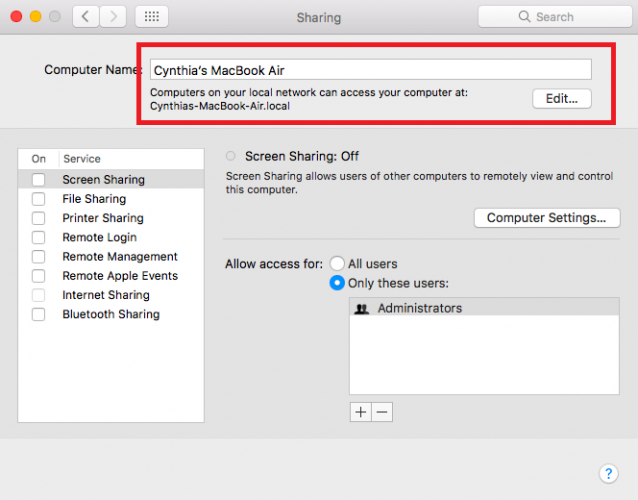
  3. Locate the Sharing icon and click on it.
  4. At the top of the window, delete your Mac’s current name.
  5. Enter your desired new name.
  6. Close the Sharing window.

Remember, changing your Mac’s name will also change its local network address. Therefore, any external apps and devices that use the address will no longer work. You will need to take the time to point them all at the new address.

To learn more, check out our article about the essential things you need to know about your Mac.

Read the full article: How to Change the Name of Your MacBook or iMac


Read Full Article

Go-Jek kicks off Southeast Asia expansion with Vietnam launch


Go-Jek, the Indonesia-based ride-sharing company valued at $5 billion, has begun its ambitious plan to increase its rivalry with Grab by expanding into three new markets after it opened shop in Vietnam.

The service — which is known as Go-Viet — covers an initial 12 districts in Ho Chi Minh City with a motorbike on-demand service. Rival Grab is in five cities in Vietnam and its services include motorbikes, taxis, private cars and food delivery.

The August 1 Vietnam launch as TechCrunch reported in June. The plan is to then expand into Thailand in September, and the Philippines before the end of this year. Singapore remains a market that Go-Jek would like to enter — it has held partnership talks with taxi operator ComfortDelGro — but it remains unclear whether, and when, that might happen.

Go-Jek expansion plan will put some heat on Grab, which has occupied a near-dominant position across Southeast Asia since it acquired Uber’s local business back in March.

Unlike Grab, though, Go-Jek is taking a very local approach to each market. Not only will it use a local name in each country — in Thailand it will be called “Get” — it has hired local ‘founder’ teams who will be responsible for service offerings and other local business aspects. It isn’t clear how closely they will work with the core Go-Jek team in Indonesia.

That may mean anyone traveling between countries will need to download local Go-Jek apps, which is in contrast to Grab, which offers a single app for eight countries in Southeast Asia.

Valued at $10 billion, Grab has raised over $5 billion from investors, including its most recent $1 billion investment from Toyota. Go-Jek has pulled in just over $2 billion. Tencent, Google, Meituan and others participated in its most recent (estimated) $1.4 billion raise which closed earlier this year.


Read Full Article

Google adds new Singapore data center as Southeast Asia reaches 330M internet users


Google is adding a third data center to its presence in Singapore in response to continued internet growth in Southeast Asia.

It’s been three years since it added a second center in Singapore, and during that time the company estimates that something in the region of 70 million people across Southeast Asia have come online for the first time. That takes the region to over 330 million internet users, but with a population of over 650 million, there’s plenty more to come.

The local data centers don’t exclusively serve their immediate proximity — Asia data centers can handle U.S. traffic, and likewise — but adding more local capacity does help Google services, and companies that run their business on Google’s cloud, run quicker for internet users in that specific region. So not only is it good for locals, but it’s important for Google’s business, which counts the likes of Singapore Airlines, Ninjavan, Wego, Go-Jek and Carousell as notable cloud customers.

The search giant also operates a data center in Taiwan. The company had planned to augment Taiwan and Singapore with a center in Hong Kong, but that project was canned in 2013 due to challenges in securing real estate.

Google opened its first Singapore data center in 2011, and this newest facility will take it to around $850 million spent in Singapore to date, the company confirmed, and to over $1 billion when including Taiwan.


Read Full Article

How to Get Automatic Email Reminders in Windows 10 With Suggested Tasks


cortana-todo-tricks

Nobody can keep track of everything they need to do, which is why reminder apps are so useful. You’ll find no shortage of these apps available for every platform—but on Windows, you need not look any further than Cortana.

While you could always set reminders manually, a new Windows 10 feature will have Cortana remind you about important tasks without you having to do anything. Here’s how it works.

How to Use Windows 10’s Suggested Tasks

If you haven’t turned Cortana off, Suggested Tasks should work out of the box. Have a look at these steps to make sure:

  1. You’ll need to have Cortana enabled for this to work. Check out our guide to setting up Cortana if you’re not using her already.
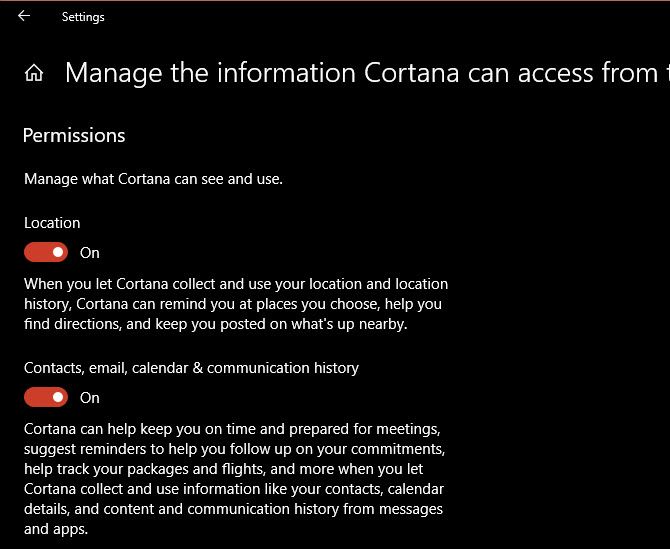
  2. Next, ensure you’ve given Cortana access to your communication information. You’ll find this setting at Settings > Cortana > Permissions & History. Click the Manage the information Cortana can access from this device link, and make sure you have Contacts, email, calendar & communication history enabled. Cortana-Access-Info
  3. Check to confirm you have Suggested tasks turned on. Open Cortana from the Taskbar, then click the Notebook icon on the left sidebar. Switch to the Manage skills tab, scroll down to Suggested tasks, and make sure you have the slider and checkbox here both enabled.
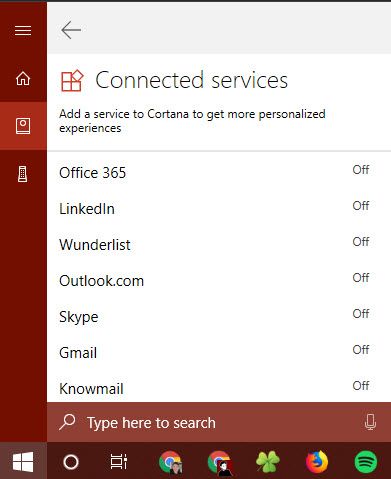
  4. Finally, connect the email services you want to use to Cortana. Open the Notebook > Manage skills section again, then click Connected services. Select Office 365, Outlook.com, Gmail, or Knowmail depending on what you use. Follow the steps to link your account.

Cortana-Connected-Services

After this, you’re all set up to use Suggested Tasks. Now when you send emails containing phrases like “I’ll send you the information by Friday” or “I will let you know on Thursday,” Cortana will show a reminder before that task is due. It all happens automatically, so enjoy the convenience of having a second set of eyes on your commitments!

For more like this, check out how Cortana can organize your life.

Read the full article: How to Get Automatic Email Reminders in Windows 10 With Suggested Tasks


Read Full Article

How to Create a Search Preset in Adobe Lightroom Classic CC


lightroom-photographers

Adobe Lightroom Classic CC is the leading image organization tool. It’s natural that it gives you features to cleanly organize and search a large collection of photos.

Lightroom comes equipped with several search filters that can help you narrow down queries for specific photos in the haystack. But to take it even further, you can create your own different search filters and save them as presets.

How to Search for Specific Photos With Filter Presets

Imagine a collection of hundreds of photos. Lightroom imports them into a catalog in a flash. But, searching this large collection visually in the Library module may not be that easy.

That is why Lightroom has a sophisticated search system. You can use the different kinds of metadata: keyword, rating, color label, and more to search a photo.

  1. Select one or more folders or collections to search. Or, select All Photographs in the Catalog panel.
  2. Go to View > Show Filter Bar or use the Backslash keyboard shortcut.
  3. The displayed Library Filter Bar gives you several ways to search through a collection. Use a keyword to search with Text or use the Attribute, and Metadata options. The results will be displayed in the Grid View.
    Lightroom Search Preset
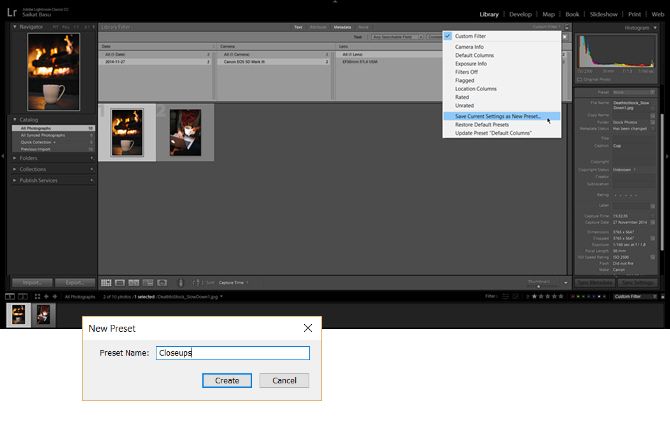
  4. Save these search criteria as a preset and save time when you need to search again. Go to the Custom Filter menu at the right side of the Library Filter bar. Choose Save Current Settings As New Preset from the dropdown. Give the preset a unique name and click Create.
  5. To use this search filter preset, just select it from the Custom Filter menu.

Library Filters are a powerful way to quickly scan your photos. With the ability to save different combinations as presets, you can cover all scenarios. For instance, you can create a filter to quickly view a collection of photos shot with specific focal length, aperture, and ISO combinations. Or make a filter out of a keyword and some metadata.

Note: The lock symbol on the right of the filter bar locks the filter criteria and then you can apply the same filter by simply selecting the different folders and collections of your photos.

Is this feature a timesaver for you? Use it the next time you have to batch edit a bunch of photos in Lightroom.

Read the full article: How to Create a Search Preset in Adobe Lightroom Classic CC


Read Full Article

Google’s New Chromebook Ad Roasts Windows and Mac


Google has unveiled a new commercial for Chromebooks. And this one serves the dual purpose of roasting Windows and macOS while simultaneously talking up the benefits of Chrome OS and the machines it powers. Microsoft and Apple can’t be happy about this.

Google Roasts Microsoft and Apple

From the moment it arrived on the scene, Chrome OS has battled to be taken seriously. It has felt like Windows and macOS are the big boys (with Linux the neverending trier), while Chrome OS is a junior operating system that doesn’t deserve to be taken seriously.

However, Google has fostered Chrome OS into a mature operating system, and with the addition of Android apps, Chromebooks are now worthy purchases. The only thing left to do is sell them to the great unwashed, which means releasing a punchy new TV ad…

In the space of a minute, Google not only puts the boot into Windows and Mac, but also highlights the strengths of Chrome OS. Owning a Chromebook used to be a frustrating affair, but the devices are now capable of competing with its more popular rivals.

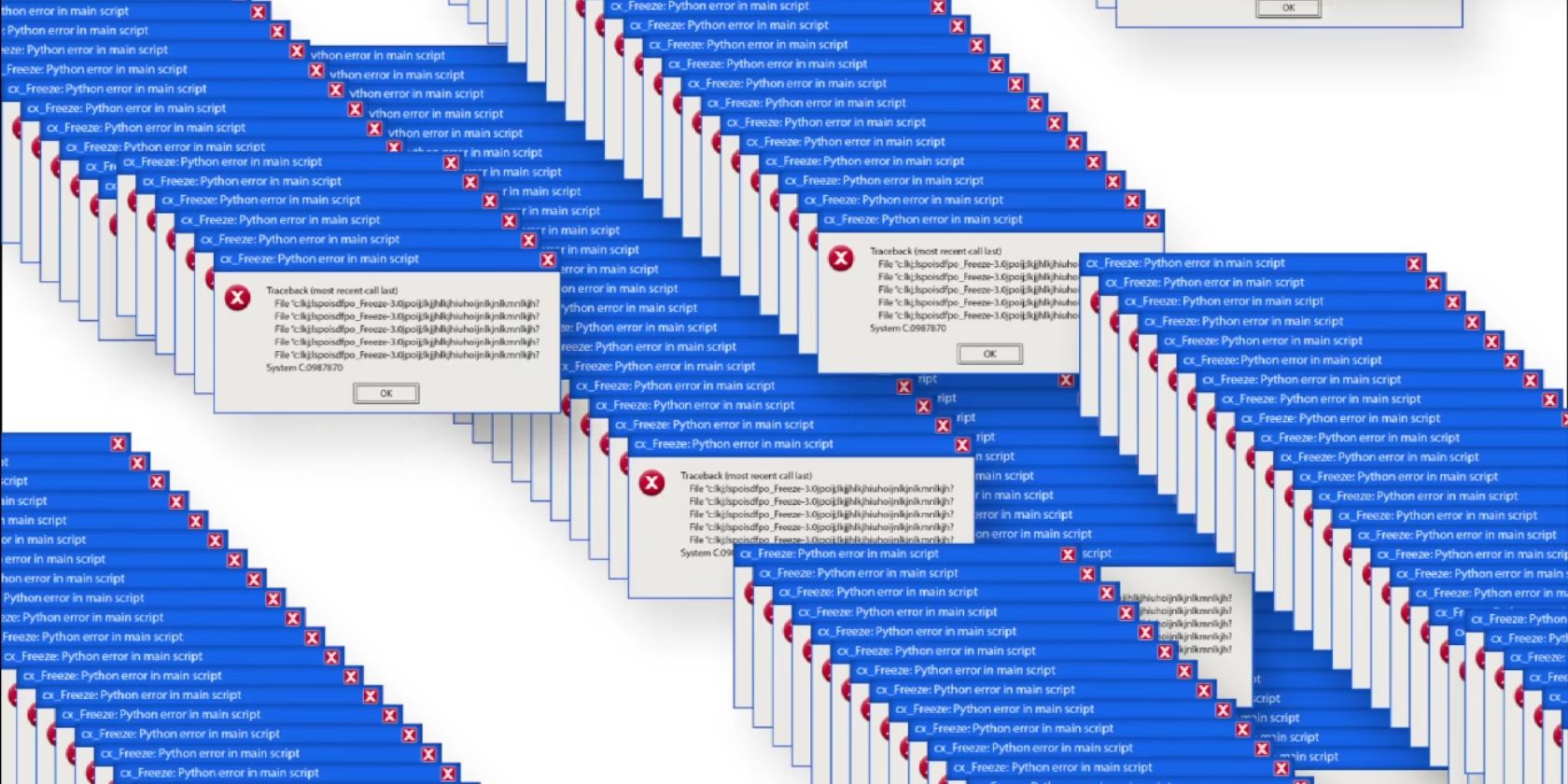
Interestingly, there’s no mention of Windows 10. Instead, the error messages displayed in the ad are those which appear in older versions of Windows, up to and including Windows 8. Which suggests Microsoft is doing something right with Windows 10.

Selling to Students and Beyond

The timing of this ad is intentional, and designed to persuade even more parents that Windows and macOS are the past, while Chrome OS is the future. Chromebooks are popular amongst students, and this represents Google doubling down on its core market.

Whether you’re already a fan of Chrome OS or are newly interested in buying a Chromebook, our previous coverage has you covered. Here are some tips for first-time Chromebook users and the things you need to consider before buying a Chromebook.

Read the full article: Google’s New Chromebook Ad Roasts Windows and Mac


Read Full Article

The 20 Best Kodi Add-Ons You Didn’t Know You Needed


kodi-add-ons

If you have been using low-quality, illegal add-ons to watch TV shows and movies on Kodi, STOP!

Firstly, they could land you in legal touble. Secondly, there are plenty of great, content-packed add-ons that are perfectly legal, so why take the risk? Here are the best Kodi add-ons you didn’t know you needed, but should install right now.

1. Charge

Charge TV

Charge is a new live TV service that’s entirely free to watch. It offers action movies, TV shows, sports, entertainment, and even the occasional series.

Download the app in Kodi’s official repo.

2. Comet TV

The Comet TV add-on is made by the same developer as Charge. Like Charge, it offers 24/7 live streaming.

Comet TV’s focus is on science fiction. You’ll find old movies, classic TV shows, cult series, and forgotten gems. For more modern content, check out the best sci-fi movies on Netflix.

3. Tubi TV

Tubi TV is the first on-demand add-on in the list. It has more than 20,000 TV shows and movies, all of which are both free and legal to watch. The app is ad-supported, hence the extensive library.

You won’t find the latest blockbusters. To give you a taste, movies such as Jeepers Creepers, Afterlife, and Bandits are listed. Much like Netflix, the available content you see will vary depending on your geographic location.

Tubi TV is available in the BG Addons Repository.

4. FilmRise

FilmRise

FilmRise’s YouTube channel is one of the best ways to watch legal movies. The add-on lets you access the same library from your Kodi app.

The company behind the app is a film acquisition and distribution company, so the quality of the available movies is solid.

5. ToonJet

They don’t make cartoons like they used to. Let’s face it; the modern rubbish doesn’t hold a candle to classics like Looney Tunes, Mighty Mouse, Popeye, and Tom and Jerry. With the possible exception of Rick and Morty.

You can relive all the masterpieces through ToonJet’s official Kodi add-on.

6. Live Tube

YouTube has offered live streaming since May 2013, but it wasn’t until mid-2017 that the minimum subscriber level was reduced to 100.

The change has meant YouTube has become a treasure trove of live content. You can find everything from 24/7 music videos to news. This add-on makes the live streams easy to browse and watch.

It’s available in the Fusion repo.

7. USTVNow

USTVNow

USTVNow is a paid service for US citizens who live abroad. For $19/month, you can watch ABC, Fox News, ESPN, BBC America, AMC, and more.

On-demand content is also available.

8. The Internet Archive

The Internet Archive is a well-known online repository of digital materials. At the last count, it held more than 15 petabytes of data, including many classic arcade games that you can play for free.

The Internet Archive contains a lot of movies. Examples include The Night of the Living Dead, His Girl Friday, and Jungle Book.

9. Pluto.TV

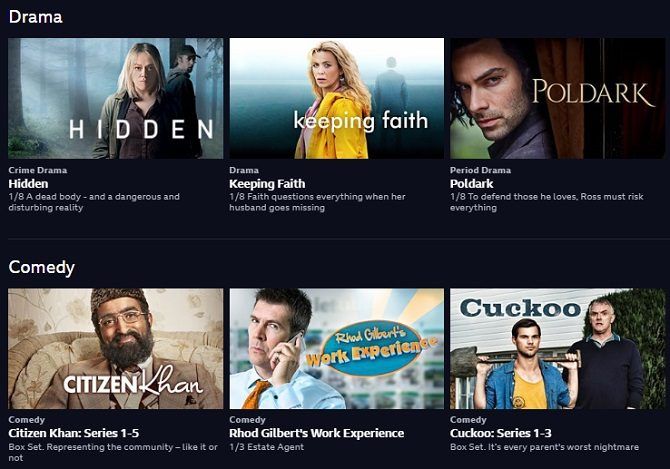
Pluto.TV offers a mix of on-demand content and live TV channels. It provides access to mainstream networks like CNBC, Sky News, Bloomberg, and Cheddar, as well as internet-only channels such as The Nerdist and IGN.
10. BBC iPlayer

BBC iPlayer

If you’re in the UK and pay your TV license fee, you can use the unofficial BBC iPlayer app. It provides live streams of the network’s TV channels and a vast library of on-demand content.

Despite being unofficial, the app is available in the Kodi repo.

11. Popcornflix

Popcornflix is no relation to controversial Popcorn Time movie streaming app. The add-on offers full-length movies, trailers, clips, and TV series legally and for free.

You can also watch on the web or by using the company’s smartphone apps.

12. TBD TV

TBD TV is a channel for millennials. Its content includes web films, scripted and unscripted series, and featurettes.

It also owns the rights to some feature films. They form the backbone of the TBD Movie of the Day, which runs seven-days-a-week.
13. Twitch

Twitch

Twitch is essentially YouTube for gamers. You can watch other people play your favorite titles, listen to some (often hilarious) commentary, and chat with other people.

14. TV Land

TV Land is a Viacom-owned cable and satellite channel in the U.S that’s been running for more than 20 years.

Its bread-and-butter is television series. It offers an enjoyable mix of new and classic shows. You’ll also find the odd limited theatrical release movie and original series.

15. Plex

Plex is Kodi’s great rival, with most users committing to one of the two apps. So, if you’re a Kodi user, why should you install Plex on Kodi?

Well, you’ll get access to Plex’s unofficial channels, which will massively increase the amount of content you have available to you.

16. YouTube

400 hours of video uploaded every minute, 5 billion videos on the platform, and 50 million content creators.

Just install it already.

17. Adult Swim

Adult Swim

Adult Swim is an adult-orientated offshoot of the Cartoon Network. It screens animation, mockumentaries, sketch comedy, and live action programs.

It offers a large number of syndicated shows, including King of the Hill, American Dad, and Family Guy.

18. TVPlayer

TVPlayer is another add-on for people based in the U.K. If you’re located outside the British Isles, you’ll need to use a VPN to tune into it.

It provides more than 100 channels, including the full complement of leading British networks.

The TVPlayer add-on is available through the Fusion repo.

19. MovieZoot

MovieZoot is a legal way to watch thousands of Community Commons or copyright-free films. As such, the quality varies dramatically, but you can be confident you’ll always be able to find the latest indie film that the hipsters are talking about.

You’ll also have access to old classics such as To Kill a Mockingbird, A Farewell to Arms, and God Created Woman.

MovieZoot is in the Fusion repo.

20. NewsON

NewsON is a joint venture between five of the largest TV stations in the United States and offers 170 channels from 108 American cities. The NewsON add-on is geo-restricted, so you need to be within the US to watch the streams.

It’s one of the best ways to watch live news on Kodi.

Download Even More Content for Kodi

These legal Kodi add-ons should mean you never run out of content, but if you’re still looking for more, we’ve previously covered how to watch live TV on Kodi.

And if you would like more information about any of the technical details we briefly touched upon in the above article, be sure to read our beginners guide to setting up and using Kodi.

Read the full article: The 20 Best Kodi Add-Ons You Didn’t Know You Needed


Read Full Article

Apple nears a $1 trillion market cap as it clears another quarter ahead of expectations


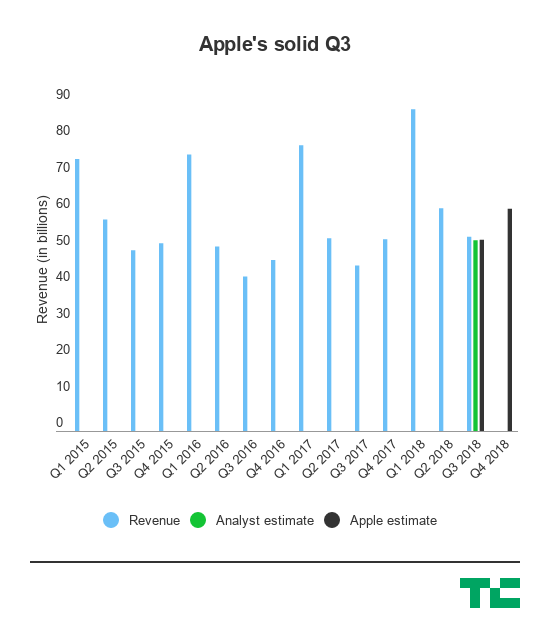
Apple is inching closer and closer to becoming a $1 trillion company today after posting third quarter results that beat out what analysts were expecting and bumping the stock another few percentage points — which, by Apple standards, is tens of billions of dollars.

The company’s stock is up around 2.5% this afternoon after the report, which at a prior market close with a market cap of around $935 billion, is adding nearly another $20-plus billion to its market cap. A few quarters ago we were walking about how Apple was in shooting distance of that $1 trillion mark, but now it seems more and more like Apple will actually hit it. Apple is headed into its most important few quarters as we hit the back half of the year, with its usual new lineup of iPhones and other products and its accompanying critical holiday quarter.

Here’s a quick breakdown of the numbers:

  • Revenue:  $53.3 billion, up 17% year-over-year compared to analyst expectations of $52.34 billion.
  • Earnings: $2.34 per share compared to analyst estimates of $2.18 per share.
  • iPhones: 41.3 million, up 1% year-over-year though revenue on the iPhone line was up 20% year-over-year. Analysts expected 41.79 million iphones sold.
  • iPhone average selling price: $724
  • iPads: 11.55 million, up 1% year-over-year but ahead of analyst expectations of 10.3 million.
  • Macs: 3.7 million, down 13% year-over-year and behind analyst expectations
  • Services: $9.6 billion, up 31% year-over-year.
  • Other products: $3.7 billion, up 37% year-over-year.

So in all, the shipment numbers were hit or miss at a granular level, but at the same time the iPhone is generating a lot more revenue than it did last year — implying that there might be a shifting mix toward more expensive iPhones. Apple’s strategy to figure out if it could unlock a more premium tier in consumer demand, then, may be panning out and helping once again drive the company’s growth. It’s then pading out the rest of that with growth in services and other products like it has in the past few quarters as Apple heads into the end of the year.

In the past year or so, Apple’s stock has continued to rise even though there may have been some dampened expectations for its latest super-premium iPhone, the iPhone X. Its shares are up more than 20% in the past year, and in the second quarter the company announced that it would return an additional $100 billion to investors in a new capital return program, which at the time also sparked a considerable jump in its stock. Apple hasn’t delivered a product that has entirely changed the market calculus like it did when it first started rolling out larger iPhones, but its strategy of incremental improvements and maneuvering in Wall Street continues to provide it some momentum as it heads toward $1 trillion.


Read Full Article

How to Get a Free Domain Name for Your Website


get-free-domain-name

A website advertises you 24/7—so long as people can find your website, of course. For many new businesses and organizations, a fresh website is one of the first expenses in the startup process.

Unfortunately, it can also be costly.

But finding a domain name doesn’t have to empty your wallet. In fact, what if I told you it doesn’t have to cost you a dime? Let’s take a look at how you can get a free domain name for your website.

What Is a Domain Name?

A domain name is the easy-to-remember name of your website. For example, MakeUseOf.com is a domain name, as is Facebook.com, Google.com, Wikipedia.org, and so on. Domain names are a vital part of internet infrastructure.

Without them, you would need to remember the exact IP address for each website you visit. The Domain Name System (DNS) translates the standardized name to an IP address, and helps you arrive at your desired destination.

The most common domain extension (known as a top-level domain, or TLD) is .com, but it isn’t the only TLD. Some TLDs have specific uses:

  • .com: Commercial enterprises, but general use
  • .edu: Educational facilities and organizations
  • .org: Generally non-commercial organizations
  • .net: Initially for network organizations, but is now general use
  • .gov: The TLD for US government websites; the US is the only country with a specific TLD for its government pages (for instance, the UK uses .gov.uk)

For a long time, there were only a few TLDs. That changed drastically in 2015 when the ICANN announced the introduction of over 500 new TLDs. Within the new TLDs were many business, location, and activity-specific extensions, such as .accountant, .barcelona, .loans, and .radio. Check out the full list here.

It is this last bit of information that concerns us. The sudden rise in TLD extensions made millions of new potential domain names. So many that some sites give them away to get your business, one way or another. Let’s take a look at the domain names you can lay your hands on for free.

5 Ways to Get a Free Domain Name

Now, I’ll level with you. While there are a few methods to obtain a completely free domain name, other methods involve purchasing web hosting first.

Sounds like a let-down? Well, you need web hosting to host a website for your domain name. Check out the options below and see what suits you best.

1. Use a Free Website Building Service

One of the easiest methods to grab a free domain name is through a free website building service. Free website building services have brought customizable website design to the masses.

Anyone with a little bit of time can drag and drop or copy and paste elements, as well as peruse professionally design templates. Popular free website building sites include:

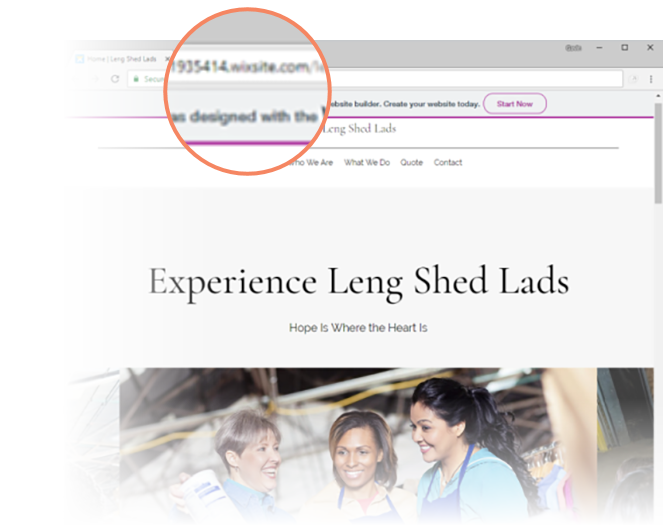
When you sign up to one of these services and build your site, you also receive a free domain name. The downside is that the domain name contains a reference to the free service, such as wixsite.com/yourdomainname or yourdomainname.wordpress.com.

The example below is a site thrown together in less than two minutes, complete with a “custom” Wix domain name.

Wix

Notice the other issue? Many of the free website creation sites add an advertisement to your site in exchange for their service. For many users, it isn’t an issue. But for others, it betrays the professional touch many desire.

In that, all of these free website services have premium subscriptions that remove advertisements and the company tag from the domain name.

2. GitHub Student Developer Pack

The GitHub Student Developer Pack is a free bundle of services and tools for existing students. Within the bundle are a bunch of vouchers and tokens for services like Amazon Cloud, Digital Ocean, Microsoft Azure, Stripe, and many more.

Students can register a free domain name using the .me TLD for a single year with the Namecheap voucher included in the pack. The domain does expire after one year, so you’ll have to renew it or upgrade to another service.

Note: You don’t have to sign up to the entire GitHub pack to get a free Namecheap domain for students, but you get a load of extra stuff if you do.

3. Sign Up for Free Hosting

Buying a domain is only part of the website development process. When you buy a domain name, you need somewhere to host it. Even if you manage to snag yourself a free domain, you pay for it to be online. Unless you use a free hosting service that also offers a free domain name. Bonanza!

Unlike the free website building services, the free hosting domain offers require a more hands-on approach. That said, many offer a WordPress installation that in turn enables you to install custom and professional website templates.

The best free services have caveats such as site downtime every day, advertising on site, design limitations, and others. Here are a few options available to you:

  • 000webhost: Free website builder, SSL security, no adverts, one-hour downtime every day, support preference given to premium clients
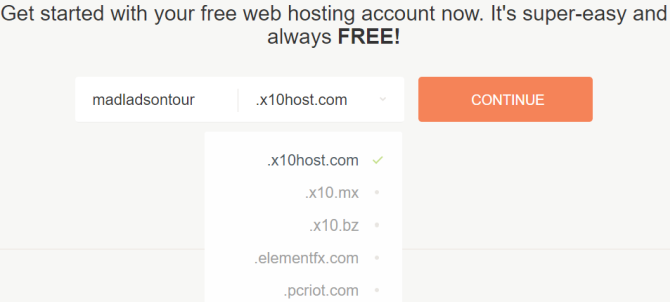
  • X10Hosting: Free website builder, no adverts, unlimited storage, and bandwidth, plus three free email accounts
  • AwardSpace: WordPress and Joomla installers included, 1GB storage, advertising-free, one email account, but doesn’t allow eCommerce sites

x10hosting free domain name hosting

4. Pay for Web Hosting, Receive Free Domain

For some businesses, the idea of using a free service doesn’t make sense. Sure, those free services are great. But some offer next to no customer support, while others simply need more from their hosting provider.

In those cases, why not sign-up to a hosting provider that throws in a free custom domain name? Exactly, it’s a great idea. Here are a few options for you to peruse:
  • Bluehost: You can grab a free domain with Bluehost’s Basic, Plus, and Prime web hosting options
  • GoDaddy: Similar to Bluehost, GoDaddy throws in a free domain name when you sign-up to one of their hosting subscriptions
  • 1&1: Sign up for 1&1 web hosting and you get a free domain name, unlimited storage, and SSL certificates

There are many more similar deals to these out there. Furthermore, your local hosting company may offer a similar sign-up deal, and its always good to support local businesses.

5. Free Domain Sites

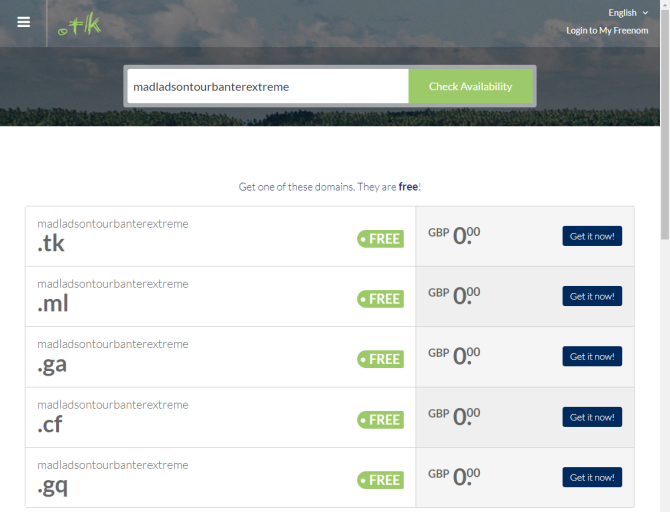
Last of all, there are several sites where you can grab any number of free domain names. The free domain names use the phenomenal range of TLDs to provide free domain names. Your domain name won’t have a .com or .org TLD; rather it will have .tk, .ml, .gq, and so on. However, that doesn’t matter much if the domain name itself is completely free.

Here are three choices for you to check out:

The domain name renewal status varies between sites. Make sure to check out the renewal details so you don’t lose your site and it’s a free domain name.

dot tk free domain name

Free Domain Names Are Out There

Free domain names, along with free web hosting, make it easy for anyone to get online. A website is vital for businesses and organizations looking to reach the rest of the world. And why reach deep into your pockets when there are so many excellent free domain name options available?

That said, is free hosting the best choice for your first website?

Read the full article: How to Get a Free Domain Name for Your Website


Read Full Article

Midterm attackers cited Black Lives Matter in false flag Facebook rally


Unknown midterm election attackers that Facebook has removed were hosting a political rally next month that they pinned on Black Lives Matter, Antifa, and other organizations, according to third-party event websites that scraped the now-removed Facebook events.

Facebook provided an image of the deleted “No Unite The Right 2 – DC” event as part of its announcement today that merely showed its image, title, date, location, and that a Page called “Resisters” was one of the hosts of the propaganda event. But a scraped event description TechCrunch discovered on Rallyist provides deeper insight into the disruptive information operation. Facebook won’t name the source of the election interference but said the attackers shared a connection through a single account to the Russian Internet Research Agency responsible for 2016 presidential election interference on Facebook.

“We are calling all anti-fascists and people of good conscience to participate in international days of action August 10 through August 12 and a mass mobilization in Washington DC” the description reads. “We occupy ICE offices, confront racism, antisemitism, islamaphobia, xenophobia, and white nationalism. We will be in the streets on August 10-12, and we intend to win.”

But what’s especially alarming is how the event description concludes [emphasis mine]. “Signed, Black Lives Matter Charlottesville, Black Lives Matter D.C., Charlottesville Summer of Resistance Welcoming Committee Agency, Crimethinc Ex-Workers Collective, Crushing Colonialism, D.C. Antifascist Collective, Future is Feminists, Holler Network, Hoods4Justice, The International, Capoeira Angola Foundation-DC (FICA-DC), Libertarian Socialist Caucus Of The DSA, March For Racial Justice, Maryland Antifa, One People’s Project, Resist This (Former DisruptJ20), Rising Tide North America, Smash Racism D.C., Showing Up for Racial Justice Charlottesville, Suffolk County DSA, Workers Against Racism, 350 DC.”

It’s unclear if the attackers effectively ‘forged’ the signature of these groups, or duped them into signing off on supporting the rally. The attackers were potentially trying to blame these groups for the rallies in an effort to further sow discord in the political landscape.

Facebook initially provided no comment about the description of the event, but then confirmed that it was originally created by the attackers’ since-deleted Page ‘Resisters’ which then later added several legitimate organizations as co-hosts: Millenials For Revolution, March To Confront White Supremacy – from Charlottesville to DC, Workers Against Racism – WAR, Smash Racism DC, and Tune Out Trump. Strangely, those co-hosts have relaunched a new event with a similar name “Nazis Not Welcome No Unite The Right 2” and similar description including a similar but expanded “Signed by” list, and now include BLM Charlottesville and D.C. as co-hosts.

Meanwhile, Facebook also shared an image of a November 4th, 2017 “Trump Nightmare Must End – NYC” event, also without details of the description. A scraped version on the site AllEvents shows the description as “History has shown that fascism must be stopped before it becomes too late. There is only one force that can stop this nightmare: we, the people, acting together. On November 4 we’ll take to the streets demanding that Trump regime must go! We meet at Times Square (42 St and Broadway) at 2 PM!”

The co-opting of left-wing messaging and protests is a powerful strategy for the election interferers. It could provide the right-wing with excuses to claim that all left-wing protest against Trump or white supremacy is actually foreign governments or hackers, and that those protests don’t represent the views of real Americans.


Read Full Article

The 5 Best Sites for Finding Perfect Font Pairings


find-font-pairings

In the design world, fonts are worth their weight in gold. A trustworthy group of fonts, such as the fonts found in Windows 10, can be applied to any design or project you come up with. The hard part is finding the perfect font(s) for you.

With so many options, how is one supposed to choose? The answer: font pairing websites!

These are an underutilized tool that will help your pair various types of fonts with one another to create the perfect poster, design, website, and so on. In fact, you don’t even need to know about font weights and styles to use these sites. Here are the best ones we’ve found.

1. Type Connection

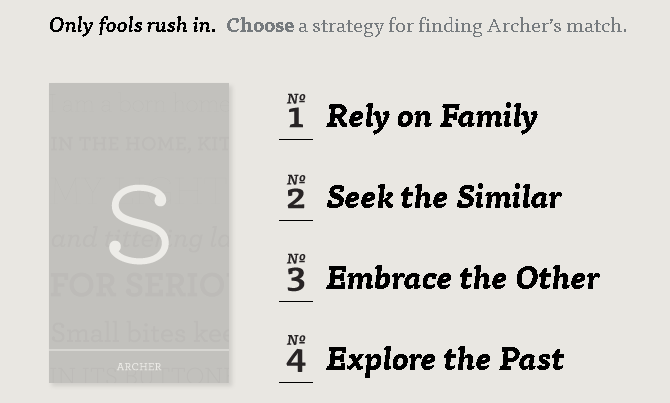
First up to bat is Type Connection, a fun and surprisingly effective font pairing web app. Type Connection turns font pairing into a kind of dating game, allowing you to select different types and styles of fonts. The site then presents you with a variety of similar or complimentary fonts that you can download and use.

The process is simple: you begin by choosing a font from a selection.

Then, you begin the process of selecting a viable match for the font. Type Connection is part font pairing device and part educational tool, and the process provides abundant information of what makes or breaks a font pairing.

type connection process

Once you’ve picked your pairing font, the app will provide you with a rundown on the similarities and differences of both fonts.

type connection rundown

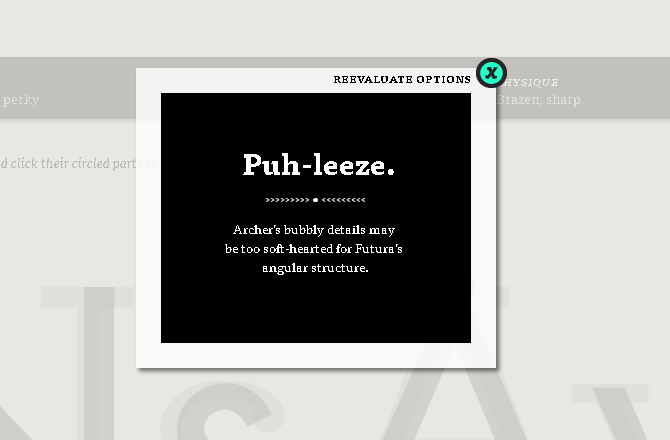
Continue on and the app will device whether or not your font pairing would be effective. If you choose two fonts that don’t belong together, you will be told why.

type connection bad pairing

If you pick the correct font, however, you will not only be given the name of your font. You’ll also be given a detailed explanation of why the fonts function well together, information concerning each font, and a fantastic example of both fonts.

type connection match

What more could a typographic designer wish for?

2. Google Type

Google Fonts is a Godsend for all designers, and Google Type makes an art of the fantastic free font repository. Google Type presents users with a simple type and background interface.

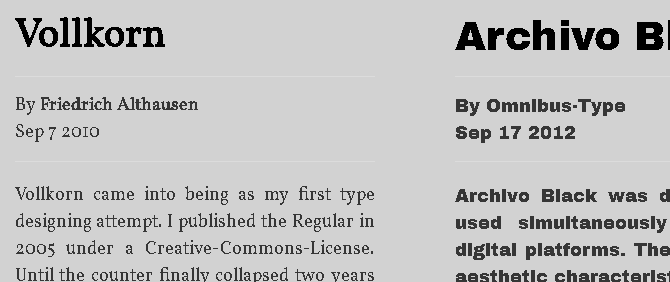
These examples display a variety of Google Fonts—which you can even use in Adobe Photoshop—showing fantastic font pairings you can also use in your own projects.

To download and use the fonts yourself, click on a font at the top of the example. You’ll be redirected to the official Google Fonts webpage.

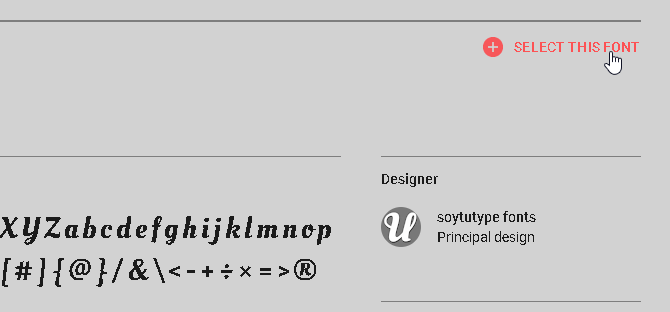
select this font

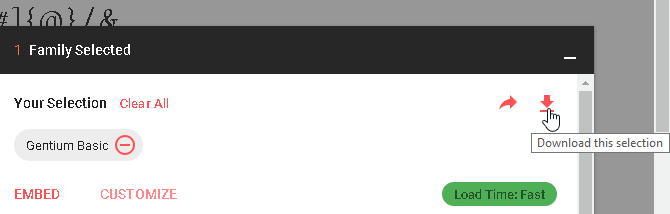
Click the SELECT THIS FONT option. Then, click on the menu that appears on the bottom of the window. Select the Download icon once you’ve finished selecting your font or fonts.

google fonts download

That’s it, enjoy your fantastic font pairing!

3. Font Pair

Font Pair is another site that’s part exhibition and part font pair repository.

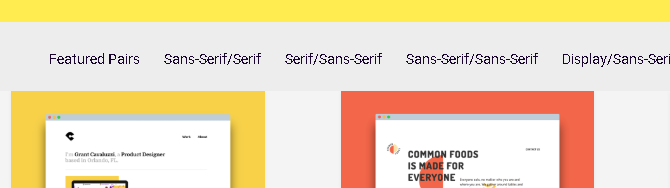
font pair

The best part of this website is the helpful navbar on the top of the site. Options like “Sans-Serif/Serif” or “Display/Sans-Serif” allow users to specify the exact type of font they’re looking for.

Scroll down the site to peruse the catalog. You can adjust any type you see in the examples to view your example text directly from the site.

font pair example

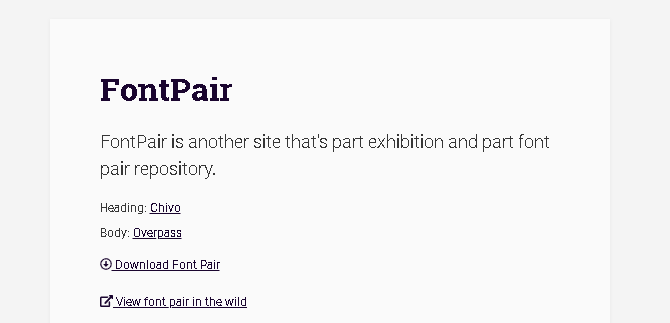
To download the font, simply click on either the Heading or Body options below the text. These fonts are available in Google Fonts, so you’ll be redirected there.

Additionally, the View font pair in the wild option will show a website using the particular font pairing in the example. Not only will it label the font pairing, it will also link the example and note the color scheme of the website.

font pair in the wild

Do you have the perfect font pairing you want to share to the world? Font Pair also allows you to submit new font pairings—and possibly include them in the website—by clicking on the Add a Font Pair option at the top of the page and filling out a form.

4. Mixfont

Mixfont is a everything you would want in a font pairing site. Head to the site and click on Start the Generator! to generate a random pairing.

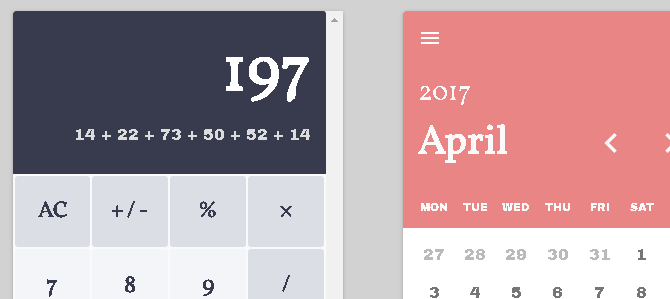
You’ll be given a randomly generated font pairing. Every font pairing on Mixfont creates a mini-website to exhibit the pairing.

mixfont example

Simply click on the red button to the bottom right of your window to continue creating random font pairings.

Once you’ve found a font you like, lock it by clicking the font on the top left of the window. A green lock will appear next to the font, locking it in.

mixfont lock

Then, continue clicking on the red button to generate additional pairs. Once you’ve found your perfect pairing, click on the Embed option to the top right of the window and then click on the font you want to download.

What makes Mixfont truly impressive, however, lies just under the font selection. Mixfont also provides users with a selection of different text examples to showcase your fonts.

mixfont showcase

It even displays simple applications using the fonts you’ve chosen, creating a truly comprehensive outline of the perfect font pairing for you. And all for free.

mixfont app

5. FontJoy

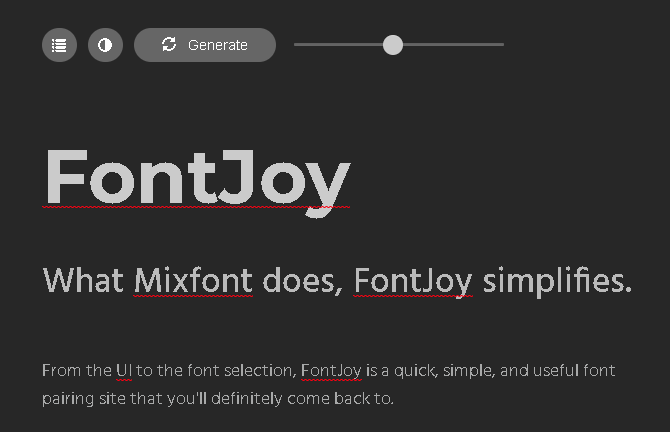
What Mixfont does, FontJoy simplifies. From the UI to the font selection, FontJoy is a quick, simple, and useful font pairing site you’ll definitely revisit again and again.

fontjoy dials

Head to the site and you’ll be presented with a very simple, largely editable UI. Above the text, you’ll see two icons, a Generate button, and a slider.

To create a random font pairing, click the Generate button. The slider on the right adjusts whether the font pairing is different, complimentary, or similar.

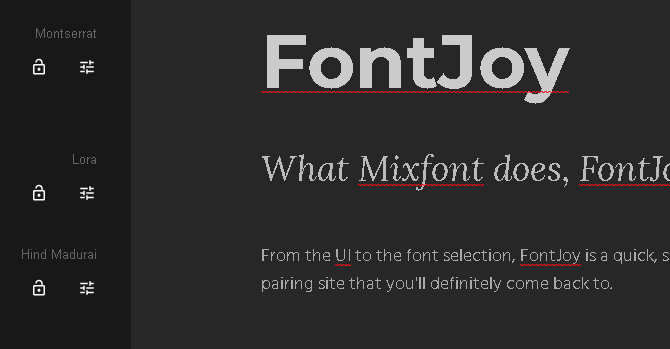
To the left, you’ll see the individual names of the fonts you’re using.

fontjoy example

Click on the Lock icon, and then the Generate button to find complimentary fonts for the locked font. You can lock each font at your discretion.

To the right of the lock button is the Adjustment button. If you want to pick a different, specific font for a section, click on the Adjustment button. You’ll be presented with a large selection of different font types, all depicted by images instead of name.

fontjoy fonts

Click on the option you choose to change the font selection. Remember to adjust the dial at the top of the text in order to narrow your search.

Have you found the font pairing you’re looking for? Then simply click on the name of the font to be redirected to its Google Fonts page.

These Fonts Make Quite the Pair

Fonts can make or break a design. Whether it be a project, an essay, a thesis, or something else, choosing the right fonts can be as important as punctuation.

If you’re designing something someone is reading, never settle for weak fonts. Instead, use these font pairing sites. And if you still can’t find the perfect font, why not try making your own font for free?

Read the full article: The 5 Best Sites for Finding Perfect Font Pairings


Read Full Article

Google gives Chrome the virtual reality treatment


Google is injecting a little Chrome into its VR platform, bringing the web browser to Daydream headsets, the company announced today. It’s been a long time coming considering the depths of Google’s WebVR experimentation on desktop and mobile Chrome.

The Mountain View tech giant announced it was working on this quite a while ago, back at I/O 2017.

Google has been moving pretty slowly with any big Daydream updates lately, all while Facebook’s Oculus has driven heavy news to its mobile platform thanks to new standalone hardware. Daydream rolled out its own positionally-tracked headset with Lenovo earlier this summer but a major lack of content has been the system’s biggest issue. Bringing the web to Daydream could help correct this, and directing more mobile developer attention to WebVR might be a positive move for Google as it looks to make content discovery more simple.

Last year, the company made it so that you could open WebVR content in mobile Chrome on your phone and then drop it into a Cardboard headset and check out the content, with this you’ll be able to launch inside VR, explore inside VR and then move onto something else.

Loading desktop webpages inside a VR headset doesn’t necessarily seem earth-shatteringly disruptive but there are some optimizations Google has ensured that some non-WebVR content gets special treatment including a “cinema mode” that drops videos into a special environment to keep your eyes on the content. You’ll also get incognito mode, voice search and access to your saved bookmarks.

The browser is available for Lenovo’s Mirage Solo as well as Google’s own Daydream View headset and you’ll gain access after updating Chrome on Android.

The web is largely still an untested wilderness for virtual reality that nobody is racing to conquer given headset volume is still pretty low and a lot of wind has been sucked out of VR’s sails lately. There’s a lot of interesting stuff that the web enables for virtual social environments especially and though most major powers are drawing attention to their own platforms, a platform like Chrome arriving on Daydream could start to spark some developer imagination for what’s possible.


Read Full Article