22 June 2018

Teaching Uncalibrated Robots to Visually Self-Adapt


People are remarkably proficient at manipulating objects without needing to adjust their viewpoint to a fixed or specific pose. This capability (referred to as visual motor integration) is learned during childhood from manipulating objects in various situations, and governed by a self-adaptation and mistake correction mechanism that uses rich sensory cues and vision as feedback. However, this capability is quite difficult for vision-based controllers in robotics, which until now have been built on a rigid setup for reading visual input data from a fixed mounted camera which should not be moved or repositioned at train and test time. The ability to quickly acquire visual motor control skills under large viewpoint variation would have substantial implications for autonomous robotic systems — for example, this capability would be particularly desirable for robots that can help rescue efforts in emergency or disaster zones.

In “Sim2Real Viewpoint Invariant Visual Servoing by Recurrent Control” presented at CVPR 2018 this week, we study a novel deep network architecture (consisting of two fully convolutional networks and a long short-term memory unit) that learns from a past history of actions and observations to self-calibrate. Using diverse simulated data consisting of demonstrated trajectories and reinforcement learning objectives, our visually-adaptive network is able to control a robotic arm to reach a diverse set of visually-indicated goals, from various viewpoints and independent of camera calibration.
Viewpoint invariant manipulation for visually indicated goal reaching with a physical robotic arm. We learn a single policy that can reach diverse goals from sensory input captured from drastically different camera viewpoints. First row shows the visually indicated goals.

The Challenge
Discovering how the controllable degrees of freedom (DoF) affect visual motion can be ambiguous and underspecified from a single image captured from an unknown viewpoint. Identifying the effect of actions on image-space motion and successfully performing the desired task requires a robust perception system augmented with the ability to maintain a memory of past actions. To be able to tackle this challenging problem, we had to address the following essential questions:
  • How can we make it feasible to provide the right amount of experience for the robot to learn the self-adaptation behavior based on pure visual observations that simulate a lifelong learning paradigm?
  • How can we design a model that integrates robust perception and self-adaptive control such that it can quickly transfer to unseen environments?
To do so, we devised a new manipulation task where a seven-DoF robot arm is provided with an image of an object and is directed to reach that particular goal amongst a set of distractor objects, while viewpoints change drastically from one trial to another. In doing so, we were able to simulate both the learning of complex behaviors and the transfer to unseen environments.
Visually indicated goal reaching task with a physical robotic arm and diverse camera viewpoints.
Harnessing Simulation to Learn Complex Behaviors
Collecting robot experience data is difficult and time-consuming. In a previous post, we showed how to scale up learning skills by distributing the data collection and trials to multiple robots. Although this approach expedited learning, it is still not feasibly extendable to learning complex behaviors such as visual self-calibration, where we need to expose robots to a huge space of various viewpoints. Instead, we opt to learn such complex behavior in simulation where we can collect unlimited robot trials and easily move the camera to various random viewpoints. In addition to fast data collection in simulation, we can also surpass hardware limitations requiring the installation of multiple cameras around a robot.
We use domain randomization technique to learn generalizable policies in simulation.
To learn visually robust features to transfer to unseen environments, we used a technique known as domain randomization (a.k.a. simulation randomization) introduced by Sadeghi & Levine (2017), that enables robots to learn vision-based policies entirely in simulation such that they can generalize to the real world. This technique was shown to work well for various robotic tasks such as indoor navigation, object localization, pick and placing, etc. In addition, to learn complex behaviors like self-calibration, we harnessed the simulation capabilities to generate synthetic demonstrations and combined reinforcement learning objectives to learn a robust controller for the robotic arm.
Viewpoint invariant manipulation for visually indicated goal reaching with a simulated seven-DoF robotic arm. We learn a single policy that can reach diverse goals from sensory input captured from dramatically different camera viewpoints.

Disentangling Perception from Control
To enable fast transfer to unseen environments, we devised a deep neural network that combines perception and control trained end-to-end simultaneously, while also allowing each to be learned independently if needed. This disentanglement between perception and control eases transfer to unseen environments, and makes the model both flexible and efficient in that each of its parts (i.e. 'perception' or 'control') can be independently adapted to new environments with small amounts of data. Additionally, while the control portion of the network was entirely trained by the simulated data, the perception part of our network was complemented by collecting a small amount of static images with object bounding boxes without needing to collect the whole action sequence trajectory with a physical robot. In practice, we fine-tuned the perception part of our network with only 76 object bounding boxes coming from 22 images.
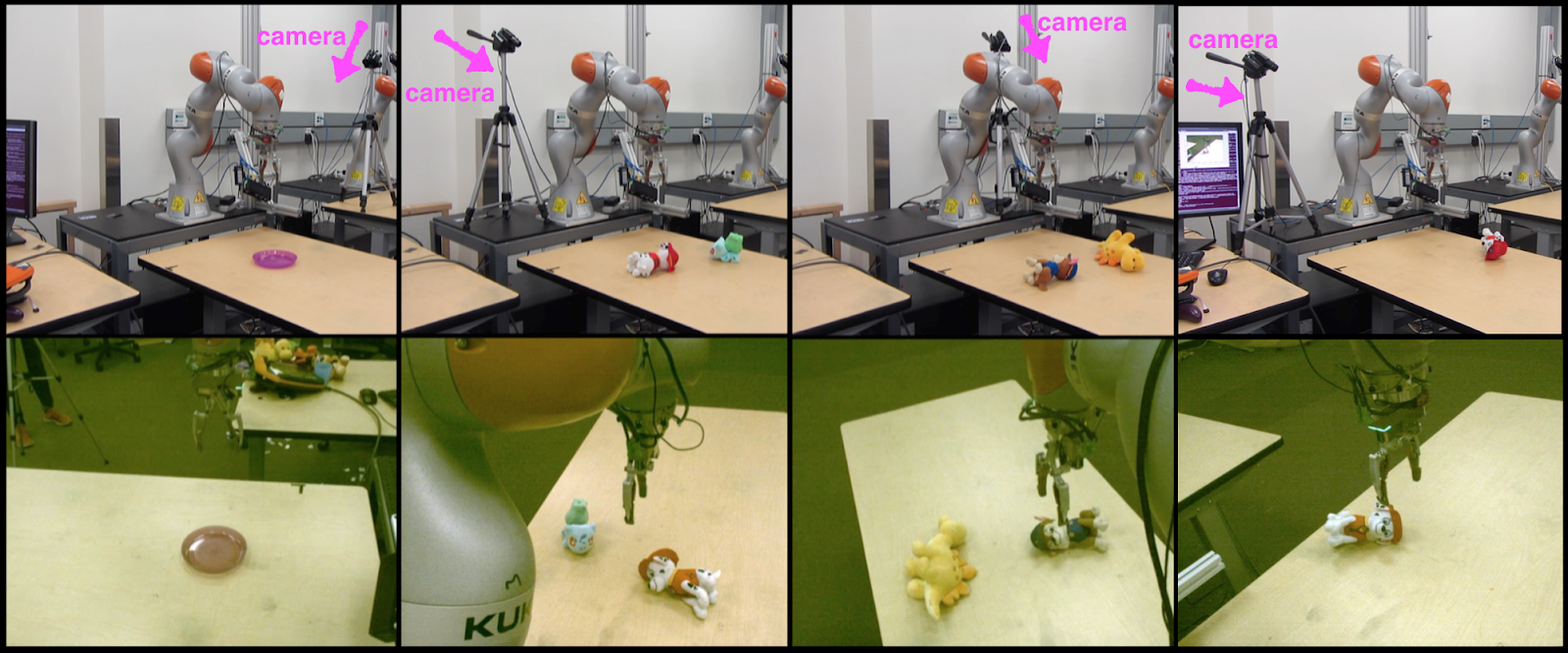
Real-world robot and moving camera setup. First row shows the scene arrangements and the second row shows the visual sensory input to the robot.
Early Results
We tested the visually-adapted version of our network on a physical robot and on real objects with drastically different appearances than the ones used in simulation. Experiments were performed with both one or two objects on a table — “seen objects” (as labeled in the figure below) were used for visual adaptation using small collection of real static images, while “unseen objects” had not been seen during visual adaptation. During the test, the robot arm was directed to reach a visually indicated object from various viewpoints. For the two object experiments the second object was to "fool" the robotic arm. While the simulation-only network has good generalization capability (due to being trained with domain randomization technique), the very small amount of static visual data to visually adapt the controller boosted the performance, due to the flexible architecture of our network.
After adapting the visual features with the small amount of real images, performance was boosted by more than 10%. All used real objects are drastically different from the objects seen in simulation.
We believe that learning online visual self-adaptation is an important and yet challenging problem with the goal of learning generalizable policies for robots that can act in diverse and unstructured real world setup. Our approach can be extended to any sort of automatic self-calibration. See the video below for more information on this work.
Acknowledgements
This research was conducted by Fereshteh Sadeghi, Alexander Toshev, Eric Jang and Sergey Levine. We would also like to thank Erwin Coumans and Yunfei Bai for providing pybullet, and Vincent Vanhoucke for insightful discussions.


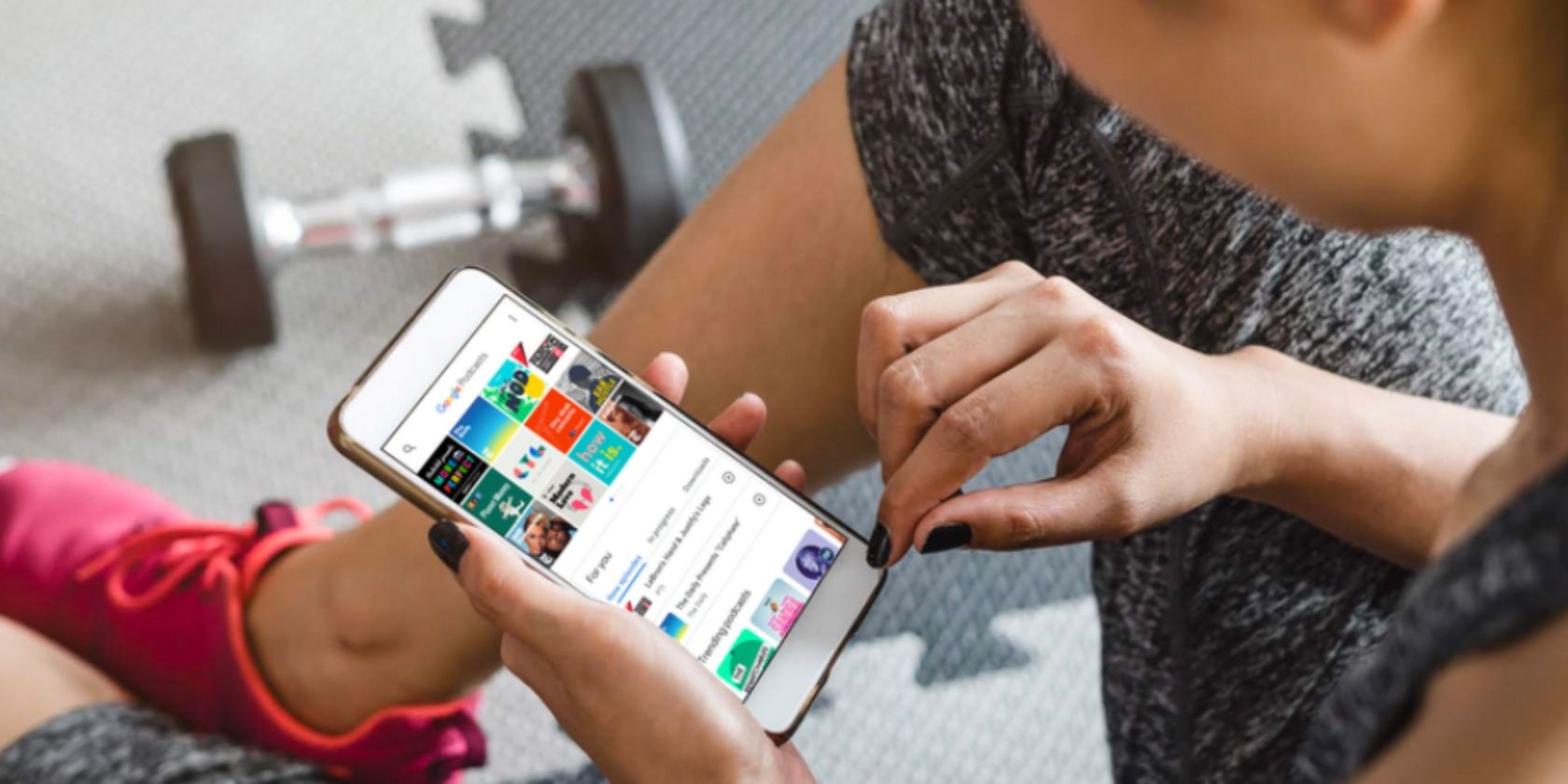
Google Finally Launches a Podcasts App on Android


After years of ignoring the medium, Google is finally taking podcasting seriously. To that end, the company has released a standalone app called Google Podcasts. Which, as you may have guessed from the name, is an app dedicated to podcasts.

What Is Google Podcasts?

In a nutshell, Google Podcasts lets you listen to podcasts. You can search for the podcasts you already know and love, and subscribe to your heart’s content. Or, if you’re keen to hear more, you can let Google recommend podcasts based on your listening habits.

As detailed on The Keyword, Google Podcasts syncs across different Google products, including Google Assistant. Google will remember how far through an episode you are, meaning you can start listening on your smartphone but finish listening on Google Home.

Google Wants to Transform Podcasting

At launch, Google Podcasts is very similar to countless third-party alternatives. However, in the longterm, Google is hoping to use the Podcasts app to “transform podcasting for the better”. This will be achieved by utilizing AI and encouraging diversity.

In terms of AI, Google will be using it to “offer recommendations based on your listening habits,” whether you’re a fan of a particular genre or a network. And in the future Google has plans to offer automatic subtitling powered by Google Translate.

In terms of diversity, Google claims that “only about a quarter of the most popular podcasts tend to be hosted by women, and even fewer by people of color”. As a result, Google is hoping to “increase the diversity of voices and remove barriers to podcasting”.

Alternatives to Google Podcasts

Google Podcasts is currently only available on Android, but an iOS version is likely in the future. In the meantime iPhone owners should use Overcast. And for Android owners who want an alternative, these are the best podcast players for Android.

Read the full article: Google Finally Launches a Podcasts App on Android


Read Full Article

The Best Linux Laptop: System76 Galago Pro vs. Dell XPS 13 Developer Edition

Facebook prototypes tool to show how many minutes you spend on it


Are you ready for some scary numbers? After months of Mark Zuckerberg talking about how “Protecting our community is more important than maximizing our profits”, Facebook is preparing to turn that commitment into a Time Well Spent product.

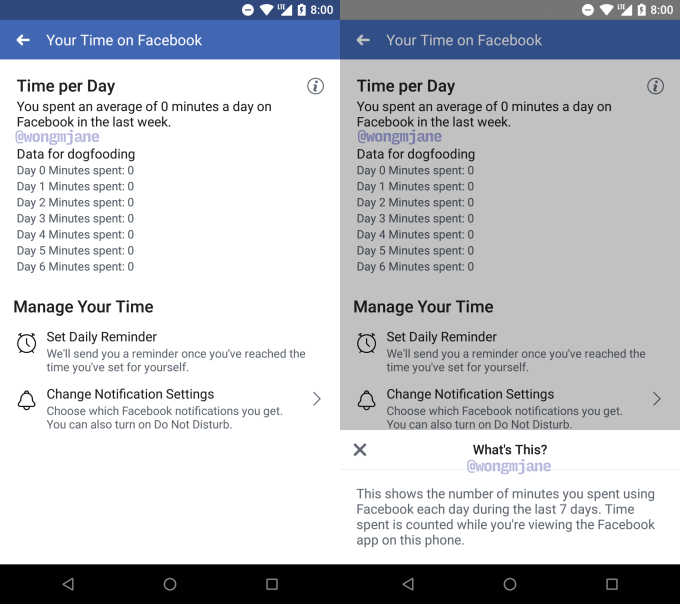
Buried in Facebook’s Android app is an unreleased “Your Time On Facebook” feature. It shows the tally of how much time you spent on the Facebook app on your phone on each of the last seven days, and your average time spent per day. It lets you set a daily reminder that alerts you when you’ve reached your self imposed limit, plus a shortcut to change your Facebook notification settings.

Facebook confirmed the feature development to TechCrunch, with a spokesperson telling us “We’re always working on new ways to help make sure people’s time on Facebook is time well spent.”

The feature could help Facebook users stay mindful of how long they’re staring at the social network. This self-policing could be important since both iOS and Android are launching their own screen time monitoring dashboards that reveal which apps are dominating your attention and can alert you or lock you out of apps when you hit your time limit. When Apple demoed the feature at WWDC, it used Facebook as an example of an app you might use too much.

Images of Facebook’s digital wellbeing tool come courtesy of our favorite tipster and app investigator Jane Manchun Wong. She previously helped TechCrunch scoop the development of features like Facebook Avatars, Twitter encrypted DMs, and Instagram Usage Insights — a Time Well Spent feature that looks very similar to this one on Facebook.

Our report on Instagram Usage Insights led the sub-company’s CEO Kevin Systrom to confirm the upcoming feature, saying ““It’s true . . . We’re building tools that will help the IG community know more about the time they spend on Instagram – any time should be positive and intentional . . . Understanding how time online impacts people is important, and it’s the responsibility of all companies to be honest about this. We want to be part of the solution. I take that responsibility seriously.”

Facebook has already made changes to its News Feed algorithm designed to reduce the presence of low-quality but eye-catching viral videos. That led to Facebook’s first ever usage decline in North America in Q4 2017, with a loss of 700,000 daily active users in the region. Zuckerberg said on the earnings call that this change “reduced time spent on Facebook by roughly 50 million hours every day.”

Zuckerberg has been adamant that all time spent on Facebook isn’t bad. Instead as we argued in our piece “The Difference Between Good And Bad Facebooking”, its asocial, zombie-like passive browsing and video watching that’s harmful to people’s wellbeing, while active sharing, commenting, and chatting can make users feel more connected and supported.

But that distinction isn’t visible in this prototype of the “Your Time On Facebook Tool” which appears to treat all time spent the same. If Facebook was able to measure our active vs passive time on its app and impress the health difference, it could start to encourage us to either put down the app, or use it to communicate directly with friends when we find ourselves mindlessly scrolling the feed or enviously viewing people’s photos.


Read Full Article

Facebook prototypes tool to show how many minutes you spend on it


Are you ready for some scary numbers? After months of Mark Zuckerberg talking about how “Protecting our community is more important than maximizing our profits”, Facebook is preparing to turn that commitment into a Time Well Spent product.

Buried in Facebook’s Android app is an unreleased “Your Time On Facebook” feature. It shows the tally of how much time you spent on the Facebook app on your phone on each of the last seven days, and your average time spent per day. It lets you set a daily reminder that alerts you when you’ve reached your self imposed limit, plus a shortcut to change your Facebook notification settings.

Facebook confirmed the feature development to TechCrunch, with a spokesperson telling us “We’re always working on new ways to help make sure people’s time on Facebook is time well spent.”

The feature could help Facebook users stay mindful of how long they’re staring at the social network. This self-policing could be important since both iOS and Android are launching their own screen time monitoring dashboards that reveal which apps are dominating your attention and can alert you or lock you out of apps when you hit your time limit. When Apple demoed the feature at WWDC, it used Facebook as an example of an app you might use too much.

Images of Facebook’s digital wellbeing tool come courtesy of our favorite tipster and app investigator Jane Manchun Wong. She previously helped TechCrunch scoop the development of features like Facebook Avatars, Twitter encrypted DMs, and Instagram Usage Insights — a Time Well Spent feature that looks very similar to this one on Facebook.

Our report on Instagram Usage Insights led the sub-company’s CEO Kevin Systrom to confirm the upcoming feature, saying ““It’s true . . . We’re building tools that will help the IG community know more about the time they spend on Instagram – any time should be positive and intentional . . . Understanding how time online impacts people is important, and it’s the responsibility of all companies to be honest about this. We want to be part of the solution. I take that responsibility seriously.”

Facebook has already made changes to its News Feed algorithm designed to reduce the presence of low-quality but eye-catching viral videos. That led to Facebook’s first ever usage decline in North America in Q4 2017, with a loss of 700,000 daily active users in the region. Zuckerberg said on the earnings call that this change “reduced time spent on Facebook by roughly 50 million hours every day.”

Zuckerberg has been adamant that all time spent on Facebook isn’t bad. Instead as we argued in our piece “The Difference Between Good And Bad Facebooking”, its asocial, zombie-like passive browsing and video watching that’s harmful to people’s wellbeing, while active sharing, commenting, and chatting can make users feel more connected and supported.

But that distinction isn’t visible in this prototype of the “Your Time On Facebook Tool” which appears to treat all time spent the same. If Facebook was able to measure our active vs passive time on its app and impress the health difference, it could start to encourage us to either put down the app, or use it to communicate directly with friends when we find ourselves mindlessly scrolling the feed or enviously viewing people’s photos.


Read Full Article

Citymapper lets you find Ofo, Mobike and scooters around you


Urban transportation app Citymapper quietly rolled out an app update that lets you find many alternative mobility services in the app. You can now find the nearest dockless bike or electric scooter around you (not the Bird and Lime kind, the motorcycle kind).

The integrations are already live in many cities. The company didn’t add new buttons for each service because it was already getting quite crowded with buses, subways and ride-sharing services.

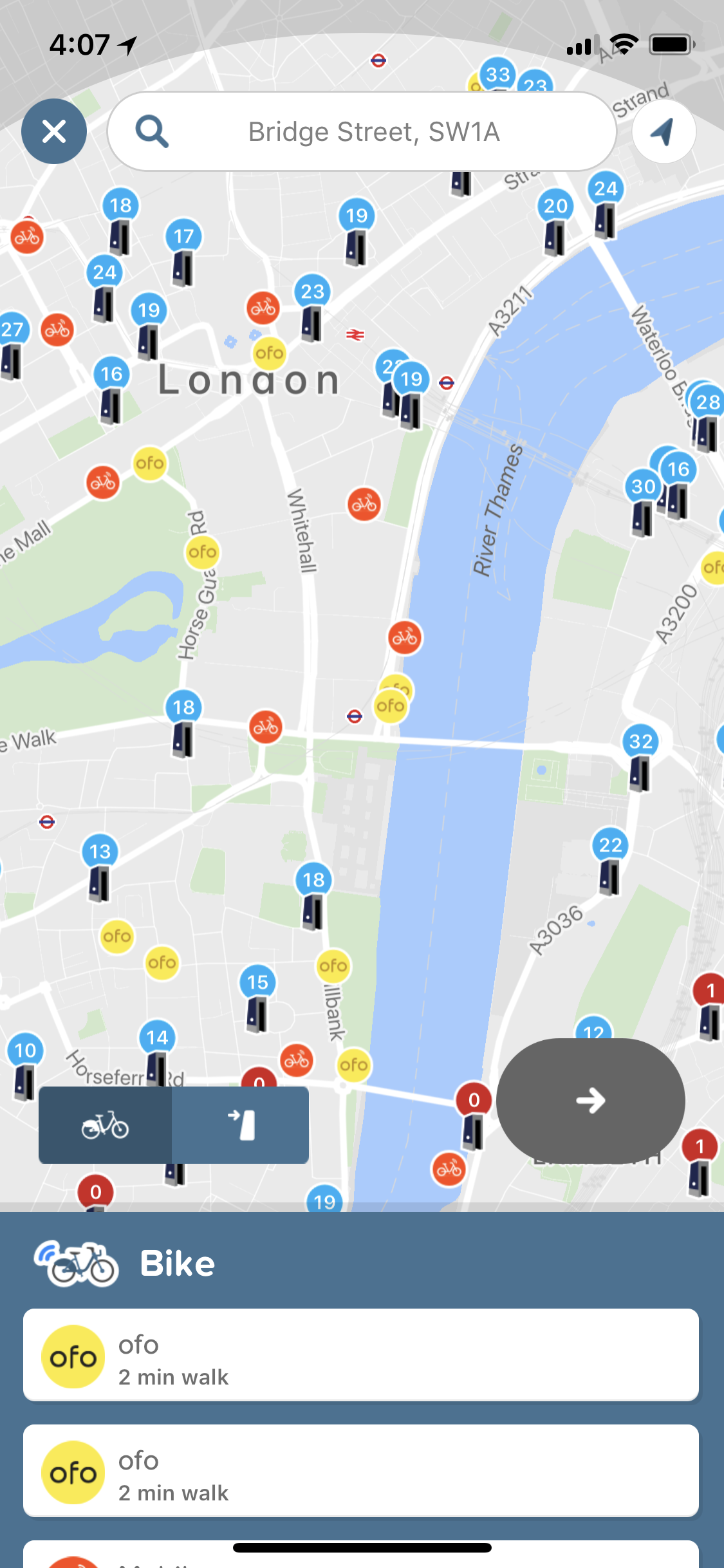
If you tap the bike button, you get a map view of the streets around you. In addition to traditional bike-sharing services, you’ll now find colored dots representing both Ofo and Mobike. TechCrunch’s Ingrid Lunden previously reported that the Mobike integration was coming soon. Below the map, you get a list of the closest bikes.

But Citymapper also added a new scooter button in multiple cities. As the name suggests, this button helps you locate the closest free-floating scooter that you can unlock with your phone.

In Paris, you’ll find Coup and Cityscoot scooters. In Berlin, you’ll find Coup scooters. In Madrid and Barcelona, you’ll find Muving, ioscoot, eCooltra and Yugo scooters… You get the idea. Chances are all your local options will be there.

Interestingly, electric scooters from Bird and Lime aren’t in there just yet. It might be what everybody is talking about, but you’ll only see Jump and Ford bikes in San Francisco.

For now, all you can do is locate the nearest bike or scooter. You still have to open each individual app to scan the QR code and unlock those vehicles.

But this is an interesting approach. Citymapper doesn’t operate any transportation service. It can be an agnostic player and provide a comprehensive view of what’s around you without any conflict of interest. It doesn’t have to recreate a transportation hub like Lyft or Uber as those two companies recently acquired Motivate and Jump to provide bike-sharing services.

And if you’re visiting a city for the first time, you can open the app to find out how you’ll be able to navigate that new city.


Read Full Article

Transfer.sh is an instant sharing tool for programmers


File sharing tools are a dime a dozen these days. There’s Dropbox, Google Drive, and iCloud. But what if you want to share something quickly and easily from the command line? That’s why programmer Remco Verhoef created Transfer.sh.

The service has basically a file dump. You send a file to transfer.sh via curl and it stays there for fourteen days until its automatically deleted. For example, I uploaded this picture by adding a bit of code to my .bashrc.

The system is one of those small, clever tools that just works. Verhoef created it because he needed to be able to upload files on the fly.

“I created this application when I needed to share log data from within a ssh shell with someone else,” he said. “So I created a web application where I can easily upload files using curl (which is available on almost every platform) just using the command line and modify the file on the fly, like encrypting the contents, applying grep etc. The application has been made open source because it could be usable for many other people and I’d encourage them to run their own server.”

“We don’t have a business model, and we are keeping the site running as courtesy. It is getting a bit difficult to keep it running, because of the popularity and usage,” he said. He also runs a dev shop and is releasing a number of other products including ICO security.

Verhoef doesn’t promise security on his platform, only convenience. He recommends piping files through gpg before uploading them.

Not everyone is using the product for good, however, which frustrates his team.

“It is being used by a lot of people,” he said. “Some are using it for uploading log files, others are exporting complete video surveillance to us. Sometimes it is being abused, by distributing malware, botnets and other malicious tools, but we try to stop it as soon as possible. One time a porn website was serving porn photos through us, and when we found out we had all photos replaced by dogs and kittens.”


Read Full Article

7 Hidden Calibre Features That’ll Help You Manage Your Ebooks Better


calibre-hidden-features

Calibre might not be the most polished app in the world, but it’s definitely the best software for managing your ebook collection.

It ticks all the right boxes: it’s free, there aren’t any ads, and it boasts a vast number of powerful features. Sadly, many of those features fly under the radar, which is a shame because they can elevate your ebook management to the next level.

So, without further ado, let’s take a look at some of the best hidden Calibre features.

Download: Calibre on Windows, Mac, and Linux

1. Merge and Split EPUB Ebooks

Some books come in multiple installments. Perhaps it’s a series of books like the Lord of the Rings trilogy, or maybe it’s a reference guide such as an encyclopedia.

Similarly, some books are exceptionally long; encyclopedias again spring to mind. A long book means a large file size, and that can be problematic when you’re waiting for a book to fully load in your e-reader.

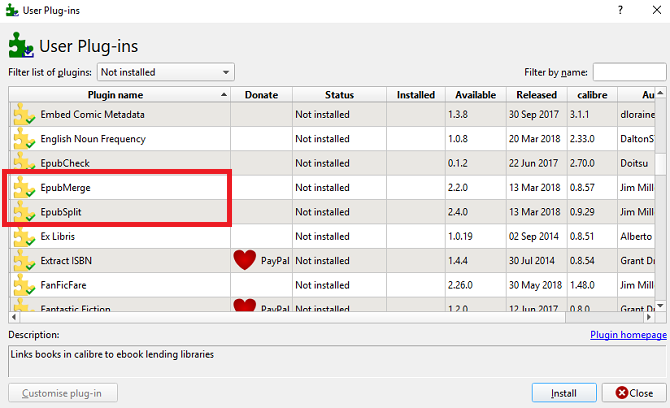
The solution is to use two Calibre plugins called EpubSplit and EpubMerge. Combined, they let you collate multiple books or divide single books at your choosing.

To install the plugins, follow the instructions below:

  1. Open the Calibre app.
  2. Right-click on the Preferences icon in the upper right-hand corner.
  3. Select Get plugins to enhance Calibre from the drop-down menu.
  4. Locate EpubSplit and highlight the plugin.
  5. Click on Install in the lower right-hand corner.
  6. Choose the toolbars and menus where you want the plugin option to appear.
  7. Locate EpubMerge and highlight the plugin.
  8. Again, click on Install in the lower right-hand corner.
  9. And again, choose the toolbars and menus where you want the plugin option to appear.

epubmerge epubsplit

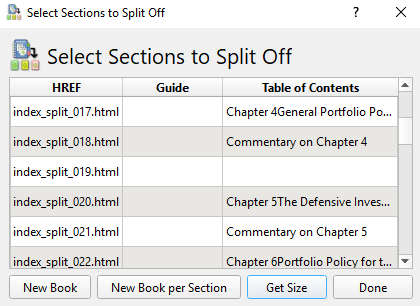
To use the plugins, click on the book you want to merge or split in your library, select the correct plugin in the menu bar, and choose the sections you either want to split or merge.

calibre split book

Note: The plugins only work with ebooks in the EPUB format. We’ll discuss how to convert books into different formats shortly.

2. Get Your Favorite Magazines on Your E-Reader

Online magazine subscriptions can be confusing. Some offer an online-only digital version, some offer a Kindle version, and some are only available as Android apps.

Wouldn’t it be great if you could cut through the fluff and download your favorite magazines onto your e-reader automatically?

Well, Calibre makes this possible.

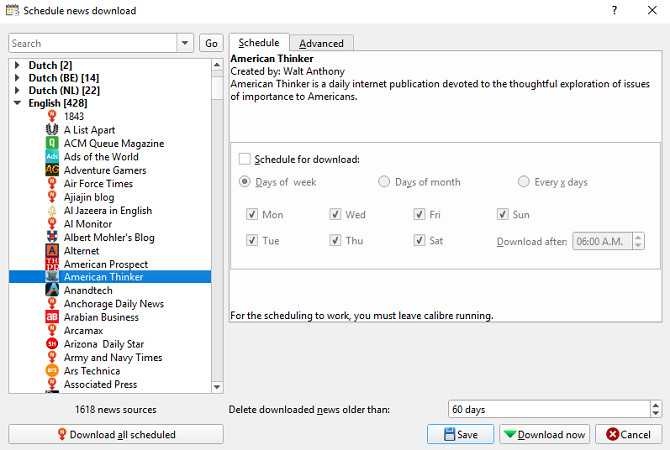
To get started, click on the Fetch News tab at the top of the app’s home screen. In the left-hand panel, you’ll see a list of languages. Click on your dialect of choice to see what’s available.

calibre library news

Find the title you want to read and—if required—enter your paywall login credentials. Next, in the right-hand panel, mark the checkbox next to Schedule for download and hit Download Now.

Lastly, you need to force Calibre to send your newly downloaded magazine issues to your e-reader. Go to Preferences > Behavior and mark the checkbox next to Automatically send downloaded news to ebook reader.

Note: For automatic downloading to work, Calibre needs to be running on your computer.

3. Turn Calibre Into a Sharing Server

If several members of your household have a Kindle, or if you own multiple Kindles, continually syncing your data manually quickly becomes tedious.

Instead, why not turn your Calibre app into a content server? By doing so, you can make your entire Calibre library available on all your devices. You can even upload new content to your Calibre library from those devices.

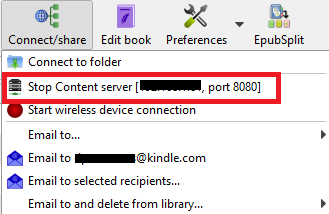
The process is remarkably straightforward. In Calibre’s menu bar, go to Connect/share > Start content server. Your computer might prompt you to allow the app through its firewall.

Next, click on the Connect/share tab for a second time. You’ll see your computer’s local IP address followed by the port number. Make a note of them.

calibre library server ip

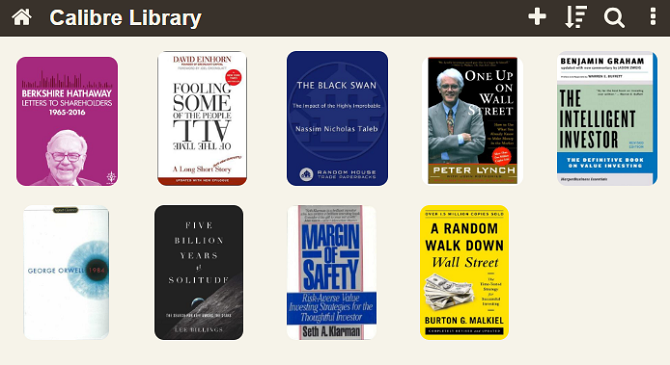
Now head to your Kindle’s browser (or any other browser) and type [IP address]:[port number] in the address bar. You should see all your Calibre books appear on your screen.

Click on a book’s title to open it or click on the + icon in the upper right-hand corner to add more content to your library.

calibre library server

Note: If you want to access your library when you’re away from your home network, you’ll need to allow port forwarding to Calibre’s port number on your router.

4. Convert Ebooks Into Different Formats

Sadly, the world of ebook file formats is a bit of a mess.

In theory, the standard format is the open-source EPUB. However, Amazon’s Kindle devices—which are the world’s most popular e-readers—can’t read it. Instead, they rely on the proprietary AZW format. And let’s not start on MOBI, LIT, AZW3, or the other dozen different formats you see out there.

Suffice to say, you need a way to convert ebooks into different formats.

Thankfully, Calibre delivers. To convert an ebook into a different file format, use the following instructions:

  1. Open Calibre.
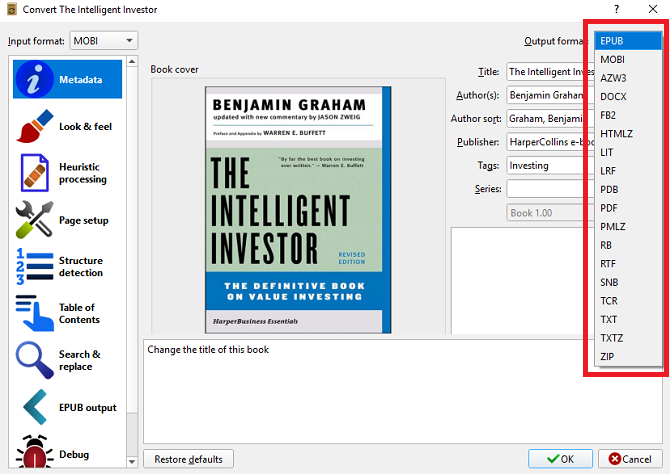
  2. Right-click on the book you want to convert and go to Convert Books > Convert Individually.
  3. In the upper right-hand corner of the new window, choose your desired new format.
  4. Click on OK and give the conversion a minute or two to complete.

calibre convert

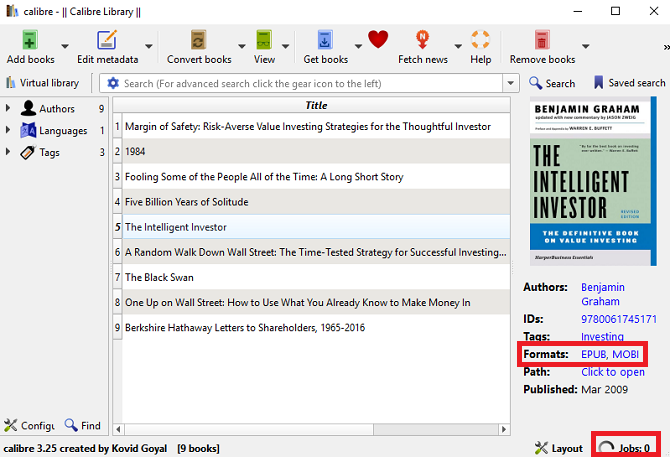
You can verify if the conversion has been successful by clicking on Jobs in the bottom right-hand corner of the app’s home screen. You can also check whether the new format is listed in the book’s information panel on the right-hand side of the screen.

calibre convert success

Note: You can also automatically convert new ebooks when you import them into your library for the first time.

5. Remove DRM From Ebooks

We now live in an age in which true ownership of digital media is becoming less common. Luckily for bookworms, Calibre lets your wrestle back control of your ebooks by offering a way to remove the DRM from titles you’ve bought from Amazon and other online stores.

We covered the process in detail when we explained how to remove the DRM on every ebook you own. So we recommend reading that article for the full scoop.

6. Automatically Download Ebook Metadata

Like any media library, you need to keep the metadata organized. Doing so will lead to a much smoother and more enjoyable experience, especially if you have a vast number of books.

But who has the time to enter all that information manually?

Calibre offers a little-used feature that lets you scan for your books’ metadata automatically. It can even find the correct book covers.

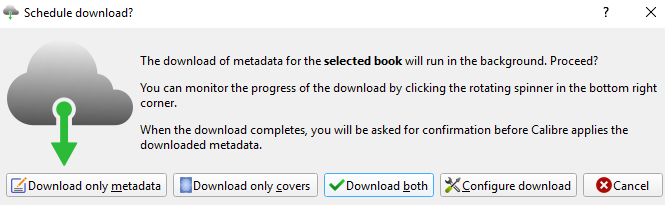
To scan for metadata, right-click on the book in question and go to Edit Metadata > Download metadata and covers. A new box will pop up on your screen. You need to select Download both.

metadata download

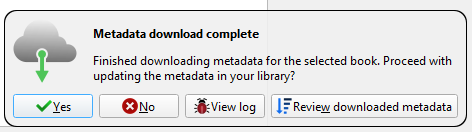
When the scan is finished, you’ll see a notification appear. Click on Review downloaded metadata and make any tweaks as appropriate.

metadata download

Calibre can pull metadata from Amazon, Google Images, Overdrive, Open Library, Edelweiss, Douban Books, and more.

7. Put Your Ebook Library in the Cloud

If using the content server method that we described earlier sounds too finicky, you can instead use Dropbox as an alternative.

By keeping your books in Dropbox rather than on your local machine, you’ll be able to access them from anywhere. However, if you set up the Calibre app correctly, you’ll also be able to use the app to manage your library locally.

Firstly, you need to download and install Dropbox on your computer.

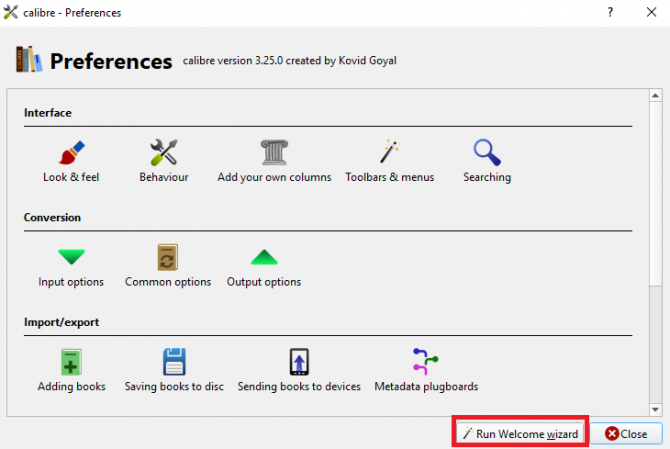
Next, head to Calibre and move your library to the shared Dropbox folder on your machine. The fastest way of achieving this is to go to Preferences > Run Setup Wizard and point the Calibre app at the Dropbox folder.

calibre library wizard

Lastly, drag-and-drop your ebooks from their current location into the Dropbox folder. Et voila, you now have a cloud-based ebook library that you can manage locally using Calibre.

Do You Need More Books to Read?

The seven features we have covered in this article are all great, but you won’t be able to enjoy them if you don’t have a library of ebooks to begin with.

But building a library doesn’t necessarily involve spending money. There are lots of sites to get free ebooks, and you can even download free books directly from Amazon.

Read the full article: 7 Hidden Calibre Features That’ll Help You Manage Your Ebooks Better


Read Full Article

Bag Week 2008: Why I still love the Peak Design Everyday Backpack


Welcome to Bag Week 2018. Every year your faithful friends at TechCrunch spend an entire week looking at bags. Why? Because bags — often ignored but full of our important electronics — are the outward representations of our techie styles, and we put far too little thought into where we keep our most prized possessions.

A few months back I declared the Peak Design Everyday Backpack the best thing at CES 2018. It was a silly comment since the bag was released a couple years back but it was new to me. I had purchased the bag from Best Buy a few days prior and was in love with the bag and had to tell the world. I’m happy to report that after carrying the bag around several more conferences and a family trip to Disney World, I’m comfortable declaring it the best backpack I’ve ever used.

The company recently released a black version and sent me one to test. It looks mean. It’s the backpack Darth Vader would carry if he needed to tout around a full frame DSLR, a couple lenses and a MacBook Pro.

[gallery ids="1661479,1661478,1661477,1661475,1661476,1661480,1661482"]

The bag’s main clasp is wonderful. It’s designed in such a way that the wearer can quickly open and securely close it. Just pull down and away to open the bag. To close it, pull down so the top is tight, place the clasp next to the metal rungs and let go. Magnets hold the clasp next to the bag and the tension on the top causes the clasp to find the next available rung. Try it and you’ll love it. I do.

Peak Design equipped the bag with solid hardware. All the clasps are metal and the zippers are durable. I don’t think there’s plastic anywhere on the bag.

Like I said several months ago, the bag is best described as smart and solid. It’s a confident design with just enough pockets and storage options. The bag features one, large pocket that makes up most of the bag. Foldable dividers allow the wearer to customize the bag as needed. And quickly, too. These dividers fold in several ways, allowing the bag to hold, say, a large telephoto lens or several smaller lens.
The bag is packed full of surprises, too. Straps are hidden throughout allowing it to hold a surprising amount of items even a drone.

Small packing cubes make the Peak Design Everyday Backpack a storage cabinet. This is my bag while traveling overseas.

Peak Design positions this bag as a camera bag, but it can be so much more with some little bags. I use these and they fit perfectly in both the 20L and 30L bag. It lets me keep things organized and separated in a way that I’ve haven’t found possible in other bags. Peak Design should look at making a series of these bags. I would be all over them if they did.

The bag I bought back before CES was the 20L. It’s the smallest option though far from small. My 15-inch MacBook Pro squeezes into the laptop compartment and the bag has yet to feel too small even when it’s holding a camera, a couple books and a travel pillow.

The new black bag looks amazing but it seems to show scuffs and dirt more than my grey one. That’s a shame, too. I throw my bags around and expect a lot out of them. This black bag looks more dirty after one oversea trip than my grey one does after six months of use.

Just like I said back at CES, I’m not going to run through all the details of this bag. A few more are worth calling out: The sternum strap is fantastic. It uses clips without moving parts so it should last a lifetime. The shoulder straps are attached to the bag with a rivet that allows the straps to swivel as needed — it’s a smart advancement in the design of a backpack. And inside the laptop sleeve is a small pocket that is absolutely perfect to hold a Traveler’s Notebook and a pen.

As backpacks go, the Peak Design Everyday Backpack costs more than most. The smaller 20L is $260 and the 30L is $290. To me, the higher price is justified and if there’s a backpack worth the extra cost, it’s this one. I highly recommend this bag.


Bag design with Peak Design


Folks, it’s Bag Week! Tito Hamze visits Peak Design’s HQ in San Francisco to learn about the company and how they create their bags. From humble beginnings starting with a clip to hold your camera to a full-fledged accessory company, this outfit is growing and creating quality products — all while never having taken any traditional VC funding.

bag week 2018


Read Full Article

Messenger Kids expands outside the U.S., rolls out ‘kindness’ features


Facebook’s kid-friendly messaging app, Messenger Kids, is expanding to its first countries outside the U.S. today, with launches in Canada and Peru. It’s also introducing French and Spanish versions of its app, and rolling out a handful of new features focused on promoting respect and empathy, including a “Messenger Kids Pledge” and something called “Kindness Stickers,” which are meant to inspire more positive emotions when communicating online.

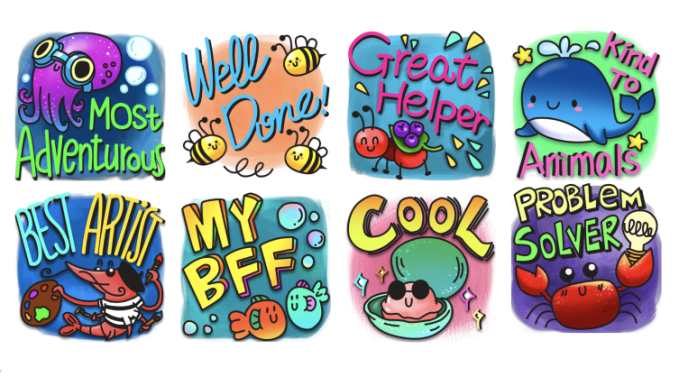
The stickers say things like “MY BFF” or “Well Done!” or “Best Artist,” and are designed to be placed on shared photos.

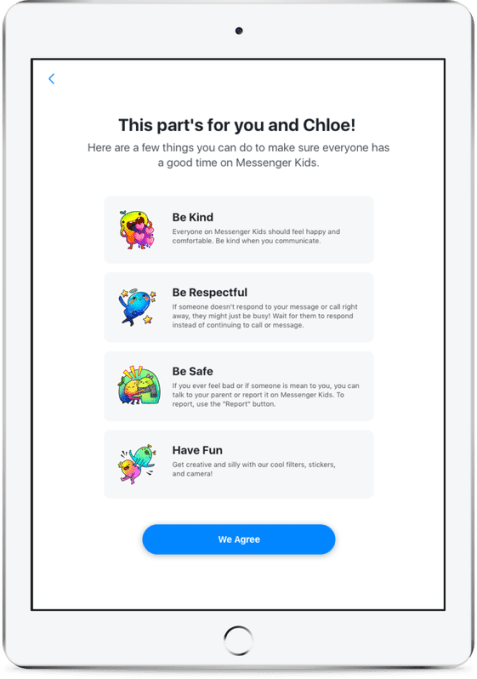
Also helpful is the new “Messenger Kids Pledge,” which is designed for both parents and children to read together, and includes some basic guidelines about how to be behave online. For example, it reminds everyone to “be kind when you communicate,” and to “be respectful,” explaining also that when someone doesn’t respond right away, they may just be too busy. “Be safe” and “have fun” are also a part of the guidelines.

This seems like a small addition, but it’s the kind of thing parents should already be doing with their kids when they introduce new technology – and many do not. Some parents don’t even know what apps kids are using, which has allowed those less secure apps to become hunting grounds for predators.

Messenger Kids works differently, as it requires parental involvement. Kids can’t add any friends without parental approval, and the app can be managed directly from parents’ Facebook.

While it’s understandable that people have a hard time trusting Facebook these days, there isn’t any viable alternative that allows kids to “practice” communicating or socializing online in a more controlled environment. Kids instead beg for apps aimed at adults and older teens, like Snapchat, Instagram, and Musical.ly – apps I personally won’t install for a “tween.”

Messenger Kids at least gives kids a way to privately socialize with approved people – kids whose parents you know and trust, and family members on Facebook. They’re at an age where you can still look over their shoulder, and correct bad behavior as it arises.

The alternative to using Messenger Kids is what a lot parents do – they refuse all social apps until kids reach a certain age, then throw them to the wolves on the internet. Is that really better?

Despite its sandboxed nature, kids like Messenger Kids because it has the features they actually want from the adult-oriented apps – like photo filters and stickers. (If the app would please add Facebook’s new lip-sync feature so I could stop hearing the begs for Musical.ly on a daily basis, I’d be much appreciative.)

Related to its push for kindness and respect, Messenger Kids will also soon roll out an interactive guide within its app called the “Appreciation Mission” which will encourage kids to discover and express appreciation for their friends and family. This will live in the “Mission” section of the app, where kids learn how to use features, like starting a video call or sending a photo.

Facebook says it consults with the Yale Center for Emotional Intelligence and a global group of advisors on the development of the features focused on these principles of social and emotional learning. (The Yale Center is a paid advisor.)

Come to think of it, a lot of adults could benefit from these sorts of features, too. Maybe Facebook and Twitter should add their own in-app kindness reminders, as well?

Messenger Kids also added support for two parents to manage kids’ accounts, based on customer feedback.

The app is a free download on iOS and Android.


Messenger Kids I Safer Messaging and Video Chat

Messenger Kids is a free, safer messaging and video chat app that provides more control for parents and more fun for kids.

Posted by Messenger Kids on Tuesday, June 19, 2018


Read Full Article

The 7 Best GitHub Alternatives for Hosting Your Project’s Source Code


github-alternatives

Ever since Microsoft purchased GitHub, many people have been searching for alternative places to host and share their code.

Is switching from GitHub absolutely necessary? Probably not. But Microsoft brings with it a reputation for the occasional takeover disaster, as well as some privacy concerns. So if you’re looking to jump ship, we don’t blame you.

Whether you’re trying to evade Microsoft or you just want to try something new, here are some of the best GitHub alternatives that provide similar functionality.

1. GitLab

As one of GitHub’s most significant competitors, GitLab is having a field day with the GitHub exodus. They’ve even made it easy to migrate projects from GitHub:

As it’s designed for the entire DevOps cycle, GitLab lets you do everything from plan to release to monitor your software. Powerful planning tools mean you don’t need to use another system to keep everyone on track. And GitLab’s branching system makes it easy to design, test, and manage code.

You can download an instance to host on your own server or use GitLab’s SaaS hosting. Both options have different price points ranging from $0 to $99 per user.

This pricing system gives you more flexibility than you get with GitHub, and allows GitLab to provide full DevOps capability to any company. You might end up paying more, but you’ll get everything you need.

2. BitBucket

best github alternatives host source code

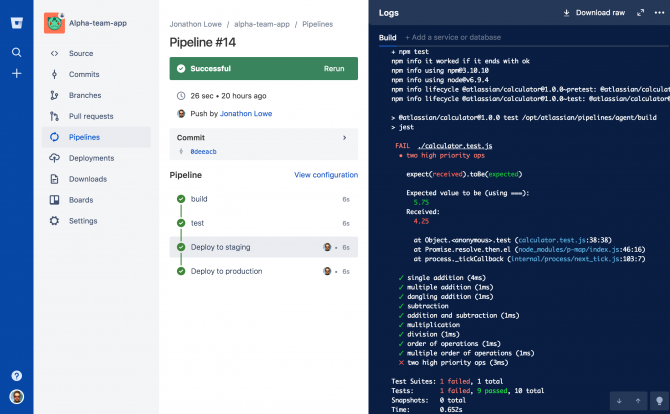
Atlassian’s Git-based repository system integrates with its other products, like Trello and Jira. This can be a huge bonus to teams that are already using these apps (which are common in the development world).

It also integrates with Slack and HipChat. Developers can create their own integrations within the user interface, adding more flexibility. Two-factor authentication and Soc 2 Type II security keep your code secure.

And if you’re already using GitHub, BitBucket has a walkthrough for importing your repositories.

BitBucket offers a wide range of pricing options for both self-hosted and cloud instances, including one-time and yearly payment plans. You can also pay extra to scale your build minutes and storage if you need more without adding more users.

Also, BitBucket has a free plan for small groups.

3. Beanstalk

best github alternatives host source code

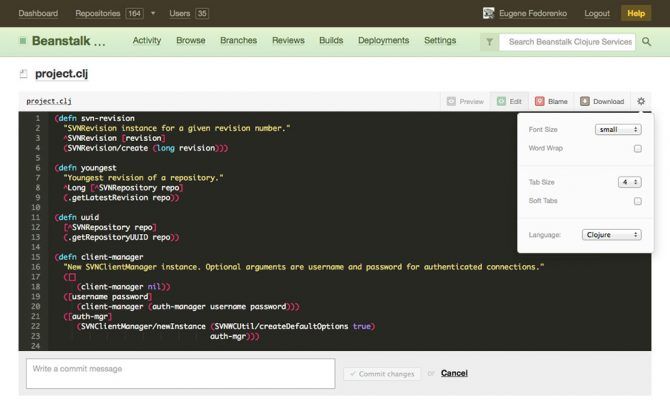
With support for both Subversion and Git, Beanstalk is a versatile platform. And because you can create branches and edit directly in your browser, it’s good for developers on the go.

Beanstalk also has robust code review options and reports that tell you how much of your repository has been reviewed. This can be especially useful for teams that contract with outside coders.

No necessary client means Beanstalk makes life easier for highly mobile teams. And there are enough security features that large corporations like Philips, Intel, and Whole Foods feel safe storing their data on the company’s servers.

4. AWS CodeCommit

Amazon’s Git-based source control service is a solid choice for companies that are already using other AWS services. With scalable cloud storage and no size limits, it’s also a good choice for anyone who’s likely to need a lot more server space in the near future.

CodeCommit has the advantage of an extremely straightforward pricing system. The first five users are free, and after that, you’ll pay $1 per user per month. That comes with 10GB per month of storage and 2,000 Git requests per active user.

If you need more storage of requests, you can easily pay for them. CodeCommit is also part of the AWS Free Tier, so you can try it out and get used to it before fully committing.

5. Visual Studio Team Services

best github alternatives host source code

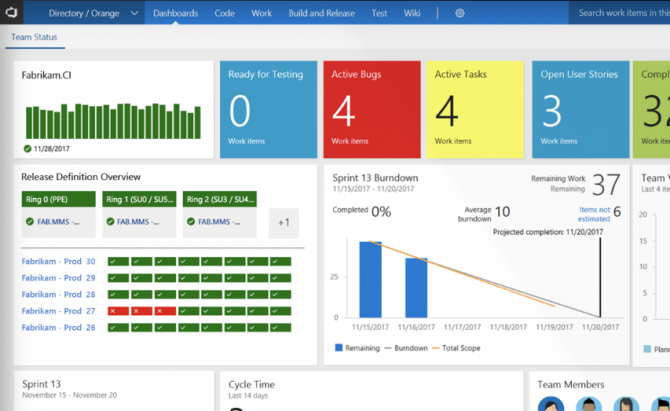
Microsoft’s Visual Studio Team Services (VSTS) lets you collaborate, store, review, and deploy your code. Of course, if you’re leaving GitHub because you don’t like Microsoft, you’re not likely to want to use Visual Studio.

Still, VSTS aims to help you with a wider variety of development tasks. It provides Kanban boards for agile planning, support for Scrum, testing and deployment infrastructure, and package sharing.

Guaranteed uptime, 24/7 support, and a regular update schedule are all perks of working with VSTS. Up to five users can work with VSTS for free, and you’ll pay a monthly fee based on the number of users beyond that.

6. RhodeCode

best github alternatives host source code

If your organization uses different version control technologies, RhodeCode might be a good choice. It supports Mercurial, Git, and Subversion, giving you the widest variety of options on this list.

Code review, workflow automation, and permission management help you monitor and run DevOps in your group. And the built-in SVN-to-Git migration is a great help when transitioning your team.

RhodeCode’s Community Edition is totally free, while the Enterprise Edition gives you integration with enterprise tools, premium support, more collaboration features and multiple instances. The Enterprise Edition is $75 per user per year, and licenses are offered in 10-packs.

7. SourceForge

There’s a good chance that you’ve downloaded free software from SourceForge sometime in the past. And if you’re working on an open-source project, it’s a great alternative to GitHub.

There’s not much in the way of features, and the site itself is pretty strange (there are articles about cloud storage and business VoIP on the front page), but it’s also free. So if you’re on a shoestring budget and developing an open-source app, it’s worth considering.

SourceForge has caused some controversy in the past when they bundled their own software with open-source downloads. They seem to have cleaned up their act, but it also appears to be somewhat cyclical. Check their current practices before hosting your code there.

Choosing the Right GitHub Alternative for You

With all of these choices, it can be tough to find the best alternative to GitHub. But because most services offer either a free plan or a free trial, you can check them out to see which one works best.

If you just want basic functionality, and you aren’t worried too much about the interface or enterprise features, choosing one based on your budget is a viable option as well.

And don’t forget that version control can be used for more than code.

Read the full article: The 7 Best GitHub Alternatives for Hosting Your Project’s Source Code


Read Full Article

Twitter buys a startup to battle harassment, e-cigs are booming, and a meditation app is worth $250M


Hello and welcome back to Equity, TechCrunch’s venture capital-focused podcast where we unpack the numbers behind the headlines. This week TechCrunch’s Silicon Valley Editor Connie Loizos and I jammed out on a couple topics as Alex Wilhelm was out managing his fake stock game spreadsheets or something. (The jury is out on whether this was a good or bad thing.)

First up is Twitter buying Smyte, a startup targeting fixes for spam and abuse. This is, of course, Twitter’s perennial problem and it’s one that it’s been trying to fix for some time — but definitely not there yet. The deal terms weren’t disclosed, but Twitter to its credit has seen its stock basically double this year (and almost triple in the past few years). Twitter is going into a big year, with the U.S. midterm elections, the 2018 World Cup, and the Sacramento Kings probably finding some way to screw up in the NBA draft. This’ll be a close one to watch over the next few months as we get closer to the finals for the World Cup and the elections. Twitter is trying to bill itself as a home for news, focusing on live video, and a number of other things.
Then we have Juul Labs, an e-cigarette company that is somehow worth $10 billion. The Information reports that the PAX Labs spinout from 2015 has gone from a $250 million valuation all the way to $10 billion faster than you can name each scooter company that’s raising a new $200 million round from Sequoia that will have already been completed by the time you finish this sentence. Obviously the original cigarette industry was a complicated one circa the 20th century, so this one will be an interesting one to play out over the next few years.

Finally, we have meditation app Calm raising a $27 million round at a $250 million pre-money valuation. Calm isn’t the only mental health-focused startup that’s starting to pick up some momentum, but it’s one that’s a long time coming. I remember stumbling upon Calm.com back in 2012, where you’d just chill out on the website for a minute or so, so it’s fun to see a half-decade or so later that these apps are showing off some impressive numbers.

That’s all for this week, we’ll catch you guys next week. We apologize in advance if Alex makes it back on to the podcast.

Equity  drops every Friday at 6:00 am PT, so subscribe to us on Apple PodcastsOvercast, Pocketcast, Downcast and all the casts.


Read Full Article

How to Send Free SMS Texts From a PC Using Android Messages


windows-send-sms

Apps for texting from your PC like MightyText and Pushbullet always come up when discussing ways to send SMS messages from your PC. But they tend to limit your monthly texts unless you pay for a costly Pro subscription. Pulse, one of the best alternative apps to SMS text messaging, lets you text from your PC but it costs a few dollars per year.

Android-Messages-Web-Text

Thankfully, Google has updated it Messages app to finally include free and unlimited texting from your PC. Here’s how to use it:

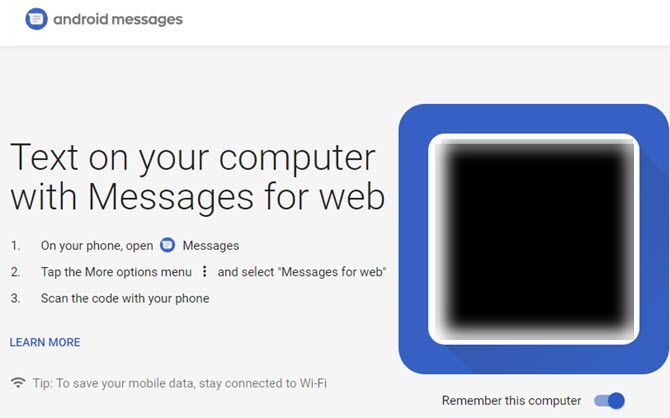
  1. Make sure you’ve updated to the latest version of Android Messages and open it on your phone. It’s pre-installed on many devices, but you can download it from the Play Store if you don’t have it. You’ll also need to set it as your default SMS app for full functionality.
  2. Tap the three-dot Menu in the upper-right corner of Messages and choose Messages for web. If you don’t see this yet, you’ll need to wait for the update to roll out to you.
  3. Open Google’s Messages for Web page on your computer’s browser (it won’t work with internet Explorer).
  4. If you want to stay signed in, enable the Remember this device slider. Then tap Scan QR code on your phone, and use your device’s camera to scan the code on your PC screen.
  5. Once it completes, your latest conversations will appear on your PC. Google says that they’re encrypted and cached in your browser. If you don’t access this for 14 days, Google will automatically sign you out for security.
  6. If you want to use a dark theme on the website, open Menu > Settings > Enable dark theme.

You can pair with multiple computers, but only your current one will be active at a time. And since this goes through your phone, it won’t work when your phone is off.

For convenience, you can use Chrome to create a pseudo-app for this on your PC. While on the Messages page, go to Menu > More tools > Create shortcut. Give it a name and check Open as window to add a link to it on your Taskbar. Then you can access your messages in a dedicated window.

If you’re not tied to SMS texting, check out the best messaging apps that work on both your phone and computer.

Read the full article: How to Send Free SMS Texts From a PC Using Android Messages


Read Full Article

The Best Way to Find College Admissions Info on Google

How to Back Up and Restore Adobe Lightroom Catalogs


lightroom-photographers

Photos are precious. Photos you have worked on with painstaking edits are even more valuable. That’s why it’s a good habit to get familiar with how Adobe Lightroom backs up and restores its catalog of photos.

Note that Lightroom Classic CC backs up the catalog and not the photos themselves. You need to backup photos separately using a different strategy not covered in this article.

How to Back Up an Adobe Lightroom Catalog

The Lightroom catalog is a database that includes all the information related to the photo. It not only tracks the location of each photo but all the edits it has gone through in Lightroom. So, regular catalog backups on a schedule can save your work in case of a crash.

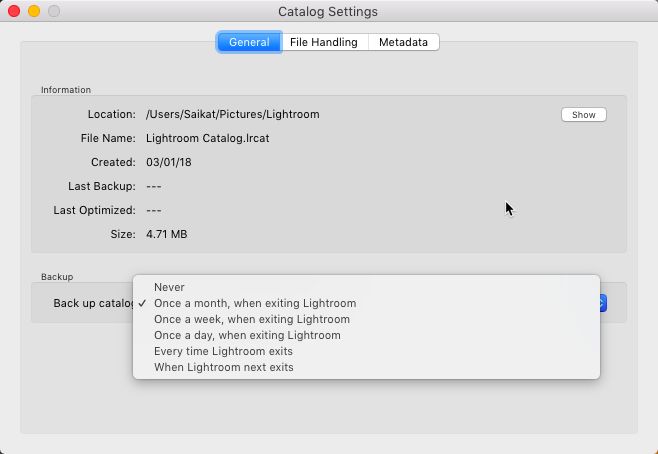
Lightroom catalog settings

You can tell Lightroom Classic CC to backup the catalog automatically every time you quit the software:

  1. Go to Edit > Catalog Settings (Windows) or Lightroom > Catalog Settings (Mac OS).
  2. Choose a backup option from the dropdown for Back up catalog.

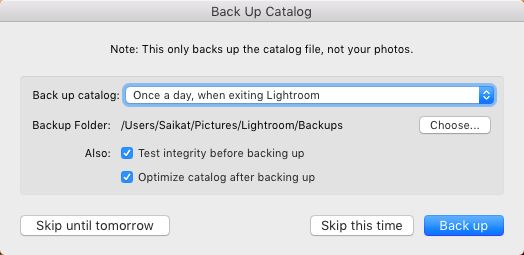
Lightroom Catalog When Exiting

The Catalog Settings screen also shows the location of the catalog file and the backup meta-data. You can also exercise your backup options when quitting Lightroom.

  1. Exit Lightroom.
  2. In the Back Up Catalog dialog box, click Back Up to back up the catalog at the default location and exit Lightroom Classic CC.
  3. You can again select a backup schedule and a different location before you click Back Up.
  4. If you don’t want to back up this time, postpone the back up with a click on Skip this time or Skip until tomorrow. The command will vary according to the choice of the backup schedule you have chosen in the dropdown.

How to Restore an Adobe Lightroom Catalog Backup

Restoring a backed-up Lightroom catalog is easy and can save you from potential disasters like a hard drive crash.

  1. Choose File > Open Catalog.
  2. Browse to the location of your backed up catalog file.
  3. Select and open the backed up .LRCAT file.
  4. You can also copy the backed up catalog to the location of the original catalog and replace it.

Not backing up your photos is one of the photo management mistakes you want to avoid right from the beginning of your photography journey. There is no reason not to do it because Lightroom makes it so easy to backup your catalog.

Read the full article: How to Back Up and Restore Adobe Lightroom Catalogs


Read Full Article

WhatsApp Will Soon Stop Working on These Phones: Is Yours on the List?


If you use an old phone, or if you’ve never bothered to upgrade to the latest version of your phone’s operating system, it’s time to pay attention:

WhatsApp might stop working on your phone soon.

(Oh, and you really should upgrade your mobile OS anyway, you’re asking for a security breach if you don’t).

Which Phones Will Stop Supporting WhatsApp?

Estimates suggest more than 20 million handsets will be affected in total.

Any phone running one of the following operating systems will no longer be supported. WhatsApp will stop working in the coming days:

  • Android versions older than 2.3.3
  • Windows Phone 8.0 and older
  • iPhone iOS 6
  • Nokia Symbian S60
  • BlackBerry OS and BlackBerry 10

Worse still, WhatsApp will stop working on several more common handsets in February 2020. They are any devices running:

  • Android versions 2.3.7 and older
  • iOS 7 and older

Lastly, support for the app on the Nokia S40 will end in December 2018.

We know what you’re thinking: “Those dates are still a long time away, it doesn’t matter.” Perhaps, but in a blog post on the matter, WhatsApp said that users on those operating systems could lose functionality at any time between now and then.

Sure, it’s unlikely that the basic text messaging capabilities will stop functioning before the cut-off in 2020, but what about the ability to send photos and videos? And are you confident that video and voice calling will continue to work?

More importantly, users on any device listed above will no longer be able to create new WhatsApp accounts. That applies to the devices that lose support in 2020, as well as the devices that are set to lose support in the coming days.

The best solution is to update your Android or update your iPhone as soon as possible. And if your device is so old that you cannot upgrade it, perhaps it’s time to look for a new smartphone entirely.

Read the full article: WhatsApp Will Soon Stop Working on These Phones: Is Yours on the List?


Read Full Article