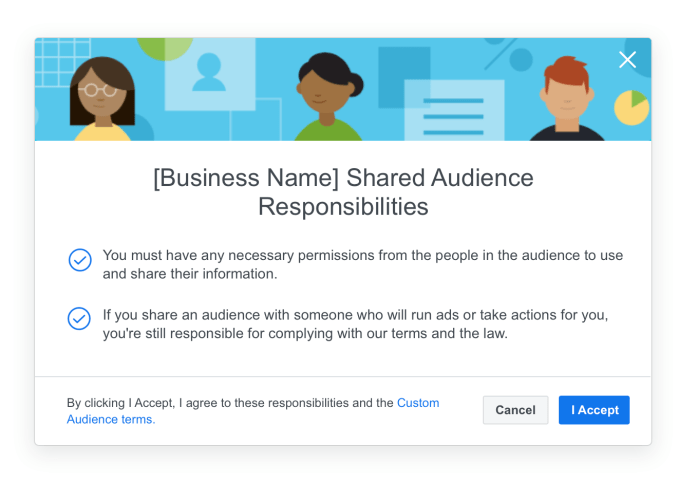
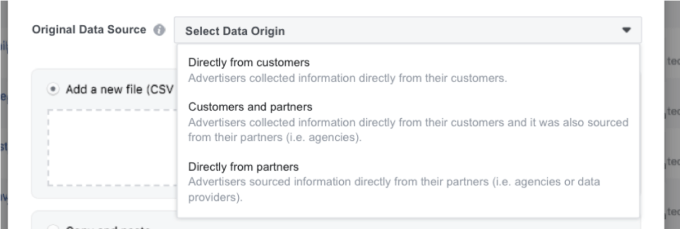
Facebook is hoping to avoid another privacy scandal by adding new accountability and transparency requirements for businesses that use its Custom Audiences too to target you with ads based on your email address or phone number. Starting July 2nd, advertisers will have to declare whether contact info uploaded for ad targeting was collected with proper user consent by them, one of their partners, or both. Users will be able to see this info if they opt to block future ads from that business.
Companies can only share Custom Audiences info with partners like ad agencies if they’re formally connected through Facebook’s business manager tool. And Facebook will start to show advertisers reminders that they need consent for contact info ad targeting and force all users connected to an ad account to confirm these terms.
The new consent tool launch confirms TechCrunch’s scoop from March that Facebook would crack down Custom Audiences targeting without consent. Facebook has always technically required consent, but it hasn’t necesssarily done much to enforce those rules. That same approach to API rules produced the Cambridge Analytica debacle.
Custom Audiences is one of Facebook’s most valuable revenue generators because it allows businesses to hit up their former customers to buy more. A scandal surrounding the targeting mechanism could be seriously detrimental to the social network’s business in a way that the rest of its recent public image problems haven’t, judging by the recovery of Facebook’s share price.
Since 2012, Facebook has offered Custom Audiences as a way for businesses to upload privacy-safe hashed lists of customer contact info. Facebook matches that against its users’ info to show them the business’ ads, rather than companies having to pay to try to reach those people through demographic targeting. That way, a company that already sold you a car and got your email signup could targeting you a few years later with ads to trade in and buy a new vehicle. Businesses can also use Facebook’s lookalikes targeting to reach people with similar characteristics to their existing customers.
Now at least Facebook will show this “Original Data Source” field asking who collected the uploaded phone numbers or emails. Users can check out this info if they click the “Why Am I Seeing This Ads?” button in the drop-down. However, Facebook stops short of scanning the lists for suspicious info, such as blocks of contact info that match hacked or purchased data sets.
That means Facebook is trusting advertisers to tell the truth about consent for targeting…despite them having a massive financial incentive to bend of break those rules. Today’s update will give Facebook more plausible deniability in the event of a scandal, and it might deter misuse. But Facebook is stopping short of doing anything to actually prevent non-consensual ad targeting.
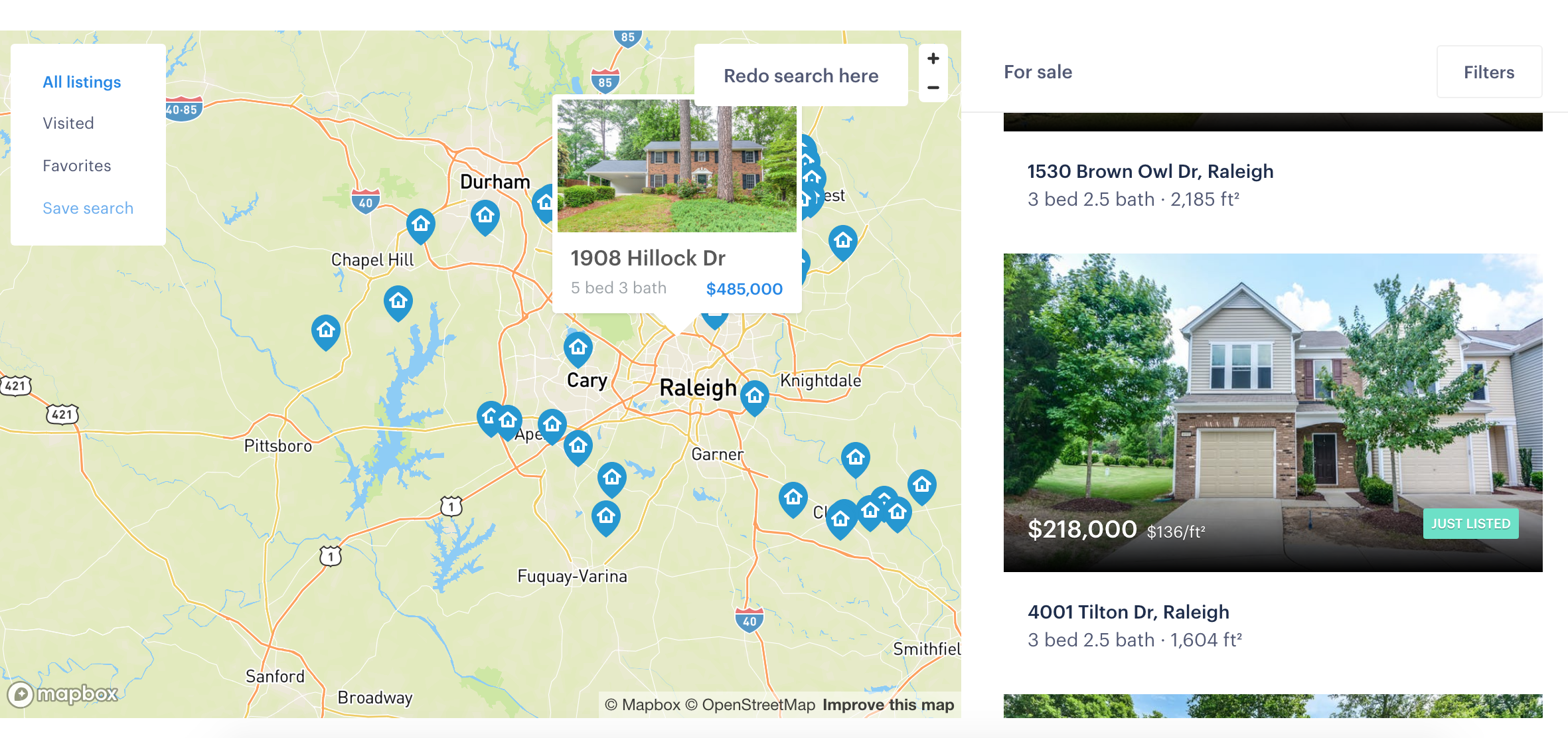
Investors are placing another huge bet on a startup looking to reinvent a decades-old process into something that’s near instant, this time pouring $325 million into Opendoor — a company that wants to bring the complex operation of buying or selling a home down to something similarly as simple as hailing a Lyft.
The idea of Opendoor is one not so dissimilar from a consumer theory that’s blossomed into companies worth tens of billions of dollars — consumers hate complex processes and are willing to hand off those processes to technology companies if they can make it even a little simpler. Home-buying and selling can be one of the more intense ones, requiring a lot of moving pieces and coordinating multiple time tables and schedules. Opendoor’s theory is that it can create a sizable business by dropping that time and energy cost to zero and effectively create a new technology-powered business model in the process, just like Uber or Airbnb.
Opendoor says it hopes to expand to 50 markets by the end of 2020 with this additional financing. It is in ten markets right now, and also says it now purchases more than $2.5 billion in homes on an annual run rate. The company says it has raised a $325 million financing round co-led by General Atlantic, Access Technology Ventures, and Lennar Corporation. Andreessen Horowitz, Coatue Management, 10100 Fund, and Invitation Homes also participated, as well as existing investors Norwest Venture Partners, Lakestar, GGV Capital, NEA, and Khosla Ventures. Opendoor has in total raised $645 million in equity and $1.5 billion in debt.
“What I realized was that one there’s a lot of tailwinds with people wanting to transact with their mobile device,” CEO Eric Wu said. “We see this with Uber and Lyft and Amazon. I think the future of real estate will be on demand, that’s the centerpiece of Opendoor’s thesis. How do we make the transaction real-time and instant. I realized there were going to be tailwinds, and that real estate was in dire need of being able to be transformed.”
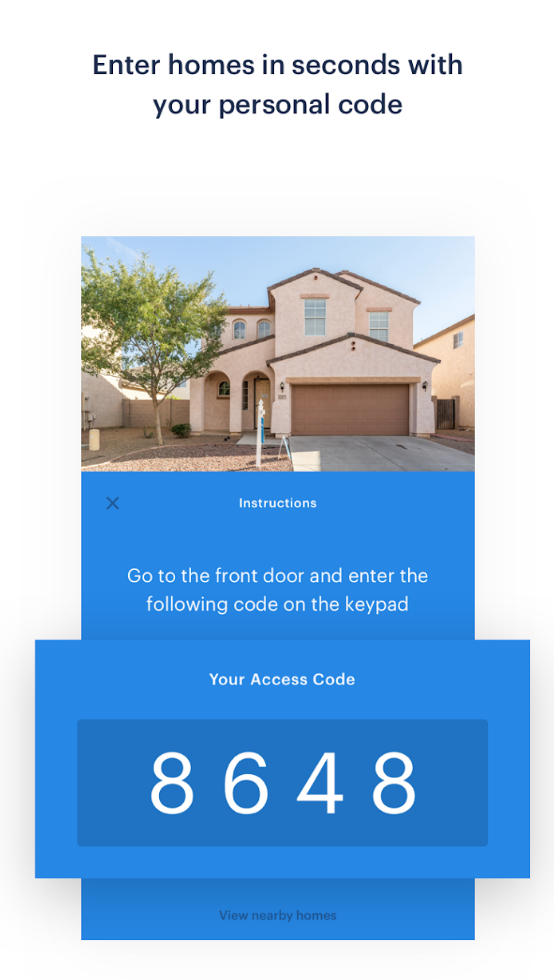
Opendoor has also sought to expand its efforts to make viewing those homes just as seamless. The company enables potential customers to check out a home by opening it with the app seven days a week. Wu said that most potential buyers go to the house each of the seven days up to the transaction, and then seven days after the transaction happens. Given that it’s such a significant step for any home owner, it makes sense that a lot of planning and consideration would go into the process. The next step is to create a sort of trade-up system, where Opendoor works to create a streamlined way to turn around an existing home for a new home.
Still, buying (or selling) a home is one of the single-largest transactions a consumer can do — especially if they are in a major metropolitan area where houses can quickly hit the $1 million-plus range. So it’s still a hurdle to convince consumers that they should press a few buttons to make a transaction in the hundreds of thousands of dollars. Wu said that the challenge there was to build enough trust with customers that they realize the process should be as seamless and powered by transparent data.
“It’s something we faced early on when we launched the service,” Wu said. “We were asking sellers to sell their home online to a tech company. A lot of the things we’ve done — like lowering the fees and being transparent about pricing — has helped us build trust. It’s one of the largest financial transactions anyone makes. We have to build a world-class pricing model, be transparent about how we got to the quote, make it a low-fee service, and this helps provide a certainty around the process.
To try to do all this, Opendoor says it’s built a robust data set that will help best model potential prices for homes and be more transparent about that information. Wu said Opendoor currently employs around 650 people and hopes to double that by the end of next year, and the company is investing a significant amount of capital in growing out its data science team. The challenge is to understand the dynamics of the housing market — and any potential chaos — in order to best assess how to buy and sell those homes. Opendoor acquires some risk by purchasing some homes and holding them for a period fo time, so ensuring that the company knows how the market performs will be one of its biggest challenges.
Opendoor is certainly not the only player in this area, as some competitors like Knock and OfferPad are starting to raise additional capital. Knock picked up $32 million in January last year with a similar bet: simplify the home-buying process and handle all of the details behind the scenes. If anything, it’s shown that there’s an appetite among the venture community (especially one where the numbers just keep getting bigger) for models that look to tap the same consumer demand of simplifying overly complex processes to just a few inputs on a smart app powered by data science.
If you haven’t given Trello Power-Ups a shot yet, you’re missing out. These are add-ons that can work magic on your boards.
Power-Ups bring extra functionality, fields, and data to your Trello account. For example, JotForm lets you create forms in Trello with close to zero effort. There are all kinds of useful features you can unlock, if you know where to look.
Let’s explore some of the best Power-Ups you can benefit from no matter what you use Trello for, but first we’ll show you how to enable and disable them.
How to Enable/Disable a Trello Power-Up
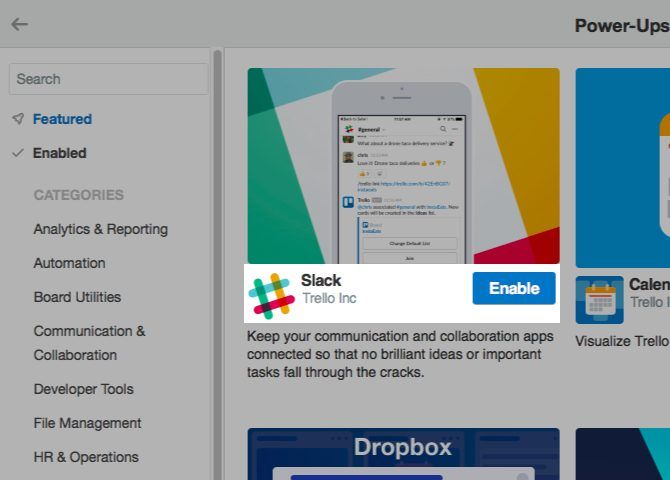
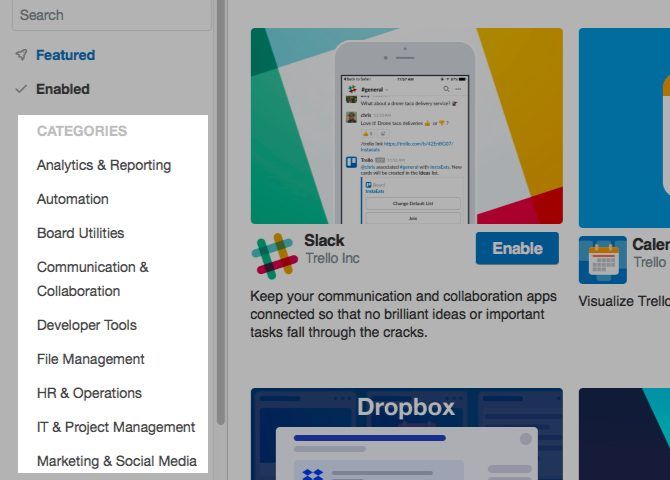
Open any Trello board and click on the Show Menu button below your profile picture at the top right. In the fly-out menu that appears, you’ll see a Power-Ups button. Click on it to enter the world of Trello Power-Ups, which is a gallery full of add-ons to pick from.
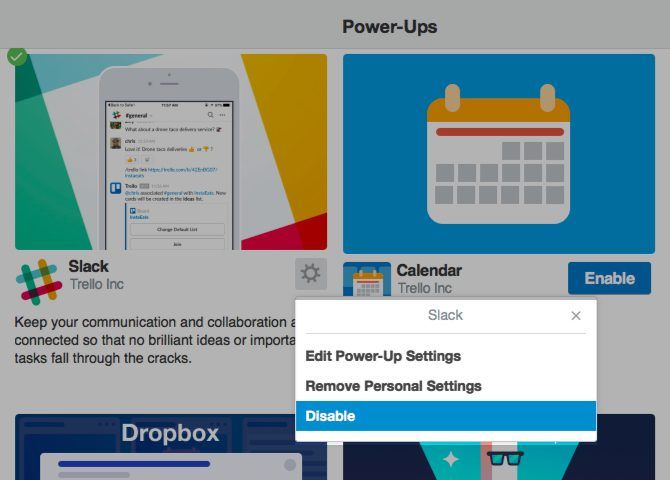
Each Power-Up comes with a bite-sized description and a big blue Enable button to add the Power-Up to the active board. After you enable it, you’ll see a gear icon next to the name of the Power-Up. This leads to the Power-Up’s settings.
Not sure what a particular Power-Up does? Click on it in the gallery to reveal a detailed description that tells you what you need to know.
Once you enable a Power-Up, it usually shows up in one of two places:
On the back of a card, under the Power-Ups section in the sidebar, or
To the left of the Show Menu button on the board
If you want to disable a Power-Up, you’ll have to first look it up in the gallery. You’ll find the Disable button in the add-on’s settings.
Now let’s explore some of those excellent Power-Ups. You can search for them from the gallery itself.
1. Calendar
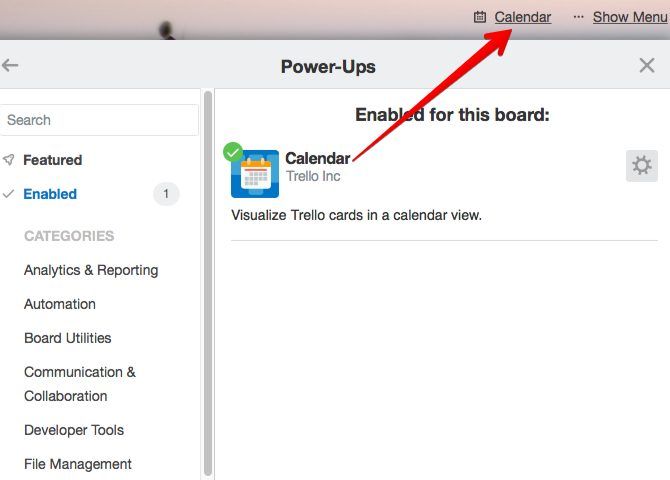
The Calendar Power-Up displays your cards on a calendar, which makes it easy to keep tabs on due dates. You can switch between a couple of views for the calendar: a weekly view and a monthly view. Feel free to move cards around to update their due dates.
Want to sync a board’s calendar with your personal one? Look for the gear icon next to Month (i.e. the monthly view button at the top right of the calendar). You’ll find the sync feature hidden behind it.
The calendar view is not the only special view you can add to a board. Try the Trello Tree View Power-Up if you want to display lists and cards in a tree format.
2. Card Repeater
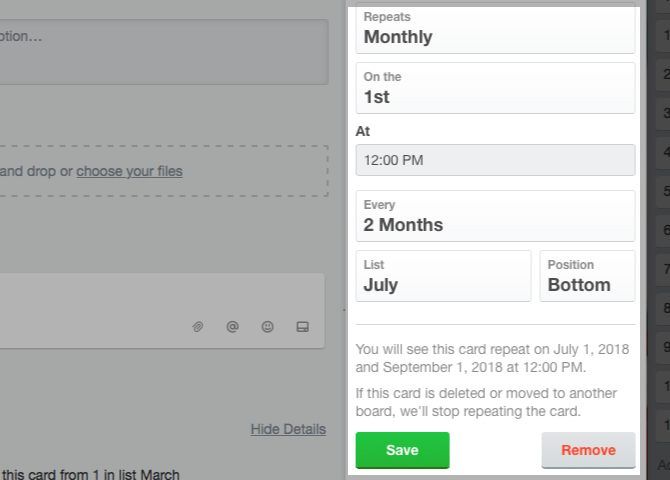
Thanks to the Card Repeater Power-Up, you can let Trello handle card creation for you. Once you enable it, the Power-Up allows you to schedule duplication of cards. You can do this from the back of the card.
Look for the Repeat button in the sidebar on the card back. Click on it to reveal card cloning settings. Among other things, you’ll be able to select the list, position, and the frequency for creating recurring cards.
If you move the card to another board (or even delete it), the Power-Up becomes inactive and the card won’t get repeated anymore.
3. Custom Fields
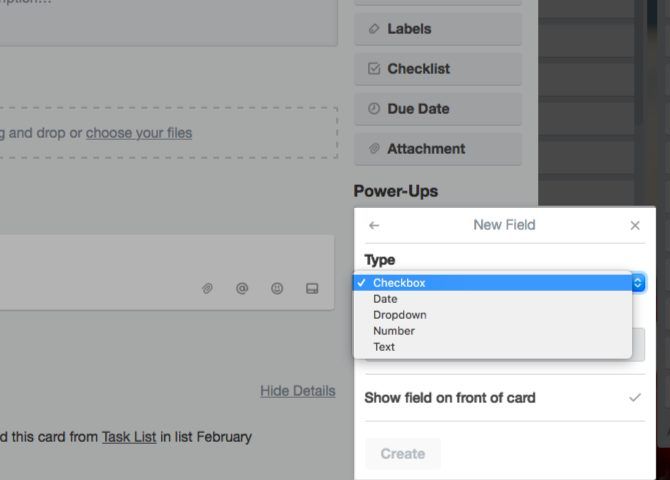
If you want to go beyond checklists and add elements like dropdown menus, dates, and emoji, you need the Custom Fields Power-Up. After you enable it, open a card back and click on the Custom Fields button in the sidebar to start creating new fields.
Adding and deleting field data is straightforward. While creating a field, you get an option to display it on the front of the card.
4. Card Aging
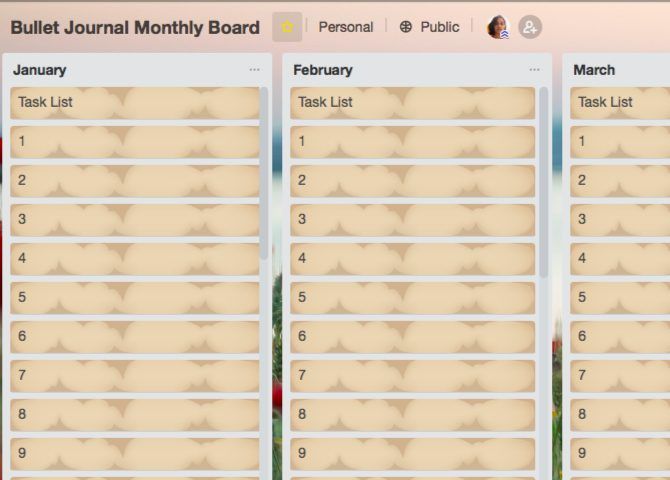
The Card Aging Power-Up ensures that inactive cards don’t slip under your radar. As cards get older and stay inactive, they begin to fade (as you can see in the screenshot above).
The idea here is to prompt you to take action on old cards. Discard them or deal with them! Once you update a card, it will lose the aged look. If you want to see when the card last got an update, check the card back for the date.
You can switch between two visual modes for aged cards:
Regular mode: Increased transparency
Pirate mode: A “crackle and tear” finish
To switch to the mode of your choice, visit the Power-Up’s settings.
5. Card Snooze
This Power-Up is for those cards that you neither want to get rid of nor want to deal with right away. It archives them to keep them out of sight till you’re ready to tackle them.
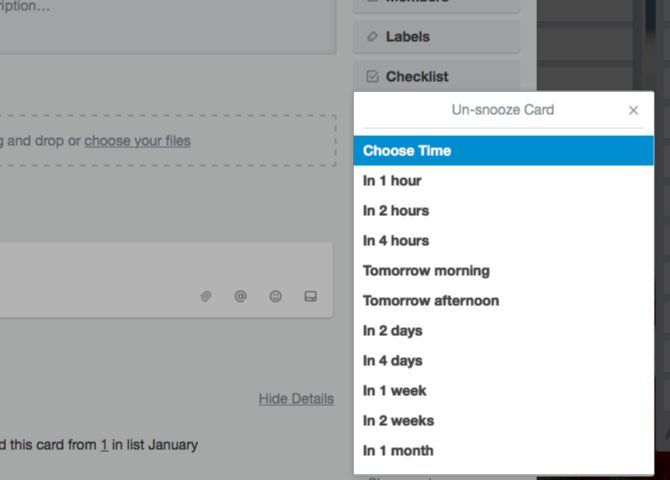
Once you enable the Power-Up, click on its button on the back of a card to reveal snooze options. You can pick from one of the default durations or add a custom date and time.
Right after the snooze time is up, the card reappears on your board. If you would like to get to the card before that time, head to Show Menu > More > Archived items to find it.
6. Butler
Wish you had an assistant to create cards, sort, assign, and archive them, add labels, set due dates, and so on? You do have one! It comes in the form of the Butler Power-Up.
Once you set up dedicated buttons to handle repetitive tasks, Butler takes care of the rest. This Power-Up is the way to go if you want to put most of your Trello activity on autopilot. Here’s how to start delegating tasks to Butler.
7. Slack
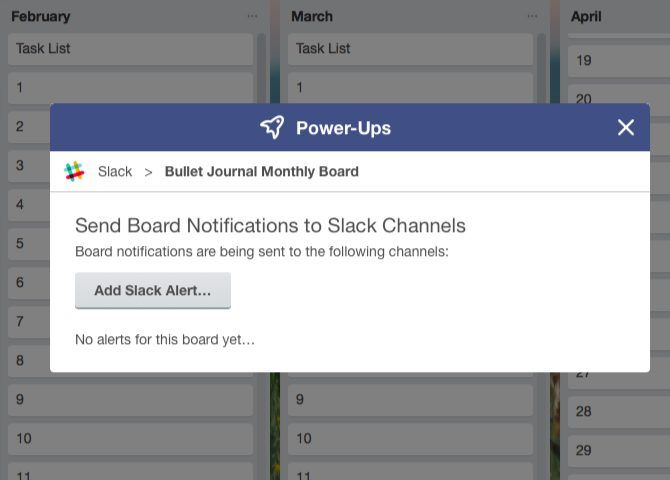
The Slack Power-Up ensures that your data flows smoothly from Trello to Slack and back. It brings Slack conversations to Trello and posts card activity to Slack.
Want reminders and alerts in Slack for Trello activity? Consider it done. You can also send cards to specific channels or in a direct message.
8. Twitter
If your work relies heavily on Twitter, get the Twitter Power-Up right away.
After you enable the Power-Up and link your Twitter account via the Twitter button on a card back, you’re ready to bring in tweets and attach them to cards. You can pick from sources like your timeline and @mentions. Dragging and dropping a tweet onto a card also works.
You don’t have to leave Trello and switch to Twitter to like or reply to tweets or retweet them. For tweets attached to cards, you can take care of those tasks from Trello itself.
If you’re a fan of the automation service Zapier, you’ll love the Zapier Power-Up. It allows you to trigger Trello activity in tandem with activity from other apps like Gmail, Evernote, and Facebook.
For example, you can use the Power-Up to push archived Trello cards to a Google Sheets spreadsheet, or turn Gmail emails into Trello cards.
The Evernote Power-Up lets you search and attach notes to cards without leaving Trello. You can also create notes on the fly and then attach them.
You get access to these functions only after you authorize Trello to use your Evernote account. To do this, you’ll have to access the Power-Up’s settings.
How Many Trello Power-Ups Can You Use?
If your Trello account is on the Business Class plan or the Enterprise plan, there’s no limit on the number of Power-Ups you can enable.
If you use Trello Gold ($5/month), you get three Power-Ups per board.
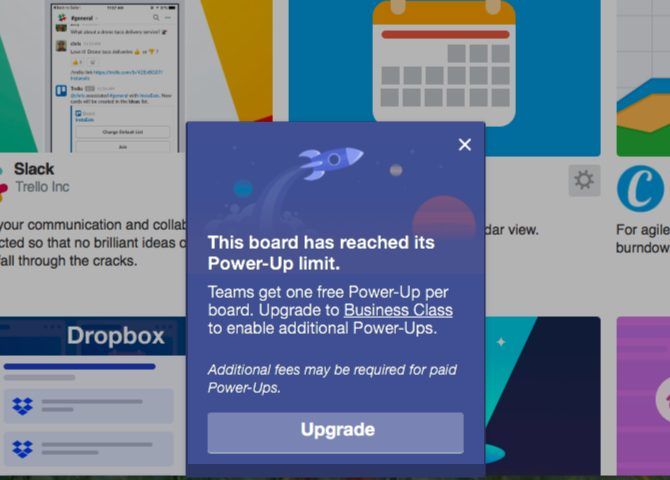
Are you on the free tier? Then you get only one Power-Up per board. But don’t let that put you off Power-Ups; you can still put them to good use!
Supercharge Your Trello Workflow With Power-Ups
We have limited our list to ten Power-Ups, but there are plenty more where those came from. You’re sure to find a few that are just right for your team and your projects.
Wading through reams of data coming at you from all directions is tough. Trello understands your dilemma and does its bit to help you out with special features like Power-Ups. Take advantage of them and get creative with your Trello activity.
Last Fall at Dreamforce, Salesforce announced a deepening friendship with Google. That began to take shape in January with integration between Salesforce CRM data and Google Analytics 360 and Google BigQuery. Today, the two cloud giants announced the next step as the companies will share data between Google Analytics 360 and the Salesforce Marketing Cloud.
This particular data sharing partnership makes even more sense as the companies can share web analytics data with marketing personnel to deliver ever more customized experiences for users (or so the argument goes, right?).
That connection certainly didn’t escape Salesforce’s VP of product marketing, Bobby Jania. “Now, marketers are able to deliver meaningful consumer experiences powered by the world’s number one marketing platform and the most widely adopted web analytics suite,” Jania told TechCrunch.
Brent Leary, owner of the consulting firm CRM Essentials says the partnership is going to be meaningful for marketers. “The tighter integration is a big deal because a large portion of Marketing Cloud customers are Google Analytics/GA 360 customers, and this paves the way to more seamlessly see what activities are driving successful outcomes,” he explained.
The partnership involves four integrations that effectively allow marketers to round-trip data between the two platforms. For starters, consumer insights from both Marketing Cloud and Google Analytics 360, will be brought together into a single analytics dashboard inside Marketing Cloud. Conversely, Market Cloud data will be viewable inside Google Analytics 360 for attribution analysis and also to use the Marketing Cloud information to deliver more customized web experiences. All three of these integrations will be generally available starting today.
A fourth element of the partnership being announced today won’t be available in Beta until the third quarter of this year. “For the first time ever audiences created inside the Google Analytics 360 platform can be activated outside of Google. So in this case, I’m able to create an audience inside of Google Analytics 360 and then I’m able to activate that audience in Marketing Cloud,” Jania explained.
An audience is like a segment, so if you have a group of like-minded individuals in the Google analytics tool, you can simply transfer it to Salesforce Marketing Cloud and send more relevant emails to that group.
This data sharing capability removes a lot of the labor involved in trying to monitor data stored in two places, but of course it also raises questions about data privacy. Jania was careful to point out that the two platforms are not sharing specific information about individual consumers, which could be in violation of the new GDPR data privacy rules that went into effect in Europe at the end of last month.
“What we’re [we’re sharing] is either metadata or aggregated reporting results. Just to be clear there’s no personal identifiable data that is flowing between the systems so everything here is 100% GDPR-compliant,” Jania said.
But Leary says it might not be so simple, especially in light of recent data sharing abuses. “With Facebook having to open up about how they’re sharing consumer data with other organizations, companies like Salesforce and Google will have to be more careful than ever before about how the consumer data they make available to their corporate customers will be used by them. It’s a whole new level of scrutiny that has to be apart of the data sharing equation,” Leary said.
While Shutterfly is an affordable option for ordering photo prints, up until recently there wasn’t a way to export your photos to your computer, or anywhere else for that matter. Getting those photos back out of Shutterfly was a pretty painful experience that just didn’t work very well. The latest update out of Shutterfly changes all of that.
Shutterfly launched a completely revamped and much more user-friendly interface that makes it easier to share your photos with others, to create new albums, and more importantly, it makes it much easier to download your photos.
How to Mass Download All of Your Shutterfly Photos
Once you have access to the revamped Shutterfly interface, you can view all your photos by going to the Shutterfly website and navigating to My Photos. Once there, you can view your entire library of photos, or you can view specific albums you’ve created.
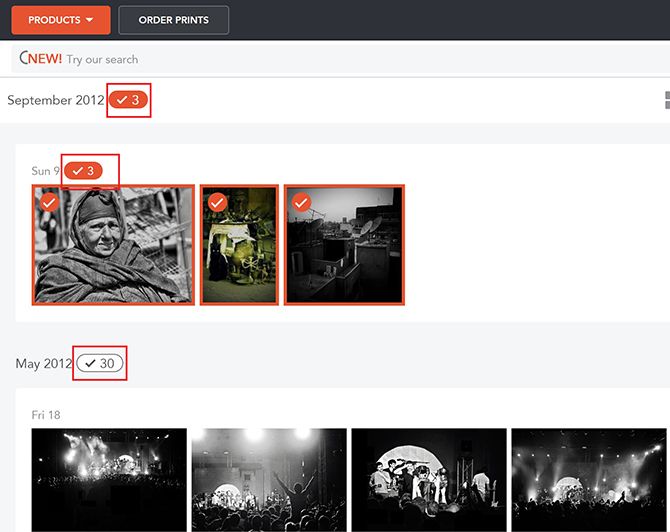
Your entire library is divided by date, so each month and each specific date has a button next to it with a checkmark and the number of photos in that collection.
If you want to download your entire library, click each of those buttons to select all the images associated with each month. You can also be more selective, choosing to download images from a specific date or even just click the images themselves you want to download.
Once you’ve made your selection, in the menu that appeared at the top, click the Download button.
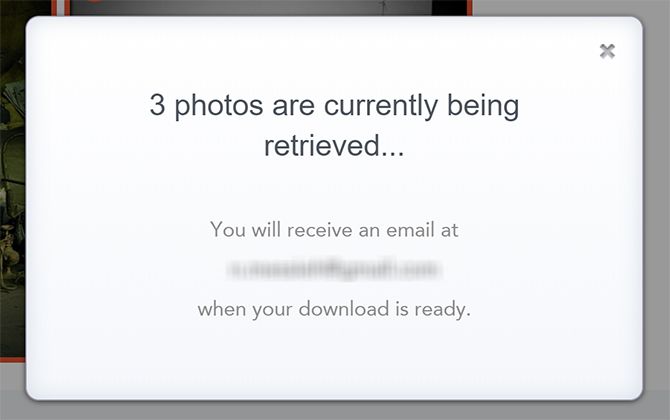
You’ll see a message letting you know that you’ll receive an email when your images are ready for download.
That email will contain a link to a zip file that allows you to download all the images you selected with one click.
If you don’t have access to the new Shutterfly just yet, you can use the Chrome extension Shutterfly Exporter, but will have to create a Shutterfly Share Site first in order for the extension to work. It also is not the most user friendly method for bulk downloads as you have to manually click save on each dialog box that opens up when downloading your photos.
Shutterfly used to have an Archive DVD option to purchase with up to 1,000 of your images saved on it, but the service was discontinued a while back. With Shutterfly’s new download options, the site can finally be considered a serious contender among the many popular photo storage sites out there.
The 2018 World Cup is about to kick off in Russia.
The planet’s most-watched television event will see an estimated 3.2 billion people tune in as 32 nations compete for the most prestigious prize in global soccer. The final is expected to draw in a viewership of more than one billion. (For comparison, 600 million watched the last Olympics and 160 million watched the last Super Bowl.)
If you’re eager to keep up with the action, you’re in luck. Google has unveiled a new suite of tools to help soccer fanatics stay abreast of the latest events.
5 Useful Google Tools for Following the World Cup
1. Google Search
Google Search has been bolstered with a few World Cup tweaks. You’ll see live cards at the top of the list of results for group tables, trending players, and relevant tweets, images, and (location permitting) video clips.
2. Pin Live Scores on Android
Android users can pin games to their device’s home screen, allowing them to keep track of live scores even when they’re not in an app or actively searching for the game. Just use the Google app, find the match you care about, and tap-and-drag it into place.
3. Google News
Google News will feature a dedicated World Cup tracker. It gives you a one-stop shop to keep on top of live scores, highlights, results, and upcoming fixtures.
4. Google Assistant
Google Assistant will be able to answer all your World Cup queries. Whether you want to know the score in a particular match, who’s the leading scorer, or which team has the leakiest defense, the assistant will recognize all your questions and provide the answers.
5. Google Maps
Maps will offer a new feature that’ll show you which bars and restaurants nearby are showing the games.
Oh, and if soccer really isn’t your “thing”, we’ve got you covered. Here are some fun ways to waste 90 minutes while the rest of the world is engrossed in the action.
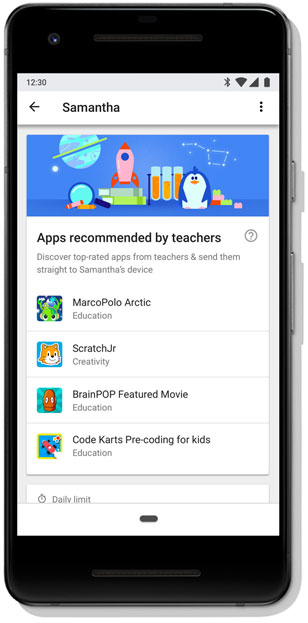
Google today is expanding the capabilities of its Android parental control software, Family Link, to go beyond helping parents better manage their child’s device and app usage. Now, the Family Link app will also help parents learn about what apps they may want to install for their kids, as well. In a new discovery section, Family Link will feature a list of educational apps for children ages six through nine that parents can install with a tap.
The apps are “recommended by teachers,” the section proclaims.
Google explains that it worked with teachers from across the U.S. to come up with this curated list of apps with educational value. The teachers were recruited to rate content based on their expertise in learning and child development, and had a diverse background in terms of things like years of experience, demographics, and locations in the U.S.
At launch, the recommended apps come from publishers like MarcoPolo Learning Inc., BrainPOP, Edoki Academy and others, and include those that teach kids about facts and figures, interesting places around the world, and, of course – it’s Google! – the basics of coding, among other things.
There are currently a few dozen recommended apps, but they won’t appear all at once. Instead, Google tells us, the list will refresh on a weekly basis so as not to overwhelm either the parent or child.
Over time, Google plans to add more apps to the feature, including those for other age ranges.
Currently, all the apps are free, but Google may choose to highlight paid apps in the future, a spokesperson says.
Parents can tap on the apps to visit their page on Google Play, and add them directly to their child’s device with a tap on the “Install” button.
The feature is available in the Family Link mobile app for parents in the U.S. for the time being. Google says it will be available in other markets over time.
The recommendations of “nutritious” apps, as Google refers to them in an announcement, comes at a time when major tech companies are paying increased attention to the time spent on devices, and a growing concern among consumers – parents and otherwise – that it’s not time well spent.
At Google’s developer conference in May, the company detailed new Android-based tools for managing and monitoring screen time to promote healthier app and device usage. This includes ways to prevent the phone from distracting or stimulating users, as well as time limits for apps.
These sorts of controls are things parents want for their children, too, which is what Family Link, launched publicly in fall 2017, has provided.
But when even “screen time” itself is being seen as a concern, it makes sense that Google would want to showcase some of the apps that provide something of value.
The feature is launching today on Family Link for Android with iOS support to follow.
We have all said things we later regret, and the moment they leave your mouth, there’s no going back. However, digital forms of communication mean there is the option to rescind a statement, as long as you change your mind before the recipient reads it.
Each and everyone of you will, at some time or another, have sent a message in error. Whether by mistake, or sent intentionally only to be regretted at a later date. Thankfully, Snapchat now has your back, with the option to delete sent messages…
Snapchat Clear Chats Lets You Clear Chats
Snapchat has launched a new feature called Clear Chats. The name says it all really, as Clear Chats gives you the option to clear out messages and conversations from your chats. Which should put an end to drunken messages being sent in error.
We can delete Snapchat messages but we still can’t edit tweets ?
To delete a message, all you need to do is open the conversation you want to delete a message from, press and hold on the offending message, and then hit Delete. The message will then disappear from view, never to be seen again.
If the people in the conversation have already seen that message then there’s no way of erasing it from their memories. However, if you’re quick enough, you should be able to delete a message before anyone involved in the conversation has seen it.
Either way, all of the recipients will be notified that you have deleted something. While this could lead to some awkward questions over what was deleted and why, that’s surely preferable to the alternative. It also deletes any paper trail of evidence.
Snapchat Saves You From Heartbreak and Hate
This might be a simple little addition to Snapchat, but it has the potential to save both heartbreak and hate. Of course, it will be preferable to not send messages-you-later-regret in the first place, but we are all human, and therefore prone to making mistakes.
Clear Chats is rolling out now on Android and on iOS. So if you don’t see it right away, keep the Snapchat app up to date, and you should gain the ability to delete sent messages within the next few weeks. In the meantime, just be even more careful than usual.
Currently, when the Google Translate apps for iOS and Android has access to the internet, its translations are far superior to those it produces when it’s offline. That’s because the offline translations are phrase-based, meaning they use an older machine translation technique than the machine learning-powered systems in the cloud that the app has access to when it’s online. But that’s changing today. Google is now rolling out offline Neural Machine Translation (NMT) support for 59 languages in the Translate apps.
Today, only a small number of users will see the updated offline translations, but it will roll out to all users within the next few weeks.
The list of supported languages consists of a wide range of languages. Because I don’t want to play favorites, here is the full list: Afrikaans, Albanian, Arabic, Belarusian, Bengali, Bulgarian, Catalan, Chinese, Croatian, Czech, Danish, Dutch, English, Esperanto, Estonian, Filipino, Finnish, French, Galician, Georgian, German, Greek, Gujarati, Haitian, Creole, Hebrew, Hindi, Hungarian, Icelandic, Indonesian, Irish, Italian, Japanese, Jannada, Korean, Lavtian, Lithuanian, Macedonian, Malay, Maltese, Marathi, Norwegian, Persian, Polish, Portuguese, Romanian, Russian, Slovak, Slovenian, Spanish, Swahili, Swedish, Tamil, Telugu, Thai, Turkish, Ukrainian, Urdu, Vietnamese and Welsh.
In the past, running these deep learning models on a mobile device wasn’t really an option since mobile phones didn’t have the right hardware to efficiently run them. Now, thanks to both advances in hardware and software, that’s less of an issue and Google, Microsoft and others have also found ways to compress these models to a manageable size. In Google’s case, that’s about 30 to 40 megabytes per language.
It’s worth noting that Microsoft also announced a similar feature for its Translator app earlier this year. It uses a very similar technique but for the time being, it only supports about a dozen languages.
Google Search is getting an update today that will put data about colleges front and center when you search for a school’s name. The idea here is somewhat similar to what Google did with its job search feature. In this case, the company aggregates data about a school that’s typically hard to find and then presents it in a single widget.
One caveat here, though, is that this only works for four-year schools. So if you’re looking for data about community colleges, for example, this new tool won’t help you.
Finding all of this information about cost, acceptance and graduation rates, available majors, stats about the student body and other details like the typical annual income of graduates after ten years can be very time-consuming. This new widget puts all of this data right into the sidebar (on desktop) or at the top of the page (on mobile).
Google is mostly getting this data from the U.S. Department of Education’s College Scorecard and Integrated Postsecondary Education Data System. The company notes that it worked with researcher and nonprofit organizations, as well as high school counselors and admissions professional to design the new experience.
This new feature is now live and should automatically pop up when you search for any four-year school in the U.S.
Currently, when the Google Translate apps for iOS and Android has access to the internet, its translations are far superior to those it produces when it’s offline. That’s because the offline translations are phrase-based, meaning they use an older machine translation technique than the machine learning-powered systems in the cloud that the app has access to when it’s online. But that’s changing today. Google is now rolling out offline Neural Machine Translation (NMT) support for 59 languages in the Translate apps.
Today, only a small number of users will see the updated offline translations, but it will roll out to all users within the next few weeks.
The list of supported languages consists of a wide range of languages. Because I don’t want to play favorites, here is the full list: Afrikaans, Albanian, Arabic, Belarusian, Bengali, Bulgarian, Catalan, Chinese, Croatian, Czech, Danish, Dutch, English, Esperanto, Estonian, Filipino, Finnish, French, Galician, Georgian, German, Greek, Gujarati, Haitian, Creole, Hebrew, Hindi, Hungarian, Icelandic, Indonesian, Irish, Italian, Japanese, Jannada, Korean, Lavtian, Lithuanian, Macedonian, Malay, Maltese, Marathi, Norwegian, Persian, Polish, Portuguese, Romanian, Russian, Slovak, Slovenian, Spanish, Swahili, Swedish, Tamil, Telugu, Thai, Turkish, Ukrainian, Urdu, Vietnamese and Welsh.
In the past, running these deep learning models on a mobile device wasn’t really an option since mobile phones didn’t have the right hardware to efficiently run them. Now, thanks to both advances in hardware and software, that’s less of an issue and Google, Microsoft and others have also found ways to compress these models to a manageable size. In Google’s case, that’s about 30 to 40 megabytes per language.
It’s worth noting that Microsoft also announced a similar feature for its Translator app earlier this year. It uses a very similar technique but for the time being, it only supports about a dozen languages.
Google today announced a major change to its Chrome Web Store policy that aims to shield users from websites that try to fool them into installing their Chome extensions. Until now, developers who publish their apps in the Web Store, could also initiate app and extension installs from their own websites. Too often, though, developers combined these so-called ‘inline installs‘ with deceptive information on their sites to get users to install them. Unsurprisingly, that’s not quite the experience Google had in mind when it enabled this feature back in 2011, so now it’s shutting it down.
Starting today, inline installation will be unavailable to all newly published extensions. Developers who use the standard method for calling for an install from their site will see that their users will get redirected to the Chrome Web Store to complete the installation.
Come September 12, 2018, all inline installs of existing extensions will be shut down and users will be redirected to the store, too. Come December and the launch of Chrome 71, the API that currently allows for this way of installing extensions will go away.
“As we’ve attempted to address this problem over the past few years, we’ve learned that the information displayed alongside extensions in the Chrome Web Store plays a critical role in ensuring that users can make informed decisions about whether to install an extension,” James Wagner, the product manager for the extensions platform, writes in today’s update. “When installed through the Chrome Web Store, extensions are significantly less likely to be uninstalled or cause user complaints, compared to extensions installed through inline installation.”
As Wagner notes, inline installations have been an issue for a long time. Back in 2015, for example, sites that tried to deceive users into installing extensions by getting them to click on fake ads or error messages were the main issue.
The breadboard is the bread-and-butter of DIY electronics. Breadboards allow beginners to get acquainted with circuits without the need for soldering, and even seasoned tinkerers use breadboards as starting points for large-scale projects.
If you are taking your first steps in the world of DIY or microcontrollers, you might have received a breadboard in your Arduino starter kit or Raspberry Pi starter kit. Let’s look at what a breadboard actually is, where they came from, and how you can make use of them.
What Is a Breadboard?
A breadboard is a simple device designed to let you create circuits without the need for soldering. They come in various sizes, and the design can vary, but as a general rule they look something like this:
If you’ve never seen one before, you might wonder how to tell which holes do what. It becomes a little easier to understand what’s going on when you see one from the bottom.
Seeing it from this perspective makes it easier to understand what is going on. The two larger pieces of wire down each side are typically used to connect a power source to the board. They are usually referred to as power rails. The other smaller pieces of wire running perpendicular all the way across the board are used for components in your circuit. This diagram will help visualize this pattern from the top.
The power rails run horizontally as two rows at the top and bottom. Meanwhile, the vertical columns run inwards as you move down the board.
If you were to pull any one of these metal pieces out, you would see their purpose. They’re designed to grab onto the legs of any components pushed through the breadboard holes. This allows you to test circuits without having to worry about soldering, or making a good contact with the board.
As a general rule, this is how all breadboards operate, though they can come in a variety of sizes. Some breadboards have binding posts to attach to a power supply, but you can get by just fine without them. Also, most breadboards are designed to clip together, in case you need loads of room for a mega-project!
Before we move on, there is one other notable feature of breadboards to know about:
Integrated Circuits (IC) and Dual In-Line Packages (DIP)
See that little gap in the middle of the breadboard? That gap is there for a reason. Integrated Circuits!
Integrated Circuits (IC) are in almost every electronic device. They run motors, regulate voltage, act as timers, perform logic tasks, and do pretty much anything you need them to.
ICs can have different numbers of pins, sizes, and functions. However, many ICs comply to a standard called Dual In-Line Packages (DIP), meaning they all share a set width. That width is—you guessed it—exactly the right size to fit across the gap in the middle of the breadboard. This makes it much easier to work with ICs without worrying about accidentally connecting the wrong pins together.
How Are Breadboards Used Today?
In recent years, almost all entry-level electronics involve the use of either an Arduino or a Raspberry Pi.
While there are many things you can do with a Raspberry Pi that require no external components, things get interesting when you use microcontrollers with DIY circuits. The Blink sketch for Arduino—typically the first thing beginners do—can be modified to use an actual LED and resistor combo on a breadboard.
Using what we know already, we can see that the wire from pin 2 of the Arduino goes into the power line, before being bridged to the positive pin of the LED. A resistor goes in line with the negative pin, and the other end of the resistor goes into the ground side of the power line, before returning to the GND pin of the Arduino.
If you want to try this yourself, view the code for the modified blink sketch.
Pin Power
For simple projects like this, the power rails are not always used, but if you need to use multiple components which all require power, you can provide power from the power pins of an Arduino or Raspberry Pi
The picture above shows a servo, which requires power as well as instructions from the Arduino. We run cables from the 5v and GND pins of the Arduino to the top set of power rails. We then bridge the gap at the other end to supply power to the bottom power rails, and use small pieces of wire to provide power to the VCC and GND wires of the servo. This bridging technique for the power lines is a good practice to get into, as it’ll ensure your components always have access to power no matter where they are on the breadboard.
For a slightly more in-depth project using Arduino, LEDs and a breadboard check out our Traffic Light Controller beginner tutorial.
You use a breadboard the same way for standalone amateur electronics projects, as you would for Raspberry Pi builds. For an example project using multiple components, simple code, and a practical outcome, take a look at our Raspberry Pi Door Sensor tutorial.
What If You Don’t Have a Breadboard?
If you don’t have a breadboard, it is still possible to create simple circuits, but it’s just a little less convenient.
One method is to use a variation of point-to-point construction, either soldering components directly together, or wrapping wire around each component leg to join them. This method is incredibly fiddly, however, and if you are forced to use this method, it can help to use electrical tape to hold everything in place.
Proto-Board vs. Breadboard
An easier but more permanent method is to use proto-board. These boards are covered in holes with copper rings around them, allowing you to create circuits by soldering components in place and connecting them with wire or more solder. This is a much more permanent solution though, and usually comes later in the process once you know your circuit is going to work without any problems!
This image is from our Motion Activated Christmas Wreath tutorial and is the perfect example of a project that would require the use of proto-board over a breadboard.
Printed Circuit Boards (PCB)
A final example would be to make your own printed circuit board for a project.
This is a permanent solution, made custom for your circuit. Usually, printed circuit boards are the last step after testing on both breadboard and proto-board. There are many companies which will make PCBs to order, though it is possible to make them yourself at home if you want the full DIY experience.
YouTuber Extralife has a video explaining how the process works:
Take Your First Steps With Arduino or Raspberry Pi
The breadboard is the perfect accessory to learning electronics at any level.
Amino has raised a big Series C round of funding — $45 million from GV, Venrock, Union Square Ventures, Goodwater Capital and Time Warner Investments, with Hearst Ventures joining as a new investor.
The company started out with apps focused a handful of topics like K-pop, anime and Doctor Who, but it later added the ability for anyone to launch a new community in the main Amino app, and there are now more than 2.5 million communities.
Of course, some of these communities are more active than others, and there’s some overlap between them — but Max Sebela, who’s general manager for Amino’s English-language apps, said there’s less than you might think, because “each interest is actually a universe of micro interest.” For example, there might be one community focused on sharing strategy and tactics around the video game Overwatch, while another might revolve around sharing Overwatch fan art.
Ultimately, Sebela said it’s up to the founders and leaders of each community to decide what the community wants to focus on, and which product features they want to use to enable that. Meanwhile, Anderson said Amino is constantly tweaking its algorithms to make sure it’s surfacing the best communities for each user.
“Instead of one big, blue ocean, we provide a million lakes and help you find the exact right one,” he added.
Perhaps even more impressive than the number of communities is the amount of time the average user spends in Amino — more than 70 minutes per day.
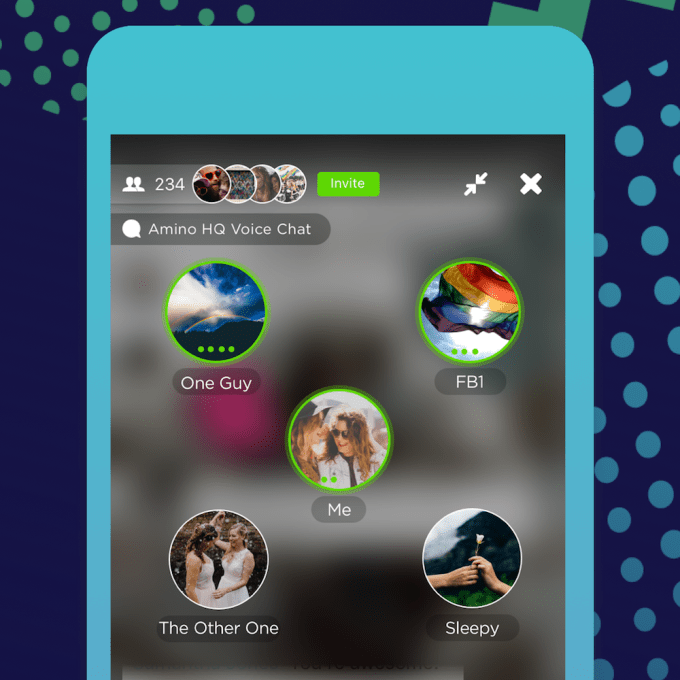
One of the initial inspirations for the startup was a real-world anime convention, and Amino getting closer to that experience with the addition of features like live voice and video chat, as well as the screening room, where you can watch videos with other users.
During our conversation, Sebela opened up one of the K-Pop communities on his phone and was quickly able to listen in on a chat room where multiple users were singing along together. (Sadly, we didn’t join the singing.)
“The technology not super unique,” Anderson acknowledged. “What makes it really special is, I can voice chat with my friends on a lot of idfferent networks, but here I can hop in and join a voice chat with 10 Harry Potter fans who I may not know in my real life.”
While these features are already live, Anderson said they’ve been “downplayed” while Amino tests them out and works out the kinks. Now it’s ready to put them “front-and-center” in the app.
It’s also been testing out ways to make money, which Anderson said will occur primarily through a subscription service — though apparently it’s too early for him to offer more details.