14 May 2018

Favstar says it will shut down June 19 as a result of Twitter’s API changes for data streams


As Twitter develops an ever-closer hold on how it manages services around its real-time news and social networking service, a pioneer in Twitter analytics is calling it quits. Favstar, an early leader in developing a way to track and review how your and other people’s Tweets were getting liked and retweeted by others on the network, has announced that it will be shutting down on June 19 — a direct result, its creator Tim Haines notes, of changes that Twitter will be making to its own APIs, specifically around its Account Activity API, which is coming online at the same time that another API, User Streams, is being depreciated.

Favstar and others rely on User Streams to power its services. “Twitter… [has] not been forthcoming with the details or pricing,” Favstar’s creator Tim Haines said of the newer API. “Favstar can’t continue to operate in this environment of uncertainty.”

Favstar’s announcement was made over the weekend, but the issue for it and other developers has actually been brewing for a year.

Twitter announced back in December that, as part of the launch of the Account Activity API (originally announced April 2017), it would be shutting down User Streams on June 19.

User Streams are what Favstar, and a number of other apps such as TalonTweetbotTweetings, and Twitterrific (as pointed out in this blog post signed by all four on “Apps of a Feather”), are built on. Introduced as the Twitter Streaming API for developers, the aim was to provide a way for developers to get continuous updates from a number of Twitter accounts — needed for services that either provided alternative Twitter interfaces or a way of parsing the many Tweets on the platform — in a way that did not slow the whole service down.

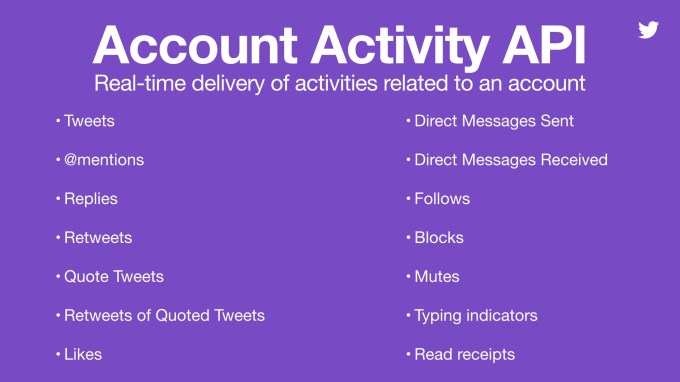
The newer Account Activity API provides a number of features to developers to help facilitate tracking Twitter and using services like direct messaging for business purposes:

As you can see, some of the features that the newer API covers are directly linked to functionality you get via Favstar. The crux of the problem, writes Haines, is that Twitter hadn’t given Favstar and other developers that had been working with User Streams (and other depreciating functionality) answers about pricing and other details so that they could see if a retooling of their services would be possible. (Twitter has provided a guide, it seems, but it doesn’t appear to address these points.)

The post on Apps of a Feather further spells out the technical issues:

“The new Account Activity API is currently in beta testing, but third-party developers have not been given access and time is running out,” the developers write. “With access we might be able to implement some push notifications, but they would be limited at the standard level to 35 Twitter accounts – our products must deliver notifications to hundreds of thousands of customers. No pricing has been given for Enterprise level service with unlimited accounts – we have no idea if this will be an affordable option for us and our users.”

One of the consequences is that “automatic refresh of your timeline just won’t work,” they continue. “There is no web server on your mobile device or desktop computer that Twitter can contact with updates. Since updating your timeline with other methods is rate-limited by Twitter, you will see delays in real-time updates during sporting events and breaking news.”

Favstar has been around since 2009 — its name a tip of the hat to the original “like” on Twitter, which was a star, not a heart. Haines writes that at its peak, it had some 50 million users and was a “huge hit” with those who realised how the network could be leveraged to build up audiences outside of Twitter — including comedians and celebrities, tech people, journalists, and so on. It’s also tinkered with its service over time, and added in a Pro tier, to make it more user-friendly.

Somewhat unusual for a popular app, Favstar appears to have always been bootstrapped.

But there have been two trends at play for years now, one specific to Twitter and another a more general shift in the wider industry of apps:

The first, regarding Twitter, is that the company has been sharpening its business focus for years to find viable, diverse and recurring sources of revenue, while at the same time putting a tighter grip around how its platform is appropriated by others. This has led the company to significantly shift its relationship with developers and third parties. In some cases, it has ceased to support and work with third-party apps that it feels effectively overlap with features and functions that Twitter offers directly.

In the case of Favstar, the service rose in prominence at a time when Twitter appeared to completely ignore the star feature. MG once described the Favorite as “the unwanted step child feature of Twitter. Though it has been around since the early days of the service, they have never really done anything to promote its use.”

Fast forward to today, and Twitter has not only revamped the feature replacing the star with a heart (I still prefer the star, for what it’s worth), but Twitter uses those endorsements to help tune its algorithm, and populate your notifications tab, and to provide analytics to users on how their Tweets are doing. In other words, it’s doing quite a bit of what Favstar does.

And if you think of how Twitter has developed its own business model in recent years, with a push for video and working with news organisations and other media brands, the same early users of Favstar as detailed by Haines (celebs, news and other media organizations, etc.) are exactly the targets that Twitter has been trying to connect with, too.

The other, more general, trend that this latest turn has teased out is the one that we’ve heard come up many times before. Building services dependent on another platform can be a precarious state of affairs for a developer. You never know when the platform owner might simply decide to pull the plug on you. Your success could lead to many users, business growth, and even an acquisition by the platform itself — but it could nearly as quickly lead to your downfall if the platform views you as a threat, and decides to cut you off instead.

Interestingly, there could be some life left in Favstar in another galaxy far, far away. We’ve reached out both to Haines and to Twitter for further comment and will update this post as and when we learn more.


Read Full Article

Facebook suspends ~200 suspicious apps out of “thousands” reviewed so far


Did you just notice a Facebook app has gone AWOL? After reviewing “thousands” of apps on its platform following a major data misuse scandal that blew up in March, Facebook has announced it’s suspended around 200 apps — pending what it describes as a “thorough investigation” into whether or not their developers misused Facebook user data.

The action is part of a still ongoing audit of third party applications running on the platform announced by Facebook in the wake of the Cambridge Analytica data misuse scandal where a third party developer used quiz apps to extract and pass Facebook user data to the consultancy for political ad targeting purposes.

CEO Mark Zuckerberg announced the app audit on March 21, writing that the company would “investigate all apps that had access to large amounts of information before we changed our platform to dramatically reduce data access in 2014, and we will conduct a full audit of any app with suspicious activity”.

Apps that would not agree to a “thorough audit” would also be banned, he said then.

Just under two months on and the tally is ~200 ‘suspicious’ app suspensions, though the review process is ongoing — and Facebook is not being more specific about the total number of apps it’s looked at so far (beyond saying “thousands”) — so expect that figure to rise.

In the Cambridge Analytica instance, Facebook admitted that personal information on as many as 87 million users may have been passed to the political consultancy — without most people’s knowledge or consent.

Giving an update on the app audit process in a blog post, Ime ArchibongFacebook’s VP of product partnerships, writes that the investigation is “in full swing”.

“We have large teams of internal and external experts working hard to investigate these apps as quickly as possible,” he says. “To date thousands of apps have been investigated and around 200 have been suspended — pending a thorough investigation into whether they did in fact misuse any data. Where we find evidence that these or other apps did misuse data, we will ban them and notify people via this website. It will show people if they or their friends installed an app that misused data before 2015 — just as we did for Cambridge Analytica.”

Archibong does not confirm how much longer the audit will take — but does admit there’s a long way to go, writing that: “There is a lot more work to be done to find all the apps that may have misused people’s Facebook data – and it will take time.”

“We are investing heavily to make sure this investigation is as thorough and timely as possible,” he adds.

Where Facebook does have concerns about an app — such as the ~200 apps it has suspended pending a fuller probe — Archibong says it will conduct interviews; make requests for information (“which ask a series of detailed questions about the app and the data it has access to”); and perform audits “that may include on-site inspections”.

So Facebook will not be doing on site inspections in every suspicious app instance.

We’ve asked Facebook a series of follow up questions about the ~200 suspicious apps it’s identified, and more broadly about the ongoing audit process and will update this post with any response.

For instance it’s not clear whether the company will publish a public list of every app that it suspends or deems to have misused user data — or whether it will just notify affected individuals.

Given the likely scale of data misuse by developers on its platform there is an argument for Facebook to publish a public list of suspensions.


Read Full Article

Lenovo teases a slick, all-screen smartphone that doesn’t have a notch


Lenovo has teased a new arrival that might top Apple’s iPhone X in a bid to deliver a true all-screen smartphone.

Apple’s iPhone X goes very close but for a tiny bezel and its distinctive notch, but Lenovo’s Z5 seems like it might go a step further, according to a teaser sketch (above) shared by Lenovo VP Chang Cheng on Weibo that was first noted by CNET.

The device is due in June and Cheng claimed it is the result of “four technological breakthroughs” and “18 patented technologies,” but he didn’t provide further details.

The executive previously shared a slice of the design — see right — on Weibo, with a claim that it boasts a 95 percent screen-to-body ratio.

Indeed, the image appears to show a device without a top screen notch à la the iPhone X. Where Lenovo will put the front-facing camera, mic, sensors and other components isn’t clear right now.

A number of Android phone-makers have copied Apple’s design fairly shamelessly. That’s ironic given that Apple was widely-derided when it first unveiled the phone.

Nonetheless, the device has sold well and that’s captured the attention of Huawei, Andy Rubin’s Essential, Asus and others who have embraced the notch. The design is so common now that Google even moved the clock in Android P to make space for the notch.

Time will tell what Lenovo adds to the conversation. The company is in dire need of a hit phone — it trails the likes of Xiaomi, Oppo, Vivo and Huawei on home soil in China — and the hype on the Z5 is certainly enough to raise hope.


Read Full Article

Siri on Mac: 11 Ways to Get Tasks Done With Your Voice


We’ve shown you how to set up Siri on your Mac. Now here comes the tricky bit: figuring out what kind of tasks Siri can do for you. There are so many of them!

This guide is available to download as a free PDF. Download Siri on Mac: 11 Ways to Get Tasks Done With Your Voice now. Feel free to copy and share this with your friends and family.

The following roundup will help you on your quest by showing you what you can do with Siri on macOS. While Siri suggests a few starter queries herself, we’ll provide you with more options.

But before we get into the tips proper…

A Few Basics About Siri on Your Mac

It’s easy to figure out what to say to Siri once you get a few points straight:

  1. You don’t need to memorize commands, because Siri understands and responds to natural language just fine. (But it’s true that Siri is more versatile on iOS devices than on macOS, at least as of macOS High Sierra.)
  2. Siri makes it clear when she doesn’t understand what you’re saying, and prompts you with sample queries to help you along. You can even fix her pronunciations if she gets names wrong.
  3. If you need to change a setting or set up an app before Siri can process your query, she’ll tell you so and give you the necessary instructions as well.
  4. If you know how to use Spotlight, you’re already halfway to properly using Siri. Their commands are similar, but to work with Siri you deliver them with your voice instead of typing them into a box.

All you need to remember is that there’s no wrong way to use Siri on your Mac! Now, let’s move on to the types of tasks you can handle with Siri.

1. Search Your Mac

search-with-siri-mac

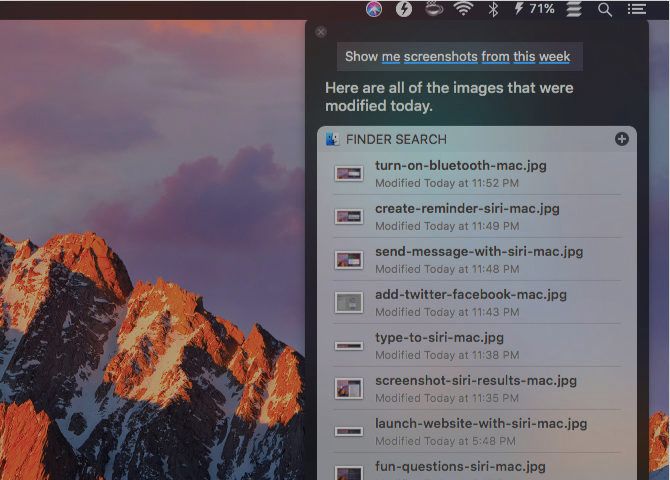
You can ask Siri to bring up everything from photos, documents, and presentations to emails, chats, and screenshots. If you want to refine your search with a time frame, you can throw in criteria like last week, this month, or from [Year].

If you add keywords like the names of files, folders, and albums to your search, Siri will know what you’re talking about. Let’s say you want to search for files that you either sent to or received from a certain person. Siri will bring them right up if you add from [Contact Name] to your query.

Specifying a file or document type also works as a filter. So for example, you can ask Siri for photos, screenshots, images, JPGs, or PNGs. All these keywords work, and you’ll get the right set of results in return. You can also ask for, say, images in the Documents folder.

2. Launch Files, Folders, Apps, and Webpages

launch-website-with-siri-mac

No matter where a file or folder lives in Finder, if you tell Siri to open it, she’ll do it right away. If you want to display the item in the search results instead, use the keywords get or show instead of open.

Keywords that match app names can throw Siri for a loop, and in such cases her response is inconsistent. So it’s a good idea to use the keyword file or folder as a prefix or suffix with the file or folder name as appropriate.

Launching websites with Siri on Mac is also pretty easy and the results are accurate as long as you get the phonetics right.

To jump to pages other than the home page of a website, read the entire URL (including the word slash) as it appears on the web. You can leave out the https:// (or http://) bit. For example, if you want to visit MakeUseOf’s About page, your query should sound like this:

make use of dot com slash about

If the website URL contains a special character like hyphen, you’ll need to mention that along with the other words that make up the URL. Also, if Siri has trouble getting the domain extension right, you might want to spell it out for her. Case in point: the .ly in Bit.ly.

3. Ask for Information

Siri is an expert not only at serving up data, but also at delivering all kinds of information. Let’s see what Siri can bring up for you.

About Your Mac and Its Data

ask-for-mac-info-siri-mac

Siri can tell you various essential details about your Mac. Those include the macOS version you’re running, your Mac’s serial number, the processor type, and the RAM capacity.

You can also ask Siri to check the amount of free disk space and iCloud storage you have left, but that’s not all. You can get Siri to tell the time, spell words, search for apps in the App Store, find pictures of specific objects, and do basic math and conversions. She uses the pre-installed Mac apps to respond to your queries.

Based on Location

find-gas-station-siri-mac

Siri can respond accurately to queries about:

  • Movies playing near you
  • Grocery stores, restaurants, and gas stations near you
  • The weather anywhere in the world
  • The location of apartments, railway stations, businesses, etc.
  • Directions to your destination by various modes of transport
  • The location of your friends (if you use the Find My Friends feature)

All these queries work only if you first tell Siri where you’re located by enabling location services for your Mac. You can do that from System Preferences > Security & Privacy > Privacy > Location Services. Once you enable the checkboxes for Enable Location Services and Siri & Dictation, you’re all set.

Have you synced the Reminders app between your Mac and your iPhone with iCloud? Then you can ask Siri on Mac to remind you to, for example, call your spouse before you board your flight. When you’re at the airport, the location-based reminder will pop up on your phone.

4. Search the Web

fun-questions-siri-mac

If your Mac doesn’t contain the answer to your query, Siri will get the most relevant answers for you from the web. Thus, Siri is a bit like Google for your Mac desktop. Here’s a sample of the variety of information you can elicit from her:

  • How to find a computer’s IP address
  • Show me photos of Irrawaddy whales from the web
  • Is Gmail better than Outlook?
  • What are swim lanes?
  • Which movies won an Oscar in 2018?
  • When is George Clooney’s birthday?

Siri is great for keeping up with the news, sports, and entertainment. You can ask her for the latest headlines, the schedule for upcoming baseball games, or the results of a particular matchup. Siri can also recommend movies and TV shows for you, and even bring up show times for movie theaters near you.

Monitoring Twitter is also easy with Siri. Ask her what’s trending on Twitter, or have her get the latest tweets from a particular account. Want Siri to search Twitter or show your tweets? You got it!

Remember that Siri has a fun side to her. She’ll read you a poem, tell knock knock jokes, roll a die for you, speak like a pirate, and even answer existential questions. When you get creative with your questions (and sometimes even when you don’t), she gets creative with her answers.

5. Change System Settings

turn-on-bluetooth-mac

It’s super convenient that you can bring up various System Preferences panels with Siri. If you ask for, say, Battery settings or Trackpad settings, Siri will open the corresponding panel for you.

Want to raise or lower the system volume, brightness, or the cursor size? Tell Siri to do that. How about telling Siri to put your Mac to sleep or mute/unmute the speakers? That works too.

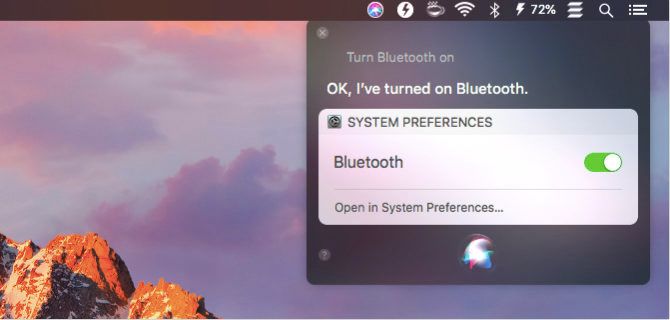
You can also direct Siri to turn on or turn off system settings like Wi-Fi, Bluetooth, Night Shift, Do Not Disturb, VoiceOver, and Zoom. (Inverting colors and switching the display to grayscale also works.) You’ll even get a slider switch to toggle the selected setting right in the results panel.

Another trick that Siri has up her sleeve is matching contacts to relationships. Just tell Siri that [Name] is your sister, for instance. Siri will then come back with, “OK, do you want me to remember that [Name] is your sister?” Once you respond with a yes, Siri assigns the relationship sister to the contact [Name] in your Mac’s address book (the Contacts app).

Helpfully, Siri knows how to improvise. If you say email my sister to Siri without assigning the relationship to a contact first, Siri will ask you for your sister’s name and proceed from there.

6. Read Aloud and Dictate Text

read-my-calendar-siri-mac

Siri can read new emails and messages for you out loud. She’ll mention details such as who sent the item and when. If you ask Siri to read your calendar, she’ll get back to you with your scheduled appointments.

You can ask Siri to read your notes too. She’ll read them one by one, but only after a confirmation from you at each step.

Additionally, you can dictate emails, messages, tweets, etc. to have Siri take them down for you. Unfortunately, you can’t compose Pages or Word documents this way. Siri’s dictation capabilities don’t stretch that far. Also, they’re not the same as your Mac’s Dictation feature. The latter is more versatile, and you can ask Siri to turn on the feature for you.

For reading articles, documents, and ebooks, it’s best to use your Mac’s speech function, which can read any text back to you. With this function, you’ll hear the system voice by default.

If you want the system voice to sound like Siri, head to System Preferences > Accessibility > Speech. There, set the system voice to Samantha. The results are not perfect, but that’s the voice closest to Siri.

It’s too bad that you can’t use Siri’s voice as the system voice yet. Unlike the other voices on macOS, she sounds more like a human and less like artificial intelligence.

7. Create New Items in Mac Apps

create-reminder-siri-mac

Want to create a new note in Apple Notes or a new event in Calendar? You don’t have to switch away from the app you’re in because you can delegate either task to Siri. Apart from notes and events, Siri can create reminders, lists, messages, and email drafts for you. It’s a pity that Siri can’t create blank iWork documents, though.

Unlike Siri on iOS, Siri on macOS lags behind when it comes to integration with third-party apps like Evernote and Things. You’ll need either a bit of research or trial and error to figure out which commands (if any) work with your installed apps.

8. Call People, Book Tickets, and More

send-message-with-siri-mac

Siri can help you take care of various small personal tasks. For starters, you can call, FaceTime, message, and email people without opening the corresponding apps or looking up contacts.

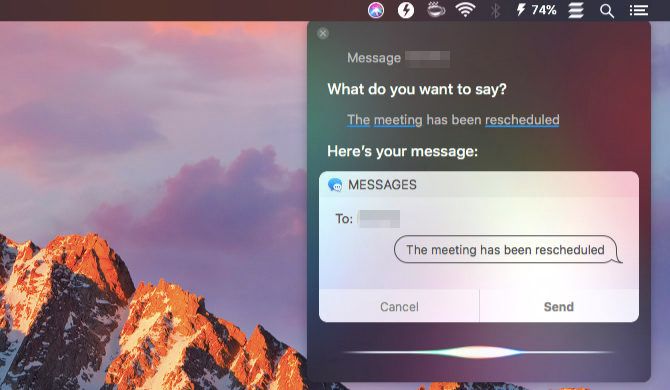
Let’s say you want to message your colleague Sarah. Ask Siri to do it. She’ll then prompt you to dictate your message. Once you do that, you can give the message a once-over and tell Siri to send the message for you. Calling and emailing contacts works in a similar fashion and Siri is with you every step of the way, responding like a human.

Siri can also take care of flight and cinema bookings, plus restaurant reservations, for you. But that depends on where you live. Here in India, Siri tells me she can’t do any of those tasks.

If you tell Siri that you’re drunk, she’ll find you several taxi services and even place a call to the one you choose.

9. Post Tweets and Facebook Updates

add-twitter-facebook-mac

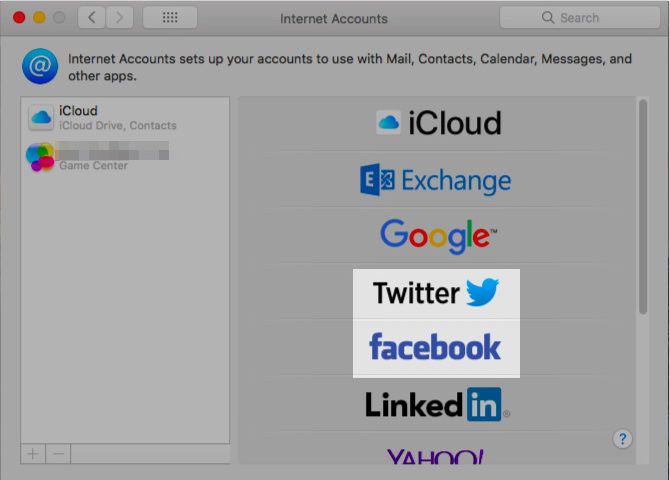
Want to try sending out tweets and posting Facebook updates from Siri? You can do that, once you’ve set up your Twitter and Facebook accounts under System Preferences > internet Accounts.

If you want to add a hashtag, say the word hashtag and Siri replaces it with the symbol # automatically.

10. Control, Discover, and Identify Music

identify-song-siri-mac

Siri can control playback of music that’s in your iTunes library and in your Apple Music collection. She can also play radio stations, soundtracks from movies, and new music on demand. You can direct her to play, pause, like, skip, shuffle, and jump to the next/previous tunes.

Keep in mind that Siri plays music from the Apple Music catalog by default. If you want her to play songs that are on your Mac, you’ll need to add the modifier my (as in my music) to your query.

Feel free to ask Siri for music trivia or songs from a particular genre, band, album, artist, decade, or year. She will deliver! You can also ask her to play songs like the one already playing.

Apple Music subscribers have some extra features available. Creating a personalized radio station based on previous listens and likes is one of them.

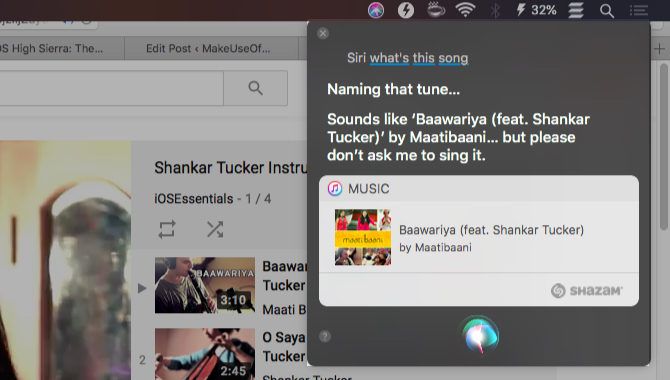
Whether music is playing on your Mac or from another source, you can ask Siri what song is playing and she’ll identify it for you.

If you like the idea of controlling your music with Siri, you’ll also want to know how to control your smart home devices with Siri.

11. Preview, Pin, Copy, and Screenshot Siri Results

screenshot-siri-results-mac

You can preview a search result by hitting Spacebar after you select the result. That’s the usual macOS preview feature, Quick Look, at work.

If you want quick access to any particular set of search results Siri provides, you can pin that set to the Notification Center.

To pin results, click on the + icon at the top-right of the results box. (The icon will appear grayed out if Siri doesn’t support pinning for the type of results you have summoned.) The pinned items show up in the Today tab.

Pinning is useful when you want to keep, say, weather details for your city, the price of Bitcoin, or sports scores handy. For dynamic information like this, you don’t have to do anything to update the pinned results. Siri takes care of it.

Apart from pinning Siri results, you can drag individual items like documents, locations, and images into apps to attach them. Copying and pasting them with the usual keyboard shortcuts (Cmd + C and Cmd + V) also works!

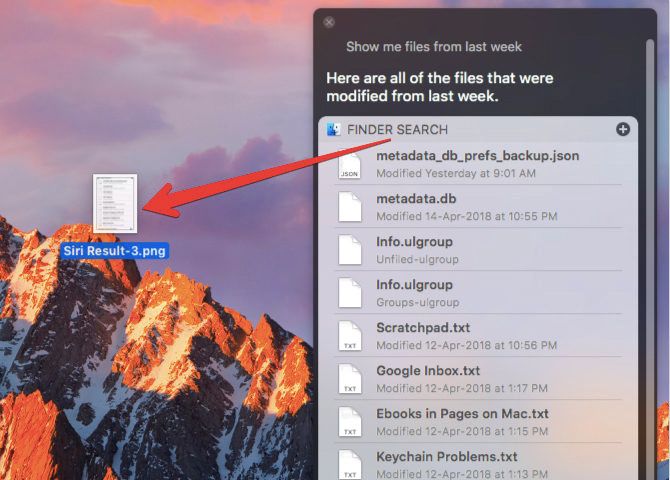
You can even save a screenshot of the answers to a query. Grab the title bar of any results set and drop it onto your desktop or in any Finder location. It creates a screenshot instantly, saved as a PNG file.

It’s Time to Enable Siri on Mac!

type-to-siri-mac

Siri is a super convenient tool to have at your fingertips. You can offload the bulk of your digital tasks to her and give your hands a respite from all that typing.

If you want to use Siri, but prefer to type your queries instead of speaking, you’ll need to activate the Type to Siri feature. Head to System Preferences > Accessibility > Siri and select the checkbox for Enable Type to Siri.

Before you jump in, make sure you understand and acknowledge the risks of sharing personal data with a voice assistant. And if Siri has inspired you to work smarter, check out other Mac productivity features for an even more efficient workflow.


Read Full Article

Whitney Wolfe Herd doesn’t care what she’s supposed to do


It’s 4:55pm Central Time on a Tuesday at Bumble headquarters in Austin, Texas. Whitney Wolfe Herd, the 28-year-old founder and CEO of the woman-led dating app is showing me around the nearly four-year-old startup’s office before we sit down to talk.

Our first stop is the standard startup watering hole, with a few twists. The fridges are stocked with Topo Chico instead of La Croix and the built-in taps are purely for decoration. Maybe one day they’ll be filled with Kombucha or iced coffee, a team member tells me. But no mention of beer. We’re not in Silicon Valley anymore.

As Wolfe Herd pours two glasses of white wine and plops in a few ice cubes, she briefly pauses to ask if I’m okay with the drink selection. Her question quickly caused my mind to wander back to my 21st birthday when a waiter told me men aren’t supposed to drink white wine with ice cubes.

There was perhaps no better way to begin my time with Wolfe Herd than a reminder that no matter how many hundreds of millions of woman-initiated matches have been made on Bumble, the company still exists in a world so ingrained with gender stereotypes that we couldn’t get through pouring a drink before the first one reared its head.

Luckily for me and my unsophisticated palate, I’d soon learn that Whitney Wolfe Herd doesn’t particularly care what people think that she or Bumble are supposed to do, let alone what we should be drinking.

‘I’m not building a dating app’

Bumble isn’t Wolfe Herd’s first exposure to the world of digital dating and connections. She moved to Los Angeles in 2012 and became an early co-founder of Tinder, but eventually left the company amid allegations of sexual harassment and discrimination against another one of the company’s co-founders. The lawsuit was settled, and while the past is the past, the history does help set the stage for the idea that would eventually turn into Bumble.

“I was just poof, gone, ceased to exist. It was like leaving behind an abandoned life, fleeing from the storm or whatever it was,” explained Wolfe Herd when talking about leaving Los Angeles after her time at Tinder. “I was experiencing all this, and then the Twitterverse and the Instagram world and the online sphere started attacking me. And I had never really understood online bullying. I didn’t even know what that meant or what it felt like. It made me really depressed.”

As successful entrepreneurs are known to do, Wolfe Herd soon began figuring out a way to leverage these closely held personal experiences into a new product. Her solution was Merci, a female-only social network “rooted in compliments and kindness and good behavior.”

Original mockup of Bumble, then known as Merci

While she was building out the idea, Andrey Andreev, founder and CEO of Badoo, the largest dating platform in the world, contacted her. Little did Wolfe Herd know, but Andreev saw her departure from Tinder as an opportunity, inviting her to meet the Badoo team in London where it had been based for more than 10 years. After some reluctance on Wolfe Herd’s part, she decided to go for it. After all, she was looking for feedback on her Merci idea, and worst-case she’d at least leave with a better idea of what she wanted to build next.

But Andreev had other plans. During their first meeting he frankly asked Wolfe Herd to become the chief marketing officer of Badoo.

She didn’t even consider the offer. First, it would have required her to move to London and, more importantly she was adamant about never working in the dating world again. With the CMO offer in the meeting’s rearview mirror, Wolfe Herd shifted the conversation to Merci, and gave Andreev a deep dive into her idea for a woman-only social network grounded in compliments and positive feedback.

“I love it,” Andreev said. “We’re going to name the dating app Merci.”

She was aghast, even in her retelling of the story.

“The what? What are you talking about? Did you hear what I said? I’m not building a dating app. Merci is the name of my female-only social network.”  

Andreev clarified: “I love your vision for a female-first platform, but you need to do this in dating.”

He essentially offered her the funding she needed to get the app off the ground, and, perhaps more importantly, full access to Badoo’s technical team to build and ship it. Plus, full creative control and decision-making ability regarding the direction of the new company.

From L-R: Whitney Wolfe Herd, Andrey Andreev and Sarah Jones Simmer, Bumble’s COO

But Wolfe Herd had no interest in building such an app, and Andreev had no interest in getting involved with a new social network. So she headed home, all the more determined to make Merci the next big thing. But the offer from Andreev was still lingering in the back of her mind.

“My husband, boyfriend, whatever you want to call him — Michael, we’ll just call him Michael,” Wolfe Herd told me. “Michael was like, ‘Whit, this opportunity doesn’t strike twice. You’re going to try and raise money right now? You’re literally a scorned seductress, according to the VC community right now. Good luck to you. I know you don’t have the backbone right now,’ because I had been so depleted and I was so low on myself.”

With the encouragement of her then-boyfriend (now husband) Michael Herd, she decided that Andreev’s offer was too good to pass up, and headed back to London, where she essentially made a handshake deal with him to build this new woman-first dating app.

Bumble was born

The company would exist as a new entity with 20 percent ownership belonging to Wolfe Herd, 79 percent to Badoo and 1 percent divided between Christopher Gulczynski and Sarah Mick, two early consultants who went on to join full-time after the company was up and running. Briefly named Moxie, the group settled on Bumble after a trademark search turned up conflicts.

Bumble would be run independently from Austin, Texas, with the ability to tap into Andreev and Badoo’s years of experience in the dating industry when needed. It certainly wasn’t a typical arrangement, especially in the world of tech startups where, in order to build a successful company, you’re supposed to rally a group of two to three co-founders, raise a seed round, then a Series A and so on.

But now, four years and 30 million users later, Bumble’s cap table looks exactly the same as it did the day the company was founded. Wolfe Herd’s 20 percent undiluted founder’s stake is evidence that an atypical path was right for Bumble.

A startup office with no engineers

It quickly becomes apparent to me as a technology writer walking through Bumble’s Austin headquarters that this isn’t your typical startup office. It looks and feels much more like a living room than any sort of standard tech office environment.

For a small space that is now overflowing with more than 50 employees, there are only about 25 desks, and most of those remained empty during my two-day visit. Everyone seems to prefer rotating through conference rooms, counters, coffee tables, floors and the largest couch I’ve ever seen, which sits in a semicircle ready to comfortably fit upwards of 30 people, if needed.

“I believe in taking people away from their desks and making them feel collaborative and inspire one another instead of being siloed,” she explained.

While the setup may not work for some companies, it certainly does for Bumble. But that doesn’t mean everyone agrees. Wolfe Herd explained that they had to rotate through multiple designers before settling on one that aligned with her vision.

“So many people wanted to make it hyper functional and minimalistic and stark…almost cold,” she told me. “I didn’t want it to feel that way. I wanted it to feel welcoming and warm and do it differently.”

The design isn’t the only thing that stands out when walking through Bumble’s office. It also doesn’t have a single engineer.

Just like Andreev promised Wolfe Herd when they first decided to build Bumble, all engineering is still handled in Badoo’s London offices. While some technology veterans may bash Bumble for offloading their engineering to their parent company, she is unapologetic about the benefits and practicality of the arrangement.

“Had I gone out and tried to do this on my own with no tech support, Bumble would be a year-and-a-half behind. Think of all the marriages and babies and connections we’ve made [in that time],” explained Wolfe Herd.    

She continued: “It’s like building a road. If you can get the materials from someone quicker that will make people’s lives easier, why would you say, ‘No, I want to build this with my own two hands,’ just to be able to say I did?”

I asked Wolfe Herd if there are ever times when their team has wished that their developers were sitting in the next room, standing by for a product consultation or roadmapping session.

But Wolfe Herd actually attributes much of Bumble’s success to working in an environment devoid of a dev team. Specifically, she explained that it gave her team the creative freedom to allow Bumble’s message and brand to drive the product, and not vice versa. By letting branding take the front seat instead of product, Bumble leapfrogged the “connections app” phase and became a lifestyle brand.

“How do you have different touch points in a user’s life? How do you reach them on their drive home from work? How do you talk to them on social media? How do you make them feel special? How do you add your brand into their different touch points?” Wolfe Herd says. Her original vision was to build a social network rooted in positivity and affirmations, but asking (and answering) these questions has allowed her to help in building a whole world for Bumble users rooted in positivity and affirmations.

Versace, Balenciaga, Bumble

Last summer if you happened to be walking through New York’s trendy Soho neighborhood you may have noticed a new tenant sandwiched between Versace and Balenciaga on Mercer Street.

In a first for a dating app and pretty much any social app, Bumble opened a physical space as an attempt to formalize the community that was naturally forming around it. At the time she told me that the opening coincided with Bumble’s brand becoming something that people are now proud to associate with in real life.

Bumble’s New York City Hive

This message was repeatedly echoed to me by others around Wolfe Herd, and it seems to be one of the internal barometers the company uses to track its success. Samantha Fulgham, Bumble’s second employee who now leads campus marketing and outreach, explained how male college students are now applying to become ambassadors, interns and even full-time employees.

“We tried to [have male students be campus ambassadors] in the U.S. probably two years ago. They didn’t really want to do it, because they thought it was a girl thing. Now we’re trying it again in Canada and we’ve already had so many guys asking how they can work for Bumble… saying, ‘I want to be a part of this company.’”

And it’s not just college students champing at the bit to associate themselves with the brand. When Bumble launched its business networking product last fall, the startup’s NY launch party was attended by Priyanka Chopra, Kate Hudson and Karlie Kloss, while the L.A. event hosted Gwyneth Paltrow, Jennifer Garner and Kim Kardashian West.

Bumble Bizz’s NYC Launch Party. From L-R: Whitney Wolfe Herd, Priyanka Chopra, Karlie Kloss, Fergie and Kate Hudson. By Neil Rasmus/BFA.com.

A digital response to a real problem

Bumble has been able to grow into the company it is today because it was founded on the basic principle of taking a stance on a contested issue: Women were never supposed to make the first move. But Bumble didn’t stop there, and under Wolfe Herd the startup has been very vocal about making sure they are using their voice to address issues that other companies are taught to avoid taking a stance on.  

In the wake of the Stoneman Douglas school shooting, Bumble did something that breaks just about every rule taught in marketing and PR 101: The dating app very publicly decided to insert itself right in the middle of our nation’s ongoing gun debate by banning images of guns on its platform.

“We just want to create a community where people feel at ease, where they do not feel threatened, and we just don’t see guns fitting into that equation,” Wolfe Herd told The New York Times after the ban.

She told me at the time that the move shouldn’t be seen as Bumble taking a hard stance against guns or gun owners, but rather taking a hard stance against normalizing violence on their platform.

While an outsider may have been surprised to see such a fast-growing company break the status quo and decide to take a stance on a political issue, those who know Wolfe Herd will say that doing things like this is exactly why Bumble has become so successful in such a short amount of time.

What’s next?

For an industry that’s been around since the beginning of time, matchmaking sure is having its moment. And even the big players want a piece of the action; Facebook has announced it’s expanding into the dating space. So how does Bumble, a barely four-year-old, non-venture-backed company take advantage of all this attention while simultaneously defending itself from the threat of big players entering the space?

Over the summer we reported that Tinder’s parent company Match was set on acquiring Bumble, first at a $450 million valuation, then a few months later at “well over” $1 billion. It would have been an ironic ending for a company that was at least partially founded because of Wolfe Herd’s negative experiences surrounding her time at Tinder and Match.

Ultimately negotiations fell through between the two companies, and from there things escalated quickly. In March, Match sued Bumble for “patent infringement and misuse of intellectual property,” and a few weeks later Bumble sued Match for fraudulently obtaining trade secrets during the acquisition process. Both lawsuits are still making their way through the courts, but it’s safe to say that a deal between the two is off the table for the foreseeable future.

So what’s next for Bumble? The company is profitable and self-sustaining, and has no need to take on capital or sell itself. But Wolfe Herd acknowledged that the right acquirer may allow them to fulfill their goal of “recalibrating gender norms and empowering people to connect globally” at a much faster pace.

Wolfe Herd explained: “If the right opportunity presents itself, we’ll absolutely explore that and we’ll absolutely always explore the best way to take what we’re trying to do and what our mission is and what our values are. If we can be acquired, that will help us scale 10 times faster and that’s something that’s interesting to us, right?”

But she was also clear that cash isn’t what they’re looking for. “We would only ever consider an acquisition of sorts that brings strategic intellectual capital to the table, strategic knowledge of new markets that we have not yet gone into, and added value in ways that supersedes just straight cash,” said Wolfe Herd.

To the casual observer it sounds a lot like Facebook and its 2+ billion active users could do a pretty good job helping Bumble quickly spread its message around the world.

And Bumble seems to agree. After Facebook’s announcement about its dating play, Bumble issued a statement saying, “We were thrilled when we saw today’s news. Our executive team has already reached out to Facebook to explore ways to collaborate. Perhaps Bumble and Facebook can join forces to make the connecting space even more safe and empowering.”

In a conversation with me following the announcement, Wolfe Herd said that Facebook’s expansion into dating “is actually super exciting for the industry, because if you look at the history of Facebook when it comes to building their own products versus acquiring, they oftentimes attempt to build their own. If those products don’t successfully come to market, there’s usually a transition into acquisition. Who knows what will happen?”

So if Facebook comes knocking, don’t be surprised if Bumble answers… and quickly. But if they don’t, then current indicators are that Bumble will be just fine.

In just four years the company has flipped the switch on app-based dating, taking something that was once taboo and making it something that users are proud to associate with. So luckily for the more than 30 million women (and men) who have used Bumble to break gender stereotypes and make over 2 billion matches on their own terms, Whitney Wolfe Herd didn’t care what she or her company were supposed to do.


Read Full Article
12 May 2018

Google Duplex Will Identify Itself as an AI


Despite announcing several new things, including Gmail composing emails for you and Google Assistant learning to chat, the biggest talking point of Google I/O 2018 was Duplex. Everyone had an opinion on Google Duplex, and not all of them positive.

What Is Google Duplex?

Duplex is Google’s new AI, and a massive step-up from the likes of Siri and Alexa. Duplex is capable of making calls for you, meaning you’ll never have to book a hair appointment or table at a restaurant again. The problem is Duplex is a little too human for its own good.

Google CEO Sundar Pichai demoed Duplex on stage at I/O 2018, showing the next-level AI fooling two people into thinking it was a real-life human. And many people found that aspect troubling, especially as at no point did Duplex announce it wasn’t human.

Duplex Will Disclose Its Identity

It seems that Google was unaware what reaction Duplex was going to cause. And the company certainly didn’t foresee morality questions being asked. Google has now issued a statement regarding Duplex, telling The Verge:

“We understand and value the discussion around Google Duplex — as we’ve said from the beginning, transparency in the technology is important. We are designing this feature with disclosure built-in, and we’ll make sure the system is appropriately identified. What we showed at I/O was an early technology demo, and we look forward to incorporating feedback as we develop this into a product.”

Google has listened to the feedback and reacted accordingly. The problem is, if Duplex is going to announce itself as not being human, why does it need to sound so human? This is just the first of many moral dilemmas humanity is going to face when dealing with AI.

The Day the Robots Take Over…

Google is due to start testing Duplex within Assistant this summer. And only then will it become clear just how Google is going to have Duplex announce it isn’t human. Until then I’ll be having nightmares about the day when robots can do all of the jobs.

Image Credit: Robert Couse-Baker/Flickr


Read Full Article

6 Google Photos Alternatives to Use If You’re Tired of Its Shortcomings


Google Photos is one of the best photos apps for smartphones right now. With unlimited storage, smart AI that auto-sorts pictures, and a built-in photo editor, it’s a winner. But that doesn’t mean it’s perfect.

Even now, there isn’t a Google Photos for desktop app to save all your pictures offline on your computer. While the auto-organization is great, the manual organization is a mess. The mobile app is fantastic for backing up photos and videos, but it’s substandard as a Gallery. And we all know Google’s many privacy problems, so are you sure you want to give it more of your personal data?

You need a Google Photos alternative, whether you know it or not. That’s not to say you need to uninstall Google Photos—feel free to run multiple photo apps, each for its own purpose.

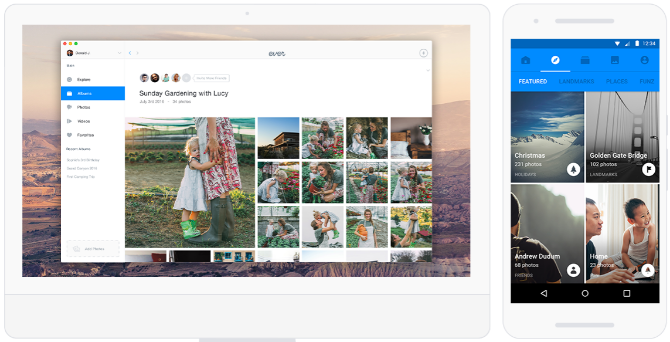
1. Ever and Shoebox: Desktop Apps and Unlimited Backups

google photos alternatives

The biggest reason most people use Google Photos is that it offers unlimited photo and video storage, albeit with some restrictions. If you want to ditch Google but still get that benefit, both Ever and Shoebox are excellent.

Both services have one big advantage over Google Photos in the form of a desktop app. You can download and install the app to auto-upload and sync pictures from your computer and your phone.

The apps are super easy to use on both mobile and desktop. The free plans will shrink photos to 10 megapixels (3264 pixels on the longest side), which is good enough image resolution to print them if you ever want to.

Unfortunately, both apps are terrible for video backup. Ever doesn’t support it at all. Shoebox is not worthwhile as a video storage service though since you can only backup a total of 15 minutes of footage at Full HD resolution, with each video not crossing three minutes in length.

The paid version of both services give you more video backup and full-resolution photos.

Download: Shoebox for Windows | Mac | Android | iOS (Free)
Download: Ever for Windows | Mac | Android | iOS (Free)

2. Cluster (Web, Android, iOS): Private Albums With Controlled Sharing

google photos alternatives

Google Photos doesn’t have a social aspect like Instagram. Then again, do you really want Google looking through all the pictures clicked at that private event you recently attended? More importantly, do you trust yourself to not accidentally share a picture you shouldn’t have?

Cluster is a private photo-sharing app where you control who gets to see or add to any album. It’s all about who you send invitations to, or accept invitations from. Each event is its own album, so people from one space can’t see photos from another.

Your feed, meanwhile, shows pictures from all the different private albums that you’re a part of. It’s a bit like Instagram, complete with people being able to comment or like images.

Download: Cluster for Android | iOS (Free)

3. Zyl (Android, iOS): The Missing Gallery App on Google Photos

google photos alternatives

Google Photos has become the default gallery app on Android now, and boy, I wish it hadn’t. Photos is terrible as a gallery, which is why we have already looked at several alternative Android gallery apps. But Zyl slipped under the radar then, and it has quickly become my default app now.

Zyl actually has some of the good features in Google Photos. For example, it automatically makes albums of your pictures based on metadata in the image files. It also tracks duplicates to help you free up storage space. Plus, it has a built-in image editor for all the basic tweaks, like cropping, rotating, adding filters and frames, and so on.

But the best part is privacy. Zyl does everything on your phone and never saves anything to its servers. Would Google ever agree to that? Ha!

Download: Zyl for Android | iOS (Free)

4. Slidebox (Android, iOS): Organize Albums With Tinder-Like Efficiency

Google Photos tries its best to make photo management easy for you with features like smart albums. But even then, it’s not the best for organizing and finding your pictures.

Slidebox uses a Tinder-like mechanism to help you quickly sort your photos into different folders or albums. Create the albums first, then open the gallery. Swipe your photo left or right to keep scrolling, swipe up to delete, and tap one of the folders when you want to put the picture in it. You can even compare two pictures quickly to decide which one to keep and which one to throw away. Plus, there is an Undo button in case of a mistake.

It’s a fun and easy mechanism, and you end up going through your pictures one more time as well. Not organizing images is one of the common photo management mistakes most people make, so don’t be one of them.

Download: Slidebox for Android | iOS (Free)

5. Adobe Bridge (Windows, Mac): Incredible Free Desktop Photo Organizer

Google Photos, for some reason, still doesn’t have a desktop app for computers. The only option is a backup and sync photo app for folders on your hard drive. Sure, both Windows and Mac come with built-in photo gallery and management apps, but you need something better. There’s a fantastic free program from Adobe that you should try.

Adobe usually charges big bucks for its software, but Adobe Bridge is one of those free and awesome Adobe apps. The program is a robust photo management tool, giving you some important features like batch renaming, batch resizing, panorama support, HDR support, color management, and watermarking.

If you use a digital camera, Adobe Bridge is the best tool to transfer photos from a camera to a computer. You’ll be shocked by how much you can do with it, and how fast it is to use.

Download: Adobe Bridge for Windows or Mac (Free)

There’s More to Know About Google Photos

Remember, Google Photos still has a lot of good stuff, so these alternatives shouldn’t mean you uninstall it. In fact, read about some of the lesser-known features of Google Photos, you’ll love the app even more.


Read Full Article

First launch of SpaceX’s revamped Falcon 9 carries Bangladesh’s space ambitions


Today brings historic firsts for both SpaceX and Bangladesh: the former is sending up the final, highly updated revision of its Falcon 9 rocket for the first time, and the latter is launching its first satellite. It’s a preview of the democratized space economy to come this century.

You can watch the launch below:

Although Bangabandhu-1 is definitely important, especially to the nation launching it, it is not necessarily in itself a highly notable satellite. It’s to be a geostationary communications hub that serves the whole country and region with standard C-band and Ku-band connectivity for all kinds of purposes.

Currently the country spends some $14 million per year renting satellite time from other countries, something they determined to stop doing as a matter of national pride and independence.

“A sovereign country, in a pursuit of sustainable development, needs its own satellite in order to reduce its dependency on other nations,” reads the project description at the country’s Telecommunications Regulation Commission, which has been pursuing the idea for nearly a decade.

It contracted with Thales Alenia Space to produce and test the satellite, which cost about $250 million and is expected to last at least 15 years. In addition to letting the country avoid paying satellite rent, it could generate revenue by selling its services to private companies and nearby nations.

Bangabandhu-1 in a Thales test chamber.

“This satellite, which carries the symbolic name of the father of the nation, Bangabandhu, is a major step forward for telecommunications in Bangladesh, and a fantastic driver of economic development and heightened recognition across Asia,” said the company’s CEO, Jean-Loïc Galle, in a recent blog post about the project.

Bangabandhu-1 will be launching atop a SpaceX Falcon 9 rocket, but this one is different from all the others that have flown in the past. Designed with crewed missions in mind, it could be thought of as the production version of the rocket, endowed with all the refinements of years of real-world tests.

Most often referred to as Block 5, this is (supposedly) the final revision of the Falcon 9 hardware, safer and more reusable than previous versions. The goal is for a Block 5 first stage to launch a hundred times before being retired, far more than the handful of times existing Falcon 9s have been reused.

There are lots of improvements over the previous rockets, though many are small or highly technical in nature. The most important, however, are easy to enumerate.

The engines themselves have been improved and strengthened to allow not only greater thrust (reportedly about a 7-8 percent improvement) but improved control and efficiency, especially during landing. They also have a new dedicated heat shield for descent. They’re rated to fly 10 times without being substantially refurbished, but are also bolted on rather than welded, further reducing turnaround time.

The legs on which the rocket lands are also fully retractable, meaning they don’t have to be removed before transport. If you want to launch the same rocket within days, every minute counts.

Instead of white paint, the first stage will have a thermal coating (also white) that helps keep it relatively cool during descent.

To further reduce heat damage, the rocket’s “grid fins,” the waffle-iron-like flaps that pop out to control its descent, are now made of a single piece of titanium. They won’t catch fire or melt during reentry like the previous aluminum ones sometimes did, and as such are now permanently attached features of the rocket.

(SpaceX founder Elon Musk is particularly proud of these fins, which flew on the Falcon Heavy side boosters; in the briefing afterwards, he said: “I’m actually glad we got the side boosters back, because they had the titanium fins. If I had to pick something to get back, it’d be those.”)

Lastly (for our purposes anyway) the fuel tank has been reinforced out of concerns some had about the loading of supercooled fuel while the payload — soon to be humans, if all goes well — is attached to the rocket. This system failed before, causing a catastrophic explosion in 2016, but the fault has been addressed and the reinforcement should help further mitigate risk. (The emergency abort rockets should also keep astronauts safe should something go wrong during launch.)

The changes, though they contribute directly to reuse and cost reductions, are also aimed at satisfying the requirements of NASA’s commercial crew missions. SpaceX is in competition to provide both launch and crew capsule services for missions to the ISS, scheduled for as early as late 2018. The company needs to launch the Block 5 version of Falcon 9 (not necessarily the same exact rocket) at least 7 times before any astronauts can climb aboard.


Read Full Article

Spotify Stops Promoting “Harmful or Hateful” Artists


Spotify has unveiled a new policy regarding what it terms “hate content and hateful conduct”. This policy will not only see Spotify removing songs and albums from the service, but affect certain artists too. And R. Kelly is the first of those affected artists.

Spotify’s New Policies on Hate

Spotify’s new policy relates to hate content and hateful conduct. Spotify regards hate content as that which “expressly and principally promotes, advocates, or incites hatred or violence against a group or individual”. So, songs deemed to be racist or sexist, etc.

Hateful conduct concerns the behavior of artists away from the recording studios. So, if a popstar is found to have exhibited, to cite Spotify’s example, “violence against children and sexual violence”, the streaming service may choose to stop supporting that artist.

R. Kelly Has Already Been Demoted

It seems that Spotify has already enacted its policy with regards to R. Kelly. The singer/songwriter best known for I Believe I Can Fly, has essentially been ushered to the Spotify sidelines, with Spotify choosing to no longer promote him or his music.

Spotify has not banned R. Kelly. So if you search for him on Spotify you’ll still be able to enjoy his music. However, Spotify has removed R. Kelly’s music from its curated playlists and it will no longer actively promote him anywhere on the service.

A Slippery Slope Towards Censorship

Spotify has the right to promote (and by the same token, not promote) whichever artists it wants. However, it should be noted that while R. Kelly has been accused of various misdemeanours over the years, he has never actually been found guilty of any wrongdoing.

Regardless of the merits of individual cases, Spotify may end up regretting this. The company could have maintained its policy of not judging an artist about things that have nothing to do with music. Instead, Spotify will now be making moral judgements on people.

This feels like a slippery slope. Right now, the policy is to stop promoting artists that don’t align with Spotify’s values. Which is fair enough. However, tomorrow, this policy may evolve into something else entirely. And then Spotify will be accused of censorship.

Further Reading for Spotify Fans

If you’re not yet familiar with the streaming music service you should check out our unofficial guide to Spotify. And if you’re unsure what R. Kelly’s music is being removed from you should check out our primer on Spotify’s automagic playlists.

Image Credit: Jan Kromer/Flickr


Read Full Article

5 Private Things Websites Learn About You Without Your Knowledge


Browsing the internet seems like such an innocent activity, doesn’t it? You search Google, visit a few websites, and read interesting information. Would you be surprised to know that websites are collecting lots of information about you as you read?

The following five things websites can learn about you when you visit may shock you. In every case, you should understand what your browser is sharing with the owners of those sites, and how you can prevent it.

1. Where You Live

One of the easiest pieces of information a website can learn about you, is where you live. This is because the identity of every computer on the internet is recorded via an IP address.

Website owners install tracking scripts throughout their site to scrape that information from your session. These aren’t malicious scripts. People who run websites just want to know as much as possible about the people who visit their websites, so they can offer content that’s most relevant to the majority of their users.

One of the most relevant pieces of information is your location.

online privacy and website surveillance

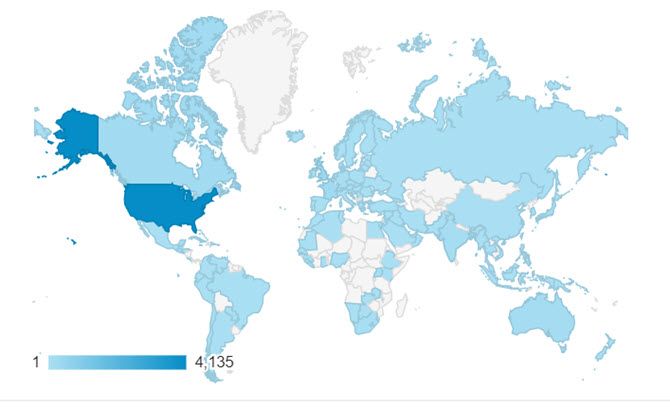
With your IP address, website owners can analyze where in the world the majority of their readers come from.

To see this in action, just go to Google and type in: “What is my IP address?”

The result should look something like this.

online privacy and website surveillance

To take this a step further, you can see how this translates to a geographic location by going to IPLocation.net.

You don’t even have to type anything in. The website will instantly show you your IP address and eveything it’s able to figure out about you from that, including your geographical location.

online privacy and website surveillance

This includes:

  • Your internet service provider (ISP)
  • The town where you live
  • Your GPS coordinates

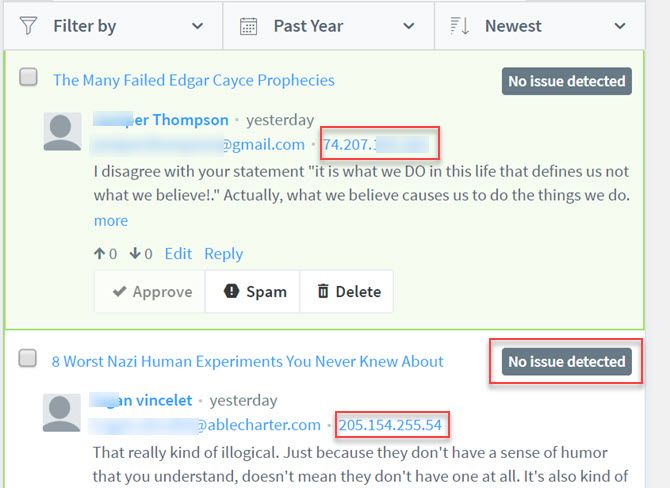
This information is also commonly collected by most commenting apps on many websites. For example, one of the most popular commenting services, Disqus, provides website owners with the IP address of every person who makes a comment on their blog.

online privacy and website surveillance

This information is very useful for moderating comments. As you can see by the “No issue detected” status on the comments above, the Disqus platform uses a commenter’s IP address to identify them. This is useful for identifying people who spam, or are otherwise abusive on the platform.

Website owners can then blacklist those IP addresses so those people can’t comment on the site anymore.

How Do I Hide My IP Address?

This information is the easiest to hide from websites. In fact, we offer a frequently-updated list of the best VPN services because so many people use them to keep their location private.

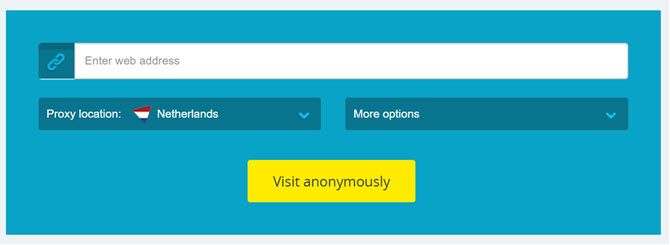
Some of these services are even free. For example, you can go to hide.me and choose what country you want websites to think you’re from.

online privacy and website surveillance

This free service will tunnel your traffic through servers located in that country and makes all websites you visits think you’re located there.

online privacy and website surveillance

There are plenty of free services like this for masking your IP address. If you want a more permanent solution, then you’re better off subscribing to an inexpensive VPN service and using it consistently for all of your web browsing.

Just keep in mind that not all VPN services are created equal. You’re still giving up your IP details to the VPN service you’re using. So keep in mind that you also need to protect your privacy from bad VPN providers.

2. System Information and Demographics

Most websites use either an ad script or an analytics script on every page of their site to gather as much information about you as possible.

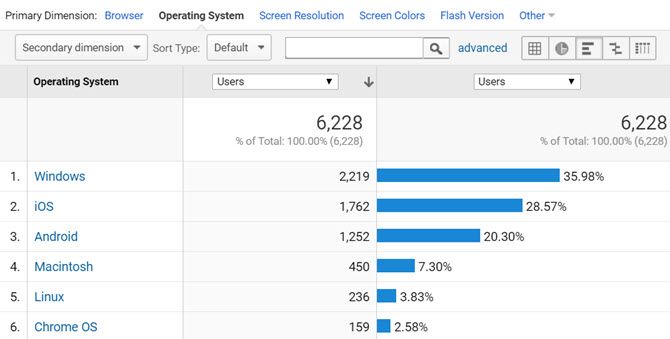
Many people don’t realize just how much information their web browser provides to websites. Website owners can gather your browser type, operating system, screen resolution, and even the version of Flash that you’re using.

online privacy and website surveillance

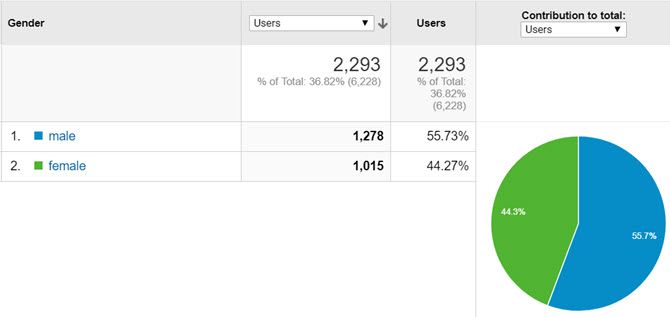
Going a step further, if you remain logged into your Google account while you’re browsing the internet, Google even tries to guess your age and gender based on your search patterns.

This information is also provided to website owners via Google analytics, and used for better ad displays as well.

online privacy and website surveillance

One thing that’s important to note is that there is absolutely no sensitive information gathered by these scripts. That’s because they don’t actually have access to any sensitive information about you.

All they can gather is what they can “see”, which is basically very general information about the software and hardware you’re using to connect to the internet. The rest, like age and gender, is just based on guesswork and not always accurate.

How Do I Hide My Demographics?

Many people have decided that to hide information like this, they’re going to use an ad blocker, which essentially prevents those scripts from working properly.

There are several big problems with these ad blockers.

  • Most ad blockers stop useful web-based applications from working properly
  • Ad blockers are leading to the loss of some wonderful free content as website owners are forced to shut down
  • Free access to news is disappearing as news publishers fight back by putting up paywalls
  • Ad blockers don’t distinguish between malicious ad scripts and safe ones

If you’re concerned about your privacy, there are two things you can do that will work better than using ad blockers. One option is using a VPN as mentioned above. Another is not logging into Google when you browse the web. Many people consider using Google services a major risk to privacy. Or, as an alternative, use a privacy-focused search engine like DuckDuckGo.

If you’re concerned about malvertisements (advertisements that infect your computer), ad blockers are a poor choice. They are only programmed to block the display of advertising, but won’t protect you from all of the threats that are out there. There are simple steps you can take to protect yourself.

3. Your Family and Friends

One source that many websites have to gather information about you is social app integration. Many people give very little thought to providing a site or a web service permission to access their social account data.

If you think about this, providing access to your social accounts is one of those actions that opens up some of the most sensitive and personal information about yourself.

With even just read-only access, businesses can gather who your family and friends are, your likes and dislikes, and even how often and where you travel or take part in hobbies. It’s a gold mine for advertisers and marketers.

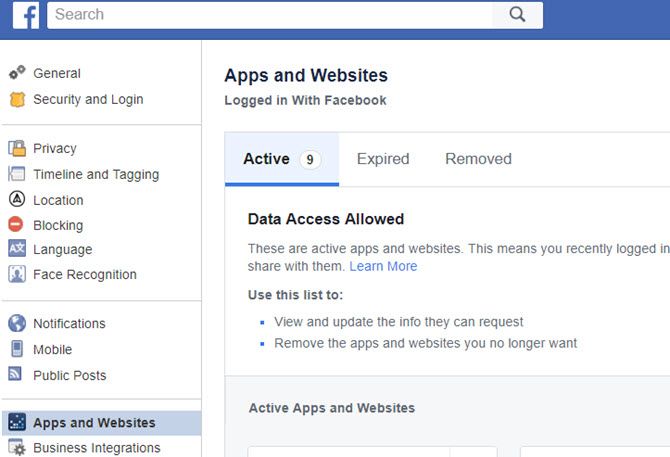
If you want to see just how many sites and services you’ve given access to your data over the years, log into your Facebook account, click on settings, then click on Apps and Websites in the left sidebar. There, you’ll see all of the sites you’ve allowed to see your social data.

online privacy and website surveillance

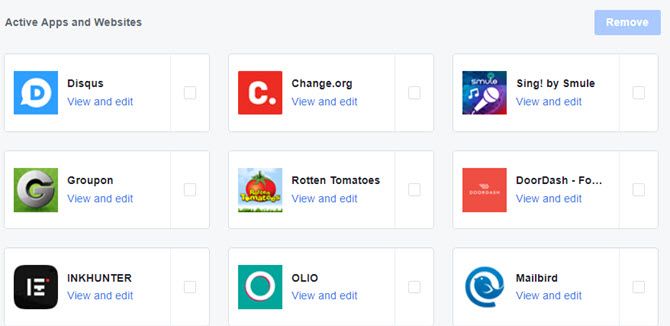
If you’ve never looked at this area of your Facebook settings before, and you tend to allow this access without giving it much thought, the list here may surprise you.

online privacy and website surveillance

If there are any on here you don’t recognize, click on the icon and then click on the Remove link at the bottom to get rid of that access.

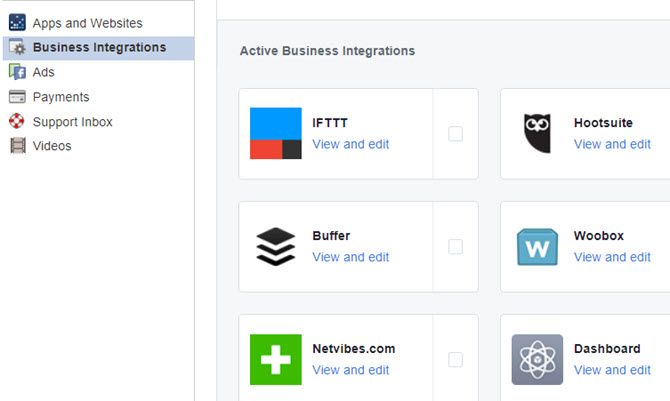
Next, click on the Business Integrations link on the left sidebar, and review the businesses you’ve provided access to.

online privacy and website surveillance

If there are any here that surprise you as well, remove them as well.

You can do the same on your Twitter account my clicking on your profile icon, clicking Settings and Privacy, and then Apps in the left navigation bar.

online privacy and website surveillance

If there are any social integrations here that you don’t recognize, just click Revoke access.

Another important step to take is to lock down your social accounts so you aren’t sharing sensitive information publicly.

4. Your Address, Phone Number, and Email

Even though it seems very simplistic to say you shouldn’t type your email or mailing address into an online form if you don’t want that private information shared with other businesses, many people do exactly that without giving it much thought.

Consider how many websites or businesses you’ve “signed up” with where you’ve quickly filled out a form with your email or your mailing address. Many people realize that information is private and could be used in nefarious ways in the wrong hands, but the desire to use some online service or app often overpowers the desire for privacy.

Even forms that allow you to connect to the service via your social or Google account provide the same information to those businesses.

online privacy and website surveillance

In fact, as mentioned above, using your social account provides a whole lot more than just your email and address.

This isn’t to say that you should never fill out any form online, but do so sparingly. Make sure these are major brands or businesses that you’ve done business with before and you know you can trust.

5. What You Like

Did you know that websites are able to discover what hobbies and interests you have whenever you visit their web page?

It’s true. By checking out your online browsing history, which your browser is more than happy to share with websites you visit, website owners are able to tailor their content more toward your interests.

online privacy and website surveillance

But is this a good thing? Do you want the people knowing everything you’re interested in? And how does your browser know that, anyway?

The simple answer is: cookies.

There are a lot of misconceptions out there about cookies. Cookies are just strings of text stored in a small file, logged by your browser. They store information about the sites you visit, like session identification (so sites know it’s you the next time you visit), your preferences on the site, and other information.

This is used to customize a website visit so you don’t have to log in and set everything up all over again the next time you visit.

These are known as first-party cookies, and are generally very safe. The privacy concern comes from what’s known as third-party cookies.

What Are Third-Party Cookies?

Third-party cookies are usually cookies stored by your browser for companies that manage advertising or marketing for a website. These are services installed and enabled by the websites you visit, and those third-party companies are the same companies that track information for numerous websites.

There is no difference between how first-party and third-party cookies work and what they track. The only difference is that the third-party company that manages third-party cookies knows more about your browsing habits across the entire family of websites they manage.

This is how a company like Google can figure out what you like, because they have access to third-party cookies across all sites that use Google Adsense.

Technically third-party cookies aren’t dangerous, and only have access to information you willingly provide to websites. They don’t store your search history, they don’t store your social security number or credit card number, and they can’t spy on you through your webcam (yes, some people actually believe this).

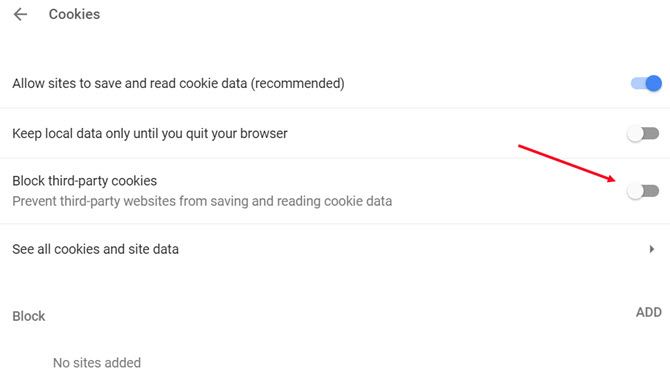
If third-party cookies scare you, you can easily block them in every major browser. For example, in Chrome go into Settings, Advanced, click on Content Settings under Privacy and Security, click on Cookies, and then turn on Block third-party cookies.

online privacy and website surveillance

This allows you to keep trusted first-party cookies active so you can still have a flexible and functional experience on the websites you enjoy. But it’ll prevent third-party advertisers, marketers, and other services from tracking you across different websites.

Keep in mind that in the case of Google, this only blocks tracking your visits to sites across their wide ad networks. It doesn’t prevent them from tracking your web behavior when you use the Chrome browser while logged into your Google account.

Take Control of Your Online Privacy

Everyone has their own level of comfort when it comes to what information you’re sharing about yourself when you’re on the web. Some people may not care who knows what browser or operating system they use.

But those same people may be quite concerned if a website has access to their geographic location or their email.

Understanding your own level of comfort with what information you’re sharing, and taking appropriate measures to protect that information, is something everyone who uses the internet needs to do.


Read Full Article