10 April 2018

4 Examples of How Smartphone Location Tracking Can Violate Your Privacy


Like many people the world over, you’ve probably used GPS before. You may even have used it today, navigating your way to work with Google Maps. Our smartphones can precisely pinpoint our location, allowing us to get everything from local news, to restaurant reviews, in a matter of seconds.

But this convenience comes at a cost: privacy. The companies who provide so-called free services are constantly mining the data generated by your devices, and not to your benefit. Smartphone location tracking is one of the ways they collect your data.

1. Location Tracking After Watching Movies

MoviePass is a movie ticketing subscription service, offering members the chance to see one non-3D movie a day for just $9.95 per month.

The service was first launched in 2011, but really began to gain traction after the appointment of former Netflix executive Mitch Lowe as CEO in 2016. They began to experiment with Netflix-style tiered subscriptions, with a premium tier offering access to 3D movie screenings too.

Netflix’s phenomenal success is often credited to its use of big data, and Mitch Lowe was quick to import this into his new role.

While MoviePass has data-sharing agreements with theaters about how tickets are used, in March 2018, Lowe claimed that the company had added a new string to their bow: background location tracking. During a keynote at the Entertainment Finance Forum, Lowe said:

“…we watch how you drive from home to the movies. We watch where you go afterwards, and so we know the movies you watch. We know all about you.”

Lowe’s comments caused an uproar, as MoviePass’ Privacy Policy stated that they only used your location to help you find your local theater. Throughout the keynote he referred to these practices in the present tense, leading many to believe MoviePass was tracking your location without your consent.

Smartphone Privacy, Location Data

After a week of not-entirely addressing everyone’s concerns, Lowe eventually issued an open letter, where he explicitly stated MoviePass does not and has not used background location tracking. He also took the opportunity to reiterate that “we take customer privacy extremely seriously”, which may be hard to take at face value given his comments during the keyote.

2. Location Tracking When Ordering Food

Finding yourself nominated for the office coffee run can be a pain, having to remember everyone’s orders then spending countless minutes reciting the order to your server.

Ritual, the food ordering app, helps you out by letting you only order ahead for yourself and allowing others to piggyback on your order so that only one person needs to go and pick up. To get started, all you need to do is join a corporate team, add a floor and location in your office, and you’ll get push notifications every time someone in your team places an order.

The thought might have crossed your mind that Ritual sounds like the perfect way to usher in a new era of office dining… except for one small problem.

As Caitlin Tran pointed out, you can join any team without verifying that you actually work there. This lets you see who works for which companies, in which offices, and their exact location in the office.

Tran was able to join corporate teams of government agencies, including the US Department for Homeland Security, and the Pentagon. Instead of being an incredibly convenient tool for the office, Ritual turns out to be a social engineer’s dream.

3. Location Tracking After Leaving an Uber

Uber is the ride-hailing app that everyone loves to hate, and for good reason. They have been embroiled in more controversy then almost all of their peers since they launched in 2009.

However, their potentially illegal and unethical business practices did manage to secure them a market-leading position, and by 2015 Uber had completed its one billionth ride. Uber also reported that in October 2016, 40 million riders used their service in a single month.

Smartphone Privacy, Location Data

In late 2016, Uber introduced a new feature to their app, enabling them to track customers for a full five minutes after the ride had ended. Understandably, Uber’s users were not altogether pleased about this change, given that Uber was already one of Silicon Valley’s most controversial and least trusted companies.

The Electronic Frontier Foundation (EEF) even filed a complaint to the Federal Trade Commission (FTC) over the change. Uber’s response was that as they technically asked users to opt-in to this change, they were operating within the law.

However, Uber’s aggressive business approach finally backfired on the company in 2017. Investors piled onto then-CEO Travis Kalanick after a series of legal troubles hit the company. This led to Kalanick being forcibly ousted from the company, and replaced by Expedia’s Dara Khosrowshahi.

Khosrowshahi had the unenviable task of regaining the public’s trust. One of the first decisions he took was to put an end to post-ride location tracking. This was a seen as a victory by privacy advocates and the wider-public. However, its still unclear how much data was gathered during their year-long experiment, and whether it’ll ever be deleted.

4. Location Tracking While Exercising

Smartphones have many uses, but one of the most popular is to monitor our exercise routines. Stand-alone fitness trackers have security problems of their own, so many people choose to stick to app-based trackers instead.

The fitness-tracking app Strava is among the most popular, using your phone’s GPS to log your daily exercise. It is estimated that over 8.5 million of us have signed up to their fitness tracking service. We collectively generate a lot of data through the app, especially information about where we choose to exercise.

Smartphone Privacy, Location Data

Towards the end of 2017, Strava updated their global heatmap with one billion public activities tracked through the app. This was gleaned from 10 terabytes of data, and accounted for a total tracked distance of 27 billion km. The heatmap is an interesting look into how and where we work out across the world.

Well, it was, until security researcher Nathan Ruser showed just how easily the heatmap exposed the workout routes near military bases around the world.

Of course, Strava didn’t expose the locations of military bases; Google Maps did that. However, all exercises tracked in Strava are public by default, unless you intentionally opt-out. This leads to many users mistakenly, or unknowingly, sharing all their workout information with the world.

Knowing exactly where military personnel workout is clearly a security problem. However, public-by-design location tracking also puts your own security at risk.

How to Protect Your Location-Based Privacy

Of course, these privacy-eroding behaviors may not surprise you. After all, you’ve heard the phrase “if you’re not paying for it, then you are the product” often enough. That doesn’t prevent people holding the reasonable expectation that their private data will remain that way.

Unfortunately many companies don’t see it that way. All data is theirs to do with as they please. Some people don’t see this as a problem as you do have a choice whether to use the app. For many though, the idea that their every move is being surveilled is off-putting at best.

To protect yourself, make sure to adjust your permissions, and be aware of what the company’s Privacy Policy says about locational privacy. Sadly, it’s probably best to assume that any app accessing your location is tracking you—unless you can prove otherwise.


Read Full Article

Facebook begins blocking apps from accessing user data after 90 days of non-use


Facebook has rolled out a change that limits apps’ ability to access users’ data. The change comes hours before Facebook CEO Mark Zuckerberg’s testimony before Congress where it’s expected he will have to answer questions about how the company handles its users’ personal information, in wake of the Cambridge Analytica scandal which saw the personal data of 87 million Facebook users compromised.

Among many other new restrictions to its API platform announced last week, Facebook said that it would soon introduce a stricter review process for use of Facebook Login for apps, and it would block apps from pulling users’ personal data after three months of non-use.

Now, that change to apps’ ability to access user data has begun to roll out, Facebook says.

All Facebook platform apps won’t be affected immediately – the change will roll out gradually over the weeks ahead.  Between April 9 and April 21, tokens for the users who have not actively logged into a developer’s app and granted consent to permissions in the last 90 days will expire, Facebook says.

Facebook suggests that app publishers monitor their app for any issues that may occur as a result. Apps may run into issues with regard to the expired tokens, and will need to make sure they’ve designed their app to either re-prompt the user to login again with Facebook, or show an optional user interface which allows the app to refresh its access to users’ Facebook data with consent.

The apps will have to send users through the Facebook Login process every 90 days, and the person logging in has to agree to the data permissions by tapping “Continue,” Facebook explains in its announcement.

“We believe this immediate access update helps build trust and leads to stronger connections within our ecosystem,” reads the Facebook blog post.

A number of apps over the years adopted Facebook Login to offer users an easier way to sign into their own service, while giving the app maker the ability to access users’ Facebook data. Some users preferred the Facebook Login option, as it meant they didn’t have to remember so many different passwords. Others, including those who didn’t have a Facebook account (or those who perhaps rightly didn’t trust Facebook) found the practice infuriating.

Also upsetting is that there was no sort of deprecation policy in place for the apps people no longer used. That led to users being fairly shocked to discover long lists of apps they hadn’t touched in years with lingering access to their data. Facebook recently addressed this issue as well, with the introduction of a bulk app removal tool that lets users delete apps from their account entirely. 

It also announced a series of changes to how developers can use its APIs, including Instagram APIs, which largely involve locking down its platform, then figuring out which developers actually require (and deserve) any heightened access in order for their app to function.

These sorts of changes are a critical part of what Zuckerberg will have to testify to today – because it wasn’t that Facebook directly handed over 87 million users’ personal data – it had just designed a platform that let apps easily collect it without users’ knowledge or consent.


Read Full Article

Adobe Stock: Royalty Free Images for Creatives


Anyone who works in a creative field knows how important it is to have the right media on hand. With a rich library of stock images, videos, and more, you can pick one out for any situation.

But simply having a large library isn’t enough. To streamline your workflow, your stock image library should integrate right into the apps you already use. That’s where Adobe Stock comes in.

What Is Adobe Stock?

Adobe Stock is a service from Adobe that provides 90 million premium and royalty-free images, vectors, videos, templates, and even 3D objects for creative projects. This giant collection makes it easy to always have the right media on hand without having to hunt something down.

Royalty-free means that you can use assets from Adobe Stock without any worries about licensing concerns. If it’s available on Adobe Stock, you can use it in a professional environment without worrying about expiration dates. That means no more wasting time confirming that you have the license to use a piece of media.

If you’re interested in Adobe Stock, you’ll need to sign up for a free Adobe account and choose the right subscription for you, which we’ll discuss below.

Using Adobe Stock

Visit Adobe Stock’s website to start browsing the royalty-free media collection. If you know what you’re interested in, just type a keyword into the Search bar at the top of the page. You’ll see relevant results right away. If you’re not sure what to look for, check out the categories found at the bottom of the page.

Select an image to view basic information about it, such as the resolution, file type, and category. If you’re interested in an image, select Save Preview. You can then choose to save it to a library, download a low-resolution watermarked copy to your PC, or open the image in an Adobe editing app.

Adobe Stock Save Preview

This allows you to keep track of images you like (in multiple libraries) and test them out in your projects before committing to downloading them.

On the search page, click View filters on the left side to sift through the results. This lets you select certain image orientations, change the sort order, or search for only certain kinds of videos or photos. Make sure to change the All dropdown box to Videos, 3D, or something else to restrict your search if applicable.

Adobe Stock Search Filters

Integration With Creative Cloud

Adobe Stock really shines when you combine it with Creative Cloud. This allows you to easily add stock images, videos, and more to your projects without ever leaving your Creative Cloud apps. You can easily open images from the libraries you’ve created on Adobe Stock’s website. Licensing an image instantly replaces the watermarked version.

To get started, open a Creative Cloud app that integrates with Adobe Stock. Photoshop, Illustrator, InDesign, Premiere Pro, After Effects, and Dreamweaver are all supported. We’ll use Photoshop for this example.

On the right side, you should see a Libraries panel that has images you’ve saved to your libraries. If you don’t see this, open the Window category on the menu bar and select the Libraries entry to show it.

Use the dropdown box to switch between the default My Library and other libraries you’ve created. You can also search for new Adobe Stock images right from this panel. Right-click an image you like and choose Save Preview to add a watermarked version to your collection. Selecting License and Save to will purchase the full version right away.

Adobe Stock Search Inside CC

To use an image, simply drag it onto your current working canvas. You’ll see a low-resolution version of it with a watermark. Make any edits to the image that you wish. When you want to license the full-size version, right-click the photo in your Libraries panel and choose License Image.

If you’ve already purchased a subscription, it will license right away. You can check your remaining image downloads right in the Libraries panel. If you don’t have an Adobe Stock subscription, you’ll see a prompt to make a purchase on the website (see below).

Adobe Stock License Image in CC

Once licensed, the image will automatically update to the high-quality version with all of your edits preserved.

You don’t need a Creative Cloud subscription to use content from Adobe Stock. However, you’ll miss out on the convenient benefits.

Adobe Stock Pricing

While you’re free to test out Adobe Stock’s vast royalty-free library as much as you like, you’ll need to subscribe to a plan to use the full images. Visit the Adobe Stock Plans page to decide what’s best for you.

The least expensive plan, paid with an annual commitment, costs $29.99 per month for 10 standard assets. If you need more images, you can upgrade to the 40 standard assets plan for $79.99 per month. Both plans include 12 month’s worth of rollover if you don’t use all your assets in a given month.

Adobe Stock Plans

If you’re not sure yet, you can start a 30-day free trial for either of these plans. Those using Adobe Stock in a team setting should check out Adobe’s teams plan page.

If you want access to Adobe Stock’s Premium Collection or don’t use media frequently, Adobe Stock also offers credits. These let you buy premium images, HD video, and other content on an as-needed basis. For example, with 40 credits (costing $359.99), you could buy 8 premium images or 5 HD videos.

Credits make a great complement to an Adobe Stock plan so you don’t miss out on the content you need.

Adobe Stock Makes Royalty-Free Media Easy

For creative folks who regularly need access to high-quality media, Adobe Stock is extremely useful. It includes access to millions of royalty-free images, videos, vectors, and even templates right inside Creative Cloud apps helps you work more efficiently. Powerful filters let you find exactly what you’re looking for.

And with all of Adobe Stock’s high-quality content coming without royalty concerns, it really is an impressive offering. Anyone who’s spent far too long searching for the perfect stock images should give Adobe Stock a try.


Read Full Article

6 Nifty Uses for Spare iCloud Storage


If your iPhone backup exceeds your iCloud space, you might decide to take the plunge and buy more iCloud storage.

With a 200GB plan, you’ll likely be swimming in premium cloud storage. In a bid to try and put some of it to good use, I went looking for all the other features I’d forgotten about after upgrading my storage.

Here are our tips for putting your spare iCloud storage to good use. Try one of them, or come up with your own uses for iCloud!

1. Back Up Your Other Devices

Like many other users, I bought 50GB of storage purely for backing up my primary device: an iPhone. It never occurred to me that I might want to create a backup of my iPad or the iPod Touch I occasionally use for travel and work purposes.

To turn on iCloud backup:

  1. Unlock the device you would like to back up.
  2. Head to Settings > [Your Name] > iCloud.
  3. Scroll down and tap iCloud Backup, then switch the toggle to On.

iOS Device Backup On

Remember, the initial backup can take a while to complete. My iPhone took several days to back up after I initiated it, so patience is key. And if you’re going to make use of iCloud to backup multiple devices, you could be waiting a very long time.

2. Share Space With Your Family

Family Sharing is Apple’s way of linking accounts under the same credit card. You can use the feature to share iCloud storage too, in addition to vetting purchases and sharing iTunes content. One of the best parts of Family Sharing is its ability to distribute iCloud storage among your family.

In order to do this, you’ll need to be on the 200GB or 2TB tier. First follow the instructions for setting up Family Sharing under Settings > [Your Name] > Set Up Family Sharing on iOS, or System Preferences > iCloud > Manage Family on a Mac.

Set Up Family Sharing iPhone

When prompted, choose iCloud Storage to begin sharing your available space with all members of your family. The biggest drawback to Family Sharing is that all purchases must go through the primary user’s account (even other adults on the plan). As a result, you’ll have to make all purchases through the same card.

3. Turn On iCloud Photo Library

iCloud Photo Library cross-platform

Is it time to start storing all of your precious memories in the cloud? According to Apple, this is a great use of iCloud. By turning the feature on, you can choose to store your original full-sized images in the cloud, while retaining lower quality versions on your device.

This could save you a ton of storage space, and you can request access to full-sized images from the cloud whenever you need them. You can also use iCloud Photo Library as more of a backup solution, while still storing your original quality snaps on your iPhone.

My biggest concern with iCloud Photo Library is the fact that Apple has already deleted my iCloud Music Library without a trace. It then happened again to a family member, with no possibility of restoring it.

When I asked an Apple senior supervisor what safeguards are in place when it comes to items stored in iCloud, they couldn’t answer my question. I don’t trust that Apple will keep my original high-quality images safely stored, so I’d certainly warn against trusting your original images to iCloud Photo Library. If you decide to use iCloud this way, keep another backup.

If you want to turn the feature on, head to Settings > [Your Name] > iCloud > iCloud Photo Library on iOS, or System Preferences > iCloud then click the Options button next to Photos and check the box to enable iCloud Photo Library.

4. Optimize Your Mac Storage

Store in iCloud

macOS Sierra introduced a feature called Store in iCloud to save space on your computer. Provided you have iCloud storage available, the feature automatically moves all but the most recently opened files and folders to the cloud when free storage drops below a certain threshold.

This is an invisible process that takes place in the background. macOS handles all the transfers and indexing, and files appear as though they are still stored locally. If you try to open a file that is stored remotely, macOS will download it for you.

The biggest drawback here is that offline use will render some files unavailable. You don’t get a say in what is moved and when. For many users, these files will be small and numerous since people who are tight on space are unlikely to keep large files hanging around. As a result, the benefits could be negligible. That being said, it’s a cool use of iCloud if you have extra space.

To turn on the feature, launch the Storage Management application under Applications > Utilities (just use Spotlight) and click on Store in iCloud.

5. Store Your Mac’s Desktop and Documents in iCloud

Store Desktop and Documents in iCloud

macOS High Sierra introduced the ability to store a copy of your Mac’s Documents and Desktop folders in iCloud. Once the initial upload is complete, you can access these folders anywhere: from your iPhone, another Mac, or by logging in on the web at iCloud.com.

Head to System Preferences > iCloud then click on the Options button next to iCloud Drive. Check the box to enable Desktop & Documents Folders.

6. Store Files Like a Real Cloud Service

iCloud Drive macOS

It took a while, but you can now use iCloud as a regular old cloud storage service too. Users with macOS Sierra or later will find an iCloud Drive option in their Finder sidebar, in which all current iCloud documents are listed. iOS users can access iCloud Drive using the Files app.

In a surprising move for Apple, iCloud Drive is relatively open with what it can store—provided the file is under 50GB. Anything you upload becomes available to all iCloud-connected devices including iPhones, MacBooks and iMacs, and any device that can login to iCloud.com using the web frontend.

There are no file type restrictions, so you can upload your own music, DRM-free videos, Windows executables, ZIP archives, torrent files and anything else you’d suspect Apple would frown upon. Don’t forget there are a few compelling alternatives to iCloud for just about any task, though.


Read Full Article

How to Check If Your Facebook Data Was Sold Off


Facebook is working hard to rebuild its reputation after the Cambridge Analytica scandal. This, for the uninitiated, saw the data of tens of millions of Facebook users sold to a third party. And that data was then used in the 2016 U.S. presidential election.

Facebook has started notifying people whether they’re one of the 87 million users affected. However, even if Facebook hasn’t notified you yet, you can check to see if you’re one of those affected, and do a privacy checkup while you’re at it.

Facebook Starts the Cleanup Operation

As part of its ongoing efforts to regain the trust of its users, Facebook is informing everyone whether they were caught up in the Cambridge Analytica scandal. Every single Facebook user should see one of two messages on their news feed.

The one for those affected gives a brief background to the incident. Facebook then assures users it’s “committed to confronting abuse and to putting you in control of your privacy”. Either way, you’re directed to the apps and websites settings.

However, if you’d rather not wait to find out if your data was accessed by Cambridge Analytica, you can follow this direct link instead. This will tell you whether, according to Facebook’s records, you or your friends logged into “This Is Your Digital Life”.

If you are one of the unlucky ones there isn’t anything you can do to reclaim that data from Cambridge Analytica. However, you can see what other apps and websites you’ve given permission to, and revoke their access to your Facebook information.

Revoking Access to Apps and Websites

Most people will be surprised by how many apps and websites they’ve accessed via Facebook. And while the majority won’t be doing anything underhanded with your data, if you no longer use the app or website in question you should revoke access.

This is just the start of Facebook’s cleanup operation. Mark Zuckerberg is facing congressional hearings, and it’s possible that politicians will try to rein Facebook in a little. In the meantime, some people are considering deleting Facebook altogether.

Image Credit: Lord Jim/Flickr


Read Full Article

Google and Netflix team up to launch a new open source canary analysis tool


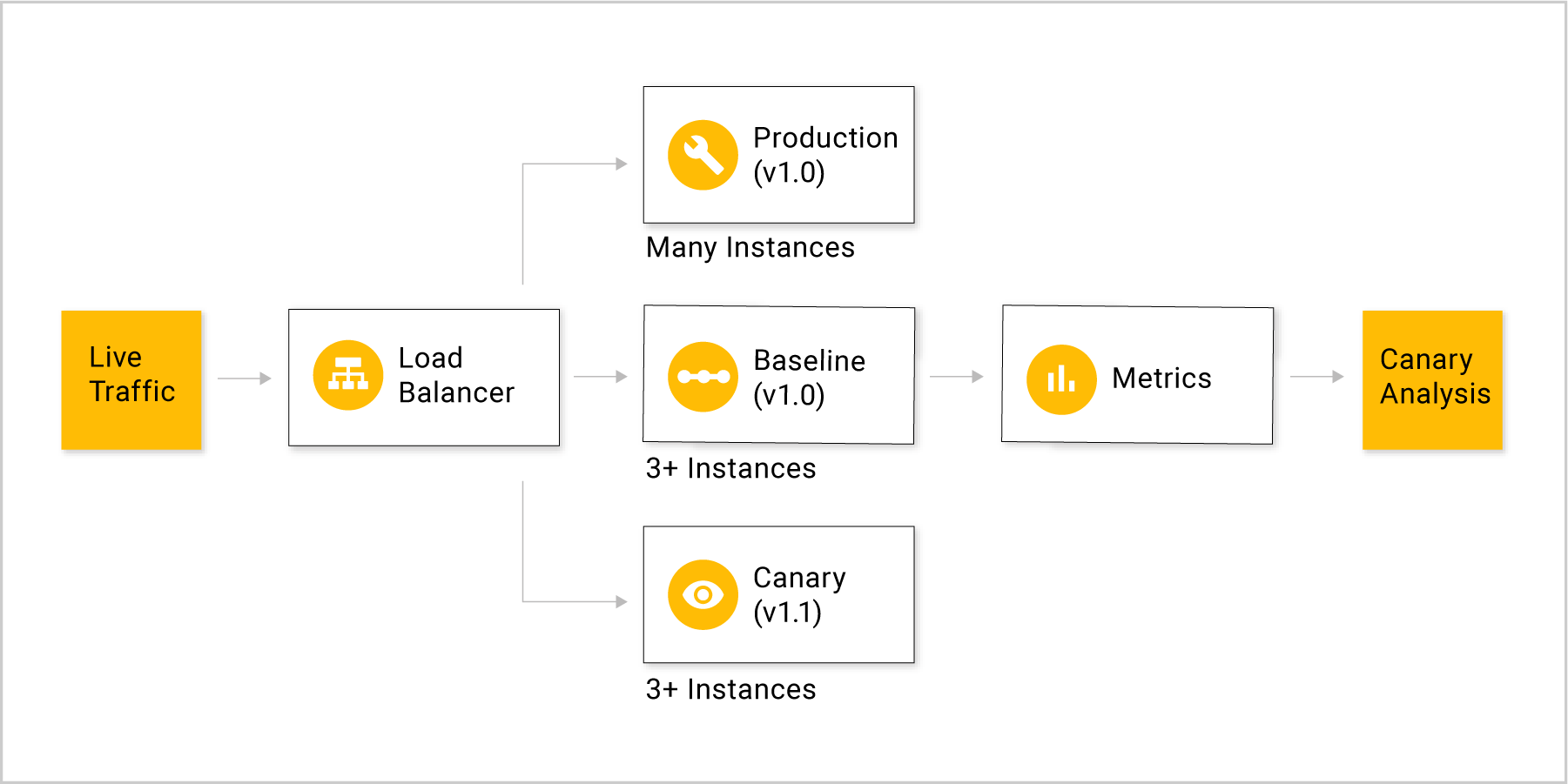
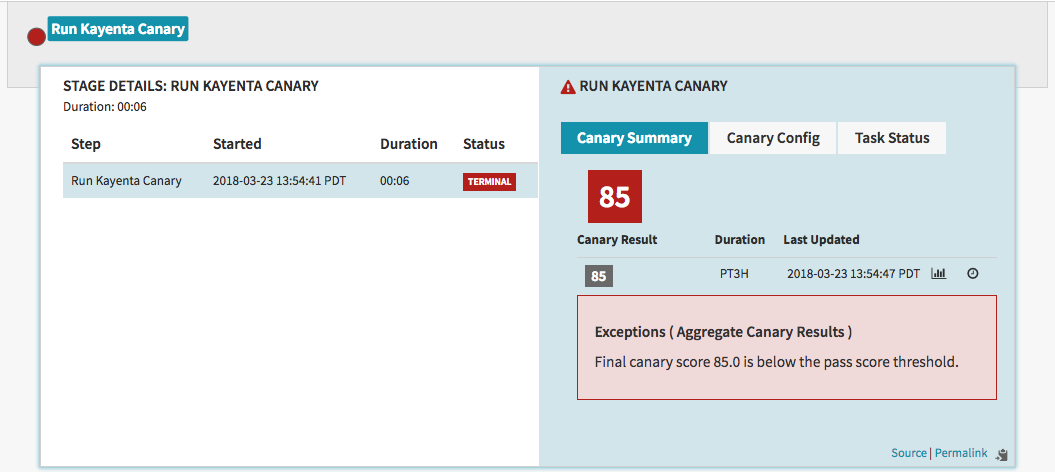
Google and Netflix today announced the launch of Kayenta, a new open source project that aims bring the canary analysis tools Netflix developed internally to a wider audience. Kayenta is integrated into the Netflix-incubated Spinnaker continuous delivery platform, which works across virtually every public and private cloud. While Spinnaker is the focus of this release, though, Kayenta can also be adapted to other environments.

The general idea behind canary analysis is pretty straightforward. Like the name implies, this is an early warning system that is all about prevent major issues when you roll out an update to a service or your infrastructure. As you roll out an update to a subset of new users (or servers, or parts of your network), the canary analysis service checks whether the new system behaves as it should — or at least as well as the old one. At every step, the system performs its checks and ensures that you don’t roll out an upgrade that may pass all of your regular tests but creates issues when thrown into a more complex production system.

As Google product manager Andrew Phillips told me, a lot of developers already do this, but it’s often a rather informal process. Teams often build their apps, deploy it to a few servers, wait for a few minutes and then check their dashboards to look for obvious issues. That introduces the chance of human error and brings in the potential for bias. A canary analysis system, on the other hand, can evaluate the metrics and then (ideally) make an objective decision on whether the code is ready to ship or not. While most companies run automated tests to check their code for obvious errors, that kind of testing is often not enough when you want to put your code into production, especially if that production environment consists of a set of microservices that may end up interacting with each other in unexpected ways.

As is so often the case these days, with Kayenta, the Netflix team wants to open up its own system to bring the service to the wider community (and in return benefit from the community’s advances, too). To do this, Netflix and Google also worked to rewrite the parts of Kayenta that were specific to Netflix, where the system grew rather organically. That doesn’t necessarily make for good code, though, so with Kayenta, Google and Netflix also spent some time cleaning up the code and making it more modular. Indeed, as Netflix director of delivery engineering Andy Glover told me, the Google and Netflix teams spent about a year to get the code ready for today’s release and one of the major areas of focus for both teams was making sure that the code was as modular as possible.

The fact that Google and Netflix already did some joint work on Spinnaker surely helped their efforts to get Kayenta off the ground, too. It also helps that canary analysis isn’t exactly a competitive advantage for either company. As Phillips stressed, there is really no need for every enterprise to reinvent the wheel and this kind of project is all about “giving space-age tech to the masses.”

Looking forward, the plan is to grow both the Kayenta and Spinnaker community. “The goodwill of Netflix and Google together has attracted a certain crowd of developers that have embraced Spinnaker,” Glover noted. The Kayenta project will surely benefit from that. The Spinnaker Slack room already has over 4,000 participants, after all.

As Phillips also stressed, part of that interest is due to the simple fact that people need software delivery solutions and while there are plenty of options, a project that has the backing of Google and Netflix attracts a lot of attention by default. And given the backing of these two companies, I wouldn’t be surprised if we saw some kind of commercial distribution of Spinnaker and Kayenta in the near future.


Read Full Article

Learn to Build Cool Techy Gadgets With These Step-by-Step Video Guides


If it weren’t for build-it-yourself tech projects, you wouldn’t be reading this article—at least not on a computer. Bill Gates, Steve Wozniak, Steve Jobs, and Michael Dell were just some of the self-starters from the pre-PC era.

Today, you have more DIY learning options than ever before: from Radioshack to online electronic component shops, from local makerspaces to Kickstarter, from Raspberry Pi to real miniature satellites.

Want to build some cool techy gadgets of your own? These five do-it-yourself learning projects will show you how to start small but dream big.

1. How to Build a Computer: A Beginner’s Guide

Udemy: How To Build a Computer

Total students enrolled: 3,934
Course length: 12.5 hours
Key lesson: Learn how a computer works and how to build it from scratch.

Most of us are more interested in unboxing a new computer than putting one together from scratch. But there are many benefits to building your own PC. One of the abstract reasons is that it is a skill which will always stay useful. A practical advantage is that you can upgrade your PC on your own anytime.

But it is always cheaper to custom build a PC? For the most part, yes!

Nathan Cope shows you how to get the most value from your first customized PC. He teaches you the basic terms you need to learn, how to shop for the best computer parts, and how to put them together.

The course will evolve over time. The latest one goes into high-end gaming PC builds and how to install water cooling.

2. Tech Explorations Arduino Step-by-Step Your Complete Guide

Complete Guide to Arduino

Total students enrolled: 35,726
Course length: 23 hours
Key lesson: Learn how to begin with Arduino programming.

The best way to learn about Arduino is to buy one. The cheap Open Source microcontroller board isn’t only for electronic buffs. It can be used by any tinkerer who is interested in interactivity between devices and human commands. An Arduino can be the building block for more advanced electronic projects—like a satellite in space!

This Arduino step-by-step guide is a precursor to the more advanced Tech Explorations Arduino Step-by-Step Getting Serious course.

But the former lays the foundation and may just help you if you are unfamiliar with the Arduino board. Even without any electronics experience, you can learn how to create interactive electronic devices.

3. Tech Explorations Raspberry Pi Full Stack Raspbian

Raspberry Pi

Total students enrolled: 1,494
Course length: 9.5 hours
Key lesson: How to develop web applications on the Raspberry Pi.

An Arduino is a building block that runs simple commands. A Raspberry Pi is a general purpose computer that commonly runs on Linux. Yes, you can combine them to create smarter applications like an AI robot.

But learn the differences between Arduino and Raspberry Pi before you decide your learning path. It will help you decide the direction of your project.

The 88 lectures will take you through the development of an IoT (Internet of Things) web application. The “gadget” will capture sensor data and feed it to a web interface via the cloud.

The course by Dr. Peter Dalmaris is an updated version of the best-selling Tech Explorations Raspberry Pi: Full Stack Minibian course. Minibian is a simpler version of Raspbian, so you will be upgrading yourself with the latest course.

4. Tech Explorations Make an Open-Source Drone

Make a Drone

Total students enrolled: 1,722
Course length: 5.5 hours
Key lesson: Build a quadcopter and understand a bit about avionics.

The drone “revolution” is showing us that these aren’t just fly toys. They are serious electronic gadgets that are changing our daily life. The best news is that you can buy a drone for any budget today. But where’s the fun in that? Go build one with the help of Dr. Peter Dalmaris’s online course.

This electronic project will take you into the basics of how any flying machine is put together. You will learn about motors, flight controllers, speed controllers, power distribution, and batteries.

Apart from the hardware, the course also covers flight mechanics and safety issues. If you have ever enjoyed an aviation game, this course could be for you.

5. Electricity & Electronics – Robotics, Learn by Building

Robotics

Total students enrolled: 7,613
Course length: 9.5 hours
Key lesson: The principles of automation as you build a basic robot.

NASA has a little page where their best robotics engineers reveal their career paths. Most of the answers reveal that their interest came from some hands-on project in school.

If you’re fiddler of any sort, a robotic course might just protect your future job from the very machines you build. And yes, you can go back to an Arduino to build your tiny robot army.

The end goal here isn’t so fantastical because you will put together a 3D printer from scratch, hook it up to a desktop computer and make your own plastic parts.

To begin, you will need some basic electronic parts for your DIY printer robot. But you don’t need any prior knowledge of electricity of electronics. Remember, you are learning by building.

Learn to Be a Tinkerer With These DIY Projects

The above DIY electronic gadgets aren’t about learning a single concept. They can teach you many skills simultaneously. Think about it—parts are cheap, information is aplenty, and there are several ways to use these as mini-projects to inspire your children, improve your home, and even bring them to the market.

Just start with the electronic project that interests you. Any of these Udemy DIY courses will give you the structure and knowledge. As you know, every paid course on Udemy comes with:

  • Lifetime access
  • 30-day money-back guarantee
  • Certificate of completion

Have another idea for a DIY gadget? Take the first step to turn your unique electronic ideas into reality.


Read Full Article

A brief history of Facebook’s privacy hostility ahead of Zuckerberg’s testimony


The Facebook founder will be questioned by the Senate Judiciary and Senate Commerce Committees later today — in a session entitled “Facebook, Social Media Privacy, and the Use and Abuse of Data.”

Mark Zuckerberg is also due to testify before Congress on Wednesday — to be asked about the company’s use and protection of user data.

As we’ve pointed out already, his written testimony is pretty selective and self-serving in terms of what he does and doesn’t include in his version of events.

Indeed, in the face of the snowballing Cambridge Analytica data misuse scandal, the company’s leadership (see also: Sheryl Sandberg) has been quick to try to spin an idea that it was simply too “idealistic and optimistic” — and that ‘bad actors’ exploited its surfeit of goodwill.

This of course is pure fiction.

Facebook’s long history of privacy hostility should make that plain to any thinking person. As former FTC director David Vladeck wrote earlier this month: “Facebook can’t claim to be clueless about how this happened. The FTC consent decree put Facebook on notice.”

To be clear, that’s the 2011 FTC consent decree — ergo, a major regulatory privacy sanction that Facebook incurred well over six years ago.

Every Facebook privacy screw up since is either carelessness or intention.

Vladeck’s view is that Facebook’s actions were indeed calculated. “All of Facebook’s actions were calculated and deliberate, integral to the company’s business model, and at odds with the company’s claims about privacy and its corporate values,” he argues.

So we thought it would be helpful to compile an alternative timeline ahead of Zuckerberg’s verbal testimony, highlighting some curious details related to the Cambridge Analytica data misuse scandal — such as why Facebook hired (and apparently still employs) the co-director of the company that built the personality quiz app that “improperly shared” so much Facebook data with the controversial company — as well as detailing some of its other major privacy missteps over the years.

There are A LOT of these so forgive us if we’ve missed anything — and feel free to put any additions in the comments.


Facebook: An alternative timeline

February 2004 — Facebook is launched by Harvard College student Mark Zuckerberg

September 2006 — Facebook launches News Feed, broadcasting the personal details of Facebook users — including relationship changes — without their knowledge or consent. Scores of users protest at the sudden privacy intrusion. Facebook goes on to concede: “We really messed this one up… we did a bad job of explaining what the new features were and an even worse job of giving you control of them.”

November 2007 — Facebook launches a program called Beacon, injecting personal information such as users’ online purchases and video rentals on third party sites into the News Feed without their knowledge or consent. There’s another massive outcry — and a class action lawsuit is filed. Facebook eventually pays $9.5M to settle the lawsuit. It finally shutters the controversial program in 2009

May 2008 — a complaint is filed with the Privacy Commissioner of Canada concerning the “unnecessary and non-consensual collection and use of personal information by Facebook”. The following year the company is found to be “in contravention” of the country’s Personal Information Protection and Electronic Documents Act. Facebook is told to make changes to its privacy policy and tools — but the Commissioner is still expressing concerns at the end of 2009

February 2009 — Facebook revises its terms of service to state that users can’t delete their data when they leave the service and there’s another outcry. Backpeddling furiously in a subsequent conference call, Zuckerberg says: “We do not own user data, they own their data. We never intended to give that impression and we feel bad that we did”

November & December 2009 — Facebook again revises its privacy policy and the privacy settings for users and now, in a fell swoop, it makes a range of personal information public by default — available for indexing on the public web. We describe this as a privacy fiasco. Blogging critically about the company’s actions, the EFF also warns: “Major privacy settings are now set to share with everyone by default, in some cases without any user choice”

December 2009 — a complaint (and supplementary complaint) is filed by EPIC with the FTC about Facebook’s privacy settings and privacy policy, with the coalition of privacy groups asserting these are inconsistent with the site’s information sharing practices, and that Facebook is misleading users into believing they can still maintain control over their personal information. The FTC later writes a letter saying the complaint “raises issues of particular interest for us at this time”

April 2010 — four senators call on Facebook to change its policies after it announces a product called Instant Personalization — which automatically hands over some user data to certain third-party sites as soon as a person visits them. The feature has an opt-out but Facebook users are default opted in. “[T]his class of information now includes significant and personal data points that should be kept private unless the user chooses to share them,” the senators warn

May 2010 — following another user backlash against settings changes Facebook makes changes to its privacy controls yet again. “We’re really going to try not to have another backlash,” says Facebook’s VP of product Chris Cox. “If people say they want their stuff to be visible to friends only, it will apply to that stuff going forward”

May 2010 — EPIC complains again to the FTC, requesting an investigation. The watchdog quietly begins an investigation the following year

May 2010 — Facebook along with games developer Zynga is reported to the Norwegian data protection agency. The complaint focuses on app permissions, with the Consumer Council warning about “unreasonable and unbalanced terms and conditions”, and how Facebook users are unwittingly granting permission for personal data and content to be sold on

June 2011 — EPIC files another complaint to the FTC, focused on Facebook’s use of facial recognition technology to automatically tag users in photos uploaded to its platform

August 2011 — lawyer and privacy campaigner Max Schrems files a complaint against Facebook Ireland flagging its app permissions data sinkhole. “Facebook Ireland could not answer me which applications have accessed my personal data and which of my friends have allowed them to do so,” he writes. “Therefore there is practically no way how I could ever find out if a developer of an application has misused data it got from Facebook Ireland in some way”

November 2011 — Facebook settles an eight-count FTC complaint over deceptive privacy practices, agreeing to make changes opt-in going forward and to gain express consent from users to any future changes. It must also submit to privacy audits every two years for the next 20 years; bar access to content on deactivated accounts; and avoid misrepresenting the privacy or security of user data. The settlement with the FTC is finalized the following year. Facebook is not fined

December 2011 — Facebook agrees to make some changes to how it operates internationally following Schrems’ complaint leading to an audit of its operations by the Irish Data Protection Commission

September 2012 — Facebook turns off an automatic facial recognition feature in Europe following another audit by Ireland’s Data Protection Commission. The privacy watchdog also recommends Facebook tightens app permissions on its platform, including to close down developers’ access to friends data

May 2014 — Facebook finally announces at its developer conference that it will be shutting down an API that let developers harvest users’ friends data without their knowledge or consent, initially for new developer users — giving existing developers a year-long window to continue sucking this data

May 2014 — Facebook only now switches off the public default for users’ photos and status updates, setting default visibility to ‘friends’

May 2014 — Cambridge University professor Aleksandr Kogan runs a pilot of a personality test app (called thisisyourdigitallife) on Facebook’s platform with around 10,000 users. His company, GSR, then signs a data-licensing contract with political consultancy Cambridge Analytica, in June 2014, to supply it with psychological profiles linked to US voters. Over the summer of 2014 the app is downloaded by around 270,000 Facebook users and ends up harvesting personal information on as many as 87 million people — the vast majority of whom would have not known or consented to data being passed

February 2015 — a highly critical report by Belgium’s data watchdog examining another updated Facebook privacy policy asserts the company is breaching EU privacy law including by failing to obtain valid consent from users for processing their data

May 2015 — Facebook finally shutters its friends API for existing developers such as Kogan — but he has already been able to use this to suck out and pass on a massive cache of Facebook data to Cambridge Analytica

June 2015 — the Belgian privacy watchdog files a lawsuit against Facebook over the tracking of non-users via social plugins. Months later the court agrees. Facebook says it will appeal

November 2015Facebook hires Joseph Chancellor, the other founding director of GSR, to work as a quantitative social psychologist. Chancellor is still listed as a UX researcher at Facebook Research

December 2015 — the Guardian publishes a story detailing how the Ted Cruz campaign had paid UK academics to gather psychological profiles about the US electorate using “a massive pool of mainly unwitting US Facebook users built with an online survey”. After the story is published Facebook tells the newspaper it is “carefully investigating this situation” regarding the Cruz campaign

February 2016 — the French data watchdog files a formal order against Facebook, including for tracking web browsing habits and collecting sensitive user data such as political views without explicit consent

August 2016 — Facebook-owned WhatsApp announces a major privacy U-turn, saying it will start sharing user data with its parent company — including for marketing and ad targeting purposes. It offers a time-bound opt-out for the data-sharing but pushes a pre-ticked opt-in consent screen to users

November 2016 — facing the ire of regulators in Europe Facebook agrees to suspend some of the data-sharing between WhatsApp and Facebook (this regional ‘pause’ continues to this day). The following year the French data watchdog also puts the company on formal warning that data transfers it is nonetheless carrying out — for ‘business intelligence’ purposes — still lack a legal basis

November 2016 — Zuckerberg describes the idea that fake news on Facebook’s platform could have influenced the outcome of the US election as “a pretty crazy idea” — a comment he later describes as flippant and a mistake

May 2017 –– Facebook is fined $122M in Europe for providing “incorrect or misleading” information to competition regulators who cleared its 2014 acquisition of WhatsApp. It had told them it could not automatically match user accounts between the two platforms, but two years later announced it would indeed be linking accounts

September 2017Facebook is fined $1.4M by Spain’s data watchdog, including for collecting data on users ideology and tracking web browsing habits without obtaining adequate consent. Facebook says it will appeal

October 2017 — Facebook says Russian disinformation distributed via its platform may have reached as many as 126 million Facebook users — upping previous estimates of the reach of ‘fake news’. It also agrees to release the Russian ads to Congress, but refuses to make them public

February 2018 — Belgian courts again rule Facebook’s tracking of non-users is illegal. The company keeps appealing

March 2018the Guardian and New York Times publish fresh revelations, based on interviews with former Cambridge Analytica employee Chris Wylie, suggesting as many as 50M Facebook users might have had their information passed to Cambridge Analytica without their knowledge or consent. Facebook confirms 270,000 people downloaded Kogan’s app. It also finally suspends the account of Cambridge Analytica and its affiliate, SCL, as well as the accounts of Kogan and Wylie

March 21, 2018 — Zuckerberg gives his first response to the revelations about how much Facebook user data was passed to Cambridge Analytica — but omits to explain why the company delayed investigating

March 2018 — the FTC confirms it is (re)investigating Facebook’s privacy practices in light of the Cambridge Analytica scandal and the company’s prior settlement. Facebook also faces a growing number of lawsuits

March 2018 — Facebook outs new privacy controls, as part of its compliance with the EU’s incoming GDPR framework, consolidating settings from 20 screens to just one. However it will not confirm whether all privacy changes will apply for all Facebook users — leading to a coalition of consumer groups to call for a firm commitment from the company to make the new standard its baseline for all services

April 2018 — Facebook also reveals that somewhere between 1BN and 2BN users have had their public Facebook information scraped via a now disabled feature which allowed people to look up users by inputting a phone number or email. The company says it discovered the feature was abused by “malicious actors”, writing: “Given the scale and sophistication of the activity we’ve seen, we believe most people on Facebook could have had their public profile scraped in this way”

April 2018 — the UK’s data watchdog confirms Facebook is one of 30 companies it’s investigating as part of an almost year-long probe into the use of personal data and analytics for political targeting

April 2018 — Facebook announces it has shut down a swathe of Russian troll farm accounts

April 2018 — Zuckerberg agrees to give testimony in front of US politicians — but continues to ignore calls to appear before UK politicians to answer questions about the role of fake news on its platform and the potential use of Facebook data in the UK’s Brexit referendum

April 2018 — the Canadian and British Columbian privacy watchdogs announce they are combining existing investigations into Facebook and a local data firm, AggregateIQ, which has been linked to Cambridge Analytica. The next day Facebook reportedly suspends AggregateIQ‘s account on its platform

April 2018 — Facebook says it has started telling affected users whether their information was improperly shared with Cambridge Analytica


Read Full Article

Where to watch Zuckerberg’s Senate testimony live


Today, Facebook CEO Mark Zuckerberg will begin two of the most publicly scrutinized days of his career.

This afternoon, members of the Senate will hear from Zuckerberg on data use, protection and privacy in the midst of the Cambridge Analytica scandal and Russian election meddling. While Zuckerberg’s prepared statement has already been released to the public, there are plenty of lingering questions to be answered.

We’ll be watching diligently and bringing you all the breaking news and analysis from the hearing. But if you want to watch along yourself, here’s what you need to know:

The hearing begins at 2:15 pm ET.

It’s a joint hearing held by the Senate Judiciary Committee and Senate Committee on Commerce, Science and Transportation.

The hearing will be live streamed right here.


Read Full Article

How to Remove Google Accounts From Your Phone and Reclaim Privacy


Added your Google account to your phone and don’t want it anymore? Maybe you’ve started using a different account, never use the account anymore, or just want to quit using Google.

Whether you use Android or an iPhone, we’ll show you how to remove your Google account on your phone.

How to Remove Google Accounts on Android

Remove Google Account Android

  1. Navigate to Settings > Users & Accounts.
  2. Find your Google account in the list and tap it.
  3. At the bottom of the options list, tap Remove Account.
  4. Confirm that this will remove all information related to your account on your phone.

Because your Google account links to so much on your Android device, this will remove access to your contacts, photos from Google Photos, access to the Play Store, your email in Gmail, and more. It’s a good first step for going Google-free on your Android, but it’s not an easy transition.

How to Remove Google Accounts on iOS

Remove Google Account iPhone

  1. Head to Settings > Accounts & Passwords and tap the Gmail entry.
  2. You’ll see your Google account information here, including what’s synced. Tap Delete Account and confirm the prompt to remove it from your iPhone.

This won’t remove as much information as the same process on Android, since you probably have your information synced to your Apple ID. But it will still remove access to your Gmail, synced contacts, Google Calendar, and more.

When you remove your Google account from your phone, you’re not deleting your Google account completely. You can re-add your account through the same method you originally used if you change your mind. And all the information in your account is safe in your account, which you can log into from any browser.


Read Full Article

How to Use a Mouse With an Amazon Fire Stick When the Remote Fails


Amazon Fire Sticks are one of the best ways to enjoy streamed movies and TV shows on your television. The device’s price point puts it in competition with Roku and Chromecast, but its feature list puts it as the best of the three.

Of all the features, users probably make the most use of the ability to sideload apps. It means you can install any app from the Google Play Store, even if it’s not available through the device’s native app store.

But the problem with sideloading apps is that many have not been adapted for the TV screen. As such, they still require finger taps to navigate; you cannot move around using your device’s remote control. The solution is the enable a mouse pointer.

How to Use a Mouse With an Amazon Fire Stick

To enable a mouse pointer on your Fire Stick, you will need to install a third-party app:

  1. Enable ADB Debugging by heading to Settings > Device > Developer Options > ADB Debugging.
  2. Allow apps from unknown sources, again by going to Settings > Device > Developer Options.
  3. Download the Downloader app from the app store.
  4. Open Downloader go to Settings > Enable JavaScript and make sure the checkbox is marked.
  5. Return to the Downloader home screen and type https://ift.tt/2qlDxBq.
  6. When the download is complete, tap on Install.

You now have a mouse pointer permanently installed on your Amazon Fire stick. To toggle the pointer on and off, double tap the Play button on your remote. Note: You cannot use the mouse on your device’s home screen, only within apps.

For more information on customizing your device, check out our complete guide to setting up your Amazon Fire Stick.


Read Full Article

How to Convert PowerPoint Slides to Flashcards for Better Study Results


The technique of spaced repetition is one of the more scientific ways to remember something. Many flashcard tools and apps have arrived to help us use repetition as a learning tool even as information overload batters our memory.

The free flashcard software we talk about today uses another tool we all are familiar with: Microsoft PowerPoint.

How to Convert PowerPoint Slides to Flashcards

OpenCards

PowerPoint slides can be an incredible resource for knowledge. But once the presentation is over, we tend to quickly forget what it was all about. OpenCards is a free flashcard learning software that uses Powerpoint to build your flashcard decks. Here’s how:

  1. OpenCards runs on Windows, Mac, and Linux. Download the latest version and install.
  2. Create PPT slides on any operating system. You don’t need Microsoft PowerPoint as you can save or export files as PPT with free Office suites as well.
  3. When you prepare your slides, slide titles are treated questions and the slide contents as their answers.
  4. Save the presentation as a PPT file.
  5. Launch OpenCards and import the PPT file into the software. You can also drag and drop the file or right-click on an appropriate category and then select Add card-set.
  6. Click on Start Learning to begin your flashcard session.

Key features of OpenCards:

  • It is a free and clean Open Source software.
  • The interface has a file manager that allows you to organize your flashcard files into categories.
  • An intelligent learning algorithm helps you review the cards and learn with the help of spaced repetition.
  • Supports all PowerPoint slides with tables, charts, formulas, Unicode, images and much more for your flashcards.
  • Implements two learning modes—a long-term memorization mode with spaced repetition and a last-minute mode for quick study.
  • Schedule and progress graphs give you visual feedback on your learning achievements.
  • It also supports markdown files as flashcard sets.
  • Import new flashcards from CSV-files.

You can customize the way you learn by going into the software’s Preferences. OpenCards doesn’t have the fancier features of other flashcard alternatives like Anki, but it is one of the few tools that allows you to turn any PowerPoint slide into a learning project.

Download: OpenCards (Free)


Read Full Article

5 Best Curated Tech News Digests for Geeks


Here at MakeUseOf, we have our own regular tech news feed full of news that you can use. But not everyone wants to follow news. So try these cool options to find out what’s happening through a quick digest or podcast.

For most of these, you can bookmark the website or use an app. For those keen on a podcast, we hope you know about Pocket Cast and other podcast apps.

1. Techmeme Ride Home (Podcast): 15-20 Minutes of Daily Tech Briefings

tech news digests for geeks

For the longest time now, Techmeme has been the king of tech news digests. We actually think it’s the best alternative to Google News for technology-related matters. And now it is making it even easier to find out what’s happening.

When you’re driving back from work at the end of the day, tune in to the Ride Home podcast. In about 20 minutes (and often lesser), you will catch up on everything important that has happened today. Hosted by Brian McCullough of Internet History Podcast, the podcast distinguishes itself by not just telling you the news, but also the social media conversations around the news. It’s a nice touch that adds much more to the base story.

The Ride Home podcast is available for free through iTunes, Overcast, or a regular RSS feed for any podcast app.

Subscribe: Techmeme Ride Home Podcast for iTunes | Overcast | RSS (Free)

2. Morning Reader (Web, Android, iOS): For Technology and Blockchain News

tech news digests for geeks

Morning Reader is the new Techmeme if a lot of people are to be believed. And a quick look is enough to justify that. It’s another curated news app, but a lot simpler and cleaner than Techmeme.

Morning Reader shows you a headline from only one source, but behind the scenes, it does the job of picking out the best source. At any point, you can switch between the top news, a river of the latest news, or a “daily” brief of the five most important bits of technology news every day.

And with the newfound interest in cryptocurrency and blockchain technology, Morning Reader now has a separate section for that. So your tech news is kept separate from blockchain news, the overlap of which can often be annoying for readers not interested in bitcoin.

I’d recommend using the web app or creating a shortcut for it on your phone, but you can also download the dedicated Morning Reader app for notifications and other shiny bits.

Download: Morning Reader for Android | iPhone and iPad (Free)

3. Sip by Product Hunt (Android, iOS): Tappable Tech News for Mobiles

Product Hunt Sip GIF - Find & Share on GIPHY

We’re big fans of Product Hunt and even interviewed its founder. This community of geeks now has a new app for tech news, made for mobiles. It’s called Sip, and it’s a little different.

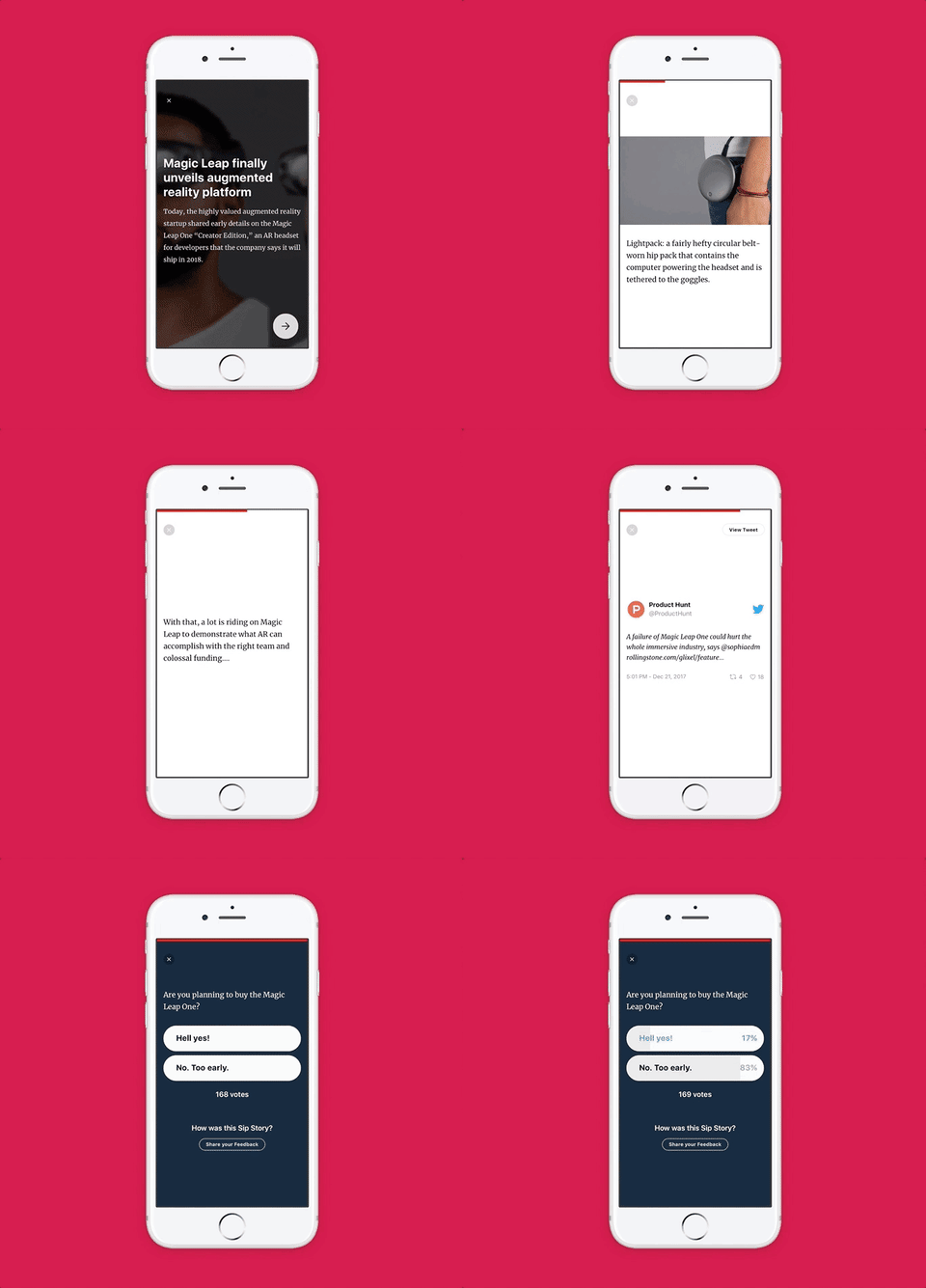
Sip takes selected quotes from different articles on the web, social media posts, and other data to create a cohesive story about something you need to know. Tap on the right side of the screen to load the next bit in that story, or the left side to go back. It’s similar to how you browse a Snapchat or Instagram story. Sure, it’s not how you are used to reading the news, but on a smartphone screen, it somehow feels natural and intuitive.

Sip runs in the background and sends silent notifications in case of breaking news. It’s a little strange at first, but try it out, you’ll fall in love with it before you know it.

Download: Sip for Android | iPhone and iPad (Free)

4. Tech News Weekly (YouTube, Podcast): Tech News With Those Who Wrote It

This Week In Tech (or TWiT) by Leo Laporte is one of the essential tech podcasts for geeks. Now, his team has a new weekly tech podcast with a twist. This time, they speak directly to those who broke the news or wrote about it best.

Tech News Weekly, hosted by Megan Morrone and Jason Howell, is all about diving deep into the week’s biggest tech news stories. The hosts talk to the journalists behind the stories in great detail, which adds an insightful layer to it. Through this, you not only cover the original news but every follow-up too.

While it’s a podcast, it’s made for YouTube primarily, so watch it there if you can. The YouTube channel also has jump links to the points where they discuss new stories, so you can skip ahead quickly if you want. Use the “Subscribe to Audio” or “Subscribe to Video” links in the main page for different options, or head to the YouTube channel.

5. TechBites (Web): Daily Top Tech News and RSS Reader

tech news digests for geeks

TechBites takes a two-fold approach to daily tech news. First, it curates the best news from different sources for a homepage full of what you need to know. Second, it adds something like a custom RSS reader for top tech sites. Here’s how it works.

The homepage is what you’d expect it to be. It’s a series of cards, each with an image, a headline, and a few lines describing the article. These articles are selected from a wide range of the top technology or news sites, from Forbes to Computer World. Click any card to launch the full article in a new tab.

At the top-left of the page, you’ll see a button that says “Headlines.” Here’s where it gets interesting. Click that button to select a site you like, such as Ars Technica, to load the latest news from it in the same format as the homepage. You can switch sites quickly to get similar cards, complete with summaries. It feels like a more cohesive reading experience if your favorite tech news sites are part of what TechBites offers.

How Tech News Savvy Are You?

It’s easy to miss news if you’re not someone who follows it religiously. And even otherwise, a digest helps in making sure you stay updated. If you think you’re someone who doesn’t need one, here’s a quick test.

At the end of last year, we put together a quick guide to the biggest tech news stories of 2017. Did you know all of them?


Read Full Article

What Is Big Data, Why Is It Important, and How Dangerous Is It?

5 Dumb Facebook Features and How to Make Use of Them


Facebook has developed a thoroughly deserved reputation for being bloated and confusing to use. And that applies whether you use Facebook on the web or on mobile.

You can trace the root of the problem back to two issues: a settings menu that lacks any resemblance of consistency between the various platforms, and the company’s insistence on including lots of strange features that nobody either asked for or uses.

Those rather bizarre features form the crux of this article. We have uncovered five particularly dumb Facebook features and figured out how you might be able to make use of them.

1. Create a Frame

Frames is part of a Facebook’s “Camera Effects Platform” (you didn’t even know that existed, did you?). It lets you create a customized frame for your profile picture, group, or business page.

Despite what Facebook might tell you about “letting people express themselves,” the tool was introduced as part of the company’s ongoing battle with Snapchat.

Once you create a frame, anyone else on Facebook can use it. Suffice to say, you shouldn’t put any personal details into your design—it’s just another way you cannot trust Zuckerberg’s company.

Where to Find It

In typical Facebook fashion, the tool is nearly impossible to find if you don’t know where to look.

To get started, you need to visit the aforementioned Camera Effects website. The site is not accessible through the regular Facebook platform and has little resemblance to the main site from a UI perspective.

Once you’re on the site, click Open Frame Studio in the upper right-hand corner of the screen and follow the on-screen instructions.

facebook frames

How to Make Use of It

Nobody wants to see yet another flowery border. Instead, you could use the tool for causes you believe in.

For example, perhaps you’re fighting to keep your local library open or to secure government funding for a new children’s play area in your local park. Why not create a frame that highlights the issue then share it with other Facebook users in your community?

2. Relationship History

The relationship history tool lets you see the entire Facebook history between yourself and the person you’re listed as “in a relationship with” on the network.

It will show you any photos, videos, posts, and events you’re both tagged in, anything you put on each other’s wall, any friends and jobs you have in common, and the date you became Facebook friends.

This isn’t cool. If you need Facebook to tell you about your relationship, it might be time to start looking for a new partner.

Where to Find It

Once again, there’s no way to activate this tool from within any of the Facebook apps. Instead, you need to type facebook.com/us into your browser’s address bar.

facebook relationship

How to Make Use of It

A lot of people don’t realize you can use the tool to see the relationship between any two people on Facebook. Instead of typing facebook.com/us, try:

facebook.com/friendship/[username 1]/[username 2]

It’s a great way to do some surreptitious research before heading for a job interview or going on a first date. You could even use it to ask a girl out on Facebook!

Note: If you’re not friends with the person whom you’re researching, you’ll only be able to see their publicly available content.

3. Verified Accounts

If you follow the latest goings-on in the tech world, you’ll know Twitter has been embroiled in a bitter row about its verified accounts policy. Honestly, the company brought most of the issues upon itself thanks to its bizarre approach to verified applications, but we digress.

Facebook also has verified accounts. And as with Twitter, the blue tick is largely pointless. The company should either let everyone verify themselves so users can identify bots and fake accounts more readily, or kill the feature entirely.

Where to Find It

Unlike Twitter, many people don’t realize that Facebook offers both blue and grey ticks. The blue ticks are reserved for celebrities, public figures, and well-known brands. However, anyone with a business page can get a grey tick.

You just need to open your page and go to Settings > General > Page Verification > Verify this Page. Provide Facebook with either your company’s public phone number or a recent utility bill, and you’ll have a grey tick in a matter of hours.

facebook tick

How to Make Use of It

If you do have a business page, it would be folly not to claim your tick.

Unlike the Twitter ticks, a grey tick on Facebook genuinely is a sign of legitimacy and authenticity. Making sure your page has a tick lets users know you are who you claim to be. It should help drive up likes and ultimately increase your revenues.

4. Messenger Codes

Profile codes became popular on Snapchat. Since mid-2016, Facebook has offered an almost identical feature. The premise is simple: you can scan a person’s Messenger code and immediately start chatting with them.

Where to Find It

You can find your own Messenger code by opening the Facebook messenger app and tapping on your profile picture in the upper right-hand corner of the screen.

To scan someone else’s code, repeat the above steps then tap on your own code and select the Scan Code tab.

facebook codes

How to Make Use of It

We know what you’re thinking: why would you need to scan someone else’s code? It’s highly probable that you’re already friends with everyone you’d conceivably want to chat to on the app.

You’re missing the point.

Facebook codes are great for instantly starting a conversation with a company’s customer service team or with one of the many great Facebook Messenger bots. If you see a code in a shop or on an ad that piques your interest, just scan it, and you could be talking to the organization behind it within seconds.

5. Pirate-Speak and Upside Down-Speak

Facebook offers its app in more than 100 different languages. But if English is your mother tongue, you’ve got a couple of extra options: English (Pirate) and English (Upside Down).

If you select pirate-speak, all your Facebook services will get a sprinkling of oohs, aars, mateys, and other pirate-themed lingo.

If you choose upside down speak, all Facebook menus and apps will be shown, um, upside down.

Where to Find It

You can enable pirate-speak and upside down-speak by going to Settings > Language > Which language do you want to use Facebook in and choose one of the two options.

facebook languages

How to Make Use of It

In our experience, the only people who’ve found any use for upside down speak are residents of Australia. And you only need to turn on pirate speak if you’re planning to set sail with Bluebeard at some point over the next couple of months.

We jest, of course. There’s no logical explanation for the inclusion of the two “languages.” They only serve to make Facebook even more annoying to use. And given all the usability issues the network currently faces, that’s not something the company should be offering.

It’s just dumb, period.

Facebook Has Some Useful Features Too

It’s quite apparent that not very many people are using the five features we discussed in this article. And while you might be able to make use of some of them, others should be confined to the annals of Facebook history as soon as possible.

But Facebook isn’t all about dumb features that no one uses. Believe it or not, the service actually offers one or two useful features too. If you’d like to learn about how to make the most of the social network, check out our guide showing you how to use Facebook.


Read Full Article