04 September 2015

Google Photos and Free Storage


There's something I don't understand about the new Google Photos. The settings page lets you choose between uploading high quality photos and videos for free, at reduced sizes (16MP or less for photos, Full HD or less for videos) or uploading original photos and videos at full resolution, but that counts against your quota.


This doesn't make sense. Google+ Photos had a different policy: "Only photos over 2048x2048 pixels and videos longer than 15 minutes count toward your storage limit." Google+ even had a setting that resized your photos to 2048x2048 or less, so they stayed under the free storage limit.

Google's new policy doesn't seem fair to those who pick the "original" option. If you upload photos that are 16 MP or less or videos that are 1080p or less, you should be able to store them for free, regardless of the Google Photos setting you choose. The distinction between "high quality" and "original" should only be made for photos and videos that don't fall under Google's limitations.

Google Drive Bonus Storage Is Expiring


2 years ago, Google offered 10 GB of free storage for installing the Quickoffice app for Android or iOS. Unfortunately, Google's bonus storage is about to expire.

"We wanted to let you know that you have bonus Google Drive storage expiring on Oct 3 2015. While this bonus period is coming to an end, you can always purchase additional storage," informs Google. "Rest assured that your files in Google Drive remain safe and accessible by you and the people you've shared them with. You just won't be able to add or sync any files unless you are using less than your current available storage or you've purchased additional storage."


Basically, Google won't delete your files, but you'll have to delete some of them or purchase more storage if you actually used the 10 GB bonus storage. Since the storage is shared between Gmail, Google Photos and Google Drive, all of these services are affected and you can also delete Gmail messages with large attachments or photos and videos from Google Photos that use your Google storage. Here's how to find Gmail messages with big attachments and a list of Google Drive files sorted by size.

More About Google's New Visual Identity


Google Design's site has an interesting article about Google's new identity. Google's designers started by "distilling the essence of the brand down to its core" and built 3 elements that work on any platform: a sans serif logotype, the dynamic dots that respond to users and a compact version of the Google logo.


Some people said that Google's new logo is childish and it really is. "The Google logo has always had a simple, friendly, and approachable style. We wanted to retain these qualities by combining the mathematical purity of geometric forms with the childlike simplicity of schoolbook letter printing. Our new logotype is set in a custom, geometric sans-serif typeface and maintains the multi-colored playfulness and rotated ‘e’ of our previous mark—a reminder that we’ll always be a bit unconventional," mention Google's designers.

The dots are an interesting way to convey the full Google logo in a Material Design approach. "The Google dots are a dynamic and perpetually moving state of the logo. They represent Google's intelligence at work and indicate when Google is working for you. We consider these unique, magic moments. A full range of expressions were developed including listening, thinking, replying, incomprehension, and confirmation."


Google now uses pixel-perfect SVGs for base assets and generates thousands of vector-based variants. For example, there's a version of the logo that's optimized for low-bandwidth connections and is only 305 bytes. Google's old approach was to serve a text-based approximation of the logo.

{ Thanks, Brendan Early. }

03 September 2015

Templates, Insights and Dictation in Google Docs


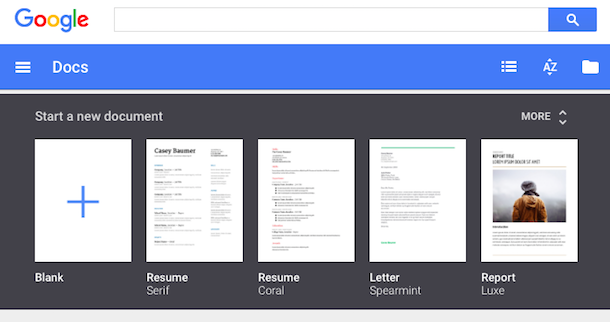
Google's standalone web apps for Docs, Sheets and Slides now show a list of templates you can choose to quickly create a document, spreadsheet or presentation. For example, Google Docs shows templates for resumes, reports, letters and you can expand the list to see even more templates (essays, class notes, project proposals, meeting notes, brochures, newsletters).


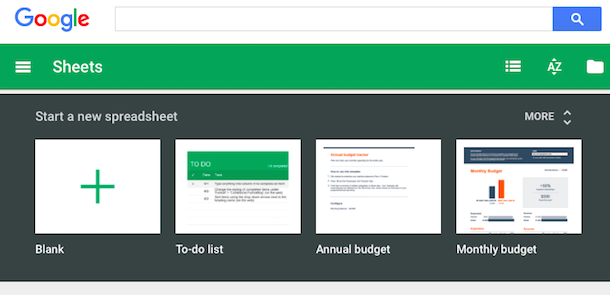
Google Sheets has templates for to-do lists, budgets, calendars, schedules, invoices, time sheets and more.


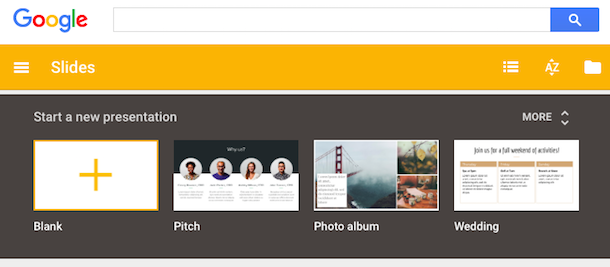
Google Slides also has a few templates for photo albums, pitches, status reports, lesson plans, portfolios, weddings, party invites and more.


Another new feature lets you get insights on a spreadsheet by simply selecting a range of cells and clicking Explore. This feature works in the desktop web app and the Android app and it shows trends, patterns and even charts for the data you've selected. It's surprisingly useful.


Google Docs now shows the new changes in a collaborative document. "If there are new changes, click the New changes button to the right of the Help menu. You can also click the File menu > See new changes."

Voice typing lets you dictate a text in Google Docs for desktop, but only if you use Chrome. Activate this feature from the Tools menu and speak in one of the 40 supported languages. You can say "period", "comma", "question mark", "exclamation mark", "new line", "new paragraph" to add punctuation to your text.


You can customize your forms by picking a theme or adding a photo. Google chooses the right color palette to match your photo. Insert images and YouTube videos to illustrate your questions.


{ Via Google Docs Blog. Thanks, Brendan and Jérôme. }

02 September 2015

Updated Mobile UI for Google's Related Searches


Google Mobile Search has a new interface for related searches. Google usually shows up to 8 related searches at the bottom of the search results pages, but now the list looks different: there's a table with white rows and small arrows next to each related query.


Click a related search and you can see the search results for that query and even more related searches. You can start with a generic query like [nightingale] and create a more specific query by only clicking on related searches. For example, you can find searches like [sound of a nightingale singing], [Yanni nightingale live] or [how do you become a nightingale in Skyrim?].

Google's New Colorful Favicon


Google has a new logo, but it also has a new favicon. It's now a capital G that uses the four Google colors: blue, red, yellow and green.

Here's a screenshot that shows the old favicon launched in 2012 and the new one:

This is the new favicon, which is also used as an icon for Google Search:

You can find it in Google's app launcher and soon in Chrome's app launcher and in Android, as an icon for the Google Search app.

Google Photos, The New Home for Your Private Photos


I've clicked the Photos link from the Google+ navigation menu. The page redirected to Google Photos and it displayed a new message:

"Welcome to Google Photos, the new home for all your private photos. The photos you've shared on Google+ are still available in the photos tab of your Google+ profile."


The message links to http://ift.tt/1O7mMNW, which is the photos tab from your Google Profile. Until now, Google Photos linked to Google+ Photos, bypassing the redirect.

You can still go to Google+ Photos using this link: http://ift.tt/1Q0oZjj, but I don't know for how long. Most likely, Google+ Photos will disappear soon.

New Mobile Google Homepage


Google's mobile homepage looks different. The tabs for web search and image search are now blue and you can finally use the app launcher. Just click the grid icon to see the same app launcher from the desktop site. Many shortcuts will open the corresponding mobile apps instead of the mobile sites.


For now, the app launcher is only available from the Google homepage and from Google Image Search's homepage.


Google has recently changed the color of the tabs from red to blue for both the desktop site and the mobile site. There's now a bigger Google logo at the top of the page and the header uses more space.


The New Google Logo in Google Maps


The new Google logo stands out more. The latest version of the Google Maps app for Android replaced the gray Google logo from the bottom left corner with a bigger logo that's now colorful.

Here's a screenshot from an old version of Google Maps. You need to look carefully to see the logo at the bottom:


This screenshot is from the latest version of the Google Maps app. The new logo doesn't blend in with the map and it's more distracting.


A similar logo was also added to the desktop site:


App Launcher Shortcut for Google Inbox


Ever wanted to quickly switch between Gmail and Inbox? You can add Inbox to Google's app launcher: just go to inbox.google.com, click the grid icon at the top of the page and then click "add a shortcut". Drag and drop the icon to change its position.


I placed the Inbox shortcut next to Gmail's shortcut.


Inbox has a setting that lets you redirect Gmail to inbox.google.com, just in case you want to switch to Inbox.

Smaller Google Search Button


Google has recently changed the search button from the desktop site. It's now much smaller, just like the search button from the mobile UI.


You don't have to click the search button: it's much faster to press Enter, since you're already using the keyboard.

Here's a recent screenshot that shows the bigger button:


A New Google Logo


Google's homepage has a clever animation that announces a new Google logo. "These days, people interact with Google products across many different platforms, apps and devices — sometimes all in a single day. (...) Today we're introducing a new logo and identity family that reflects this reality and shows you when the Google magic is working for you, even on the tiniest screens," informs Google.

It's not just about the Google logo: many other Google icons will change. "New elements like a colorful Google mic help you identify and interact with Google whether you're talking, tapping or typing. Meanwhile, we're bidding adieu to the little blue 'g' icon and replacing it with a four-color 'G' that matches the logo."

The new icons are better suited for small screens and manage to convey the Google identity using colors and playful cues. Google's logo hasn't changed a lot since 1998: it's still simple, colorful, playful and unintimidating.


25 August 2015

Quickly Copy Google's Translations


Google Translate added a few years ago a "select all" button that automatically selected the translation, so you could easily copy the text and paste it in an email message, a document or somewhere else. In Chrome, the "select all" has been replaced with a new "copy" button that selects the entire translation and copies the text to the clipboard. The nice thing is that this feature uses HTML5, not Flash. Unfortunately, the new feature is only available in Chrome and all the other browsers still get the old "select all" button.


You can still click the star button to save a translation to the phrasebook or copy the URL generated by Google Translate, which includes the original text.

{ Thanks, Alireza Eskandarpour Shoferi. }

YouTube's Red Settings


To make it more obvious that a certain option is enabled, YouTube player's settings menu changes the color of the menu item to red. For example, if annotations are enabled, the "annotations" menu item is red.


Mouse over a red setting and it temporarily becomes black. Disable the setting and it switches to black. Previously, only the radio box was red and I think it looked better.


Gmail AutoResponder is a Better Alternative to Canned Responses


If you find yourself writing the same email response over and over again – like a technical support request asking for instructions on how to do something or a confirmation email to customers to let them know you’ve received their message – canned responses in Gmail can help you save both time and typing.

The idea is that you compose a email message with the ‘generic’ response and save it in your Gmail drafts. Later, you can quickly insert that pre-formatted template into the body of your email with a click without having to manually write the whole response.

There are however 4 big limitations with Gmail canned responses.

  1. You cannot include file attachments in your auto-response emails.
  2. Canned Response are only available on the Gmail website. If you use Gmail on Android or iOS, or use an email client like Microsoft Outlook, you’re out of luck.
  3. There’s no option to auto-reply messages in bulk. For instance, you cannot select multiple email messages in Gmail and respond to them all with the same template. You’ll have to reply one-by-one manually.
  4. You can easily setup Gmail filters for auto-replying to emails but the recipients will easily know that you’ve sent an automated response. That’s because Gmail adds ‘canned.response’ in the sender’s email. For instance, my email is amit@labnol.org but if I use automated responses, the sender will show up as amit+canned.response@labnol.org.

Meet Email Autoresponder for Gmail, a new Google add-on that works like Canned Responses but without any of the above limitations. Watch this YouTube video (mp4) for a quick tour.

How to Use Gmail Autoresponder

  • Create one or more draft messages in Gmail. You can apply formatting, include logo images, file attachments, and even put HTML signatures in your messages.
  • Install the Gmail add-on and then, inside the spreadsheet, go to Add-ons > Email Autoresponder > Create New Rule to get started.
  • Create mapping rules with the wizard much like how you create filters in Gmail.

For instance, you can have a rule that will auto-respond to all emails labeled “FAQ” with a particular draft message. Or you create an advanced rule that will send an auto-reply to only unread messages in your inbox that are newer than ‘n’ days and have the word ‘support’ somewhere in the subject line. In fact, you can use any of the advanced Gmail search operators to create such a rule.

Gmail Auto Responder

Once you’ve created the rules, the add-on will work in the background. It will activate once every hour, fetch any matching messages from Gmail and will auto-reply using the corresponding draft template. If you have multiple email accounts, like work and personal email account, you can choose to reply from any of your email aliases connect to Gmail.

The add-on runs once every hour but if you cannot wait that long, go to Manage Rules, select the relevant rule from the dropdown and choose Run to send the auto-replies immediately.

Once a reply has been sent, the Gmail add-on applies the label “Responded” to the email thread so you know that the email has been processed and it would be skipped in the next iteration.

Using Gmail Autoresponder on Mobile

If you have to reply to an email on mobile with a pre-written template, just open the email message and apply a Gmail label that you’ve specified in the run. When the add-on runs in the next hour, it will automatically reply to that message with the corresponding draft.

Gmail canned response on Mobile

After the rules are setup, you can close the Google Sheet and it will continue running the background. Simple.

Autorespond to Multiple Emails in a go

Say you have 10 emails in your inbox that you need to auto-reply with a message that is already saved as a draft in your Gmail. Apply any common label to all these messages and then create a rule for this particular label using the add-on. Next go to Manage Rules, select the rule from the dropdown and click Run to auto-reply to all the labeled messages in one go.

Also see: Mail Merge for Gmail with Scheduler


The story, Gmail AutoResponder is a Better Alternative to Canned Responses, was originally published at Digital Inspiration by Amit Agarwal on 24/08/2015 under GMail, Internet.