04 December 2014

Device Assist for Android


Google released an Android app that provides tips for using your device and helps you solve some of your device's issues. The app is called Device Assist and it's currently available to "US-based Nexus, Google Play edition and Android One devices running Android 5.0, Lollipop".


Device Assist detects some of the problems concerning your device and offers tips like "consider using a wall charger" or "screen brightness setting is battery intensive". For some of the tips, there's a "do it for me" option that automatically changes settings.


Google also provides tips that help you explore new features and improve the performance of your device. The list of tips is searchable and there a few useful tips when searching for things like "battery" or "screen".


Device Assist makes it easy to share information about your device with Google and to get access to live Google support. This option is only available for Nexus and Google Play Edition devices.


{ via Android Police }

Finding Music Key Enabled YouTube Videos


When Google announced YouTube Music Key, I expected that mobile users will be able to download and play in the background almost any music video. Unfortunately, these features don't work for many videos, especially for music videos from unofficial YouTube channels.


It's easy to tell if you can download or play in the background a video: look for the download button in the mobile YouTube app.


If the download button is there, you can tap the home button and the video will continue playing in the background.


For some reason, YouTube doesn't offer a search filter that allows you to restrict search results to videos you can download and play in the background. A good idea is to play YouTube's mixes or pick an album from the music card, when searching for an artist.


Why Google Inbox Doesn't Replace Gmail


When Google launched Inbox, many people wondered why it's a new product and not a Gmail upgrade. Jason Cornwell, a member of the Google Inbox team, answered this question in a Reddit AMA:

The way people use email has changed a huge amount since we launched Gmail. With Inbox, we took a step back and did a lot of research into how most people are using email today. What we found was that email works as a todo list for many people, that phone usage is starting to eclipse desktop usage, and that many people have negative feelings towards email because it feels like so much work. We built Inbox as a separate product because we didn’t feel like we could solve those problems by just adding more features on to Gmail. We needed to start from scratch to build a tool that really helps you stay on top of your life.


In many ways, Inbox is a simplified mail service optimized for mobile. It surfaces important information, helps you get things done and organizes your messages.


Will Inbox replace Gmail? Here's Jason's answer:

In the short term, no. In the very long term, we hope so. Inbox is something new - that's why we’re launching it as a separate product. We care deeply about Gmail and Gmail users, but in the long run as we add more features to Inbox and respond to user feedback we hope that everyone will want to use Inbox instead of Gmail. Ultimately, our users will decide.


03 December 2014

No CAPTCHA reCAPTCHA


Google has been testing a new version of reCAPTCHA that makes it easier for users to prove that they're actually human and not bots. The new reCAPTCHA no longer uses a CAPTCHA, so you no longer have to deal with blurry house number images or squiggly words from scanned books.


Here's the new version:


"On websites using this new API, a significant number of users will be able to securely and easily verify they're human without actually having to solve a CAPTCHA. Instead, with just a single click, they'll confirm they are not a robot."


So instead of solving CAPTCHAS with distorted text you can just click a box. But how does this work? Google uses some sophisticated risk analysis algorithms that "actively consider a user's entire engagement with the CAPTCHA — before, during, and after — to determine whether that user is a human." If the risk analysis engine can't confidently predict whether a user is a human or a bot, you'll see a regular CAPTCHA.


Google also tests other simplified CAPTCHAs that are better suited for mobile devices. For example, one of the CAPTCHAs asks you to select images that show a cat.


Edit Office Gmail Attachments in Google Drive Apps


Gmail now lets you edit Microsoft Office attachments with a single click: mouse over an attachment and click "Edit with Google Docs" for Word documents, "Edit with Google Slides" for PowerPoint presentations or "Edit with Google Sheets" for Excel spreadsheets. "You can then start editing and enjoying the full benefits of a single document to keep track of, access from anywhere, and full revision history," informs Google.


When you click a Gmail attachment, Google lets you preview its content inside Gmail. You can also save the file to Google Drive, but it's not converted automatically to a format that can be edited by Google's apps.


Google now supports "15 new Office formats - including presentation show files (PPS, PPSX), macro-enabled files, and template files - all with improved charts, images, and tables support." If you'd like to edit the files without converting them to Google's formats, you can use this Chrome extension.

Moving Files between your Android and Desktop Gets Easier with AirDroid 3


The AirDroid app is probably the easiest way to manage your Android phone from your Mac or Windows PC. It lets you quickly transfer files between your phone and your computer, or from one Android phone to another, without requiring any USB cables.


The newest version of AirDroid – version 3.0 – is even better.


Earlier, if you had to transfer a file from the computer to your Android phone via AirDroid, you had to open a special web page in your web browser, authenticate the connection and only then were you allowed to download or upload files.


AirDroid for Windows and Mac


Now AirDroid has released dedicated clients (software program) for both Windows and Mac that mostly bypasses the need for a web browser. Once you have installed the AirDroid software on your computer, you can simply drag one or more files to the desktop app and the files are instantly transferred to your Android device. It just works.


The transfer happens extremely fast if your computer and your phone are connected to the same WiFi network. However, if one of your devices is not on LAN, you can still send your files via the cloud. The files stay in the cloud for a week before they are permanently deleted.


You can view your phone call logs and also reply to SMS messages from the computer. It is however not possible to initiate phone calls from the desktop. And certain old features, like the ability to capture remote screenshots and photographs using your phone’s camera, still require the web browser.


The Android App sports a clean look though its not Material Design

AirDroid app on Android sports a clean look though its not Material Design


AirDroid 3 is not available in the Google Play store yet but you can head over to beta.airdroid.com to download the Android app and the desktop clients that available for both Mac and Windows.


You’ll need to sideload the apk files and that essentially means letting your Android phone to install apps outside the apps store.


The story, Moving Files between your Android and Desktop Gets Easier with AirDroid 3 , was originally published at Digital Inspiration by Amit Agarwal on 03/12/2014 under Android, Apple Mac, Software.

02 December 2014

Image Options in Google Docs


Google Docs added a cool feature that was already available in Google Slides: you can now change image options. Right click an image, pick "image options" from the menu or click the image and use the "image options" feature from the Format menu. You can change the color of the image using filters in the "Recolor" section and adjust transparency, brightness and contrast.


While the new features are pretty useful, Google Docs should include more powerful image editing tools, like the ones that are available in Google+ Photos. Hopefully, Google manages to build an HTML5 image editing widget that could be added to any Google service, so you can quickly edit Gmail's image attachments, photos uploaded to Blogger, images from Google Docs documents and Google Drive photos.


{ via Google Apps Updates }

Merge Table Cells in Google Docs


There are still basic features that are missing from Google's online office suite. For example, you couldn't merge table cells in a Google Docs document until yesterday, when this feature was added.


Select multiple rows or columns, right click and pick "Merge cells" from the menu. You can also find this feature in the Table menu. If you change your mind, use the "Unmerge cells" menu item.


"Merged table cells can span more than one row and/or column. Merged table cells in Word documents can now be imported as well," informs Google.

28 November 2014

New Gmail Categories


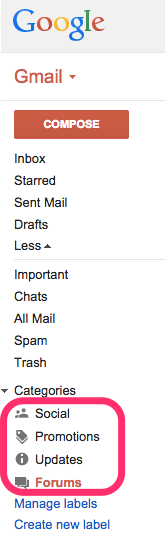
Gmail automatically categorizes messages. Right now, there are only 4 categories available: social, promotions, updates, forums and they match Gmail's inbox tabs. Even if you disable Gmail's inbox tabs from the settings, you'll still see the list of categories in the right sidebar.


When you click the 4 categories, Gmail adds the following queries to the search box: [category:social], [category:promotions], [category:updates], [category:forums].


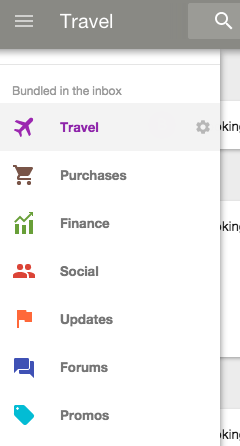
If you used the new Google Inbox app, you probably noticed some other categories: travel, purchases, finance.


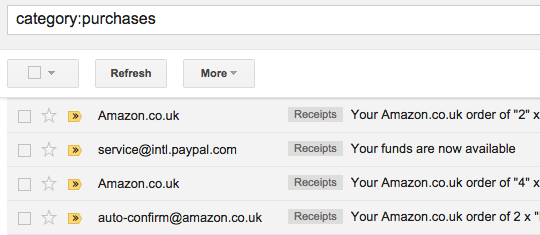
They're also available in Gmail, but you have to manually search for: [category:travel], [category:purchases], [category:finance]. Travel groups email confirmations from sites like Booking.com or Expedia, the purchases category shows order receipts from sites like Amazon or eBay, while the finance category shows bills, PayPal payment updates and more.


You can create labels that show messages from the new categories using filters. How to create a Purchases label?


1. Go to Gmail's inbox

2. Click the small arrow from the search box that shows advanced search options

3. Type category:purchases in the "Has the words" box

4. Click "Create filter with this search"

5. Check "Apply the label", pick "New label" from the list and type "Purchases"

6. Check "Also apply filter to matching conversations"

7. Click "Create filter".


Use the same steps to create labels for Travel and Finance, but replace Purchases with Travel or Finance in step 3 and 5.

Android's Email App Links to Gmail


Now that the Gmail app for Android lets you add non-Gmail accounts and works like a generic email client, the Email app is no longer necessary. When you open it, the app shows this message: "Email has moved. The Gmail app now lets you view all of your email accounts." You can tap "Take me to the Gmail app" and check "Always do this".


There are a few advantages for Google: it only has to bundle a single mail app from now on, the Gmail app is constantly updated in the Play Store, there's a consistent interface for both Gmail and the mail client.


Gmail could already import messages from other accounts using Mail Fetcher, but that's a tool for power users who fiddle with Gmail's settings. "Gmail's Mail Fetcher feature first imports all your old messages to Gmail and then continues to bring in new messages sent to your other account. You can add up to 5 accounts, including Gmail and other email providers."


Email is another AOSP app that bites the dust and is replaced by a closed source Google app, just like Music, Calendar, Browser, Camera and more.

27 November 2014

Find Your Purchases Using Google


Google uses confirmation messages from Gmail to show helpful information about your purchases in Google Now, Google Search and other Google services. That's not a new feature, but there are some ways to make it even more useful.


If you're signed in to your Google account, you can search for [my purchases] and Google shows your latest purchases from sites like Amazon, eBay, Google Play and more. Click one of the items to find more details, including tracking links, prices and links to email receipts. Click "show 10 more results" to see more orders.


You can filter your purchases. For example, you can search for [my purchases amazon de] to find your amazon.de orders.


You can also search for [my purchases from June 2013], [my purchases from last month], [my purchases from yesterday] and more.


This also works for searching purchases by name: [my purchases led], [my purchases shirt], [my purchases Samsung].


How to find your receipts from Gmail? Just search Gmail for [category:purchases] and you'll find all the confirmation messages detected by Gmail. It's interesting to notice that not all of them are used by Google Now and Google Search.

26 November 2014

YouTube HTML5 Loop


YouTube's HTML5 player uses some tricks to hide the standard menu that's displayed when you right click a HTML5 video. This menu includes features like looping videos, enabling browser controls or saving videos.


I've found a way to enable this menu in Chrome: just right click the video twice in the same place. The first right click will trigger YouTube's contextual menu, while the second right click will display browser's menu. Features like "save video as", "copy video URL" don't work, but you can use this trick to watch videos on repeat. Just click "loop" and you can watch your favorite YouTube video over and over again. To deactivate repeat, right click the video twice and click "loop" once again.


Obviously, this only works for YouTube's HTML5 player, but it's enabled by default in Chrome and most YouTube videos use it.


There are other ways to loop YouTube videos: from adding videos to playlists to using the "loop" parameter, installing extensions or using sites like Infinite Looper.


To enable the menu in Firefox, you can Shift click the YouTube player. There's no loop option, but you can find features like "save snapshot as", "view video" and more.


Chromebooks Bring 1 TB of Free Google Storage


If you planned to buy Google storage, you might decide to buy a Chromebook instead. When you buy a Chromebook, you now also get 1 TB of storage for 2 years if you redeem the offer by January 31, 2015. You would have to pay almost $240 for 1 TB of Google storage and the most affordable Chromebook costs $199: Acer Chromebook 11. You get the Chromebook for free and you still save about $40.


Until now, Google only offered 1 TB of storage for Chromebook Pixel users. Chromebook Pixel is the most expensive Chromebook and still costs $1299 when you buy it from the Google Play Store.

25 November 2014

Chrome Will Remove NPAPI Support in 2015


Google hoped to remove the support for NPAPI plug-ins this feature, but that will have to wait until next year. The NPAPI support will be completely removed in September 2015.


Chrome whitelisted some of the most popular NPAPI plug-ins like Silverlight or Google Talk. As their usage continued to decline, the whitelist will be removed in January and users will have to manually enable the plug-ins.


As you can see from the table below, the only plug-in used by more than 10% of the Chrome users is Silverlight and it's followed by Google Talk, which is still used by 7% of the Chrome users. Java usage declined from 8.9% to 3.7%, Facebook's plug-in usage declined from 6% to 3%, while Unity is only used by 1.9% of the Chrome users, down from 9.1% in September 2013.


In April 2015 NPAPI support will be disabled and Google will unpublish from the Chrome Web Store the extensions that require NPAPI plugins. Power users and business users will still be able to enable NPAPI using Chrome flags or Enterprise Policy, but only until September 2015, when NPAPI support will be completely removed. There's a deprecation guide for developers which offers a few alternatives to NPAPI, including HTML5, WebRTC, Chrome APIs for apps and extensions and Native Client.


NPAPI is a legacy technology that enabled a lot of powerful features, back when browsers couldn't play videos, handle video calls or run games. You had to install QuickTime or RealPlayer to play videos, install plug-ins for Google Talk or other video calling apps, install Java or Flash to play games. Now browsers are a lot more powerful and the features that are still not supported by Chrome can be enabled by more secure NPAPI alternatives like PPAPI and Native Client, which are unfortunately still only available in Chrome.

Create a Tree View of your Google Drive


If you have ever worked with DOS or Linux before, you’ll be familiar with the “tree” command that recursively lists all the files and folders in the current directory in a tree like format. Most of us prefer visual navigation through Windows Explorer or Mac Finder but a unique advantage with the tree command is that you can save and print the directory structure.


Google Drive - Folder Tree


Tree Command for your Google Drive


I have written a little Google Script that is much like running “tree” but against your Google Drive. It creates a hierarchical tree diagram of all the files and folders in your Google Drive that you can save for offline reference or even print.


To get started, click here and authorize the script to access the files in your Google Drive. Once the authorization is complete, it may take a minute to generate the entire Google Drive tree. You’ll then get a link to download an HTML file that mirrors your Drive structure. You can directly send the file to the printer as well.


Internally, all the script does is recursive traversal and the tree itself is sylized through simple CSS. In the current version, only the folder names in the tree are linked to their corresponding location in your Google Drive though the script can be easily extended to create a more data-rich tree that includes details like file URLs, sharing permissions, file sizes, file types and so on.


The process may take slightly longer if you have a large drive with tons of file and folders. Also, as soon as you authorize the Google Drive Tree script, you’ll get an email from Google with instructions on how to revoke access. You can do so as soon as the tree has been generated.


The story, Create a Tree View of your Google Drive , was originally published at Digital Inspiration by Amit Agarwal on 25/11/2014 under Google Drive, Internet.