07 October 2013

Get Things Done Faster with these Microsoft Word Tips


You have been using Microsoft Word to write documents for years but here are some lesser-known tips, tricks and shortcuts that will help you do things faster and more easily.


This story, Get Things Done Faster with these Microsoft Word Tips, was originally published at Digital Inspiration on 07/10/2013 under Microsoft Word, Software

How To Set Different Colors For Start Screen And Lock Screen In Windows 8.1


CLICK HERE TO SEE FULL POST


As with the case of Windows 8, its successor Windows 8.1 also lets you customize the background color of the logon screen, the screen that appears right after the lock screen and displays your user account name, picture, and shut down options. While one can always change the default color of the logon screen by […]

Classic Shell 4.0 Released For Windows 8.1


CLICK HERE TO SEE FULL POST


Classic Shell is not just a program designed to add Start menu to Windows 8/8.1, rather it’s a program developed to restore many of the classic features that have been missing in the newest version of Windows. The good news is that Classic Shell has been updated with new features and improvements, just in time […]

Enable the Updated New Tab Page in Chrome for Android


If you like Chrome's updated new tab page for the desktop and you have an Android device, you can enable a similar new tab page in Chrome Beta for Android.


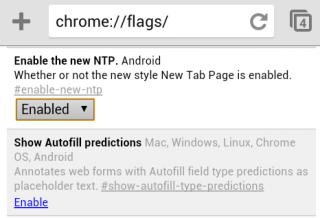
You first need to install Chrome Beta for Android if you don't have it already, then open a new tab and type this in the address bar:


chrome://flags/#enable-new-ntp


Then press Enter, pick "Enabled" from the drop-down below "Enable the new NTP" and tap "Relaunch Now" at the bottom of the window to restart the browser.


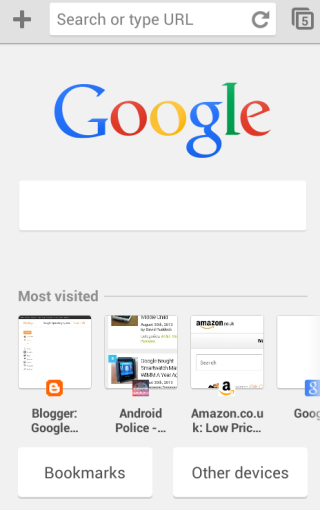
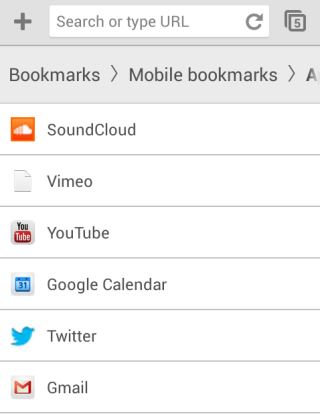
The updated new tab page no longer shows 3 sections. You only get a big Google logo, a search box that points you to the browser's omnibox, a list of the most visited pages and 2 buttons for bookmarks and tabs from other devices. Both buttons open new pages: the bookmarks page has a slightly different interface, while the "other devices" page looks the same.


Chrome's blog informs that some Chrome Beta users might see the new interface automatically. "We've tested this New Tab page with a search bar on desktop and now want to bring the benefits, including a faster load time, to mobile as well. While you can search straight from the Omnibox in Chrome, we realized many users continue to visit their search engine's homepage before searching, so we wanted to make it faster for those users to search. We're always thinking about how to save milliseconds from every search you perform, and we hope this new feature will save you time on-the-go."


If the new interface has been enabled automatically, you can use the same instructions to disable it. Just pick "disabled" instead of "enabled".


The updated new tab page has some advantages: it loads quickly, it's consistent and it looks nice. Unfortunately, bookmarks and the list of tabs from other devices load in separate pages and you can no longer see them automatically when you open a new tab. I created a folder with mobile apps I frequently use and this folder used to be displayed when opening a new tab. This feature is no longer available in the new interface. Unlike the desktop Chrome, the mobile Chrome doesn't support extensions and you can't customize the new tab page.


This "baby" new tab page could be useful to help users discover the omnibox and use it to search the web, but what happens when they realize that the big search box is redundant? And what about the people who already used the omnibox?

Google Promotes Its Search Engine in... Chrome


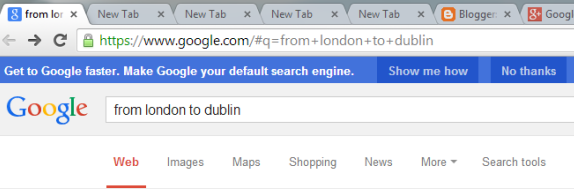
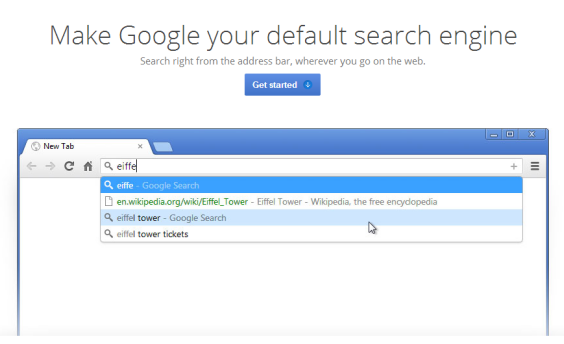
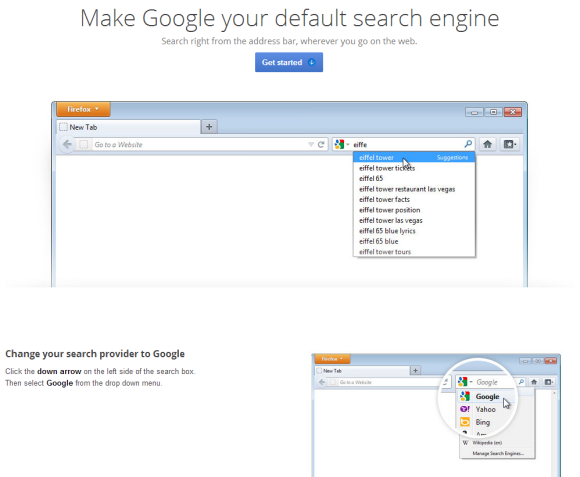
This is really weird. Google started to show a blue bar at the top of the search results pages: "Get to Google faster. Make Google your default search engine". The funny thing is that I got this message in Chrome.


Chrome used to show a dialog that asked you to pick your favorite search engine when you installed the browser. Now it no longer does this and Google is the default search engine. Anyway, it's likely that Google is the default search engine for most Chrome users.


I clicked "Show me how" and Google sent me to this page with instructions that explained how to change the search provider to Google and how to change the homepage to Google.


Google has similar pages for Firefox, Safari, Opera and Internet Explorer. In most countries, the default search engine for Firefox, Safari and Opera is Google, so it's strange to see this campaign.


Directions Card in Google Search


You don't have to go to Google Maps for driving directions. A simple Google search can provide an answer much faster. Just search for [directions from START_ADDRESS to END_ADDRESS] or [from START_ADDRESS to END_ADDRESS] and you'll get a small map and the distance between the two locations. Expand the card and you'll find the driving directions. This also works in the mobile search interface for both smartphones and tablets.


Here's an example for [from Radefeld to Leipzig]. As you can see, Google knows that the German town Radefeld merged with Schkeuditz.


Click the big arrow icon to see the driving directions right on the Google search results page:


You can open Google Maps by clicking the map thumbnail. This way, you can find alternate routes, walking directions, transit directions and more.


"These directions are for planning purposes only. You may find that construction projects, traffic, weather, or other events may cause conditions to differ from the map results, and you should plan your route accordingly. You must obey all signs or notices regarding your route," informs Google.


This feature is also useful to find the distance between two places, as well as the driving time in current traffic.


06 October 2013

Do You Still Check Your Email While On Vacation? [MakeUseOf Poll]


email-poll

Last week we asked you which major gaming platform you use the most. To be honest, I did not expect these results. Over 60% of you voted for the same platform. That’s not something we see a lot. Which was the one to get the popular vote? Out of 380 votes in total, 1% use a retro gaming system as their main platform, another 1% use a Nintendo Wii, 3% use a handheld console, 4% use their mobile phone, another 4% use their tablet, 8% use a Microsoft Xbox, 11% use a Sony Playstation, and a full 67% use their...


Read the full article: Do You Still Check Your Email While On Vacation? [MakeUseOf Poll]


Classic Google Maps URL


If you've switched to the new Google Maps desktop interface, you can quickly go back to the classic interface by clicking the gear icon and picking "Classic Maps" or by clicking "Help & Feedback" at the top of the page and picking "Return to classic Google Maps". You'll see a message that asks you if you want to permanently go back to the old interface or temporarily switch.


Another option is to bookmark this URL: Classic Google Maps (https://www.google.com/maps?output=classic). It will always send you to the standard Maps interface and you won't have to open the new interface first.


Why would you switch to the old interface? Maybe you need to use the more advanced directions that let you add more than 2 destinations, maybe you like the terrain/photos/webcam layers or Maps Labs features like the distance measurement tools or the LatLng tooltip, maybe you miss the Pegman icon you could drag and drop to switch to Street View or you want to customize the printing format for directions.

New Google Image Search for Mobile


Google's image search engine has a new interface for smartphones and tablets. The new UI looks just like the desktop UI, but you can use swipes to navigate between the image results.


Here are some screenshots from my 2012 Nexus 7. When you tap an image result, a black box with a bigger version of the image will open. You can also find some additional information about the image.


Swipe left to see the next image result, swipe right to go to the previous result. Gestures work just like the left/right keyboard shortcuts in the desktop interface.


A similar interface is available for smartphones. Here's a screenshot from an iPhone running iOS7:


Google will probably say that it changed the interface to make it more consistent and provide an unified interface for both desktop and mobile devices. There are some other advantages: you can scroll down to see more results, you can scroll up and quickly change the query or switch to web search.

Bing Gets Prettier: Adds Pinterest Boards To Image Search


bing-and-pinterest

Bing has beefed up its image search by bringing Pinterest boards to its image search results. Go to Bing Image Search and type in your keyword. You will see the result in the form of Pinterest board collections appear on the right hand side of the regular Bing Image Search results. Clicking on any collection takes you to the next screen that displays all images on the pin board. Click on the image to enlarge and view it in a lightbox. As earlier, you can directly pin any image from Bing Image Search. Visual search has become richer and search...


Read the full article: Bing Gets Prettier: Adds Pinterest Boards To Image Search


Windows 8 Transformation Pack Can Make Windows 7 Turn Modern


windows-transform

Is Windows 8 truly awesome or an utter failure? We have examined Windows 8 from various angles, including what it’s like in daily use, the impression from a Linux user’s perspective, or how to make Windows 8 suck less. The one thing most of us agree on, is that the Modern interface, formerly known as Metro, is pretty cool. I mean, it’s clean and so much better organized than a Windows 7 desktop. That, however, is not quite enough to provide motivation for a full upgrade or PC replacement. So, how do you keep everything you love about Windows 7,...


Read the full article: Windows 8 Transformation Pack Can Make Windows 7 Turn Modern


WiiCan Turns Your WiiMote Into a Linux Gamepad, Mouse and More


wii-linux

Use your WiiMote as a gamepad, remote control or even a mouse for your Linux computer. If you’ve got Bluetooth, free application WiiCan is a great way to set up your WiiMote to do just about anything. You may not use your Wii as much as you used to, but that doesn’t mean you need to keep your WiiMotes in a dusty box somewhere. If you play games on your computer, you can use them for that. We showed you how to connect your WiiMote to your PC, use your WiiMote as a Mac gamepad and even connect it to...


Read the full article: WiiCan Turns Your WiiMote Into a Linux Gamepad, Mouse and More


05 October 2013

Create Beautiful Photo Collages With These Great Tools


collage-featured.jpg

A picture is worth a 1000 words. So how many words is a 4-image collage worth? Sometimes, a nice collage is the best way to share an experience quickly. It takes minutes to make, it’s easy to share, and rather than bombarding your friends with several photos, you can only send one that tells the whole story. The tools below will help you create beautiful collages from your images, no matter which platform you’re on. Picisto [Web] Picisto is a feature-rich collage maker that employs an interesting business model. It’s not completely free to use (although all basic features are),...


Read the full article: Create Beautiful Photo Collages With These Great Tools


Create Beautiful Photo Collages With These Great Tools


collage-featured.jpg

A picture is worth a 1000 words. So how many words is a 4-image collage worth? Sometimes, a nice collage is the best way to share an experience quickly. It takes minutes to make, it’s easy to share, and rather than bombarding your friends with several photos, you can only send one that tells the whole story. The tools below will help you create beautiful collages from your images, no matter which platform you’re on. Picisto [Web] Picisto is a feature-rich collage maker that employs an interesting business model. It’s not completely free to use (although all basic features are),...


Read the full article: Create Beautiful Photo Collages With These Great Tools


Runnable Wants To Be The YouTube For Code With A Searchable Repository


runnable-intro

Runnable aims to be a huge library of code anyone can search for code snippets and then reuse. For all practical purposes, they want to be the “YouTube of Code”. Searching for code has become a Web activity now for many developers as they look to fast track development with re-usable bits of code, instead of going through the process of doing it from scratch and wasting precious time. Runnable wants to make it easier to search for those bits of code and fit them together quickly in any developmental project. Runnable aggregates APIs, scripts, frontend objects, database calls, and...


Read the full article: Runnable Wants To Be The YouTube For Code With A Searchable Repository


Tips for Google Bar's App Launcher


Google's new navigation menu is useful for visiting some of the most popular Google services, but did you know that you can still use it to find search results? This only works when you use your browser's search box. For example, you can search for [bogota], click the grid icon and select "YouTube". Instead of sending you to YouTube's homepage, Google's menu uses your query and sends you to YouTube's search results page.


Here's a list of services that show search results: YouTube, Play, Maps, Translate, Books, Shopping and Finance. You can middle-click or Ctrl-click the icons to open pages in a new tab.


Unfortunately, this feature is buggy: if you try another query, the links from the drop-down menu send you to the search results for the first query. That's because the feature doesn't work in the AJAX interface.


Useful tip: you can quickly open Google's list of "even more" services by middle-clicking the grid icon. You can also right-click it and select "open link in new tab".


Another tip: instead of clicking "more", you can scroll down.


Fun fact: Google's code includes icons for some other Google services. One of them is Google Reader. Other services: Google Groups, Google Video, Google Image Search, Google Contacts.


Speaking of Google service icons, you can find more icons here.

The Storage Used by Gmail and Google Drive


Now that Google offers unified storage that's shared between Gmail, Google Drive and Google+ Photos, it's more difficult to tell how much storage is used by each service. You can always click "Manage" next to "X GB (Y%) of Z GB used" at the bottom of the page in Gmail and Google Drive, then mouse over the chart.


Google Drive has a new feature that shows more details about your storage without having to open a new page: just mouse over "X GB (Y%) of Z GB used" and you'll see something like this:


10 GB of Free Google Storage for Installing Quickoffice


If you've installed the Quickoffice app for Android or iOS 2 weeks ago, you'll now have 10 GB of free storage for 2 years. Check the Google Storage page, mouse over the chart and look for the "Quickoffice promotion".


You only had to install a free app. You didn't have to buy a Moto X phone (50 GB for 2 years), a regular Chromebook (100 GB for 2 years) or a Chromebook Pixel (1 TB for 3 years). Google Drive's offers for phones and Chromebooks have special pages.


It's funny to see that Google offered free storage for installing an app that used to cost $15-20.

Best Rated Android Apps for SEO and Analytics in Google Play


High quality websites with valuable content and bright features will be wasted if not completely competent in visibility approach to all search engines. This article focuses on mobile application with regards to effective tasks in SEOs and Analytics.


It appears that software applications adamantly propagate nowadays not only in PC’s but most especially in mobile devices. Without the eye of an expert, it is difficult to distinguish which one is useful and which one is not functional. Unfortunately, there are applications that are just too good to be true in ads but failed to live up with its so called good name. So which is which? SEO analytics utilizes various software applications to optimize existing websites and also to maximize its visibility in all search engines. The following are compiled Android application for SEO and Analytics advantage.


Top Android Apps for SEO and Analytics in Google Play:


WebRank SEO application


This application achieved high reviews from SEO analytics. This is free software that generates SEO data from Website Ranks- such as Google Pagerank, Alexa Rank and Compete Rank, Social media stat, Pages Indexed and Backlinks from popular search engines. SEO analytics will be delighted in exploring site’s keywords using this application.

SEO SERP Application


This application comes in free and Pro version. SEO SERP application is very functional for all SEO analytics in tracking website position, social media rank performance, as well as the website health status. It also features unlimited keywords for all SEOs. This is helpful in developing a well optimized site.


SECockpit Application


This is a keyword- search friendly application. A very much free application that is packed with SEO keyword tool that is perfect for SEO analytics. SECockpit Application generates fast- pace key- word finding for SEO analytics that needed speed and accuracy.

SEO Keyword Checker Application


This application is essential in web page analysis as well as tracking most keywords in web pages. SEO analytics needed an application like this to ensure a high visibility ranking site in all search engines.

mAnalytics Application


This is top rated software application which supports all Android devices. This is a handy tool for SEO analytic in managing their Google analytic account without the hassle of desktop computer. This is free software apps so need to squander.

AdSense Dashboard Application


This is a grab- and- get software application that helps SEO analytics view and manages their adSense account anywhere they wanted to. Updates and reviews will be easily viewed in this application.

HootSuite Application


This is a so much in demand application for Android devices. As we can see, social media overrides multiple top rated websites in all forms. HootSuite application consists of social media management tools that enables multiple social media account to sync up all at once. Very convenient for SEO analytics and a must have application.

Ad-ology Marketing Forecast Application


All SEO analytics must be on top and advance when it comes to online marketing strategies. This application is a perfect tool for market analysis. It features related topics, advance research and what is trending online.

Marketing Plan Application


To be successful in online marketing, it is necessary to seek help from the experts. Marketing Plan Application is a brilliant application for online marketers and SEOs. It features consultation from online professional marketers regarding market strategies and also advocates campaigns tutorials. This application aids in the marketing analysis for a more enhance site.

Google Drive Application


This application is perfect for all SEO analytics that works in different place and time. It allows them to work on a same file regardless of their location. Sharing documents here is easy. Google Drive Application contains user- friendly tools and formats that is accessible to all shared users.


Truly, it is always great to take advantage of free software. Besides, these applications are the mostly used software programs in all Android devices. Users worldwide assess the level of functionality of these apps. It is a common knowledge that it is impossible for a site to be on top of the search engines if not completely optimize. So, it is critical in web site development to become acquainted in all areas of keyword- search programs. The above applications are highly recommended and certainly won’t waste the time of any users.

About Guest Author :This awesome article was provided by Hammad Baig of http://www.covershub.net , who recently made Facebook Covers sharing site, where you are sure to enjoy thousands of quality cover photos for your timeline. Follow Covershub on Pinterest


10 Curiously Geeky Virtual Tours You Can Take On Google Street View


street-view

A geek is an explorer at heart. It could be the search for mysterious knowledge. It could be an expedition through the Internet. To quote St. Augustine — the world is a book and those who do not travel read only one page. Our collective heads may be buried in books or the computer, but what better way to set your bowlines free than to travel. And what could be better than going to some of the geekiest landmarks around the world? You probably won’t make it to all the places on your bucket list. Don’t worry, there’s a lifetime...


Read the full article: 10 Curiously Geeky Virtual Tours You Can Take On Google Street View