15 May 2013

Google OKRs


Rick Klau, who is now a partner at Google Ventures, gave an interesting talk about Google OKRs. "Objectives and Key Results" (OKRs) have been used by Google since 1999 and they're a great way to set ambitious goals and to measure how much you've achieved. Each Google employee has his own OKRs, each Google team has a few OKRs and there are some Google-wide OKRs that reflect the most important priorities of the company. All OKRs are public inside the company, so each employee knows what's going on.


There are yearly OKRs and there are quarterly OKRs. Usually there are no more than 5 objectives and each objective has a few key results that help you determine the progress. Key results have to be measurable. An example of objective is improving Gmail revenue and a key result could be adding a new ad format that doubles the CTR (click-through rate). At the end of the quarter, you can grade each key result and attribute a value from 0 to 1.0. Apparently, it's best when your average grade is somewhere between 0.6 and 0.7. If your grades are higher, the goals aren't ambitious enough.


"To make sure our products work seamlessly together across Google, we're focusing more on broader OKRs – big company goals that can only be achieved if everyone works together. For example, a recent OKR objective for our search team was to improve the world's information and make it universally accessible and useful, which restates and reiterates the company's mission statement. The key results underneath that objective included metrics and projects for the quarter, many of which span a number of teams, ensuring a well-coordinated push toward a shared goal. Having these shared goals also has the benefit of helping prevent the formation of silos – always a concern as companies grow," explains a Google Think Insights article.


Rick Klau joined Google from the FeedBurner acquisition and he worked on products like Blogger, Google Profiles and YouTube. The talk includes some examples of OKRs for Blogger. Back in 2008, the most important objective for Blogger was to improve revenue.


Add Images to Google Forms


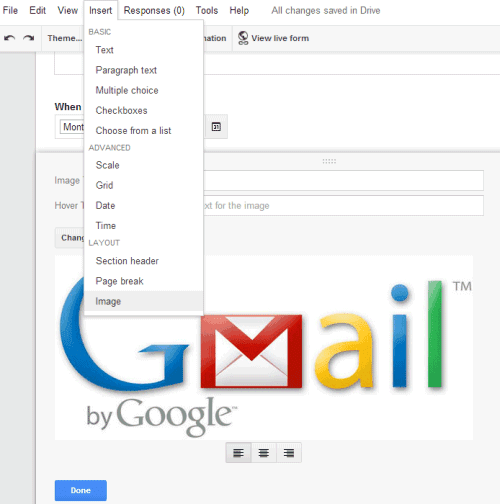
You can now add images to Google Forms. Just click the "Insert" menu, select "Image" and upload the image you want to add. You can also select an image from Google Drive, Google+ Photos, take a snapshot, enter the URL or use Google Image Search to find the right image.


"Photos can be resized, centered, or swapped out for another photo with just a few simple clicks," informs Google. You can also enter an image title and a hover text.


It's another feature that makes Google Forms more useful, just like the new question types for date and time. Next up: rich-text editing.


14 May 2013

MakeUseOf Hangouts: When Geeks Talk Turkey


Last week I invited you to a MakeUseOf Hangout. This past Friday, six loyal readers joined me and contributed to a great conversation around MakeUseOf and technology in general. We received a lot of valuable feedback from this chat. Moreover, participants seemed to really enjoy to talk tech with fellow-minded people, which was also reflected in their comments after the Hangout was finished.


This actually wasn’t our first meet & greet with readers on Google Hangouts. Several months ago Jackson ran a spontaneous and open-to-all Hangout on which James and I joined him. It was a very good learning experience and really helped me in preparing this second attempt.


The Invitation Process


My public invitation contained a brief form, based on which I chose participants. Given the short notice and the specific time zone, the response was not overwhelming, but I still couldn’t invite everyone who responded to the form. I picked nine readers who seemed enthusiastic to join and most of whom I had seen commenting on MakeUseOf before.


In my personal invitation to the Hangout, I was very clear about expectations. My intention was to avoid people talking over each other, being rude, or trying to control the conversation. The trick with these expectations is that you should never mention what you don’t want people to do because you risk planting an idea in their head, which might have an undesired impact. Just try not to think of pink elephants for a moment. So instead of making a list of rules, I shared with them how I envisioned our get together. Now I have to admit that I don’t know whether this actually worked or whether we just have the most awesome readers on this planet; I will leave that up to your own judgement.


The Participants


Unfortunately, not everyone could make it in the end. However, the smaller size of the group allowed everyone to participate more and we could cover a broader range of topics.


The readers who joined me were (left to right in image below):


  • Alex from the US, college student majoring in web design.

  • Kay from Germany, working in the test department of a European mobile operator.

  • Nazim from France, high school student, music composer, and writer for the French website Fandroid.

  • Paul from the US, retired Marine and self-employed in IT support.

  • Rajaa from India, freelance IT consultant.

  • Siddhant from Singapore, middle school student.


We had quite a range in terms of age, origin, and professions, which made for interesting conversations.


When & How Did You Discover MakeUseOf?


One of the things I am really interested in is how people discover MakeUseOf. With five loyal readers being my guests, I made this my kick-off question. Kay was the first one to take the chance and share his story.


Kay’s employer was looking to do more innovative stuff and while looking for resources online, Kay found MakeUseOf. With time, it became his first stop for inspiration.


If you surround yourself with innovative stuff – software, hardware, whatever – you will be much better in creating your stuff, it’s very inspiring. – Kay


Nazim found MakeUseOf two years ago while searching for Windows application reviews. He read a few articles and found the website so attractive that he subscribed to our RSS feed.


Actually I’m now reading [the feed] every day. In the two years, I read every article of MakeUseOf. – Nazim


Nazim appreciates the diversity of articles and the comprehensive nature of each of our articles.


Alex discovered MakeUseOf in 2008 and has been visiting it on a daily basis since.


Rajaa doesn’t remember how he came across MakeUseOf, but probably through Facebook about a year and a half ago. What attracted him was the variety, ranging from Windows to mobile environment. What really got him hooked was the Q&A section, where he has been an active volunteer in answering questions.


It gives a lot of satisfaction if you can help someone. – Rajaa


When I ask them what they feel is missing, Rajaa brings up MakeUseOf’s lack of a mobile app, a question that has come up occasionally on MakeUseOf Answers. Rajaa recommends us to look into this environment to make it easier for people to follow feeds. Alternatively, he says we could plug our feeds into Pulse.


What Gadgets Do You Have?


Alex, Nazim, and Kay show off their gadget collection. Alex uses one of the first Nook eReaders and Nazim recommends the Nexus 4 as one of the best Android phones. Kay loves his Samsung Galaxy Notes II phablet because his hands are quite big. Rajaa has an entry level Android with a QWERTY keyboard, which he prefers over touch input. Kay and Alex chime in that they prefer keyboards too, and Kay wishes that a new Android with a keyboard would come out. Alex says his last two phones had a QWERTY keyboard and points out that if you really need a keyboard, you can just attach a Bluetooth keyboard. He refers to one of his favorite MakeUseOf articles, which was about turning your smartphone into a desktop replacement.


Who Are Your Favorite Writers?


Since we are on the topic of writers, I wonder whether they like anyone in particular. Alex is careful to say that he is not paying attention to the writers (obviously he isn’t!) and immediately adds that everyone has good articles, so nobody stands out.


Rajaa on the other hand openly confesses that he is biased towards Saikat because he is from India. He has also been enjoying articles from Kannon and, as he says, obviously James. Rajaa feels that James is our most technically sound writer, which is of course reflected in his articles.


Being our resident über geek and a routine podcast host, I asked James to stand by for emergency support in case things go awry. So I have him on GTalk and the moment Rajaa’s statement is aired, I receive a very happy comment from him.


Rajaa continues that he really enjoys the opinion polls and the We Ask You section hosted by Yaara and Dave Parrack. He bemoans that it has become harder to find those articles since we removed their dedicated URLs (category or tag).


Like Alex, Kay admits that he doesn’t follow authors, even though he has written articles himself for several magazines. Nazim explains his impression that everyone on the team has their niche.


So I ask them whether there is something that unites our writing and makes our articles recognizable as MakeUseOf articles.


I think it’s the whole group combined that gives [MakeUseOf] the power. I even think it’s better if no one stands out. – Kay


Like Nazim, Kay thinks everyone has their specialty. He compares it to his work of reviewing mobile phone features and says it would be awful if he started writing about topics he isn’t comfortable with.


On Gadgets & Technology


After receiving so much MakeUseOf related feedback, I switched to more general topics that I hope are close to our geeks’ hearts. Last year Ryan wrote an article on Why You Never Forget Your First Computer, which received a flood of engaged comments, so I ask them about their first computer and their favorite gadget.


Nabaztag


We also discuss the challenges of IT support.


I have to learn what they want and learn to get them what they want with their equipment, if it’s possible. – Paul


Paul recommends Soluto and we learn that he is an alpha tester for them, helping with developing the application. Erez has reviewed Soluto for MakeUseOf.


From IT support, we move on to discussing the future of operating systems, Cloud security, software licensing and subscription models, innovation at Apple, and much more. If you would like to see the whole conversation, you have the chance to watch it on YouTube.


Just a small correction. There was a misunderstanding on my part when Rajaa asked about hardware rewards. Unfortunately, hardware rewards are not available for all countries. However, we did change back our policy on Giveaway contests, which are open to participants worldwide.


Conclusion


It was incredibly rewarding and inspiring to host such a knowledgeable and geeky group of people. In review it would have been nice to have a co-host to take care of the chat and some technical details. Sometimes it was hard for me to focus on the conversation. For next time, I’m hoping our YouTube channel will be properly set up, that we will give readers more of a heads-up for participating. We will promote the event more beforehand and maybe take in live feedback from a bigger audience.


Finally, I want to express my gratitude to Alex, Kay, Nazim, Paul, Rajaa, and Siddhant for joining me. It was a pleasure to have all of you in this hangout! I very much appreciate your patience while I was prototyping what will hopefully become a regular event at MakeUseOf. Thank you very much!


The post MakeUseOf Hangouts: When Geeks Talk Turkey appeared first on MakeUseOf.


How To Install Apps On SD Card In Windows 8


CLICK HERE TO SEE FULL POST


If you own a Windows 8 tablet or notebook and running out of storage space, you can utilize the microSD memory card slot on your tablet/notebook to add a microSD memory card and then configure Windows to install Modern (Metro) apps on it. While most of the desktop programs out there offer an option to [...]

Free Tools To Create Bootable USB From ISO File


CLICK HERE TO SEE FULL POST


Quite a few free tools out there to help you create bootable USB drive from Windows ISO file. While using the native Command Prompt method remains to be the best method to prepare bootable USB thumb drive and install Windows from it, not all users are comfortable with command line and prefer using third-party software [...]

Google's Atari Breakout Easter Egg


Is this the first Google Image Search Easter Egg? Search for [atari breakout] and you can play Atari's Breakout game. It's an arcade game introduced in April 1976. The game has an interesting story that involves Steve Jobs and Steve Wozniak and it influenced Steve Wozniak's design for the Apple II computer.


"In the game, a layer of bricks lines the top third of the screen. A ball travels across the screen, bouncing off the top and side walls of the screen. When a brick is hit, the ball bounces away and the brick is destroyed. The player loses a turn when the ball touches the bottom of the screen. To prevent this from happening, the player has a movable paddle to bounce the ball upward, keeping it in play."


{ via TechCrunch, thanks Florian K. }


Black Menu: All-in-One Google


If you've ever wanted a Chrome extension that combines the most important Google services and lets you quickly switch between them, check Black Menu. It's based on the short-lived vertical menu launched by Google in 2011, but it offers more features than Google's menu.


Mouse over each menu item and you'll get a gadget-like interface for a Google service. You can check your mail, compose new messages, create calendar events, add tasks, check your Google+ notifications, share pages to Google+, read the latest news, use Google Translate and Google Search, upload files to Google Drive, quickly search Google Drive and more.


Mouse over the links section and you'll see some useful links for the Google service you've selected. It's great for quickly checking your favorite YouTube videos or creating a Google contact.


You can rearrange menu items and add new ones from the "more" section. For example, you can add the URL shortener option to quickly create a short URL for the current page. Add the Chrome Apps menu item to get a Chrome launcher that includes the apps you've installed in Chrome.


Black Menu is like a simplified iGoogle for Google services. Actually, the extension uses some iGoogle gadgets, but they'll need to be replaced before iGoogle is gone.


5 Chrome Extensions To Superpower Twitter


chrome twitter extensionFor many of us, Twitter is fine just the way it is. Despite what you may think, I’m not going to say otherwise. Twitter truly is fine just the way it is. The thing is, and much like everything else, it can also be better, and making it better doesn’t necessarily involve using a third-party client.


If you’re the kind of person who prefers to leave things in the browser, certain Chrome Twitter extensions can help you get all sorts of fun and useful Twitter features without having to resort to out-of-the-browser clients. Whether you’re looking to save time when sharing webpages, save brain cells when reading your stream, or retweet the good old way from Twitter’s native interface, there are ways to do so without leaving your browser. Try the Chrome Twitter extensions below to find out!


PowerInbox


PowerInbox is a browser extension available for Chrome, Firefox, Safari and IE, which takes your regular Twitter emails and makes them much more useful by turning them interactive. In fact, PowerInbox does its trick with many additional services besides Twitter, including Instagram, Facebook, Tumblr, Spotify, Pinterest, and others.


Focusing on Twitter, PowerInbox makes it so you can actually make use of those pesky email updates you keep getting from Twitter, such as “you have a new follower” or “Bla and BlaBla have tweets for you”. After installing the add-on and signing into your Twitter account, emails from Twitter will start looking something like this:


chrome twitter extension


As you can see, instead of getting a simple alert you can’t do much with, PowerInbox makes it so you can follow users from within the email, send tweets, and in other emails also view your stream, reply, retweet, and favorite tweets.


PowerInbox has an on/off button on top of every supported email, so if you don’t feel like viewing interactive content, you can simply turn it off and turn it back on when you’re ready for more.


Tareem Extender


Tareem Extender takes your good old Twitter interface, and powers it up with some new and useful features. While I couldn’t get every single feature listed to work, the extension still adds a considerable amount of them. Starting with features that actually work, Tareem Extender adds an old retweet button to every tweet, as well as a DM button and a quick translate button to translate tweets from English into dozens of languages.


chrome twitter app


You can also set the extension to highlight your mentions in the stream, and to show desktop notifications for your Twitter mentions.


So what didn’t work? Tareem Extender claims to include a built-in link shortener, which I couldn’t get to work, as well as a “speak to tweet” feature which was no where to be found. Considering Twitter’s ever changing API and interface, I’m assuming some features just stopped working over time, but where it counts, Tareem Extender provides the means to use Twitter’s native interface to much better results.


Tweet This Page


Most blogs and websites include a tweet button of some kind, but these are located in a different spot on every page, and might even look different from website to website. In addition, most of these buttons are just extensions of the twitter.com webpage, and as such don’t let you use your personal link shortener. Tweet This Page can change that.


chrome twitter app


Tweet This Page is a simple Chrome Twitter extension that makes it super easy to tweet a link to any page you’re on. Want to share a link on Twitter? Click the new Twitter button on the right side of Chrome’s address bar to create the tweet. You can set Tweet This Page to use your personal bit.ly account and to automatically use selected text as the tweet body, making it possible to click and tweet in seconds.


Silver Bird


Silver Bird is a fully-fledged Twitter client built into a Chrome extension. Behind a colorful bird icon hides a simple interface that nonetheless includes pretty much anything you could wish for in a Twitter client. And what’s more, it’s all completely customizable.


chrome twitter app


From the icon’s color at any given moment, to the interface’s font and color, to the compose area’s position, Silver Bird is like a mold you can shape as your own. With its built-in pop-up notifications, built-in link shortener, its ability to add images to tweets and its handy suspend option for when you really need to concentrate, you may never need to venture into twitter.com again.


Read a full review of Silver Bird.


Larry Filter for Twitter


Twitter too noisy? Larry Filter can make it a quieter place with the help of some well-placed filters. This handy extension lets you set keywords and hashtags you’re not interested in, and either hide them completely, or increase opacity on tweets that include them.


chrome twitter extension


While this is not the only way to filter tweets, I love Larry Filter for its simplicity, and for its ability to only half hide the culprit tweets. This way, I can make sure I’m not missing anything important, and still have a quieter Twitter feed. It’s like having my cake and eating it too!


For more ways to filter tweets and make Twitter a generally quieter place, check out these ways to filter annoyances on Twitter, and some additional ways to help you swim and not drown in your Twitter stream.


More?


As always, we’d also love to hear some of your recommendations. Are there any Chrome twitter extension you find invaluable? What makes your Twitter life easier? Share your favorites in the comments.


The post 5 Chrome Extensions To Superpower Twitter appeared first on MakeUseOf.


Shared Storage for Gmail, Google Drive and Google+ Photos


Until now, Gmail offered 10GB of free storage and Google Drive/Google+ Photos only 5GB of free storage. Offering more storage for email than for storing files doesn't make a lot of sense. That's probably the reason why Google decided to share the storage for Gmail and Google Drive, so that you have a single free storage limit: 15 GB.


"With this new combined storage space, you won't have to worry about how much you're storing and where. For example, maybe you're a heavy Gmail user but light on photos, or perhaps you were bumping up against your Drive storage limit but were only using 2 GB in Gmail. Now it doesn't matter, because you can use your storage the way you want," explains Google.


There's also a new interface for the Google Storage page:


But what if you've purchased additional Drive storage? That storage is now shared between Google Drive, Google+ Photos and Gmail, but you get 25 GB of storage only for Gmail. It's confusing. Google should include the extra Gmail storage in the unified storage.


Why not store all Gmail attachments in Google Drive and offer free storage for Gmail messages (text-only)?


{ Thanks, Herin. }


Sundar Pichai on Android and Chrome (OS)


Wired publishes an interview with Sundar Pichai, Google's Senior Vice President for Chrome, Apps and now Android. Back in March, Larry Page announced that "Andy [Rubin] decided it's time to hand over the reins and start a new chapter at Google". Now Sundar Pichai is in charge of Android and many people wondered if Android and Chrome OS will merge.


"Android and Chrome are both large, open platforms, growing very fast. I think that they will play a strong role, not merely exist. I see this as part of friendly innovation and choice for both users and developers. (...) So in the short run, nothing changes. In the long run, computing itself will dictate the changes. We're living through a pivotal moment. It's a world of multiple screens, smart displays, with tons of low-cost computing, with big sensors built into devices. At Google we ask how to bring together something seamless and beautiful and intuitive across all these screens. The picture may look different a year or two from from now, but in the short term, we have Android and we have Chrome, and we are not changing course," Sundar says.


He compares Android and Chrome OS with iOS and Mac OSX, which are different, but have a lot of things in common. "We want to do the right things at each stage, for users and developers. We are trying to find commonalities. On the browser layer, we share a lot of stuff. We will increasingly do more things like that. And maybe there's a more synergistic answer down the line."


That explains features like Cloud Messaging for Chrome, launched one year after Cloud Messaging for Android. Chrome also experimented with intents, but this feature is no longer supported.


It's interesting to note that Sundar's biggest Android challenge is to "improve the whole world's end-user experience without changing the open nature of Android". That's difficult to do, considering that most Android devices run old Android versions and some are rarely updated, not to mention that the most popular Android devices run custom operating systems based on Android, with custom interfaces, frameworks and different built-in apps.


For now, both Android and Chrome OS will continue to exist. Chrome's new packaged apps will also be available on mobile devices and it will be interesting to see if they look like native apps. Android tries to fight fragmentation by introducing new APIs using Google Play Services. For now, native apps make more sense on a mobile device than on a desktop computer, but this could change. Chrome OS could follow Firefox OS and run on smartphones and tablets.


Whether your laptop runs Windows, Android or Chrome OS, whether your phone or tablet runs Android, iOS, Chrome OS or Firefox OS, Google's goal is to "bring together something seamless and beautiful and intuitive across all these screens". I call it Google Operating System and it's not Android or Chrome OS.


13 May 2013

Sticky Password Pro 6.0: Keep Your Passwords Safe and Organized [Giveaway]


Online passwords are something of a double-edged sword. In order to be safe, you need to have multiple unique passwords that are complicated enough that they won’t be cracked or brute forced easily – but with every additional password, it becomes harder to track them all. The usual alternative is to use one password for everything, but this is not the path you want to take. Instead, use Sticky Password.


Sticky Password Pro 6.0 is an application that acts as a master database for all of your username/password combinations. It keeps all of them locked behind a master password, so you only need to memorize one super-strong password in order to secure a vast array of account credentials.


Sticky Password Pro 6.0 is available for USD $29.99 on Windows XP, Vista, 7, and 8 as well as iOS 4 and higher. There is a free version with limited features — you’ll only be able to create 1 profile and it will only store up to 15 username/password combinations. But here’s the good news: this time, we’re giving away 25 copies of Sticky Password Pro 6.0 worth a total of $750 for FREE!


If you want a chance at winning a copy, all you have to do is read through this review and respond according to the instructions at the bottom of the post.


Review of Sticky Password Pro 6.0


When you first load up Sticky Password Pro after installation, it’ll ask you for a master password. This master password is crucial because it’s the one and only way for you to access all of your stored username/password details. The best piece of advice for the master password is to make it long, use letters and numbers and special characters, and make it unique.


If you suspect that you have a keylogger on your system or you’re just paranoid that someone may be able to track your keypresses, Sticky Password offers you a virtual keyboard where you can click the keys of your password for additional safety.


Not only does Sticky Password keep track of all of your different username/password combinations, it comes with a browser plugin that will automatically enter your username/password credentials on sites that you have saved. This is such a convenient feature that this feature itself might be worth the purchase.


Depending on how many times you find yourself filling in login details each day, you could end up saving a lot of time. In addition, since Sticky Password can automatically enter these details for you, you’ll be less likely to use the “Remember Me” option on account-based websites, offering an additional layer of security.


This is what the main Sticky Password dashboard looks like. It’s quite modern and well-designed – not too cluttered, not too minimal, not ugly or overly flashy. Everything is organized in a smart and intuitive way.


We’ve gone over the main features of Sticky Password in previous reviews, but for those of you who are just learning about Sticky Password for the first time, here’s a brief overview of what this great application can do:


  • Individual Identities so you can have multiple users or profiles with different username/password combinations.

  • Multiple Accounts where each account is tied to an application or a website.

  • Imported passwords for easy password transfers from your browsers and programs to Sticky Password.

  • Ignored and Trusted websites to which Sticky Password will react differently.

  • Password generator that will create some of the strongest passwords for you.

  • Database encryption (military-grade AES) so your passwords remain safe even when accessed.

  • Phishing protection so that Sticky Password won’t send your sensitive details to imposter websites.

  • Secure Memos to store other sensitive data: software licenses, credit cards, bank accounts, etc.


The latest version of Sticky Password implemented a few cool features that you may find useful:


  • Portable version that lets you take Sticky Password with you on-the-go without the need to install. Combine it with the iOS app and you can keep your passwords sync’d with you no matter where you are.

  • Account grouping allows you to keep your password accounts organized by sorting them under various categories that you create and control.


  • Bluetooth unlocking allows you to set one of your own Bluetooth-enabled devices as the “switch” for gaining access to Sticky Password. Without that device nearby, the Sticky Password dashboard won’t open up.


Again, we’re giving away 25 free copies of Sticky Password Pro 6.0 to all of our beloved MakeUseOf fans and readers. Please be reminded that Sticky Password Pro 6.0 is only available for Windows XP, Vista, 7, and 8 as well as iOS 4 and higher.


How do I win a copy of Sticky Password Pro 6.0?


We have a new giveaway procedure in place, which will hopefully make participating much easier. You may enter using your Facebook credentials (which will require you to sign into Facebook) or by submitting your name and email address. You’ll receive one entry simply by doing so.


After that, you’ll also be offered various methods to earn additional entries. They range from sharing a link to this giveaway on social networks; to commenting or visiting a specific page. The more you participate, the higher your chances of winning!


This giveaway begins now and ends Friday, May 17th. The winners will be selected at random and informed via email.


Submit your apps and software to be reviewed. Contact Jackson Chung for further details.

The post Sticky Password Pro 6.0: Keep Your Passwords Safe and Organized [Giveaway] appeared first on MakeUseOf.


Fix: Delete Key Not Working On MacBook [Windows On Mac]


CLICK HERE TO SEE FULL POST


Mac users who would like to get access to the vast number of games and software exclusively available for Windows operating system always install Windows alongside Mac with the help of Boot Camp Assistant software. Partitioning the Mac OS X hard drive and installing Windows on Mac is relatively simple when you install Windows on [...]

Wow Adobe Photoshop CS is free Get it Legally


Adobe has stopped its activation serial numbers for CS2 on servers. If you are a registered user and already in possession of a valid serial number for CS2 then you can (re) download free CS2 to install for example due to a formatted disk. If you are not in this case, you will need to purchase Photoshop CS or the latest version CS6.


Adobe Photoshop CS2 offers the following as a free download for all and already in possession of a valid serial number .


adobe-photoshop-cs2-gratuit copy


Just have a free account on the Adobe website to be able to legally have the entire suite including


  • Acrobat Photoshop CS2,


  • Illustrator CS2, Audition 3.0,


  • GoLive CS2,


  • InDesign CS2,


  • InDesign CS2,


  • Photoshop CS2,


  • Photoshop Elements 5.0 and


  • Adobe Premiere Pro 2.0.


Rather than having to manage records serial numbers using a procedure and an out dated server, Adobe has chosen to provide users already owners of a CS2 license and know just an older version of download free declination CS2 well known graphics processing software Photoshop.


This version is completely out dated for those who want to have the latest tools and features to specific versions Photoshop CS5 or Photoshop CS6, but CS2 is ideal for keen amateur designer to learn how to use Photoshop.


Photographers working in JPG will also be filled, those who use the RAW format will be more careful because CS2 does not support the latest versions of Camera Raw and then the files from the latest digital cameras. It is possible in this case against using the Adobe DNG Converter utility that allows easy conversion convert its native RAW files to Adobe DNG RAW format.


Get the Photoshop CS2 and above mentioned software from here with Serial numbers


Update:


  • Adobe has disabled the activation server for CS2 products, including Acrobat 7, because of a technical issue. These products were released more than seven years ago, do not run on many modern operating systems, and are no longer supported.


  • Adobe strongly advises against running unsupported and out-dated software. The serial numbers below should only be used by customers who legitimately purchased CS2 or Acrobat 7 and need to maintain their current use of these products.


12 May 2013

Would You Pay To Watch YouTube Videos? [MakeUseOf Poll]


Last week we asked you how many devices that can connect to the Internet you own. Due to a slight glitch causing the poll to disappear from the post for a while, not many people had the chance to vote, but I highly recommend reading through the comments from some interesting insights on our connectivity!


Out of 250 readers who voted, 1% own 0 devices (that’s 2 whole people!), 15.5% own 1-3 devices, 35.5% own 4-6 devices, 23% own 7-10 devices, and 25% of the readers who voted own more than 10 devices that can connect to the Internet. Take that, 90s!


Full results and this week’s poll after the jump.


Don’t forget to check out last week’s best comment by Vishal Srivastava, who won 150 reward points for his interesting comment!


This week’s poll question is: Would You Pay To Watch YouTube Videos?


Want to make some extra MakeUseOf reward points? The most useful comment on the poll will be awarded 150 points!

One of the biggest things that happened this week was the launch of paid channels on YouTube. While limited in number and availability to start, this is not something that’s going to stay small for long. YouTube is a video platform that’s always been completely free, and although ads are becoming more and more common, asking people to pay for channel subscriptions is quite a leap of faith from Google. Or is it? Would you gladly pay a subscription for a channel you like, or do you prefer watching ads? Should YouTube stay free forever, or is this a good step towards making it a better place?


While the poll only includes three answers, you’re more than welcome to explain your views and full opinions in the comments!


The post Would You Pay To Watch YouTube Videos? [MakeUseOf Poll] appeared first on MakeUseOf.