30 April 2013

PayPal, Payment Method in Google Play?


There are multiple payment options in Google Play, from credit and debit cards to carrier billing and gift cards, but PayPal isn't one of them. Google Wallet competes with PayPal and this could be one of the reasons why you can't use PayPal in Google Play.


Despite this, some Google Wallet JavaScript files that are used in Google Play include many references to PayPal. For example, PayPal is placed next to Maestro, Automated Clearing House (ACH), proxy cards and carriers like Sprint, Softbank and Vodafone. Google's code also mentions PayPal UUIDs, which are used by the PayPal Merchant API, and there's a function named "onRedirectToPayPalPopup". There's also an error message: "PAYPAL_INSTRUMENT_ERROR" next to messages like "GIFT_CARD_ALREADY_REDEEMED" and "INVALID_CREDIT_CARD".


29 April 2013

Google Now for iOS


Google Now is finally available for iPhone, iPod Touch and iPad. It's not a standalone application, it's just a new feature of the Google Search app.


Google Now for iOS has most of the features from Google's Android app and plenty of customization options that aren't available in the Android app. There aren't many missing cards: research topics, activity summary and events nearby.


I was surprised to see that Google added a lot of settings that let you tweak each card. For example, you can customize the traffic card and decide when it appears and the transportation mode for commutes and other trips.


Since most Google Now cards use location data, it's obvious that Google wants to update your location even when you're not using the app. "Location Reporting helps Google Now show you cards related to traffic alerts, directions, and more. Turning on Location Reporting allows Google to periodically access your location data, even when an app is not in use. If you have Location History enabled, reported locations are stored in your Location History. (...) Since Location Reporting has been optimized to use GPS as infrequently as possible, there should be minimal impact on your battery life." Location Reporting can be disabled from the app's settings section, while Location History can be disabled from the Google Latitude site.


It's interesting to notice that Google Now for iOS is placed less prominently, at the bottom of the screen. You need to swipe up to see the cards. Google Search for iOS doesn't show notifications yet, so you need to constantly open the application to see the new information.


28 April 2013

What Do You Think Of Sponsored Posts On Social Networks? [MakeUseOf Poll]


polls What Do You Think Of Sponsored Posts On Social Networks? [MakeUseOf Poll]Last week we asked you how many apps you have installed on your phone. As a former graduate student, I must say I expected the results to form a nice bell curve, with the mid numbers getting the highest number of votes, with the very low and very high numbers getting the least amount of votes. Boy, was I wrong!


Out of 427 votes in total, the breakdown was as follows: 1% have no apps installed, 6% have 1-10 apps, 10% have 11-20 apps, another 10% have 21-30 apps, 6% have 31-40 apps, 9% have 41-50 apps, a full 20% of the voters have 51-100 to apps, and, incredibly, 39% have over 100 apps. Seems like I underestimated out readers!


Full results and this week’s poll after the jump.


Don’t forget to check out last week’s best comment by David R, who impressed us all with his efficient use of apps, even at 77, and won 150 reward points for his comment!


poll results april 26 What Do You Think Of Sponsored Posts On Social Networks? [MakeUseOf Poll]


This week’s poll question is: What Do You Think Of Sponsored Posts On Social Networks?


Want to make some extra MakeUseOf reward points? The most useful comment on the poll will be awarded 150 points!

Do you remember when Facebook was free of ads? At the beginning of the social-network boom, the companies who run them were still looking for the right way to make money. Today it’s pretty clear: ads. But on most networks, these are not regular ads like you see on many websites, or even on Facebook’s right sidebar, but rather sponsored or promoted posts. You can see these on Facebook, Twitter, Tumblr, and many other platforms, where companies pay to have their content appear in a prominent place on our feed. Granted, it’s not the only way to place ads, but it’s a good way to make sure we see them. What do you think of this trend? Do you mind these posts? Do you use them? Would you rather see regular ads or pay to prevent them from appearing?


Mind that this poll is not about ads on websites in general, but specifically about sponsored posts on social networks. We already had a great discussion about general ads in the past.


Don’t forget to tell us why you mind or don’t mind these sponsored posts, and how you deal with them. Add your opinion below!


The post What Do You Think Of Sponsored Posts On Social Networks? [MakeUseOf Poll] appeared first on MakeUseOf.


One Of The Most Important Tools In Linux – Understanding Chmod


There are plenty of features that make Linux special, but one of them that makes it so secure is its permissions system. You can have fine-grain control over all the files in your system and assign permissions to users, groups, and everyone else. The terminal utility “chmod” helps you control all the permissions on your system, so it’s vital to know how chmod works in order to get the most use out of this feature, especially if you’re planning on building your own Linux server.


There’s plenty of information that you’ll need to know in order to understand the mechanics of the permissions system and control it as you please, so get ready to take some notes. Additionally, for starters, it’s best to take a look at 40 terminal commands that you should be familiar with before diving in.


Components Of Permissions


The Linux permissions system is configured in such a way that you can assign file and directory permissions to three different categories – the user, the group, and everyone else. Each file or directory is owned by a user and group, and these fields cannot be empty. If only the user should own the file, then the group name is often the same as the username of the owner.


You can assign specific permissions to the owner, different permissions to the group, and even other permissions to every other user. The different permissions which you can assign to any of these three categories are:


  • read – 4 – ‘r’

  • write – 2 – ‘w’

  • execute – 1 – ‘x’


The numbers 4, 2, and 1 as well as the letters r, w, and x are different ways in which you can assign permissions to a category. I’ll get to why these numbers and letters important later on.


Permissions are important because, as you might assume, they allow certain people to do certain things with the file. Read permissions allow the person or group to read the contents of the file, and copy it if they wish. Write permissions allows the person or group to write new information into the file, or overwrite it completely. In some cases this can also control who is allowed to delete the file; otherwise a sticky bit must be used that won’t be covered here. Finally, execute permissions allow the person or group to run the file as an executable, whether it’s a binary file, an .sh file, or anything else.


Understanding Assigned Permissions


Let’s go in your terminal to any folder on your system – say your Home folder. Go ahead and type in the command ls -l and hit enter. This command lists out all of the files and directories found in whatever folder you’re currently in.


Each line represents a file or directory, and it begins with something that might look like -rw-rw-r–. This shows you the permissions of the file or directory. In this case, the first dash shows us that you’re looking at a file. If it were a directory, there would be a “d” in this spot. The next three spots, rw-, shows us that the user who owns the file has read and write permissions (rw), but no executable permissions as there’s a dash instead of an “x”. The same is repeated for the next three spots, which represents the permissions of the group that owns the file.


Finally, the last three spots are r–, which means that everybody else can only read the file. As a reference, the possible permissions are drwxrwxrwx. It’s also important to note the “dmaxel dmaxel” that you see after the permissions. This shows that the user owner of the file is dmaxel and the group owner is dmaxel. For files that really are only supposed to belong to one user, this is default behavior, but if you’re sharing with a group that has multiple members, then you’ll be able to see that.


Assigning New Permissions


Remember the numbers and letters I mentioned earlier? Here’s where you’ll need them. Let’s say you have a file called “important_stuff” that’s located at the path /shared/Team1/important_stuff. As the team leader, you’ll want to be able to read and write to the file, your group members should only be allowed to read the file, and everyone else shouldn’t have any permissions at all.


In order to make sure that you and your group own the file, you’ll need to run the command chown. An appropriate command for this situation would be chown me:Team1 /shared/Team1/important_stuff. That command runs chown, and tells it that the file at path /shared/Team1/important_stuff should belong to the user “me” and the group “Team1″.


It’s assumed that the desired group has been created and that members have the group added as a secondary group in the system (also not covered here). Now that you have set the owner and group, you can set the permissions. Here, you can use the command chmod 640 /shared/Team1/important_stuff. This starts chmod, and assigns the permissions 640 to the file at path /shared/Team1/important_stuff.


Where did 640 come from? You look at the numbers represented by the different commands – for read and write permissions, you have 4 + 2 = 6. The 6 represents the permissions for the user. The 4 comes from just the read permissions for the group, and the 0 comes from no permissions for everyone else. Therefore, you have 640. The number system is very good because you can have a number for all possible combinations: none (0), x (1), w (2), r (4), rx (5), rw (6), and rwx (7).


As an example, full permissions for everyone would be 777. However, if you have security in mind, its best to assign only the permissions that you absolutely need – 777 should be used rarely, if at all.


Alternative Method


While I prefer the number method of assigning permissions, you can increase your flexibility and also add or remove permissions using the representative letters. For the above situation, the command used could also be chmod u=rw,g=r,o= /shared/Team1/important_stuff. Here, u=rw assigns read and write permissions to the user, g=r assigns read permissions to the group, and o= assigns no permissions to everyone else. There’s also ‘a’ which can assign the same permissions for all categories.


You can also combine different combinations for varying permissions, as well as + or – signs instead of =, which would simply add or remove permissions if they haven’t already been added/removed instead of completely overwriting the permissions that you’re changing.


So, different examples can include:


  • chmod a+x /shared/Team1/important_stuff assigns execute permissions to everyone if they don’t have it already

  • chmod ug=rw o-w /shared/Team1/important_stuff forces the user and group to just have read and write permissions, and takes away writing permissions for everyone else in case they had it.


Applying Permissions To Multiple Files


Additionally, you can add the -R flag to the command in order to recursively apply the same permissions to multiple files and directories within a directory. If you wanted to change the permissions of the Team1 folder and all files and folders within, you can run the command chmod 640 -R /shared/Team1.


Applying the same permissions to multiple, but individually picked files can be done with a command such as chmod 640 /shared/Team1/important_stuff /shared/Team1/presentation.odp.


Conclusion


Hopefully, these tips have helped you improve your knowledge of the permissions system found in Linux. Security is an important matter to consider, especially on mission-critical machines, and using chmod is one of the best ways to keep security tight. While this is a fairly in-depth look at using chmod, there’s still a bit more that you can do with it, and there are plenty of other utilities that complement chmod. If you need a place to start, I would suggest doing more research on all of the things you can do with chown.


If you’re just getting started with Linux, have a look at our Getting Started Guide to Linux.


Are file permissions important for you? What permissions tips do you have for others? Let us know in the comments!


Image Credit: Eduardo Amorim


The post One Of The Most Important Tools In Linux – Understanding Chmod appeared first on MakeUseOf.


27 April 2013

Google Removes Instant Previews From Search Results, Adds New Dropdown Menu For Each Page [Updates]


Google launched Instant Previews in 2010 to make searching easier, but the instant graphic preview of a website in the results page may not have taken off as Google intended. A slightly altered version of the Google Search page appeared recently, and this one doesn’t include the Instant Preview feature. Instead, a tiny green colored arrow drops down to reveal a menu with three options – Cached, Similar and Share. While this seems to still be in an experiment phase, chances are you’ll see the change if you head over to google.com right now.


It might be difficult to spot the green arrow at first, as it resides right next to the green URL of a each website, but you’ll see it once you know what you’re looking for. Clicking on the Similar option in the new dropdown menu activates the ‘related’ operator, returning websites that are similar to this one. The Share option, which isn’t always available, opens a Google+ sharing dialog for the URL.


Instant Preview was a useful feature for quickly scanning through the search results and picking a page that best matched your query, such as a website with clear layouts and minimal advertising, for example. Instant Previews helped because we do gravitate to pages that visually look professional. It’s difficult to say if doing away with Instant Previews is a temporary move or a permanent one, but TechCrunch cites a Google spokesperson as saying: “We’re constantly making changes to the layout and features of the search results page.” As TechCrunch points out, the wording of this response suggests it is a permanent update and not an experimental one.


Google’s reason for the move aside, it does make for a cleaner page, grouping three seemingly unrelated options under one roof. In one fell swoop, Google made the page less cluttered on one hand, and managed to bring Google+ sharing one step closer on the other.


Will you miss Instant Previews if they never come back? What do you think of the new menu?


Source: Techcrunch


The post Google Removes Instant Previews From Search Results, Adds New Dropdown Menu For Each Page [Updates] appeared first on MakeUseOf.


Step Off The Treadmill – 8 Reasons Not To Upgrade Your OS


We all seem obsessed with having the latest and greatest technology. Some people buy every new and upgraded smartphone or iPad that comes out, even if they don’t need the upgrade. It’s become a given – of course we’ll upgrade to the latest operating system and any other software that’s offered to us. Why wouldn’t we?


In reality, there are lots of good reasons to be skeptical of operating system upgrades. Ask anyone who installed Microsoft’s Windows ME over their Windows 98 systems and was unable to use Windows ME’s shiny new features because their computer started blue-screening all the time (this happened to me!), This is an example of why upgrading for the sake of upgrading isn’t a good idea.


This doesn’t apply to security updates such as the ones available via Windows Update, of course. You should always install security updates as soon as possible.


Missing Features


New versions of operating systems and other software may remove features you depend on in your current operating system. One of the most recent and significant examples was Apple’s iOS 6. iOS 6 removed Google Maps, which many users depended on, and introduced Apple’s “most powerful mapping service ever,” which offered much less coverage throughout most of the world and no public transit directions.


iOS users who upgraded immediately and found Apple Maps wasn’t good enough were left scrambling for a decent mapping app, with James temporarily switching to an Android phone just so he could use Google Maps.


iOS users who hung back and stuck with iOS 5 because it suited their needs could continue using Google Maps. Google eventually released a Google Maps app for iOS 6. At this point, iOS users could upgrade to the latest version without ever losing access to Google Maps.


When upgrading, be sure you’re not giving up a feature you depend on – there’s no point in getting a shiny new OS that doesn’t do what you need it to do. You may want to wait until the new operating system suits you, as people held onto iOS 5 until Google Maps was ready.


If you love Windows Media Center and upgrade to the standard edition of Windows 8, you’ll have to upgrade to the Pro version and then buy the Windows Media Center software separately, which will cost you over $100 in total to keep using the feature you depend on. If you use Windows XP Mode on Windows 7 Pro, you’ll have to migrate to another virtual machine solution on Windows 8. New operating systems don’t just add features, they also take them away.


Price


Upgrading to the latest version of Windows can be rather pricy. Buying an upgrade edition of Windows 8 will currently cost you $120. Windows 8 may be faster to boot and a bit snappier than the previous versions of Windows, but if you’re upgrading just for that speed improvement, you’d be a lot better off using that $120 for a hardware upgrade – a solid-state drive or some more RAM will offer more speed improvements.


windows-8-upgrade-price


This doesn’t apply to all operating systems, as some upgrades are available for free, but the cost of upgrading should be taken into account. You’ll probably get the new operating system when you buy a new computer anyway, so why shell out additional money for an expensive software upgrade now?


This also applies to other software, like Microsoft Office. We’ve advised you not to buy Office 2013 if you already have Office 2010. It isn’t a big enough upgrade, and you can do most things on Office 2010. In truth, many home users would be fine with the ten-year-old Office 2003, cloud-based Google Docs, or free LibreOffice. The upgrade probably isn’t worth the price.


Instability


Some new operating systems are half-baked. Witness Microsoft’s Windows ME, notorious for its blue-screens, bugs, and crashes. Also consider Windows Vista, which was unstable in its initial release. Vista may have been unstable because hardware manufacturers hadn’t yet polished their hardware drivers to a stable enough state, but that’s all the more reason to hang back and wait until the new OS stabilizes.


Businesses often wait for the first service pack to fix problems before upgrading to a new version of Windows, and you may want to do so, too. Windows 8 doesn’t appear as unstable as past releases of Windows, but you should bear in mind that new operating systems can be less stable than old ones and act accordingly when the next buggy operating system is inevitably released.


windows-blue-screen


Performance


Performance is becoming less of a concern, as new Windows versions are lighter and better-performing than previous ones. However, devices that could run the previous versions of software may not have the hardware to run the most recent versions at a reasonable enough speed.


For example, many Windows XP systems could never have been upgraded to the heavier Windows Vista without dramatic performance decreases. Users of old iPhones often claim new versions of Apple’s iOS makes the older iPhone hardware progressively slower, even as they add new features.


Software Incompatibilities


Some software won’t work on new operating systems. In iPhone land, a jailbreak was unavailable for iOS 6 for quite a while. If you depended on jailbreak software, you should have waited until a jailbreak for iOS 6 was ready before upgrading from iOS 5. This cycle will likely repeat itself with iOS 7.


On Windows, some businesses may have business-critical software that doesn’t work on new versions of Windows. Businesses with large computer deployments generally test their software to make sure it runs properly on new versions of Windows before upgrading, and you should exercise similar caution with your important software.


Hardware Incompatibilities


New operating systems may be incompatible with hardware you still use. For example, Windows 8 includes a revamped printing system that requires printer-driver upgrades. Your existing printer may not work properly on Windows 8. Is it really worth upgrading if you have to throw out a perfectly good printer and buy a new one? You’ll likely have to upgrade eventually as you buy new hardware, but it may be time to buy a new printer by then, anyway.


Your Current OS is Supported


In the case of Windows, Microsoft supports old versions of Windows for quite a long time. Windows XP is still currently “supported” — it will receive security updates from Microsoft until April 8, 2014. Windows 7 will be supported with security updates until 2020.


When it comes to Windows, there’s no need to rush along to the latest version when Microsoft supports each version of Windows with security fixes for a decade.


windows-version-support-dates


Training Costs


Businesses will run into training costs if they attempt to upgrade to a new operating system. Windows 7, which wasn’t hugely different from Windows XP, still required businesses to train their employees in the way it worked. Windows 8 has a radically different interface and will require businesses to train their employees about its new “Modern” interface and lack of a Start menu.


You’re probably not in charge of a business network, but you’ll have to train yourself (and possibly your family members) in the way a new operating system works if you upgrade to it. If you’re a tech geek, this may sound like fun, but if you’re just trying to get work done on your computer, this may just waste your time.


windows 8 desktop


You May Still Want to Upgrade


We’re not advising you never to upgrade your operating system. Instead, we’re trying to get you to slow down and examine operating system upgrades rationally. Is there a significant benefit to upgrading? What are the downsides? What will it cost you, in addition to the time needed to perform the upgrade and set up your system again? Can you use all your software after you’re done, or will you need to hunt down replacements? What about your hardware? Is the new operating system worth the upgrade, or is it missing critical features, unstable, or slow?


Exercise some thought and you won’t end up with an unstable computer, a smartphone that can’t use Google Maps, or a desktop computer with a “touch-first” interface designed for tablets that you don’t want.


Thanks to our readers for their interesting discussion over at MakeUseOf Answers, which inspired this article. Feel free to chime in in the comments with your own opinions!


Image Credit: David Pursehouse on Flickr


The post Step Off The Treadmill – 8 Reasons Not To Upgrade Your OS appeared first on MakeUseOf.


26 April 2013

Wunderlist Updates With New Features, Introduces Pro Version For Groups [Updates]


Wunderlist is working towards a monetization system for its cross-platform to-do list application, rolling out a Pro version with some interesting new features. If you’d rather stay a free user, that’s still possible, and you too can enjoy an update and some new Wunderlist features.


Many Wunderlist users were asking to assign tasks to other users. Wunderlist Pro adds this ability, meaning users will now be able to use the application to manage a team, which could be helpful for business users. You can also have the Pro version keep track of unlimited sub-tasks, helping you keep track and manage a large number of complicated items.


In addition, Pro users will get access to some visual tweaks in the form of eight different backgrounds that free users will not have access to. While this is not as major as new features, it’s still a way to make Wunderlist a more enjoyable place to manage those important tasks.


Aside from these new features and backgrounds, not much else is added for Wunderlist Pro users. However, the company does promise that additional functionality will be added in the future. The cost for the new service is quite affordable: $4.99 per month or $49.99 for a full year.


Not going for the Pro version? All Wunderlist users, free ones included, will notice a big interface change starting today. The to-do list platform now has a new Action Bar that grants quick access to several key functions such as sharing, sorting, and printing.


Wunderlist is available on almost every major platform under the sun including Windows, Mac, iOS, Android, and the Web. Wunderlist Pro is only available for iOS, Mac and the Web to start with, but should expand to other platforms in the future. Head over to Wunderlist’s website to download the app for your favorite platform.


Will you upgrade to Wunderlist Pro, or are you happy with the free version?


Source: Wunderlist Blog via TheNextWeb


The post Wunderlist Updates With New Features, Introduces Pro Version For Groups [Updates] appeared first on MakeUseOf.


The Hidden Facebook App – Finding The Lost App You Didn’t Mean To Hide


In the short time Facebook has been around, it’s gone through many significant changes. If you laid your eyes on the Facebook of 6 years ago, I daresay you’d barely be able to recognize it. These updates have seen features come and features go, but there’s one feature that’s been around almost forever, and is fortunately still available today: the ability to hide apps and even people from your news feed.


As you’ll all agree, this is a great feature, so where’s the catch? The trick that comes with hiding items from your timeline, is unhiding them. Why is this tricky? While hiding things stays simple enough through Facebook’s multiple incarnations, unhiding them tends to require a short game of hide and seek (especially seek), and just when you’ve finally found this elusive option, Facebook moves it yet again, sending you on a renewed chase.


So maybe the best thing to do is to stop hiding things altogether? You could, and there are other ways to make Facebook show you what you really want to see, but hiding can be a great way of preserving your sanity, especially if you have lots of fun-loving friends who like playing Facebook games all day long. So at least for now, here’s everything you need to know about hiding and unhiding items from your Facebook feed.


Why Hide?


Before we get started, it’s important to go through the different names Facebook currently has for “hiding”. As detailed by Ryan in his post about Unraveling the mystery of the missing friend updates on Facebook, it’s now possible to control almost every aspect of the updates you get from friends. We’ll get into that shortly, but to make a long story short, if you choose to completely hide a friend from your news feed, it’s currently called “unfollow” For apps, it’s still called hide.


unhide-facebook-apps-1


So why would you hide an app or a person from your news feed? For apps, this is quite obvious. I currently have 47 apps hidden from my news feed, and I still get the occasional time-wasting, eye-scorching post about a friend who’s just won 45,304 point playing Whatchamacallit Blitz. For me, Facebook is for keeping in touch with people I (mostly) care about, so posts like this are usually a distraction.


unhide-facebook-app-3


To hide updates from an app, click the small triangle on the right side of the update, and choose whether you’d like to hide all activity from this app, this specific post, etc. You can do the same with people — click the triangle and choose “hide”, but in this case, you’ll only be hiding the story. To change which updates you can see from this person or unfollow them completely, click on “Change what updates you get from <name>” which will appear as soon as you hide a story from someone (see screenshot above).


unhide-facebook-apps-2


Why would you want to hide people? Well, strictly speaking, it would be easier to simply unfriend someone if you’re so uninterested in their updates. If, however, you’re worried about social consequences, or want to keep your options open without this person knowing about it, hiding (or unfollowing) is a good way to go.


These are nice options, but as such things go, you might find that you’ve hidden a person or an app, and now you want them back. It’s also possible to hide an item by mistake, when you actually do want to get updates from it. What then?


Unhiding Items: Bring Them Back To Your News Feed!


For some reason, Facebook thinks it’s a bright idea to keep moving this option around. It used to be done through the “Edit Options” link at the bottom of your news feed, and it still can be, if you feel like scrolling for 10 minutes straight until Facebook stops displaying old updates. Later, it became available immediately after hiding an item from your news feed, and it still is for apps, but for people. So how is it done today? And how do you do it if you don’t change your mind immediately? In true Facebook style, this is hidden right in plain sight:


unhide-facebook-app-5


Yes, all you need is to edit your news feed’s settings. By hovering next to the News Feed item in the sidebar, you can make the edit icon appear. Click it and choose “Edit settings” to open the full list of hidden apps and people.


unhide-facebook


From here it’s easy: click the “x” next to the person or app you wish to unhide, and the culprit will be back on your news feed safe and sound.


What About Those Pesky App Requests/Invites?


Good question. Even after blocking every app in sight, friends can still send you requests and invitations using apps. Fortunately, you can prevent people who do this a lot from bothering you by blocking app invites from them.


unhide-facebook-apps-8


This can be done from Facebook’s settings. Click the cogwheel icon on the top right and choose one of the settings menus. Now look for “Blocking” in the left sidebar.


blocking-facebook


From here you can block app invites, as well as some other things. Luckily, these are easy to undo (so far). After blocking someone or something, you’ll find an “Unblock” link sitting right next to the person’s or app’s name.


Can’t find what you’re looking for in the settings? Try our short guide to Facebook’s new privacy settings.


Ready, Set, (Un)Hide!


Now that you know all about hiding and why you should do it, and also know all about unhiding someone or something if you change your mind or made a mistake, you can become the true master of your Facebook domain. Your news feed is yours, and it should not display things you don’t want to see.


Don’t forget to check out our weekly Facebook tips for more useful information that will help you make better use of Facebook.


Got a cool Facebook tip too? Share it in the comments!


Image credit: mkhmarketing


The post The Hidden Facebook App – Finding The Lost App You Didn’t Mean To Hide appeared first on MakeUseOf.


No More Quick View in Google Search?


The latest Google Search update removed a very useful feature: quick view. The link was displayed next to PDF files and Microsoft Office files and allowed you to open them in the Google Drive Viewer.


If you don't want to download the file, you can click the green arrow and select "cached", but this shows a text-only version of the document that doesn't preserve formatting. Let's hope that it's just a bug and "quick view" will be added back.


Please note that the feature has nothing to do with the "quick view" for mobile phones.


Chrome Viewer for Microsoft Office Documents


Last year, Google acquired Quickoffice, a mobile app for editing Microsoft Office files. The app is still available and it's not free. It's probably the only mobile Google app that's not free (there's a free version for Google Apps for Business users).


Google started to port Quickoffice to Chrome OS, first as a Microsoft Office viewer. Now the Office viewer is available as an extension for Chrome. It requires at least Chrome 27.0.1453.65 for Windows and Mac, so you can use it if you have Chrome Beta, Chrome Dev Channel, Chrome Canary or a recent Chromium build.


The extension lets you open Microsoft Office files that have the following extensions: .doc, .docx, .xls, .xlsx, .ppt, .pptx. It looks just like the PDF viewer and it works pretty well.


You may wonder: why not open these files using Google Drive apps? Why not use the Google Drive Viewer? They're great options, but the Chrome Office Viewer is better than the Google Drive Viewer because it doesn't convert files to images. Opening files using Google Drive apps like Google Docs or Google Sheets takes more time: the files need to be downloaded and then converted to the Google Drive format. Another explanation: "Quickoffice has an established track record of enabling seamless interoperability with popular file formats" and this is especially important for business users.


{ via Chrome Blog }


Google Chat in Google Docs


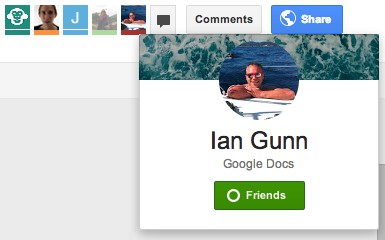
Do you remember the post about the animal icons from Google Drive? They're only displayed for anonymous users ("people who are not given explicit access"). For everyone else, Google will show the Google Profile photo and link to the Google+ page.


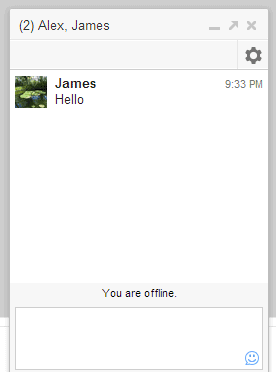
There's also a group chat feature powered by Google Talk/Chat. It's a simplified version of the chat feature from Gmail, Google+, iGoogle and orkut. There's only one chat box that lets you talk with the other signed-in users that edit or just view a document, presentation or any other file. For some reason, it doesn't work in Google Sheets/Spreadsheets.


"To begin a group chat with everyone viewing the document, click the Chat button, which you'll find in the top-right corner of your window. A chat box will appear at the bottom of your file, and everyone who's viewing the document and who's signed in with a Google account will be included in the group chat," explains Google.


The group chat feature from Google Drive doesn't support voice or video chat, conversations aren't saved in Gmail and they're not available in other services that use Google Chat. "If you've chatted in Gmail and Google+, you may have noticed that a chat started in Gmail will carry over into Google+, and vice versa. The same isn't true for chats in Google Drive. Chats you start in Google Drive won't carry over into other Google products, and chats you start in other products won't appear in Google Drive."


{ via Google Drive Blog }