09 April 2013

The Real End Of Clutter: All-In-One Sidebar Brings Everything You Need To Your Sidebar [Firefox]


all in one sidebar for firefoxWhen it comes to browsers, I’m on a constant, head-on war with clutter. If you’ve read some of my previous articles, you already know that I have a terrible case of the multiple-tab and multiple-window syndromes, and that I do what I can to minimize any kind of toolbar clutter, even if it means giving up on certain functions.


As much as I hate clutter, though, I’m only human. And humans need quick access to downloads; humans sometimes need to access bookmarks and history; humans, especially those who try to minimize add-ons, need frequent access to their add-on window; and humans definitely need multiple browser windows. At least some of the time. So how, in the name of the browser Gods, do you get easy access to all these things without going crazy on clutter and add-ons?


The secret lies with an old-timer add-on, which I nonetheless discovered only recently: All-in-One Sidebar for Firefox. We already mentioned this brilliant add-on in How To Load Google Search Results In A Preview Panel (On The Same Page), but this article only touched on a very small part of this add-on’s capabilities. While somewhat similar to Vertical Toolbar, All-in-One Sidebar is much more than a toolbar, making Firefox’s most overlooked feature – the sidebar – actually useful.


The Basics Of All-In-One Sidebar


Ready to give it a try? Head over to the add-on’s page to install it. Once that’s done, you’ll find a new vertical toolbar sitting on the left side of your browser window. All-in-One Sidebar, or AiOS as I will refer to it from now on, comes with many options and features, and finding your way around can be a bit confusing at first. So let’s take it step by step, and see what this add-on has to offer.


all in one sidebar for firefox


AiOS comes in two parts: the toolbar and the sidebar. By default, the toolbar comes with six different icons, which you can customize as you would any Firefox toolbar (right click -> customize). The default buttons are: bookmarks, history, downloads, add-ons, MultiPanel, and page info. Each of these opens the sidebar, giving you easy access to some useful information.


The toolbar itself can be customized too. Right click it to change the buttons’ appearance, and to choose the toolbar’s position relative to the sidebar.


all in one sidebar firefox


Use the button on the top right to toggle the sidebar automatically so it’s never in your way, to open a tab’s content in the sidebar or the sidebar’s content in a tab, and to close the sidebar. Every button on AiOS comes with an informative tooltip, teaching you exactly how to activate each feature.


all in one sidebar firefox


Making Use of The Sidebar


AiOS brings almost every important Firefox feature to the sidebar. Not only do you get quick access to your bookmarks, history, downloads and add-ons, you can also customize the experience to make it even faster. Click on the Tools button to reveal more relevant options for each section. For bookmarks and history, for example, you can have AiOS remember which folder you were looking at last and automatically focus on it, which can be extremely useful, especially for bookmarks.


all in one sidebar firefox


The Downloads section is a real life-saver if, like me, you hate the obscurity of the Firefox downloads window. To get it to be more like Chrome, I’ve been using Download StatusBar for ages now, but AiOS takes care of this by giving you quick access to all your downloads right in the sidebar.


all in one firefox sidebar


You can search within any of the sections to find specific bookmarks, pages you’ve visited, files you’ve download, etc. The search is live, so just start typing to see instant results.


all in one firefox sidebar


When it comes to add-ons, you can search for, install, disable, and remove add-ons right from the sidebar. If you have any Greasemonkey or Stylish scripts installed, you can access these too from the sidebar.


all in one firefox sidebar


The MultiPanel option lets you open two websites side by side, one in the sidebar and one in the main tab. You can change the sidebar’s width to fit your needs, or choose the “Small Screen Rendering” option, if the the website supports it. Using this option, you can have your email tab always visible, easily browse search results, etc. You just have to be creative. You can also bring up detailed page information for any webpage you’re viewing, tweak permissions for specific sites, and more.


aios-10


Each of the available AiOS sections can also be called upon via keyboard shortcuts. Many of these are the same ones you may already be used to from your pre-AiOS days, so there’s not going to be much of a learning curve.


aiod-7


More Options


Want the sidebar to appear on the right? Want to open it with mouse hover instead of click? Or maybe you don’t want downloads to open in the sidebar for some reason? You can tweak almost anything you can think of from the Options (Ctrl+Shift+F4 or “All-in-One Sidebar Options” from the top menu).


aios-11


From here you can also set the sidebar’s default minimum, standard and maximum width, change the keyboard shortcuts, add and remove menu entries, and more. More advances settings are available through the Settings button. All advanced options are marked in red to help you tell the difference.


aios-12


To make sure you won’t lose your settings after spending valuable time tweaking them, you can export them to a TXT file, and import them into the add-on again on a different computer. This is also a great way to back up your settings, just in case. You can even copy your settings to the clipboard.


all in one sidebar for firefox


Bottom Line


I’m not easily impressed with add-ons, but All-in-One Sidebar is an excellent addition to anyone’s Firefox browser. Yes, you shouldn’t install too many browser extensions, but AiOS can easily replace several you’re already using, and comes with so many different functions, I didn’t even come close to describing them all in this post. AiOS feels like an add-on programmed with actual users in mind, and as such, it won’t stop surprising you.


Don’t forget to check out our free Firefox guide for more useful Firefox tips.


Which are your favorite add-ons? What do you think of All-in-One Sidebar?


The post The Real End Of Clutter: All-In-One Sidebar Brings Everything You Need To Your Sidebar [Firefox] appeared first on MakeUseOf.


08 April 2013

How to Stop Flash From Loading Automatically With FlashControl [Chrome]


stop flash from loadingFlash is the hero or the villain depending on which side of the fence you are sitting on. Even a few years back, using Flash in animation was the high point of web creativity, and it was a wonder just gaping at them. HTML5 arrived and we aren’t so awestruck anymore. But Flash is yet to be a dinosaur. It is still very much a part of online games, web applications, Flash forms, file uploaders, Flash music players, and of course – online video. Though, sites like YouTube and Vimeo are gradually going native with HTML5 video players.


There’s some good news and bad news. The bad news is that Flash is not always an animated white angel. The good news is that you can disable it. Why would you want to stop Flash from loading? The reasons are quite a few:


  • Flash is the villain when it comes to ads; glitzy, bandwidth guzzling, in-your-face ads.

  • Frequent plug-in crashes are unwelcome. We did look into ways to resolve problems with Flash on YouTube.

  • Flash plug-ins have been known to cause browser slowdowns and crashes.

  • Flash cookies or local shared objects are a privacy concern.


Stop Flash from Loading in Google Chrome – The Default Way


Chrome bundles a Flash player with its default installation. You can go into the Settings and disable all plug-ins including the Flash plug-in. The ‘Click to play’ feature of Chrome can solve your browser crashes and slowdowns by deactivating Flash, Silverlight or Java plug-ins.


You can take the Settings – Show Advanced Settings – Content Settings – Plug-ins route. Select Click to play or Block all. You can also Manage Exceptions by entering the URLs of the websites where you want the plug-ins to work. Click to play gives the user control over when the plug-ins should be run. You can click the blocked area on the webpage to load the plug-ins selectively.


stop flash from loading


If you want to disable only the Flash plug-in, click on Disable individual plug-ins… and then in the following screen, click the link to disable it.


stop flash loading chrome


A faster way to reach the same plug-ins page as above is to type chrome:plugins in the address bar. To disable Adobe Flash Player, click the disable link under its name. Click it again to re-activate it.


But there is an even better way to master your control over irksome Flash videos on websites. As usual we turn to a handy Chrome extension called FlashControl .


Using FlashControl – A More Powerful Way


There are many ways (and quite a few browser extensions) to keep a check on Flash. Muting sounds in webpages with embedded audio or Flash is one thing you can look into to save your eardrums. But what we are looking to do here is to block Flash by default or selectively enable it when and where we want.


FlashControl helps to address many of the situations that we discussed above, perhaps the most annoying of which I find to be the auto-playing Flash ads. FlashControl is a Chrome extension that uses blacklists and whitelists for selectively blocking and unblocking Flash content. As the extensions defines itself – the main feature is the ability to re-block Flash without refreshing webpages, which means you can reclaim memory and reduce CPU usage on demand.


stop flash loading chrome


After installing the extension, the FlashControl icon is displayed on any site with Flash content. By default, all sites are on the blacklist i.e. Flash is disabled by default. One of the highlights of this extension is the ease with which it lets you configure which sites to include or exclude on the fly. As you can see below in the screenshot, I land on a site like Nat Geo and see all Flash videos disabled by default including the Flash advertisement video on the right.


stop flash loading chrome


I simply have to click on the blanked out video space to make it active and start playing. Great sites like NatGeo and YouTube run a lot on Flash, so it’s better that I whitelist the site to save myself from repeatedly clicking on the greyed out spaces. If this is the first time you have come across these terms, let me explain – Whitelist is a list of sites that have been allowed a privilege (e.g. allowed to run Flash). A Blacklist is just the opposite…they have been denied the permission.


stop loading flash


FlashControl seems to be simple and minimalistic from the icon on the Omnibar. But click on Preferences to display the Simple Interface. This doesn’t tell you much except that you can change the default behavior.


stop loading flash


Select the Advanced Interface to bring all of FlashControl’s features out into the open:


stop loading flash


Key Features of FlashControl


1. Power management option allows you to stop Flash from loading when a computer is not in use. You can specify the interval.


You can configure FlashControl to disable Flash completely when tabs are in the background and inactive. When you bring them in focus, Flash is automatically activated.


2. The Filter Manager supports wildcards and regular expressions. The Filter Manager works in three dimensions –


stop flash from loading


  • You can filter all Flash elements on a website. For e.g. a specific website or webpage is persistent with its noise Flash ads.

  • You can filter some Flash elements on a website. For e.g. you can block the ads while allow the video player or a chat box to load.

  • You can selectively filter some or all Flash elements that originate from a common source. For e.g. you can block a specific advertisement provider used by multiple websites.


You can simply use the FlashControl buttons from the Omnibar. But if you really want realize the Chrome extension’s power, you have to get down and dirty with the Filter Manager and Resources Panel. FlashControl uses pattern matching, wildcards and regular expressions to put all Flash embeds through a sieve. Find the detailed and well-explained how-to on the extension’s Wiki Page.


Your Browser – A More Peaceful Place?


FlashControl will remind you of another extension we had covered a while back. FlashBlock had a similar content-filtering purpose of blocking Flash videos during a browsing session. FlashControl is more powerful and flexible. I did not notice any bugs in the last few days I used it. Personally the filter managers allow me to selectively apply Flash blocking on sites which are far too intrusive with their auto-play Flash ads. I do not advocate the complete block of internet ads because it is the umbilical cord which sustains all the free knowledge we get.


Flash Control gives me more options and a precision weapon to take on disrupting Flash videos. What about you – do you consciously disable Flash? Have you tried FlashControl or anything similar? What is your take on the options it offers? Or readers have already recommended FlashControl on our Best Chrome Extensions page. Your vote will only bolster it more.


The post How to Stop Flash From Loading Automatically With FlashControl [Chrome] appeared first on MakeUseOf.


From FAT To NTFS To ZFS: File Systems Demystified [MakeUseOf Explains]


file systemsDo you really know what your hard drive does whenever you read a file from it or write one to it? Our hard drives can now store massive amounts of data, and that massive space requires a high level of organization in order to prevent issues and maintain performance. Hard drives can be well organized through the use of file systems, which operating systems usually set up before installing themselves onto your system.


But, as you might guess, there’s more than one file system. So what file systems are out there, what do they do, and what are their differences?


FAT


The most common file system in the entire world of computing is File Allocation Table, or simply FAT, and is developed by Microsoft. It has been around for quite a while, and has received updates in the forms of FAT16 and FAT32, although generally they’re all just called FAT. Out of all the major file systems, FAT is by far the simplest and can only hold files with sizes up to 4GB each. It uses a linked list structure, and is therefore not a “journaling” file system. It is rarely found on hard drives anymore, but almost always on removable media such as USB drives and SD cards. Virtually all operating systems have support for FAT file systems, so it is readable on any device. It’s also very easy to format a drive to FAT.


NTFS


file systems

NTFS, or New Technology File System, is the next-generation file system developed by Microsoft. Its structure is more complex, and has been used for Microsoft’s operating systems starting with Windows XP. It is a “journaling” file system, meaning that it keeps records of all operations on the device. This journal can help detect errors and recover from them for instances such as drive failure or a power outage. Files up to 16 TB each are supported, with maximum volume sizes up to 256 TB. While not quite as universal as FAT, it can still be read on all major operating systems with ease. NTFS is best suited for hard drives and other not-easily-removable media, although removable media can still technically be formatted with this file system.


You can also look up more information about the advantages of NTFS over FAT.


HFS+


HFS+ is a file system developed by Apple for use on their Macintosh computers. It uses the same type of structures for its file allocation as NTFS, but the two file systems are not compatible. The file system is able to support files and volumes of up to just over a million terabytes. It is also a “journaling” file system, allowing easier recovery when errors occur. As it is meant for Macintosh computers, it is only found on hard drives within those systems. Mac OS X and Linux are able to use the file system, but Windows is not.


ext4


how file systems work

ext4 is the currently most-used file system for Linux systems. It is the successor to both ext2 and ext3, and includes some performance increases using different techniques. It is also a “journaling” file system. ext4 is meant for hard drives, so they do not appear on removable media because of its properties as well as its lack of widespread use. It is able to support files up to 16 TiB and volumes up to 1 EiB. Because ext4 is backwards compatible with ext2 and ext3, people can mount such volumes as an ext4 volume to get a slight performance increase thanks to a different allocation algorithm on the software end. Windows users are able to at least get read access to ext file systems with Ext2Read.


Additionally, if you’re new to Linux, you can check out our awesome guide on getting started.


btrfs


btrfs, pronounced “B-Tree FS”, “Better FS”, or “Butter FS”, is an upcoming file system for Linux distributions which aims to fix many of the issues found in the older ext file system series. The file system is also a “journaling” file system. Some differences include a maximum file and volume size of 16 EiB, as well as capabilities of data pooling (spanning the file system across multiple physical hard drives), nanosecond time resolution, snapshots, transparent compression, transparent encryption, and data deduplication. At least for now, the only operating system which supports btrfs is Linux, and it is currently considered unstable. It’s predicted that btrfs will eventually replace ext4, and this article explains why.


ZFS


file systems

ZFS is a file system which is known only in the Unix world. With support for files and volumes of up to 16 Exabytes, ZFS isn’t known for performance but supports plenty of great features such as data corruption protection, combination of file system and volume management concepts (including pooling), snapshots, transparent compression, transparent encryption, and data deduplication. It is considered stable since 2005, however, and is supported with Mac OS X 10.5 Server, Linux, and other smaller Unix-like operating systems. While it seems similar to btrfs, ZFS doesn’t promise the same performance as btrfs. ZFS is also more common in enterprise environments than it is in homes.


Conclusion


More likely than not, you’ll run into these 6 file systems at some point in your life. As you can see, these all have their different advantages, including operating system support, size and volume sizes, and file system-specific functions such as compression and encryption. Therefore, the choice is up to you which file system you’d like to use, depending on what your usage is like, what media you’re considering, and what operating system you use. While choosing a file system doesn’t seem to make much of a difference, choosing the right one can make your experience better.


What file systems do you use, and which are your favorite? What file system features do you like the most? Let us know in the comments!


Image Credit: William Hook, Andy Ciordia, Jemimus


The post From FAT To NTFS To ZFS: File Systems Demystified [MakeUseOf Explains] appeared first on MakeUseOf.


From FAT To NTFS To ZFS: File Systems Demystified [MakeUseOf Explains]


file systemsDo you really know what your hard drive does whenever you read a file from it or write one to it? Our hard drives can now store massive amounts of data, and that massive space requires a high level of organization in order to prevent issues and maintain performance. Hard drives can be well organized through the use of file systems, which operating systems usually set up before installing themselves onto your system.


But, as you might guess, there’s more than one file system. So what file systems are out there, what do they do, and what are their differences?


FAT


The most common file system in the entire world of computing is File Allocation Table, or simply FAT, and is developed by Microsoft. It has been around for quite a while, and has received updates in the forms of FAT16 and FAT32, although generally they’re all just called FAT. Out of all the major file systems, FAT is by far the simplest and can only hold files with sizes up to 4GB each. It uses a linked list structure, and is therefore not a “journaling” file system. It is rarely found on hard drives anymore, but almost always on removable media such as USB drives and SD cards. Virtually all operating systems have support for FAT file systems, so it is readable on any device. It’s also very easy to format a drive to FAT.


NTFS


file systems

NTFS, or New Technology File System, is the next-generation file system developed by Microsoft. Its structure is more complex, and has been used for Microsoft’s operating systems starting with Windows XP. It is a “journaling” file system, meaning that it keeps records of all operations on the device. This journal can help detect errors and recover from them for instances such as drive failure or a power outage. Files up to 16 TB each are supported, with maximum volume sizes up to 256 TB. While not quite as universal as FAT, it can still be read on all major operating systems with ease. NTFS is best suited for hard drives and other not-easily-removable media, although removable media can still technically be formatted with this file system.


You can also look up more information about the advantages of NTFS over FAT.


HFS+


HFS+ is a file system developed by Apple for use on their Macintosh computers. It uses the same type of structures for its file allocation as NTFS, but the two file systems are not compatible. The file system is able to support files and volumes of up to just over a million terabytes. It is also a “journaling” file system, allowing easier recovery when errors occur. As it is meant for Macintosh computers, it is only found on hard drives within those systems. Mac OS X and Linux are able to use the file system, but Windows is not.


ext4


how file systems work

ext4 is the currently most-used file system for Linux systems. It is the successor to both ext2 and ext3, and includes some performance increases using different techniques. It is also a “journaling” file system. ext4 is meant for hard drives, so they do not appear on removable media because of its properties as well as its lack of widespread use. It is able to support files up to 16 TiB and volumes up to 1 EiB. Because ext4 is backwards compatible with ext2 and ext3, people can mount such volumes as an ext4 volume to get a slight performance increase thanks to a different allocation algorithm on the software end. Windows users are able to at least get read access to ext file systems with Ext2Read.


Additionally, if you’re new to Linux, you can check out our awesome guide on getting started.


btrfs


btrfs, pronounced “B-Tree FS”, “Better FS”, or “Butter FS”, is an upcoming file system for Linux distributions which aims to fix many of the issues found in the older ext file system series. The file system is also a “journaling” file system. Some differences include a maximum file and volume size of 16 EiB, as well as capabilities of data pooling (spanning the file system across multiple physical hard drives), nanosecond time resolution, snapshots, transparent compression, transparent encryption, and data deduplication. At least for now, the only operating system which supports btrfs is Linux, and it is currently considered unstable. It’s predicted that btrfs will eventually replace ext4, and this article explains why.


ZFS


file systems

ZFS is a file system which is known only in the Unix world. With support for files and volumes of up to 16 Exabytes, ZFS isn’t known for performance but supports plenty of great features such as data corruption protection, combination of file system and volume management concepts (including pooling), snapshots, transparent compression, transparent encryption, and data deduplication. It is considered stable since 2005, however, and is supported with Mac OS X 10.5 Server, Linux, and other smaller Unix-like operating systems. While it seems similar to btrfs, ZFS doesn’t promise the same performance as btrfs. ZFS is also more common in enterprise environments than it is in homes.


Conclusion


More likely than not, you’ll run into these 6 file systems at some point in your life. As you can see, these all have their different advantages, including operating system support, size and volume sizes, and file system-specific functions such as compression and encryption. Therefore, the choice is up to you which file system you’d like to use, depending on what your usage is like, what media you’re considering, and what operating system you use. While choosing a file system doesn’t seem to make much of a difference, choosing the right one can make your experience better.


What file systems do you use, and which are your favorite? What file system features do you like the most? Let us know in the comments!


Image Credit: William Hook, Andy Ciordia, Jemimus


The post From FAT To NTFS To ZFS: File Systems Demystified [MakeUseOf Explains] appeared first on MakeUseOf.


How To Install Themes In Windows 7 Starter And Home Basic Editions


CLICK HERE TO SEE FULL POST


As you may know, Windows 7 is available in six different editions: Starter, Home Basic, Home Premium, Professional, Enterprise, and Ultimate. Of all these editions, Starter and Home Basic editions lack many features as well as personalization options. If you’ve spent any significant amount of time with Home Basic or Starter edition of Windows 7, [...]

A Podcast Directory Integrated with Dropbox and Google Drive


With Podcast Gallery, you can watch or listen to your favorite podcasts online in the browser itself. You can also send podcast episodes to your Dropbox or Google Drive accounts via the cloud itself.


Tweet this Share on Facebook


Digital Inspiration @labnol This story, A Podcast Directory Integrated with Dropbox and Google Drive, was originally published at Digital Inspiration on 08/04/2013 under Dropbox, Google Drive, Podcasts, Internet.


Download 7-Zip For Windows RT


CLICK HERE TO SEE FULL POST


Almost every file that we download from the web these days has been compressed to decrease the file size and save the bandwidth. Because of this, almost all computer users install file archiving utility after installing Windows operating system. And when it comes to file archiving tools, Windows users have a couple of free and [...]

Change Your Homepage When Creating a Google Account


Internet Explorer is the only important browser that doesn't use Google as the default search engine, so Google tries to convince users to install Google Toolbar, switch to Chrome or at least set Google.com as the browser's homepage.


When you create a Google account in Internet Explorer, there's a weird option: "Set Google as my default homepage" and it's enabled by default. After filling out the form and clicking "Next step", you should see a browser dialog that asks if you really want a new homepage.


It's a strange option to add in a "sign up" form and it has nothing to do with creating a Google account. Google already prompts you to set Google.com as your homepage when you visit Google.com in IE and it even shows ads that send you to this landing page.


Create a Google Account Without a Gmail Address


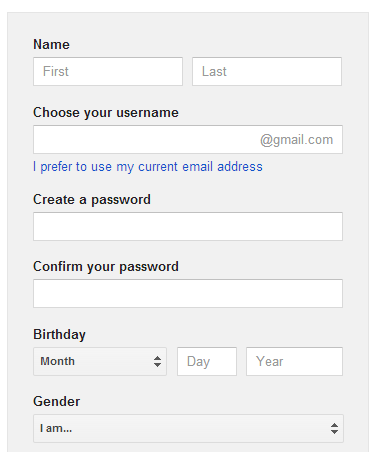
Last year, I wrote a post about a new sign up form that created a Gmail account, a Google profile and a Google+ account instead of a simple Google account. At that time, the updated form was available when you clicked "sign in" and then "sign up" from Google's homepage, but now it's displayed for many more Google services (some exceptions: Google Calendar, Google Books, Google Wallet, Google Finance, AdSense).


It's interesting to notice that the only Google service that uses the new form and lets you use your own email address is Google Drive. You just click "I prefer to use my current email address" and skip creating a Gmail account. Here's the link to this version of the form: https://accounts.google.com/SignUpWithoutGmail.


You can also use URLs like: https://accounts.google.com/NewAccount?service=cl to see the old form.


{ Thanks, Herin. }


07 April 2013

Why Gmail Redesigned the Compose Interface


Many people complained about the new UI for composing messages in Gmail, others found it useful, but it's interesting to know what's the main goal of the new interface. I initially thought that Google wanted make it easier to use other Gmail features while you're composing a message, but an article from Co.Design suggests something else.


What it looks like, really, is a slightly oversized version of Gchat. And that's no accident. Google's actively trying to make email less fussy and formal--or, in other words, to make it a little more like instant messaging. And as Jason Cornwell, Gmail's lead designer, explains, one of the ways to do that is simply to 'give you permission to write shorter messages.' (...) Picture the standard full-screen compose window. The one that gives you a dauntingly huge text box to fill and an array of options for formatting whatever you manage to put in it. What that really looks like, with its button-strewn toolbar, is an empty word processor--and according to Cornwell, what it communicates to users is this: 'Write something long. It was a space that was sort of intimidating, I think, to write a message like "Hey, wanna get lunch?"' he explains. 'We wanted the new compose to facilitate these quicker messages. Or at least make it a space where that felt appropriate.


Gmail's lead designer says that "a very small percentage of emails involve a formatting action," so that's the reason why you need two clicks instead of only one click to make text bold. Once you click the "formatting options" button, the bar stays open, so you can use other features without an additional click.


Co.Design argues that Gmail now competes with SMS, instant messaging and social networks, so Google had to simplify the interface "to keep up with the times".


The old interface:


The new interface: